mirror of
https://github.com/Dichgrem/Blog.git
synced 2025-12-18 14:11:59 -05:00
Compare commits
69 Commits
51feef5fd8
...
main
| Author | SHA1 | Date | |
|---|---|---|---|

|
3074cce943 | ||
|
|
7a2a62ca81 | ||
|
|
fc214b99ea | ||
|
|
a14f07559d | ||
|
|
885e428b34 | ||
|
|
784cceb48a | ||
|
|
8adb0f14ef | ||
|
|
845850871a | ||
|
|
f59ce84988 | ||
|
|
d80a243878 | ||
|
|
9d0fc8768a | ||
|
|
08cebea624 | ||
|
|
171d867f21 | ||
|
|
1f325ce9a3 | ||
|
|
c5ff247d7e | ||
|
|
7ba1088bc2 | ||
|
|
0fe644e4b7 | ||
|
|
faf43c3e1c | ||
|
|
4f48f01b73 | ||
|
|
d532bb0513 | ||
|
|
f8247b7b65 | ||
|
|
b8bc69f0cb | ||
|
|
1be2f70fd6 | ||
|
|
22e848ef8b | ||
|
|
01cbcbf9ee | ||
|
|
63ea6e613b | ||
|
|
290570c778 | ||
|
|
5899eff867 | ||
|
|
8e2f579ed7 | ||
|
|
b88b56879d | ||
|
|
981ac7358a | ||
|
|
fa8f570549 | ||
|
|
baeda9f1f2 | ||
|
|
9fad7502a3 | ||
|
|
b407b86945 | ||
|
|
d7d9103e4d | ||
|
|
98728f35b2 | ||
|
|
fd06c5a402 | ||
|
|
a33789bb25 | ||
|
|
a49713d90f | ||
|
|
8147523c19 | ||
|
|
a8a1f8e1a9 | ||
|
|
bebfe13851 | ||
|
|
a910695a09 | ||
|
|
d217308abc | ||
|
|
f1659ca18a | ||
|
|
dd808adc38 | ||
|
|
f0cbca1045 | ||
|
|
f6543a51df | ||
|
|
b0c2825c6b | ||
|
|
ca222a05e8 | ||
|
|
e9b3d1407b | ||
|
|
39282f6184 | ||
|
|
69d74d0de3 | ||
|
|
2818f64dd3 | ||
|
|
19fa0be7d6 | ||
|
|
534104b60c | ||
|
|
ca0c9fc210 | ||
|
|
2f77984240 | ||
|
|
e1fb8ecee6 | ||
|
|
3e03623d57 | ||
|
|
d25fc202b4 | ||
|
|
d11e75dd3e | ||
|
|
fe9343dea7 | ||
|
|
f75b90ee08 | ||
|
|
6fc01e7a9d | ||
|
|
3866b3b27c | ||
|
|
c74cf1bb3f | ||
|
|
51998fa861 |
42
.github/workflows/build.yml
vendored
Normal file
42
.github/workflows/build.yml
vendored
Normal file
@@ -0,0 +1,42 @@
|
||||
name: Blog CI (Zola)
|
||||
|
||||
on:
|
||||
push:
|
||||
branches:
|
||||
- main
|
||||
|
||||
jobs:
|
||||
build:
|
||||
runs-on: ubuntu-latest
|
||||
|
||||
steps:
|
||||
- name: Checkout
|
||||
uses: actions/checkout@v4
|
||||
with:
|
||||
fetch-depth: 0
|
||||
|
||||
- name: Install Zola
|
||||
uses: taiki-e/install-action@v2
|
||||
with:
|
||||
tool: zola
|
||||
|
||||
- name: Install Pagefind
|
||||
run: |
|
||||
wget https://github.com/Pagefind/pagefind/releases/download/v1.4.0/pagefind-v1.4.0-x86_64-unknown-linux-musl.tar.gz
|
||||
tar xvf pagefind-v1.4.0-x86_64-unknown-linux-musl.tar.gz
|
||||
sudo mv pagefind /usr/local/bin/
|
||||
|
||||
- name: Build Zola
|
||||
run: zola build
|
||||
|
||||
- name: Build Pagefind
|
||||
run: pagefind --site public --root-selector body
|
||||
|
||||
- name: Push public to dist
|
||||
uses: peaceiris/actions-gh-pages@v3
|
||||
with:
|
||||
github_token: ${{ secrets.GITHUB_TOKEN }}
|
||||
publish_dir: ./public
|
||||
publish_branch: dist
|
||||
force_orphan: true
|
||||
|
||||
@@ -120,7 +120,7 @@ DKIM (DomainKeys Identified Mail) 的缩写,允许发送者通过在邮件的
|
||||
|
||||
经过了 SPF 和 DKIM 的保证,是不是就可以完美的发送接收邮件了?其实并不能,我们通过邮件后台来看一下邮件的原始文本。
|
||||
|
||||
````
|
||||
````bash
|
||||
MIME-Version: 1.0
|
||||
Return-Path: xxx@fake.com
|
||||
DKIM-Signature: d=fake.com,b=adceabkekd12
|
||||
|
||||
@@ -13,15 +13,15 @@ tags = ["Network"]
|
||||
## VPS上的配置
|
||||
|
||||
### 修改VPS hostname
|
||||
```
|
||||
```bash
|
||||
hostnamectl set-hostname mail.your-domain.com
|
||||
```
|
||||
### 修改hosts文件
|
||||
```
|
||||
```bash
|
||||
vim /etc/hosts
|
||||
```
|
||||
添加一行
|
||||
```
|
||||
```bash
|
||||
127.0.1.1 localhost.localdomain mail.your-domain.com
|
||||
```
|
||||
|
||||
@@ -30,7 +30,7 @@ vim /etc/hosts
|
||||
|
||||
docker compose文件示例:
|
||||
|
||||
```
|
||||
```yaml
|
||||
version: '3.7'
|
||||
|
||||
services:
|
||||
|
||||
@@ -68,7 +68,7 @@ nexttrace --queries 3 --parallel-requests 4 example.com
|
||||
nexttrace --table --no-rdns www.example.org
|
||||
```
|
||||
### 示例
|
||||
```
|
||||
```bash
|
||||
❯ nexttrace 38.207.170.5x
|
||||
NextTrace v1.4.0 2025-04-16T01:10:07Z dccc41b
|
||||
[NextTrace API] preferred API IP - 198.18.0.61 - 601.41ms - 🐠 (Relay) → Misaka.HKG
|
||||
|
||||
@@ -36,7 +36,7 @@ Aria2 有以下几个特点:
|
||||
首先下载[aria2-1.37.0-win-64bit-build1.zip](https://github.com/aria2/aria2/releases/tag/release-1.37.0),将下载好的文件解压并放到你喜欢的目录下,设置系统环境变量,类似``D:\DATA\Data\AriaNg-1.3.10-AllInOne``,随后即可在 CMD 中使用``aria2c -v``查看Aria2 。
|
||||
|
||||
然后创建一个配置文件``C:\Users\<你>\.aria2\aria2.conf``,内容如下:
|
||||
```
|
||||
```conf
|
||||
# 下载目录
|
||||
dir=C:/Users/<你>/Downloads
|
||||
|
||||
@@ -53,7 +53,7 @@ rpc-secret=<你的密码>
|
||||
```
|
||||
随后在这个项目中[winsw](https://github.com/winsw/winsw)下载 WinSW-x64.exe到一个目录,并重命名为 aria2-service.exe,并在同目录下创建``aria2-service.xml``,内容如下:
|
||||
|
||||
```
|
||||
```xml
|
||||
<service>
|
||||
<id>aria2</id>
|
||||
<name>Aria2 Service</name>
|
||||
@@ -71,16 +71,16 @@ rpc-secret=<你的密码>
|
||||
Arch linux 和大部分常规发行版可以适用此方法。
|
||||
|
||||
首先安装aria2本体:
|
||||
```
|
||||
```bash
|
||||
paru -S aria2
|
||||
```
|
||||
随后创建配置文件
|
||||
```
|
||||
```bash
|
||||
nano /home/<you-username>/.config/aria2/aria2.conf
|
||||
```
|
||||
|
||||
内容为
|
||||
```
|
||||
```conf
|
||||
enable-rpc=true
|
||||
rpc-listen-all=true
|
||||
rpc-allow-origin-all=true
|
||||
@@ -92,11 +92,11 @@ save-session=/home/<you-username>/.config/aria2/aria2.session
|
||||
save-session-interval=60
|
||||
```
|
||||
保存退出;随后创建守护进程以便开机自启动:
|
||||
```
|
||||
```bash
|
||||
nano ~/.config/systemd/user/aria2.service
|
||||
```
|
||||
写入:
|
||||
```
|
||||
```conf
|
||||
[Unit]
|
||||
Description=Aria2 Daemon
|
||||
After=network.target
|
||||
@@ -110,18 +110,18 @@ WantedBy=default.target
|
||||
```
|
||||
|
||||
在更新配置文件和服务文件后,执行以下命令以重启服务:
|
||||
```
|
||||
```bash
|
||||
systemctl --user daemon-reload
|
||||
systemctl --user enable aria2.service
|
||||
systemctl --user start aria2.service
|
||||
```
|
||||
使用以下命令检查服务状态:
|
||||
```
|
||||
```bash
|
||||
systemctl --user status aria2.service
|
||||
```
|
||||
### Nixos
|
||||
|
||||
```
|
||||
```nix
|
||||
{ lib, pkgs, username, ... }:
|
||||
{
|
||||
services.aria2.enable = false;
|
||||
@@ -151,6 +151,7 @@ systemctl --user status aria2.service
|
||||
};
|
||||
}
|
||||
```
|
||||
|
||||
## 命令行用法
|
||||
|
||||
如果你不想用浏览器插件或者面板,也可以直接使用命令行操作:
|
||||
|
||||
@@ -182,7 +182,7 @@ Netlify在考虑到CDN成本以及可用性的情况下选择了以下这些地
|
||||
> 需要注意的是有些CDN的回源IP并不用作节点IP,比如Cloudflare的回源IP仅作回源IP使用,如果要获取Cloudflare的节点IP,可前往https://bgp.tools/as/13335#prefixes。而有些CDN的回源IP同时被用作CDN节点,比如BunnyCDN和Gcore CDN。
|
||||
|
||||
Cloudflare
|
||||
```
|
||||
```bash
|
||||
# https://www.cloudflare.com/ips-v4
|
||||
103.21.244.0/22
|
||||
103.22.200.0/22
|
||||
@@ -210,45 +210,45 @@ Cloudflare
|
||||
2c0f:f248::/32
|
||||
```
|
||||
Gcore
|
||||
```
|
||||
```bash
|
||||
https://api.gcore.com/cdn/public-ip-list
|
||||
```
|
||||
BunnyCDN
|
||||
```
|
||||
```bash
|
||||
https://api.bunny.net/system/edgeserverlist
|
||||
https://api.bunny.net/system/edgeserverlist/plain
|
||||
```
|
||||
Cloudfront
|
||||
```
|
||||
```bash
|
||||
https://d7uri8nf7uskq.cloudfront.net/tools/list-cloudfront-ips
|
||||
https://files.imunify360.com/static/whitelist/v2/cloudfront-cdn.txt
|
||||
```
|
||||
CDN77
|
||||
```
|
||||
```bash
|
||||
https://files.imunify360.com/static/whitelist/v2/cdn77.txt
|
||||
```
|
||||
Fastly
|
||||
```
|
||||
```bash
|
||||
https://api.fastly.com/public-ip-list
|
||||
```
|
||||
Keycdn
|
||||
```
|
||||
```bash
|
||||
https://www.keycdn.com/shield-prefixes.json
|
||||
```
|
||||
quic.cloud
|
||||
```
|
||||
```bash
|
||||
https://quic.cloud/ips
|
||||
```
|
||||
Google CDN
|
||||
```
|
||||
```bash
|
||||
https://files.imunify360.com/static/whitelist/v2/google-cdn.txt
|
||||
```
|
||||
CacheFly
|
||||
```
|
||||
```bash
|
||||
https://cachefly.cachefly.net/ips/cdn.txt
|
||||
```
|
||||
Akaima
|
||||
```
|
||||
```bash
|
||||
https://techdocs.akamai.com/origin-ip-acl/docs/update-your-origin-server
|
||||
```
|
||||
---
|
||||
|
||||
@@ -13,7 +13,7 @@ tags = ["Network"]
|
||||
|
||||
这里以Debian12为例:
|
||||
- 官方安装脚本:
|
||||
```
|
||||
```bash
|
||||
curl -fsSL https://get.docker.com -o get-docker.sh
|
||||
sudo sh get-docker.sh
|
||||
```
|
||||
@@ -21,31 +21,31 @@ sudo sh get-docker.sh
|
||||
|
||||
使用以下命令安装此方法的先决条件:
|
||||
|
||||
````
|
||||
````bash
|
||||
sudo apt update && sudo apt install ca-certificates curl gnupg
|
||||
````
|
||||
|
||||
创建一个目录来存储密钥环:
|
||||
|
||||
````
|
||||
````bash
|
||||
sudo install -m 0755 -d /etc/apt/keyrings
|
||||
````
|
||||
|
||||
使用给定的命令下载 GPG 密钥并将其存储在 `/etc/apt/keyrings/etc/apt/keyrings` 目录中:
|
||||
|
||||
````
|
||||
````bash
|
||||
curl -fsSL https://download.docker.com/linux/debian/gpg | sudo gpg --dearmor -o /etc/apt/keyrings/docker.gpg
|
||||
````
|
||||
|
||||
使用 chmod 命令更改 docker.gpg 文件的权限:
|
||||
|
||||
````
|
||||
````bash
|
||||
sudo chmod a+r /etc/apt/keyrings/docker.gpg
|
||||
````
|
||||
|
||||
使用以下命令为 Docker 设置存储库:
|
||||
|
||||
````
|
||||
````bash
|
||||
echo \
|
||||
"deb [arch="$(dpkg --print-architecture)" signed-by=/etc/apt/keyrings/docker.gpg] https://download.docker.com/linux/debian \
|
||||
"$(. /etc/os-release && echo "$VERSION_CODENAME")" stable" | \
|
||||
@@ -53,7 +53,7 @@ echo \
|
||||
````
|
||||
现在可以使用以下命令更新存储库索引并安装 Docker:
|
||||
|
||||
````
|
||||
````bash
|
||||
sudo apt update && sudo apt-get install docker-ce docker-ce-cli containerd.io docker-buildx-plugin docker-compose-plugin
|
||||
````
|
||||
|
||||
@@ -177,34 +177,34 @@ sudo apt update && sudo apt-get install docker-ce docker-ce-cli containerd.io do
|
||||
> 删除所有 Docker 容器和 Docker 本身
|
||||
|
||||
1. 首先停止所有正在运行的容器:
|
||||
```
|
||||
```bash
|
||||
docker stop $(docker ps -aq)
|
||||
```
|
||||
2. 删除所有容器
|
||||
|
||||
删除所有容器(包括停止的容器):
|
||||
```
|
||||
```bash
|
||||
docker rm $(docker ps -aq)
|
||||
```
|
||||
3. 删除所有镜像
|
||||
|
||||
```
|
||||
```bash
|
||||
docker rmi $(docker images -q)
|
||||
```
|
||||
4. 删除所有网络
|
||||
|
||||
```
|
||||
```bash
|
||||
docker network prune -f
|
||||
```
|
||||
5. 删除所有未使用的卷
|
||||
|
||||
```
|
||||
```bash
|
||||
docker volume prune -f
|
||||
```
|
||||
6. 卸载 Docker
|
||||
|
||||
如果您希望完全删除 Docker 本身,可以执行以下命令:
|
||||
```
|
||||
```bash
|
||||
sudo apt-get purge docker-ce docker-ce-cli containerd.io
|
||||
sudo apt-get autoremove --purge
|
||||
sudo rm -rf /var/lib/docker
|
||||
@@ -221,7 +221,7 @@ sudo rm -rf /etc/docker
|
||||
- 方法:创建两个 docker-compose 文件,并``使用同一个外部 Docker 网络``使两个服务互联。
|
||||
|
||||
0. 首先``创建好工作目录``,例如:
|
||||
```
|
||||
```bash
|
||||
.
|
||||
└── docker
|
||||
├── docker-compose.nginx.yml
|
||||
@@ -234,13 +234,13 @@ sudo rm -rf /etc/docker
|
||||
```
|
||||
|
||||
1. 在启动服务前,首先创建一个 Docker 外部网络(例如命名为 nginx):
|
||||
```
|
||||
```bash
|
||||
docker network create nginx
|
||||
```
|
||||
这样,无论是哪个 docker-compose 项目中的容器,只要加入此网络,就能直接通信。
|
||||
|
||||
2. 编写 searxng 的 docker-compose 文件
|
||||
```
|
||||
```yaml
|
||||
version: '3'
|
||||
|
||||
services:
|
||||
@@ -268,7 +268,7 @@ networks:
|
||||
3. 编写 Nginx 的 docker-compose 文件
|
||||
|
||||
创建 nginx 的 docker-compose 文件,例如:
|
||||
```
|
||||
```yaml
|
||||
version: '3'
|
||||
|
||||
services:
|
||||
@@ -291,7 +291,7 @@ networks:
|
||||
external: true
|
||||
```
|
||||
4. 编写 Nginx 配置文件
|
||||
```
|
||||
```conf
|
||||
server {
|
||||
listen 80;
|
||||
server_name searxng.dich.bid;
|
||||
@@ -320,11 +320,11 @@ server {
|
||||
5. 启动服务
|
||||
|
||||
- 启动 searxng 服务:
|
||||
```
|
||||
```bash
|
||||
docker-compose -f docker-compose.searxng.yml up -d
|
||||
```
|
||||
- 启动 nginx 服务:
|
||||
```
|
||||
```bash
|
||||
docker-compose -f docker-compose.nginx.yml up -d
|
||||
```
|
||||
由于两者都加入了外部网络 nginx,nginx 内的``proxy_pass http://searxng:8080``就能解析到 searxng 容器,实现反向代理效果。现在,访问``http://ip:18080``就可以访问Searxng搜索引擎。
|
||||
@@ -337,7 +337,7 @@ docker-compose -f docker-compose.nginx.yml up -d
|
||||
1. 证书生成
|
||||
|
||||
- 如果只是用于测试可以生成自签名证书:
|
||||
```
|
||||
```bash
|
||||
mkdir -p /home/dich/docker/nginx/certs
|
||||
openssl req -x509 -nodes -days 365 -newkey rsa:2048 \
|
||||
-keyout /home/dich/docker/nginx/certs/privkey.pem \
|
||||
@@ -346,7 +346,7 @@ openssl req -x509 -nodes -days 365 -newkey rsa:2048 \
|
||||
```
|
||||
|
||||
2. 更改searxng.conf:
|
||||
```
|
||||
```conf
|
||||
server {
|
||||
listen 443 ssl;
|
||||
server_name searxng.dich.bid;
|
||||
@@ -385,7 +385,7 @@ server {
|
||||
```
|
||||
|
||||
3. 更改docker-compose.nginx.yml
|
||||
```
|
||||
```yaml
|
||||
version: '3'
|
||||
|
||||
services:
|
||||
@@ -412,11 +412,11 @@ networks:
|
||||
4. 启动新配置
|
||||
|
||||
- 重启容器
|
||||
```
|
||||
```bash
|
||||
sudo docker compose -f docker-compose.nginx.yml up -d
|
||||
```
|
||||
- 查看日志
|
||||
```
|
||||
```bash
|
||||
sudo docker logs searxng
|
||||
```
|
||||
## Caddy
|
||||
@@ -424,7 +424,7 @@ sudo docker logs searxng
|
||||
> Caddy 自 2015 年起用 Go 语言重写,定位为“开箱即用”的现代 Web 服务器,内置自动 Let’s Encrypt 证书管理和续期,默认支持 HTTP/2 及 HTTP/3(QUIC),并通过简洁明了的 Caddyfile 语法极大降低配置成本.
|
||||
|
||||
0. 示例结构:
|
||||
```
|
||||
```bash
|
||||
.
|
||||
└── compose
|
||||
├── certs
|
||||
@@ -437,11 +437,11 @@ sudo docker logs searxng
|
||||
└── Caddyfile
|
||||
```
|
||||
1. 同样创建名为Caddy的docker网络:
|
||||
```
|
||||
```bash
|
||||
docker network create caddy
|
||||
```
|
||||
2. 编写Caddy的compose,可以看到caddy可以自带签发证书:
|
||||
```
|
||||
```yaml
|
||||
version: '3.7'
|
||||
|
||||
# 自动签发模式
|
||||
@@ -498,7 +498,7 @@ networks:
|
||||
external: true
|
||||
```
|
||||
3. 编写Caddyfile,可以看到自动开启HTTPS模式:
|
||||
```
|
||||
```conf
|
||||
# 自动签发模式
|
||||
searxng.dich.bid {
|
||||
reverse_proxy searxng:8080 {
|
||||
|
||||
@@ -28,7 +28,7 @@ SSH 1 协议存在一些安全漏洞,所以``1996年又提出了 SSH 2 协议
|
||||
|
||||
李华是一个大学生,现在他买了一台服务器,公网IPv4为114.514.114.514,李华打算连到上面看看:
|
||||
|
||||
```
|
||||
```bash
|
||||
ssh -p 22 root@114.514.114.514
|
||||
```
|
||||
随后命令行弹出了密码输入,李华输入了初始密码114514,成功登录了进去;现在每次登录只要输入一行命令就可以,大功告成!
|
||||
@@ -39,7 +39,7 @@ ssh -p 22 root@114.514.114.514
|
||||
|
||||
于是,李华查阅了资料,发现有一篇博客[乱七八糟:服务器初始化与安全设置](https://blog.dich.bid/about-server-set/),于是他将openssh-server的端口改成了2333,并开启了fail2ban,这下应该安全了!
|
||||
|
||||
```
|
||||
```bash
|
||||
### 更换SSH端口
|
||||
|
||||
使用root账户或已经有sudo权限的用户登录到系统。
|
||||
@@ -88,7 +88,7 @@ sudo systemctl status fail2ban
|
||||
|
||||
但是服务器依然在被爆破,李华又又研究了以下教程,决定将自己的服务器由密码登录改为密钥登录,这下没有牛马来爆破了!
|
||||
|
||||
```
|
||||
```bash
|
||||
#### 执行以下命令生成.pub后缀的公钥和无后缀的密钥:
|
||||
|
||||
ssh-keygen
|
||||
@@ -140,7 +140,7 @@ sudo cat /etc/ssh/sshd_config | grep -E 'PasswordAuthentication|PubkeyAuthentica
|
||||
|
||||
随后,李华在.ssh文件夹下创建了一个文件,名为``config``,并在其中写入以下内容:
|
||||
|
||||
```
|
||||
```bash
|
||||
Host US
|
||||
HostName 114.514.114.514
|
||||
User root
|
||||
@@ -167,7 +167,7 @@ Host US
|
||||
首先,将.ssh文件夹中的config进行修改,把私钥文件改为公钥文件,同时创建对应的``~/.ssh/US.pub``公钥文件,里面是以ssh-ed25519或者ssh-rsa开头的公钥.
|
||||
|
||||
|
||||
```
|
||||
```bash
|
||||
Host US
|
||||
HostName 114.514.114.514
|
||||
User root
|
||||
|
||||
@@ -54,7 +54,7 @@ python3 -m pip install -U yt-dlp
|
||||
- Arch / Manjaro:`sudo pacman -S yt-dlp`
|
||||
- Fedora:`sudo dnf install yt-dlp`
|
||||
- Nixos:
|
||||
```
|
||||
```nix
|
||||
{pkgs, ...}: {
|
||||
home.packages = with pkgs; [
|
||||
peazip
|
||||
@@ -74,7 +74,7 @@ python3 -m pip install -U yt-dlp
|
||||
|
||||
- **下载B站带字幕视频**:
|
||||
|
||||
```
|
||||
```bash
|
||||
yt-dlp "https://www.bilibili.com/video/BVxxxxx" --write-subs --embed-subs --sub-langs all,-live_chat
|
||||
|
||||
--write-subs: 将字幕文件下载为单独文件 (如 .vtt 或 .ass)
|
||||
@@ -87,11 +87,11 @@ yt-dlp "https://www.bilibili.com/video/BVxxxxx" --write-subs --embed-subs --sub-
|
||||
- **下载YouTube视频**
|
||||
|
||||
先使用这个命令查看可用格式:
|
||||
```
|
||||
```bash
|
||||
yt-dlp -F https://www.youtube.com/watch?v=xxxxxxxxxxxx
|
||||
```
|
||||
然后它会列举出所有可用的格式,如下:
|
||||
```
|
||||
```bash
|
||||
[youtube] MgtOAVOXBWo: Downloading webpage
|
||||
[youtube] MgtOAVOXBWo: Downloading tv client config
|
||||
[youtube] MgtOAVOXBWo: Downloading tv player API JSON
|
||||
@@ -121,13 +121,13 @@ sb0 mhtml 160x90 0 │ mhtml │ images
|
||||
623 mp4 2560x1440 60 │ ~ 1.00GiB 8945k m3u8 │ vp09.00.50.08 8945k video only Untested
|
||||
```
|
||||
我们下载312和233,即视频和音频,使用以下命令:
|
||||
```
|
||||
```bash
|
||||
yt-dlp -f "312+233" -o "<新视频的名字,要短一点>.%(ext)s" https://www.youtube.com/watch?v=xxxxxxxxxxxx
|
||||
```
|
||||
这行命令会自动将下载的312的1080p/H.264的视频和233的音频合并为一个mp4视频,注意新的名称不能太长,否则会下载失败。
|
||||
|
||||
如果要下载带字幕的视频,则使用
|
||||
```
|
||||
```bash
|
||||
yt-dlp -f "312+233" --write-subs --write-auto-subs --embed-subs --sub-langs "zh.*,en.*" -o "<新视频的名字,要短一点>.%(ext)s" https://www.youtube.com/watch?v=xxxxxxxxxxx
|
||||
```
|
||||
这个命令会:
|
||||
@@ -139,7 +139,7 @@ yt-dlp -f "312+233" --write-subs --write-auto-subs --embed-subs --sub-langs "zh.
|
||||
|
||||
- 参数说明
|
||||
|
||||
```
|
||||
```bash
|
||||
--write-subs: 下载手动字幕
|
||||
--write-auto-subs: 下载自动生成的字幕
|
||||
--embed-subs: 将字幕嵌入到视频中
|
||||
|
||||
@@ -103,35 +103,35 @@ tags = ["乱七八糟"]
|
||||
8. **Docker日志文件**:
|
||||
使用 `docker ps -a` 命令查找你感兴趣的容器的 ID。
|
||||
|
||||
````
|
||||
docker ps -a
|
||||
````
|
||||
````bash
|
||||
docker ps -a
|
||||
````
|
||||
进入容器的日志目录,路径类似于 `/var/lib/docker/containers/<container-id>/`。
|
||||
|
||||
````
|
||||
cd /var/lib/docker/containers/<container-id>/
|
||||
````
|
||||
````bash
|
||||
cd /var/lib/docker/containers/<container-id>/
|
||||
````
|
||||
使用命令清理或删除日志文件。你可以删除所有日志文件,或者只删除特定的日志文件。
|
||||
|
||||
````
|
||||
# 删除所有日志文件
|
||||
rm *.log
|
||||
|
||||
# 删除特定日志文件(例如 stdout 和 stderr)
|
||||
rm *-json.log
|
||||
````
|
||||
````bash
|
||||
# 删除所有日志文件
|
||||
rm *.log
|
||||
|
||||
# 删除特定日志文件(例如 stdout 和 stderr)
|
||||
rm *-json.log
|
||||
````
|
||||
|
||||
## **Arch Linux 安装备份**
|
||||
|
||||
你可以定期备份 Arch Linux 安装的软件列表,以便在需要时轻松还原。
|
||||
|
||||
````
|
||||
````bash
|
||||
pacman -Qqe > package-list.txt
|
||||
````
|
||||
|
||||
这将列出所有已安装的软件包,并将其保存到文件 `package-list.txt` 中。在还原系统时,你可以使用以下命令:
|
||||
|
||||
````
|
||||
````bash
|
||||
sudo pacman -S --needed - < package-list.txt
|
||||
````
|
||||
|
||||
|
||||
@@ -141,7 +141,7 @@ RSS客户端非常丰富,包括 Android 端,IOS 端,Windows 端,linux
|
||||
|
||||
(3)在文件中写入以下内容并保存:
|
||||
|
||||
```
|
||||
```yaml
|
||||
version: '3.4'
|
||||
|
||||
services:
|
||||
|
||||
@@ -18,7 +18,7 @@ tags = ["乱七八糟"]
|
||||
> 作者:Bill Bynum/Tracy Camp 威廉玛丽学院/科罗拉多矿业学院 2002年11月5日
|
||||
|
||||
## 目录
|
||||
```
|
||||
```bash
|
||||
1. 引言
|
||||
2. C-- 编译器语法
|
||||
3. 并发结构
|
||||
@@ -238,7 +238,7 @@ v(sem);
|
||||
|
||||
为帮助解释信号量的使用,我们提供以下简短示例:
|
||||
|
||||
```
|
||||
```java
|
||||
BACI System: C-- to PCODE Compiler, 09:24 2 May 2002
|
||||
Source file: semexample.cm Sun Apr 28 20:40:12 2002
|
||||
line pc
|
||||
@@ -277,7 +277,7 @@ line pc
|
||||
|
||||
我们使用以下命令生成上述编译器列表:
|
||||
|
||||
```
|
||||
```bash
|
||||
prompt% bacc semexample
|
||||
Pcode and tables are stored in semexample.pco
|
||||
Compilation listing is stored in semexample.lst
|
||||
@@ -285,7 +285,7 @@ Compilation listing is stored in semexample.lst
|
||||
|
||||
然后可以使用 BACI PCODE 解释器执行 semexample.pco 文件:
|
||||
|
||||
```
|
||||
```bash
|
||||
prompt% bainterp semexample
|
||||
Source file: semexample.cm Sun Apr 28 20:40:12 2002
|
||||
Executing PCODE ...
|
||||
@@ -295,7 +295,7 @@ before p(count) value of count is 1
|
||||
|
||||
这是程序可能产生的三种可能输出之一。另外两种可能的程序输出是:
|
||||
|
||||
```
|
||||
```bash
|
||||
prompt% bainterp semexample
|
||||
Source file: semexample.cm Sun Apr 28 20:40:12 2002
|
||||
Executing PCODE ...
|
||||
@@ -303,7 +303,7 @@ before p(count) value of count is 0
|
||||
before v(count) value of count is 0
|
||||
```
|
||||
|
||||
```
|
||||
```bash
|
||||
prompt% bainterp semexample
|
||||
Source file: semexample.cm Sun Apr 28 20:40:12 2002
|
||||
Executing PCODE ...
|
||||
@@ -534,7 +534,7 @@ sprintf(x,".%12d. .%-20s. .%q. .%08X.",202,y,z,0x3c03);
|
||||
|
||||
以下列表由 C-- BACI 编译器生成。行号右侧的数字是开始该行的指令的 PCODE 偏移量。BACI 编译器从文件 "incremen.cm" 创建此列表。该列表被放置在文件 "incremen.lst" 中。还创建了一个 "incremen.pco" 文件;此文件由解释器使用。
|
||||
|
||||
```
|
||||
```java
|
||||
BACI System: C-- to PCODE Compiler, 09:24 2 May 2002
|
||||
Source file: incremen.cm Wed Oct 22 21:18:02 1997
|
||||
line pc
|
||||
@@ -566,7 +566,7 @@ line pc
|
||||
|
||||
以下列表由 BACI 解释器生成。解释器执行编译到文件 "incremen.pco" 中的程序。
|
||||
|
||||
```
|
||||
```java
|
||||
Source file: incremen.cm Wed Oct 22 21:18:02 1997
|
||||
Executing PCODE ...
|
||||
C n =1 i =A n =1 C2 i =
|
||||
@@ -600,7 +600,7 @@ dos2unix ~/Git/java/baci/scripts/baci
|
||||
```
|
||||
|
||||
- 编写baci脚本
|
||||
```
|
||||
```bash
|
||||
#!/usr/bin/env bash
|
||||
# 定位到项目根目录(包含 javabaci 子目录的目录)
|
||||
BASEDIR="$(cd "$(dirname "${BASH_SOURCE[0]}")/.." && pwd)"
|
||||
@@ -613,19 +613,19 @@ exec java -cp "$CLASSPATH" "$@"
|
||||
```
|
||||
|
||||
- 给baci授予可执行权限
|
||||
```
|
||||
```bash
|
||||
chmod +x ~/Git/java/baci/scripts/baci
|
||||
```
|
||||
- 添加系统环境变量
|
||||
```
|
||||
```bash
|
||||
fish_add_path ~/Git/java/baci/scripts
|
||||
```
|
||||
- 查看baci是否存在
|
||||
```
|
||||
```bash
|
||||
which baci
|
||||
```
|
||||
- 现在即可编译运行
|
||||
```
|
||||
```bash
|
||||
baci bacc ex3_1.cm
|
||||
baci bainterp ex3_1
|
||||
```
|
||||
|
||||
@@ -24,7 +24,7 @@ tags = ["乱七八糟"]
|
||||
|
||||
- 首先你需要有一台自己的云服务器,建议在1核1G以上配置,并安装Debian系统;
|
||||
- 随后我们安装1panel,执行以下命令一键安装:
|
||||
```
|
||||
```bash
|
||||
curl -sSL https://resource.fit2cloud.com/1panel/package/quick_start.sh -o quick_start.sh && sudo bash quick_start.sh
|
||||
```
|
||||
> 1panel依赖于docker,如果实现没有安装docker,脚本会帮你安装。
|
||||
@@ -54,33 +54,33 @@ curl -sSL https://resource.fit2cloud.com/1panel/package/quick_start.sh -o quick_
|
||||
1. **安装Hugo**:选择好你的框架与主题后(这里以hugo为例子),随后安装hugo以及对应的依赖:
|
||||
|
||||
- **Windows**
|
||||
```
|
||||
```bash
|
||||
# 打开以管理员模式运行的PowerShell,输入命令安装 Hugo Extended:
|
||||
winget install Hugo.Hugo.Extended
|
||||
```
|
||||
- **Arch linux**
|
||||
```
|
||||
```bash
|
||||
paru -S hugo
|
||||
```
|
||||
- **检查版本**
|
||||
```
|
||||
```bash
|
||||
hugo version
|
||||
```
|
||||
|
||||
2. **创建新的 Hugo 站点**:选择一个文件夹打开命令行,执行:
|
||||
```
|
||||
```bash
|
||||
hugo new site myblog
|
||||
```
|
||||
该命令会在``myblog``文件夹下生成hugo的基础目录。
|
||||
|
||||
3. **安装主题**,这里以[hugo-blog-awesome](https://jamstackthemes.dev/theme/hugo-blog-awesome/)主题为例:
|
||||
|
||||
```
|
||||
```bash
|
||||
cd myblog
|
||||
git clone https://github.com/hugo-sid/hugo-blog-awesome.git themes/hugo-blog-awesome
|
||||
```
|
||||
并在``hugo.toml``顶层添加:
|
||||
```
|
||||
```bash
|
||||
theme = "hugo-blog-awesome"
|
||||
```
|
||||
这样 Hugo 在构建时会从 themes/ 目录加载主题文件。后续可使用``git pull``获取主题更新。
|
||||
@@ -88,7 +88,7 @@ theme = "hugo-blog-awesome"
|
||||
> 你也可以直接用theme中的文件夹替换掉项目根目录下的同名文件夹,并再次修改。
|
||||
|
||||
4. **写入文章**:使用 Hugo 提供的命令创建新文章:
|
||||
```
|
||||
```bash
|
||||
hugo new posts/hello-world.md
|
||||
```
|
||||
该命令会在``content/posts/``下生成 Markdown 文件,打开后修改``title、date、tags``等前缀然后撰写 Markdown 正文, Markdown 编辑器参考[前文](https://blog.dich.bid/about-markdown/)。
|
||||
@@ -96,7 +96,7 @@ hugo new posts/hello-world.md
|
||||
> 注意md文章头部和正文之间得使用``<!-- more -->``隔断
|
||||
|
||||
5. **本地测试**:在项目根目录运行:
|
||||
```
|
||||
```bash
|
||||
hugo server -D
|
||||
```
|
||||
然后在浏览器访问``http://localhost:1313``即可实时预览并查看更新效果。
|
||||
@@ -136,7 +136,7 @@ hugo server -D
|
||||
|
||||
由于我所使用的平台不支持zola,因此我直接在本地编译public并推送,这样时间久了.git文件夹大小会非常大(记录public的变化),我又不想将zola的二进制包放入目录下,因此有了这个办法:
|
||||
|
||||
```
|
||||
```bash
|
||||
# 安装git-filter-repo工具
|
||||
paru git-filter-repo
|
||||
# 清理public相关的历史
|
||||
|
||||
@@ -173,6 +173,31 @@ tags = ["乱七八糟"]
|
||||
- [离散数学-东北大学](https://www.bilibili.com/video/BV1d7411v7zu/?spm_id_from=333.999.0.0&vd_source=cc4bfbaa0f8c6c363ff9afecce036d91)
|
||||
- [统计学-个人 UP 主](https://space.bilibili.com/610062295/channel/seriesdetail?sid=2558242&ctype=0)
|
||||
|
||||
## 英语相关
|
||||
|
||||
| 频道名称 | 频道 URL | 内容类型 | 口音/特色 | 难度 | 推荐理由/备注 |
|
||||
| :--- | :--- | :--- | :--- | :--- | :--- |
|
||||
| **Max Amini** | [youtube.com/@MaxAmini](https://www.youtube.com/@MaxAmini) | 娱乐 | 脱口秀 | 高阶 | 男、伊朗裔美国喜剧演员,语速快,内容幽默。 |
|
||||
| **Michelle Khare** | [youtube.com/@MichelleKhare](https://www.youtube.com/@MichelleKhare) | 兴趣频道 | Vlog | 中阶 | 女、兴趣内容、有挑战自我的性质。 |
|
||||
| **This Is How We Bingham** | [youtube.com/@ThisIsHowWeBingham](https://www.google.com/search?q=https://www.youtube.com/%40ThisIsHowWeBingham) | 生活 | 美音 | 初阶 | 一家人的生活记录,语速较慢,内容温馨。 |
|
||||
| **Travel with Wife and Baby** | [youtube.com/@TravelwithWifeandBaby](https://www.google.com/search?q=https://www.youtube.com/%40TravelwithWifeandBaby) | 生活 | 美音 | 初阶 | 男、旅行Vlog,语速适中,内容有趣。 |
|
||||
| **MKBHD** | [youtube.com/@mkbhd](https://www.youtube.com/@mkbhd) | 兴趣频道 | 美音 | 高阶 | 男、科技评测频道,语速快,内容专业,适合科技爱好者。 |
|
||||
| **Mark Wiens** | [youtube.com/@MarkWiens](https://www.youtube.com/@MarkWiens) | 兴趣频道 | 美音 | 中阶 | 男、美食旅行频道,语速适中,内容诱人。 |
|
||||
| **MrBeast** | [youtube.com/@MrBeast](https://www.youtube.com/@MrBeast) | 娱乐 | 美音 | 初阶 | 男、以大手笔挑战和慈善活动闻名,语速快,内容刺激。 |
|
||||
| **Medlife Crisis** | [youtube.com/@MedlifeCrisis](https://www.youtube.com/@MedlifeCrisis) | 知识 | 英音 | 中高阶 | 男、医学专业,内容深入浅出,语速较快。 |
|
||||
| **Learn English with Bob the Canadian** | [youtube.com/@LearnEnglishwithBobtheCanadian/videos](https://www.youtube.com/@LearnEnglishwithBobtheCanadian/videos) | 英文学习 | 美音 | 初中阶 | 男、内容以日常生活为主,语速较慢,发音清晰,适合初学者。 |
|
||||
| **The Late Late Show with James Corden** | [youtube.com/@TheLateLateShow](https://www.youtube.com/@TheLateLateShow) | 娱乐 | 英音 | 高阶 | James Corden的深夜秀,有很多明星访谈和各种有趣的单元,如Carpool Karaoke。 |
|
||||
| **The School of Life** | [youtube.com/@theschooloflifetv](https://www.youtube.com/@theschooloflifetv) | 知识 | 英音 | 中高阶 | 哲学、心理学、社会学等,内容发人深省,语速适中,是很好的听力材料。 |
|
||||
| **Kurzgesagt – In a Nutshell** | [youtube.com/@kurzgesagt](https://www.youtube.com/@kurzgesagt) | 知识 | 英音 | 中高阶 | 科普动画频道,内容严肃有趣,制作精良,适合拓展词汇和知识面。 |
|
||||
| **The LeBrons** | [youtube.com/@TheLeBrons](https://www.google.com/search?q=https://www.youtube.com/%40TheLeBrons) | 娱乐 | 美音 | 初阶 | 勒布朗·詹姆斯的播客频道。 |
|
||||
| **Keith Williams** | [youtube.com/@KeithWilliamsvideos](https://www.google.com/search?q=https://www.youtube.com/%40KeithWilliamsvideos) | 英文学习 | 美音 | 初中阶 | 男、视频内容较长、语速适中、发音标准,适合初学者。 |
|
||||
| **Kevin in Shanghai** | [youtube.com/@KevinInShanghai](https://www.google.com/search?q=https://www.youtube.com/%40KevinInShanghai) | 生活 | 住在华语地区的外国人 | 初中阶 | 男、在上海生活的外国人,语速慢,内容贴近生活。 |
|
||||
| **Kevin's English Class** | [youtube.com/@KevinsEnglishClass](https://www.youtube.com/@KevinsEnglishClass) | 英文学习 | 美音 | 初阶 | 男、英文教学频道,内容短小精悍,适合碎片时间学习。 |
|
||||
| **Leo Roget** | [youtube.com/@leoroget](https://www.google.com/search?q=https://www.youtube.com/%40leoroget) | 生活 | 美音 | 初阶 | 男、日常Vlog、语速适中、内容轻松。 |
|
||||
| **Learners English** | [youtube.com/@LearnersEnglish](https://www.google.com/search?q=https://www.youtube.com/%40LearnersEnglish) | 英文学习 | 美音 | 初阶 | 男、英文学习频道,内容全面、系统性强。 |
|
||||
| **LangFocus** | [youtube.com/@Langfocus](https://www.youtube.com/@Langfocus) | 知识 | 美音 | 中阶 | 男、语言学频道,内容涉及语言起源、发展、对比等,语速适中,知识点丰富。 |
|
||||
|
||||
|
||||
## 哲学相关
|
||||
|
||||
- [中国人民大学:西方哲学史-张志伟](https://www.bilibili.com/video/BV1y64y1r7Mt/?spm_id_from=333.337.search-card.all.click&vd_source=cc4bfbaa0f8c6c363ff9afecce036d91)
|
||||
@@ -206,4 +231,4 @@ tags = ["乱七八糟"]
|
||||
- [每个程序员都应该知道的内存知识 (带你走读 Ulrich Drepper 的经典论文)](https://www.bilibili.com/video/BV1Xy4y1b7SK/)
|
||||
|
||||
## 后记
|
||||
待续...
|
||||
待续...
|
||||
|
||||
@@ -26,19 +26,19 @@ tags = ["乱七八糟"]
|
||||
## 免密码运行TUN模式:
|
||||
|
||||
- 检查 polkit 服务是否正在运行
|
||||
```
|
||||
```bash
|
||||
systemctl status polkit
|
||||
```
|
||||
- 若返回状态为除 active (running) 之外的结果,运行
|
||||
```
|
||||
```bash
|
||||
sudo systemctl enable --now polkit
|
||||
```
|
||||
- 创建 polkit 策略
|
||||
```
|
||||
```bash
|
||||
sudo vi /etc/polkit-1/rules.d/99-nopassword.rules
|
||||
```
|
||||
- 添加以下内容并保存退出
|
||||
```
|
||||
```bash
|
||||
polkit.addRule(function (action, subject) {
|
||||
if (
|
||||
(action.id == "org.freedesktop.resolve1.set-domains" ||
|
||||
@@ -53,11 +53,11 @@ polkit.addRule(function (action, subject) {
|
||||
});
|
||||
```
|
||||
- 将当前用户添加至 wheel 组中,注意Debian 与衍生系统需要先创建 wheel 组,然后运行:
|
||||
```
|
||||
```bash
|
||||
sudo usermod -G wheel 当前用户
|
||||
```
|
||||
- 重新加载 polkit 使更改生效
|
||||
```
|
||||
```bash
|
||||
sudo systemctl restart polkit
|
||||
```
|
||||
|
||||
|
||||
@@ -6,391 +6,205 @@ date = 2023-12-15
|
||||
tags = ["乱七八糟"]
|
||||
+++
|
||||
|
||||
|
||||
|
||||
前言 Git,作为现代软件开发中不可或缺的版本控制工具,常常让初学者感到困惑。本文旨在介绍 Git 的全流程安装和基本使用,希望能够帮助新手更轻松地理解和掌握 Git 的基本概念和操作。
|
||||
<!-- more -->
|
||||
## 安装git
|
||||
|
||||
- Windows:[Git-download](https://git-scm.com/download/)
|
||||
我们以Github为例子过一遍Git的安装/配置/连接和第一次提交.
|
||||
|
||||
- Archlinux:`sudo pacman -S git`
|
||||
## 1.安装Git
|
||||
|
||||
## 原理
|
||||
- Windows:官网下载[Git-download](https://git-scm.com/download/)或者使用Scoop/WinGet等等.
|
||||
|
||||
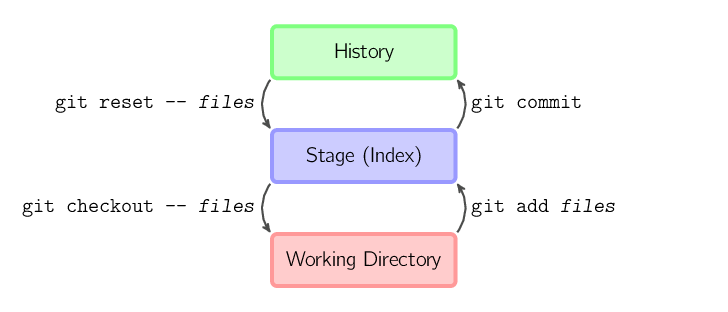
一个Git仓库的目录里面包括``工作目录``(即我们要追踪的代码)以及``.git``目录(Git 在这里存储自己的数据)。Git 维护了三棵“树”:第一个是你的 `工作目录`,它持有实际文件;第二个是 `暂存区(Index)`,它像个缓存区域,临时保存你的改动;最后是 `HEAD`,它指向你最后一次提交的结果。
|
||||
- Linux:Ubuntu:`sudo apt install git` / Arch:`sudo pacman -S git`
|
||||
|
||||
安装完成后可以在终端中检测版本:
|
||||
|
||||
|
||||
|
||||
## 创建新仓库
|
||||
|
||||
首先我们需要得到一个Git仓库,一般有两种方法:
|
||||
|
||||
- 在本地初始化之后连接到远程;
|
||||
- 在远程创建后”下载“到本地。
|
||||
|
||||
**方法一**
|
||||
创建新文件夹,在你的项目目录中运行以下命令:
|
||||
```
|
||||
git init --initial-branch=main
|
||||
❯ git -v
|
||||
git version 2.51.2
|
||||
```
|
||||
这里设置默认仓库主分支名称为 main,避免因为 main/master 名称不同导致的推送问题。
|
||||
|
||||
> Git目前默认的主分支为 master,和 github 默认分支 main 不同,这使得默认配置下 git 往往连接失败。除了创建的时候设定外还可以通过以下方法改变默认分支。
|
||||
## 2.创建密钥
|
||||
|
||||
在推送代码到Github的时候,我们需要进行认证,有密码认证和密钥认证两种方法,现在推荐使用密钥认证。
|
||||
|
||||
- 首先生成一对公私钥,这里的邮箱可以随意填写:
|
||||
|
||||
```bash
|
||||
ssh-keygen -t rsa -b 4096 -C "your_email@example.com"
|
||||
```
|
||||
git config --global init.defaultBranch main //将默认分支修改成main
|
||||
你会看到如下所示的提示,像我一样填写路径的时候就可以顺便给它改个名字,否则会使用默认名id_rsa:
|
||||
|
||||
```
|
||||
**方法二**
|
||||
❯ ssh-keygen -t rsa -b 4096 -C "your_email@example.com"
|
||||
Generating public/private rsa key pair.
|
||||
Enter file in which to save the key (/home/dich/.ssh/id_rsa): /home/dich/.ssh/Github
|
||||
```
|
||||
随后一直按回车即可.
|
||||
|
||||
克隆远端服务器上的仓库:
|
||||
- 生成的这对公私钥位于``~/.ssh/config``路径下,在Windows中就是``C盘/User/你的用户名``下,带.pub后缀的文件为公钥,不带.pub后缀的为私钥,打开公钥复制全部内容,然后将公钥添加到Github的``Settings-SSH and GPG keys``中。
|
||||
|
||||
- HTTPS方法:``git clone https://github.com/Dichgrem/script.git``
|
||||
- 或者使用SSH方法:``git clone git@github.com:Dichgrem/script.git``
|
||||
> 当你添加完毕后就无法在Github的设置中再次查看它了,确保了安全性.
|
||||
|
||||
>建议使用SSH方法,如果你使用HTTPS方法,则提交代码时需要手动输入用户名/密码,使用SSH方法则只需要在``~/.ssh/config``中配置即可。
|
||||
- 随后编辑 `~/.ssh/config` 文件,这个文件的作用是让Git知道主机对应的密钥,例如:
|
||||
|
||||
## 配置
|
||||
```bash
|
||||
# GitHub
|
||||
|
||||
Git的设置文件为.gitconfig,它可以在用户主目录下(全局配置),也可以在项目目录下(项目配置)。
|
||||
Host github
|
||||
HostName github.com
|
||||
User git
|
||||
IdentityFile ~/.ssh/Github
|
||||
|
||||
# Gitee
|
||||
|
||||
Host gitee
|
||||
HostName gitee.com
|
||||
User git
|
||||
IdentityFile ~/.ssh/Gitee
|
||||
```
|
||||
|
||||
> 这边的IdentityFile是你的私钥位置,即为不带pub后缀的文件。如果你不想将私钥放在~/.ssh/下,可以查看我的另一篇[博客](https://blog.dich.bid/network-ssh/)
|
||||
|
||||
- 设置好上面这些后就可以测试连接到Github,如果成功则显示successfully.
|
||||
|
||||
```bash
|
||||
❯ ssh -T git@github.com
|
||||
|
||||
Hi Dichgrem! You've successfully authenticated, but GitHub does not provide shell access.
|
||||
```
|
||||
|
||||
## 3.配置Git
|
||||
|
||||
在正式连接到仓库前,我们还需要让Git知道我们的用户名和邮箱地址。
|
||||
|
||||
- 显示当前的Git配置
|
||||
```
|
||||
```bash
|
||||
git config --list
|
||||
```
|
||||
- 编辑Git配置文件
|
||||
```
|
||||
git config -e [--global]
|
||||
```
|
||||
- 设置提交代码时的用户信息
|
||||
```
|
||||
|
||||
- 设置提交代码时的用户信息,这里的name推荐和你的GitHub用户名一致,邮箱可以不为真实邮箱,比如``no-reply@github.com``
|
||||
```bash
|
||||
git config [--global] user.name "[name]"
|
||||
git config [--global] user.email "[email address]"
|
||||
```
|
||||
- 设置大小写敏感(windows不区分大小写的解决办法)
|
||||
```
|
||||
git config core.ignorecase false
|
||||
```
|
||||
## 连接远程仓库
|
||||
|
||||
连接到远程仓库并推送需要证明你有权写入仓库。早期Github可以使用密码认证,现在则使用密钥认证。
|
||||
> 注意!如果你填写了你的真实邮箱,同时这个仓库又是Public的,那么其他人可以看到你的邮箱!
|
||||
|
||||
- 生成密钥:
|
||||
```
|
||||
ssh-keygen -t rsa -b 4096 -C "your_email@example.com"
|
||||
```
|
||||
- 生成的文件位于``~/.ssh/config``路径下,带.pub后缀的文件为公钥,不带.pub后缀的为私钥,使用``cat ~/.ssh/id_rsa.pub``将公钥添加到github/gitee的设置-SSH中。
|
||||
- 配置默认主分支为Main
|
||||
|
||||
- 随后使用 `ssh-add` 命令将生成的密钥添加到 SSH 代理中。
|
||||
```
|
||||
ssh-add ~/.ssh/github_key
|
||||
ssh-add ~/.ssh/gitee_key
|
||||
```
|
||||
- 在 `~/.ssh/config` 文件中配置不同的主机别名以及相应的密钥文件。编辑该文件并添加内容,例如:
|
||||
```
|
||||
# GitHub repository 1
|
||||
|
||||
Host github1
|
||||
|
||||
HostName github.com
|
||||
|
||||
User git
|
||||
|
||||
IdentityFile ~/.ssh/github_key
|
||||
|
||||
# GitHub repository 2
|
||||
|
||||
Host github2
|
||||
|
||||
HostName gitee.com
|
||||
|
||||
User git
|
||||
|
||||
IdentityFile ~/.ssh/gitee_key
|
||||
```bash
|
||||
git config --global init.defaultBranch main
|
||||
```
|
||||
|
||||
- 连接到github:
|
||||
这里的设置是因为Git目前默认的主分支名为 master ,而 Github 默认分支名为 main ,这样可以保持一致。
|
||||
|
||||
## 4.创建仓库
|
||||
|
||||
配置完Git之后我们就可以连接到远程的仓库了。首先创建一个Git仓库,一般有两种方法:
|
||||
|
||||
- 方法一(推荐)在远程创建后下载到本地
|
||||
|
||||
我们在Github中的``repositories``下New一个仓库,然后在绿色的Code按钮中复制链接,克隆远端服务器上的仓库;
|
||||
|
||||
```
|
||||
ssh -T git@github.com
|
||||
git clone git@github.com:Dichgrem/script.git
|
||||
```
|
||||
- 添加远程仓库:
|
||||
|
||||
>如果你前面没有配置密钥,就会发现无法使用这个命令克隆仓库。那么什么时候使用HTTPS的克隆呢?比如其他人的仓库,你没有权限,又不想fork一份的情况下,就可以使用HTTPS.
|
||||
|
||||
- 方法二:在本地初始化之后连接到远程
|
||||
|
||||
创建一个新文件夹,然后在那个文件夹下运行以下命令:
|
||||
|
||||
```bash
|
||||
git init --initial-branch=main
|
||||
```
|
||||
|
||||
- 在Github上创建一个同名仓库,随后添加远程链接:
|
||||
|
||||
```bash
|
||||
git remote add origin <remote_repository_url>
|
||||
```
|
||||
|
||||
# 例如:git remote add origin git@github.com:Dichgrem/dichos.git
|
||||
```
|
||||
> 如果你运行``git remote -v``发现URL为HTTP格式则可以用下面的命令改为Git格式:
|
||||
```
|
||||
```bash
|
||||
# 例如:git remote set-url origin git@github.com:Dichgrem/dichos.git
|
||||
```
|
||||
|
||||
## 创建分支
|
||||
```
|
||||
git branch main
|
||||
```
|
||||
这将创建一个名为 main 的分支。
|
||||
## 4.推送代码
|
||||
|
||||
- 删除分支
|
||||
```
|
||||
git branch -d master
|
||||
```
|
||||
- 使用大写强制删除
|
||||
```
|
||||
git branch -D master
|
||||
```
|
||||
- 添加
|
||||
|
||||
|
||||
## 添加和提交
|
||||
|
||||
你可以提出更改(把它们添加到暂存区),使用如下命令:
|
||||
```
|
||||
git add <filename>
|
||||
在Git仓库中新建或修改文件后,使用如下命令把它们添加到暂存区:
|
||||
```bash
|
||||
git add *
|
||||
```
|
||||
这是 git 基本工作流程的第一步;使用如下命令以实际提交改动:
|
||||
```
|
||||
|
||||
- 提交
|
||||
|
||||
随后使用如下命令提交改动:
|
||||
```bash
|
||||
git commit -m "代码提交信息"
|
||||
# 例如:git commit -m "Initial commit"
|
||||
# 例如:git commit -m "update:mycode"
|
||||
```
|
||||
现在,你的改动已经提交到了 **HEAD**,但是还没到你的远端仓库。
|
||||
|
||||
- 添加指定文件到暂存区
|
||||
```
|
||||
git add [file1] [file2] ...
|
||||
```
|
||||
- 添加指定目录到暂存区,包括子目录
|
||||
```
|
||||
git add [dir]
|
||||
```
|
||||
- 添加当前目录的所有文件到暂存区
|
||||
```
|
||||
git add .
|
||||
```
|
||||
添加每个变化前,都会要求确认
|
||||
- 对于同一个文件的多处变化,可以实现分次提交
|
||||
```
|
||||
git add -p
|
||||
```
|
||||
- 删除工作区文件,并且将这次删除放入暂存区
|
||||
```
|
||||
git rm [file1] [file2] ...
|
||||
```
|
||||
- 停止追踪指定文件,但该文件会保留在工作区
|
||||
```
|
||||
git rm --cached [file]
|
||||
```
|
||||
- 改名文件,并且将这个改名放入暂存区
|
||||
```
|
||||
git mv [file-original] [file-renamed]
|
||||
```
|
||||
## 推送改动
|
||||
- 推送改动
|
||||
|
||||
你的改动现在已经在本地仓库的 **HEAD** 中了。执行如下命令以将这些改动提交到远端仓库:
|
||||
```
|
||||
执行如下命令以将这些改动提交到远端仓库,随后即可在GitHub上查看;
|
||||
|
||||
```bash
|
||||
git push origin main
|
||||
```
|
||||
可以把 **main** 换成你想要推送的任何分支,如**master**或者**test**
|
||||
|
||||
如果你的远程仓库是最新的,可以使用以下命令更新本地仓库:
|
||||
```
|
||||
git pull
|
||||
```
|
||||
## 合并分支
|
||||
> 想学习更多Git操作,可以使用这个[Git练习网站](https://learngitbranching.js.org/?locale=zh_CN)
|
||||
|
||||
分支是用来将特性开发绝缘开来的。比如你在本地的test分支新增了一个功能,想要合并到主分支中。
|
||||
## 5.Commit规范
|
||||
|
||||
创建一个叫做“test”的分支,并切换过去:
|
||||
```
|
||||
git checkout -b test
|
||||
```
|
||||
新增某些功能后切换回主分支:
|
||||
```
|
||||
git checkout master
|
||||
```
|
||||
在主分支上执行合并操作,将 test 分支的改动合并到主分支:
|
||||
```
|
||||
git merge test
|
||||
```
|
||||
推送完成后可以把新建的分支删掉:
|
||||
```
|
||||
git branch -d test
|
||||
```
|
||||
|
||||
### 分支常用操作
|
||||
```
|
||||
- 列出所有本地分支
|
||||
git branch
|
||||
|
||||
- 列出所有远程分支
|
||||
git branch -r
|
||||
|
||||
- 列出所有本地分支和远程分支
|
||||
git branch -a
|
||||
|
||||
- 列出所有本地分支,并展示没有分支最后一次提交的信息
|
||||
git branch -v
|
||||
|
||||
- 列出所有本地分支,并展示没有分支最后一次提交的信息和远程分支的追踪情况
|
||||
git branch -vv
|
||||
|
||||
- 列出所有已经合并到当前分支的分支
|
||||
git branch --merged
|
||||
|
||||
- 列出所有还没有合并到当前分支的分支
|
||||
git branch --no-merged
|
||||
|
||||
- 新建一个分支,但依然停留在当前分支
|
||||
git branch [branch-name]
|
||||
|
||||
- 新建一个分支,并切换到该分支
|
||||
git checkout -b [branch]
|
||||
|
||||
- 新建一个与远程分支同名的分支,并切换到该分支
|
||||
git checkout --track [branch-name]
|
||||
|
||||
- 新建一个分支,指向指定commit
|
||||
git branch [branch] [commit]
|
||||
|
||||
- 新建一个分支,与指定的远程分支建立追踪关系
|
||||
git branch --track [branch] [remote-branch]
|
||||
|
||||
- 切换到指定分支,并更新工作区
|
||||
git checkout [branch-name]
|
||||
|
||||
- 切换到上一个分支
|
||||
git checkout -
|
||||
|
||||
- 建立追踪关系,在现有分支与指定的远程分支之间
|
||||
git branch --set-upstream-to=[remote-branch]
|
||||
git branch --set-upstream [branch] [remote-branch] - 已被弃用
|
||||
|
||||
- 合并指定分支到当前分支
|
||||
git merge [branch]
|
||||
|
||||
- 中断此次合并(你可能不想处理冲突)
|
||||
git merge --abort
|
||||
|
||||
- 选择一个commit,合并进当前分支
|
||||
git cherry-pick [commit]
|
||||
|
||||
- 删除分支
|
||||
git branch -d [branch-name]
|
||||
|
||||
#新增远程分支 远程分支需先在本地创建,再进行推送
|
||||
git push origin [branch-name]
|
||||
|
||||
- 删除远程分支
|
||||
git push origin --delete [branch-name]
|
||||
git branch -dr [remote/branch]
|
||||
```
|
||||
|
||||
## 标签
|
||||
|
||||
Git 的 tag 功能主要用于``给仓库历史中的某个特定提交打上“标签”``,通常用于标记版本发布点(例如 v1.0、v2.0 等),以``便于后续的版本定位、回溯和发布管理``。
|
||||
|
||||
### 标签类型
|
||||
|
||||
Git 提供两种类型的标签:
|
||||
|
||||
- 附注标签(Annotated Tag)会创建成一个完整的 Git 对象,存储打标签者的名字、邮箱、日期和标签说明,还可采用 GPG 进行签名。推荐用于正式发布,因为包含更多元数据和安全信息。
|
||||
|
||||
- 轻量标签(Lightweight Tag)实际上只是对某个提交的引用,不保存额外信息,类似一个固定的分支。适用于临时标记或非正式用途。
|
||||
|
||||
### 创建标签
|
||||
|
||||
- 创建附注标签
|
||||
|
||||
使用 -a 参数表示“annotated”,并用 -m 提供标签说明。例如,给当前提交创建一个名为 v1.0 的附注标签:
|
||||
```
|
||||
git tag -a v1.0 -m "发布版本 v1.0"
|
||||
```
|
||||
这会在 Git 数据库中生成一个完整的标签对象,可通过 git show v1.0 查看标签信息和对应的提交详情。
|
||||
|
||||
如果需要给旧提交贴标签,可以在命令末尾指定提交的 SHA 值(部分 SHA 也可):
|
||||
```
|
||||
git tag -a v1.0 <commit-sha> -m "发布版本 v1.0"
|
||||
```
|
||||
|
||||
- 创建轻量标签
|
||||
|
||||
直接指定标签名即可,不加任何参数:
|
||||
```
|
||||
git tag v1.0-light
|
||||
```
|
||||
轻量标签仅仅是一个提交引用,因此查看时不会显示附加信息。
|
||||
|
||||
### 列出标签
|
||||
- 列出所有标签
|
||||
```
|
||||
git tag
|
||||
```
|
||||
- 还可以使用通配符过滤:
|
||||
```
|
||||
git tag -l "v1.*"
|
||||
```
|
||||
这样便于管理和筛选大量标签。
|
||||
- 查看标签详细信息
|
||||
```
|
||||
git show v1.0
|
||||
```
|
||||
这会显示标签对象的元数据以及对应的提交记录。
|
||||
|
||||
### 推送标签
|
||||
``默认情况下,git push 不会将本地标签推送到远程仓库。推送标签有两种方式:``
|
||||
- 推送单个标签
|
||||
```
|
||||
git push origin v1.0
|
||||
```
|
||||
- 一次性推送所有标签
|
||||
```
|
||||
git push origin --tags
|
||||
```
|
||||
### 删除标签
|
||||
- 删除本地标签
|
||||
```
|
||||
git tag -d v1.0
|
||||
```
|
||||
- 删除远程标签
|
||||
```
|
||||
git push origin --delete v1.0
|
||||
```
|
||||
## 日志
|
||||
|
||||
如果你想了解本地仓库的历史记录,最简单的命令就是使用:
|
||||
```
|
||||
git log
|
||||
```
|
||||
- 只看某一个人的提交记录:
|
||||
```
|
||||
git log --author=bob
|
||||
```
|
||||
- 一个压缩后的每一条提交记录只占一行的输出:
|
||||
```
|
||||
git log --pretty=oneline
|
||||
```
|
||||
- 看看哪些文件改变了:
|
||||
```
|
||||
git log --name-status
|
||||
```
|
||||
|
||||
## 删除前一个提交记录
|
||||
有时候手滑或者不想使用一个commit说明,可以用以下命令撤销上一个 commit:
|
||||
```
|
||||
git reset --soft HEAD~1
|
||||
```
|
||||
这个命令会撤销上一个 commit,但保留文件修改(代码仍然在工作区)。适用于 想要重新提交(amend)或调整 commit 的情况。
|
||||
|
||||
如果你想彻底删除更改(不保留代码修改),可以使用:
|
||||
```
|
||||
git reset --hard HEAD~1
|
||||
```
|
||||
> 注意:--hard 会清除未提交的更改,无法恢复。
|
||||
|
||||
## `.git` 目录中主要文件和子目录的结构及其作用
|
||||
|
||||
### 📁 `.git` 目录结构概览
|
||||
- 提交信息的基本格式,例如
|
||||
|
||||
```
|
||||
feat:add_highlight
|
||||
```
|
||||
|
||||
- 常见的 Commit 类型
|
||||
|
||||
```bash
|
||||
- feat:新功能的添加
|
||||
|
||||
- fix:修复 Bug
|
||||
|
||||
- docs:文档相关的修改
|
||||
|
||||
- style:代码格式、排版等不影响代码逻辑的调整
|
||||
|
||||
- refactor:代码重构,不涉及新功能或 Bug 修复
|
||||
|
||||
- perf:性能优化
|
||||
|
||||
- test:添加或修改测试代码
|
||||
|
||||
- build:构建相关的变更,如依赖管理、构建脚本等
|
||||
|
||||
- ci:持续集成相关的修改
|
||||
|
||||
- chore:其他杂项维护,不涉及源代码或测试文件的修改
|
||||
|
||||
- revert:回滚到上一个版本的提交
|
||||
```
|
||||
|
||||
## 6.Git原理
|
||||
|
||||
- 三棵树
|
||||
|
||||
一个Git仓库的目录里面包括``工作目录``(即我们要追踪的代码)以及``.git``目录(Git 在这里存储自己的数据)。Git 维护了三棵“树”:第一个是你的 `工作目录`,它持有实际文件;第二个是 `暂存区(Index)`,它像个缓存区域,临时保存你的改动;最后是 `HEAD`,它指向你最后一次提交的结果。
|
||||
|
||||

|
||||
|
||||
- `.git` 目录结构
|
||||
|
||||
```bash
|
||||
.git/
|
||||
├── HEAD
|
||||
├── config
|
||||
@@ -411,95 +225,95 @@ git reset --hard HEAD~1
|
||||
│ └── tags/
|
||||
```
|
||||
|
||||
### 🗂️ 核心文件和目录说明
|
||||
* objects:存储 Git 的所有对象,包括:
|
||||
* blob:文件内容
|
||||
* tree:目录结构
|
||||
* commit:提交对象,记录提交信息和指向的树对象
|
||||
* tag:标签对象
|
||||
这些对象以 SHA-1 哈希命名,前两位作为子目录,其余作为文件名
|
||||
* refs:存储所有引用,包括:
|
||||
* heads:本地分支
|
||||
* remotes:远程分支
|
||||
* tags:标签
|
||||
* HEAD:指向当前检出的分支或提交。例如,`ref: refs/heads/main` 表示当前位于 `main` 分支
|
||||
* config:仓库级别的配置文件,包含用户名、邮箱、远程仓库等信息
|
||||
* description:用于描述仓库,仅供 GitWeb 等工具使用
|
||||
* hooks:存放 Git 钩子脚本的目录,可用于在特定操作前后执行自定义脚本,如 `pre-commit`、`post-merge` 等
|
||||
* index:暂存区(staging area)的索引文件,记录了即将提交的文件信息
|
||||
* info:包含辅助信息,如 `exclude` 文件用于定义仓库级别的忽略规则
|
||||
* logs:记录了引用(如分支、标签)的更新历史,有助于追踪操作记录
|
||||
|
||||
* **HEAD**:指向当前检出的分支或提交。例如,`ref: refs/heads/main` 表示当前位于 `main` 分支。
|
||||
---
|
||||
|
||||
* **config**:仓库级别的配置文件,包含用户名、邮箱、远程仓库等信息.
|
||||
## 7.Tips
|
||||
|
||||
* **description**:用于描述仓库,仅供 GitWeb 等工具使用。
|
||||
|
||||
* **hooks/**:存放 Git 钩子脚本的目录,可用于在特定操作前后执行自定义脚本,如 `pre-commit`、`post-merge` 等.
|
||||
### Verified
|
||||
|
||||
* **index**:暂存区(staging area)的索引文件,记录了即将提交的文件信息。
|
||||
在 GitHub 的 commit 历史中看到的 “Verified” 标记,表示该提交是经过 签名验证(signed commit) 的,也就是 GitHub 能确认这个 commit 的确是由声明的提交者(你)签名并发布的。可以通过GPG或者SSH配置:
|
||||
|
||||
* **info/**:包含辅助信息,如 `exclude` 文件用于定义仓库级别的忽略规则。
|
||||
- GPG方式
|
||||
|
||||
* **logs/**:记录了引用(如分支、标签)的更新历史,有助于追踪操作记录。
|
||||
|
||||
* **objects/**:存储 Git 的所有对象,包括:
|
||||
|
||||
* **blob**:文件内容。
|
||||
* **tree**:目录结构。
|
||||
* **commit**:提交对象,记录提交信息和指向的树对象。
|
||||
* **tag**:标签对象。
|
||||
这些对象以 SHA-1 哈希命名,前两位作为子目录,其余作为文件名。
|
||||
|
||||
* **refs/**:存储所有引用,包括:
|
||||
|
||||
* **heads/**:本地分支。
|
||||
* **remotes/**:远程分支。
|
||||
* **tags/**:标签。
|
||||
|
||||
## Commit规范
|
||||
|
||||
### 提交信息的基本格式
|
||||
|
||||
- Header(头部)
|
||||
格式:
|
||||
```bash
|
||||
sudo pacman -S gnupg //安装 GPG
|
||||
gpg --full-generate-key //生成 GPG 密钥
|
||||
gpg --list-secret-keys --keyid-format=long //查看你生成的密钥 ID
|
||||
git config --global user.signingkey ABCDEF1234567890 //让 Git 使用该密钥签名
|
||||
git config --global commit.gpgsign true //启用自动签名所有提交
|
||||
gpg --armor --export ABCDEF1234567890 //导出公钥并添加到 GitHub
|
||||
```
|
||||
<type>[可选的 scope]: <简短描述>
|
||||
然后前往``GitHub → Settings → SSH and GPG keys → New GPG key``粘贴并保存。
|
||||
|
||||
- SSH方式
|
||||
|
||||
可以用你平时登录 GitHub 的同一个 SSH 密钥:
|
||||
```bash
|
||||
git config --global gpg.format ssh //让 Git 使用 SSH 格式签名
|
||||
git config --global user.signingkey ~/.ssh/Github.pub //指定使用的 SSH 公钥
|
||||
git config --global commit.gpgsign true //表示自动签名所有提交
|
||||
```
|
||||
然后前往``Settings → SSH and GPG keys → New SSH key → Signing key``粘贴并保存。
|
||||
|
||||
- 本地查看
|
||||
|
||||
首先创建这个文件:
|
||||
```bash
|
||||
mkdir -p ~/.ssh
|
||||
nano ~/.ssh/allowed_signers
|
||||
```
|
||||
写入你的 ``test@mail.com ssh-ed25519 AAAABBBBBBBBBBBBBBBBxxxxxxxxxxxxxxxxxxxxxxxxxxxxxxxxxxxxxx``并保存。
|
||||
随后配置Git信任该文件:
|
||||
```bash
|
||||
git config --global gpg.ssh.allowedSignersFile ~/.ssh/allowed_signers
|
||||
```
|
||||
随后使用``git log --show-signature``即可查看本地log中的
|
||||
```bash
|
||||
Good "git" signature for test@mail.com with ED25519 key SHA256:ssh-ed25519 AAAABBBBBBBBBBBBBBBBBBBBB
|
||||
```
|
||||
|
||||
type 表示提交类型,如:feat(新功能)、fix(修复bug)等。
|
||||
scope 是可选的,用于指出变更影响的模块或范围。
|
||||
简短描述 用于概述本次提交的核心内容,通常使用祈使语气。
|
||||
### 生成补丁
|
||||
|
||||
- Body(正文)
|
||||
用于详细说明变更的动机、方法以及可能的影响,建议每行不超过 72 个字符。
|
||||
|
||||
- Footer(脚注)
|
||||
可选部分,用来引用相关 issue、任务或说明破坏性变更(例如:BREAKING CHANGE: ...)。例如:
|
||||
比如你修改了项目中的``fs/proc/base.c``,然后
|
||||
|
||||
```bash
|
||||
git add fs/proc/base.c
|
||||
git commit -m "fix:base"
|
||||
git format-patch origin/16.0
|
||||
```
|
||||
Fixes #123
|
||||
即可在目录下生成补丁``0001-fix-base.patch``.
|
||||
|
||||
|
||||
### 删除前一个提交记录
|
||||
有时候手滑或者不想使用一个commit说明,可以用以下命令撤销上一个 commit:
|
||||
```bash
|
||||
git reset --soft HEAD~1
|
||||
```
|
||||
这可以在提交后自动关闭相关问题。
|
||||
这个命令会撤销上一个 commit,但保留文件修改(代码仍然在工作区)。适用于 想要重新提交(amend)或调整 commit 的情况。
|
||||
|
||||
### 常见的 Commit 类型
|
||||
如果你想彻底删除更改(不保留代码修改),可以使用:
|
||||
```bash
|
||||
git reset --hard HEAD~1
|
||||
```
|
||||
- feat:新功能的添加
|
||||
示例:feat(user): 添加用户注册功能
|
||||
|
||||
- fix:修复 Bug
|
||||
示例:fix(parser): 修复解析错误导致程序崩溃
|
||||
|
||||
- docs:文档相关的修改
|
||||
示例:docs(readme): 更新使用说明
|
||||
|
||||
- style:代码格式、排版等不影响代码逻辑的调整
|
||||
示例:style: 优化代码缩进和空格
|
||||
|
||||
- refactor:代码重构,不涉及新功能或 Bug 修复
|
||||
示例:refactor: 优化数据处理逻辑
|
||||
|
||||
- perf:性能优化
|
||||
示例:perf: 提升数据查询速度
|
||||
|
||||
- test:添加或修改测试代码
|
||||
示例:test: 补充用户登录单元测试
|
||||
|
||||
- build:构建相关的变更,如依赖管理、构建脚本等
|
||||
示例:build: 更新 webpack 配置
|
||||
|
||||
- ci:持续集成相关的修改
|
||||
示例:ci: 调整 GitHub Actions 配置
|
||||
|
||||
- chore:其他杂项维护,不涉及源代码或测试文件的修改
|
||||
示例:chore: 更新项目依赖
|
||||
|
||||
- revert:回滚到上一个版本的提交
|
||||
示例:revert: 撤销上次提交
|
||||
```
|
||||
---
|
||||
**Done.**
|
||||
|
||||
@@ -52,19 +52,19 @@ tags = ["乱七八糟"]
|
||||
|
||||
## 安装 GnuPG
|
||||
|
||||
```
|
||||
```bash
|
||||
paru -S gnupg
|
||||
```
|
||||
|
||||
## 生成公钥与私钥
|
||||
|
||||
使用如下命令:
|
||||
```
|
||||
```bash
|
||||
gpg --full-generate-key
|
||||
```
|
||||
生成流程:
|
||||
|
||||
```
|
||||
```bash
|
||||
gpg (GnuPG) 2.4.7; Copyright (C) 2024 g10 Code GmbH
|
||||
This is free software: you are free to change and redistribute it.
|
||||
There is NO WARRANTY, to the extent permitted by law.
|
||||
@@ -116,7 +116,7 @@ generator a better chance to gain enough entropy.
|
||||
```
|
||||
|
||||
## 列出密钥
|
||||
```
|
||||
```bash
|
||||
gpg --list-secret-keys --keyid-format long
|
||||
```
|
||||
|
||||
@@ -126,18 +126,18 @@ gpg --list-secret-keys --keyid-format long
|
||||
|
||||
例如上传你的 key:
|
||||
|
||||
```
|
||||
```bash
|
||||
gpg --send-keys <你的Long‑Key‑ID>
|
||||
```
|
||||
|
||||
默认为你的 gpg.conf 中配置的 keyserver,也可以显式指定:
|
||||
|
||||
```
|
||||
```bash
|
||||
gpg --keyserver hkps://keys.openpgp.org --send-keys <Key‑ID>
|
||||
```
|
||||
|
||||
也可以使用如下命令导出公钥为可读 ASCII 格式,类似ssh-keys,随后即可发布在个人博客上等等。
|
||||
```
|
||||
```bash
|
||||
gpg --armor --export <Key‑ID> > mypubkey.asc
|
||||
```
|
||||
|
||||
@@ -145,7 +145,7 @@ gpg --armor --export <Key‑ID> > mypubkey.asc
|
||||
|
||||
如果怀疑密钥被泄露或被中间人替换,立即发布“撤销证书”(revocation certificate)并上传到 keyserver。
|
||||
|
||||
```
|
||||
```bash
|
||||
gpg --gen-revoke <KeyID> > revoke.asc
|
||||
```
|
||||
上传撤销证书后,所有人都能知道该公钥已不再可信。
|
||||
|
||||
@@ -19,27 +19,27 @@ tags = ["乱七八糟"]
|
||||
## 安装
|
||||
|
||||
首先安装neovim,在arch linux上是:
|
||||
```
|
||||
```bash
|
||||
paru -S neovim
|
||||
```
|
||||
在Ubuntu上是
|
||||
```
|
||||
```bash
|
||||
sudo add-apt-repository ppa:neovim-ppa/unstable
|
||||
sudo apt update
|
||||
sudo apt install -y \ neovim git curl unzip build-essential ripgrep fd-find
|
||||
```
|
||||
|
||||
备份现有配置:
|
||||
```
|
||||
```bash
|
||||
mv ~/.config/nvim ~/.config/nvim.bak
|
||||
mv ~/.local/share/nvim ~/.local/share/nvim.bak
|
||||
```
|
||||
克隆 LazyVim Starter 模板:
|
||||
```
|
||||
```bash
|
||||
git clone https://github.com/LazyVim/starter ~/.config/nvim
|
||||
```
|
||||
启动 Neovim:
|
||||
```
|
||||
```bash
|
||||
nvim
|
||||
```
|
||||
首次启动时,LazyVim 会自动安装并配置所需的插件。
|
||||
@@ -47,7 +47,7 @@ nvim
|
||||
## 结构
|
||||
|
||||
LazyVim 的配置目录通常位于``~/.config/nvim/``中:
|
||||
```
|
||||
``` bash
|
||||
~/.config/nvim
|
||||
❯ tree
|
||||
.
|
||||
@@ -231,7 +231,7 @@ LazyVim 默认使用``<space> 作为 <leader>``,\ 作为``<localleader>``,
|
||||
|
||||
在``~/config/nvim/lua/plugins/``下新建一个mp.lua,写入如下配置:
|
||||
|
||||
```
|
||||
```lua
|
||||
return {
|
||||
{
|
||||
"iamcco/markdown-preview.nvim",
|
||||
@@ -243,7 +243,7 @@ return {
|
||||
```
|
||||
|
||||
随后即可在 Neovim 中打开一个 Markdown 文件,执行以下命令启动预览:
|
||||
```
|
||||
```bash
|
||||
:MarkdownPreview
|
||||
```
|
||||
|
||||
@@ -274,13 +274,23 @@ return {
|
||||
|
||||
> 编辑器的基本素养
|
||||
|
||||
``文件操作``
|
||||
- 创建文件/文件夹
|
||||
- 打开/关闭/切换文件
|
||||
- 复制/粘贴
|
||||
- 写入/保存/退出
|
||||
``外观``
|
||||
- 面板
|
||||
- 侧边栏
|
||||
- Git符号
|
||||
- 全局主题
|
||||
- 文件类型主题
|
||||
|
||||
``编辑器``
|
||||
- 显示行号
|
||||
- 搜索替换
|
||||
|
||||
``Code``
|
||||
- 高亮
|
||||
- 格式化
|
||||
- 自动补全
|
||||
- 代码调试
|
||||
|
||||
``字符处理``
|
||||
- LF/CRLF处理
|
||||
- 零宽字符处理
|
||||
@@ -289,12 +299,16 @@ return {
|
||||
``终端``
|
||||
- 打开终端/复用终端
|
||||
|
||||
``文件操作``
|
||||
- 创建文件/文件夹
|
||||
- 打开/关闭/切换文件
|
||||
- 复制/粘贴
|
||||
- 写入/保存/退出
|
||||
|
||||
``其他功能``
|
||||
- LSP
|
||||
- 代码调试
|
||||
- 工作区切换
|
||||
- Git支持
|
||||
- 主题与显示效果
|
||||
- gitui
|
||||
- diff历史
|
||||
|
||||
|
||||
## 一份优秀的 Vim 速查表
|
||||
|
||||
@@ -19,7 +19,7 @@ tags = ["乱七八糟"]
|
||||
## 三.解决方法
|
||||
|
||||
既然是高低电平表述的错误,那么我们只需建立DSDT 表副本,将其修改,然后让它优先启动,从而让键盘配置正常;另外还存在 BIOS 修复,内核编译的方法,比较复杂,这里不做说明。
|
||||
```
|
||||
```bash
|
||||
首先建立一个DSDT文件夹:
|
||||
sudo su
|
||||
mkdir -p /home/dsdt
|
||||
@@ -75,7 +75,7 @@ reboot
|
||||
|
||||
### 修复wifi驱动
|
||||
|
||||
```
|
||||
```bash
|
||||
# 内核小于5.18的
|
||||
git clone https://github.com/HRex39/rtl8852be.git
|
||||
# 内核大于等于5.18的
|
||||
@@ -89,7 +89,7 @@ sudo modprobe 8852be
|
||||
|
||||
### 修复蓝牙驱动
|
||||
|
||||
```
|
||||
```bash
|
||||
# 内核=5.15
|
||||
git clone https://github.com/HRex39/rtl8852be_bt.git -b 5.15
|
||||
# 内核=5.18
|
||||
@@ -104,13 +104,13 @@ sudo make install
|
||||
|
||||
首先去amd官网下载最新的linux-amd驱动:
|
||||
|
||||
````
|
||||
````bash
|
||||
https://www.amd.com/zh-hans/support/linux-drivers // 22.20 for Ubuntu 20.04.5 HWE
|
||||
````
|
||||
|
||||
修改Deepin为ubuntu
|
||||
|
||||
````
|
||||
````bash
|
||||
sudo vim /etc/os-release // ID=Deepin => ID=ubuntu
|
||||
|
||||
sudo apt install ./amdgpu-install_22.20.50200-1_all.deb
|
||||
@@ -128,7 +128,7 @@ sudo apt install inxi clinfo
|
||||
|
||||
`inxi -G`
|
||||
|
||||
````
|
||||
````bash
|
||||
Graphics: Device-1: AMD Rembrandt driver: amdgpu v: kernel
|
||||
Display: x11 server: X.Org 1.20.11 driver: amdgpu,ati unloaded: fbdev,modesetting,vesa
|
||||
resolution: 1920x1080~60Hz
|
||||
@@ -138,14 +138,14 @@ Graphics: Device-1: AMD Rembrandt driver: amdgpu v: kernel
|
||||
|
||||
最后还原最初的修改:
|
||||
|
||||
````
|
||||
````bash
|
||||
sudo vim /etc/os-release // ID=ubuntu => ID=Deepin
|
||||
sudo apt purge amdgpu-install
|
||||
````
|
||||
|
||||
看下效果图:
|
||||
|
||||
````
|
||||
````bash
|
||||
➜ ~ glxinfo -B
|
||||
name of display: :0
|
||||
display: :0 screen: 0
|
||||
@@ -193,7 +193,7 @@ OpenGL ES profile shading language version string: OpenGL ES GLSL ES 3.20
|
||||
|
||||
安装下面的三方电源管理工具 `Boost Changer`,选择 `Performance`策略即可
|
||||
|
||||
````
|
||||
````bash
|
||||
wget https://github.com/nbebaw/boostchanger/releases/download/v4.4.0/boostchanger_4.4.0_amd64.deb
|
||||
````
|
||||
## 参考
|
||||
|
||||
@@ -22,7 +22,7 @@ tags = ["乱七八糟"]
|
||||
- **cn 域名有被停用的风险**。2008 年,有人以跳水奥运冠军吴敏霞拼音注册了 wuminxia.cn,[结果被中国互联网络信息中心(CNNIC)回收了域名](https://www.cnbeta.com/articles/tech/62209.htm),并转交给国家体育总局。此域名在 2021 年 2 月 28 日被优视科技[注册](https://whois.cnnic.cn/WhoisServlet?queryType=Domain&domain=wuminxia.cn),呵呵。2009 年,牛博网被域名注册商万网停止解析。
|
||||
|
||||
## VPS
|
||||
```
|
||||
```bash
|
||||
# 更新系统
|
||||
apt update && apt upgrade -y
|
||||
apt install wget curl vim sudo neofetch
|
||||
@@ -33,15 +33,15 @@ sudo usermod -aG sudo xxx
|
||||
## BBR
|
||||
|
||||
- 查询系统所支持的拥塞控制算法
|
||||
````
|
||||
````bash
|
||||
sysctl net.ipv4.tcp_available_congestion_control
|
||||
````
|
||||
- 查询正在使用中的拥塞控制算法(Linux 绝大部分系统默认为 Cubic 算法)
|
||||
````
|
||||
````bash
|
||||
sysctl net.ipv4.tcp_congestion_control
|
||||
````
|
||||
- 指定拥塞控制算法为 bbr
|
||||
````
|
||||
````bash
|
||||
echo net.ipv4.tcp_congestion_control=bbr >> /etc/sysctl.conf && sysctl -p
|
||||
````
|
||||
|
||||
@@ -56,43 +56,43 @@ echo net.ipv4.tcp_congestion_control=bbr >> /etc/sysctl.conf && sysctl -p
|
||||
|
||||
打开SSH配置文件`sshd_config`,可以使用文本编辑器如nano或vi。以下是使用nano编辑器的示例:
|
||||
|
||||
````
|
||||
````bash
|
||||
sudo vim /etc/ssh/sshd_config
|
||||
````
|
||||
|
||||
在配置文件中找到以下行:
|
||||
|
||||
````
|
||||
````bash
|
||||
Port 22
|
||||
````
|
||||
|
||||
这是SSH默认的端口号,你可以将其更改为你想要的任何未被占用的端口号。例如,将端口更改为2222:
|
||||
|
||||
````
|
||||
````bash
|
||||
Port 2222
|
||||
````
|
||||
|
||||
保存并关闭文本编辑器。重新启动SSH服务,以应用更改:
|
||||
|
||||
````
|
||||
````bash
|
||||
sudo service ssh restart
|
||||
````
|
||||
|
||||
或者,如果你的系统使用systemd,可以使用以下命令:
|
||||
|
||||
````
|
||||
````bash
|
||||
sudo systemctl restart ssh
|
||||
````
|
||||
|
||||
### 安装 UFW
|
||||
|
||||
````
|
||||
````bash
|
||||
sudo apt install ufw
|
||||
````
|
||||
|
||||
**如果你在远程位置连接你的服务器,在启用 UFW 防火墙之前,你必须显式允许进来的 SSH 连接。否则,你将永远都无法连接到机器上。**
|
||||
|
||||
````
|
||||
````bash
|
||||
sudo ufw allow 22/tcp
|
||||
````
|
||||
|
||||
@@ -100,37 +100,37 @@ sudo ufw allow 22/tcp
|
||||
|
||||
**启动 UFW**
|
||||
|
||||
````
|
||||
````bash
|
||||
sudo ufw enable
|
||||
````
|
||||
|
||||
### 安装 Fail2ban
|
||||
|
||||
````
|
||||
````bash
|
||||
sudo apt-get install fail2ban
|
||||
````
|
||||
|
||||
**2、Debian 12 及以上的版本需要手动安装 rsyslog**
|
||||
|
||||
````
|
||||
````bash
|
||||
sudo apt-get install rsyslog
|
||||
````
|
||||
|
||||
**3、启动 Fail2ban 服务**
|
||||
|
||||
````
|
||||
````bash
|
||||
sudo systemctl start fail2ban
|
||||
````
|
||||
|
||||
**4、开机自启动**
|
||||
|
||||
````
|
||||
````bash
|
||||
sudo systemctl enable fail2ban
|
||||
````
|
||||
|
||||
**5、查看 Fail2ban 服务状态。**
|
||||
|
||||
````
|
||||
````bash
|
||||
sudo systemctl status fail2ban
|
||||
````
|
||||
|
||||
@@ -139,7 +139,7 @@ sudo systemctl status fail2ban
|
||||
### 改为密钥登录
|
||||
|
||||
- 执行以下命令生成.pub后缀的公钥和无后缀的密钥:
|
||||
```
|
||||
```bash
|
||||
ssh-keygen
|
||||
```
|
||||
注意不同密钥对名称不能相同;同时可以为这两个文件用密码加密;
|
||||
@@ -147,11 +147,11 @@ ssh-keygen
|
||||
- 随后将.pub后缀的公钥中的内容写入服务器的``~/.ssh/authorized_keys``中;
|
||||
|
||||
- 使用以下命令编译服务器的SSH配置:
|
||||
```
|
||||
```bash
|
||||
vim /etc/ssh/sshd_config
|
||||
```
|
||||
将其中的该行改为``PasswordAuthentication no``,保存退出;随后使用
|
||||
```
|
||||
```bash
|
||||
sudo systemctl restart sshd
|
||||
```
|
||||
重启SSH即可禁用密码登录;
|
||||
@@ -159,7 +159,7 @@ sudo systemctl restart sshd
|
||||
- 将**PermitRootLogin**一栏改为**PermitRootLogin prohibit-password**,即可实现仅root用户密钥登录;
|
||||
|
||||
- 使用以下命令查看输出,
|
||||
```
|
||||
```bash
|
||||
sudo cat /etc/ssh/sshd_config | grep -E 'PasswordAuthentication|PubkeyAuthentication'
|
||||
```
|
||||
如有**PasswordAuthentication no → 禁用密码登录**以及**PubkeyAuthentication yes → 允许密钥登录**则成功。
|
||||
@@ -170,33 +170,33 @@ sudo cat /etc/ssh/sshd_config | grep -E 'PasswordAuthentication|PubkeyAuthentica
|
||||
|
||||
- ALL
|
||||
|
||||
```
|
||||
```bash
|
||||
apt install curl wget gpg vim nano sudo neofetch openssh-server
|
||||
```
|
||||
- C/C++
|
||||
```
|
||||
```bash
|
||||
sudo apt install build-essential gdb cmake clangd clang-format libstdc++-dev
|
||||
```
|
||||
- Miniconda
|
||||
```
|
||||
```bash
|
||||
wget https://repo.anaconda.com/miniconda/Miniconda3-latest-Linux-x86_64.sh
|
||||
bash Miniconda3-latest-Linux-x86_64.sh
|
||||
```
|
||||
- UV
|
||||
```
|
||||
```bash
|
||||
curl -LsSf https://astral.sh/uv/install.sh | sh
|
||||
```
|
||||
- Docker
|
||||
```
|
||||
```bash
|
||||
curl -fsSL https://get.docker.com -o get-docker.sh
|
||||
sudo sh get-docker.sh
|
||||
```
|
||||
- OpenCV
|
||||
```
|
||||
```bash
|
||||
sudo apt install tree libx11-dev libgtk-3-dev freeglut3-dev libopencv-dev libdlib-dev
|
||||
```
|
||||
- Vmware
|
||||
```
|
||||
```bash
|
||||
sudo apt install open-vm-tools
|
||||
sudo apt install open-vm-tools-desktop
|
||||
```
|
||||
@@ -211,7 +211,7 @@ Set-Content "$env:USERPROFILE\.ssh\known_hosts"
|
||||
|
||||
执行如下命令一键安装 1Panel:
|
||||
|
||||
````
|
||||
````bash
|
||||
curl -sSL https://resource.fit2cloud.com/1panel/package/quick_start.sh -o quick_start.sh && sudo bash quick_start.sh
|
||||
````
|
||||
|
||||
@@ -220,27 +220,27 @@ curl -sSL https://resource.fit2cloud.com/1panel/package/quick_start.sh -o quick_
|
||||
### 禁用 IPv6
|
||||
|
||||
手动 禁用 VPS 的 IPv6 命令:
|
||||
```
|
||||
```bash
|
||||
sysctl -w net.ipv6.conf.all.disable_ipv6=1
|
||||
sysctl -w net.ipv6.conf.default.disable_ipv6=1
|
||||
```
|
||||
如果想重启系统也生效, 执行:
|
||||
```
|
||||
```bash
|
||||
echo 'net.ipv6.conf.all.disable_ipv6=1' >> /etc/sysctl.conf
|
||||
echo 'net.ipv6.conf.default.disable_ipv6=1' >> /etc/sysctl.conf
|
||||
```
|
||||
手动 启用 VPS 的 IPv6 命令:
|
||||
```
|
||||
```bash
|
||||
sysctl -w net.ipv6.conf.all.disable_ipv6=0
|
||||
sysctl -w net.ipv6.conf.default.disable_ipv6=0
|
||||
```
|
||||
重新载入 sysctl 配置
|
||||
```
|
||||
```bash
|
||||
sysctl --system # reload sysctl
|
||||
```
|
||||
如果重载, 还无效果, 可能要 reboot 重启下.
|
||||
查看 VPS 的 IPv6 信息
|
||||
```
|
||||
```bash
|
||||
ip -6 addr show scope global
|
||||
|
||||
或者 curl ipv6.ip.sb
|
||||
@@ -253,13 +253,13 @@ ip -6 addr show scope global
|
||||
|
||||
- 然后在VPS上输入以下命令:
|
||||
|
||||
```
|
||||
```bash
|
||||
mkdir -p ./.well-known/pki-validation
|
||||
```
|
||||
- 随后在ZeroSSL中将所给出的类似**B992F08CB46748D02E4C553A4038BC.txt**复制;
|
||||
|
||||
- 将从ZeroSSL下载得到的文件打开,复制里面的东西形成以下的格式:``将pki-validation/之后EOF之前的内容``替换为你自己的。
|
||||
```
|
||||
```bash
|
||||
cat << EOF | sudo tee ./.well-known/pki-validation/B992F08CB46748D02E4C553A4038BC.txt
|
||||
254563C20918258D661E7D43D6A43A2A258857E191977DD5F740FBB9ABD25279
|
||||
comodoca.com
|
||||
@@ -268,7 +268,7 @@ EOF
|
||||
```
|
||||
随后在VPS上运行该命令。
|
||||
- 开启一个临时HTTP服务器:
|
||||
```
|
||||
```bash
|
||||
python3 -m http.server 80
|
||||
```
|
||||
- 随后即可在ZeroSSL中验证证书并开启SSL。
|
||||
@@ -285,15 +285,15 @@ python3 -m http.server 80
|
||||
- 进入恢复模式后,选择`root – Drop to root shell prompt`进入 root shell(不需要密码)。
|
||||
|
||||
- 挂载文件系统为可写模式:
|
||||
```
|
||||
```bash
|
||||
mount -o remount,rw /
|
||||
```
|
||||
- 将用户添加到 sudo 组:
|
||||
```
|
||||
```bash
|
||||
usermod -aG sudo 用户名
|
||||
```
|
||||
- 重启计算机:
|
||||
```
|
||||
```bash
|
||||
reboot
|
||||
```
|
||||
|
||||
@@ -315,7 +315,7 @@ sudo apt update
|
||||
```
|
||||
|
||||
3. 搜索可用内核
|
||||
```
|
||||
```bash
|
||||
apt search xanmod
|
||||
sudo apt install linux-image-6.8.6-x64v3-xanmod1 linux-headers-6.8.6-x64v3-xanmod1
|
||||
```
|
||||
@@ -383,7 +383,7 @@ sudo update-grub
|
||||
|
||||
除了到VPS后台更换外,还可以使用这个脚本:
|
||||
|
||||
- [bin456789/reinstall](github.com/bin456789/reinstall)
|
||||
[bin456789/reinstall](github.com/bin456789/reinstall)
|
||||
|
||||
```
|
||||
一键重装到 Linux,支持 19 种常见发行版
|
||||
|
||||
@@ -72,13 +72,13 @@ Hyper-V 是微软内建的虚拟化平台(native hypervisor)。开启后,
|
||||
|
||||
* PowerShell(以管理员权限运行):
|
||||
|
||||
```
|
||||
```bash
|
||||
Enable-WindowsOptionalFeature -Online -FeatureName Microsoft-Hyper-V -All
|
||||
```
|
||||
|
||||
* DISM(部署映像服务和管理工具):
|
||||
|
||||
```
|
||||
```bash
|
||||
DISM /Online /Enable-Feature /All /FeatureName:Microsoft-Hyper-V
|
||||
```
|
||||
|
||||
@@ -90,23 +90,23 @@ DISM /Online /Enable-Feature /All /FeatureName:Microsoft-Hyper-V
|
||||
## 关闭 Hyper-V
|
||||
|
||||
* PowerShell(管理员权限):
|
||||
```
|
||||
```bash
|
||||
Disable-WindowsOptionalFeature -Online -FeatureName Microsoft-Hyper-V-All
|
||||
```
|
||||
* DISM:
|
||||
|
||||
```
|
||||
```bash
|
||||
DISM /Online /Disable-Feature:Microsoft-Hyper-V
|
||||
```
|
||||
* 用 bcdedit 修改启动配置,使系统启动时不加载 Hypervisor(Hyper-V 的虚拟化内核)但保留功能安装:
|
||||
|
||||
```
|
||||
```bash
|
||||
bcdedit /set hypervisorlaunchtype off
|
||||
```
|
||||
|
||||
若要恢复加载,则:
|
||||
|
||||
```
|
||||
```bash
|
||||
bcdedit /set hypervisorlaunchtype auto
|
||||
```
|
||||
* Windows 功能 GUI 中,取消勾选 Hyper-V 相应项。
|
||||
@@ -118,21 +118,21 @@ bcdedit /set hypervisorlaunchtype auto
|
||||
|
||||
1. **给 VMware 或 VirtualBox 使用环境临时关闭 Hyper-V**
|
||||
|
||||
```
|
||||
```bash
|
||||
bcdedit /set hypervisorlaunchtype off
|
||||
```
|
||||
然后重启 Windows,就能让这些软件正常启动虚拟机。要还原 Hyper-V,改为 `auto` 或 `on`:
|
||||
```
|
||||
```bash
|
||||
bcdedit /set hypervisorlaunchtype auto
|
||||
```
|
||||
|
||||
2. **从命令行完全关闭 Hyper-V 功能**
|
||||
|
||||
```powershell
|
||||
```bash
|
||||
Disable-WindowsOptionalFeature -Online -FeatureName Microsoft-Hyper-V-All
|
||||
```
|
||||
或者用 DISM:
|
||||
```
|
||||
```bash
|
||||
DISM /Online /Disable-Feature:Microsoft-Hyper-V
|
||||
```
|
||||
|
||||
|
||||
@@ -52,14 +52,14 @@ MCSManager 面板(简称:MCSM 面板)是一款全中文,轻量级,开
|
||||
## 换源
|
||||
|
||||
**禁用 Ceph 企业仓库:**
|
||||
```
|
||||
```bash
|
||||
nano /etc/apt/sources.list.d/ceph.list
|
||||
```
|
||||
将文件内容注释掉或删除。
|
||||
|
||||
**编辑仓库源文件:**
|
||||
|
||||
```
|
||||
```bash
|
||||
nano /etc/apt/sources.list.d/pve-enterprise.list
|
||||
```
|
||||
将文件内容注释掉或删除;
|
||||
@@ -67,11 +67,11 @@ nano /etc/apt/sources.list.d/pve-enterprise.list
|
||||
**启用社区仓库:**
|
||||
|
||||
确保社区仓库已启用。编辑社区仓库文件:
|
||||
```
|
||||
```bash
|
||||
nano /etc/apt/sources.list.d/pve-no-subscription.list
|
||||
```
|
||||
确保文件内容如下:
|
||||
```
|
||||
```bash
|
||||
deb http://download.proxmox.com/debian/pve bookworm pve-no-subscription
|
||||
```
|
||||
## 二.新建虚拟机并安装Debian
|
||||
@@ -95,12 +95,12 @@ deb http://download.proxmox.com/debian/pve bookworm pve-no-subscription
|
||||
在安装步骤进入到选择安装的桌面环境和软件时, 键入 Ctrl+Alt+F2 可以看到从图形界面转到了tty命令终端, 键入 Enter
|
||||
这里修改软件源配置文件
|
||||
|
||||
```
|
||||
```bash
|
||||
nano /target/etc/apt/sources.list
|
||||
```
|
||||
修改debian-security源地址 `http://mirrors.ustc.edu.cn ` 目测最快
|
||||
|
||||
```
|
||||
```bash
|
||||
deb http://mirrors.ustc.edu.cn/debian-security bullseye-security main
|
||||
```
|
||||
修改后 Ctrl+X 退出保存,然后退出终端重新进入界面继续安装,键入 Ctrl+Alt+F5。
|
||||
@@ -144,7 +144,7 @@ deb http://mirrors.ustc.edu.cn/debian-security bullseye-security main
|
||||
|
||||
在 PVE-防火墙中打开它们。如果还是不行,执行如下命令:
|
||||
|
||||
```
|
||||
```bash
|
||||
systemctl stop firewalld
|
||||
|
||||
systemctl disable firewalld
|
||||
|
||||
@@ -79,7 +79,7 @@ X86还是Arm?两者之间各有优点,截止到今天各种Arm电视盒子
|
||||
|
||||
- 随后在设置 > 设备首选项 > 关于 > 状态中找到并记下IP 地址,然后用ADB连接上去,这里使用命令``adb connect <IP 地址>:<端口> ``,随后在ATV端授权连接,例如:
|
||||
|
||||
```
|
||||
```bash
|
||||
❯ adb connect 192.168.1.666:9527
|
||||
|
||||
connected to 192.168.1.666:9527
|
||||
@@ -93,7 +93,7 @@ xxxxxxxxx sideload
|
||||
|
||||
**一些 ADB 常用命令**:
|
||||
|
||||
```
|
||||
```bash
|
||||
adb reboot #将重启 Android 设备。
|
||||
|
||||
adb reboot recovery #将设备重新启动到恢复模式。
|
||||
@@ -136,13 +136,13 @@ adb kill server #切断 PC 和 Android TV 之间的连接。
|
||||
|
||||
1. ADB连接:连接到ADB成功后我们使用``adb shell``进入shell,随后使用命令``pm list packages``列出所有软件包;
|
||||
|
||||
```
|
||||
```bash
|
||||
pm list packages -s 列出系统软件包
|
||||
pm list packages -3 列出第三方软件包
|
||||
```
|
||||
2. 获取包名:对于暂时无法确定包名的软件,可以先打开,再使用
|
||||
|
||||
```
|
||||
```bash
|
||||
adb shell dumpsys activity activities | grep mResumedActivity
|
||||
```
|
||||
|
||||
@@ -150,13 +150,13 @@ adb shell dumpsys activity activities | grep mResumedActivity
|
||||
|
||||
3. 删除软件:可以先使用
|
||||
|
||||
```
|
||||
```bash
|
||||
pm disable-user --user 0 com.dangbei1.tvlauncher
|
||||
```
|
||||
|
||||
禁用软件,确认没有问题之后再用
|
||||
|
||||
```
|
||||
```bash
|
||||
pm uninstall -k --user 0 com.dangbei1.tvlauncher
|
||||
```
|
||||
|
||||
@@ -164,20 +164,20 @@ pm uninstall -k --user 0 com.dangbei1.tvlauncher
|
||||
|
||||
4. 备份软件:对于想要备份的软件,可以使用1和2中的方法获取软件包名,然后使用例如以下命令:
|
||||
|
||||
```
|
||||
```bash
|
||||
adb shell pm path org.videolan.vlc
|
||||
|
||||
package:/data/app/~~hY2Y0_PdaDlasfVwkUNcoQ==/org.videolan.vlc-WnNhCJLQUJdZYYzUxzBNBA==/base.apk
|
||||
```
|
||||
获取到安装路径,随后将apk包拿走就可以:
|
||||
|
||||
```
|
||||
```bash
|
||||
adb pull /data/app/~~hY2Y0_PdaDlasfVwkUNcoQ==/org.videolan.vlc-WnNhCJLQUJdZYYzUxzBNBA==/base.apk ./Downloads/
|
||||
```
|
||||
|
||||
5. 备份分区:如果你想要修改当前系统的img,可以用adb提取并导出
|
||||
|
||||
```
|
||||
```bash
|
||||
# 确定分区对应关系
|
||||
ls -l /dev/block
|
||||
ls -l /dev/block/platform
|
||||
@@ -202,7 +202,7 @@ adb pull /sdcard/odm.img
|
||||
```
|
||||
5. 修改桌面:可以进入安卓原生设置里面将默认主屏幕应用改为ATV,代替掉自带的桌面,并使用
|
||||
|
||||
```
|
||||
```bash
|
||||
adb shell pm disable-user --user 0 com.google.android.tvlauncher
|
||||
adb shell pm disable-user --user 0 com.google.android.tungsten.setupwraith
|
||||
```
|
||||
|
||||
@@ -140,12 +140,12 @@ tags = ["综合工程"]
|
||||
|
||||
**使用adb备份分区**
|
||||
|
||||
```
|
||||
```bash
|
||||
adb shell ls -l /dev/block/bootdevice/by-name
|
||||
```
|
||||
可以看到有很多分区,例如这些
|
||||
|
||||
```
|
||||
```bash
|
||||
...
|
||||
lrwxrwxrwx 1 root root 15 1970-12-24 11:30 frp -> /dev/block/sda5
|
||||
lrwxrwxrwx 1 root root 16 1970-12-24 11:30 fsc -> /dev/block/sdf13
|
||||
@@ -156,14 +156,14 @@ lrwxrwxrwx 1 root root 16 1970-12-24 11:30 hyp_b -> /dev/block/sde40
|
||||
```
|
||||
随后使用root备份分区到手机上
|
||||
|
||||
```
|
||||
```bash
|
||||
adb root
|
||||
|
||||
adb shell "dd if=/dev/block/sda2 of=/sdcard/partition_backup/persist.img"
|
||||
```
|
||||
然后可以上传到PC端
|
||||
|
||||
```
|
||||
```bash
|
||||
adb pull /sdcard/partition_backup/ ./backup/
|
||||
```
|
||||
|
||||
|
||||
@@ -31,7 +31,7 @@ tags = ["综合工程"]
|
||||
|
||||
随后安装常用开源软件(KDE环境省略file和wayland)
|
||||
|
||||
```
|
||||
```bash
|
||||
# gui
|
||||
|
||||
paru -S floorp-bin keepassxc qemu-full virt-manager materialgram-bin legcord-bin onlyoffice-bin localsend-bin kazumi-bin foliate vlc krita qtscrcpy strawberry oculante obs-studio
|
||||
@@ -90,7 +90,7 @@ paru -S hyprland waybar wofi network-manager-applet swww wl-gammarelay-rs bright
|
||||
|
||||
输入法我们采用雾凇拼音,即前面我们安装的fcitx5系列软件包的一个输入方案,这里我们使用[自动部署脚本](https://github.com/Mark24Code/rime-auto-deploy):
|
||||
|
||||
```
|
||||
```bash
|
||||
# step1: 克隆/下载 latest 最新的稳定版到本地
|
||||
git clone --depth=1 https://github.com/Mark24Code/rime-auto-deploy.git --branch latest
|
||||
# step2: 进入项目目录
|
||||
@@ -109,7 +109,7 @@ cd rime-auto-deploy
|
||||
安装完毕后可以看到KDE的界面较为简陋,这里给出笔者的美化配置:
|
||||
|
||||
- 在设置中找到Colors&Themes,分别设置为:
|
||||
```
|
||||
```bash
|
||||
- Color:Breeze Dark
|
||||
- Application Style:Breeze
|
||||
- Plasma Style:Sweet
|
||||
@@ -164,27 +164,27 @@ V2EX Polish(V站美化)
|
||||
如果Grub引导菜单中没有windows选项,可以通过以下方法添加:
|
||||
|
||||
- 安装 os-prober:首先确保系统中安装了 os-prober,这是一个用于检测其他操作系统的工具。
|
||||
```
|
||||
```bash
|
||||
sudo pacman -S os-prober
|
||||
sudo os-prober
|
||||
```
|
||||
|
||||
- 打开 /etc/default/grub 文件进行编辑:
|
||||
```
|
||||
```bash
|
||||
sudo nano /etc/default/grub
|
||||
# 确保 GRUB_DISABLE_OS_PROBER 设置为 false
|
||||
```
|
||||
|
||||
- 保存文件并退出编辑器后,运行以下命令更新 GRUB 配置:
|
||||
```
|
||||
```bash
|
||||
sudo grub-mkconfig -o /boot/grub/grub.cfg
|
||||
```
|
||||
|
||||
或者``手动添加``:
|
||||
```
|
||||
```bash
|
||||
nano /etc/grub.d/40_custom
|
||||
```
|
||||
```
|
||||
```bash
|
||||
#!/bin/sh
|
||||
exec tail -n +3 $0
|
||||
# This file provides an easy way to add custom menu entries. Simply type the
|
||||
@@ -204,26 +204,26 @@ menuentry "Windows 11 (Manual)" {
|
||||
|
||||
如果virt-manager报错无法找到Qemu,则:
|
||||
- 如果 libvirtd 服务未运行,virt-manager 将无法连接到虚拟化环境。
|
||||
```
|
||||
```bash
|
||||
sudo systemctl start libvirtd
|
||||
sudo systemctl enable libvirtd
|
||||
```
|
||||
- 用户权限问题:将当前用户添加到 libvirt 组,以获得必要的权限。
|
||||
```
|
||||
```bash
|
||||
sudo usermod -aG libvirt $(whoami)
|
||||
```
|
||||
|
||||
- 虚拟网络未激活:virt-manager 可能无法连接到默认的虚拟网络。
|
||||
```
|
||||
```bash
|
||||
sudo virsh net-start default
|
||||
```
|
||||
默认网络在系统启动时自动启动,可以执行:
|
||||
```
|
||||
```bash
|
||||
sudo virsh net-autostart default
|
||||
```
|
||||
- 配置文件权限问题:配置文件的权限设置可能导致访问问题。
|
||||
|
||||
```
|
||||
```bash
|
||||
sudo chown $(whoami):libvirt /var/run/libvirt/libvirt-sock
|
||||
```
|
||||
随后安装虚拟机,流程大概为``选择镜像和系统类型--设置CPU/内存--设置空间大小--编辑配置项--开启UEFI引导和3D加速``.
|
||||
@@ -231,7 +231,7 @@ sudo chown $(whoami):libvirt /var/run/libvirt/libvirt-sock
|
||||
**开启3D加速:**
|
||||
|
||||
- NIC:
|
||||
```
|
||||
```xml
|
||||
<graphics type="spice">
|
||||
<listen type="none"/>
|
||||
<image compression="off"/>
|
||||
@@ -240,7 +240,7 @@ sudo chown $(whoami):libvirt /var/run/libvirt/libvirt-sock
|
||||
|
||||
```
|
||||
- video virtio:
|
||||
```
|
||||
```xml
|
||||
<video>
|
||||
<model type="virtio" heads="1" primary="yes">
|
||||
<acceleration accel3d="yes"/>
|
||||
@@ -255,17 +255,17 @@ sudo chown $(whoami):libvirt /var/run/libvirt/libvirt-sock
|
||||
如果安装了多个linux内核,可以使用以下方法调整启动顺序:
|
||||
|
||||
- 使用以下命令查看内核名称:
|
||||
```
|
||||
```bash
|
||||
ls /boot/vmlinuz*
|
||||
```
|
||||
- 在 /etc/default/grub 中添加或修改如下行:
|
||||
```
|
||||
```bash
|
||||
GRUB_TOP_LEVEL="/boot/vmlinuz-linux-cachyos"
|
||||
```
|
||||
需要注意,这种方法会关闭 GRUB 的“记住上次启动项”的功能。
|
||||
|
||||
- 修改完 /etc/default/grub 后,记得重新生成 GRUB 配置文件:
|
||||
```
|
||||
```bash
|
||||
sudo grub-mkconfig -o /boot/grub/grub.cfg
|
||||
```
|
||||
**图形界面更改方法:**
|
||||
@@ -273,12 +273,12 @@ sudo grub-mkconfig -o /boot/grub/grub.cfg
|
||||
可以使用grub-customizer来修改Grub,这里以ubuntu为例子:
|
||||
|
||||
- 添加PPA源并更新软件列表:
|
||||
```
|
||||
```bash
|
||||
sudo add-apt-repository ppa:danielrichter2007/grub-customizer
|
||||
sudo apt update
|
||||
```
|
||||
- 安装GRUB Customizer:
|
||||
```
|
||||
```bash
|
||||
sudo apt install grub-customizer
|
||||
```
|
||||
随后在grub-customizer中将要默认启动的选项放在首位即可。
|
||||
@@ -286,13 +286,13 @@ sudo apt install grub-customizer
|
||||
## 开机自启动
|
||||
|
||||
**设置Syncthing开机自启动**
|
||||
```
|
||||
```bash
|
||||
sudo systemctl enable --now syncthing@<username>.service
|
||||
```
|
||||
|
||||
**设置Aria2开机自启动**
|
||||
|
||||
```
|
||||
```conf
|
||||
[Unit]
|
||||
Description=Aria2c - lightweight multi-protocol & multi-source command-line download utility
|
||||
After=network.target
|
||||
@@ -315,41 +315,41 @@ WantedBy=multi-user.target
|
||||
## 开启BBR
|
||||
|
||||
- 确保你的内核版本 >= 4.9:
|
||||
```
|
||||
```bash
|
||||
uname -r
|
||||
```
|
||||
- 启用 BBR
|
||||
|
||||
你只需要设置两个 sysctl 参数即可:
|
||||
```
|
||||
```bash
|
||||
sudo sysctl -w net.core.default_qdisc=fq
|
||||
sudo sysctl -w net.ipv4.tcp_congestion_control=bbr
|
||||
```
|
||||
要让它们永久生效,把它们写入配置文件:
|
||||
```
|
||||
```bash
|
||||
sudo nano /etc/sysctl.d/99-bbr.conf
|
||||
```
|
||||
加入以下内容:
|
||||
```
|
||||
```bash
|
||||
net.core.default_qdisc = fq
|
||||
net.ipv4.tcp_congestion_control = bbr
|
||||
```
|
||||
然后重新加载配置:
|
||||
```
|
||||
```bash
|
||||
sudo sysctl --system
|
||||
```
|
||||
- 验证 BBR 是否启用
|
||||
```
|
||||
```bash
|
||||
sysctl net.ipv4.tcp_congestion_control
|
||||
```
|
||||
应该输出:
|
||||
```
|
||||
```bash
|
||||
net.ipv4.tcp_congestion_control = bbr
|
||||
```
|
||||
|
||||
## 性能模式切换
|
||||
需要安装``power-profiles-daemon``
|
||||
```
|
||||
```bash
|
||||
# 查看可用的电源配置文件(profiles)
|
||||
powerprofilesctl list
|
||||
|
||||
@@ -367,7 +367,7 @@ sudo powerprofilesctl set power-saver
|
||||
```
|
||||
## 其他性能优化
|
||||
|
||||
```
|
||||
```bash
|
||||
Profile‑sync‑daemon
|
||||
将浏览器配置文件和缓存挂载到内存,退出时再写回磁盘:
|
||||
|
||||
@@ -395,7 +395,7 @@ sudo systemctl enable --now ananicy-cpp
|
||||
|
||||
## 常用命令
|
||||
|
||||
```
|
||||
```bash
|
||||
更新系统:sudo pacman -Syu
|
||||
|
||||
重新安装所有软件包:sudo pacman -Qq | sudo pacman -S -
|
||||
@@ -426,28 +426,28 @@ sudo reflector --latest 10 --sort rate --save /etc/pacman.d/mirrorlist
|
||||
## 在Arch Linux上安装Docker
|
||||
|
||||
一般推荐在qemu虚拟机中安装,这里仅做示例:
|
||||
```
|
||||
```bash
|
||||
sudo pacman -S docker
|
||||
```
|
||||
|
||||
安装完成后,需要启动Docker服务,并设置为开机自启:
|
||||
```
|
||||
```bash
|
||||
sudo systemctl start docker
|
||||
sudo systemctl enable docker
|
||||
```
|
||||
|
||||
运行以下命令来验证Docker是否正常工作:
|
||||
```
|
||||
```bash
|
||||
sudo docker run hello-world
|
||||
```
|
||||
默认情况下,只有root用户才能运行Docker命令。为了避免每次运行Docker命令时都需要使用sudo,可以将当前用户添加到docker组:
|
||||
```
|
||||
```bash
|
||||
sudo usermod -aG docker $USER
|
||||
```
|
||||
之后,需要注销并重新登录,或者重启系统以使更改生效。
|
||||
|
||||
安装Docker Compose:
|
||||
```
|
||||
```bash
|
||||
sudo pacman -S docker-compose
|
||||
```
|
||||
---
|
||||
|
||||
@@ -129,7 +129,7 @@ uci commit luci
|
||||
|
||||
- **编译依赖**
|
||||
|
||||
```
|
||||
```bash
|
||||
sudo apt update
|
||||
sudo apt install -y \
|
||||
ack antlr3 asciidoc autoconf automake autopoint binutils bison build-essential \
|
||||
@@ -147,32 +147,32 @@ sudo apt install -y \
|
||||
```
|
||||
|
||||
- **清理**
|
||||
```
|
||||
```bash
|
||||
sudo apt autoremove --purge
|
||||
sudo apt clean
|
||||
```
|
||||
|
||||
|
||||
- **新建一个用户,用于编译固件(可选)**
|
||||
```
|
||||
```bash
|
||||
useradd -m openwrt # 新建一个名为 openwrt 的用户
|
||||
```
|
||||
> 不可以使用Root用户进行编译!!!
|
||||
|
||||
- **修改用户默认的 Shell**
|
||||
```
|
||||
```bash
|
||||
apt install -y sudo
|
||||
usermod -s /bin/bash openwrt
|
||||
```
|
||||
|
||||
- **切换用户**
|
||||
```
|
||||
```bash
|
||||
su openwrt
|
||||
cd ~
|
||||
```
|
||||
|
||||
- **拉取源码,这里用的是 ImmortalWrt 24.10 分支源码:**
|
||||
```
|
||||
```bash
|
||||
git clone https://github.com/immortalwrt/immortalwrt.git
|
||||
cd immortalwrt
|
||||
```
|
||||
@@ -180,11 +180,11 @@ cd immortalwrt
|
||||
- **选择分支**
|
||||
|
||||
如果你想要编译稳定版(stable),使用
|
||||
```
|
||||
```bash
|
||||
git checkout xxx #例如git checkout v24.10.2
|
||||
```
|
||||
如果你想要编译最新版(snapshot),使用
|
||||
```
|
||||
```bash
|
||||
git switch xxx #例如git switch openwrt-24.10
|
||||
```
|
||||
|
||||
@@ -211,19 +211,19 @@ git switch xxx #例如git switch openwrt-24.10
|
||||
|
||||
|
||||
- **添加软件源,可自行添加软件源至 feeds.conf.default 文件**
|
||||
```
|
||||
```bash
|
||||
vim feeds.conf.default
|
||||
```
|
||||
|
||||
**常用源**
|
||||
```
|
||||
```bash
|
||||
src-git kenzo https://github.com/kenzok8/openwrt-packages
|
||||
src-git small https://github.com/kenzok8/small
|
||||
src-git haibo https://github.com/haiibo/openwrt-packages
|
||||
src-git liuran001 https://github.com/liuran001/openwrt-packages
|
||||
```
|
||||
**常用仓库**
|
||||
```
|
||||
```bash
|
||||
src/gz kwrt_core https://dl.openwrt.ai/releases/24.10/targets/x86/64/6.6.83
|
||||
src/gz kwrt_base https://dl.openwrt.ai/releases/24.10/packages/x86_64/base
|
||||
src/gz kwrt_packages https://dl.openwrt.ai/releases/24.10/packages/x86_64/packages
|
||||
@@ -234,12 +234,12 @@ src/gz kwrt_kiddin9 https://dl.openwrt.ai/releases/24.10/packages/x86_64/kiddin9
|
||||
|
||||
- **单独添加**(在更新并安装插件之前执行)例如:
|
||||
|
||||
```
|
||||
```bash
|
||||
git clone https://github.com/chenmozhijin/turboacc.git
|
||||
```
|
||||
|
||||
- **更新并安装插件**
|
||||
```
|
||||
```bash
|
||||
./scripts/feeds clean
|
||||
./scripts/feeds update -a
|
||||
./scripts/feeds install -a
|
||||
@@ -251,7 +251,7 @@ git clone https://github.com/chenmozhijin/turboacc.git
|
||||
|
||||
- **自定义配置**
|
||||
|
||||
```
|
||||
```bash
|
||||
#!/usr/bin/env bash
|
||||
# diy-part2.sh — 在镜像生成时注入默认设置和定制 SSH 横幅及模型修复
|
||||
|
||||
@@ -319,7 +319,7 @@ chmod +x package/base-files/files/etc/uci-defaults/99-model-fix
|
||||
|
||||
### **编译配置菜单说明(部分)**
|
||||
|
||||
```
|
||||
```bash
|
||||
Target System (x86) # 选择目标平台
|
||||
└── Subtarget (x86_64) # 选择 64-bit 子架构
|
||||
└── Target Profile (Generic) # “Generic” 表示通用 x86_64 设备
|
||||
@@ -369,21 +369,21 @@ Xorg # 桌面环境支持(X11 图形系统)
|
||||
```
|
||||
|
||||
- **预下载编译所需的软件包**
|
||||
```
|
||||
```bash
|
||||
make download -j8
|
||||
```
|
||||
|
||||
- **检查文件完整性**
|
||||
```
|
||||
```bash
|
||||
find dl -size -1024c -exec ls -l {} \;
|
||||
```
|
||||
检查文件完整性命令可以列出下载不完整的文件,小于1k的文件属于下载不完整,如果存在则用下面的命令删除,然后重新下载编译所需的软件包,再次检查.确认所有文件完整可大大提高编译成功率,避免浪费时间
|
||||
```
|
||||
```bash
|
||||
find dl -size -1024c -exec rm -f {} \;
|
||||
```
|
||||
|
||||
- **最后编译固件(-j 后面是线程数,首次编译推荐用单线程)编译完成后输出路径是bin/targets.**
|
||||
```
|
||||
```bash
|
||||
make V=s -j1
|
||||
|
||||
或者使用 make world -j1 V=s 2>&1 | tee world_debug.log
|
||||
@@ -411,7 +411,7 @@ make V=s -j1
|
||||
| `make distclean` | 删除 `make dirclean` 的所有内容 + feeds 下载文件 + `.config`、patch 等所有状态 | 只有源码目录保持不变 | 专用于回到一个“零配置、重做一切”的状态,完全从头开始构建。 |
|
||||
|
||||
恢复所有修改(包括未跟踪文件):
|
||||
```
|
||||
```bash
|
||||
git clean -fd
|
||||
git restore --source=v24.10.2 --staged --worktree .
|
||||
```
|
||||
@@ -437,47 +437,79 @@ git restore --source=v24.10.2 --staged --worktree .
|
||||
要启用的软件包:
|
||||
|
||||
**base**
|
||||
```
|
||||
```bash
|
||||
autocore base-files bash block-mount ca-bundle coremark curl dnsmasq-full dropbear ds-lite e2fsprogs fdisk firewall4 fstools grub2-bios-setup htop kmod-8139cp kmod-8139too kmod-amazon-ena kmod-amd-xgbe kmod-atlantic kmod-bnx2 kmod-bnx2x kmod-button-hotplug kmod-drm-amdgpu kmod-drm-i915 kmod-dwmac-intel kmod-e1000 kmod-e1000e kmod-forcedeth kmod-fs-f2fs kmod-fs-vfat kmod-i40e kmod-iavf kmod-igb kmod-igbvf kmod-igc kmod-ixgbe kmod-ixgbevf kmod-lib-zstd kmod-mlx4-core kmod-mlx5-core kmod-mmc kmod-pcnet32 kmod-phy-broadcom kmod-r8101 kmod-r8125 kmod-r8126 kmod-r8168 kmod-sdhci kmod-tcp-bbr kmod-tg3 kmod-tulip kmod-usb-hid kmod-vmxnet3 libc libgcc libustream-mbedtls lm-sensors-detect logd lsblk luci-app-fan luci-app-filemanager luci-app-firewall luci-app-log-viewer luci-app-package-manager luci-app-syscontrol luci-app-upnp luci-base luci-compat luci-lib-fs luci-lib-ipkg mkf2fs mtd nano netifd odhcp6c odhcpd-ipv6only openssh-sftp-server opkg partx-utils pciutils ppp ppp-mod-pppoe resolveip swconfig uci uclient-fetch urandom-seed urngd usbutils wget-ssl zram-swap
|
||||
```
|
||||
**cli**
|
||||
```
|
||||
```bash
|
||||
btop iperf3 tcpdump
|
||||
```
|
||||
**luci**
|
||||
```
|
||||
```bash
|
||||
luci-app-argon luci-app-upnp luci-app-ttyd luci-app-eqosplus luci-app-timecontrol luci-app-parentcontrol luci-app-homeproxy luci-app-daed
|
||||
```
|
||||
**lib**
|
||||
```
|
||||
```bash
|
||||
kmod-ipt-conntrack kmod-ipt-nat kmod-nft-compat kmod-ipt-fullconenat kmod-ip6tables ca-certificates
|
||||
```
|
||||
## 单独编译openwrt的ipk包
|
||||
## 使用SDK快速编译包
|
||||
|
||||
**其他步骤同上,下载并选中我们需要编译的包,这里以inyn为例:**
|
||||
```
|
||||
git clone https://github.com/diredocks/openwrt-inyn.git ./package/inyn
|
||||
make menuconfig
|
||||
首先新建一个文件夹并将SDK克隆下来:
|
||||
|
||||
```bash
|
||||
mkdir imwrt-sdk
|
||||
cd ./imwrt-sdk
|
||||
wget https://downloads.immortalwrt.org/snapshots/targets/mediatek/filogic/immortalwrt-sdk-mediatek-filogic_gcc-14.3.0_musl.Linux-x86_64.tar.zst
|
||||
```
|
||||
|
||||
在 `menuconfig` 的命令行界面中,选中 `Network -> inyn` 将其首部调整为 `<M>` 表示按需编译,最后选中 `Save -> OK -> Exit` 保存配置信息,然后 `Exit` 退出配置。
|
||||
新版本的SDK使用ZSTD压缩,因此解压的命令为
|
||||
|
||||
**编译 inyn 软件包**
|
||||
```
|
||||
make package/inyn/compile V=s
|
||||
## 如果不行则需要先编译工具链,即为 make j=4 ,j为CPU核数
|
||||
```bash
|
||||
tar -I zstd -xvf ./immortalwrt-sdk-mediatek-filogic_gcc-14.3.0_musl.Linux-x86_64.tar.zst
|
||||
```
|
||||
|
||||
## 常用命令:
|
||||
随后进入该目录并和一般流程一样更新Feeds:
|
||||
|
||||
```bash
|
||||
cd ./immortalwrt-sdk-mediatek-filogic_gcc-14.3.0_musl.Linux-x86_64/
|
||||
./scripts/feeds update -a
|
||||
./scripts/feeds install -a
|
||||
```
|
||||
|
||||
更新完成后克隆你要编译的包的源码到package下:
|
||||
|
||||
```bash
|
||||
cd ./package/
|
||||
git clone https://github.com/Dichgrem/luci-app-nyn.git
|
||||
cp ./luci-app-nyn/luci-app-zzz ./
|
||||
cp ./luci-app-nyn/zzz ./
|
||||
rm -rf ./luci-app-nyn
|
||||
cd ../
|
||||
```
|
||||
|
||||
随后开始编译,编译结果在对应架构的base目录下:
|
||||
|
||||
```bash
|
||||
make package/luci-app-zzz/compile V=s
|
||||
|
||||
~/imwrt-sdk/immortalwrt-sdk-24.10.3-x86-64_gcc-13.3.0_musl.Linux-x86_64 dich@uos
|
||||
❯ find ./ -name "zzz*.ipk"
|
||||
./bin/packages/x86_64/base/zzz_0.1.1-r1_x86_64.ipk
|
||||
```
|
||||
|
||||
## 常用命令
|
||||
|
||||
> 注意!不能升级kmod前缀的软件包!base-files是危险包,谨慎升级!
|
||||
|
||||
```bash
|
||||
# 更新软件列表
|
||||
opkg update
|
||||
|
||||
# 更新所有 LUCI 插件
|
||||
opkg list-upgradable | grep luci- | cut -f 1 -d ' ' | xargs opkg upgrade
|
||||
# 列出可升级的非内核包
|
||||
opkg list-upgradable | grep -vE '^(kmod-|kernel)'
|
||||
|
||||
# 如果要更新所有软件,包括 OpenWRT 内核、固件等
|
||||
opkg list-upgradable | cut -f 1 -d ' ' | xargs opkg upgrade
|
||||
# 升级单个软件包
|
||||
opkg upgrade 包名
|
||||
|
||||
# 固件版本号
|
||||
vim /etc/os-release
|
||||
|
||||
@@ -28,21 +28,21 @@ Waydroid是Anbox配合Halium技术开发的LXC Android容器,可在GNU/Linux
|
||||
目前Waydroid只支持Intel和AMD的显卡,对于 NVIDIA 显卡(除 Tegra 系列外),Waydroid 不支持硬件加速,推荐使用软件渲染或QEMU方案。
|
||||
|
||||
- Waydroid必须使用Wayland,用此命令检查当前系统是否为Wayland:
|
||||
```
|
||||
```bash
|
||||
echo $XDG_SESSION_TYPE
|
||||
```
|
||||
若显示X11代表不是Wayland。GNOME和KDE可在登入画面切换至Wayland工作阶段。
|
||||
|
||||
- Waydroid要求Linux核心支持binder核心模组,但Arch Linux预设的linux核心並无开启此选项,因此需要从AUR安装binder_linux-dkms补齐。
|
||||
```
|
||||
```bash
|
||||
paru -S binder_linux-dkms
|
||||
```
|
||||
- 安装后载入binder核心模组
|
||||
```
|
||||
```bash
|
||||
sudo modprobe binder-linux devices=binder,hwbinder,vndbinder
|
||||
```
|
||||
- 设定开机自动载入核心模组
|
||||
```
|
||||
```bash
|
||||
echo "binder_linux" | sudo tee -a /etc/modules-load.d/binder_linux.conf
|
||||
|
||||
echo "options binder_linux devices=binder,hwbinder,vndbinder" | sudo tee -a /etc/modprobe.d/binder_linux.conf
|
||||
@@ -51,36 +51,36 @@ echo "options binder_linux devices=binder,hwbinder,vndbinder" | sudo tee -a /etc
|
||||
## 安装Waydroid
|
||||
|
||||
- 安装以下软件包,让Linux与Waydroid共享剪切板
|
||||
```
|
||||
```bash
|
||||
paru -S wl-clipboard xclip
|
||||
paru -S python-pyclip
|
||||
```
|
||||
|
||||
- 安装Waydroid
|
||||
```
|
||||
```bash
|
||||
paru -S waydroid
|
||||
```
|
||||
- 初始化Waydroid,下载含有GAPPS的Android系统映像档
|
||||
```
|
||||
```bash
|
||||
sudo waydroid init -s GAPPS -f
|
||||
```
|
||||
- 启动Waydroid容器服务
|
||||
```
|
||||
```bash
|
||||
sudo systemctl start waydroid-container
|
||||
```
|
||||
|
||||
## 常用命令
|
||||
|
||||
- 开机自动启动
|
||||
```
|
||||
```bash
|
||||
sudo systemctl enable waydroid-container
|
||||
```
|
||||
- 点选应用列表的「Waydroid」图示开启主画面,或者使用命令:
|
||||
```
|
||||
```bash
|
||||
waydroid show-full-ui
|
||||
```
|
||||
- 若Waydroid无法连上网路,开放UFW防火墙:
|
||||
```
|
||||
```bash
|
||||
sudo ufw allow 53
|
||||
sudo ufw allow 67
|
||||
sudo ufw default allow FORWARD
|
||||
@@ -88,21 +88,21 @@ sudo ufw reload
|
||||
sudo systemctl restart waydroid-container
|
||||
```
|
||||
- 重启Waydroid
|
||||
```
|
||||
```bash
|
||||
sudo systemctl restart waydroid-container
|
||||
```
|
||||
|
||||
- 启动/停止Waydroid容器服务
|
||||
```
|
||||
```bash
|
||||
sudo systemctl start waydroid-container
|
||||
sudo systemctl stop waydroid-container
|
||||
```
|
||||
- 用命令开启Waydroid主画面
|
||||
```
|
||||
```bash
|
||||
waydroid show-full-ui
|
||||
```
|
||||
- 查看系统错误讯息
|
||||
```
|
||||
```bash
|
||||
waydroid log
|
||||
sudo waydroid logcat
|
||||
```
|
||||
@@ -116,35 +116,35 @@ sudo waydroid logcat
|
||||
安装Package Manager,用於查看APP的软件包名称。
|
||||
|
||||
部份APP会要求开启Wifi才能上网,那么就如它所愿,开启fake wifi:
|
||||
```
|
||||
```bash
|
||||
waydroid prop set persist.waydroid.fake_wifi "软件包名称"
|
||||
```
|
||||
例如给Fate/Go游戏开启模拟Wifi:
|
||||
```
|
||||
```bash
|
||||
waydroid prop set persist.waydroid.fake_wifi "com.aniplex.fategrandorder"
|
||||
```
|
||||
- 模拟触控功能
|
||||
|
||||
安装Package Manager,用於查看APP的软件包名称。有些APP认不到鼠标点击,需要启用模拟触控(fake touch):
|
||||
```
|
||||
```bash
|
||||
waydroid prop set persist.waydroid.fake_touch "软件包名称"
|
||||
```
|
||||
例如给Fate/Go游戏开启模拟触控:
|
||||
```
|
||||
```bash
|
||||
waydroid prop set persist.waydroid.fake_touch "com.aniplex.fategrandorder"
|
||||
```
|
||||
- 用命令安装APK
|
||||
```
|
||||
```bash
|
||||
waydroid app install <APK档案路径>.apk
|
||||
```
|
||||
- 进入ADB Shell
|
||||
```
|
||||
```bash
|
||||
sudo waydroid shell
|
||||
```
|
||||
- 开启多视窗模式
|
||||
|
||||
Waydroid的多视窗模式,看起来像Linux的原生应用。启动后按F11改回来。
|
||||
```
|
||||
```bash
|
||||
waydroid prop set persist.waydroid.multi_windows true
|
||||
sudo systemctl restart waydroid-container
|
||||
```
|
||||
@@ -154,13 +154,13 @@ sudo systemctl restart waydroid-container
|
||||
Waydroid第一次开机可能会收到``Device is not Play Protect certified``的通知,无法登入Google账号。
|
||||
|
||||
用以下命令取得Waydroid的装置ID。该命令会印出一长串数字。
|
||||
```
|
||||
```bash
|
||||
sudo waydroid shell
|
||||
|
||||
ANDROID_RUNTIME_ROOT=/apex/com.android.runtime ANDROID_DATA=/data ANDROID_TZDATA_ROOT=/apex/com.android.tzdata ANDROID_I18N_ROOT=/apex/com.android.i18n sqlite3 /data/data/com.google.android.gsf/databases/gservices.db "select * from main where name = \"android_id\";"
|
||||
```
|
||||
开启装置注册页面,登入Google账号,输入装置ID注册,等个半小时应该就能登入Google账号了。如果还是不行就重新启动Waydroid容器服务:
|
||||
```
|
||||
```bash
|
||||
sudo systemctl restart waydroid-container
|
||||
```
|
||||
现在可以安装APP了,Google Play和F-Droid会自动筛出適合x86架构的APP。
|
||||
@@ -267,18 +267,18 @@ ReDroid(Remote-Android)是一款开源的容器化 Android 解决方案,
|
||||
## 日常使用
|
||||
|
||||
- **ADB 连接与屏幕镜像**
|
||||
```bash
|
||||
adb connect localhost:5555
|
||||
scrcpy -s localhost:5555 --audio-codec=aac
|
||||
```
|
||||
```bash
|
||||
adb connect localhost:5555
|
||||
scrcpy -s localhost:5555 --audio-codec=aac
|
||||
```
|
||||
- **安装 APK**:
|
||||
- 使用 `adb install your_app.apk`
|
||||
- 或在 Scrcpy 界面中拖拽 APK 文件进行安装
|
||||
- **停止与重启**:
|
||||
```bash
|
||||
sudo docker compose down
|
||||
sudo docker compose up -d
|
||||
```
|
||||
```bash
|
||||
sudo docker compose down
|
||||
sudo docker compose up -d
|
||||
```
|
||||
- **数据持久化**:所有数据保存在 `~/redroid/redroid-11-data`,可备份或运行多实例。
|
||||
|
||||
## 高级操作与安全建议
|
||||
|
||||
379
content/linux-0-start.md
Normal file
379
content/linux-0-start.md
Normal file
@@ -0,0 +1,379 @@
|
||||
+++
|
||||
title = "Linux-优雅过渡"
|
||||
date = 2023-06-20
|
||||
|
||||
[taxonomies]
|
||||
tags = ["Linux"]
|
||||
+++
|
||||
|
||||
前言 本文面向刚刚从Windows转向Linux的一般使用者和想在Linux上进行开发的开发者,主要说明其系统特点和使用须知。
|
||||
|
||||
<!-- more -->
|
||||
|
||||
## 0.启程
|
||||
|
||||
### 内核/发行版
|
||||
|
||||
Linux 是一种开源的类 UNIX 操作系统内核,广泛应用于各种设备,包括个人计算机、服务器、手机、嵌入式系统等。它由芬兰的 Linus Torvalds 于1991年开始开发,是一个自由、免费的操作系统。与 Windows 和 macOS 等操作系统不同,Linux 的源代码对所有人开放,任何人都可以查看、修改和重新分发。我们常常说的Linux,实际上是指各种发行版,比如Ubuntu,Arch Linux,Debian等等。
|
||||
|
||||
> Liunx可以用来玩游戏吗?
|
||||
实际上著名的 Steam Deck 的系统就是基于Arch linux 的。对于个人使用而言,现在有不少原生支持linux 的游戏;也可以使用Wine来运行Windows下的游戏。
|
||||
|
||||
|
||||
### Linux的主要构成
|
||||
|
||||
Linux操作系统主要由以下几个部分组成:
|
||||
|
||||
1. **内核**:操作系统的核心,负责管理系统资源。如Zen内核,LTS内核等。
|
||||
2. **Shell**:命令行界面,用户通过它与系统交互,如Bash,Zsh等。
|
||||
3. **图形用户界面(GUI)**:提供图形化操作界面,如GNOME、KDE、XFCE等。
|
||||
4. **文件系统**:如ext4、Btrfs等,用于组织和管理磁盘上的文件。
|
||||
5. **系统库**:为应用程序提供运行时支持。
|
||||
6. **应用程序**:用户可以直接使用的软件,如文本编辑器、网页浏览器等。其中也有著名的GNU工具,如Vim,GCC等。
|
||||
|
||||
### 选择Linux发行版
|
||||
|
||||
从上文可以发现,选择Linux发行版实际上是在选择 **内核/包管理器/图形界面** 等组件的排列组合。其中最主要的因素是包管理器。
|
||||
|
||||
Linux有许多不同的发行版,但大致可以分为几个系:
|
||||
|
||||
**Debian系:**
|
||||
|
||||
- Debian:Debian以稳定性,安全性和轻量级著称,适合用于服务器和桌面环境。我们常说的Ubuntu就是基于Debian的发行版,注重用户友好性和易用性。它提供了多种桌面环境选择,以及许多现成的软件包。
|
||||
|
||||
- APT(Advanced Package Tool)是Debian系发行版的主要包管理器。它使用命令行工具如apt-get、aptitude等来管理软件包。
|
||||
|
||||
**Red Hat系:**
|
||||
- Red Hat Enterprise Linux(RHEL):RHEL是一款商业发行版,专注于企业级应用和支持。它提供了长期支持和专业技术支持服务,适用于企业级服务器和工作站。
|
||||
- CentOS:CentOS是基于RHEL源代码编译而成的免费发行版,与RHEL兼容并提供类似的功能和性能。它也提供了长期支持版本和稳定性较高的特点。
|
||||
- Fedora:Fedora是由Red Hat支持的社区驱动的发行版,注重提供最新的软件特性和技术。它适用于开发者和技术爱好者,提供了稳定的发布周期和丰富的软件包。
|
||||
- YUM(Yellowdog Updater, Modified)是Red Hat系发行版的主要包管理器。最近的版本也开始采用DNF(Dandified YUM)。
|
||||
|
||||
**Arch系:**
|
||||
|
||||
- Arch Linux:Arch Linux是一个简洁、轻量级且灵活的发行版,注重简洁性和滚动更新。它采用“滚动发布”的方式,用户可以通过自定义安装来构建自己的系统,适合有一定Linux经验的用户。
|
||||
|
||||
- Pacman(Package Manager)是Arch Linux的主要包管理器。它使用简洁的命令来管理软件包,如pacman -S安装软件包、pacman -Syu更新系统等。
|
||||
|
||||
**Gentoo系:**
|
||||
|
||||
- Gentoo:Gentoo是一个源码驱动的发行版,用户可以通过源代码自定义编译软件包以满足自己的需求。它注重性能和灵活性,适合高级用户和技术爱好者。
|
||||
|
||||
- Portage是Gentoo的包管理器,它是一个源代码驱动的包管理器,允许用户从源代码构建和安装软件包。
|
||||
|
||||
除了以上列举的包管理器外,还有其他一些较为特殊的包管理器,如Slackware系的pkgtool、SUSE系的zypper等。
|
||||
|
||||
对于个人使用而言,我个人建议新手使用Ubuntu,有比较易用的界面和完善的资料参考;如果你是一个系统极客,可以使用Arch linux 或者 NixOS。
|
||||
|
||||
## 1.初探FHS
|
||||
|
||||
李华是一个从WindowsXP时代一直使用到Win11的微软“老资历”用户,这一天,他下定决心要学会使用Linux!于是他按照网上CSDN的教程,在VMware中安装了大名鼎鼎的Ubuntu系统!但很快他发现,为什么系统里面``没有C盘和D盘``,只有一个神秘的``/``和一堆奇怪的英文?
|
||||
|
||||
在 Windows 的世界里,存储设备是用字母区分的,比如``C: D: E:``等等。但Linux 不给磁盘分字母,它采用的是一种叫做 ``FHS(Filesystem Hierarchy Standard,文件系统层次结构标准``) 的方式来组织系统。在 FHS 的世界里,整个系统就像一棵树:
|
||||
|
||||
- 树根是 /(根目录)
|
||||
- 所有磁盘、分区、U盘、设备都会被“挂载(mount)”到这棵树的某个枝丫上
|
||||
|
||||
因此对于Linux而言,文件系统是这样的:
|
||||
|
||||
```shell
|
||||
/ — 根
|
||||
/home — 用户家目录
|
||||
/root — 超级用户的家
|
||||
/bin — 基础命令/二进制文件
|
||||
/sbin — 管理命令
|
||||
/usr — 大多数程序和资源
|
||||
/lib — 库文件
|
||||
/etc — 配置文件
|
||||
/var — 日志、缓存、变化的数据
|
||||
/tmp — 临时文件
|
||||
/dev — 设备文件
|
||||
/media — 自动挂载U盘
|
||||
/mnt — 手动挂载点
|
||||
/opt — 第三方软件
|
||||
/boot — 系统启动文件
|
||||
/proc — 虚拟进程信息
|
||||
/sys — 虚拟硬件信息
|
||||
/run — 系统运行状态
|
||||
```
|
||||
其中Home目录类似Windows上的``C:\Users\你的名字``,里面有``桌面/文档/下载/图片/音乐/视频/``,是不是非常眼熟?
|
||||
|
||||
可以看出,Linux下是不用专门分出系统盘和数据盘的,某种意义上解决了Windows的C盘空间不足红色爆满的问题。
|
||||
|
||||
> 小知识:为什么Windows上是“\”而Linux是“/”? Unix 在1970年代就使用“/”,诞生于 1980 年代的 MS-DOS 本来也是用“/”的!但后来微软加入了命令行参数(如 /help),和路径冲突了。为了区分选项和路径,微软紧急决定:“/” 用来当选项前缀(至今仍如此:dir /a),文件路径改用“\”,于是 Windows 专门和全世界不一样。
|
||||
|
||||
> 并非所有Linux发行版都遵守FHS,比如Nixos.
|
||||
|
||||
理解了FHS,下一步就是,要如何安装软件呢?
|
||||
|
||||
## 2.包管理器与ELF
|
||||
|
||||
在windows中,当我们想要安装某个软件的时候,第一时间就是去寻找``EXE安装包``,而后点击安装-确定,软件就出现在桌面了!但李华很快发现,他将下载的EXE文件放在Ubuntu的桌面并点击,显示无法运行?
|
||||
|
||||
这是因为Linux下不使用Windows的PE格式,而是用ELF格式;这并不是说李华得手动一个个下载ELF并点击运行,实际上Linux上使用的是名为``包管理器``的方法。
|
||||
|
||||
在Ubuntu的界面中李华看到了一个名为``终端``的应用,输入``apt install neofetch``,就安装成功...不,暂时还没有成功,再次输入``sudo apt install neofetch``,就成功安装了neofetch这个软件,随后我们输入``neofetch``,可以看到系统的一些信息:
|
||||
|
||||
```shell
|
||||
❯ neofetch
|
||||
.-/+oossssoo+/-. dich@uos
|
||||
`:+ssssssssssssssssss+:` --------
|
||||
-+ssssssssssssssssssyyssss+- OS: Ubuntu 24.04.3 LTS x86_64
|
||||
.ossssssssssssssssssdMMMNysssso. Host: KVM/QEMU (Standard PC (Q35 + ICH9, 2009) pc-q35-10.0)
|
||||
/ssssssssssshdmmNNmmyNMMMMhssssss/ Kernel: 6.14.0-35-generic
|
||||
+ssssssssshmydMMMMMMMNddddyssssssss+ Uptime: 2 mins
|
||||
/sssssssshNMMMyhhyyyyhmNMMMNhssssssss/ Packages: 2522 (dpkg), 12 (snap)
|
||||
.ssssssssdMMMNhsssssssssshNMMMdssssssss. Shell: zsh 5.9
|
||||
+sssshhhyNMMNyssssssssssssyNMMMysssssss+ Resolution: 1280x800
|
||||
ossyNMMMNyMMhsssssssssssssshmmmhssssssso Terminal: /dev/pts/0
|
||||
ossyNMMMNyMMhsssssssssssssshmmmhssssssso GPU: 00:01.0 Red Hat, Inc. Virtio 1.0 GPU
|
||||
+sssshhhyNMMNyssssssssssssyNMMMysssssss+ Memory: 1126MiB / 13976MiB
|
||||
.ssssssssdMMMNhsssssssssshNMMMdssssssss.
|
||||
/sssssssshNMMMyhhyyyyhdNMMMNhssssssss/
|
||||
+sssssssssdmydMMMMMMMMddddyssssssss+
|
||||
/ssssssssssshdmNNNNmyNMMMMhssssss/
|
||||
.ossssssssssssssssssdMMMNysssso.
|
||||
-+sssssssssssssssssyyyssss+-
|
||||
`:+ssssssssssssssssss+:`
|
||||
.-/+oossssoo+/-.
|
||||
```
|
||||
|
||||
可见,在Linux上安装软件其实比Windows的简单,只需一行命令,包管理器会从``源``下载软件包,并进行解压,``处理依赖项/动态链接/环境变量``等等;这并非代表不安全,Linux上大部分是开源软件;关于开源软件,日后我们再进行说明。那么,如何知道安装需要的命令呢?
|
||||
|
||||
我们可以从Ubuntu的软件源``https://packages.ubuntu.com/``上搜索软件包的名字,输入关键字(如 firefox、python、vlc),它会列出:
|
||||
|
||||
- 软件包的准确名字
|
||||
- 所属版本(如 24.04、22.04)
|
||||
- 依赖关系
|
||||
- 下载链接(如果你想手工装)
|
||||
|
||||
或者使用``apt search 包名``;如果apt没有某个包,还可以使用``AppImage / Flatpak / Snap``等等管理器来下载。
|
||||
|
||||
> 包管理器常用命令
|
||||
|
||||
| 功能 | apt(Ubuntu/Debian) | paru/pacman(Arch/Manjaro) | 说明 |
|
||||
| ------------ | ------------------------------------------- | -------------------------------- | ---------------------------- |
|
||||
| 更新软件包索引 | `sudo apt update` | `sudo paru -Sy` | 先更新仓库信息 |
|
||||
| 升级已安装的软件 | `sudo apt upgrade` | `sudo paru -Syu` | 升级所有已安装的软件(包含系统更新) |
|
||||
| 安装软件包 | `sudo apt install <package>` | `sudo paru -S <package>` | 安装指定软件 |
|
||||
| 移除软件包(保留配置) | `sudo apt remove <package>` | `sudo paru -R <package>` | 删除软件包,但保留配置文件 |
|
||||
| 完全删除软件包(含配置) | `sudo apt purge <package>` | `sudo paru -Rns <package>` | 删除软件包及依赖、配置文件 |
|
||||
| 搜索软件包 | `apt search <package>` | `paru -Ss <package>` | 查找仓库中的软件包 |
|
||||
| 查看已安装软件 | `apt list --installed` | `paru -Q` | 列出系统已安装软件 |
|
||||
| 查看软件信息 | `apt show <package>` | `paru -Si <package>` | 显示软件包详细信息 |
|
||||
| 自动清理无用依赖 | `sudo apt autoremove` | `sudo paru -Rns $(pacman -Qdtq)` | 删除不再需要的依赖包 |
|
||||
| 清理下载缓存 | `sudo apt clean` | `sudo paru -Sc` | 删除已下载的软件包缓存 |
|
||||
| 升级单个软件包 | `sudo apt install --only-upgrade <package>` | `sudo paru -S <package>` | 仅升级指定软件 |
|
||||
|
||||
|
||||
> AppImage:可直接运行,像“可携带版 EXE”;Flatpak:沙盒化、现代、安全;Snap:由 Ubuntu 官方主推;第三方仓库 PPA:常见于开发版软件...
|
||||
|
||||
> 如果你使用其他Linux发行版,也有对应的包管理器。比如Arch的Pacman/Paru,Fedora 的 dnf,openSUSE 的 zypper,NixOS 的 nix...
|
||||
|
||||
> 实际上Windows上也是有包管理的,比如 Windows 10/11 内置的 winget(Windows Package Manager),choco(Chocolatey),scoop...由于历史原因不为大部分人所熟悉.可以使用这个项目[UniGetUI](https://github.com/marticliment/UniGetUI)在Windows上方便的进行包管理.
|
||||
|
||||
## 3.权限系统/Sudo/Root
|
||||
|
||||
还记得前面我们使用的``sudo apt install xxx``吗?为什么不加上sudo就无法运行呢?这其实和Linux的权限系统有关.在Windows中有些无法直接运行的软件,需要右键单击并选择``以管理员权限运行``.这表示某个操作会修改系统,需要管理员(Administrator)的允许。Linux 也有类似的概念,但名字不一样,Linux 的管理员叫:``root``.
|
||||
|
||||
在Linux中,普通用户(如你的账户)只能管理自己的文件、自己的程序
|
||||
,而root 用户能管理整个系统、安装软件、删除系统文件、修改配置;所以,日常使用的时候不是“管理员账号”,而是一个安全的普通用户。`sudo`(super user do)就是:“请允许我**暂时**以 root 的身份执行这一条命令。”
|
||||
|
||||
为什么不用 root 账号直接登录呢?因为 root 太强大了:
|
||||
|
||||
- 可以删掉任何文件
|
||||
- 可以覆盖系统配置
|
||||
- 可以误操作把系统搞到无法启动
|
||||
|
||||
所以日常使用 root 类似于:“天天坐在一个自带核弹按钮的办公桌前”。这就是为什么 Linux 默认让你用普通用户,然后用 `sudo` 临时提升权限。
|
||||
|
||||
当李华学会使用 `sudo` 后,他又开始好奇:
|
||||
|
||||
> “为什么有些文件我能读,有些不能?
|
||||
> 为什么有些文件能执行,有些却提示权限不够?”
|
||||
|
||||
Linux 的权限可以简单理解为``UGO+RWX``.
|
||||
|
||||
- UGO由用户(User)/ 用户组(Group)/ 其他人(Others)构成,每个文件都有 Owner(所有者)和 Group(用户组)。
|
||||
|
||||
- RWX权限分为 **r 读 / w 写 / x 执行**,并以类似 `-rwxr-x---` 的形式展示(文件类型 + Owner 权限 + Group 权限 + Others 权限)。
|
||||
|
||||
- **用户组(Group)** 是“权限相同的用户集合”,如:`sudo` 组能用 sudo,`audio` 组能访问音频,`video` 组能用 GPU,`docker` 组能管理容器。Linux 通过把用户加入不同组来决定他们能操作什么。
|
||||
|
||||
- **chmod** 用于修改权限:`chmod +x a.sh`(所有人加执行权限),`chmod u+x`(给 Owner 加执行权限),`chmod g-w`(去掉 Group 写权限),`chmod o-r`(禁掉 Others 读权限)。数字模式如 `755`、`644` 表示 r/w/x 的数字和(``r=4, w=2, x=1``):例如 `755` = Owner(rwx) / Group(r-x) / Others(r-x)。
|
||||
|
||||
比如创建一个新用户,可以使用``sudo adduser <用户名>``,授予这个用户sudo权限可以使用``sudo usermod -aG sudo <用户名>``.
|
||||
|
||||
## 4.命令行
|
||||
|
||||
看到这里,李华发觉Linux很多操作都是命令行式的,在终端里面操作的,但李华不知道有那些命令可以使用,于是李华找了一些网站,并尝试了一些常用的命令:
|
||||
|
||||
- Linux命令查询:[linux-command](https://wangchujiang.com/linux-command/hot.html)
|
||||
- Linux常用命令表:[Quick Reference](https://wangchujiang.com/reference/docs/linux-command.html)
|
||||
|
||||
```bash
|
||||
❯ date
|
||||
Sun Nov 16 09:16:15 PM +08 2025
|
||||
❯ uname -a
|
||||
Linux dos 6.17.7-cachyos #1-NixOS SMP PREEMPT_DYNAMIC Sun Nov 2 13:18:05 UTC 2025 x86_64 GNU/Linux
|
||||
❯ uptime
|
||||
21:16:23 up 4:54, 0 users, load average: 0.79, 0.74, 0.70
|
||||
❯ ls
|
||||
Data Desktop Documents Downloads Git go Picback Pictures
|
||||
❯ cd ./Downloads
|
||||
~/Downloads
|
||||
```
|
||||
|
||||
李华很好奇:这些 `ls`、`cd`、`uname`、`date` 等命令究竟来自哪里?它们是 Linux 内置的吗?其实,Linux 里的命令大致可以分为三类:**Shell 内建命令、外部二进制程序、BusyBox 提供的工具**。
|
||||
|
||||
- 一些命令是由 Shell 自己实现的,例如`cd` `echo` `pwd` `export` `alias` `history`这些命令不需要执行外部程序,由 Shell 本身的代码直接完成。可以用下面的方式判断命令是否是内建的:
|
||||
|
||||
```bash
|
||||
type cd
|
||||
# cd is a shell builtin
|
||||
```
|
||||
|
||||
- 大多数常用命令是独立的可执行文件,例如 `/usr/bin/ls`、`/usr/bin/date`,它们通常来自一个叫 **coreutils(GNU Core Utilities)** 的软件集合。可以用 `which` 查看一个命令的真实位置:
|
||||
|
||||
```bash
|
||||
which ls
|
||||
# /usr/bin/ls
|
||||
```
|
||||
这类命令本质上是:ELF 可执行文件/被内核加载/在用户空间运行
|
||||
|
||||
- 在一些精简 Linux(例如 Alpine、OpenWrt中),命令不来自 GNU coreutils,而来自一个叫 **BusyBox** 的单程序。BusyBox 只一个二进制文件,但内部包含了上百个命令,这种方式体积小,适用于嵌入式设备。
|
||||
|
||||
```bash
|
||||
/bin/busybox ls
|
||||
/bin/busybox cp
|
||||
/bin/busybox tar
|
||||
```
|
||||
|
||||
## 5.Shell/Terminal/TTY
|
||||
|
||||
随着李华在系统中的探索,李华发现常常遇到诸如``Terminal,Console,bash,zsh,shell,tty``等概念,这些概念常常被混淆,似乎都和命令行相关,但又不太清楚它们之间是什么关系?
|
||||
|
||||
### 终端和控制台
|
||||
|
||||
终端,英文叫做 terminal ,通常简称为 term;控制台,英文叫做 console。
|
||||
|
||||
要明白这两者的关系,还得从最初的计算机说起。当时的计算机价格昂贵,一台计算机一般是由多个人同时使用的。在这种情况下一台计算机需要连接上许多套键盘和显示器来供多个人使用。在以前专门有这种可以连上一台电脑的设备,只有显示器和键盘,还有简单的处理电路,本身不具有处理计算机信息的能力,他是负责连接到一台正常的计算机上(通常是通过串口) ,然后登陆计算机,并对该计算机进行操作。当然,那时候的计算机操作系统都是多任务多用户的操作系统。这样一台``只有显示器和键盘能够通过串口连接到计算机的设备就叫做终端``。
|
||||
|
||||
而控制台又是什么回事呢?其概念来自于管风琴的控制台。顾名思义,控制台就是一个直接控制设备的台面(一个面板,上面有很多控制按钮)。 在计算机里,把那套``直接连接在电脑上的键盘和显示器就叫做控制台``。
|
||||
|
||||
终端是通过串口连接上的,不是计算机本身就有的设备,而控制台是计算机本身就有的设备,一个计算机只有一个控制台。计算机启动的时候,所有的信息都会显示到控制台上,而不会显示到终端上。也就是说,``控制台是计算机的基本设备,而终端是附加设备``。 当然,由于控制台也有终端一样的功能,控制台有时候也被模糊的统称为终端。
|
||||
|
||||
以上是控制台和终端的历史遗留区别。现在由于计算机硬件越来越便宜,终端和控制台的概念也慢慢演化了。``终端和控制台由硬件的概念,演化成了软件的概念``。
|
||||
|
||||
### 内核与外壳
|
||||
|
||||
内核( Kernel )和外壳( Shell )是 linux 的两个主要部分。Kernel 是操作系统的核心,系统的文件管理、进程管理、内存管理、设备管理这些功能,都是由 Kernel 提供的。
|
||||
|
||||
用户和操作系统内核交流需要一个工具,那么这个工具就是 Shell。
|
||||
|
||||
什么是 Shell?在 Linux 中,最常见的 Shell 形式有命令行界面命令行界面和图形界面两种。并不是打开的那个终端窗口就是 Shell,如Alacritty、Gnome-Terminal、xterm 、kitty等程序,它们不是 Shell,而它们里面``运行的 Bash、Zsh、fish 等命令行解释器程序,才是 Shell``。
|
||||
|
||||
那``Alacritty、Gnome-Terminal、xtermxterm``是什么?
|
||||
|
||||
它们是``终端模拟器``。
|
||||
|
||||
前面提到过,在远古时代,终端和控制台都是有实体的。控制台直接和计算机在一起,你可以通过控制台控制计算机。终端通过数据线和计算机连接,终端也提供一个键盘和一个屏幕,你可以通过键盘向计算机下达指令,然后通过屏幕观察输出。
|
||||
|
||||
但是现在的计算机组成和以前不一样了,一般一台电脑都是自带键盘和屏幕,很少再外接终端设备。
|
||||
|
||||
所以 Linux 提供了另外一个更高级的功能,那就是虚拟终端。那就是在一台电脑上,通过软件的模拟,好像有好几个终端连接在这台计算机上一样。
|
||||
|
||||
``现在说的终端,比如 linux 中的虚拟终端,都是软件的概念``。虚拟终端称之为 tty,tty 是电传打字机电传打字机 Teletypewriter 的缩写,在带显示屏的视频终端出现之前,tty是最流行的终端设备。每一个 tty 都有一个编号,在/dev目录下有相应的设备文件。其中/dev/tty1到/dev/tty7可以通过 Ctrl+Alt+F1 到 Ctrl+Alt+F7 进行切换,也可以通过 chvt 命令进行切换,就好比是以前多人公用的计算机中的六个终端设备,这就是为什么这个叫“虚拟终端”的原因。
|
||||
|
||||
> 如果你现在使用linux,可以使用Ctrl+Alt+F2切换到TTY界面!
|
||||
|
||||
|
||||
## 6.DE/WM/Wayland/X11
|
||||
|
||||
在 Windows 上,图形界面是系统密不可分的一部分。但李华发现,他安装的 Ubuntu 界面叫 GNOME,而他同学安装的 Mint 界面却是 Cinnamon,而且他听说还有 KDE、XFCE 等等,这让他感到困惑。
|
||||
|
||||
在 Linux 中,``图形界面是可以高度定制和替换的``。它主要由以下几个核心组件构成:
|
||||
|
||||
- 桌面环境(Desktop Environment, DE)
|
||||
|
||||
**桌面环境(DE)** 是一整套完整的、提供图形化操作体验的软件集合。它包括了:
|
||||
```
|
||||
窗口管理器(Window Manager, WM):负责绘制窗口边框、最大化/最小化按钮、控制窗口的移动和堆叠。
|
||||
文件管理器:如 Nautilus (GNOME)、Dolphin (KDE)。
|
||||
面板/任务栏:提供应用启动器、系统托盘、时钟等。
|
||||
显示管理器(Display Manager, DM):负责登录界面(如 GDM, LightDM)。
|
||||
一系列配套应用:如文本编辑器、图片查看器等。
|
||||
```
|
||||
- 窗口管理器(Window Manager, WM)
|
||||
|
||||
**窗口管理器(WM)** 是 DE 的核心组件之一,但也可以独立运行。如果你不需要一个完整的桌面环境(如文件管理器、面板等),只想要管理窗口的显示和布局,就可以只安装一个 WM。
|
||||
|
||||
| 常见 DE | 常见 WM |
|
||||
| -------------------------------- | ---------------------------------------------- |
|
||||
| [KDE](https://docs.kde.org/) | [i3](https://i3wm.org/) |
|
||||
| [Xfce](https://docs.xfce.org/) | [niri](https://github.com/YaLTeR/niri) |
|
||||
| [Gnome](https://help.gnome.org/) | [qtile](https://github.com/qtile/qtile/) |
|
||||
| — | [bspwm](https://github.com/baskerville/bspwm) |
|
||||
| — | [Hyprland](https://github.com/hyprwm/Hyprland) |
|
||||
| — | [awesomewm](https://awesomewm.org/) |
|
||||
|
||||
|
||||
### 图形协议:X11 与 Wayland
|
||||
|
||||
无论是 DE 还是 WM,它们都需要一套机制来告诉应用程序“在哪里绘制一个按钮”、“如何响应鼠标点击”等。这就是 **图形显示协议**。
|
||||
|
||||
* **X Window System(X11/Xorg):** 历史悠久、功能强大但结构复杂的图形协议,已经使用了几十年。它的设计初衷是网络透明——理论上你可以在一台机器上运行程序,并在另一台机器上显示其图形界面。
|
||||
* **Wayland:** X11 的现代替代品。它设计更简洁、安全性更高、性能更好,尤其是在高分屏和混合刷新率显示器上。目前 GNOME 和 KDE 都在积极转向 Wayland。
|
||||
|
||||
> 对于新手,建议直接使用主流发行版的默认 DE(如 Ubuntu 的 GNOME 或 CachyOS 的 KDE),它们都提供了完整的用户体验。如果你是开发者或极客,可以尝试平铺式 WM,并关注 Wayland 的发展。
|
||||
|
||||
|
||||
## 7.XDG
|
||||
|
||||
李华在折腾 GNOME 桌面时,发现很多配置文件夹都藏在 `~/.config` 下,而缓存文件在 `~/.cache`,下载的应用数据却在 `~/.local/share`。他发现这比 Windows 时代全部扔在 `C:\Users\username\AppData` 里规范多了!
|
||||
|
||||
这套规范就是 **XDG 基础目录规范(XDG Base Directory Specification)**,它是 Freedesktop.org(一个致力于桌面环境互操作性的组织)推广的一项标准。
|
||||
|
||||
XDG 规范的核心思想是将用户的文件按照用途分离,而不是像 Windows 那样把所有数据都塞进一个 `AppData` 文件夹。
|
||||
|
||||
| 环境变量/目录 | 默认路径(若未设置) | 用途 |
|
||||
| :---------- | :----------------------------- | :----------------------------------------------------- |
|
||||
| `$XDG_CONFIG_HOME` | `~/.config` | 存放**用户配置文件**(Configuration files)。 |
|
||||
| `$XDG_CACHE_HOME` | `~/.cache` | 存放**非关键的缓存文件**(Cache files),可以随时删除。 |
|
||||
| `$XDG_DATA_HOME` | `~/.local/share` | 存放**应用程序生成的用户数据**(Data files),如游戏存档、下载的图标等。 |
|
||||
| `$XDG_RUNTIME_DIR` | 通常是 `/run/user/$(id -u)` | 存放**运行时文件**,生命周期与用户登录会话一致,重启或注销后消失。 |
|
||||
|
||||
通过遵守 XDG 规范,可以带来很多好处:
|
||||
|
||||
- **清理更方便:** 想清理缓存?直接删除 `$XDG_CACHE_HOME` 下的文件即可,不会误删配置。
|
||||
- **备份更清晰:** 只需要备份 `$XDG_CONFIG_HOME` 就可以保留所有应用程序的配置。
|
||||
- **兼容性更好:** 不同 Linux 发行版和桌面环境下的应用程序都能遵循一致的目录结构。
|
||||
|
||||
## 8.DEV(面向开发者)
|
||||
|
||||
对于想在 Linux 上进行开发的李华来说,Linux 简直是为开发而生的系统。由于其开源、类 UNIX 的特性,它在软件开发领域拥有巨大的优势。
|
||||
|
||||
Linux 默认提供了强大的 GNU 工具链:
|
||||
|
||||
* **GCC/Clang:** 编译 C/C++ 等语言。
|
||||
* **Make/CMake:** 构建自动化工具。
|
||||
* **Git:** 版本控制的行业标准,Linux 对其支持极佳。
|
||||
* **Bash/Zsh/Shell Scripting:** 强大的命令行脚本能力,用于自动化运维。
|
||||
* **Docker/Podman:** 容器化技术在 Linux 上天然且高效。
|
||||
|
||||
在 Windows 上,安装 Python 或 Node.js 往往需要下载安装包并手动设置环境变量,管理多版本很麻烦。在 Linux 上,这变得非常优雅:
|
||||
|
||||
* **包管理器:** 可以直接通过 `apt` 或 `pacman` 安装主流编程语言及其依赖。
|
||||
* **版本管理器:** 开发者通常会使用专门的工具来隔离和管理不同项目的语言版本,例如:
|
||||
* **Python:** `pyenv`
|
||||
* **Node.js:** `nvm`
|
||||
* **Go:** `gvm`
|
||||
* **Ruby:** `rvm` / `rbenv`
|
||||
|
||||
Linux 的内核天然支持 **Cgroups** 和 **Namespaces**,这是 **Docker** 和 **Kubernetes** 等容器化技术的基础。
|
||||
|
||||
* **Docker:** 在 Linux 上运行 Docker 几乎没有性能损耗,是开发、测试和部署微服务的理想平台。
|
||||
* **KVM/QEMU:** 内置的高性能虚拟化技术,相比 Windows 的 Hyper-V 或 VMware,性能更好更通用。
|
||||
|
||||
---
|
||||
**Done.**
|
||||
@@ -6,38 +6,96 @@ date = 2025-07-20
|
||||
tags = ["Linux"]
|
||||
+++
|
||||
|
||||
前言 本文记录STM32命令行开发环境在Ubuntu上的部署,用以替代Windows上的RT-Thread-studio。RT-Thread同样是开源
|
||||
软件,但目前似乎没有Nixos上的打包。
|
||||
前言 本文记录STM32命令行开发环境在Linux上的部署,用以替代Windows上的RT-Thread-studio。RT-Thread-studio同样是开源
|
||||
软件,但目前没有Nixos上的打包。
|
||||
<!-- more -->
|
||||
|
||||
## 环境
|
||||
## 依赖包
|
||||
|
||||
在ubuntu24.04中安装这些包,包括连接工具,工具链和调试器等等。
|
||||
```
|
||||
- **Ubuntu**
|
||||
|
||||
以ubuntu24.04为例,首先安装这些包,包括连接工具,工具链和调试器等等。
|
||||
```bash
|
||||
sudo apt update
|
||||
sudo apt install -y git python3 scons openocd stlink-tools gcc-arm-none-eabi gdb-multiarch
|
||||
```
|
||||
|
||||
- **Nixos**
|
||||
|
||||
虽然Nixos上没有RT-Thread-studio这个包,但是可以用flake.nix很方便的搭建一个开发环境:
|
||||
|
||||
```nix
|
||||
{
|
||||
description = "STM32 && RT-Thread development environment";
|
||||
inputs.nixpkgs.url = "github:NixOS/nixpkgs/nixpkgs-unstable";
|
||||
outputs = { self, nixpkgs }:
|
||||
let
|
||||
supportedSystems = [ "x86_64-linux" "aarch64-linux" ];
|
||||
forEachSupportedSystem = f: nixpkgs.lib.genAttrs supportedSystems (system: f {
|
||||
pkgs = import nixpkgs { inherit self system; };
|
||||
});
|
||||
in
|
||||
{
|
||||
devShells = forEachSupportedSystem ({ pkgs }: {
|
||||
default = pkgs.mkShell {
|
||||
packages = with pkgs; [
|
||||
python312
|
||||
scons
|
||||
openocd
|
||||
stlink
|
||||
stlink-tool
|
||||
gcc-arm-embedded
|
||||
picocom
|
||||
renode-bin
|
||||
];
|
||||
};
|
||||
});
|
||||
};
|
||||
}
|
||||
```
|
||||
|
||||
## 源码
|
||||
|
||||
使用Git拉取RT-Thread开源项目:
|
||||
随后使用Git拉取项目源码:
|
||||
|
||||
```bash
|
||||
git clone https://github.com/RT-Thread-Studio/sdk-bsp-stm32f407-spark.git
|
||||
```
|
||||
git clone https://github.com/RT-Thread/rt-thread.git
|
||||
|
||||
## ENV工具
|
||||
|
||||
使用Git拉取RT-Thread配套的linux开发环境,并添加Shell变量。
|
||||
|
||||
```bash
|
||||
# 克隆仓库
|
||||
git clone https://github.com/RT-Thread/env.git ~/env
|
||||
# 将 ~/env 添加到 PATH
|
||||
export PATH="$PATH:$HOME/env"
|
||||
# 显示 PATH
|
||||
echo "$PATH"
|
||||
# 查看 pkgs 命令是否存在
|
||||
type pkgs
|
||||
```
|
||||
|
||||
随后可以使用PKG初始化并安装两个必要的包:
|
||||
|
||||
```bash
|
||||
pkgs --update
|
||||
pip install kconfiglib
|
||||
pip install scons
|
||||
```
|
||||
|
||||
## 连接
|
||||
|
||||
使用USB连接开发板和开发PC,并使用lsusb查看是否连接成功:
|
||||
```
|
||||
使用USB线连接开发板和开发PC,并使用lsusb命令查看是否出现:
|
||||
```bash
|
||||
lsusb
|
||||
Bus 001 Device 004: ID 0483:374b STMicroelectronics ST-LINK/V2.1
|
||||
```
|
||||
|
||||
如果你和我一样使用 qemu ,需要在libvirt中使用Add_hardware添加usb设备。
|
||||
添加成功后可以使用这个命令来检测是否连接成功:
|
||||
|
||||
添加成功后可以使用这个命令来检测:
|
||||
|
||||
```
|
||||
```bash
|
||||
❯ st-info --probe
|
||||
Found 1 stlink programmers
|
||||
version: V2J35S26
|
||||
@@ -48,22 +106,13 @@ Found 1 stlink programmers
|
||||
dev-type: STM32F4x5_F4x7
|
||||
```
|
||||
|
||||
## ENV工具
|
||||
> 如果你和我一样将Ubuntu安装在QEMU虚拟机中 ,需要在libvirt中使用Add_hardware添加usb设备。
|
||||
|
||||
使用Git拉取RT-Thread配套的linux开发环境,并添加Shell变量。我使用的是fish,你也可以用其他的Shell,命令有所不同。
|
||||
```
|
||||
git clone https://github.com/RT-Thread/env.git ~/env
|
||||
set -x PATH $PATH ~/env
|
||||
fish_add_path ~/env
|
||||
echo $PATH
|
||||
type pkgs
|
||||
```
|
||||
## 修改交叉工具链
|
||||
|
||||
## PKG工具
|
||||
链接成功后进入项目目录,发现``rtconfig.py``没有Linux路径,需要我们手动修改交叉工具链部分:
|
||||
|
||||
由于该项目大量使用Python,所以需要PKG包支持。首先我们修改这个文件的交叉工具链部分:
|
||||
|
||||
```
|
||||
```python
|
||||
#修改 rtconfig.py
|
||||
|
||||
# cross_tool provides the cross compiler
|
||||
@@ -76,6 +125,7 @@ if CROSS_TOOL == 'gcc':
|
||||
# Windows 平台
|
||||
EXEC_PATH = r'C:\Users\XXYYZZ'
|
||||
else:
|
||||
# 修改这里
|
||||
# Linux / macOS 平台
|
||||
EXEC_PATH = '/usr/bin'
|
||||
|
||||
@@ -95,21 +145,15 @@ elif CROSS_TOOL == 'llvm-arm':
|
||||
else:
|
||||
EXEC_PATH = '/usr/bin'
|
||||
```
|
||||
随后可以使用PKG初始化并安装两个必要的包:
|
||||
|
||||
```
|
||||
pkgs --update
|
||||
pip install kconfiglib
|
||||
pip install scons
|
||||
```
|
||||
## 编译
|
||||
|
||||
在完成以上设置之后我们可以开始编译。STM32使用scons编译系统,同样是menuconfig命令:
|
||||
```
|
||||
```bash
|
||||
scons --menuconfig
|
||||
```
|
||||
修改配置并保存退出后即可开始编译,$(nproc)代表使用全部CPU线程来编译:
|
||||
```
|
||||
```bash
|
||||
scons -j$(nproc)
|
||||
```
|
||||
|
||||
@@ -119,23 +163,185 @@ scons -j$(nproc)
|
||||
|
||||
在烧入之前,我们可以备份一下原来的系统:
|
||||
|
||||
```
|
||||
```bash
|
||||
st-flash read firmware_backup.bin 0x08000000 0x100001
|
||||
```
|
||||
随后使用如下命令烧入系统:
|
||||
```
|
||||
```bash
|
||||
st-flash write rtthread.bin 0x08000000
|
||||
```
|
||||
|
||||
## 串口
|
||||
|
||||
除了USB之外我们还可以使用串口连接:
|
||||
```
|
||||
```bash
|
||||
sudo apt install picocom
|
||||
picocom -b 115200 /dev/ttyACM0
|
||||
version
|
||||
```
|
||||
可以使用``ctrl + A 然后 ctrl + x``退出。
|
||||
|
||||
## 使用Cmake
|
||||
|
||||
通过官方文档可以得知除了scons外还可以使用Cmake来编译.
|
||||
|
||||
首先找到编译器的路径,并export,我这里是Nixos的路径,如果你使用其他发行版注意修改:
|
||||
|
||||
```bash
|
||||
❯ which arm-none-eabi-gcc
|
||||
/nix/store/v9p5md3d4aaqwc9i9hlaxkl7nawd9vrc-gcc-arm-embedded-14.3.rel1/bin/arm-none-eabi-gcc
|
||||
export RTT_EXEC_PATH=/nix/store/v9p5md3d4aaqwc9i9hlaxkl7nawd9vrc-gcc-arm-embedded-14.3.rel1/bin
|
||||
export RTT_CC=gcc
|
||||
```
|
||||
|
||||
随后使用指令``scons --target=cmake``:
|
||||
```bash
|
||||
❯ scons --target=cmake
|
||||
|
||||
scons: Reading SConscript files ...
|
||||
Newlib version:4.5.0
|
||||
Update setting files for CMakeLists.txt...
|
||||
Done!
|
||||
scons: done reading SConscript files.
|
||||
scons: Building targets ...
|
||||
scons: building associated VariantDir targets: build
|
||||
CC build/applications/main.o
|
||||
LINK rt-thread.elf
|
||||
arm-none-eabi-objcopy -O binary rt-thread.elf rtthread.bin
|
||||
arm-none-eabi-size rt-thread.elf
|
||||
scons: done building targets.
|
||||
```
|
||||
可以看到生成CmakeLists.txt成功,随后开始构建:
|
||||
|
||||
```bash
|
||||
❯ cd ./build
|
||||
❯ cmake ..
|
||||
CMake Warning (dev) at CMakeLists.txt:43:
|
||||
Syntax Warning in cmake code at column 100
|
||||
|
||||
Argument not separated from preceding token by whitespace.
|
||||
This warning is for project developers. Use -Wno-dev to suppress it.
|
||||
|
||||
-- The C compiler identification is GNU 14.3.1
|
||||
-- The CXX compiler identification is GNU 14.3.1
|
||||
-- The ASM compiler identification is GNU
|
||||
-- Found assembler: /nix/store/v9p5md3d4aaqwc9i9hlaxkl7nawd9vrc-gcc-arm-embedded-14.3.rel1/bin/arm-none-eabi-gcc
|
||||
-- Detecting C compiler ABI info
|
||||
-- Detecting C compiler ABI info - done
|
||||
-- Check for working C compiler: /nix/store/v9p5md3d4aaqwc9i9hlaxkl7nawd9vrc-gcc-arm-embedded-14.3.rel1/bin/arm-none-eabi-gcc - skipped
|
||||
-- Detecting C compile features
|
||||
-- Detecting C compile features - done
|
||||
-- Detecting CXX compiler ABI info
|
||||
-- Detecting CXX compiler ABI info - done
|
||||
-- Check for working CXX compiler: /nix/store/v9p5md3d4aaqwc9i9hlaxkl7nawd9vrc-gcc-arm-embedded-14.3.rel1/bin/arm-none-eabi-g++ - skipped
|
||||
-- Detecting CXX compile features
|
||||
-- Detecting CXX compile features - done
|
||||
-- Configuring done (0.4s)
|
||||
-- Generating done (0.0s)
|
||||
-- Build files have been written to: /home/dich/Git/sdk-bsp-stm32f407-spark/projects/02_basic_ir/build
|
||||
```
|
||||
使用``make``命令编译:
|
||||
|
||||
```bash
|
||||
❯ make
|
||||
[ 1%] Building C object CMakeFiles/rtthread.elf.dir/applications/main.c.obj
|
||||
[ 2%] Building C object CMakeFiles/rtthread.elf.dir/home/dich/Git/sdk-bsp-stm32f407-spark/rt-thread/components/libc/compilers/common/cctype.c.obj
|
||||
[ 3%] Building C object CMakeFiles/rtthread.elf.dir/home/dich/Git/sdk-bsp-stm32f407-spark/rt-thread/components/libc/compilers/common/cstdio.c.obj
|
||||
......
|
||||
[ 97%] Building C object CMakeFiles/rtthread.elf.dir/home/dich/Git/sdk-bsp-stm32f407-spark/libraries/STM32F4xx_HAL/STM32F4xx_HAL_Driver/Src/stm32f4xx_hal_tim.c.obj
|
||||
[ 98%] Building C object CMakeFiles/rtthread.elf.dir/home/dich/Git/sdk-bsp-stm32f407-spark/libraries/STM32F4xx_HAL/CMSIS/Device/ST/STM32F4xx/Source/Templates/system_stm32f4xx.c.obj
|
||||
[100%] Linking C executable rtthread.elf
|
||||
text data bss dec hex filename
|
||||
98516 1468 8400 108384 1a760 rtthread.elf
|
||||
[100%] Built target rtthread.elf
|
||||
```
|
||||
|
||||
## 使用Renode
|
||||
|
||||
如果没有真实的开发版,可以使用Renode来进行仿真模拟:
|
||||
|
||||
```bash
|
||||
# 启动renode
|
||||
renode
|
||||
|
||||
# 创建机器
|
||||
(monitor) mach create
|
||||
|
||||
# 加载STM32F407平台
|
||||
(monitor) machine LoadPlatformDescription @platforms/boards/stm32f4_discovery.repl
|
||||
|
||||
# 加载你的固件
|
||||
(monitor) sysbus LoadELF @/你的路径/rtthread.elf
|
||||
|
||||
# 打开串口窗口(finsh会显示在这里)
|
||||
(monitor) showAnalyzer sysbus.usart1
|
||||
|
||||
# 启动仿真
|
||||
(monitor) start
|
||||
```
|
||||
|
||||
> Renode 常用命令大全
|
||||
|
||||
```bash
|
||||
# 机器管理
|
||||
mach add "名称" # 创建新机器(指定名称)
|
||||
mach create # 创建新机器(自动命名)
|
||||
mach set "名称" # 切换到指定机器
|
||||
mach set 0 # 切换到编号0的机器
|
||||
mach rem "名称" # 删除机器
|
||||
mach clear # 清除当前选择
|
||||
mach # 显示帮助信息
|
||||
emulation # 查看仿真信息
|
||||
|
||||
# 仿真控制
|
||||
start # 启动仿真
|
||||
pause # 暂停仿真
|
||||
quit # 退出Renode
|
||||
|
||||
# 帮助
|
||||
help # 显示帮助
|
||||
help 命令名 # 查看特定命令帮助
|
||||
|
||||
# 加载固件
|
||||
sysbus LoadELF @/path/to/firmware.elf # 加载ELF文件
|
||||
sysbus LoadBinary @/path/to/firmware.bin 0x8000000 # 加载BIN到指定地址
|
||||
|
||||
# 重置
|
||||
sysbus Reset # 重置系统总线
|
||||
machine Reset # 重置整个机器
|
||||
|
||||
# 读取内存
|
||||
sysbus ReadByte 0x20000000 # 读1字节
|
||||
sysbus ReadWord 0x20000000 # 读2字节
|
||||
sysbus ReadDoubleWord 0x20000000 # 读4字节
|
||||
|
||||
# 写入内存
|
||||
sysbus WriteByte 0x20000000 0xFF
|
||||
sysbus WriteWord 0x20000000 0x1234
|
||||
sysbus WriteDoubleWord 0x20000000 0x12345678
|
||||
|
||||
# 查看内存区域
|
||||
sysbus FindSymbolAt 0x08000000 # 查找地址对应的符号
|
||||
|
||||
# 查看GPIO端口
|
||||
sysbus.gpioPortA
|
||||
|
||||
# 设置GPIO状态
|
||||
sysbus.gpioPortA.0 Set true # 设置PA0为高
|
||||
sysbus.gpioPortA.0 Set false # 设置PA0为低
|
||||
sysbus.gpioPortA.0 Toggle # 切换PA0状态
|
||||
|
||||
# 读取GPIO状态
|
||||
sysbus.gpioPortA.0 State
|
||||
|
||||
# 使用GDB调试
|
||||
(monitor) machine StartGdbServer 3333
|
||||
# 另一个终端
|
||||
arm-none-eabi-gdb firmware.elf
|
||||
(gdb) target remote :3333
|
||||
(gdb) load
|
||||
(gdb) b main
|
||||
(gdb) c
|
||||
```
|
||||
|
||||
---
|
||||
**Done.**
|
||||
182
content/linux-3-android-dev.md
Normal file
182
content/linux-3-android-dev.md
Normal file
@@ -0,0 +1,182 @@
|
||||
+++
|
||||
title = "Linux-Android开发环境部署"
|
||||
date = 2025-11-20
|
||||
|
||||
[taxonomies]
|
||||
tags = ["Linux"]
|
||||
+++
|
||||
|
||||
前言 本文记录Android命令行开发环境在Linux上的部署,用以替代Android-studio。
|
||||
|
||||
<!-- more -->
|
||||
|
||||
## Ubuntu方案
|
||||
|
||||
- 首先安装依赖包:
|
||||
|
||||
```bash
|
||||
sudo apt install openjdk-17-jdk nodejs
|
||||
```
|
||||
|
||||
- 安装Command-tools:
|
||||
|
||||
```bash
|
||||
mkdir -p ~/Android/cmdline-tools/latest
|
||||
## 下载链接:https://developer.android.com/studio?hl=zh-cn#command-tools
|
||||
cd ~/Android/cmdline-tools/latest
|
||||
wget https://dl.google.com/android/repository/commandlinetools-linux-13114758_latest.zip
|
||||
unzip ./commandlinetools-linux-13114758_latest.zip
|
||||
```
|
||||
|
||||
- 使用官方脚本安装Sdkman包管理器:
|
||||
|
||||
```bash
|
||||
curl -s "https://get.sdkman.io" | bash
|
||||
source "$HOME/.sdkman/bin/sdkman-init.sh"
|
||||
```
|
||||
|
||||
- 随后使用Sdkman下载并安装gradle/kotlin:
|
||||
|
||||
```bash
|
||||
sdk install gradle
|
||||
sdk install kotlin
|
||||
```
|
||||
|
||||
- 设置环境变量:
|
||||
```bash
|
||||
export ANDROID_HOME=$HOME/Android
|
||||
export PATH=$PATH:$ANDROID_HOME/emulator
|
||||
export PATH=$PATH:$ANDROID_HOME/platform-tools
|
||||
export PATH=$PATH:$ANDROID_HOME/cmdline-tools/latest/bin
|
||||
export PATH=$PATH:$ANDROID_HOME/build-tools/34.0.0
|
||||
source ~/.bashrc
|
||||
```
|
||||
|
||||
- 继续下载一些SDK平台与构建工具:
|
||||
|
||||
```bash
|
||||
sdkmanager "platforms;android-34" "build-tools;34.0.0" "platform-tools"
|
||||
sdkmanager "emulator" //虚拟机中调试
|
||||
```
|
||||
|
||||
- 查看版本
|
||||
|
||||
```bash
|
||||
(base) dich@uos:~$ sdk version
|
||||
|
||||
SDKMAN!
|
||||
script: 5.20.0
|
||||
native: 0.7.14 (linux x86_64)
|
||||
|
||||
(base) dich@uos:~$ gradle -v
|
||||
|
||||
------------------------------------------------------------
|
||||
Gradle 8.10.2
|
||||
------------------------------------------------------------
|
||||
|
||||
Build time: 2024-09-23 21:28:39 UTC
|
||||
Revision: 415adb9e06a516c44b391edff552fd42139443f7
|
||||
|
||||
Kotlin: 1.9.24
|
||||
Groovy: 3.0.22
|
||||
Ant: Apache Ant(TM) version 1.10.14 compiled on August 16 2023
|
||||
Launcher JVM: 17.0.16 (Ubuntu 17.0.16+8-Ubuntu-0ubuntu124.04.1)
|
||||
Daemon JVM: /usr/lib/jvm/java-17-openjdk-amd64 (no JDK specified, using current Java home)
|
||||
OS: Linux 6.14.0-35-generic amd64
|
||||
|
||||
(base) dich@uos:~/Git/android-templates$ kotlin -version
|
||||
Kotlin version 1.6.21-release-334 (JRE 21.0.8+9-Ubuntu-0ubuntu124.04.1)
|
||||
(base) dich@uos:~/Git/android-templates/template-compose$ kscript -v
|
||||
Copyright : 2022 Holger Brandl
|
||||
License : MIT
|
||||
Version : v4.0.3
|
||||
Website : https://github.com/holgerbrandl/kscript
|
||||
A new version (v4.2.0) of kscript is available.
|
||||
Kotlin : 2.1.10-release-473
|
||||
Java : JRE 17.0.16+8
|
||||
```
|
||||
|
||||
## Key方案
|
||||
|
||||
构建Release包需要密钥签名验证,可以使用传统的环境变量配置或者使用密钥管理器.
|
||||
|
||||
### 相同部分
|
||||
|
||||
- 生成密钥
|
||||
```bash
|
||||
keytool -genkey -v \
|
||||
-keystore ~/.android/jetlagged-release.keystore \
|
||||
-alias jetlagged \
|
||||
-keyalg RSA \
|
||||
-keysize 2048 \
|
||||
-validity 10000
|
||||
```
|
||||
|
||||
- 修改app/build.gradle.kts
|
||||
```java
|
||||
signingConfigs {
|
||||
create("release") {
|
||||
storeFile = System.getenv("KEYSTORE_FILE")?.let { file(it) }
|
||||
storePassword = System.getenv("KEYSTORE_PASSWORD")
|
||||
keyAlias = System.getenv("KEY_ALIAS")
|
||||
keyPassword = System.getenv("KEY_PASSWORD")
|
||||
}
|
||||
}
|
||||
|
||||
buildTypes {
|
||||
release {
|
||||
signingConfig = signingConfigs.getByName("release") // 添加这行
|
||||
isMinifyEnabled = true
|
||||
proguardFiles(
|
||||
getDefaultProguardFile("proguard-android-optimize.txt"),
|
||||
"proguard-rules.pro"
|
||||
)
|
||||
}
|
||||
}
|
||||
```
|
||||
### 传统方法
|
||||
|
||||
- 创建配置文件
|
||||
```bash
|
||||
cat > ~/.android-signing-secrets << 'EOF'
|
||||
export KEYSTORE_FILE="$HOME/.android/jetlagged-release.keystore"
|
||||
export KEYSTORE_PASSWORD="你的keystore密码"
|
||||
export KEY_ALIAS="jetlagged"
|
||||
export KEY_PASSWORD="你的key密码"
|
||||
EOF
|
||||
|
||||
# 设置权限
|
||||
chmod 600 ~/.android-signing-secrets
|
||||
|
||||
# 添加到 gitignore (全局)
|
||||
echo ".android-signing-secrets" >> ~/.gitignore_global
|
||||
```
|
||||
|
||||
- flake配置
|
||||
|
||||
```bash
|
||||
# Auto load Key
|
||||
if [ -f "$HOME/.android-signing-secrets" ]; then
|
||||
source "$HOME/.android-signing-secrets"
|
||||
echo "KeyOK"
|
||||
fi
|
||||
```
|
||||
|
||||
### 现代方法
|
||||
|
||||
- 安装libsecret包
|
||||
- keepassxc新建Android群组,添加条目``android_key_password``和``android_keystore_password``;
|
||||
- 设置密码,和上面生成的相同;
|
||||
- 在条目的高级-属性中添加``name/android_key_password``和``name/android_keystore_password``;
|
||||
- 打开设置-保密服务集成,公开Android文件夹
|
||||
- flake中写
|
||||
|
||||
```bash
|
||||
# Release Key
|
||||
export KEYSTORE_FILE="$HOME/.android/jetlagged-release.keystore"
|
||||
export KEY_ALIAS="jetlagged"
|
||||
export KEYSTORE_PASSWORD="$(secret-tool lookup name android_keystore_password)"
|
||||
export KEY_PASSWORD="$(secret-tool lookup name android_key_password)"
|
||||
```
|
||||
---
|
||||
**Done.**
|
||||
@@ -13,11 +13,11 @@ tags = ["Windows"]
|
||||
|
||||
|
||||
开机之前,先断网,然后输入Shift+F10,会弹出命令行界面,并输入
|
||||
``
|
||||
``bash
|
||||
oobe\BypassNRO.cmd:
|
||||
``
|
||||
回车之后会重启,之后就可以跳过联网了,选择
|
||||
``
|
||||
``bash
|
||||
I don't have internet
|
||||
``
|
||||
即可。
|
||||
@@ -36,7 +36,7 @@ I don't have internet
|
||||
## 激活windows
|
||||
|
||||
这里使用MAS的脚本:
|
||||
```
|
||||
```bash
|
||||
irm https://get.activated.win | iex
|
||||
```
|
||||
|
||||
@@ -48,7 +48,7 @@ irm https://get.activated.win | iex
|
||||
|
||||
3.然后就可以使用脚本彻底关闭更新:将以下命令保存为.bat文件,运行即可。
|
||||
|
||||
```
|
||||
```bat
|
||||
::Windows auomatic updates
|
||||
reg add HKLM\SOFTWARE\Policies\Microsoft\Windows\WindowsUpdate\AU /v AutoInstallMinorUpdates /t REG_DWORD /d 1 /f
|
||||
reg add HKLM\SOFTWARE\Policies\Microsoft\Windows\WindowsUpdate\AU /v NoAutoUpdate /t REG_DWORD /d 1 /f
|
||||
@@ -71,7 +71,7 @@ reg add HKEY_LOCAL_MACHINE\SOFTWARE\Microsoft\WindowsUpdate\UX\Settings /v Pause
|
||||
reg add HKEY_LOCAL_MACHINE\SOFTWARE\Microsoft\WindowsUpdate\UX\Settings /v PauseQualityUpdatesEndTime /t REG_SZ /d "2100-01-01T00:00:00Z" /f
|
||||
```
|
||||
如果要恢复更新,使用以下命令,同样保存为.bat运行:
|
||||
```
|
||||
```bat
|
||||
::Windows auomatic updates
|
||||
reg add HKLM\SOFTWARE\Policies\Microsoft\Windows\WindowsUpdate\AU /v AutoInstallMinorUpdates /t REG_DWORD /d 0 /f
|
||||
reg add HKLM\SOFTWARE\Policies\Microsoft\Windows\WindowsUpdate\AU /v NoAutoUpdate /t REG_DWORD /d 0 /f
|
||||
@@ -103,17 +103,17 @@ Win11的`显示更多选项`的二级菜单过于繁琐,怎么设置才能将
|
||||
|
||||
**步骤2.** 输入以下命令并按**Enter**键执行。
|
||||
|
||||
```
|
||||
```bash
|
||||
reg add HKCU\Software\Classes\CLSID{86ca1aa0-34aa-4e8b-a509-50c905bae2a2}\InprocServer32 /ve /d “” /f
|
||||
```
|
||||
或者
|
||||
```
|
||||
```bash
|
||||
reg add "HKCU\Software\Classes\CLSID\{86ca1aa0-34aa-4e8b-a509-50c905bae2a2}\InprocServer32" /f /ve
|
||||
taskkill /f /im explorer.exe
|
||||
start explorer.exe
|
||||
```
|
||||
如果想要重新打开Win11新样式的右键菜单的话,以同样的方式在命令提示符中执行此命令:
|
||||
```
|
||||
```bash
|
||||
reg delete "HKCU\Software\Classes\CLSID{86ca1aa0-34aa-4e8b-a509-50c905bae2a2}" /f
|
||||
```
|
||||
## Win11关闭 Windows Defender
|
||||
@@ -151,7 +151,7 @@ pool.ntp.org(一个公共的 NTP 时间服务器池)
|
||||
应用更改:点击 "更新现在",然后 "确定" 保存设置。
|
||||
|
||||
- 如果有linux/win双系统,可以让 Windows 使用 UTC 作为硬件时钟时间:
|
||||
```
|
||||
```bash
|
||||
# 在 Windows 中以管理员权限运行命令提示符,执行:
|
||||
reg add "HKEY_LOCAL_MACHINE\System\CurrentControlSet\Control\TimeZoneInformation" /v RealTimeIsUniversal /t REG_DWORD /d 1 /f
|
||||
```
|
||||
@@ -159,11 +159,11 @@ reg add "HKEY_LOCAL_MACHINE\System\CurrentControlSet\Control\TimeZoneInformation
|
||||
## 调整网络优先级
|
||||
|
||||
- 查看当前优先级(PowerShell/管理员)
|
||||
```
|
||||
```bash
|
||||
Get-NetIPInterface
|
||||
```
|
||||
你会看到类似:
|
||||
```
|
||||
```bash
|
||||
IfIndex InterfaceMetric InterfaceAlias
|
||||
------- -------------- --------------
|
||||
15 25 Wi-Fi
|
||||
@@ -174,15 +174,15 @@ IfIndex InterfaceMetric InterfaceAlias
|
||||
- 修改网络优先级
|
||||
|
||||
将有线网络(以太网) 设为更高优先级(值更小):
|
||||
```
|
||||
```bash
|
||||
Set-NetIPInterface -InterfaceIndex 3 -InterfaceMetric 10
|
||||
```
|
||||
- 将 WiFi 设为更低优先级:
|
||||
```
|
||||
```bash
|
||||
Set-NetIPInterface -InterfaceIndex 15 -InterfaceMetric 25
|
||||
```
|
||||
- 重启网络
|
||||
```
|
||||
```bash
|
||||
Restart-NetAdapter -Name "以太网"
|
||||
```
|
||||
这样,当网线插入时,Windows 会优先使用有线网络;断开网线后,自动切换到 WiFi。
|
||||
@@ -191,7 +191,7 @@ Restart-NetAdapter -Name "以太网"
|
||||
- 如需永久设置,可修改注册表:
|
||||
|
||||
Win + R 输入 regedit 打开注册表编辑器,进入路径:
|
||||
```
|
||||
```bash
|
||||
HKEY_LOCAL_MACHINE\SYSTEM\CurrentControlSet\Services\Tcpip\Parameters\Interfaces
|
||||
```
|
||||
在 Interfaces 里找到你的有线网卡和无线网卡(可以根据 IP 或 MAC 地址确认)。
|
||||
@@ -207,7 +207,7 @@ HKEY_LOCAL_MACHINE\SYSTEM\CurrentControlSet\Services\Tcpip\Parameters\Interfaces
|
||||
|
||||
> 保存为.bat格式
|
||||
|
||||
```
|
||||
```bat
|
||||
@echo off
|
||||
REM 清理代理设置
|
||||
REG DELETE "HKCU\Software\Microsoft\Windows\CurrentVersion\Internet Settings" /v ProxyEnable /f
|
||||
@@ -219,7 +219,7 @@ echo 代理设置已清除
|
||||
> 保存为.reg格式
|
||||
|
||||
开启3D加速
|
||||
```
|
||||
```bat
|
||||
Windows Registry Editor Version 5.00
|
||||
[HKEY_LOCAL_MACHINE\SOFTWARE\Microsoft\DirectDraw]
|
||||
"EmulationOnly"=dword:00000000
|
||||
@@ -232,7 +232,7 @@ Windows Registry Editor Version 5.00
|
||||
```
|
||||
|
||||
关闭3D加速
|
||||
```
|
||||
```bat
|
||||
Windows Registry Editor Version 5.00
|
||||
[HKEY_LOCAL_MACHINE\SOFTWARE\Microsoft\DirectDraw]
|
||||
"EmulationOnly"=dword:00000001
|
||||
|
||||
@@ -28,7 +28,7 @@ Python是一种跨平台的编程语言,社区生态丰富,有许多现成的
|
||||
安装好了Anaconda,就相当于同时有了Python、环境管理器、包管理器以及一大堆开箱即用的科学计算工具包。
|
||||
|
||||
> linux中安装Miniconda
|
||||
```
|
||||
```bash
|
||||
# Miniconda安装脚本
|
||||
wget https://repo.anaconda.com/miniconda/Miniconda3-latest-Linux-x86_64.sh
|
||||
# 执行以下命令启动安装程序:
|
||||
@@ -40,39 +40,39 @@ conda --version
|
||||
## 使用
|
||||
|
||||
- 创建环境,后面的python=3.6是指定python的版本
|
||||
```
|
||||
```bash
|
||||
conda create --name env_name python=3.6
|
||||
```
|
||||
- 创建包含某些包的环境(也可以加上版本信息)
|
||||
```
|
||||
```bash
|
||||
conda create --name env_name python=3.7 numpy scrapy
|
||||
```
|
||||
- 激活某个环境
|
||||
```
|
||||
```bash
|
||||
conda activate env_name
|
||||
```
|
||||
- 关闭某个环境
|
||||
```
|
||||
```bash
|
||||
conda deactivate env_name
|
||||
```
|
||||
- 复制某个环境
|
||||
```
|
||||
```bash
|
||||
conda create --name new_env_name --clone old_env_name
|
||||
```
|
||||
- 删除某个环境
|
||||
```
|
||||
```bash
|
||||
conda remove --name env_name --all
|
||||
```
|
||||
- 生成需要分享环境的yml文件(需要在虚拟环境中执行)
|
||||
```
|
||||
```bash
|
||||
conda env export > environment.yml
|
||||
```
|
||||
- 在本地使用yml文件创建虚拟环境
|
||||
```
|
||||
```bash
|
||||
conda env create -f environment.yml
|
||||
```
|
||||
- 列出本机的所有环境,如下,可见当前有2个环境,当前激活的是test环境:
|
||||
```
|
||||
```bash
|
||||
(test) ➜ ~ conda info -e
|
||||
- conda environments:
|
||||
#
|
||||
@@ -83,47 +83,47 @@ test * /Volumes/300g/opt/anaconda3/envs/test
|
||||
### 包管理
|
||||
|
||||
- 列出当前环境下所有安装的包
|
||||
```
|
||||
```bash
|
||||
conda list
|
||||
```
|
||||
- 列举一个指定环境下的所有包
|
||||
```
|
||||
```bash
|
||||
conda list -n env_name
|
||||
```
|
||||
- 查询库
|
||||
```
|
||||
```bash
|
||||
conda search scrapys
|
||||
```
|
||||
- 安装库安装时可以指定版本例如:(scrapy=1.5.0)
|
||||
```
|
||||
```bash
|
||||
conda install scrapy
|
||||
```
|
||||
- 为指定环境安装某个包
|
||||
```
|
||||
```bash
|
||||
conda install --name target_env_name package_name
|
||||
```
|
||||
- 更新安装的库
|
||||
```
|
||||
```bash
|
||||
conda update scrapy
|
||||
```
|
||||
- 更新指定环境某个包
|
||||
```
|
||||
```bash
|
||||
conda update -n target_env_name package_name
|
||||
```
|
||||
- 更新所有包
|
||||
```
|
||||
```bash
|
||||
conda update --all
|
||||
```
|
||||
- 删除已经安装的库
|
||||
```
|
||||
```bash
|
||||
conda remove scrapy
|
||||
```
|
||||
- 删除指定环境某个包
|
||||
```
|
||||
```bash
|
||||
conda remove -n target_env_name package_name
|
||||
```
|
||||
- 更多命令请查看官方文档或者查询帮助命令:
|
||||
```
|
||||
```bash
|
||||
conda --help
|
||||
|
||||
conda install --help
|
||||
@@ -134,11 +134,11 @@ conda install --help
|
||||
安装Anaconda并启动一个环境之后,如何让Jupyter Notebook在我们要的环境中启动呢?
|
||||
|
||||
- 安装jupyter
|
||||
```
|
||||
```bash
|
||||
conda install jupyter notebook
|
||||
```
|
||||
- 配置虚拟机中允许宿主机访问
|
||||
```
|
||||
```bash
|
||||
# 生成配置
|
||||
jupyter notebook --generate-config
|
||||
# 编辑配置
|
||||
@@ -155,20 +155,20 @@ jupyter notebook
|
||||
|
||||
为了让 Jupyter Notebook 能识别该环境中的 Python 解释器,你需要在该环境中安装 ipykernel:
|
||||
|
||||
```
|
||||
```bash
|
||||
conda install ipykernel
|
||||
```
|
||||
- 注册环境内核
|
||||
|
||||
将该环境注册为 Jupyter 的一个内核(kernel),这样启动 Jupyter Notebook 后就能选择这个内核:
|
||||
```
|
||||
```bash
|
||||
python -m ipykernel install --user --name myenv --display-name "Python (myenv)"
|
||||
```
|
||||
这里 --name 指定内核的名称,--display-name 是在 Jupyter Notebook 界面中显示的名称,你可以根据需要自定义。
|
||||
|
||||
- 启动 Jupyter Notebook:依然在激活后的环境中,启动 Jupyter Notebook;启动后,你在新建 notebook 时可以选择刚刚注册的内核 “Python (myenv)” 来确保使用该环境的 Python 解释器。
|
||||
|
||||
```
|
||||
```bash
|
||||
jupyter notebook
|
||||
```
|
||||
|
||||
@@ -176,7 +176,7 @@ jupyter notebook
|
||||
|
||||
Jupyter Notebook 本身没有官方语言包,但可以用第三方扩展 ``jupyter_contrib_nbextensions``和``notebook-translation``来实现部分汉化
|
||||
|
||||
```
|
||||
```bash
|
||||
pip install jupyter_contrib_nbextensions
|
||||
jupyter contrib nbextension install --user
|
||||
pip install jupyter-notebook-translation
|
||||
@@ -184,87 +184,116 @@ pip install jupyter-notebook-translation
|
||||
|
||||
> 当然,你也可以使用其他编辑器/IDE如 Sublime Text 或者 JetBrains 系列的 PyCharm 。
|
||||
|
||||
## 使用UV替代Conda
|
||||
|
||||
> UV(由 Astral 团队开发)是一个用 Rust 编写的高性能包管理器,提供了类似 Conda 的虚拟环境管理和依赖解析功能,并且在大多数场景下比 pip 和 Conda 快 10–100 倍。它通过命令行工具如 uv venv(创建/管理虚拟环境)和 uv pip(安装/锁定/同步依赖)来覆盖传统的 conda create、conda install、conda env export 等操作,但本身并不管理底层的 C/C++ 库,因此对于诸如 GDAL、SciPy 等需要系统级二进制依赖的包,仍建议在 Conda/系统包管理器中预装相关库,然后用 UV 来管理 Python 包。
|
||||
## 使用 UV 替代 Conda
|
||||
|
||||
**安装与激活**
|
||||
```
|
||||
> UV(由 Astral 团队开发)是一个用 Rust 编写的高性能 Python 包管理器,提供类似 Conda 的虚拟环境管理和依赖解析功能,在大多数场景下比 pip 和 Conda 快 10–100 倍。它通过命令行工具如 `uv venv`(创建/管理虚拟环境)和 `uv pip`(安装/锁定/同步依赖)覆盖传统的 Conda 流程,但本身不管理底层的 C/C++ 库,因此对于 GDAL、SciPy 等需要系统级二进制依赖的包,仍建议先通过系统包管理器或 Conda 安装,然后用 UV 管理 Python 包。
|
||||
|
||||
---
|
||||
|
||||
- 安装 UV
|
||||
|
||||
```bash
|
||||
wget -qO- https://astral.sh/uv/install.sh | sh
|
||||
```
|
||||
- 在当前目录下创建 .venv,使用系统默认 Python(若不存在则自动下载)
|
||||
```
|
||||
uv venv
|
||||
```
|
||||
- 指定环境名称或路径
|
||||
```
|
||||
uv venv myenv
|
||||
```
|
||||
- 指定 Python 版本(需系统已有或可下载)
|
||||
```
|
||||
uv venv --python 3.11
|
||||
```
|
||||
- 激活
|
||||
```
|
||||
|
||||
- 创建与管理环境
|
||||
|
||||
```bash
|
||||
# 创建虚拟环境,指定 Python 版本
|
||||
uv venv --python 3.12
|
||||
|
||||
# 激活环境
|
||||
source .venv/bin/activate
|
||||
```
|
||||
**安装包**
|
||||
|
||||
```bash
|
||||
# 安装单个包
|
||||
uv pip install requests
|
||||
# 退出环境
|
||||
deactivate
|
||||
|
||||
# 批量安装并自动锁定依赖
|
||||
uv pip install fastapi uvicorn sqlalchemy
|
||||
# 删除环境
|
||||
rm -rf .venv
|
||||
```
|
||||
|
||||
**生成与同步锁文件**
|
||||
- 直接运行
|
||||
|
||||
```bash
|
||||
# 从 requirements.in 生成统一依赖文件
|
||||
uv pip compile docs/requirements.in \
|
||||
--universal \
|
||||
--output-file docs/requirements.txt
|
||||
|
||||
# 根据锁文件同步环境
|
||||
uv pip sync docs/requirements.txt
|
||||
uv run python
|
||||
uv run jupyter lab
|
||||
```
|
||||
|
||||
此流程替代 `conda env export` + `conda env update`,并保证跨平台一致性 ([GitHub][3])。
|
||||
|
||||
**查看与卸载**
|
||||
- 注册 Jupyter 内核
|
||||
|
||||
```bash
|
||||
uv pip list # 列出已安装包(类似 conda list)
|
||||
uv run python -m ipykernel install --user --name bank --display-name "Python (bank)"
|
||||
```
|
||||
|
||||
---
|
||||
|
||||
- 安装依赖
|
||||
|
||||
```bash
|
||||
uv add tensorflow
|
||||
uv pip install requests fastapi uvicorn sqlalchemy
|
||||
```
|
||||
|
||||
> 安装完成后,UV 会自动更新 `uv.lock` 文件锁定依赖版本,保证环境可复现。
|
||||
|
||||
|
||||
- 使用 TOML 配置管理依赖
|
||||
|
||||
创建一个 `pyproject.toml`:
|
||||
|
||||
```toml
|
||||
[tool.uv.dependencies]
|
||||
fastapi = "*"
|
||||
uvicorn = "*"
|
||||
sqlalchemy = "*"
|
||||
```
|
||||
|
||||
然后同步环境:
|
||||
|
||||
```bash
|
||||
uv pip sync
|
||||
```
|
||||
|
||||
这会根据 `pyproject.toml` + `uv.lock` 安装和锁定所有依赖。
|
||||
|
||||
|
||||
- 查看与卸载包
|
||||
|
||||
```bash
|
||||
uv pip list # 列出已安装包
|
||||
uv pip uninstall numpy
|
||||
```
|
||||
|
||||
**替代常见 Conda 工作流**
|
||||
- 更新UV自身
|
||||
|
||||
| Conda 操作 | UV 对应 |
|
||||
| -------------------------------- | ---------------------------------------- |
|
||||
| `conda create -n env python=3.x` | `uv venv --python 3.x` |
|
||||
| `conda activate env` | `source .venv/bin/activate` 或 `activate` |
|
||||
| `conda install pkg1 pkg2` | `uv pip install pkg1 pkg2` |
|
||||
| `conda env export > env.yml` | `uv pip compile requirements.in` |
|
||||
| `conda env update -f env.yml` | `uv pip sync requirements.txt` |
|
||||
| `conda list` | `uv pip list` |
|
||||
```bash
|
||||
uv self update
|
||||
```
|
||||
|
||||
**最佳实践**:
|
||||
---
|
||||
|
||||
### 替代常见 Conda 工作流
|
||||
|
||||
| Conda 操作 | UV 对应 |
|
||||
| -------------------------------- | ------------------------------------------------- |
|
||||
| `conda create -n env python=3.x` | `uv venv --python 3.x` |
|
||||
| `conda activate env` | `source .venv/bin/activate` 或 `uv venv activate` |
|
||||
| `conda install pkg1 pkg2` | `uv pip install pkg1 pkg2` |
|
||||
| `conda env export > env.yml` | 自动生成 `uv.lock` 或 `uv pip compile requirements.in` |
|
||||
| `conda env update -f env.yml` | `uv pip sync`(根据 `uv.lock` 或 `pyproject.toml` 同步) |
|
||||
| `conda list` | `uv pip list` |
|
||||
|
||||
1. **系统依赖**:用 Conda/Mamba 安装较难编译的 C 库(`conda install gdal`)。
|
||||
2. **Python 包**:用 UV 管理所有纯 Python 依赖(`uv pip install pandas scikit-learn`)。
|
||||
3. **统一锁定**:把 `uv pip compile` 生成的 `requirements.txt` 放入版本控制,确保团队环境一致。
|
||||
|
||||
## ipynb转markdown
|
||||
|
||||
首先安装 nbformat 和 nbconvert包:
|
||||
```
|
||||
```bash
|
||||
conda install nbformat nbconvert -y
|
||||
touch ipynb2md.py && nano ipynb2md.py
|
||||
```
|
||||
写入以下脚本:
|
||||
```
|
||||
```python
|
||||
import nbformat
|
||||
from nbconvert import MarkdownExporter
|
||||
from pathlib import Path
|
||||
@@ -296,7 +325,7 @@ if __name__ == "__main__":
|
||||
batch_convert(input_dir=".")
|
||||
```
|
||||
运行脚本:
|
||||
```
|
||||
```bash
|
||||
python ipynb2md.py
|
||||
```
|
||||
脚本会自动扫描当前目录下的所有 .ipynb 文件,并把 .md 文件输出到 markdown_output/ 文件夹。
|
||||
|
||||
@@ -44,7 +44,7 @@ tags = ["Windows"]
|
||||
## 配置JSON
|
||||
|
||||
- 回到 Visual Studio Code 继续配置。点击左侧的资源管理器,点击打开文件夹,创建一个``.cpp``文件,里面代码可以是
|
||||
```
|
||||
```bash
|
||||
#include <iostream>
|
||||
|
||||
int main() {
|
||||
|
||||
133
public/404.html
133
public/404.html
@@ -1,133 +0,0 @@
|
||||
<!DOCTYPE html>
|
||||
<html lang="en">
|
||||
|
||||
<head>
|
||||
<title>
|
||||
404 | Dich's Blog
|
||||
</title>
|
||||
|
||||
<meta http-equiv="content-type" content="text/html; charset=utf-8">
|
||||
<meta name="viewport" content="width=device-width, initial-scale=1.0">
|
||||
<meta name="robots" content="noodp"/>
|
||||
<!-- 字体预加载 - 减少布局偏移 CLS -->
|
||||
<link rel="preload" href="https://blog.dich.bid/fonts/hack-regular.woff2?sha=3114f1256" as="font" type="font/woff2" crossorigin>
|
||||
<link rel="preload" href="https://blog.dich.bid/fonts/hack-bold.woff2?sha=3114f1256" as="font" type="font/woff2" crossorigin>
|
||||
<link rel="preload" href="https://blog.dich.bid/fonts/hack-italic.woff2?sha=3114f1256" as="font" type="font/woff2" crossorigin>
|
||||
<link rel="preload" href="https://blog.dich.bid/fonts/hack-bolditalic.woff2?sha=3114f1256" as="font" type="font/woff2" crossorigin>
|
||||
|
||||
<link rel="stylesheet" href="https://blog.dich.bid/style.css">
|
||||
<link rel="stylesheet" href="https://blog.dich.bid/color/blue.css">
|
||||
|
||||
<link rel="stylesheet" href="https://blog.dich.bid/font-hack-subset.css">
|
||||
|
||||
|
||||
<meta name="description" content="Page not found">
|
||||
|
||||
<meta property="og:description" content="Page not found">
|
||||
<meta property="og:title" content="Dich's Blog">
|
||||
<meta property="og:type" content="website">
|
||||
<meta property="og:url" content="https://blog.dich.bid">
|
||||
|
||||
<meta name="twitter:card" content="summary_large_image">
|
||||
<meta name="twitter:description" content="Page not found">
|
||||
<meta name="twitter:title" content="Dich's Blog">
|
||||
<meta property="twitter:domain" content="blog.dich.bid">
|
||||
<meta property="twitter:url" content="https://blog.dich.bid">
|
||||
|
||||
<link rel="alternate" type="application/atom+xml" title="Dich's Blog Atom Feed" href="https://blog.dich.bid/atom.xml" />
|
||||
<link rel="shortcut icon" type="image/webp" href="/dich.webp">
|
||||
|
||||
<!-- ✅ Added center alignment styles -->
|
||||
<style>
|
||||
.footer {
|
||||
text-align: center;
|
||||
padding: 1rem 0;
|
||||
}
|
||||
|
||||
.footer__inner {
|
||||
display: flex;
|
||||
justify-content: center;
|
||||
flex-direction: column;
|
||||
align-items: center;
|
||||
}
|
||||
|
||||
.copyright {
|
||||
text-align: center;
|
||||
}
|
||||
</style>
|
||||
</head>
|
||||
|
||||
<body class="">
|
||||
<div class="container">
|
||||
|
||||
<header class="header">
|
||||
<div class="header__inner">
|
||||
<div class="header__logo">
|
||||
|
||||
<a href="https://blog.dich.bid" style="text-decoration: none;">
|
||||
<div class="logo">
|
||||
|
||||
Dich's Blog
|
||||
|
||||
</div>
|
||||
</a>
|
||||
</div>
|
||||
</div>
|
||||
|
||||
|
||||
<nav class="menu">
|
||||
<ul class="menu__inner">
|
||||
<li><a href="https://blog.dich.bid">Blog</a></li>
|
||||
|
||||
<li><a href="https://blog.dich.bid/archive">Archive</a></li>
|
||||
|
||||
<li><a href="https://blog.dich.bid/weekly">Weekly</a></li>
|
||||
|
||||
<li><a href="https://blog.dich.bid/tags">Tags</a></li>
|
||||
|
||||
<li><a href="https://blog.dich.bid/search">Search</a></li>
|
||||
|
||||
<li><a href="https://blog.dich.bid/links">Links</a></li>
|
||||
|
||||
<li><a href="https://blog.dich.bid/atom.xml">Rss</a></li>
|
||||
|
||||
<li><a href="https://blog.dich.bid/about">About me</a></li>
|
||||
|
||||
<li><a href="https://github.com/Dichgrem" target="_blank" rel="noopener noreferrer">My github</a></li>
|
||||
|
||||
<li><a href="https://github.com/getzola/zola" target="_blank" rel="noopener noreferrer">Zola frame</a></li>
|
||||
</ul>
|
||||
</nav>
|
||||
|
||||
|
||||
</header>
|
||||
|
||||
|
||||
<div class="content">
|
||||
|
||||
<div class="post">
|
||||
<h1 class="post-title">Lost?</h1>
|
||||
<p>This page does not exist.</p>
|
||||
</div>
|
||||
|
||||
</div>
|
||||
|
||||
|
||||
<footer class="footer">
|
||||
<div class="footer__inner">
|
||||
<div class="copyright">
|
||||
<span>©
|
||||
2025
|
||||
Dichgrem</span>
|
||||
<span class="copyright-theme">
|
||||
<span class="copyright-theme-sep"> :: CC BY-SA 4.0 :: A friend comes from distant lands</span>
|
||||
</a>
|
||||
</span>
|
||||
</div>
|
||||
</div>
|
||||
</footer>
|
||||
|
||||
</div>
|
||||
</body>
|
||||
</html>
|
||||
|
||||
@@ -1,224 +0,0 @@
|
||||
<!DOCTYPE html>
|
||||
<html lang="en">
|
||||
|
||||
<head>
|
||||
<title>Dich's Blog</title>
|
||||
|
||||
<meta http-equiv="content-type" content="text/html; charset=utf-8">
|
||||
<meta name="viewport" content="width=device-width, initial-scale=1.0">
|
||||
<meta name="robots" content="noodp"/>
|
||||
<!-- 字体预加载 - 减少布局偏移 CLS -->
|
||||
<link rel="preload" href="https://blog.dich.bid/fonts/hack-regular.woff2?sha=3114f1256" as="font" type="font/woff2" crossorigin>
|
||||
<link rel="preload" href="https://blog.dich.bid/fonts/hack-bold.woff2?sha=3114f1256" as="font" type="font/woff2" crossorigin>
|
||||
<link rel="preload" href="https://blog.dich.bid/fonts/hack-italic.woff2?sha=3114f1256" as="font" type="font/woff2" crossorigin>
|
||||
<link rel="preload" href="https://blog.dich.bid/fonts/hack-bolditalic.woff2?sha=3114f1256" as="font" type="font/woff2" crossorigin>
|
||||
|
||||
<link rel="stylesheet" href="https://blog.dich.bid/style.css">
|
||||
<link rel="stylesheet" href="https://blog.dich.bid/color/blue.css">
|
||||
|
||||
<link rel="stylesheet" href="https://blog.dich.bid/font-hack-subset.css">
|
||||
|
||||
<meta name="description" content="">
|
||||
|
||||
<meta property="og:description" content="">
|
||||
<meta property="og:title" content="Dich's Blog">
|
||||
<meta property="og:type" content="article">
|
||||
<meta property="og:url" content="https://blog.dich.bid/about-2024/">
|
||||
|
||||
<meta name="twitter:card" content="summary_large_image">
|
||||
<meta name="twitter:description" content="">
|
||||
<meta name="twitter:title" content="Dich's Blog">
|
||||
<meta property="twitter:domain" content="blog.dich.bid">
|
||||
<meta property="twitter:url" content="https://blog.dich.bid/about-2024/">
|
||||
|
||||
<link rel="alternate" type="application/atom+xml" title="Dich's Blog Atom Feed" href="https://blog.dich.bid/atom.xml" />
|
||||
<link rel="shortcut icon" type="image/webp" href="/dich.webp">
|
||||
|
||||
<!-- ✅ Added center alignment styles -->
|
||||
<style>
|
||||
.footer {
|
||||
text-align: center;
|
||||
padding: 1rem 0;
|
||||
}
|
||||
|
||||
.footer__inner {
|
||||
display: flex;
|
||||
justify-content: center;
|
||||
flex-direction: column;
|
||||
align-items: center;
|
||||
}
|
||||
|
||||
.copyright {
|
||||
text-align: center;
|
||||
}
|
||||
</style>
|
||||
</head>
|
||||
|
||||
<body class="">
|
||||
<div class="container">
|
||||
|
||||
<header class="header">
|
||||
<div class="header__inner">
|
||||
<div class="header__logo">
|
||||
|
||||
<a href="https://blog.dich.bid" style="text-decoration: none;">
|
||||
<div class="logo">
|
||||
|
||||
Dich's Blog
|
||||
|
||||
</div>
|
||||
</a>
|
||||
</div>
|
||||
</div>
|
||||
|
||||
|
||||
<nav class="menu">
|
||||
<ul class="menu__inner">
|
||||
<li><a href="https://blog.dich.bid">Blog</a></li>
|
||||
|
||||
<li><a href="https://blog.dich.bid/archive">Archive</a></li>
|
||||
|
||||
<li><a href="https://blog.dich.bid/weekly">Weekly</a></li>
|
||||
|
||||
<li><a href="https://blog.dich.bid/tags">Tags</a></li>
|
||||
|
||||
<li><a href="https://blog.dich.bid/search">Search</a></li>
|
||||
|
||||
<li><a href="https://blog.dich.bid/links">Links</a></li>
|
||||
|
||||
<li><a href="https://blog.dich.bid/atom.xml">Rss</a></li>
|
||||
|
||||
<li class="active"><a href="https://blog.dich.bid/about">About me</a></li>
|
||||
|
||||
<li><a href="https://github.com/Dichgrem" target="_blank" rel="noopener noreferrer">My github</a></li>
|
||||
|
||||
<li><a href="https://github.com/getzola/zola" target="_blank" rel="noopener noreferrer">Zola frame</a></li>
|
||||
</ul>
|
||||
</nav>
|
||||
|
||||
|
||||
|
||||
</header>
|
||||
|
||||
|
||||
<div class="content">
|
||||
|
||||
<div class="post" data-pagefind-body>
|
||||
|
||||
<h1 class="post-title"><a href="https://blog.dich.bid/about-2024/">乱七八糟:2024年度总结</a></h1>
|
||||
<div class="post-meta-inline">
|
||||
|
||||
<span class="post-date">
|
||||
2025-01-04
|
||||
</span>
|
||||
|
||||
</div>
|
||||
|
||||
|
||||
<span class="post-tags-inline">
|
||||
:: tags:
|
||||
<a class="post-tag" href="https://blog.dich.bid/tags/luan-qi-ba-zao/">#乱七八糟</a></span>
|
||||
|
||||
|
||||
<div class="post-content">
|
||||
<p>前言 又是新的一年,时间流速感觉越来越快了。</p>
|
||||
<span id="continue-reading"></span><h2 id="da-shi-ji">大事记</h2>
|
||||
<ul>
|
||||
<li>六月份暑假将家里大翻新,包括水晶头,吊灯,门锁,水龙头等等;</li>
|
||||
<li>买了新柜子,房间更有序了;</li>
|
||||
<li>和朋友们聚餐;</li>
|
||||
<li>采用Mesh进行家庭组网;</li>
|
||||
<li>安装了一盏太阳能路灯,院子里更明亮了;</li>
|
||||
<li>和父母看电影;</li>
|
||||
<li>将博客迁移到新平台,用上亚马逊CDN;</li>
|
||||
<li>更换域名,不再续费 .ink;</li>
|
||||
<li>使用国家补贴更换电脑,换掉了故障百出的机械革命;</li>
|
||||
<li>办理校园网套餐并注销掉旧的电话卡;</li>
|
||||
<li>买了一台AX3000路由器并刷成openwrt,绕过校园网检测;</li>
|
||||
<li>开了azure虚拟机并研究;</li>
|
||||
<li>卖掉了chromebook;</li>
|
||||
<li>配置了Qemu虚拟机;</li>
|
||||
<li>给父母加装了流量包;</li>
|
||||
<li>更换了鼠标,并买了显示器和沙发椅;</li>
|
||||
<li>家里更换新热水器;</li>
|
||||
<li>修理亲戚家的网络问题;</li>
|
||||
<li>在学校和家里两处配备常用药箱;</li>
|
||||
<li>将所有设备更换为typec接口;</li>
|
||||
<li>整理并精简了RSS订阅源;</li>
|
||||
<li>重构了书签结构,增加用途分类;</li>
|
||||
<li>用上了Android 15,并使用多种开源软件;</li>
|
||||
<li>研究不同的root方案并完美隐藏环境;</li>
|
||||
<li>自制养生茶,咖啡和燕麦粥;</li>
|
||||
<li>养成跑步习惯;</li>
|
||||
<li>使用Deepl api进行翻译学习;</li>
|
||||
<li>看Netflix并研究浏览器环境检测;</li>
|
||||
<li>搭建Syncthing同步服务器实现三端同步;</li>
|
||||
<li>定时备份重要数据;</li>
|
||||
<li>学习英语纪录片,每天背单词;</li>
|
||||
</ul>
|
||||
<h2 id="cheng-chang-yu-fan-si">成长与反思</h2>
|
||||
<ul>
|
||||
<li>谋定而后动,不要冲动消费;</li>
|
||||
<li>实践出真知,不要轻易下定论;</li>
|
||||
<li>适合自己的才是最好的;</li>
|
||||
<li>锻炼自身,早点睡觉,饮食规律是最好的养生;</li>
|
||||
</ul>
|
||||
<h2 id="xin-de-yi-nian-de-mu-biao">新的一年的目标</h2>
|
||||
<ul>
|
||||
<li>在各大SRC平台挖点漏洞;</li>
|
||||
<li>封装一个完美的windows系统用于对外使用;</li>
|
||||
<li>研究并总结各大代理技术;</li>
|
||||
<li>重构家庭数据中心;</li>
|
||||
<li>学习一门新的语言并熟悉一种业务;</li>
|
||||
<li>控制体重并研究低成本健身;</li>
|
||||
</ul>
|
||||
|
||||
</div>
|
||||
|
||||
|
||||
<div class="pagination">
|
||||
<div class="pagination__title">
|
||||
<span class="pagination__title-h">Thanks for reading! Read other posts?</span>
|
||||
<hr />
|
||||
</div>
|
||||
<div class="pagination__buttons">
|
||||
<span class="button previous">
|
||||
<a href="https://blog.dich.bid/about-virtual/">
|
||||
<span class="button__icon">←</span>
|
||||
<span class="button__text">乱七八糟:虚拟化常用设置与操作</span>
|
||||
</a>
|
||||
</span>
|
||||
|
||||
|
||||
<span class="button next">
|
||||
<a href="https://blog.dich.bid/network-homenet-1/">
|
||||
<span class="button__text">家庭组网系列(1):方案与设备选购</span>
|
||||
<span class="button__icon">→</span>
|
||||
</a>
|
||||
</span>
|
||||
</div>
|
||||
</div>
|
||||
|
||||
</div>
|
||||
|
||||
</div>
|
||||
|
||||
|
||||
<footer class="footer">
|
||||
<div class="footer__inner">
|
||||
<div class="copyright">
|
||||
<span>©
|
||||
2025
|
||||
Dichgrem</span>
|
||||
<span class="copyright-theme">
|
||||
<span class="copyright-theme-sep"> :: CC BY-SA 4.0 :: A friend comes from distant lands</span>
|
||||
</a>
|
||||
</span>
|
||||
</div>
|
||||
</div>
|
||||
</footer>
|
||||
|
||||
</div>
|
||||
</body>
|
||||
</html>
|
||||
|
||||
@@ -1,273 +0,0 @@
|
||||
<!DOCTYPE html>
|
||||
<html lang="en">
|
||||
|
||||
<head>
|
||||
<title>Dich's Blog</title>
|
||||
|
||||
<meta http-equiv="content-type" content="text/html; charset=utf-8">
|
||||
<meta name="viewport" content="width=device-width, initial-scale=1.0">
|
||||
<meta name="robots" content="noodp"/>
|
||||
<!-- 字体预加载 - 减少布局偏移 CLS -->
|
||||
<link rel="preload" href="https://blog.dich.bid/fonts/hack-regular.woff2?sha=3114f1256" as="font" type="font/woff2" crossorigin>
|
||||
<link rel="preload" href="https://blog.dich.bid/fonts/hack-bold.woff2?sha=3114f1256" as="font" type="font/woff2" crossorigin>
|
||||
<link rel="preload" href="https://blog.dich.bid/fonts/hack-italic.woff2?sha=3114f1256" as="font" type="font/woff2" crossorigin>
|
||||
<link rel="preload" href="https://blog.dich.bid/fonts/hack-bolditalic.woff2?sha=3114f1256" as="font" type="font/woff2" crossorigin>
|
||||
|
||||
<link rel="stylesheet" href="https://blog.dich.bid/style.css">
|
||||
<link rel="stylesheet" href="https://blog.dich.bid/color/blue.css">
|
||||
|
||||
<link rel="stylesheet" href="https://blog.dich.bid/font-hack-subset.css">
|
||||
|
||||
<meta name="description" content="">
|
||||
|
||||
<meta property="og:description" content="">
|
||||
<meta property="og:title" content="Dich's Blog">
|
||||
<meta property="og:type" content="article">
|
||||
<meta property="og:url" content="https://blog.dich.bid/about-accurate-pronunciation/">
|
||||
|
||||
<meta name="twitter:card" content="summary_large_image">
|
||||
<meta name="twitter:description" content="">
|
||||
<meta name="twitter:title" content="Dich's Blog">
|
||||
<meta property="twitter:domain" content="blog.dich.bid">
|
||||
<meta property="twitter:url" content="https://blog.dich.bid/about-accurate-pronunciation/">
|
||||
|
||||
<link rel="alternate" type="application/atom+xml" title="Dich's Blog Atom Feed" href="https://blog.dich.bid/atom.xml" />
|
||||
<link rel="shortcut icon" type="image/webp" href="/dich.webp">
|
||||
|
||||
<!-- ✅ Added center alignment styles -->
|
||||
<style>
|
||||
.footer {
|
||||
text-align: center;
|
||||
padding: 1rem 0;
|
||||
}
|
||||
|
||||
.footer__inner {
|
||||
display: flex;
|
||||
justify-content: center;
|
||||
flex-direction: column;
|
||||
align-items: center;
|
||||
}
|
||||
|
||||
.copyright {
|
||||
text-align: center;
|
||||
}
|
||||
</style>
|
||||
</head>
|
||||
|
||||
<body class="">
|
||||
<div class="container">
|
||||
|
||||
<header class="header">
|
||||
<div class="header__inner">
|
||||
<div class="header__logo">
|
||||
|
||||
<a href="https://blog.dich.bid" style="text-decoration: none;">
|
||||
<div class="logo">
|
||||
|
||||
Dich's Blog
|
||||
|
||||
</div>
|
||||
</a>
|
||||
</div>
|
||||
</div>
|
||||
|
||||
|
||||
<nav class="menu">
|
||||
<ul class="menu__inner">
|
||||
<li><a href="https://blog.dich.bid">Blog</a></li>
|
||||
|
||||
<li><a href="https://blog.dich.bid/archive">Archive</a></li>
|
||||
|
||||
<li><a href="https://blog.dich.bid/weekly">Weekly</a></li>
|
||||
|
||||
<li><a href="https://blog.dich.bid/tags">Tags</a></li>
|
||||
|
||||
<li><a href="https://blog.dich.bid/search">Search</a></li>
|
||||
|
||||
<li><a href="https://blog.dich.bid/links">Links</a></li>
|
||||
|
||||
<li><a href="https://blog.dich.bid/atom.xml">Rss</a></li>
|
||||
|
||||
<li class="active"><a href="https://blog.dich.bid/about">About me</a></li>
|
||||
|
||||
<li><a href="https://github.com/Dichgrem" target="_blank" rel="noopener noreferrer">My github</a></li>
|
||||
|
||||
<li><a href="https://github.com/getzola/zola" target="_blank" rel="noopener noreferrer">Zola frame</a></li>
|
||||
</ul>
|
||||
</nav>
|
||||
|
||||
|
||||
|
||||
</header>
|
||||
|
||||
|
||||
<div class="content">
|
||||
|
||||
<div class="post" data-pagefind-body>
|
||||
|
||||
<h1 class="post-title"><a href="https://blog.dich.bid/about-accurate-pronunciation/">乱七八糟:常见发音错误术语集合</a></h1>
|
||||
<div class="post-meta-inline">
|
||||
|
||||
<span class="post-date">
|
||||
2023-08-25
|
||||
</span>
|
||||
|
||||
</div>
|
||||
|
||||
|
||||
<span class="post-tags-inline">
|
||||
:: tags:
|
||||
<a class="post-tag" href="https://blog.dich.bid/tags/luan-qi-ba-zao/">#乱七八糟</a></span>
|
||||
|
||||
|
||||
<div class="post-content">
|
||||
<p>前言 中文和英语发音习惯不同,容易引起误解。本文旨在帮助您准确发音常见的科技术语,欢迎随时补充。</p>
|
||||
<span id="continue-reading"></span>
|
||||
<p><strong>常见发音错误指南:公司/产品名</strong></p>
|
||||
<ul>
|
||||
<li>
|
||||
<p>Youtube: 正确念法是 "You-tube" [tju:b],而不是 "优吐毙",应该是 "优tiu啵"。</p>
|
||||
</li>
|
||||
<li>
|
||||
<p>Skype: 应该念为 [ˈskaɪp],而不是 "死盖屁",应该是 "死盖破"。</p>
|
||||
</li>
|
||||
<li>
|
||||
<p>Adobe: 正确的发音是 [əˈdəʊbi],不是 "阿斗伯",而是 "阿兜笔"。</p>
|
||||
</li>
|
||||
<li>
|
||||
<p>C#: 应该念为 "C Sharp",即"C煞破"。</p>
|
||||
</li>
|
||||
<li>
|
||||
<p>GNU: 正确的发音是 [(g)nuː], 即"哥怒"。</p>
|
||||
</li>
|
||||
<li>
|
||||
<p>GUI: 应该念为 [ˈɡui],即"故意"。</p>
|
||||
</li>
|
||||
<li>
|
||||
<p>JAVA: 正确的发音是 [ˈdʒɑːvə],而不是 "夹蛙",应该是 "扎蛙"。</p>
|
||||
</li>
|
||||
<li>
|
||||
<p>AJAX: 应该念为 [ˈeɪdʒæks],而不是 "阿贾克斯",应该是 "诶(ei) 贾克斯"。</p>
|
||||
</li>
|
||||
<li>
|
||||
<p>Ubuntu: 正确的发音是 [uˈbuntuː],而不是 "友邦兔",应该是 "巫不恩兔"。</p>
|
||||
</li>
|
||||
<li>
|
||||
<p>Debian: 应该念为 [ˈdɛbiən],即"得(dei)变"。</p>
|
||||
</li>
|
||||
<li>
|
||||
<p>Linux: 正确的发音有两种,[ˈlɪnəks] 或 [ˈlɪnʊks],"丽娜克斯" 或 "李扭克斯"都可以。</p>
|
||||
</li>
|
||||
<li>
|
||||
<p>LaTeX: 正确的发音是 [ˈleɪtɛk] 或 [ˈleɪtɛx] 或 [ˈlɑːtɛx] 或 [ˈlɑːtɛk],即"雷泰克" 或 "拉泰克"。</p>
|
||||
</li>
|
||||
<li>
|
||||
<p>GNOME: 念法可以是 [ɡˈnoʊm] 或 [noʊm],即"格弄姆" 或 "弄姆"。</p>
|
||||
</li>
|
||||
<li>
|
||||
<p>App: 应该念为 [ˈæp],即 "阿破"。</p>
|
||||
</li>
|
||||
<li>
|
||||
<p>null: 正确的发音是 [nʌl],即"闹"。</p>
|
||||
</li>
|
||||
<li>
|
||||
<p>jpg: 应该念为 [ˈdʒeɪpɛɡ],而不是 "勾屁记",应该是 "zhei派个"。</p>
|
||||
</li>
|
||||
<li>
|
||||
<p>WiFi: 正确的发音是 [ˈwaɪfaɪ],即"歪fai"。</p>
|
||||
</li>
|
||||
<li>
|
||||
<p>mobile: 念法可以是 [moˈbil] 或 [ˈmoˌbil] 或 [ˈməubail],即"膜拜哦" 或 "牟bou"。</p>
|
||||
</li>
|
||||
<li>
|
||||
<p>integer: 正确的发音是 [ˈɪntɪdʒə],而不是 "阴太阁儿",应该是 "音剃摺儿"。</p>
|
||||
</li>
|
||||
<li>
|
||||
<p>cache: 应该念为 [kæʃ],而不是 "卡尺",即"喀什"。</p>
|
||||
</li>
|
||||
<li>
|
||||
<p>@: 应该念为 "at"。</p>
|
||||
</li>
|
||||
<li>
|
||||
<p>Tumblr: 应该念为 "Tumbler",而不是 "贪不勒"。</p>
|
||||
</li>
|
||||
<li>
|
||||
<p>nginx: 正确的发音是 "Engine X",应该是 "恩静 爱克斯"。</p>
|
||||
</li>
|
||||
<li>
|
||||
<p>Apache: 应该念为 [əˈpætʃiː],即"阿趴气"。</p>
|
||||
</li>
|
||||
<li>
|
||||
<p>Lucene: 正确的发音是 [ˈluːsin],即"鲁信"。</p>
|
||||
</li>
|
||||
<li>
|
||||
<p>MySQL: 应该念为 [maɪ ˌɛskjuːˈɛl] 或 [maɪ ˈsiːkwəl],可以是 "买S奎儿" 或 "买 吸扣"。</p>
|
||||
</li>
|
||||
<li>
|
||||
<p>Exposé: 念法可以是 [ɛksˈpəʊzeɪ],重音在Z上。</p>
|
||||
</li>
|
||||
<li>
|
||||
<p>RFID: 官方念法是四个字母分开读 "R F I D"。</p>
|
||||
</li>
|
||||
<li>
|
||||
<p>JSON: 应该念为 "jason",即"zhei森"。</p>
|
||||
</li>
|
||||
<li>
|
||||
<p>Processing: 重音在 "Pro" 上。</p>
|
||||
</li>
|
||||
<li>
|
||||
<p>avatar: 正确的发音是 [ˌævə'tɑr],即"艾瓦塌儿"。</p>
|
||||
</li>
|
||||
</ul>
|
||||
<h2 id="hou-ji">后记</h2>
|
||||
<p>虽然许多的词汇常常被错误发音,但在中国遵守拼音原则是入乡随俗的一种表现,且往往并没有所谓的官方读法,不必太过于纠结100%纯正的读法。</p>
|
||||
|
||||
</div>
|
||||
|
||||
|
||||
<div class="pagination">
|
||||
<div class="pagination__title">
|
||||
<span class="pagination__title-h">Thanks for reading! Read other posts?</span>
|
||||
<hr />
|
||||
</div>
|
||||
<div class="pagination__buttons">
|
||||
<span class="button previous">
|
||||
<a href="https://blog.dich.bid/about-calling-cards/">
|
||||
<span class="button__icon">←</span>
|
||||
<span class="button__text">乱七八糟:流量卡购买与套路</span>
|
||||
</a>
|
||||
</span>
|
||||
|
||||
|
||||
<span class="button next">
|
||||
<a href="https://blog.dich.bid/about-mechrev-keyboard/">
|
||||
<span class="button__text">乱七八糟:机械革命键盘失灵拯救记</span>
|
||||
<span class="button__icon">→</span>
|
||||
</a>
|
||||
</span>
|
||||
</div>
|
||||
</div>
|
||||
|
||||
</div>
|
||||
|
||||
</div>
|
||||
|
||||
|
||||
<footer class="footer">
|
||||
<div class="footer__inner">
|
||||
<div class="copyright">
|
||||
<span>©
|
||||
2025
|
||||
Dichgrem</span>
|
||||
<span class="copyright-theme">
|
||||
<span class="copyright-theme-sep"> :: CC BY-SA 4.0 :: A friend comes from distant lands</span>
|
||||
</a>
|
||||
</span>
|
||||
</div>
|
||||
</div>
|
||||
</footer>
|
||||
|
||||
</div>
|
||||
</body>
|
||||
</html>
|
||||
|
||||
@@ -1,658 +0,0 @@
|
||||
<!DOCTYPE html>
|
||||
<html lang="en">
|
||||
|
||||
<head>
|
||||
<title>Dich's Blog</title>
|
||||
|
||||
<meta http-equiv="content-type" content="text/html; charset=utf-8">
|
||||
<meta name="viewport" content="width=device-width, initial-scale=1.0">
|
||||
<meta name="robots" content="noodp"/>
|
||||
<!-- 字体预加载 - 减少布局偏移 CLS -->
|
||||
<link rel="preload" href="https://blog.dich.bid/fonts/hack-regular.woff2?sha=3114f1256" as="font" type="font/woff2" crossorigin>
|
||||
<link rel="preload" href="https://blog.dich.bid/fonts/hack-bold.woff2?sha=3114f1256" as="font" type="font/woff2" crossorigin>
|
||||
<link rel="preload" href="https://blog.dich.bid/fonts/hack-italic.woff2?sha=3114f1256" as="font" type="font/woff2" crossorigin>
|
||||
<link rel="preload" href="https://blog.dich.bid/fonts/hack-bolditalic.woff2?sha=3114f1256" as="font" type="font/woff2" crossorigin>
|
||||
|
||||
<link rel="stylesheet" href="https://blog.dich.bid/style.css">
|
||||
<link rel="stylesheet" href="https://blog.dich.bid/color/blue.css">
|
||||
|
||||
<link rel="stylesheet" href="https://blog.dich.bid/font-hack-subset.css">
|
||||
|
||||
<meta name="description" content="">
|
||||
|
||||
<meta property="og:description" content="">
|
||||
<meta property="og:title" content="Dich's Blog">
|
||||
<meta property="og:type" content="article">
|
||||
<meta property="og:url" content="https://blog.dich.bid/about-baci/">
|
||||
|
||||
<meta name="twitter:card" content="summary_large_image">
|
||||
<meta name="twitter:description" content="">
|
||||
<meta name="twitter:title" content="Dich's Blog">
|
||||
<meta property="twitter:domain" content="blog.dich.bid">
|
||||
<meta property="twitter:url" content="https://blog.dich.bid/about-baci/">
|
||||
|
||||
<link rel="alternate" type="application/atom+xml" title="Dich's Blog Atom Feed" href="https://blog.dich.bid/atom.xml" />
|
||||
<link rel="shortcut icon" type="image/webp" href="/dich.webp">
|
||||
|
||||
<!-- ✅ Added center alignment styles -->
|
||||
<style>
|
||||
.footer {
|
||||
text-align: center;
|
||||
padding: 1rem 0;
|
||||
}
|
||||
|
||||
.footer__inner {
|
||||
display: flex;
|
||||
justify-content: center;
|
||||
flex-direction: column;
|
||||
align-items: center;
|
||||
}
|
||||
|
||||
.copyright {
|
||||
text-align: center;
|
||||
}
|
||||
</style>
|
||||
</head>
|
||||
|
||||
<body class="">
|
||||
<div class="container">
|
||||
|
||||
<header class="header">
|
||||
<div class="header__inner">
|
||||
<div class="header__logo">
|
||||
|
||||
<a href="https://blog.dich.bid" style="text-decoration: none;">
|
||||
<div class="logo">
|
||||
|
||||
Dich's Blog
|
||||
|
||||
</div>
|
||||
</a>
|
||||
</div>
|
||||
</div>
|
||||
|
||||
|
||||
<nav class="menu">
|
||||
<ul class="menu__inner">
|
||||
<li><a href="https://blog.dich.bid">Blog</a></li>
|
||||
|
||||
<li><a href="https://blog.dich.bid/archive">Archive</a></li>
|
||||
|
||||
<li><a href="https://blog.dich.bid/weekly">Weekly</a></li>
|
||||
|
||||
<li><a href="https://blog.dich.bid/tags">Tags</a></li>
|
||||
|
||||
<li><a href="https://blog.dich.bid/search">Search</a></li>
|
||||
|
||||
<li><a href="https://blog.dich.bid/links">Links</a></li>
|
||||
|
||||
<li><a href="https://blog.dich.bid/atom.xml">Rss</a></li>
|
||||
|
||||
<li class="active"><a href="https://blog.dich.bid/about">About me</a></li>
|
||||
|
||||
<li><a href="https://github.com/Dichgrem" target="_blank" rel="noopener noreferrer">My github</a></li>
|
||||
|
||||
<li><a href="https://github.com/getzola/zola" target="_blank" rel="noopener noreferrer">Zola frame</a></li>
|
||||
</ul>
|
||||
</nav>
|
||||
|
||||
|
||||
|
||||
</header>
|
||||
|
||||
|
||||
<div class="content">
|
||||
|
||||
<div class="post" data-pagefind-body>
|
||||
|
||||
<h1 class="post-title"><a href="https://blog.dich.bid/about-baci/">乱七八糟:Baci实验笔记</a></h1>
|
||||
<div class="post-meta-inline">
|
||||
|
||||
<span class="post-date">
|
||||
2025-04-23
|
||||
</span>
|
||||
|
||||
</div>
|
||||
|
||||
|
||||
<span class="post-tags-inline">
|
||||
:: tags:
|
||||
<a class="post-tag" href="https://blog.dich.bid/tags/luan-qi-ba-zao/">#乱七八糟</a></span>
|
||||
|
||||
|
||||
<div class="post-content">
|
||||
<p>前言 BACI是一个简化的并发程序模拟器,这里对其语法与运行环境进行说明。</p>
|
||||
<span id="continue-reading"></span>
|
||||
<p>BACI(<code>Ben-Ari Concurrent Interpreter</code>)由计算机科学家 M. Ben-Ari 开发,是一个用于教学目的的并发程序模拟器,提供了一个简化的编程环境,使学习者能够编写、编译和执行并发程序,从而深入<code>理解进程同步、互斥、信号量</code>等核心概念。</p>
|
||||
<h1 id="guan-fang-zhi-nan">官方指南</h1>
|
||||
<p><code>BACI C−− User’s Guide</code>:详细介绍了 C−− 编译器(bacc)与 PCODE 解释器(bainterp)的使用方法、语法说明及示例程序。该指南<code>包含编译命令、信号量、监视器等并发原语</code>介绍。 这里对官方文档进行了汉化:</p>
|
||||
<blockquote>
|
||||
<p>作者:Bill Bynum/Tracy Camp 威廉玛丽学院/科罗拉多矿业学院 2002年11月5日</p>
|
||||
</blockquote>
|
||||
<h2 id="mu-lu">目录</h2>
|
||||
<pre style="background-color:#151515;color:#e8e8d3;"><code><span>1. 引言
|
||||
</span><span>2. C-- 编译器语法
|
||||
</span><span>3. 并发结构
|
||||
</span><span> 3.1 cobegin 块
|
||||
</span><span> 3.2 信号量
|
||||
</span><span> 3.2.1 初始化信号量
|
||||
</span><span> 3.2.2 p (或 wait) 和 v (或 signal) 函数
|
||||
</span><span> 3.2.3 信号量使用示例
|
||||
</span><span> 3.3 管程
|
||||
</span><span> 3.3.1 条件变量
|
||||
</span><span> 3.3.2 waitc 和 signalc 函数
|
||||
</span><span> 3.3.3 立即恢复要求
|
||||
</span><span> 3.3.4 管程示例
|
||||
</span><span> 3.4 其他并发结构
|
||||
</span><span> 3.4.1 atomic 关键字
|
||||
</span><span> 3.4.2 void suspend( void );
|
||||
</span><span> 3.4.3 void revive( int process_number );
|
||||
</span><span> 3.4.4 int which_proc( void );
|
||||
</span><span> 3.4.5 int random( int range );
|
||||
</span><span>4. 内置字符串处理函数
|
||||
</span><span> 4.1 void stringCopy(string dest, string src);
|
||||
</span><span> 4.2 void stringConcat(string dest, string src);
|
||||
</span><span> 4.3 int stringCompare(string x, string y);
|
||||
</span><span> 4.4 int stringLength(string x);
|
||||
</span><span> 4.5 int sscanf(string x, rawstring fmt,...);
|
||||
</span><span> 4.6 void sprintf(string x, rawstring fmt,...);
|
||||
</span><span>5. 使用 BACI C-- 编译器和 PCODE 解释器
|
||||
</span><span>6. 示例程序和输出
|
||||
</span></code></pre>
|
||||
<h2 id="1-yin-yan">1. 引言</h2>
|
||||
<p>本文档旨在简要描述 C-- BACI 编译器和并发 PCODE 解释器程序,并说明如何使用它们。C-- 编译器首先将用户程序编译成一种称为 PCODE 的中间目标代码,然后由解释器执行。C-- 编译器支持二进制和计数信号量以及 Hoare 管程。解释器模拟并发进程执行。</p>
|
||||
<p>BACI 系统程序:</p>
|
||||
<table><thead><tr><th>程序</th><th>功能</th><th>相关文档</th></tr></thead><tbody>
|
||||
<tr><td>bacc</td><td>BACI C-- 到 PCODE 编译器</td><td>本指南 (cmimi.ps)</td></tr>
|
||||
<tr><td>bapas</td><td>BACI Pascal 到 PCODE 编译器</td><td>guidepas.ps</td></tr>
|
||||
<tr><td>bainterp</td><td>命令行 PCODE 解释器</td><td>cmimi.ps, guidepas.ps, disasm.ps</td></tr>
|
||||
<tr><td>bagui</td><td>PCODE 解释器的图形用户界面(仅限 UNIX 系统)</td><td>guiguide.ps</td></tr>
|
||||
<tr><td>badis</td><td>PCODE 反编译器</td><td>disasm.ps</td></tr>
|
||||
<tr><td>baar</td><td>PCODE 归档程序</td><td>sepcomp.ps</td></tr>
|
||||
<tr><td>bald</td><td>PCODE 链接器</td><td>sepcomp.ps</td></tr>
|
||||
</tbody></table>
|
||||
<p>Pascal 版本的编译器和解释器最初是 M. Ben-Ari 编写的程序中的过程,基于 Niklaus Wirth 的原始 Pascal 编译器。程序源代码作为附录包含在 Ben-Ari 的著作《并发编程原理》中。BACI 编译器和解释器的原始版本就是从该源代码创建的。最终,Pascal 编译器和解释器被分成两个独立的程序,并开发了 C-- 编译器,用于将用 C++ 的受限子集编写的源程序编译成可由解释器执行的 PCODE。</p>
|
||||
<p>下面将解释 C-- 编译器的语法。本指南仅适用于 C-- 编译器,不适用于 BACI 并发 Pascal 编译器。对 Pascal 编译器感兴趣的用户应参考其用户指南(见文件 guidepas.ps)。</p>
|
||||
<h2 id="2-c-bian-yi-qi-yu-fa">2. C-- 编译器语法</h2>
|
||||
<ol>
|
||||
<li>
|
||||
<p>如同 C++,注释可以用 '/<em>' 和 '</em>/' 或 '//' 来界定。</p>
|
||||
</li>
|
||||
<li>
|
||||
<p>除了标准输入和输出外没有其他文件:cout、cin 和 endl 在 C-- BACI 中的行为与标准 C++ 一致。主程序必须具有以下形式之一:</p>
|
||||
<pre data-lang="c" style="background-color:#151515;color:#e8e8d3;" class="language-c "><code class="language-c" data-lang="c"><span style="color:#8fbfdc;">int </span><span style="color:#fad07a;">main</span><span>()
|
||||
</span><span style="color:#8fbfdc;">void </span><span style="color:#fad07a;">main</span><span>()
|
||||
</span><span style="color:#ffb964;">main</span><span>()
|
||||
</span></code></pre>
|
||||
</li>
|
||||
<li>
|
||||
<p>C-- BACI 中唯一可用的简单 C/C++ 类型是 int 和 char。还有其他与并发控制相关的类型,将在下面讨论。</p>
|
||||
<p>所有变量必须在它们出现的代码块开头声明。特别是,for 循环的索引变量不能在循环头中声明,而必须在包含该 for 循环的块的开头声明。</p>
|
||||
</li>
|
||||
<li>
|
||||
<p>支持 string 类型。声明字符串时,必须指定字符串的长度。以下声明定义了一个长度为 20 的字符串:</p>
|
||||
<pre data-lang="c" style="background-color:#151515;color:#e8e8d3;" class="language-c "><code class="language-c" data-lang="c"><span>string[</span><span style="color:#cf6a4c;">20</span><span>] string_name;
|
||||
</span></code></pre>
|
||||
<p>长度说明符应该是字符串应具有的字符数,不应包括终止字节的空间。编译器负责为终止字节保留空间。长度说明符必须是字面常量或程序常量。</p>
|
||||
<p>在函数声明中,string 关键字用于声明 string 类型的参数:</p>
|
||||
<pre data-lang="c" style="background-color:#151515;color:#e8e8d3;" class="language-c "><code class="language-c" data-lang="c"><span style="color:#8fbfdc;">void </span><span style="color:#fad07a;">proc</span><span>(string </span><span style="color:#ffb964;">formal_parm</span><span>)
|
||||
</span></code></pre>
|
||||
<p>此声明断言 formal_parm 的类型为 string[n],其中 n 为某个正值。string 类型的参数是通过引用传递的。不执行字符串溢出检查。</p>
|
||||
</li>
|
||||
<li>
|
||||
<p>支持任何有效类型的数组。数组声明遵循通常的 C 语法:</p>
|
||||
<pre data-lang="c" style="background-color:#151515;color:#e8e8d3;" class="language-c "><code class="language-c" data-lang="c"><span>element_type arrayname[index1][index2][index3]...[indexN];
|
||||
</span></code></pre>
|
||||
</li>
|
||||
<li>
|
||||
<p>C-- BACI 支持关键字 typedef。例如,要使变量名 length 成为 int 的同义词:</p>
|
||||
<pre data-lang="c" style="background-color:#151515;color:#e8e8d3;" class="language-c "><code class="language-c" data-lang="c"><span style="color:#8fbfdc;">typedef int </span><span style="color:#ffb964;">length</span><span>;
|
||||
</span></code></pre>
|
||||
</li>
|
||||
<li>
|
||||
<p>支持简单类型的常量 (const):</p>
|
||||
<pre data-lang="c" style="background-color:#151515;color:#e8e8d3;" class="language-c "><code class="language-c" data-lang="c"><span style="color:#8fbfdc;">const int</span><span> m = </span><span style="color:#cf6a4c;">5</span><span>;
|
||||
</span></code></pre>
|
||||
</li>
|
||||
<li>
|
||||
<p>在声明 int 和 char 类型的变量时,支持初始化器。初始化器的值必须是字面量或程序常量:</p>
|
||||
<pre data-lang="c" style="background-color:#151515;color:#e8e8d3;" class="language-c "><code class="language-c" data-lang="c"><span style="color:#8fbfdc;">const int</span><span> m = </span><span style="color:#cf6a4c;">5</span><span>;
|
||||
</span><span style="color:#8fbfdc;">int</span><span> j = m;
|
||||
</span><span style="color:#8fbfdc;">int</span><span> k = </span><span style="color:#cf6a4c;">3</span><span>;
|
||||
</span><span style="color:#8fbfdc;">char</span><span> c = </span><span style="color:#556633;">'</span><span style="color:#99ad6a;">a</span><span style="color:#556633;">'</span><span>;
|
||||
</span></code></pre>
|
||||
</li>
|
||||
<li>
|
||||
<p>支持过程和函数。适用标准作用域规则。支持递归。参数声明为传值或传引用:</p>
|
||||
<pre data-lang="c" style="background-color:#151515;color:#e8e8d3;" class="language-c "><code class="language-c" data-lang="c"><span style="color:#8fbfdc;">int </span><span style="color:#fad07a;">afunc</span><span>(</span><span style="color:#8fbfdc;">int </span><span style="color:#ffb964;">a</span><span>, </span><span style="color:#888888;">/* 传值 */
|
||||
</span><span> </span><span style="color:#8fbfdc;">int</span><span>& </span><span style="color:#ffb964;">b</span><span>) </span><span style="color:#888888;">/* 传引用 */
|
||||
</span></code></pre>
|
||||
<p>每个程序必须有一个 int 或 void 类型的 main() 函数,并且该函数必须是源文件中的最后一个函数。执行从 main() 的调用开始。</p>
|
||||
</li>
|
||||
<li>
|
||||
<p>可执行语句包括 if-else、switch/case、for、while、do-while、break 和 continue。这些语句的语法与标准 C/C++ 相同。代码的括号也是标准的,即 { ... }。</p>
|
||||
</li>
|
||||
<li>
|
||||
<p>支持标准 C/C++ 文件包含:</p>
|
||||
<pre data-lang="c" style="background-color:#151515;color:#e8e8d3;" class="language-c "><code class="language-c" data-lang="c"><span style="color:#8fbfdc;">#include </span><span style="color:#556633;"><</span><span style="color:#99ad6a;"> ... </span><span style="color:#556633;">>
|
||||
</span><span style="color:#8fbfdc;">#include </span><span style="color:#556633;">"</span><span style="color:#99ad6a;"> ... </span><span style="color:#556633;">"
|
||||
</span></code></pre>
|
||||
<p>两种包含语句风格具有相同的语义,因为没有"系统"包含目录。</p>
|
||||
</li>
|
||||
<li>
|
||||
<p>支持用于定义外部变量的 extern 关键字。外部变量可以是任何有效的 C-- 类型。外部变量不能使用初始化器。extern 关键字只能出现在全局("外部")级别。典型示例:</p>
|
||||
<pre data-lang="c" style="background-color:#151515;color:#e8e8d3;" class="language-c "><code class="language-c" data-lang="c"><span style="color:#8fbfdc;">extern int</span><span> i;
|
||||
</span><span style="color:#8fbfdc;">extern char</span><span> a[</span><span style="color:#cf6a4c;">20</span><span>];
|
||||
</span><span style="color:#8fbfdc;">extern</span><span> string[</span><span style="color:#cf6a4c;">30</span><span>] b;
|
||||
</span><span style="color:#888888;">// 不允许初始化器 ----> extern int i = 30;
|
||||
</span><span style="color:#888888;">// (如果有初始化,必须在 i 定义的地方进行)
|
||||
</span><span style="color:#8fbfdc;">extern int </span><span style="color:#fad07a;">func</span><span>(</span><span style="color:#8fbfdc;">int </span><span style="color:#ffb964;">k</span><span>);
|
||||
</span><span style="color:#8fbfdc;">extern</span><span> monitor monSemaphore { </span><span style="color:#888888;">// 见第 3 节。这里只需给出
|
||||
</span><span> </span><span style="color:#8fbfdc;">void </span><span style="color:#ffb964;">monP</span><span>(); </span><span style="color:#888888;">// 管程的外部可见细节
|
||||
</span><span> </span><span style="color:#8fbfdc;">void </span><span style="color:#ffb964;">monV</span><span>();
|
||||
</span><span>}
|
||||
</span></code></pre>
|
||||
<p>使用 bacc 编译包含外部引用的源文件时,必须使用 -c 选项。有关使用外部变量的更多信息,请参阅 BACI 系统分离编译指南。</p>
|
||||
</li>
|
||||
</ol>
|
||||
<h2 id="3-bing-fa-jie-gou">3. 并发结构</h2>
|
||||
<h3 id="3-1-cobegin-kuai">3.1 cobegin 块</h3>
|
||||
<p>C-- 进程是一个 void 函数。在 BACI 系统中,"并发进程"一词与"并发线程"一词同义。要并发运行的进程列表封装在一个 cobegin 块中。这种块不能嵌套,必须出现在主程序中。</p>
|
||||
<pre data-lang="c" style="background-color:#151515;color:#e8e8d3;" class="language-c "><code class="language-c" data-lang="c"><span>cobegin {
|
||||
</span><span> </span><span style="color:#ffb964;">proc1</span><span>(...); </span><span style="color:#ffb964;">proc2</span><span>(...); ... ; </span><span style="color:#ffb964;">procN</span><span>(...);
|
||||
</span><span>}
|
||||
</span></code></pre>
|
||||
<p>列出的过程中的 PCODE 语句由解释器以任意的"随机"顺序交错执行,因此,包含 cobegin 块的同一程序的多次执行将表现为非确定性的。主程序被挂起,直到 cobegin 块中的所有进程终止,此时主程序在块结尾后的语句处恢复执行。</p>
|
||||
<h3 id="3-2-xin-hao-liang">3.2 信号量</h3>
|
||||
<p>解释器有一个预先声明的 semaphore 类型。也就是说,C-- 中的信号量是一个非负整数变量(见下面的定义),只能以受限方式访问。二进制信号量,即只取值 0 和 1 的信号量,由 semaphore 类型的 binarysem 子类型支持。在编译和执行过程中,编译器和解释器强制限制 binarysem 变量只能取值 0 或 1,而 semaphore 类型只能是非负的。</p>
|
||||
<h4 id="3-2-1-chu-shi-hua-xin-hao-liang">3.2.1 初始化信号量</h4>
|
||||
<p>只有在定义信号量变量时才允许对其赋值。例如,以下任一声明都是有效的:</p>
|
||||
<pre data-lang="c" style="background-color:#151515;color:#e8e8d3;" class="language-c "><code class="language-c" data-lang="c"><span>semaphore s = </span><span style="color:#cf6a4c;">17</span><span>;
|
||||
</span><span>binarysem b = </span><span style="color:#cf6a4c;">0</span><span>;
|
||||
</span></code></pre>
|
||||
<p>内置过程:</p>
|
||||
<pre data-lang="c" style="background-color:#151515;color:#e8e8d3;" class="language-c "><code class="language-c" data-lang="c"><span style="color:#ffb964;">initialsem</span><span>(semaphore, integer_expression);
|
||||
</span></code></pre>
|
||||
<p>是在运行时初始化任一类型信号量的唯一可用方法。在调用中,integer_expression 可以是计算结果为整数且对信号量类型有效的任何表达式(semaphore 类型为非负,binarysem 类型为 0 或 1)。例如,以下两个 initialsem 调用显示了初始化上述两个信号量的另一种方式:</p>
|
||||
<pre data-lang="c" style="background-color:#151515;color:#e8e8d3;" class="language-c "><code class="language-c" data-lang="c"><span style="color:#ffb964;">initialsem</span><span>(s, </span><span style="color:#cf6a4c;">17</span><span>);
|
||||
</span><span style="color:#ffb964;">initialsem</span><span>(b, </span><span style="color:#cf6a4c;">0</span><span>);
|
||||
</span></code></pre>
|
||||
<h4 id="3-2-2-p-huo-wait-he-v-huo-signal-han-shu">3.2.2 p (或 wait) 和 v (或 signal) 函数</h4>
|
||||
<p>p 函数(或同义的 wait)和 v 函数(或同义的 signal)由并发执行的进程用于同步它们的操作。这些函数为用户提供了更改信号量值的唯一方式。</p>
|
||||
<p>这两个函数的原型如下:</p>
|
||||
<pre data-lang="c" style="background-color:#151515;color:#e8e8d3;" class="language-c "><code class="language-c" data-lang="c"><span style="color:#8fbfdc;">void </span><span style="color:#fad07a;">p</span><span>(semaphore& </span><span style="color:#ffb964;">s</span><span>);
|
||||
</span></code></pre>
|
||||
<p>或等效地:</p>
|
||||
<pre data-lang="c" style="background-color:#151515;color:#e8e8d3;" class="language-c "><code class="language-c" data-lang="c"><span style="color:#8fbfdc;">void </span><span style="color:#fad07a;">wait</span><span>(semaphore& </span><span style="color:#ffb964;">s</span><span>);
|
||||
</span></code></pre>
|
||||
<p>以及:</p>
|
||||
<pre data-lang="c" style="background-color:#151515;color:#e8e8d3;" class="language-c "><code class="language-c" data-lang="c"><span style="color:#8fbfdc;">void </span><span style="color:#fad07a;">v</span><span>(semaphore& </span><span style="color:#ffb964;">s</span><span>);
|
||||
</span></code></pre>
|
||||
<p>或等效地:</p>
|
||||
<pre data-lang="c" style="background-color:#151515;color:#e8e8d3;" class="language-c "><code class="language-c" data-lang="c"><span style="color:#8fbfdc;">void </span><span style="color:#fad07a;">signal</span><span>(semaphore& </span><span style="color:#ffb964;">s</span><span>);
|
||||
</span></code></pre>
|
||||
<p>每个函数的信号量参数显示为引用参数,因为函数会修改信号量的值。</p>
|
||||
<p>p 和 v 函数调用的语义如下:</p>
|
||||
<p>p(sem);</p>
|
||||
<ul>
|
||||
<li>如果 sem > 0,则将 sem 减 1 并返回,允许 p 的调用者继续。</li>
|
||||
<li>如果 sem = 0,则使 p 的调用者休眠。这些操作是原子的,即它们是不可中断的,从开始到结束执行。</li>
|
||||
</ul>
|
||||
<p>v(sem);</p>
|
||||
<ul>
|
||||
<li>如果 sem = 0 且一个或多个进程正在 sem 上休眠,则唤醒其中一个进程。如果没有进程在 sem 上等待,则将 sem 加一。在任何情况下,v 的调用者都被允许继续。这些操作是原子的,即它们是不可中断的,从开始到结束执行。</li>
|
||||
<li>v 的某些实现要求按 FIFO 顺序唤醒等待信号量的进程(队列信号量),但 BACI 符合 Dijkstra 的原始提议,在信号到达时随机选择要重新唤醒的进程。</li>
|
||||
</ul>
|
||||
<h4 id="3-2-3-xin-hao-liang-shi-yong-shi-li">3.2.3 信号量使用示例</h4>
|
||||
<p>为帮助解释信号量的使用,我们提供以下简短示例:</p>
|
||||
<pre style="background-color:#151515;color:#e8e8d3;"><code><span>BACI System: C-- to PCODE Compiler, 09:24 2 May 2002
|
||||
</span><span>Source file: semexample.cm Sun Apr 28 20:40:12 2002
|
||||
</span><span>line pc
|
||||
</span><span>1 0 // C-- 信号量使用示例
|
||||
</span><span>2 0
|
||||
</span><span>3 0 semaphore count; // 一个"通用"信号量
|
||||
</span><span>4 0 binarysem output; // 一个二进制(0 或 1)信号量,用于解除输出混乱
|
||||
</span><span>5 0
|
||||
</span><span>6 0 void increment()
|
||||
</span><span>7 0 {
|
||||
</span><span>8 0 p(output); // 获取对标准输出的独占访问权
|
||||
</span><span>9 2 cout << "before v(count) value of count is " << count << endl;
|
||||
</span><span>10 6 v(output);
|
||||
</span><span>11 8 v(count); // 增加信号量
|
||||
</span><span>12 10 } // increment
|
||||
</span><span>13 11
|
||||
</span><span>14 11 void decrement()
|
||||
</span><span>15 11 {
|
||||
</span><span>16 11 p(output); // 获取对标准输出的独占访问权
|
||||
</span><span>17 13 cout << "before p(count) value of count is " << count << endl;
|
||||
</span><span>18 17 v(output);
|
||||
</span><span>19 19 p(count); // 减少信号量(或停止 -- 见手册文本)
|
||||
</span><span>20 21 } // decrement
|
||||
</span><span>21 22
|
||||
</span><span>22 22 main()
|
||||
</span><span>23 23 {
|
||||
</span><span>24 23 initialsem(count,0);
|
||||
</span><span>25 26 initialsem(output,1);
|
||||
</span><span>26 29 cobegin {
|
||||
</span><span>27 30 decrement(); increment();
|
||||
</span><span>28 36 }
|
||||
</span><span>29 37 } // main
|
||||
</span></code></pre>
|
||||
<p>该程序使用两个信号量。一个信号量 count 属于 semaphore 类型,这向 BACI 系统表明该信号量将被允许具有任何非负值。两个并发过程 increment 和 decrement 通过 count 信号量相互"发送信号"。另一个信号量 output 属于 binarysem 类型,这向 BACI 系统表明该信号量应始终具有值 0 或 1;任何其他值都会导致运行时异常。该信号量用于防止两个并发执行的过程 increment 和 decrement 的输出混合在一起。</p>
|
||||
<p>我们使用以下命令生成上述编译器列表:</p>
|
||||
<pre style="background-color:#151515;color:#e8e8d3;"><code><span>prompt% bacc semexample
|
||||
</span><span>Pcode and tables are stored in semexample.pco
|
||||
</span><span>Compilation listing is stored in semexample.lst
|
||||
</span></code></pre>
|
||||
<p>然后可以使用 BACI PCODE 解释器执行 semexample.pco 文件:</p>
|
||||
<pre style="background-color:#151515;color:#e8e8d3;"><code><span>prompt% bainterp semexample
|
||||
</span><span>Source file: semexample.cm Sun Apr 28 20:40:12 2002
|
||||
</span><span>Executing PCODE ...
|
||||
</span><span>before v(count) value of count is 0
|
||||
</span><span>before p(count) value of count is 1
|
||||
</span></code></pre>
|
||||
<p>这是程序可能产生的三种可能输出之一。另外两种可能的程序输出是:</p>
|
||||
<pre style="background-color:#151515;color:#e8e8d3;"><code><span>prompt% bainterp semexample
|
||||
</span><span>Source file: semexample.cm Sun Apr 28 20:40:12 2002
|
||||
</span><span>Executing PCODE ...
|
||||
</span><span>before p(count) value of count is 0
|
||||
</span><span>before v(count) value of count is 0
|
||||
</span></code></pre>
|
||||
<pre style="background-color:#151515;color:#e8e8d3;"><code><span>prompt% bainterp semexample
|
||||
</span><span>Source file: semexample.cm Sun Apr 28 20:40:12 2002
|
||||
</span><span>Executing PCODE ...
|
||||
</span><span>before v(count) value of count is 0
|
||||
</span><span>before p(count) value of count is 0
|
||||
</span></code></pre>
|
||||
<p>有兴趣的读者可能会发现,提供这三种程序输出生成方式的解释,并证明这三种输出是唯一可能的输出,是很有指导意义的。</p>
|
||||
<h3 id="3-3-guan-cheng">3.3 管程</h3>
|
||||
<p>支持 Hoare 提出的管程概念,但有一些限制。管程是一个 C-- 块,类似于由过程或函数定义的块,但具有一些额外的属性。管程块中的所有函数都是可见的(即可从块外部调用的入口过程),但管程变量在块外部不可访问,并且只能由管程函数访问。</p>
|
||||
<p>在 C-- 中,管程只能在最外层、全局级别声明。管程不能嵌套。管程可以选择在最后一个块中有一个 init{} 块,用于初始化管程变量的值。这段代码在主程序启动时运行。</p>
|
||||
<p>管程块的只有一个过程或函数可以在任何时候执行。这一特性使得可以使用管程来实现互斥。使用管程控制并发是有优势的,因为所有控制并发的代码都位于管程中,而不是像使用信号量那样广泛分布在调用者中。</p>
|
||||
<p>管程的过程和函数使用三种结构来控制并发:条件变量、waitc(等待条件)和 signalc(表示条件)。</p>
|
||||
<h4 id="3-3-1-tiao-jian-bian-liang">3.3.1 条件变量</h4>
|
||||
<p>条件变量只能在管程中定义,因此只能由管程的进程访问。条件变量实际上从不"有"值;它是等待的地方或信号的东西。管程进程可以通过 waitc 和 signalc 调用等待条件成立或表示给定条件现在成立。</p>
|
||||
<h4 id="3-3-2-waitc-he-signalc-han-shu">3.3.2 waitc 和 signalc 函数</h4>
|
||||
<p>waitc 和 signalc 调用具有以下语法和语义:</p>
|
||||
<pre data-lang="c" style="background-color:#151515;color:#e8e8d3;" class="language-c "><code class="language-c" data-lang="c"><span style="color:#8fbfdc;">void </span><span style="color:#fad07a;">waitc</span><span>(condition </span><span style="color:#ffb964;">cond</span><span>, </span><span style="color:#8fbfdc;">int </span><span style="color:#ffb964;">prio</span><span>);
|
||||
</span></code></pre>
|
||||
<p>管程进程(因此,也是调用管程进程的外部进程)被阻塞并被分配优先级 prio 以便被重新唤醒(见下面的 signalc)。请注意,这种阻塞操作允许另一个管程进程执行,如果有的话。</p>
|
||||
<pre data-lang="c" style="background-color:#151515;color:#e8e8d3;" class="language-c "><code class="language-c" data-lang="c"><span style="color:#8fbfdc;">void </span><span style="color:#fad07a;">waitc</span><span>(condition </span><span style="color:#ffb964;">cond</span><span>);
|
||||
</span></code></pre>
|
||||
<p>此调用具有与上面的 waitc 调用相同的语义,但等待被分配默认优先级 10。</p>
|
||||
<pre data-lang="c" style="background-color:#151515;color:#e8e8d3;" class="language-c "><code class="language-c" data-lang="c"><span style="color:#8fbfdc;">void </span><span style="color:#fad07a;">signalc</span><span>(condition </span><span style="color:#ffb964;">cond</span><span>);
|
||||
</span></code></pre>
|
||||
<p>唤醒在 cond 上等待的、具有最小(最高)优先级的某个进程;否则,不执行任何操作。请注意,这与信号量 v 或 signal 完全不同,因为如果没有人等待,signalc 是一个空操作,而 v(sem) 在没有人等待时会增加 sem,从而在将来的 p(sem) 发生时"记住"该操作。</p>
|
||||
<p>优先级方案可用于实现重新唤醒等待者的 FIFO 规则。如果每个管程进程都增加与当前分配给条件的优先级相关联的管程变量,那么对该条件的连续 signalc 将按照 FIFO 顺序唤醒休眠进程。</p>
|
||||
<p>C-- 编译器提供了一个 int 函数 empty(cond),如果条件 cond 的队列中没有进程等待,则返回 1,否则返回 0。</p>
|
||||
<h4 id="3-3-3-li-ji-hui-fu-yao-qiu">3.3.3 立即恢复要求</h4>
|
||||
<p>这是指刚刚被发送信号的条件上等待的进程应该优先于新调用管程进程(那些想要"从顶部"进入的进程)重新进入管程的要求。该要求基于这样的假设:刚刚被发送信号的条件比新进入管程的情况具有更"紧急"的业务要执行。立即恢复要求在 BACI 中通过挂起条件的发送者并随机选择一个具有适当优先级的条件等待者来运行来实现。因此,signalc 条件的管程过程通常将其作为最后一条指令。</p>
|
||||
<p>当被 signalc 重新唤醒的进程离开管程时,在发出 signalc 调用后被挂起的在管程中执行的进程被允许优先于尝试"从顶部"进入管程的进程恢复在管程中的执行。</p>
|
||||
<h4 id="3-3-4-guan-cheng-shi-li">3.3.4 管程示例</h4>
|
||||
<p>以下通过管程实现通用信号量的示例说明了管程语法:</p>
|
||||
<pre data-lang="c" style="background-color:#151515;color:#e8e8d3;" class="language-c "><code class="language-c" data-lang="c"><span>monitor monSemaphore {
|
||||
</span><span> </span><span style="color:#8fbfdc;">int</span><span> semvalue;
|
||||
</span><span> condition notbusy;
|
||||
</span><span> </span><span style="color:#8fbfdc;">void </span><span style="color:#ffb964;">monP</span><span>()
|
||||
</span><span> {
|
||||
</span><span> </span><span style="color:#8fbfdc;">if </span><span>(!semvalue)
|
||||
</span><span> </span><span style="color:#ffb964;">waitc</span><span>(notbusy);
|
||||
</span><span> </span><span style="color:#8fbfdc;">else
|
||||
</span><span> semvalue--;
|
||||
</span><span> }
|
||||
</span><span> </span><span style="color:#8fbfdc;">void </span><span style="color:#ffb964;">monV</span><span>()
|
||||
</span><span> {
|
||||
</span><span> </span><span style="color:#8fbfdc;">if </span><span>(</span><span style="color:#ffb964;">empty</span><span>(notbusy))
|
||||
</span><span> semvalue++;
|
||||
</span><span> </span><span style="color:#8fbfdc;">else
|
||||
</span><span> </span><span style="color:#ffb964;">signalc</span><span>(notbusy);
|
||||
</span><span> }
|
||||
</span><span> init{ semvalue = </span><span style="color:#cf6a4c;">1</span><span>; }
|
||||
</span><span>} </span><span style="color:#888888;">// monSemaphore 管程结束
|
||||
</span></code></pre>
|
||||
<h3 id="3-4-qi-ta-bing-fa-jie-gou">3.4 其他并发结构</h3>
|
||||
<p>BACI C-- 提供了几个低级并发结构,可用于创建新的并发控制原语:这些函数可用于创建"公平"(FIFO)队列信号量。实现这一点的代码超出了本用户指南的范围。</p>
|
||||
<h4 id="3-4-1-atomic-guan-jian-zi">3.4.1 atomic 关键字</h4>
|
||||
<p>如果一个函数被定义为 atomic,那么该函数是不可抢占的。解释器不会用上下文切换中断一个原子函数。这为用户提供了定义新原语的方法。以下程序说明了如何定义 test_and_set 原语并使用它来强制互斥:</p>
|
||||
<pre data-lang="c" style="background-color:#151515;color:#e8e8d3;" class="language-c "><code class="language-c" data-lang="c"><span>atomic </span><span style="color:#8fbfdc;">int </span><span style="color:#fad07a;">test_and_set</span><span>(</span><span style="color:#8fbfdc;">int</span><span>& </span><span style="color:#ffb964;">target</span><span>) {
|
||||
</span><span> </span><span style="color:#8fbfdc;">int</span><span> u;
|
||||
</span><span> u = target;
|
||||
</span><span> target = </span><span style="color:#cf6a4c;">1</span><span>;
|
||||
</span><span> </span><span style="color:#8fbfdc;">return</span><span> u;
|
||||
</span><span>}
|
||||
</span><span>
|
||||
</span><span style="color:#8fbfdc;">int</span><span> lock = </span><span style="color:#cf6a4c;">0</span><span>;
|
||||
</span><span>
|
||||
</span><span style="color:#8fbfdc;">void </span><span style="color:#fad07a;">proc</span><span>(</span><span style="color:#8fbfdc;">int </span><span style="color:#ffb964;">id</span><span>) {
|
||||
</span><span> </span><span style="color:#8fbfdc;">int</span><span> i = </span><span style="color:#cf6a4c;">0</span><span>;
|
||||
</span><span> </span><span style="color:#8fbfdc;">while</span><span>(i < </span><span style="color:#cf6a4c;">10</span><span>) {
|
||||
</span><span> </span><span style="color:#8fbfdc;">while </span><span>(</span><span style="color:#ffb964;">test_and_set</span><span>(lock)) </span><span style="color:#888888;">/* wait */ </span><span>;
|
||||
</span><span> cout << id;
|
||||
</span><span> lock = </span><span style="color:#cf6a4c;">0</span><span>;
|
||||
</span><span> i++;
|
||||
</span><span> }
|
||||
</span><span>}
|
||||
</span><span>
|
||||
</span><span style="color:#ffb964;">main</span><span>() {
|
||||
</span><span> cobegin { </span><span style="color:#ffb964;">proc</span><span>(</span><span style="color:#cf6a4c;">1</span><span>); </span><span style="color:#ffb964;">proc</span><span>(</span><span style="color:#cf6a4c;">2</span><span>); </span><span style="color:#ffb964;">proc</span><span>(</span><span style="color:#cf6a4c;">3</span><span>); }
|
||||
</span><span>}
|
||||
</span></code></pre>
|
||||
<h4 id="3-4-2-void-suspend-void">3.4.2 void suspend(void);</h4>
|
||||
<p>suspend 函数使调用线程休眠。</p>
|
||||
<h4 id="3-4-3-void-revive-int-process-number">3.4.3 void revive(int process_number);</h4>
|
||||
<p>revive 函数重新激活给定编号的进程。</p>
|
||||
<h4 id="3-4-4-int-which-proc-void">3.4.4 int which_proc(void);</h4>
|
||||
<p>which_proc 函数返回当前线程的进程编号。</p>
|
||||
<h4 id="3-4-5-int-random-int-range">3.4.5 int random(int range);</h4>
|
||||
<p>random 函数返回一个在 0 到 range - 1(包含)之间"随机选择"的整数。它使用与解释器使用的不同的随机数生成器流;也就是说,random() 调用不会影响解释器执行。</p>
|
||||
<h2 id="4-nei-zhi-zi-fu-chuan-chu-li-han-shu">4. 内置字符串处理函数</h2>
|
||||
<h3 id="4-1-void-stringcopy-string-dest-string-src">4.1 void stringCopy(string dest, string src);</h3>
|
||||
<p>stringCopy 函数将 src 字符串复制到 dest 字符串中。不执行字符串溢出检查。例如:</p>
|
||||
<pre data-lang="c" style="background-color:#151515;color:#e8e8d3;" class="language-c "><code class="language-c" data-lang="c"><span>string[</span><span style="color:#cf6a4c;">20</span><span>] x;
|
||||
</span><span>...
|
||||
</span><span style="color:#ffb964;">stringCopy</span><span>(x,</span><span style="color:#556633;">"</span><span style="color:#99ad6a;">Hello, world!</span><span style="color:#556633;">"</span><span>);
|
||||
</span><span style="color:#ffb964;">stringCopy</span><span>(x,</span><span style="color:#556633;">""</span><span>);
|
||||
</span></code></pre>
|
||||
<p>将把字符串 x 初始化为一个众所周知的值。第二个 stringCopy 将字符串 x 重置为零长度字符串。</p>
|
||||
<h3 id="4-2-void-stringconcat-string-dest-string-src">4.2 void stringConcat(string dest, string src);</h3>
|
||||
<p>stringConcat 函数将 src 字符串连接到 dest 的末尾。不执行字符串溢出检查。</p>
|
||||
<h3 id="4-3-int-stringcompare-string-x-string-y">4.3 int stringCompare(string x, string y);</h3>
|
||||
<p>stringCompare 函数与 C 字符串库中的 strcmp 函数具有相同的语义:如果字符串 x 按字典顺序在字符串 y 之后,则返回正数;如果字符串相等,则返回零;如果字符串 x 按字典顺序在字符串 y 之前,则返回负数。</p>
|
||||
<h3 id="4-4-int-stringlength-string-x">4.4 int stringLength(string x);</h3>
|
||||
<p>stringLength 函数返回字符串 x 的长度,不包括终止字节。</p>
|
||||
<h3 id="4-5-int-sscanf-string-x-rawstring-fmt">4.5 int sscanf(string x, rawstring fmt,...);</h3>
|
||||
<p>与"真正的" sscanf 一样,sscanf 函数根据格式字符串 fmt 扫描字符串 x,将扫描到的值存储到参数列表中提供的变量中,并返回扫描到的项目数。仅支持真正的 sscanf 的 %d、%x 和 %s 格式说明符。还支持 BACI 独有的附加格式说明符 %q(带引号的字符串)。对于此说明符,所有由一对双引号(")分隔的字符都将被扫描到相应的字符串变量中。当在格式字符串中遇到 %q 说明符时,如果要扫描的字符串中的下一个非空白字符不是双引号,则 %q 扫描失败,并且字符串的扫描终止。</p>
|
||||
<p>格式字符串后面出现的变量是引用变量(即,不需要 & 符号)。</p>
|
||||
<p>在以下示例中,sscanf 调用返回的 i 值将为 4,存储在变量 j 中的值将为 202,存储在字符串 x 中的字符串值将为 alongstring,存储在变量 k 中的值将为 0x3c03,存储在字符串 y 中的字符串将为 a long string。</p>
|
||||
<pre data-lang="c" style="background-color:#151515;color:#e8e8d3;" class="language-c "><code class="language-c" data-lang="c"><span>string[</span><span style="color:#cf6a4c;">50</span><span>] x,y;
|
||||
</span><span style="color:#8fbfdc;">int</span><span> i,j,k;
|
||||
</span><span style="color:#ffb964;">stringCopy</span><span>(x,</span><span style="color:#556633;">"</span><span style="color:#99ad6a;">202 alongstring 3c03 \"a long string\"</span><span style="color:#556633;">"</span><span>);
|
||||
</span><span>i = sscanf(x,</span><span style="color:#556633;">"</span><span style="color:#7697d6;">%d %s %x</span><span style="color:#99ad6a;"> %q</span><span style="color:#556633;">"</span><span>,j,x,k,y);
|
||||
</span></code></pre>
|
||||
<h3 id="4-6-void-sprintf-string-x-rawstring-fmt">4.6 void sprintf(string x, rawstring fmt,...);</h3>
|
||||
<p>与 C 库中的"真正的" sprintf 函数一样,sprintf 函数使用格式字符串 fmt 和格式字符串后面的变量创建存储在变量 x 中的字符串。</p>
|
||||
<p>支持 %d、%o、%x、%X、%c 和 %s 格式说明符,其全部功能与真正的 sprintf 相同。此外,%q 格式说明符将在输出字符串中插入带双引号的字符串。%q 格式说明符等同于 "%s" 说明符。</p>
|
||||
<p>例如,在以下代码片段中:</p>
|
||||
<pre data-lang="c" style="background-color:#151515;color:#e8e8d3;" class="language-c "><code class="language-c" data-lang="c"><span>string[</span><span style="color:#cf6a4c;">80</span><span>] x;
|
||||
</span><span>string[</span><span style="color:#cf6a4c;">15</span><span>] y,z;
|
||||
</span><span style="color:#ffb964;">stringCopy</span><span>(y,</span><span style="color:#556633;">"</span><span style="color:#99ad6a;">alongstring</span><span style="color:#556633;">"</span><span>);
|
||||
</span><span style="color:#ffb964;">stringCopy</span><span>(z,</span><span style="color:#556633;">"</span><span style="color:#99ad6a;">a long string</span><span style="color:#556633;">"</span><span>);
|
||||
</span><span style="color:#ffb964;">sprintf</span><span>(x,</span><span style="color:#556633;">"</span><span style="color:#99ad6a;">.</span><span style="color:#7697d6;">%12d</span><span style="color:#99ad6a;">. .</span><span style="color:#7697d6;">%-20s</span><span style="color:#99ad6a;">. .%q. .</span><span style="color:#7697d6;">%08X</span><span style="color:#99ad6a;">.</span><span style="color:#556633;">"</span><span>,</span><span style="color:#cf6a4c;">202</span><span>,y,z,</span><span style="color:#cf6a4c;">0x3c03</span><span>);
|
||||
</span></code></pre>
|
||||
<p>字符串 x 变为:</p>
|
||||
<pre style="background-color:#151515;color:#e8e8d3;"><code><span>. 202. .alongstring . ."a long string". .00003C03.
|
||||
</span></code></pre>
|
||||
<h2 id="5-shi-yong-baci-c-bian-yi-qi-he-pcode-jie-shi-qi">5. 使用 BACI C-- 编译器和 PCODE 解释器</h2>
|
||||
<p>使用 BACI 系统执行程序有两个步骤。</p>
|
||||
<ol>
|
||||
<li>
|
||||
<p>编译 ".cm" 文件以获取 ".pco" 文件。</p>
|
||||
<p>用法:bacc [可选标志] 源文件名</p>
|
||||
<p>可选标志:</p>
|
||||
<pre style="background-color:#151515;color:#e8e8d3;"><code><span>-h 显示此帮助
|
||||
</span><span>-c 创建一个 .pob 目标文件以便后续链接
|
||||
</span></code></pre>
|
||||
<p>源文件名是必需的。如果缺少,您将被提示输入。如果您不提供,将附加文件后缀 ".cm"。</p>
|
||||
</li>
|
||||
<li>
|
||||
<p>解释 ".pco" 文件以执行程序</p>
|
||||
<p>用法:baininterp [可选标志] pcode文件名</p>
|
||||
<p>可选标志:</p>
|
||||
<pre style="background-color:#151515;color:#e8e8d3;"><code><span>-d 进入调试器,单步执行,设置断点
|
||||
</span><span>-e 在进入每个进程时显示活动记录 (AR)
|
||||
</span><span>-x 在退出每个进程时显示 AR
|
||||
</span><span>-t 宣布进程终止
|
||||
</span><span>-h 显示此帮助
|
||||
</span><span>-p 显示正在执行的 PCODE 指令
|
||||
</span></code></pre>
|
||||
<p>PCODE 文件名是必需的。如果缺少,您将被提示输入。文件后缀 ".pco" 将附加到您给出的文件名。</p>
|
||||
</li>
|
||||
</ol>
|
||||
<p>每次用 bainterp 执行 .pco 文件时,不必重新编译源文件。有一个 shell 脚本 baccint,它将为您调用编译器,然后调用解释器。它会将您给它的选项(见上文)传递给解释器。</p>
|
||||
<h2 id="6-shi-li-cheng-xu-he-shu-chu">6. 示例程序和输出</h2>
|
||||
<p>以下列表由 C-- BACI 编译器生成。行号右侧的数字是开始该行的指令的 PCODE 偏移量。BACI 编译器从文件 "incremen.cm" 创建此列表。该列表被放置在文件 "incremen.lst" 中。还创建了一个 "incremen.pco" 文件;此文件由解释器使用。</p>
|
||||
<pre style="background-color:#151515;color:#e8e8d3;"><code><span>BACI System: C-- to PCODE Compiler, 09:24 2 May 2002
|
||||
</span><span>Source file: incremen.cm Wed Oct 22 21:18:02 1997
|
||||
</span><span>line pc
|
||||
</span><span>1 0 const int m = 5;
|
||||
</span><span>2 0 int n;
|
||||
</span><span>3 0
|
||||
</span><span>4 0 void incr(char id)
|
||||
</span><span>5 0 {
|
||||
</span><span>6 0 int i;
|
||||
</span><span>7 0
|
||||
</span><span>8 0 for(i = 1; i <= m; i = i + 1)
|
||||
</span><span>9 14 {
|
||||
</span><span>10 14 n = n + 1;
|
||||
</span><span>11 19 cout << id << " n =" << n << " i =";
|
||||
</span><span>12 25 cout << i << " " << id << endl;
|
||||
</span><span>13 31 }
|
||||
</span><span>14 32 }
|
||||
</span><span>15 33
|
||||
</span><span>16 33 main()
|
||||
</span><span>17 34 {
|
||||
</span><span>18 34 n = 0;
|
||||
</span><span>19 37 cobegin
|
||||
</span><span>20 38 {
|
||||
</span><span>21 38 incr( 'A'); incr( 'B' ); incr('C');
|
||||
</span><span>22 50 }
|
||||
</span><span>23 51 cout << "The sum is " << n << endl;
|
||||
</span><span>24 55 }
|
||||
</span></code></pre>
|
||||
<p>以下列表由 BACI 解释器生成。解释器执行编译到文件 "incremen.pco" 中的程序。</p>
|
||||
<pre style="background-color:#151515;color:#e8e8d3;"><code><span>Source file: incremen.cm Wed Oct 22 21:18:02 1997
|
||||
</span><span>Executing PCODE ...
|
||||
</span><span>C n =1 i =A n =1 C2 i =
|
||||
</span><span>1 A
|
||||
</span><span>C n =4 i =2 C
|
||||
</span><span>B n =A n =5 i =24 A
|
||||
</span><span>i =1 B
|
||||
</span><span>AC n = n =6 i =3 C6 i =3
|
||||
</span><span>A
|
||||
</span><span>C n =7 i =4 C
|
||||
</span><span>B n =9 i =2 BA n =8
|
||||
</span><span>i =4 A
|
||||
</span><span>C n =8 i =5 A n =9C
|
||||
</span><span>i =5 A
|
||||
</span><span>B n =10 i =3 B
|
||||
</span><span>B n =11 i =4 B
|
||||
</span><span>B n =12 i =5 B
|
||||
</span><span>The sum is 12
|
||||
</span></code></pre>
|
||||
<h1 id="linuxhuan-jing-yun-xing-baci">linux环境运行baci</h1>
|
||||
<ul>
|
||||
<li>首先安装jdk和dos2unix</li>
|
||||
</ul>
|
||||
<pre style="background-color:#151515;color:#e8e8d3;"><code><span>apt install jdk-openjdk dos2unix
|
||||
</span></code></pre>
|
||||
<ul>
|
||||
<li>使用dos2unix转换格式</li>
|
||||
</ul>
|
||||
<pre style="background-color:#151515;color:#e8e8d3;"><code><span>dos2unix ~/Git/java/baci/scripts/baci
|
||||
</span></code></pre>
|
||||
<ul>
|
||||
<li>编写baci脚本</li>
|
||||
</ul>
|
||||
<pre style="background-color:#151515;color:#e8e8d3;"><code><span>#!/usr/bin/env bash
|
||||
</span><span># 定位到项目根目录(包含 javabaci 子目录的目录)
|
||||
</span><span>BASEDIR="$(cd "$(dirname "${BASH_SOURCE[0]}")/.." && pwd)"
|
||||
</span><span>
|
||||
</span><span># 将 javabaci/bin(默认包类)和项目根目录(javabaci 包根)加入 classpath
|
||||
</span><span>CLASSPATH="$BASEDIR/javabaci/bin:$BASEDIR"
|
||||
</span><span>
|
||||
</span><span># 将所有参数原样传递给 java 运行
|
||||
</span><span>exec java -cp "$CLASSPATH" "$@"
|
||||
</span></code></pre>
|
||||
<ul>
|
||||
<li>给baci授予可执行权限</li>
|
||||
</ul>
|
||||
<pre style="background-color:#151515;color:#e8e8d3;"><code><span>chmod +x ~/Git/java/baci/scripts/baci
|
||||
</span></code></pre>
|
||||
<ul>
|
||||
<li>添加系统环境变量</li>
|
||||
</ul>
|
||||
<pre style="background-color:#151515;color:#e8e8d3;"><code><span>fish_add_path ~/Git/java/baci/scripts
|
||||
</span></code></pre>
|
||||
<ul>
|
||||
<li>查看baci是否存在</li>
|
||||
</ul>
|
||||
<pre style="background-color:#151515;color:#e8e8d3;"><code><span>which baci
|
||||
</span></code></pre>
|
||||
<ul>
|
||||
<li>现在即可编译运行</li>
|
||||
</ul>
|
||||
<pre style="background-color:#151515;color:#e8e8d3;"><code><span>baci bacc ex3_1.cm
|
||||
</span><span>baci bainterp ex3_1
|
||||
</span></code></pre>
|
||||
<hr />
|
||||
<p><strong>Done.</strong></p>
|
||||
|
||||
</div>
|
||||
|
||||
|
||||
<div class="pagination">
|
||||
<div class="pagination__title">
|
||||
<span class="pagination__title-h">Thanks for reading! Read other posts?</span>
|
||||
<hr />
|
||||
</div>
|
||||
<div class="pagination__buttons">
|
||||
<span class="button previous">
|
||||
<a href="https://blog.dich.bid/about-lazyvim/">
|
||||
<span class="button__icon">←</span>
|
||||
<span class="button__text">乱七八糟:lazyvim快速上手</span>
|
||||
</a>
|
||||
</span>
|
||||
|
||||
|
||||
<span class="button next">
|
||||
<a href="https://blog.dich.bid/network-ssh/">
|
||||
<span class="button__text">网络艺术:SSH使用指南</span>
|
||||
<span class="button__icon">→</span>
|
||||
</a>
|
||||
</span>
|
||||
</div>
|
||||
</div>
|
||||
|
||||
</div>
|
||||
|
||||
</div>
|
||||
|
||||
|
||||
<footer class="footer">
|
||||
<div class="footer__inner">
|
||||
<div class="copyright">
|
||||
<span>©
|
||||
2025
|
||||
Dichgrem</span>
|
||||
<span class="copyright-theme">
|
||||
<span class="copyright-theme-sep"> :: CC BY-SA 4.0 :: A friend comes from distant lands</span>
|
||||
</a>
|
||||
</span>
|
||||
</div>
|
||||
</div>
|
||||
</footer>
|
||||
|
||||
</div>
|
||||
</body>
|
||||
</html>
|
||||
|
||||
@@ -1,333 +0,0 @@
|
||||
<!DOCTYPE html>
|
||||
<html lang="en">
|
||||
|
||||
<head>
|
||||
<title>Dich's Blog</title>
|
||||
|
||||
<meta http-equiv="content-type" content="text/html; charset=utf-8">
|
||||
<meta name="viewport" content="width=device-width, initial-scale=1.0">
|
||||
<meta name="robots" content="noodp"/>
|
||||
<!-- 字体预加载 - 减少布局偏移 CLS -->
|
||||
<link rel="preload" href="https://blog.dich.bid/fonts/hack-regular.woff2?sha=3114f1256" as="font" type="font/woff2" crossorigin>
|
||||
<link rel="preload" href="https://blog.dich.bid/fonts/hack-bold.woff2?sha=3114f1256" as="font" type="font/woff2" crossorigin>
|
||||
<link rel="preload" href="https://blog.dich.bid/fonts/hack-italic.woff2?sha=3114f1256" as="font" type="font/woff2" crossorigin>
|
||||
<link rel="preload" href="https://blog.dich.bid/fonts/hack-bolditalic.woff2?sha=3114f1256" as="font" type="font/woff2" crossorigin>
|
||||
|
||||
<link rel="stylesheet" href="https://blog.dich.bid/style.css">
|
||||
<link rel="stylesheet" href="https://blog.dich.bid/color/blue.css">
|
||||
|
||||
<link rel="stylesheet" href="https://blog.dich.bid/font-hack-subset.css">
|
||||
|
||||
<meta name="description" content="">
|
||||
|
||||
<meta property="og:description" content="">
|
||||
<meta property="og:title" content="Dich's Blog">
|
||||
<meta property="og:type" content="article">
|
||||
<meta property="og:url" content="https://blog.dich.bid/about-blog/">
|
||||
|
||||
<meta name="twitter:card" content="summary_large_image">
|
||||
<meta name="twitter:description" content="">
|
||||
<meta name="twitter:title" content="Dich's Blog">
|
||||
<meta property="twitter:domain" content="blog.dich.bid">
|
||||
<meta property="twitter:url" content="https://blog.dich.bid/about-blog/">
|
||||
|
||||
<link rel="alternate" type="application/atom+xml" title="Dich's Blog Atom Feed" href="https://blog.dich.bid/atom.xml" />
|
||||
<link rel="shortcut icon" type="image/webp" href="/dich.webp">
|
||||
|
||||
<!-- ✅ Added center alignment styles -->
|
||||
<style>
|
||||
.footer {
|
||||
text-align: center;
|
||||
padding: 1rem 0;
|
||||
}
|
||||
|
||||
.footer__inner {
|
||||
display: flex;
|
||||
justify-content: center;
|
||||
flex-direction: column;
|
||||
align-items: center;
|
||||
}
|
||||
|
||||
.copyright {
|
||||
text-align: center;
|
||||
}
|
||||
</style>
|
||||
</head>
|
||||
|
||||
<body class="">
|
||||
<div class="container">
|
||||
|
||||
<header class="header">
|
||||
<div class="header__inner">
|
||||
<div class="header__logo">
|
||||
|
||||
<a href="https://blog.dich.bid" style="text-decoration: none;">
|
||||
<div class="logo">
|
||||
|
||||
Dich's Blog
|
||||
|
||||
</div>
|
||||
</a>
|
||||
</div>
|
||||
</div>
|
||||
|
||||
|
||||
<nav class="menu">
|
||||
<ul class="menu__inner">
|
||||
<li><a href="https://blog.dich.bid">Blog</a></li>
|
||||
|
||||
<li><a href="https://blog.dich.bid/archive">Archive</a></li>
|
||||
|
||||
<li><a href="https://blog.dich.bid/weekly">Weekly</a></li>
|
||||
|
||||
<li><a href="https://blog.dich.bid/tags">Tags</a></li>
|
||||
|
||||
<li><a href="https://blog.dich.bid/search">Search</a></li>
|
||||
|
||||
<li><a href="https://blog.dich.bid/links">Links</a></li>
|
||||
|
||||
<li><a href="https://blog.dich.bid/atom.xml">Rss</a></li>
|
||||
|
||||
<li class="active"><a href="https://blog.dich.bid/about">About me</a></li>
|
||||
|
||||
<li><a href="https://github.com/Dichgrem" target="_blank" rel="noopener noreferrer">My github</a></li>
|
||||
|
||||
<li><a href="https://github.com/getzola/zola" target="_blank" rel="noopener noreferrer">Zola frame</a></li>
|
||||
</ul>
|
||||
</nav>
|
||||
|
||||
|
||||
|
||||
</header>
|
||||
|
||||
|
||||
<div class="content">
|
||||
|
||||
<div class="post" data-pagefind-body>
|
||||
|
||||
<h1 class="post-title"><a href="https://blog.dich.bid/about-blog/">乱七八糟:个人博客搭建</a></h1>
|
||||
<div class="post-meta-inline">
|
||||
|
||||
<span class="post-date">
|
||||
2023-10-12
|
||||
</span>
|
||||
|
||||
</div>
|
||||
|
||||
|
||||
<span class="post-tags-inline">
|
||||
:: tags:
|
||||
<a class="post-tag" href="https://blog.dich.bid/tags/luan-qi-ba-zao/">#乱七八糟</a></span>
|
||||
|
||||
|
||||
<div class="post-content">
|
||||
<p>前言 个人博客的搭建具有许多的方案可以选择,本文介绍如何快速部署一个博客,并将其发布到公网。</p>
|
||||
<span id="continue-reading"></span><h2 id="qian-qing-hui-gu">前情回顾</h2>
|
||||
<p>在互联网冲浪的过程中,我们常常看到许多独立站点,他们往往是个人博客,有各种各样的主题样式;这些站点见证了互联网的发展历史。从最初的手工编写HTML页面,到后来的内容管理系统(CMS)如WordPress的兴起,再到如今流行的静态网站生成器(SSG),如Hugo,Hexo,Zola等等。</p>
|
||||
<p>个人博客的定义是什么?私以为是<code>域名+站点+原创内容</code>三要素组成。当然,最重要的原创内容往往被忽视...</p>
|
||||
<ul>
|
||||
<li>域名可以在<a href="https://www.dynadot.com/">Dynadot</a>等平台购买,也可以申请如<code>eu.org</code>或<code>us.kg</code>等免费域名,目的是为了好记;</li>
|
||||
<li>站点可以在自己的服务器上使用动态的<code>WordPress</code>或者<code>Halo</code>来一键创建,也可以使用<code>静态框架</code>部署在PAAS平台上;</li>
|
||||
</ul>
|
||||
<p>因此,整体成本应该是非常低的。</p>
|
||||
<h2 id="shi-yong-halokuai-su-da-jian-bo-ke">使用Halo快速搭建博客</h2>
|
||||
<ul>
|
||||
<li>首先你需要有一台自己的云服务器,建议在1核1G以上配置,并安装Debian系统;</li>
|
||||
<li>随后我们安装1panel,执行以下命令一键安装:</li>
|
||||
</ul>
|
||||
<pre style="background-color:#151515;color:#e8e8d3;"><code><span>curl -sSL https://resource.fit2cloud.com/1panel/package/quick_start.sh -o quick_start.sh && sudo bash quick_start.sh
|
||||
</span></code></pre>
|
||||
<blockquote>
|
||||
<p>1panel依赖于docker,如果实现没有安装docker,脚本会帮你安装。</p>
|
||||
</blockquote>
|
||||
<ul>
|
||||
<li>
|
||||
<p>安装过程中选择好端口,随后即可使用<code>http:<ip>:<port>:<安全入口></code>进入登录界面,并使用默认随机生成的密码进入面板。</p>
|
||||
</li>
|
||||
<li>
|
||||
<p>进入之后我们可以看到里面有应用商店,在其中安装<code>OpenResty</code>与<code>Halo</code>与<code>mysql</code>,安装完毕后打开外部访问地址<code>http://ip:8090</code>,即可进入halo的后台,在其中写入文章并发布。</p>
|
||||
</li>
|
||||
</ul>
|
||||
<p>但我们不能使用不安全的HTTP以及IP来访问博客;因此,我们需要一个域名指向我们的博客,例如本文的<code>blog.dich.bid</code>;可以在在<a href="https://www.dynadot.com/">Dynadot</a>等平台购买域名,并托管到<a href="https://askai.glarity.app/zh-CN/search/%E5%A6%82%E4%BD%95%E5%B0%86Dynadot%E6%B3%A8%E5%86%8C%E7%9A%84%E5%9F%9F%E5%90%8D%E8%BD%AC%E7%A7%BB%E5%88%B0Cloudflare">Cloudflare</a>。</p>
|
||||
<ul>
|
||||
<li>
|
||||
<p>随后可以在1panel的<code>网站</code>中创建一个反向代理,代理地址即为http://ip:8090,主域名为刚刚注册的域名前加blog或其他,如<code>blog.xxx.com</code></p>
|
||||
</li>
|
||||
<li>
|
||||
<p>创建完成后我们还需要配置TLS证书,在网站-HTTPS中添加证书,可以选择<a href="https://bkssl.com/ssl/selfsign">自签名证书</a>正式或者通过Acme申请免费的<code>Let's Encrypt</code>证书。</p>
|
||||
</li>
|
||||
<li>
|
||||
<p>配置完成后在Cloudflare的DNS解析界面创建一个A记录,将你的<code>blog.xxx.com解析到你的服务器的IP</code>;</p>
|
||||
</li>
|
||||
<li>
|
||||
<p>大功告成!现在你应该可以通过HTTPS域名访问自己的博客!</p>
|
||||
</li>
|
||||
</ul>
|
||||
<h2 id="shi-yong-hugokuang-jia-gou-jian-bo-ke">使用Hugo框架构建博客</h2>
|
||||
<p>首先明确你需要的架构,一般有两种选择:</p>
|
||||
<ul>
|
||||
<li>使用现有的架构,包括Hugo,Hexo,Zola,Astro等等;</li>
|
||||
<li>或者从头写一个框架,需要HTML/CSS/JS等知识;</li>
|
||||
</ul>
|
||||
<blockquote>
|
||||
<p>可以在<a href="https://jamstackthemes.dev/">这个网站</a>上面查看常见的框架与主题的显示效果</p>
|
||||
</blockquote>
|
||||
<ol>
|
||||
<li><strong>安装Hugo</strong>:选择好你的框架与主题后(这里以hugo为例子),随后安装hugo以及对应的依赖:</li>
|
||||
</ol>
|
||||
<ul>
|
||||
<li><strong>Windows</strong></li>
|
||||
</ul>
|
||||
<pre style="background-color:#151515;color:#e8e8d3;"><code><span># 打开以管理员模式运行的PowerShell,输入命令安装 Hugo Extended:
|
||||
</span><span>winget install Hugo.Hugo.Extended
|
||||
</span></code></pre>
|
||||
<ul>
|
||||
<li><strong>Arch linux</strong></li>
|
||||
</ul>
|
||||
<pre style="background-color:#151515;color:#e8e8d3;"><code><span>paru -S hugo
|
||||
</span></code></pre>
|
||||
<ul>
|
||||
<li><strong>检查版本</strong></li>
|
||||
</ul>
|
||||
<pre style="background-color:#151515;color:#e8e8d3;"><code><span>hugo version
|
||||
</span></code></pre>
|
||||
<ol start="2">
|
||||
<li><strong>创建新的 Hugo 站点</strong>:选择一个文件夹打开命令行,执行:</li>
|
||||
</ol>
|
||||
<pre style="background-color:#151515;color:#e8e8d3;"><code><span>hugo new site myblog
|
||||
</span></code></pre>
|
||||
<p>该命令会在<code>myblog</code>文件夹下生成hugo的基础目录。</p>
|
||||
<ol start="3">
|
||||
<li><strong>安装主题</strong>,这里以<a href="https://jamstackthemes.dev/theme/hugo-blog-awesome/">hugo-blog-awesome</a>主题为例:</li>
|
||||
</ol>
|
||||
<pre style="background-color:#151515;color:#e8e8d3;"><code><span>cd myblog
|
||||
</span><span>git clone https://github.com/hugo-sid/hugo-blog-awesome.git themes/hugo-blog-awesome
|
||||
</span></code></pre>
|
||||
<p>并在<code>hugo.toml</code>顶层添加:</p>
|
||||
<pre style="background-color:#151515;color:#e8e8d3;"><code><span>theme = "hugo-blog-awesome"
|
||||
</span></code></pre>
|
||||
<p>这样 Hugo 在构建时会从 themes/ 目录加载主题文件。后续可使用<code>git pull</code>获取主题更新。</p>
|
||||
<blockquote>
|
||||
<p>你也可以直接用theme中的文件夹替换掉项目根目录下的同名文件夹,并再次修改。</p>
|
||||
</blockquote>
|
||||
<ol start="4">
|
||||
<li><strong>写入文章</strong>:使用 Hugo 提供的命令创建新文章:</li>
|
||||
</ol>
|
||||
<pre style="background-color:#151515;color:#e8e8d3;"><code><span>hugo new posts/hello-world.md
|
||||
</span></code></pre>
|
||||
<p>该命令会在<code>content/posts/</code>下生成 Markdown 文件,打开后修改<code>title、date、tags</code>等前缀然后撰写 Markdown 正文, Markdown 编辑器参考<a href="https://blog.dich.bid/about-markdown/">前文</a>。</p>
|
||||
<blockquote>
|
||||
<p>注意md文章头部和正文之间得使用<code><!-- more --></code>隔断</p>
|
||||
</blockquote>
|
||||
<ol start="5">
|
||||
<li><strong>本地测试</strong>:在项目根目录运行:</li>
|
||||
</ol>
|
||||
<pre style="background-color:#151515;color:#e8e8d3;"><code><span>hugo server -D
|
||||
</span></code></pre>
|
||||
<p>然后在浏览器访问<code>http://localhost:1313</code>即可实时预览并查看更新效果。</p>
|
||||
<ol start="6">
|
||||
<li>
|
||||
<p><strong>上传到GitHub</strong>:新建一个Github仓库,用Git连接并将Hugo项目的文件夹push上去;</p>
|
||||
</li>
|
||||
<li>
|
||||
<p><strong>使用PAAS平台部署</strong>:随后使用<a href="https://vercel.com">Vercel</a>/<a href="https://www.netlify.com/">Netlify</a>等平台读取GitHub仓库并部署Hugo博客项目,并设置指向自己的域名,即<code>设置一条CNAME记录</code>。部署的时候可以让<code>平台command运行部署</code>也可以<code>本地build之后直接上传public文件夹</code>并在平台中指定。</p>
|
||||
</li>
|
||||
</ol>
|
||||
<blockquote>
|
||||
<p>当然,也可以使用GitHub Pages部署,详见<a href="https://docs.github.com/zh/pages/quickstart?library=true">官方文档</a></p>
|
||||
</blockquote>
|
||||
<h3 id="ke-xuan-ding-zhi-xiang">可选定制项</h3>
|
||||
<p><strong>你想要的显示效果?</strong></p>
|
||||
<ul>
|
||||
<li>风格,包括命令行风格,极简风格,MD3风格等等;</li>
|
||||
<li>布局,是响应式还是传统布局?</li>
|
||||
</ul>
|
||||
<p><strong>你需要那些功能?</strong></p>
|
||||
<ul>
|
||||
<li>黑暗/白天模式切换;</li>
|
||||
<li>高斯模糊?动态取色?</li>
|
||||
<li>PPT般的动效?</li>
|
||||
<li>访问人数和运行天数统计?</li>
|
||||
<li>Tag分类和时间排序?</li>
|
||||
<li>搜索功能和RSS?</li>
|
||||
</ul>
|
||||
<p><strong>需要处理哪些外部依赖?</strong></p>
|
||||
<ul>
|
||||
<li>域名和paas平台?</li>
|
||||
<li>图床还是直接嵌入图片?</li>
|
||||
<li>是否需要自动编译?</li>
|
||||
<li>是否需要多平台发布?</li>
|
||||
<li>是否需要加密特定文章?</li>
|
||||
</ul>
|
||||
<p><strong>以上的功能和需求是否对SEO和界面相应时间造成影响?</strong></p>
|
||||
<h2 id="xiao-ji">小记</h2>
|
||||
<p>由于我所使用的平台不支持zola,因此我直接在本地编译public并推送,这样时间久了.git文件夹大小会非常大(记录public的变化),我又不想将zola的二进制包放入目录下,因此有了这个办法:</p>
|
||||
<pre style="background-color:#151515;color:#e8e8d3;"><code><span># 安装git-filter-repo工具
|
||||
</span><span>paru git-filter-repo
|
||||
</span><span># 清理public相关的历史
|
||||
</span><span>git clone git@github.com:Dichgrem/Blog.git blog1 && cd blog1
|
||||
</span><span>git filter-repo --path public --invert-paths
|
||||
</span><span>git gc --aggressive --prune=now
|
||||
</span><span># 重新推送到github
|
||||
</span><span>git push --force --mirror
|
||||
</span></code></pre>
|
||||
<h2 id="link">🔗</h2>
|
||||
<ul>
|
||||
<li><a href="https://gohugo.io/documentation/">Hugo官方文档</a></li>
|
||||
<li><a href="https://www.getzola.org/documentation/getting-started/overview/">zola官方文档</a></li>
|
||||
<li><a href="https://github.com/pawroman/zola-theme-terminimal">zoal-terminimal主题</a></li>
|
||||
<li><a href="https://github.com/aaranxu/chinese-copywriting-guidelines">中文排版指南</a></li>
|
||||
<li><a href="https://atpx.com/blog/improving-online-reading-experience/">如何提高用户网页阅读体验</a></li>
|
||||
</ul>
|
||||
<hr />
|
||||
<p><strong>Done.</strong></p>
|
||||
|
||||
</div>
|
||||
|
||||
|
||||
<div class="pagination">
|
||||
<div class="pagination__title">
|
||||
<span class="pagination__title-h">Thanks for reading! Read other posts?</span>
|
||||
<hr />
|
||||
</div>
|
||||
<div class="pagination__buttons">
|
||||
<span class="button previous">
|
||||
<a href="https://blog.dich.bid/about-mechrev-keyboard/">
|
||||
<span class="button__icon">←</span>
|
||||
<span class="button__text">乱七八糟:机械革命键盘失灵拯救记</span>
|
||||
</a>
|
||||
</span>
|
||||
|
||||
|
||||
<span class="button next">
|
||||
<a href="https://blog.dich.bid/about-junk-cleanup/">
|
||||
<span class="button__text">乱七八糟:垃圾清理的艺术</span>
|
||||
<span class="button__icon">→</span>
|
||||
</a>
|
||||
</span>
|
||||
</div>
|
||||
</div>
|
||||
|
||||
</div>
|
||||
|
||||
</div>
|
||||
|
||||
|
||||
<footer class="footer">
|
||||
<div class="footer__inner">
|
||||
<div class="copyright">
|
||||
<span>©
|
||||
2025
|
||||
Dichgrem</span>
|
||||
<span class="copyright-theme">
|
||||
<span class="copyright-theme-sep"> :: CC BY-SA 4.0 :: A friend comes from distant lands</span>
|
||||
</a>
|
||||
</span>
|
||||
</div>
|
||||
</div>
|
||||
</footer>
|
||||
|
||||
</div>
|
||||
</body>
|
||||
</html>
|
||||
|
||||
@@ -1,227 +0,0 @@
|
||||
<!DOCTYPE html>
|
||||
<html lang="en">
|
||||
|
||||
<head>
|
||||
<title>Dich's Blog</title>
|
||||
|
||||
<meta http-equiv="content-type" content="text/html; charset=utf-8">
|
||||
<meta name="viewport" content="width=device-width, initial-scale=1.0">
|
||||
<meta name="robots" content="noodp"/>
|
||||
<!-- 字体预加载 - 减少布局偏移 CLS -->
|
||||
<link rel="preload" href="https://blog.dich.bid/fonts/hack-regular.woff2?sha=3114f1256" as="font" type="font/woff2" crossorigin>
|
||||
<link rel="preload" href="https://blog.dich.bid/fonts/hack-bold.woff2?sha=3114f1256" as="font" type="font/woff2" crossorigin>
|
||||
<link rel="preload" href="https://blog.dich.bid/fonts/hack-italic.woff2?sha=3114f1256" as="font" type="font/woff2" crossorigin>
|
||||
<link rel="preload" href="https://blog.dich.bid/fonts/hack-bolditalic.woff2?sha=3114f1256" as="font" type="font/woff2" crossorigin>
|
||||
|
||||
<link rel="stylesheet" href="https://blog.dich.bid/style.css">
|
||||
<link rel="stylesheet" href="https://blog.dich.bid/color/blue.css">
|
||||
|
||||
<link rel="stylesheet" href="https://blog.dich.bid/font-hack-subset.css">
|
||||
|
||||
<meta name="description" content="">
|
||||
|
||||
<meta property="og:description" content="">
|
||||
<meta property="og:title" content="Dich's Blog">
|
||||
<meta property="og:type" content="article">
|
||||
<meta property="og:url" content="https://blog.dich.bid/about-calling-cards/">
|
||||
|
||||
<meta name="twitter:card" content="summary_large_image">
|
||||
<meta name="twitter:description" content="">
|
||||
<meta name="twitter:title" content="Dich's Blog">
|
||||
<meta property="twitter:domain" content="blog.dich.bid">
|
||||
<meta property="twitter:url" content="https://blog.dich.bid/about-calling-cards/">
|
||||
|
||||
<link rel="alternate" type="application/atom+xml" title="Dich's Blog Atom Feed" href="https://blog.dich.bid/atom.xml" />
|
||||
<link rel="shortcut icon" type="image/webp" href="/dich.webp">
|
||||
|
||||
<!-- ✅ Added center alignment styles -->
|
||||
<style>
|
||||
.footer {
|
||||
text-align: center;
|
||||
padding: 1rem 0;
|
||||
}
|
||||
|
||||
.footer__inner {
|
||||
display: flex;
|
||||
justify-content: center;
|
||||
flex-direction: column;
|
||||
align-items: center;
|
||||
}
|
||||
|
||||
.copyright {
|
||||
text-align: center;
|
||||
}
|
||||
</style>
|
||||
</head>
|
||||
|
||||
<body class="">
|
||||
<div class="container">
|
||||
|
||||
<header class="header">
|
||||
<div class="header__inner">
|
||||
<div class="header__logo">
|
||||
|
||||
<a href="https://blog.dich.bid" style="text-decoration: none;">
|
||||
<div class="logo">
|
||||
|
||||
Dich's Blog
|
||||
|
||||
</div>
|
||||
</a>
|
||||
</div>
|
||||
</div>
|
||||
|
||||
|
||||
<nav class="menu">
|
||||
<ul class="menu__inner">
|
||||
<li><a href="https://blog.dich.bid">Blog</a></li>
|
||||
|
||||
<li><a href="https://blog.dich.bid/archive">Archive</a></li>
|
||||
|
||||
<li><a href="https://blog.dich.bid/weekly">Weekly</a></li>
|
||||
|
||||
<li><a href="https://blog.dich.bid/tags">Tags</a></li>
|
||||
|
||||
<li><a href="https://blog.dich.bid/search">Search</a></li>
|
||||
|
||||
<li><a href="https://blog.dich.bid/links">Links</a></li>
|
||||
|
||||
<li><a href="https://blog.dich.bid/atom.xml">Rss</a></li>
|
||||
|
||||
<li class="active"><a href="https://blog.dich.bid/about">About me</a></li>
|
||||
|
||||
<li><a href="https://github.com/Dichgrem" target="_blank" rel="noopener noreferrer">My github</a></li>
|
||||
|
||||
<li><a href="https://github.com/getzola/zola" target="_blank" rel="noopener noreferrer">Zola frame</a></li>
|
||||
</ul>
|
||||
</nav>
|
||||
|
||||
|
||||
|
||||
</header>
|
||||
|
||||
|
||||
<div class="content">
|
||||
|
||||
<div class="post" data-pagefind-body>
|
||||
|
||||
<h1 class="post-title"><a href="https://blog.dich.bid/about-calling-cards/">乱七八糟:流量卡购买与套路</a></h1>
|
||||
<div class="post-meta-inline">
|
||||
|
||||
<span class="post-date">
|
||||
2023-08-24
|
||||
</span>
|
||||
|
||||
</div>
|
||||
|
||||
|
||||
<span class="post-tags-inline">
|
||||
:: tags:
|
||||
<a class="post-tag" href="https://blog.dich.bid/tags/luan-qi-ba-zao/">#乱七八糟</a></span>
|
||||
|
||||
|
||||
<div class="post-content">
|
||||
<p>前言 由于临近升学,校园网不尽人意,因此许多小伙伴有了买一张流量卡的计划。本文以三大运营商为例,说明常见流量卡的套路与选择。</p>
|
||||
<span id="continue-reading"></span>
|
||||
<p>2019 年 6 月 6 日,工信部发布 4 张 5G 牌照,标志 5G 商用的开始,中国进入 5G 时代。回想过去数年,4G 降速、5G 提费的新闻屡见不鲜,而 5G 网络的落地应用,似乎离普通人依然遥远。对于普通人而言,昂贵的5G套餐资费依然没有流量卡香;那什么是流量卡呢?</p>
|
||||
<h2 id="yi-shen-me-shi-liu-liang-qia">一.什么是流量卡</h2>
|
||||
<p>流量卡<code>本质上还是一张 SIM 卡,往往具有大流量、低月租的特征</code>。互联网上有非常多不同运营商的「优惠套餐」,实则是不同卡商取名包装后的产物,卡商往往可以通过激活后赚取高额佣金获利,比如每年大学新生开学,校园里总有「运营商营业厅」摆摊甚至上门推销所谓「校园卡」,不少声称「超大流量」「长期套餐」,更有甚者,会搬出「校园网」来给涉世未深的大一小白们制造焦虑。</p>
|
||||
<p>事实上,不管是「校园卡」还是网上卡商们大力吆喝的优惠流量卡,本质上<code>都属于个人使用的电话卡</code>。例如电信的优惠套餐,大都通过「电信星卡」套餐,再由当地运营商叠加优惠包(赠费或叠加流量包)包装而成。</p>
|
||||
<h2 id="er-wei-shen-me-xu-yao-liu-liang-qia">二.为什么需要流量卡</h2>
|
||||
<p>普通卡大多有着长合约和固定归属地,不能轻易更换套餐,且套餐月租费用较高,<code>特别是在5G推行时期,4G的资费不减反升,且速度有所下降</code>。而流量卡动则100G往上,月租在50左右,且可以随时退卡。</p>
|
||||
<h2 id="san-liu-liang-qia-ji-ben-yuan-li">三.流量卡基本原理</h2>
|
||||
<p>由于三大运营商处于<code>半国企状态(自负盈亏)</code>,因此在长期亏损下不得不整一些牛马活采用一些策略,比如冗长的条款和隐藏极深的优惠套餐等等。而由于不同地区的经济发展状况不同,<code>部分中西部地区的地区分公司业绩不佳</code>,为了在短期内达到要求往往会和一些地区分销商进行合作,将本地区的电话卡改为优惠的套餐,从而吸引客户。注意:<code>99%所谓的月租19、29等流量卡都是要先缴一笔较多的钱,进而每月返还一点点,实现长期上的低月租</code>,运营商是要短期变现的!</p>
|
||||
<p>那么,是不是我们就没有优惠了呢?其实相对于5元1G、40元10G的资费而言还是非常划算的。</p>
|
||||
<h2 id="si-fen-qing-liu-liang-qia-he-wu-lian-qia">四.分清流量卡和物联卡</h2>
|
||||
<p>部分小伙伴反映被物联卡坑了!这里我们一定要注意,诸如某宝某猫上面的9999G超级流量卡,usb接口的随身WiFi等等不出意外都是物联卡。</p>
|
||||
<p>什么是物联卡?<code>物联网设备往往只需要网络接入而不需要电话短信功能,也就不需要电话号码</code>。为了防止滥用,同时降低成本,运营商往往会给这些设备制作「物联网卡」,也就是只具备上网功能的电话卡。为了便于物联网设备公司管理,运营商还会授权这些代理公司组建「流量池」,对池中每一张卡进行限速、流控等管理。</p>
|
||||
<p>市面上绝大多数「随身 WiFi」自带的流量卡套餐,正是来自运营商授权公司的「自组流量池」。绝大多数物联卡商家,为了控制成本,会采取各种措施进行限制,而由于这一行业往往处于缺乏有效监管的灰色地带,这些限制大都不会被商家明确写出。</p>
|
||||
<p>最常见的套路是<strong>虚标流量</strong>。由于这类物联网卡并没有手机号码,也就无法使用运营商官方渠道查询流量使用情况。商家自建流量管理后台,也就有了对数据做手脚的可乘之机。有些商家会将使用的流量按 1.5 倍甚至更高倍率计费,因此,你也许会发现自己的流量不那么「经用」。</p>
|
||||
<p>另一个套路是<strong>流控</strong>,包括流量封顶和限速。网上销量相当高的某随身 WiFi 商家,电商平台可以看到不少次月开始卡慢、每日设置流量封顶的差评。比如,广告上打着「月享 1500G」,实际上也许每天限制使用 50G,达量往往会限速甚至封卡。</p>
|
||||
<p>在市面上,流量池批发流量的价格大约是 0.1 元 / G,如果你看到了显著低于这个价格的流量,可能需要多斟酌一下是否可靠。</p>
|
||||
<p>当然,也有正规厂商提供可信的流量池或与运营商直接合作的物联网卡,限制会少不少,不过难以买到。</p>
|
||||
<h2 id="wu-gou-mai-liu-liang-qia-xu-yao-zhu-yi-de-shi-xiang">五.购买流量卡需要注意的事项</h2>
|
||||
<ul>
|
||||
<li><strong>靓号</strong></li>
|
||||
</ul>
|
||||
<p><code>大部分流量卡是不能选号的</code>,因为这类具有优惠套餐的卡大多来自不同地区的前任买家,因此靓号数有限,总不能既有好的号码又有优惠套餐;而这就带来第二个问题:</p>
|
||||
<ul>
|
||||
<li><strong>号码绑定</strong></li>
|
||||
</ul>
|
||||
<p>作为信息时代的重要识别符,电话卡和身份证几乎同样重要,在前任主人信息意识不强的情况下,其<code>大部分社交媒体、生活服务和各种网站的帐号都会遗留下来,这就需要我们去一一解绑</code>;作者曾经买了一张宁夏的流量卡,结果通过验证和社工成功进入了前主人的微信和淘宝帐号,当然现在已经注销了;部分平台不支持注销的,只能继续使用前号;<code>甚至有概率被前号主的债务人打电话催债</code>;因此我们一定要小心谨慎;</p>
|
||||
<ul>
|
||||
<li><strong>归属地</strong></li>
|
||||
</ul>
|
||||
<p>由于前面所讲的原因,<code>流量卡的归属地大部分是随机的</code>,比如青海,宁夏等等;这样一来当别人打电话时会看到地址为中国宁夏之类,可能会误以为是诈骗电话;当然这样也有不被看到地址的好处,所谓各有优点。</p>
|
||||
<ul>
|
||||
<li><strong>信号</strong></li>
|
||||
</ul>
|
||||
<p><code>SIM卡本身对信号没有影响,除非氧化严重难以识别</code>;真正影响体验的不只是手机基带,还有你所在地区中三大<code>运营商的基站分布</code>;因此,购买之前可以先查看一下你所在地区哪个运营商信号最好,从而对症下药。</p>
|
||||
<ul>
|
||||
<li><strong>副卡</strong></li>
|
||||
</ul>
|
||||
<p>有些小伙伴在买完流量卡后打算作为主力卡使用,那这样原先的卡套餐就没必要了,可以办理8元保号套餐,让号码可以继续使用。</p>
|
||||
<ul>
|
||||
<li><strong>流量</strong></li>
|
||||
</ul>
|
||||
<p>不少校园套餐,使用了<code>定向流量</code>(或区域流量),即仅可在指定APP使用或指定省(市)内使用,而非全国流量/通用流量。而宣传的额外流量往往以流量包形式给出,此流量包不同活动获得方式也不同;办完卡后进入营业厅的APP,流量可能不会马上出现,这是因为系统的延迟以及运营商的计时方式,<code>有些卡需要在月初才能有全部的流量</code>,后几天按百分比计算,下个月就正常了。</p>
|
||||
<ul>
|
||||
<li><strong>激活</strong></li>
|
||||
</ul>
|
||||
<p>注意要<code>实名购卡</code>,且收获地址要足够详细,会有专门的快递小哥和你线下激活,预充值,注意接收电话!</p>
|
||||
<ul>
|
||||
<li><strong>注销</strong></li>
|
||||
</ul>
|
||||
<p><code>每个运营商最多办5张电话卡</code>,因此一个人一辈子最多只能从三大运营商办理一共15张卡,因此注销需谨慎;流量卡大部分可以线上异地注销,但也要仔细看清楚条款。</p>
|
||||
<hr />
|
||||
<p><strong>Done.</strong></p>
|
||||
|
||||
</div>
|
||||
|
||||
|
||||
<div class="pagination">
|
||||
<div class="pagination__title">
|
||||
<span class="pagination__title-h">Thanks for reading! Read other posts?</span>
|
||||
<hr />
|
||||
</div>
|
||||
<div class="pagination__buttons">
|
||||
<span class="button previous">
|
||||
<a href="https://blog.dich.bid/awesome-arch-linux/">
|
||||
<span class="button__icon">←</span>
|
||||
<span class="button__text">综合工程:Arch-linux 安装与配置</span>
|
||||
</a>
|
||||
</span>
|
||||
|
||||
|
||||
<span class="button next">
|
||||
<a href="https://blog.dich.bid/about-accurate-pronunciation/">
|
||||
<span class="button__text">乱七八糟:常见发音错误术语集合</span>
|
||||
<span class="button__icon">→</span>
|
||||
</a>
|
||||
</span>
|
||||
</div>
|
||||
</div>
|
||||
|
||||
</div>
|
||||
|
||||
</div>
|
||||
|
||||
|
||||
<footer class="footer">
|
||||
<div class="footer__inner">
|
||||
<div class="copyright">
|
||||
<span>©
|
||||
2025
|
||||
Dichgrem</span>
|
||||
<span class="copyright-theme">
|
||||
<span class="copyright-theme-sep"> :: CC BY-SA 4.0 :: A friend comes from distant lands</span>
|
||||
</a>
|
||||
</span>
|
||||
</div>
|
||||
</div>
|
||||
</footer>
|
||||
|
||||
</div>
|
||||
</body>
|
||||
</html>
|
||||
|
||||
@@ -1,370 +0,0 @@
|
||||
<!DOCTYPE html>
|
||||
<html lang="en">
|
||||
|
||||
<head>
|
||||
<title>Dich's Blog</title>
|
||||
|
||||
<meta http-equiv="content-type" content="text/html; charset=utf-8">
|
||||
<meta name="viewport" content="width=device-width, initial-scale=1.0">
|
||||
<meta name="robots" content="noodp"/>
|
||||
<!-- 字体预加载 - 减少布局偏移 CLS -->
|
||||
<link rel="preload" href="https://blog.dich.bid/fonts/hack-regular.woff2?sha=3114f1256" as="font" type="font/woff2" crossorigin>
|
||||
<link rel="preload" href="https://blog.dich.bid/fonts/hack-bold.woff2?sha=3114f1256" as="font" type="font/woff2" crossorigin>
|
||||
<link rel="preload" href="https://blog.dich.bid/fonts/hack-italic.woff2?sha=3114f1256" as="font" type="font/woff2" crossorigin>
|
||||
<link rel="preload" href="https://blog.dich.bid/fonts/hack-bolditalic.woff2?sha=3114f1256" as="font" type="font/woff2" crossorigin>
|
||||
|
||||
<link rel="stylesheet" href="https://blog.dich.bid/style.css">
|
||||
<link rel="stylesheet" href="https://blog.dich.bid/color/blue.css">
|
||||
|
||||
<link rel="stylesheet" href="https://blog.dich.bid/font-hack-subset.css">
|
||||
|
||||
<meta name="description" content="">
|
||||
|
||||
<meta property="og:description" content="">
|
||||
<meta property="og:title" content="Dich's Blog">
|
||||
<meta property="og:type" content="article">
|
||||
<meta property="og:url" content="https://blog.dich.bid/about-cslearning/">
|
||||
|
||||
<meta name="twitter:card" content="summary_large_image">
|
||||
<meta name="twitter:description" content="">
|
||||
<meta name="twitter:title" content="Dich's Blog">
|
||||
<meta property="twitter:domain" content="blog.dich.bid">
|
||||
<meta property="twitter:url" content="https://blog.dich.bid/about-cslearning/">
|
||||
|
||||
<link rel="alternate" type="application/atom+xml" title="Dich's Blog Atom Feed" href="https://blog.dich.bid/atom.xml" />
|
||||
<link rel="shortcut icon" type="image/webp" href="/dich.webp">
|
||||
|
||||
<!-- ✅ Added center alignment styles -->
|
||||
<style>
|
||||
.footer {
|
||||
text-align: center;
|
||||
padding: 1rem 0;
|
||||
}
|
||||
|
||||
.footer__inner {
|
||||
display: flex;
|
||||
justify-content: center;
|
||||
flex-direction: column;
|
||||
align-items: center;
|
||||
}
|
||||
|
||||
.copyright {
|
||||
text-align: center;
|
||||
}
|
||||
</style>
|
||||
</head>
|
||||
|
||||
<body class="">
|
||||
<div class="container">
|
||||
|
||||
<header class="header">
|
||||
<div class="header__inner">
|
||||
<div class="header__logo">
|
||||
|
||||
<a href="https://blog.dich.bid" style="text-decoration: none;">
|
||||
<div class="logo">
|
||||
|
||||
Dich's Blog
|
||||
|
||||
</div>
|
||||
</a>
|
||||
</div>
|
||||
</div>
|
||||
|
||||
|
||||
<nav class="menu">
|
||||
<ul class="menu__inner">
|
||||
<li><a href="https://blog.dich.bid">Blog</a></li>
|
||||
|
||||
<li><a href="https://blog.dich.bid/archive">Archive</a></li>
|
||||
|
||||
<li><a href="https://blog.dich.bid/weekly">Weekly</a></li>
|
||||
|
||||
<li><a href="https://blog.dich.bid/tags">Tags</a></li>
|
||||
|
||||
<li><a href="https://blog.dich.bid/search">Search</a></li>
|
||||
|
||||
<li><a href="https://blog.dich.bid/links">Links</a></li>
|
||||
|
||||
<li><a href="https://blog.dich.bid/atom.xml">Rss</a></li>
|
||||
|
||||
<li class="active"><a href="https://blog.dich.bid/about">About me</a></li>
|
||||
|
||||
<li><a href="https://github.com/Dichgrem" target="_blank" rel="noopener noreferrer">My github</a></li>
|
||||
|
||||
<li><a href="https://github.com/getzola/zola" target="_blank" rel="noopener noreferrer">Zola frame</a></li>
|
||||
</ul>
|
||||
</nav>
|
||||
|
||||
|
||||
|
||||
</header>
|
||||
|
||||
|
||||
<div class="content">
|
||||
|
||||
<div class="post" data-pagefind-body>
|
||||
|
||||
<h1 class="post-title"><a href="https://blog.dich.bid/about-cslearning/">乱七八糟:计算机科学优质视频</a></h1>
|
||||
<div class="post-meta-inline">
|
||||
|
||||
<span class="post-date">
|
||||
2024-05-31
|
||||
</span>
|
||||
|
||||
</div>
|
||||
|
||||
|
||||
<span class="post-tags-inline">
|
||||
:: tags:
|
||||
<a class="post-tag" href="https://blog.dich.bid/tags/luan-qi-ba-zao/">#乱七八糟</a></span>
|
||||
|
||||
|
||||
<div class="post-content">
|
||||
<p>前言 CSdiy珠玉在前,为CS教育做出了极大贡献.这里分享一些优质的CS学习相关视频.</p>
|
||||
<span id="continue-reading"></span><h2 id="ji-suan-ji-zu-jian-fa-zhan-li-shi">计算机组件发展历史</h2>
|
||||
<ul>
|
||||
<li><a href="https://www.bilibili.com/video/BV1ME421A78n/">CPU发展史</a></li>
|
||||
<li><a href="https://www.bilibili.com/video/BV1gb421h7C4/">BIOS发展史</a></li>
|
||||
<li><a href="https://www.bilibili.com/video/BV1H5m6YkE9c/">存储器发展史</a></li>
|
||||
<li><a href="https://www.bilibili.com/video/BV1h2w5eREfD/">显示器发展史</a></li>
|
||||
<li><a href="https://www.bilibili.com/video/BV1ru411M7Hc/">计算机发展史</a></li>
|
||||
<li><a href="https://www.bilibili.com/video/BV1Zc411D7sG/">操作系统发展史</a></li>
|
||||
</ul>
|
||||
<h2 id="ji-suan-ji-zu-jian-yuan-li">计算机组件原理</h2>
|
||||
<ul>
|
||||
<li><a href="https://www.bilibili.com/video/BV1BG4y137mG/">【装机教程】全网最好的装机教程,没有之一</a></li>
|
||||
<li><a href="https://www.bilibili.com/video/BV1xQ4y1b7JS/">从零开始认识主板</a></li>
|
||||
<li><a href="https://www.bilibili.com/video/BV1xE421j7Uv/">从零开始认识显卡</a></li>
|
||||
<li><a href="https://www.bilibili.com/video/BV1Ab411d7zn/">如何合理科学的选择电源功率的大小?</a></li>
|
||||
<li><a href="https://www.bilibili.com/video/BV1Wz411B7Tf/">OLED与LCD屏幕工作原理与优劣科普</a></li>
|
||||
<li><a href="https://www.bilibili.com/video/BV1Me4y1k72b/">LCD OLED QLED mini-LED等显示技术的区别</a></li>
|
||||
<li><a href="https://www.bilibili.com/video/BV1kk4y167rk/">显示器的色域和色准是什么东西?</a></li>
|
||||
<li><a href="https://www.bilibili.com/video/BV1FK4y1x7bk/">Gsync Freesync 垂直同步工作原理科普</a></li>
|
||||
<li><a href="https://www.bilibili.com/video/BV1Ca4y1W73e/">电脑散热器工作原理科普</a></li>
|
||||
<li><a href="https://www.bilibili.com/video/BV1Qv411t7ZL/">硬盘的SATA M.2 NGFF NVME是什么意思,详解硬盘的总线协议与接口</a></li>
|
||||
<li><a href="https://www.bilibili.com/video/BV19T4y1R71r/">键鼠是怎么工作的?8K回报率有意义吗?</a></li>
|
||||
<li><a href="https://www.bilibili.com/video/BV1ca411t7qf/">音响耳机麦克风这些设备是怎么工作的?</a></li>
|
||||
<li><a href="https://www.bilibili.com/video/BV1G94y1g7Up">如何选择存储卡?SD、TF和CFe卡有哪些区别?</a></li>
|
||||
</ul>
|
||||
<h2 id="ji-suan-ji-bo-wu-zhi">计算机博物志</h2>
|
||||
<ul>
|
||||
<li><a href="https://www.bilibili.com/video/BV1qW4y1L7tN/">DES的生与死</a></li>
|
||||
<li><a href="https://www.bilibili.com/video/BV1S541127qR/">MD5为何不再安全</a></li>
|
||||
<li><a href="https://www.bilibili.com/video/BV1DS4y1R7hM/">战争密码(上集)如何复刻一台恩格玛机</a></li>
|
||||
<li><a href="https://www.bilibili.com/video/BV1M34y1o7ca/">战争密码(中集)蝴蝶的翅膀</a></li>
|
||||
<li><a href="https://www.bilibili.com/video/BV1PL4y1H77Z/">战争密码(下集)炸弹机</a></li>
|
||||
<li><a href="https://www.bilibili.com/video/BV1y5411D7a6/">被遗忘的科学天才:沃尔特·皮茨</a></li>
|
||||
<li><a href="https://www.bilibili.com/video/BV11R4y1b7zc/">最后的黑客:理查德·马修·斯托曼</a></li>
|
||||
</ul>
|
||||
<h2 id="ji-suan-ji-ti-xi-jie-gou">计算机体系结构</h2>
|
||||
<ul>
|
||||
<li><a href="https://www.bilibili.com/video/BV1Ct42177Y6/?spm_id_from=333.999.0.0&vd_source=cc4bfbaa0f8c6c363ff9afecce036d91">普林斯顿大学-计算机科学:算法、理论和机器(GPT 翻译)</a></li>
|
||||
<li><a href="https://www.bilibili.com/video/BV1bx421D7Xd/?spm_id_from=333.999.0.0&vd_source=cc4bfbaa0f8c6c363ff9afecce036d91">计算机体系结构( 2024 年春)</a></li>
|
||||
<li><a href="https://www.bilibili.com/video/BV1VF4m1u7xi/?spm_id_from=333.999.0.0&vd_source=cc4bfbaa0f8c6c363ff9afecce036d91">台湾科技大学:计算机组成 2023-刘一宇</a></li>
|
||||
<li><a href="https://www.bilibili.com/video/BV1ZW4y1w7M6/?spm_id_from=333.999.0.0&vd_source=cc4bfbaa0f8c6c363ff9afecce036d91">国科大:计算机体系结构胡伟武、汪文祥</a></li>
|
||||
<li><a href="https://www.bilibili.com/video/BV1aC4y1X7VF/?spm_id_from=333.999.0.0&vd_source=cc4bfbaa0f8c6c363ff9afecce036d91">CMU15213/15513-2023Spring:深入理解计算机系统(英)</a></li>
|
||||
<li><a href="https://www.bilibili.com/video/BV1964y1j7gk/?spm_id_from=333.999.0.0&vd_source=cc4bfbaa0f8c6c363ff9afecce036d91">UCBerkeley-CS61C:计算机体系结构(GPT 翻译)</a></li>
|
||||
<li><a href="https://www.bilibili.com/video/BV1ua4y1a72K/?spm_id_from=333.999.0.0&vd_source=cc4bfbaa0f8c6c363ff9afecce036d91">Stanford-CS107:计算机组织与系统</a></li>
|
||||
<li><a href="https://www.bilibili.com/video/BV1Zp421y7Ex/?spm_id_from=333.999.0.0&vd_source=cc4bfbaa0f8c6c363ff9afecce036d91">耶路撒冷希伯来大学:从零开始构建现代计算机(GPT 翻译)</a></li>
|
||||
<li><a href="https://space.bilibili.com/91181150/channel/seriesdetail?sid=3700435&ctype=0">威廉玛丽学院:计算机体系结构建模与仿真(英)</a></li>
|
||||
</ul>
|
||||
<h2 id="cao-zuo-xi-tong-ji-suan-ji-zu-cheng">操作系统 /计算机组成</h2>
|
||||
<ul>
|
||||
<li><a href="https://space.bilibili.com/491131440/channel/collectiondetail?sid=146887">操作系统实现</a></li>
|
||||
<li><a href="https://space.bilibili.com/18777618/channel/collectiondetail?sid=801384">操作系统速成-2022 秋冬朋辈辅学录播</a></li>
|
||||
<li><a href="https://space.bilibili.com/354767108/channel/collectiondetail?sid=373847">CSAPP-深入理解计算机系统-讲解</a></li>
|
||||
<li><a href="https://space.bilibili.com/2107852263/channel/collectiondetail?sid=690279">“一生一芯”</a></li>
|
||||
<li><a href="https://space.bilibili.com/28086502/channel/collectiondetail?sid=674585">MIT6.828/6.S081 操作系统课程教程</a></li>
|
||||
<li><a href="https://space.bilibili.com/12995787/channel/collectiondetail?sid=196337">从零开始自制操作系统</a></li>
|
||||
<li><a href="https://space.bilibili.com/202224425/channel/collectiondetail?sid=1116786">2023 南京大学 “操作系统:设计与实现” (蒋炎岩)</a></li>
|
||||
<li><a href="https://space.bilibili.com/40333442/channel/collectiondetail?sid=444904&ctype=0">厦门大学-操作系统原理( 2022 春)</a></li>
|
||||
<li><a href="https://www.bilibili.com/video/BV1B341117Ez?p=6">现代操作系统:原理与实现(上海交通大学)</a></li>
|
||||
<li><a href="https://www.bilibili.com/video/BV1wv4y1S7xm/">操作系统原理:清华大学陈渝教授</a></li>
|
||||
<li><a href="https://space.bilibili.com/4564101/channel/series">深入理解计算机系统---个人讲解</a></li>
|
||||
<li><a href="https://www.bilibili.com/video/BV1RK4y1R7Kf/">深入理解计算机系统-CSAPP 重点导读</a></li>
|
||||
<li><a href="https://www.bilibili.com/video/BV1hf4y1P7qW/">Dr.Dng 陪跑 CSAPP: bigONE 《深入理解计算机系统》</a></li>
|
||||
<li><a href="https://space.bilibili.com/31359187/channel/seriesdetail?sid=2310084">CS162 操作系统-精译(更新中)</a></li>
|
||||
<li><a href="https://www.bilibili.com/video/BV1nb411K7DT/">台湾清华大学 - 操作系统 Operating Systems - 黄能富教授</a></li>
|
||||
<li><a href="https://www.bilibili.com/video/BV1i2421K7P1?p=2&vd_source=cc4bfbaa0f8c6c363ff9afecce036d91">CS537:操作系统导论 Spring2018(英)</a></li>
|
||||
<li><a href="https://www.bilibili.com/video/BV1iy421q74x/?spm_id_from=333.999.0.0&vd_source=cc4bfbaa0f8c6c363ff9afecce036d91">中山大学:操作系统原理-2024</a></li>
|
||||
<li><a href="https://www.bilibili.com/video/BV1a7411w7tC/?spm_id_from=333.999.0.0&vd_source=cc4bfbaa0f8c6c363ff9afecce036d91">2020 年春季:南京大学计算机系统基础 PA 在线课-汪亮</a></li>
|
||||
<li><a href="https://www.bilibili.com/video/BV1pK4y1C7es/?spm_id_from=333.999.0.0&vd_source=cc4bfbaa0f8c6c363ff9afecce036d91">教你写一个简单的 CPU</a></li>
|
||||
<li><a href="https://www.bilibili.com/video/BV1194y157ku/?spm_id_from=333.999.0.0&vd_source=cc4bfbaa0f8c6c363ff9afecce036d91">台湾大学:信号与系统-李琳山</a></li>
|
||||
<li><a href="https://www.bilibili.com/video/BV1mW421A7Wi/?spm_id_from=333.999.0.0&vd_source=cc4bfbaa0f8c6c363ff9afecce036d91">信号与系统漫谈</a></li>
|
||||
<li><a href="https://www.bilibili.com/video/BV1iA4m137ML/?spm_id_from=333.999.0.0&vd_source=cc4bfbaa0f8c6c363ff9afecce036d91">嵌入式系统-南开大学李庆诚教授-2024 春</a></li>
|
||||
</ul>
|
||||
<h2 id="bian-yi-xiang-guan-ruan-jian-fen-xi">编译相关 /软件分析</h2>
|
||||
<ul>
|
||||
<li><a href="https://space.bilibili.com/2919428/channel/collectiondetail?sid=342930&ctype=0">南京大学《软件分析》课程 2020</a></li>
|
||||
<li><a href="https://space.bilibili.com/296494084/channel/collectiondetail?sid=571708">手写一个 RISC-V 编译器!初学者友好的实战课程</a></li>
|
||||
<li><a href="https://space.bilibili.com/479141149/channel/collectiondetail?sid=837891">南京大学软件学院编译原理课程</a></li>
|
||||
<li><a href="https://www.bilibili.com/video/BV1FA4m1P7kn/?spm_id_from=333.999.0.0&vd_source=cc4bfbaa0f8c6c363ff9afecce036d91">湖南大学:2024 计科拔尖班《编译原理》</a></li>
|
||||
<li><a href="https://www.bilibili.com/video/BV1WC4y1k768/?spm_id_from=333.999.0.0&vd_source=cc4bfbaa0f8c6c363ff9afecce036d91">KAISTCS420:编译器设计 2020Spring(机翻)</a></li>
|
||||
</ul>
|
||||
<h2 id="shu-ju-jie-gou-suan-fa-xiang-guan">数据结构 /算法相关</h2>
|
||||
<ul>
|
||||
<li><a href="https://space.bilibili.com/33807373/channel/collectiondetail?sid=442054&ctype=0">东北大学:2021 ~ 2022 春季学期算法设计与分析</a></li>
|
||||
<li><a href="https://space.bilibili.com/474662253/channel/collectiondetail?sid=1114093">南京大学《 2023 算法设计与分析》- 黄宇</a></li>
|
||||
<li><a href="https://space.bilibili.com/390606417/channel/collectiondetail?sid=1120423">南京大学《 2023 算法设计与分析》- 徐经纬</a></li>
|
||||
<li><a href="https://www.bilibili.com/video/BV1nJ411V7bd/">数据结构与算法基础(青岛大学-王卓)</a></li>
|
||||
<li><a href="https://space.bilibili.com/26340287/channel/collectiondetail?sid=5221">跟懒猫老师快乐学数据结构</a></li>
|
||||
<li><a href="https://www.bilibili.com/video/BV12V4y1Z78b/?spm_id_from=333.999.0.0&vd_source=cc4bfbaa0f8c6c363ff9afecce036d91">香港科技大学:高级算法 & Advanced Algorithms</a></li>
|
||||
</ul>
|
||||
<h2 id="ji-suan-ji-wang-luo">计算机网络</h2>
|
||||
<ul>
|
||||
<li><a href="https://space.bilibili.com/327247876/channel/collectiondetail?sid=60187">计算机网络-通熟易懂讲解每个知识要点</a></li>
|
||||
<li><a href="https://www.bilibili.com/video/BV1JV411t7ow/">中科大郑烇、杨坚全套-计算机网络(自顶向下方法)</a></li>
|
||||
<li><a href="https://www.bilibili.com/video/BV1c4411d7jb/">计算机网络微课堂</a></li>
|
||||
</ul>
|
||||
<h2 id="cheng-xu-yu-yan-bian-cheng-yu-yan">程序语言 /编程语言</h2>
|
||||
<ul>
|
||||
<li><a href="https://space.bilibili.com/283614758/channel/collectiondetail?sid=514109">计算机程序的构造与解释( SICP, Python 版)</a></li>
|
||||
<li><a href="https://www.bilibili.com/video/BV1xE411N74T/">计算机语言 x86 汇编语言:从实模式到保护模式(操作系统引导课)</a></li>
|
||||
<li><a href="https://space.bilibili.com/1453436642/video">程序语言理论与实现</a></li>
|
||||
<li><a href="https://www.bilibili.com/video/BV1Xx41117tr/">CS 公开课:计算机程序的构造和解释( SICP )</a></li>
|
||||
<li><a href="https://www.bilibili.com/video/BV1v64y1Q78o?p=34">精译</a><a href="https://www.bilibili.com/video/BV1v64y1Q78o?p=34">-UC Berkeley 公开课-CS61A [计算机程序的构造和解释] (Spring 2021)</a></li>
|
||||
<li><a href="https://www.bilibili.com/video/BV1hb4y1A71J?p=4&vd_source=cc4bfbaa0f8c6c363ff9afecce036d91">计算机程序的构造和解释 (SICP) Python 版 教程(录制持续更新中)</a></li>
|
||||
</ul>
|
||||
<h2 id="ruan-jian-gong-cheng">软件工程</h2>
|
||||
<ul>
|
||||
<li><a href="https://space.bilibili.com/507030405/channel/seriesdetail?sid=1878983&ctype=0">南京大学-2023 软件工程与计算 I</a></li>
|
||||
<li><a href="https://www.bilibili.com/video/BV15y421h7j7/?spm_id_from=333.999.0.0&vd_source=cc4bfbaa0f8c6c363ff9afecce036d91">2024 Rust 现代实用教程</a></li>
|
||||
</ul>
|
||||
<h2 id="shu-ju-ku">数据库</h2>
|
||||
<ul>
|
||||
<li><a href="https://space.bilibili.com/87476569/channel/collectiondetail?sid=695667">数据库系统( DBMS )</a></li>
|
||||
<li><a href="https://space.bilibili.com/31359187/channel/seriesdetail?sid=2310086">CMU15-445-精译(更新中)</a></li>
|
||||
<li><a href="https://www.bilibili.com/video/BV15u4y1Q71R/?spm_id_from=333.999.0.0&vd_source=cc4bfbaa0f8c6c363ff9afecce036d91">清华大学计算机系:数据库管理系统-李国良</a></li>
|
||||
<li><a href="https://space.bilibili.com/23722270/channel/collectiondetail?sid=89600&spm_id_from=333.788.0.0">中文讲解版-CMU15-445:数据库内核</a></li>
|
||||
</ul>
|
||||
<h2 id="bing-xing-cheng-xu-she-ji">并行程序设计</h2>
|
||||
<ul>
|
||||
<li><a href="https://www.bilibili.com/video/BV1XM4y1S7wy?p=5">并行程序设计 谭光明</a></li>
|
||||
<li><a href="https://space.bilibili.com/263032155/channel/collectiondetail?sid=53025">高性能并行编程与优化</a></li>
|
||||
<li><a href="https://www.bilibili.com/video/BV1Yt411W7td/">新竹清华大学:并行计算与并行编程课程</a></li>
|
||||
</ul>
|
||||
<h2 id="mi-ma-xue">密码学</h2>
|
||||
<ul>
|
||||
<li><a href="https://space.bilibili.com/445312136/channel/collectiondetail?sid=988395&spm_id_from=333.788.0.0">分布式密码学:Dora Dōjō x THUBA</a></li>
|
||||
<li><a href="https://www.bilibili.com/video/BV1WL411d7Zi/?spm_id_from=333.999.0.0&vd_source=cc4bfbaa0f8c6c363ff9afecce036d91">新火公开课-密码学基础系列课程</a></li>
|
||||
<li><a href="https://www.bilibili.com/video/BV1Ht411w7Re/?spm_id_from=333.999.0.0&vd_source=cc4bfbaa0f8c6c363ff9afecce036d91">Stanford:密码学(有翻译)</a></li>
|
||||
</ul>
|
||||
<h2 id="gong-ju">工具</h2>
|
||||
<ul>
|
||||
<li><a href="https://space.bilibili.com/171431343/channel/collectiondetail?sid=1213483">浙江大学:「实用技能拾遗」 2023 春夏朋辈辅学</a></li>
|
||||
<li><a href="https://space.bilibili.com/443605967/channel/collectiondetail?sid=266172">Obsidian 公开课</a></li>
|
||||
</ul>
|
||||
<h2 id="qi-ta">其他</h2>
|
||||
<ul>
|
||||
<li>
|
||||
<p><a href="https://www.bilibili.com/video/BV1xa4y1g7sZ/?spm_id_from=333.999.0.0&vd_source=cc4bfbaa0f8c6c363ff9afecce036d91">自制双语字幕-计算机教育缺失的一课(2020)</a></p>
|
||||
</li>
|
||||
<li>
|
||||
<p><a href="https://www.bilibili.com/video/BV1SF4m1u7SU?p=27&vd_source=cc4bfbaa0f8c6c363ff9afecce036d91">CMU15-440:分布式系统(英)</a></p>
|
||||
</li>
|
||||
<li>
|
||||
<p><a href="https://www.bilibili.com/video/BV1Hz4y1c7EZ/?spm_id_from=333.999.0.0&vd_source=cc4bfbaa0f8c6c363ff9afecce036d91">数字电路(对应的 MIT 数电)-UP 主讲解</a></p>
|
||||
</li>
|
||||
<li>
|
||||
<p><a href="https://www.bilibili.com/video/BV1Vt411X7JF/?spm_id_from=333.999.0.0&vd_source=cc4bfbaa0f8c6c363ff9afecce036d91">北京大学肖臻老师《区块链技术与应用》公开课</a></p>
|
||||
</li>
|
||||
<li>
|
||||
<p><a href="https://space.bilibili.com/494117284/channel/series">《智能计算系统-从深度学习到大模型》</a></p>
|
||||
</li>
|
||||
</ul>
|
||||
<h2 id="shu-xue-xiang-guan">数学相关</h2>
|
||||
<ul>
|
||||
<li><a href="https://www.bilibili.com/video/BV1jR4y1M78W/?spm_id_from=333.999.0.0&vd_source=cc4bfbaa0f8c6c363ff9afecce036d91">北大丘维声教授清华高等代数课程 1080P 高清修复版</a></li>
|
||||
<li><a href="https://www.bilibili.com/video/BV1Nr4y1U7qC/?spm_id_from=333.999.0.0&vd_source=cc4bfbaa0f8c6c363ff9afecce036d91">中国科学技术大学-数学分析(B1)-程艺老师</a></li>
|
||||
<li><a href="https://www.bilibili.com/video/BV1T5411P7wi/?spm_id_from=333.999.0.0&vd_source=cc4bfbaa0f8c6c363ff9afecce036d91">北京大学公开课:数学分析(上下全 112 讲无级数部分)</a></li>
|
||||
<li><a href="https://www.bilibili.com/video/BV1bi4y1K7vn/?spm_id_from=333.999.0.0&vd_source=cc4bfbaa0f8c6c363ff9afecce036d91">复变函数(复分析) [中英双字] 已完结</a></li>
|
||||
<li><a href="https://www.bilibili.com/video/BV1sX4y1Y7jH/?spm_id_from=333.999.0.0&vd_source=cc4bfbaa0f8c6c363ff9afecce036d91">数学分析陈纪修无障碍重制版</a></li>
|
||||
<li><a href="https://www.bilibili.com/video/BV1fK411K7MA/?spm_id_from=333.999.0.0&vd_source=cc4bfbaa0f8c6c363ff9afecce036d91">2020 齐震宇老师微積分 02 班</a></li>
|
||||
<li><a href="https://www.bilibili.com/video/BV1mJ411r7ZB/?spm_id_from=333.999.0.0&vd_source=cc4bfbaa0f8c6c363ff9afecce036d91">高等代数学-复旦大学-谢启鸿-高清</a></li>
|
||||
<li><a href="https://www.bilibili.com/video/BV1d7411v7zu/?spm_id_from=333.999.0.0&vd_source=cc4bfbaa0f8c6c363ff9afecce036d91">离散数学-东北大学</a></li>
|
||||
<li><a href="https://space.bilibili.com/610062295/channel/seriesdetail?sid=2558242&ctype=0">统计学-个人 UP 主</a></li>
|
||||
</ul>
|
||||
<h2 id="zhe-xue-xiang-guan">哲学相关</h2>
|
||||
<ul>
|
||||
<li><a href="https://www.bilibili.com/video/BV1y64y1r7Mt/?spm_id_from=333.337.search-card.all.click&vd_source=cc4bfbaa0f8c6c363ff9afecce036d91">中国人民大学:西方哲学史-张志伟</a></li>
|
||||
<li><a href="https://www.bilibili.com/video/BV1hp4y1p7ye/?spm_id_from=333.999.0.0&vd_source=cc4bfbaa0f8c6c363ff9afecce036d91">赵林、邓晓芒-西方哲学史(旧版)</a></li>
|
||||
<li><a href="https://www.bilibili.com/video/BV19u4y1s7ug/?spm_id_from=333.999.0.0&vd_source=cc4bfbaa0f8c6c363ff9afecce036d91">台湾大学:逻辑学-傅皓政</a></li>
|
||||
<li><a href="https://www.bilibili.com/video/BV1tt411h7TT/?spm_id_from=333.999.0.0&vd_source=cc4bfbaa0f8c6c363ff9afecce036d91">康德专题研究-邓晓芒</a></li>
|
||||
<li><a href="https://www.bilibili.com/video/BV1P54y1G7EW/?spm_id_from=333.999.0.0&vd_source=cc4bfbaa0f8c6c363ff9afecce036d91">劳动关系学院:美学原理-2021 年春-杨宁</a></li>
|
||||
<li><a href="https://www.bilibili.com/video/BV1aZ4y167bp/?spm_id_from=333.999.0.0&vd_source=cc4bfbaa0f8c6c363ff9afecce036d91">符号学入门</a></li>
|
||||
</ul>
|
||||
<h2 id="ren-wen-yi-shu-jian-zhu-dian-ying-she-hui-xue">人文/艺术/建筑/电影/社会学</h2>
|
||||
<ul>
|
||||
<li><a href="https://www.bilibili.com/video/BV1D7411D7h4/?spm_id_from=333.999.0.0&vd_source=cc4bfbaa0f8c6c363ff9afecce036d91"> MIT全球建筑史( 4.605 A Global History of Architecture )(英文)</a></li>
|
||||
<li><a href="https://www.bilibili.com/video/BV1FL4y1e7nt/?spm_id_from=333.999.0.0&vd_source=cc4bfbaa0f8c6c363ff9afecce036d91">现代社会理论基础-中英字幕</a></li>
|
||||
<li><a href="https://www.bilibili.com/video/BV1Ti42117sw/?spm_id_from=333.999.0.0&vd_source=cc4bfbaa0f8c6c363ff9afecce036d91">中英双字-艺术史速成课</a></li>
|
||||
<li><a href="https://space.bilibili.com/477533700/channel/collectiondetail?sid=1737877&spm_id_from=333.788.0.0">贡布里希《艺术的故事》视频解说版</a></li>
|
||||
<li><a href="https://space.bilibili.com/386246830/channel/collectiondetail?sid=1837138&spm_id_from=333.788.0.0">摄影指导公开课-VFS/北电毕业生</a></li>
|
||||
<li><a href="https://space.bilibili.com/386246830/channel/collectiondetail?sid=1871554">导演公开课-北电/VFS 毕业生</a></li>
|
||||
<li><a href="https://www.bilibili.com/video/BV1EG4y187wq/?spm_id_from=333.999.0.0&vd_source=cc4bfbaa0f8c6c363ff9afecce036d91">劳动关系学院:文学理论-2021 年秋-杨宁</a></li>
|
||||
<li><a href="https://www.bilibili.com/video/BV1sR4y1W77y/?spm_id_from=333.999.0.0&vd_source=cc4bfbaa0f8c6c363ff9afecce036d91">劳动关系学院:西方文论-2021 年秋-杨宁</a></li>
|
||||
<li><a href="https://www.bilibili.com/video/BV1as411M7DG/?spm_id_from=333.999.0.0">周传基讲电影</a></li>
|
||||
</ul>
|
||||
<h2 id="zong-he">综合</h2>
|
||||
<ul>
|
||||
<li><a href="https://space.bilibili.com/479038960/channel/collectiondetail?sid=997541">精读 c++primer</a></li>
|
||||
<li><a href="https://space.bilibili.com/1268065381/channel/collectiondetail?sid=1163347">计算机图形学游戏方向-2023 年春季第 2 次迭代-谭剑</a></li>
|
||||
<li><a href="https://space.bilibili.com/1356949475/channel/collectiondetail?sid=1211802">Linux 文件系统九讲-陈硕</a></li>
|
||||
<li><a href="https://space.bilibili.com/30933812/channel/collectiondetail?sid=240551">DDIA 读书逐章分享</a></li>
|
||||
<li><a href="https://www.bilibili.com/video/BV1aE411o7qd/">机器学习-白板推导系列</a></li>
|
||||
<li><a href="https://space.bilibili.com/395471891/channel/collectiondetail?sid=1213523">陈明-南京大学 23 春-面向对象编程基础</a></li>
|
||||
<li><a href="https://www.bilibili.com/video/BV1Xy4y1b7SK/">每个程序员都应该知道的内存知识 (带你走读 Ulrich Drepper 的经典论文)</a></li>
|
||||
</ul>
|
||||
<h2 id="hou-ji">后记</h2>
|
||||
<p>待续...</p>
|
||||
|
||||
</div>
|
||||
|
||||
|
||||
<div class="pagination">
|
||||
<div class="pagination__title">
|
||||
<span class="pagination__title-h">Thanks for reading! Read other posts?</span>
|
||||
<hr />
|
||||
</div>
|
||||
<div class="pagination__buttons">
|
||||
<span class="button previous">
|
||||
<a href="https://blog.dich.bid/windows-5-py/">
|
||||
<span class="button__icon">←</span>
|
||||
<span class="button__text">Windows系列(5):Python开发配置</span>
|
||||
</a>
|
||||
</span>
|
||||
|
||||
|
||||
<span class="button next">
|
||||
<a href="https://blog.dich.bid/about-server-set/">
|
||||
<span class="button__text">乱七八糟:服务器初始化与安全设置</span>
|
||||
<span class="button__icon">→</span>
|
||||
</a>
|
||||
</span>
|
||||
</div>
|
||||
</div>
|
||||
|
||||
</div>
|
||||
|
||||
</div>
|
||||
|
||||
|
||||
<footer class="footer">
|
||||
<div class="footer__inner">
|
||||
<div class="copyright">
|
||||
<span>©
|
||||
2025
|
||||
Dichgrem</span>
|
||||
<span class="copyright-theme">
|
||||
<span class="copyright-theme-sep"> :: CC BY-SA 4.0 :: A friend comes from distant lands</span>
|
||||
</a>
|
||||
</span>
|
||||
</div>
|
||||
</div>
|
||||
</footer>
|
||||
|
||||
</div>
|
||||
</body>
|
||||
</html>
|
||||
|
||||
@@ -1,231 +0,0 @@
|
||||
<!DOCTYPE html>
|
||||
<html lang="en">
|
||||
|
||||
<head>
|
||||
<title>Dich's Blog</title>
|
||||
|
||||
<meta http-equiv="content-type" content="text/html; charset=utf-8">
|
||||
<meta name="viewport" content="width=device-width, initial-scale=1.0">
|
||||
<meta name="robots" content="noodp"/>
|
||||
<!-- 字体预加载 - 减少布局偏移 CLS -->
|
||||
<link rel="preload" href="https://blog.dich.bid/fonts/hack-regular.woff2?sha=3114f1256" as="font" type="font/woff2" crossorigin>
|
||||
<link rel="preload" href="https://blog.dich.bid/fonts/hack-bold.woff2?sha=3114f1256" as="font" type="font/woff2" crossorigin>
|
||||
<link rel="preload" href="https://blog.dich.bid/fonts/hack-italic.woff2?sha=3114f1256" as="font" type="font/woff2" crossorigin>
|
||||
<link rel="preload" href="https://blog.dich.bid/fonts/hack-bolditalic.woff2?sha=3114f1256" as="font" type="font/woff2" crossorigin>
|
||||
|
||||
<link rel="stylesheet" href="https://blog.dich.bid/style.css">
|
||||
<link rel="stylesheet" href="https://blog.dich.bid/color/blue.css">
|
||||
|
||||
<link rel="stylesheet" href="https://blog.dich.bid/font-hack-subset.css">
|
||||
|
||||
<meta name="description" content="">
|
||||
|
||||
<meta property="og:description" content="">
|
||||
<meta property="og:title" content="Dich's Blog">
|
||||
<meta property="og:type" content="article">
|
||||
<meta property="og:url" content="https://blog.dich.bid/about-gfs/">
|
||||
|
||||
<meta name="twitter:card" content="summary_large_image">
|
||||
<meta name="twitter:description" content="">
|
||||
<meta name="twitter:title" content="Dich's Blog">
|
||||
<meta property="twitter:domain" content="blog.dich.bid">
|
||||
<meta property="twitter:url" content="https://blog.dich.bid/about-gfs/">
|
||||
|
||||
<link rel="alternate" type="application/atom+xml" title="Dich's Blog Atom Feed" href="https://blog.dich.bid/atom.xml" />
|
||||
<link rel="shortcut icon" type="image/webp" href="/dich.webp">
|
||||
|
||||
<!-- ✅ Added center alignment styles -->
|
||||
<style>
|
||||
.footer {
|
||||
text-align: center;
|
||||
padding: 1rem 0;
|
||||
}
|
||||
|
||||
.footer__inner {
|
||||
display: flex;
|
||||
justify-content: center;
|
||||
flex-direction: column;
|
||||
align-items: center;
|
||||
}
|
||||
|
||||
.copyright {
|
||||
text-align: center;
|
||||
}
|
||||
</style>
|
||||
</head>
|
||||
|
||||
<body class="">
|
||||
<div class="container">
|
||||
|
||||
<header class="header">
|
||||
<div class="header__inner">
|
||||
<div class="header__logo">
|
||||
|
||||
<a href="https://blog.dich.bid" style="text-decoration: none;">
|
||||
<div class="logo">
|
||||
|
||||
Dich's Blog
|
||||
|
||||
</div>
|
||||
</a>
|
||||
</div>
|
||||
</div>
|
||||
|
||||
|
||||
<nav class="menu">
|
||||
<ul class="menu__inner">
|
||||
<li><a href="https://blog.dich.bid">Blog</a></li>
|
||||
|
||||
<li><a href="https://blog.dich.bid/archive">Archive</a></li>
|
||||
|
||||
<li><a href="https://blog.dich.bid/weekly">Weekly</a></li>
|
||||
|
||||
<li><a href="https://blog.dich.bid/tags">Tags</a></li>
|
||||
|
||||
<li><a href="https://blog.dich.bid/search">Search</a></li>
|
||||
|
||||
<li><a href="https://blog.dich.bid/links">Links</a></li>
|
||||
|
||||
<li><a href="https://blog.dich.bid/atom.xml">Rss</a></li>
|
||||
|
||||
<li class="active"><a href="https://blog.dich.bid/about">About me</a></li>
|
||||
|
||||
<li><a href="https://github.com/Dichgrem" target="_blank" rel="noopener noreferrer">My github</a></li>
|
||||
|
||||
<li><a href="https://github.com/getzola/zola" target="_blank" rel="noopener noreferrer">Zola frame</a></li>
|
||||
</ul>
|
||||
</nav>
|
||||
|
||||
|
||||
|
||||
</header>
|
||||
|
||||
|
||||
<div class="content">
|
||||
|
||||
<div class="post" data-pagefind-body>
|
||||
|
||||
<h1 class="post-title"><a href="https://blog.dich.bid/about-gfs/">乱七八糟:GFS项目考量笔记</a></h1>
|
||||
<div class="post-meta-inline">
|
||||
|
||||
<span class="post-date">
|
||||
2025-03-18
|
||||
</span>
|
||||
|
||||
</div>
|
||||
|
||||
|
||||
<span class="post-tags-inline">
|
||||
:: tags:
|
||||
<a class="post-tag" href="https://blog.dich.bid/tags/luan-qi-ba-zao/">#乱七八糟</a></span>
|
||||
|
||||
|
||||
<div class="post-content">
|
||||
<p>前言 最近nekoray项目归档,考量新的singbox前端时发现这个项目不错,不过在Arch linux中运行有一些小问题,这里做个总结。</p>
|
||||
<span id="continue-reading"></span><h2 id="an-zhuang-zui-xin-ban">安装最新版:</h2>
|
||||
<p>安装gui-for-singbox的时候发现仓库的1.9.2版本release被作者删除,无法安装,于是:</p>
|
||||
<ul>
|
||||
<li>在AUR仓库中下载<strong>aur-gui-for-singbox.tar.gz</strong>,解压进入aur-gui-for-singbox目录;</li>
|
||||
<li><strong>更改.SRCINFO文件</strong>,使其版本号为最新;</li>
|
||||
<li><strong>使用makepkg -si构建并安装</strong>这个包,缺少的png图片可以直接下载并放进目录;</li>
|
||||
<li>如果有错误<strong>刷新密钥环</strong>(sudo pacman-key --refresh-keys);</li>
|
||||
</ul>
|
||||
<h2 id="wu-fa-da-kai-wu-fa-shi-yong-tunmo-shi">无法打开/无法使用TUN模式:</h2>
|
||||
<ul>
|
||||
<li>安装成功,进入<code>/opt/gui-for-singbox</code>,运行<code>sudo chown -R your_username:your_group /opt/gui-for-singbox</code>,使其可以被非root用户启动;</li>
|
||||
<li>执行<code>sudo setcap cap_net_bind_service,cap_net_admin,cap_dac_override=+ep /opt/gui-for-singbox/your_executable</code>命令,并在设置-内核中点击盾牌-钥匙图标,使Tun模式可以有特权运行。</li>
|
||||
</ul>
|
||||
<h2 id="mian-mi-ma-yun-xing-tunmo-shi">免密码运行TUN模式:</h2>
|
||||
<ul>
|
||||
<li>检查 polkit 服务是否正在运行</li>
|
||||
</ul>
|
||||
<pre style="background-color:#151515;color:#e8e8d3;"><code><span>systemctl status polkit
|
||||
</span></code></pre>
|
||||
<ul>
|
||||
<li>若返回状态为除 active (running) 之外的结果,运行</li>
|
||||
</ul>
|
||||
<pre style="background-color:#151515;color:#e8e8d3;"><code><span>sudo systemctl enable --now polkit
|
||||
</span></code></pre>
|
||||
<ul>
|
||||
<li>创建 polkit 策略</li>
|
||||
</ul>
|
||||
<pre style="background-color:#151515;color:#e8e8d3;"><code><span>sudo vi /etc/polkit-1/rules.d/99-nopassword.rules
|
||||
</span></code></pre>
|
||||
<ul>
|
||||
<li>添加以下内容并保存退出</li>
|
||||
</ul>
|
||||
<pre style="background-color:#151515;color:#e8e8d3;"><code><span>polkit.addRule(function (action, subject) {
|
||||
</span><span> if (
|
||||
</span><span> (action.id == "org.freedesktop.resolve1.set-domains" ||
|
||||
</span><span> action.id == "org.freedesktop.resolve1.set-default-route" ||
|
||||
</span><span> action.id == "org.freedesktop.resolve1.set-dns-servers") &&
|
||||
</span><span> subject.local &&
|
||||
</span><span> subject.active &&
|
||||
</span><span> subject.isInGroup("wheel")
|
||||
</span><span> ) {
|
||||
</span><span> return polkit.Result.YES;
|
||||
</span><span> }
|
||||
</span><span>});
|
||||
</span></code></pre>
|
||||
<ul>
|
||||
<li>将当前用户添加至 wheel 组中,注意Debian 与衍生系统需要先创建 wheel 组,然后运行:</li>
|
||||
</ul>
|
||||
<pre style="background-color:#151515;color:#e8e8d3;"><code><span>sudo usermod -G wheel 当前用户
|
||||
</span></code></pre>
|
||||
<ul>
|
||||
<li>重新加载 polkit 使更改生效</li>
|
||||
</ul>
|
||||
<pre style="background-color:#151515;color:#e8e8d3;"><code><span>sudo systemctl restart polkit
|
||||
</span></code></pre>
|
||||
<hr />
|
||||
<p><strong>Done.</strong></p>
|
||||
|
||||
</div>
|
||||
|
||||
|
||||
<div class="pagination">
|
||||
<div class="pagination__title">
|
||||
<span class="pagination__title-h">Thanks for reading! Read other posts?</span>
|
||||
<hr />
|
||||
</div>
|
||||
<div class="pagination__buttons">
|
||||
<span class="button previous">
|
||||
<a href="https://blog.dich.bid/network-frp/">
|
||||
<span class="button__icon">←</span>
|
||||
<span class="button__text">网络艺术:FRP使用指南</span>
|
||||
</a>
|
||||
</span>
|
||||
|
||||
|
||||
<span class="button next">
|
||||
<a href="https://blog.dich.bid/about-markdown/">
|
||||
<span class="button__text">乱七八糟:Markdown使用快速教程</span>
|
||||
<span class="button__icon">→</span>
|
||||
</a>
|
||||
</span>
|
||||
</div>
|
||||
</div>
|
||||
|
||||
</div>
|
||||
|
||||
</div>
|
||||
|
||||
|
||||
<footer class="footer">
|
||||
<div class="footer__inner">
|
||||
<div class="copyright">
|
||||
<span>©
|
||||
2025
|
||||
Dichgrem</span>
|
||||
<span class="copyright-theme">
|
||||
<span class="copyright-theme-sep"> :: CC BY-SA 4.0 :: A friend comes from distant lands</span>
|
||||
</a>
|
||||
</span>
|
||||
</div>
|
||||
</div>
|
||||
</footer>
|
||||
|
||||
</div>
|
||||
</body>
|
||||
</html>
|
||||
|
||||
@@ -1,664 +0,0 @@
|
||||
<!DOCTYPE html>
|
||||
<html lang="en">
|
||||
|
||||
<head>
|
||||
<title>Dich's Blog</title>
|
||||
|
||||
<meta http-equiv="content-type" content="text/html; charset=utf-8">
|
||||
<meta name="viewport" content="width=device-width, initial-scale=1.0">
|
||||
<meta name="robots" content="noodp"/>
|
||||
<!-- 字体预加载 - 减少布局偏移 CLS -->
|
||||
<link rel="preload" href="https://blog.dich.bid/fonts/hack-regular.woff2?sha=3114f1256" as="font" type="font/woff2" crossorigin>
|
||||
<link rel="preload" href="https://blog.dich.bid/fonts/hack-bold.woff2?sha=3114f1256" as="font" type="font/woff2" crossorigin>
|
||||
<link rel="preload" href="https://blog.dich.bid/fonts/hack-italic.woff2?sha=3114f1256" as="font" type="font/woff2" crossorigin>
|
||||
<link rel="preload" href="https://blog.dich.bid/fonts/hack-bolditalic.woff2?sha=3114f1256" as="font" type="font/woff2" crossorigin>
|
||||
|
||||
<link rel="stylesheet" href="https://blog.dich.bid/style.css">
|
||||
<link rel="stylesheet" href="https://blog.dich.bid/color/blue.css">
|
||||
|
||||
<link rel="stylesheet" href="https://blog.dich.bid/font-hack-subset.css">
|
||||
|
||||
<meta name="description" content="">
|
||||
|
||||
<meta property="og:description" content="">
|
||||
<meta property="og:title" content="Dich's Blog">
|
||||
<meta property="og:type" content="article">
|
||||
<meta property="og:url" content="https://blog.dich.bid/about-git/">
|
||||
|
||||
<meta name="twitter:card" content="summary_large_image">
|
||||
<meta name="twitter:description" content="">
|
||||
<meta name="twitter:title" content="Dich's Blog">
|
||||
<meta property="twitter:domain" content="blog.dich.bid">
|
||||
<meta property="twitter:url" content="https://blog.dich.bid/about-git/">
|
||||
|
||||
<link rel="alternate" type="application/atom+xml" title="Dich's Blog Atom Feed" href="https://blog.dich.bid/atom.xml" />
|
||||
<link rel="shortcut icon" type="image/webp" href="/dich.webp">
|
||||
|
||||
<!-- ✅ Added center alignment styles -->
|
||||
<style>
|
||||
.footer {
|
||||
text-align: center;
|
||||
padding: 1rem 0;
|
||||
}
|
||||
|
||||
.footer__inner {
|
||||
display: flex;
|
||||
justify-content: center;
|
||||
flex-direction: column;
|
||||
align-items: center;
|
||||
}
|
||||
|
||||
.copyright {
|
||||
text-align: center;
|
||||
}
|
||||
</style>
|
||||
</head>
|
||||
|
||||
<body class="">
|
||||
<div class="container">
|
||||
|
||||
<header class="header">
|
||||
<div class="header__inner">
|
||||
<div class="header__logo">
|
||||
|
||||
<a href="https://blog.dich.bid" style="text-decoration: none;">
|
||||
<div class="logo">
|
||||
|
||||
Dich's Blog
|
||||
|
||||
</div>
|
||||
</a>
|
||||
</div>
|
||||
</div>
|
||||
|
||||
|
||||
<nav class="menu">
|
||||
<ul class="menu__inner">
|
||||
<li><a href="https://blog.dich.bid">Blog</a></li>
|
||||
|
||||
<li><a href="https://blog.dich.bid/archive">Archive</a></li>
|
||||
|
||||
<li><a href="https://blog.dich.bid/weekly">Weekly</a></li>
|
||||
|
||||
<li><a href="https://blog.dich.bid/tags">Tags</a></li>
|
||||
|
||||
<li><a href="https://blog.dich.bid/search">Search</a></li>
|
||||
|
||||
<li><a href="https://blog.dich.bid/links">Links</a></li>
|
||||
|
||||
<li><a href="https://blog.dich.bid/atom.xml">Rss</a></li>
|
||||
|
||||
<li class="active"><a href="https://blog.dich.bid/about">About me</a></li>
|
||||
|
||||
<li><a href="https://github.com/Dichgrem" target="_blank" rel="noopener noreferrer">My github</a></li>
|
||||
|
||||
<li><a href="https://github.com/getzola/zola" target="_blank" rel="noopener noreferrer">Zola frame</a></li>
|
||||
</ul>
|
||||
</nav>
|
||||
|
||||
|
||||
|
||||
</header>
|
||||
|
||||
|
||||
<div class="content">
|
||||
|
||||
<div class="post" data-pagefind-body>
|
||||
|
||||
<h1 class="post-title"><a href="https://blog.dich.bid/about-git/">乱七八糟:Git使用简明手册</a></h1>
|
||||
<div class="post-meta-inline">
|
||||
|
||||
<span class="post-date">
|
||||
2023-12-15
|
||||
</span>
|
||||
|
||||
</div>
|
||||
|
||||
|
||||
<span class="post-tags-inline">
|
||||
:: tags:
|
||||
<a class="post-tag" href="https://blog.dich.bid/tags/luan-qi-ba-zao/">#乱七八糟</a></span>
|
||||
|
||||
|
||||
<div class="post-content">
|
||||
<p>前言 Git,作为现代软件开发中不可或缺的版本控制工具,常常让初学者感到困惑。本文旨在介绍 Git 的全流程安装和基本使用,希望能够帮助新手更轻松地理解和掌握 Git 的基本概念和操作。</p>
|
||||
<span id="continue-reading"></span><h2 id="an-zhuang-git">安装git</h2>
|
||||
<ul>
|
||||
<li>
|
||||
<p>Windows:<a href="https://git-scm.com/download/">Git-download</a></p>
|
||||
</li>
|
||||
<li>
|
||||
<p>Archlinux:<code>sudo pacman -S git</code></p>
|
||||
</li>
|
||||
</ul>
|
||||
<h2 id="yuan-li">原理</h2>
|
||||
<p>一个Git仓库的目录里面包括<code>工作目录</code>(即我们要追踪的代码)以及<code>.git</code>目录(Git 在这里存储自己的数据)。Git 维护了三棵“树”:第一个是你的 <code>工作目录</code>,它持有实际文件;第二个是 <code>暂存区(Index)</code>,它像个缓存区域,临时保存你的改动;最后是 <code>HEAD</code>,它指向你最后一次提交的结果。</p>
|
||||
<p><img src="http://marklodato.github.io/visual-git-guide/basic-usage.svg.png" alt="git-tree" /></p>
|
||||
<h2 id="chuang-jian-xin-cang-ku">创建新仓库</h2>
|
||||
<p>首先我们需要得到一个Git仓库,一般有两种方法:</p>
|
||||
<ul>
|
||||
<li>在本地初始化之后连接到远程;</li>
|
||||
<li>在远程创建后”下载“到本地。</li>
|
||||
</ul>
|
||||
<p><strong>方法一</strong>
|
||||
创建新文件夹,在你的项目目录中运行以下命令:</p>
|
||||
<pre style="background-color:#151515;color:#e8e8d3;"><code><span>git init --initial-branch=main
|
||||
</span></code></pre>
|
||||
<p>这里设置默认仓库主分支名称为 main,避免因为 main/master 名称不同导致的推送问题。</p>
|
||||
<blockquote>
|
||||
<p>Git目前默认的主分支为 master,和 github 默认分支 main 不同,这使得默认配置下 git 往往连接失败。除了创建的时候设定外还可以通过以下方法改变默认分支。</p>
|
||||
</blockquote>
|
||||
<pre style="background-color:#151515;color:#e8e8d3;"><code><span>git config --global init.defaultBranch main //将默认分支修改成main
|
||||
</span></code></pre>
|
||||
<p><strong>方法二</strong></p>
|
||||
<p>克隆远端服务器上的仓库:</p>
|
||||
<ul>
|
||||
<li>HTTPS方法:<code>git clone https://github.com/Dichgrem/script.git</code></li>
|
||||
<li>或者使用SSH方法:<code>git clone git@github.com:Dichgrem/script.git</code></li>
|
||||
</ul>
|
||||
<blockquote>
|
||||
<p>建议使用SSH方法,如果你使用HTTPS方法,则提交代码时需要手动输入用户名/密码,使用SSH方法则只需要在<code>~/.ssh/config</code>中配置即可。</p>
|
||||
</blockquote>
|
||||
<h2 id="pei-zhi">配置</h2>
|
||||
<p>Git的设置文件为.gitconfig,它可以在用户主目录下(全局配置),也可以在项目目录下(项目配置)。</p>
|
||||
<ul>
|
||||
<li>显示当前的Git配置</li>
|
||||
</ul>
|
||||
<pre style="background-color:#151515;color:#e8e8d3;"><code><span>git config --list
|
||||
</span></code></pre>
|
||||
<ul>
|
||||
<li>编辑Git配置文件</li>
|
||||
</ul>
|
||||
<pre style="background-color:#151515;color:#e8e8d3;"><code><span>git config -e [--global]
|
||||
</span></code></pre>
|
||||
<ul>
|
||||
<li>设置提交代码时的用户信息</li>
|
||||
</ul>
|
||||
<pre style="background-color:#151515;color:#e8e8d3;"><code><span>git config [--global] user.name "[name]"
|
||||
</span><span>git config [--global] user.email "[email address]"
|
||||
</span></code></pre>
|
||||
<ul>
|
||||
<li>设置大小写敏感(windows不区分大小写的解决办法)</li>
|
||||
</ul>
|
||||
<pre style="background-color:#151515;color:#e8e8d3;"><code><span>git config core.ignorecase false
|
||||
</span></code></pre>
|
||||
<h2 id="lian-jie-yuan-cheng-cang-ku">连接远程仓库</h2>
|
||||
<p>连接到远程仓库并推送需要证明你有权写入仓库。早期Github可以使用密码认证,现在则使用密钥认证。</p>
|
||||
<ul>
|
||||
<li>生成密钥:</li>
|
||||
</ul>
|
||||
<pre style="background-color:#151515;color:#e8e8d3;"><code><span>ssh-keygen -t rsa -b 4096 -C "your_email@example.com"
|
||||
</span></code></pre>
|
||||
<ul>
|
||||
<li>
|
||||
<p>生成的文件位于<code>~/.ssh/config</code>路径下,带.pub后缀的文件为公钥,不带.pub后缀的为私钥,使用<code>cat ~/.ssh/id_rsa.pub</code>将公钥添加到github/gitee的设置-SSH中。</p>
|
||||
</li>
|
||||
<li>
|
||||
<p>随后使用 <code>ssh-add</code> 命令将生成的密钥添加到 SSH 代理中。</p>
|
||||
</li>
|
||||
</ul>
|
||||
<pre style="background-color:#151515;color:#e8e8d3;"><code><span>ssh-add ~/.ssh/github_key
|
||||
</span><span>ssh-add ~/.ssh/gitee_key
|
||||
</span></code></pre>
|
||||
<ul>
|
||||
<li>在 <code>~/.ssh/config</code> 文件中配置不同的主机别名以及相应的密钥文件。编辑该文件并添加内容,例如:</li>
|
||||
</ul>
|
||||
<pre style="background-color:#151515;color:#e8e8d3;"><code><span># GitHub repository 1
|
||||
</span><span>
|
||||
</span><span>Host github1
|
||||
</span><span>
|
||||
</span><span> HostName github.com
|
||||
</span><span>
|
||||
</span><span> User git
|
||||
</span><span>
|
||||
</span><span> IdentityFile ~/.ssh/github_key
|
||||
</span><span>
|
||||
</span><span># GitHub repository 2
|
||||
</span><span>
|
||||
</span><span>Host github2
|
||||
</span><span>
|
||||
</span><span> HostName gitee.com
|
||||
</span><span>
|
||||
</span><span> User git
|
||||
</span><span>
|
||||
</span><span> IdentityFile ~/.ssh/gitee_key
|
||||
</span></code></pre>
|
||||
<ul>
|
||||
<li>连接到github:</li>
|
||||
</ul>
|
||||
<pre style="background-color:#151515;color:#e8e8d3;"><code><span>ssh -T git@github.com
|
||||
</span></code></pre>
|
||||
<ul>
|
||||
<li>添加远程仓库:</li>
|
||||
</ul>
|
||||
<pre style="background-color:#151515;color:#e8e8d3;"><code><span>git remote add origin <remote_repository_url>
|
||||
</span><span>
|
||||
</span><span># 例如:git remote add origin git@github.com:Dichgrem/dichos.git
|
||||
</span></code></pre>
|
||||
<blockquote>
|
||||
<p>如果你运行<code>git remote -v</code>发现URL为HTTP格式则可以用下面的命令改为Git格式:</p>
|
||||
</blockquote>
|
||||
<pre style="background-color:#151515;color:#e8e8d3;"><code><span># 例如:git remote set-url origin git@github.com:Dichgrem/dichos.git
|
||||
</span></code></pre>
|
||||
<h2 id="chuang-jian-fen-zhi">创建分支</h2>
|
||||
<pre style="background-color:#151515;color:#e8e8d3;"><code><span>git branch main
|
||||
</span></code></pre>
|
||||
<p>这将创建一个名为 main 的分支。</p>
|
||||
<ul>
|
||||
<li>删除分支</li>
|
||||
</ul>
|
||||
<pre style="background-color:#151515;color:#e8e8d3;"><code><span>git branch -d master
|
||||
</span></code></pre>
|
||||
<ul>
|
||||
<li>使用大写强制删除</li>
|
||||
</ul>
|
||||
<pre style="background-color:#151515;color:#e8e8d3;"><code><span>git branch -D master
|
||||
</span></code></pre>
|
||||
<h2 id="tian-jia-he-ti-jiao">添加和提交</h2>
|
||||
<p>你可以提出更改(把它们添加到暂存区),使用如下命令:</p>
|
||||
<pre style="background-color:#151515;color:#e8e8d3;"><code><span>git add <filename>
|
||||
</span><span>git add *
|
||||
</span></code></pre>
|
||||
<p>这是 git 基本工作流程的第一步;使用如下命令以实际提交改动:</p>
|
||||
<pre style="background-color:#151515;color:#e8e8d3;"><code><span>git commit -m "代码提交信息"
|
||||
</span><span># 例如:git commit -m "Initial commit"
|
||||
</span></code></pre>
|
||||
<p>现在,你的改动已经提交到了 <strong>HEAD</strong>,但是还没到你的远端仓库。</p>
|
||||
<ul>
|
||||
<li>添加指定文件到暂存区</li>
|
||||
</ul>
|
||||
<pre style="background-color:#151515;color:#e8e8d3;"><code><span>git add [file1] [file2] ...
|
||||
</span></code></pre>
|
||||
<ul>
|
||||
<li>添加指定目录到暂存区,包括子目录</li>
|
||||
</ul>
|
||||
<pre style="background-color:#151515;color:#e8e8d3;"><code><span>git add [dir]
|
||||
</span></code></pre>
|
||||
<ul>
|
||||
<li>添加当前目录的所有文件到暂存区</li>
|
||||
</ul>
|
||||
<pre style="background-color:#151515;color:#e8e8d3;"><code><span>git add .
|
||||
</span></code></pre>
|
||||
<p>添加每个变化前,都会要求确认</p>
|
||||
<ul>
|
||||
<li>对于同一个文件的多处变化,可以实现分次提交</li>
|
||||
</ul>
|
||||
<pre style="background-color:#151515;color:#e8e8d3;"><code><span>git add -p
|
||||
</span></code></pre>
|
||||
<ul>
|
||||
<li>删除工作区文件,并且将这次删除放入暂存区</li>
|
||||
</ul>
|
||||
<pre style="background-color:#151515;color:#e8e8d3;"><code><span>git rm [file1] [file2] ...
|
||||
</span></code></pre>
|
||||
<ul>
|
||||
<li>停止追踪指定文件,但该文件会保留在工作区</li>
|
||||
</ul>
|
||||
<pre style="background-color:#151515;color:#e8e8d3;"><code><span>git rm --cached [file]
|
||||
</span></code></pre>
|
||||
<ul>
|
||||
<li>改名文件,并且将这个改名放入暂存区</li>
|
||||
</ul>
|
||||
<pre style="background-color:#151515;color:#e8e8d3;"><code><span>git mv [file-original] [file-renamed]
|
||||
</span></code></pre>
|
||||
<h2 id="tui-song-gai-dong">推送改动</h2>
|
||||
<p>你的改动现在已经在本地仓库的 <strong>HEAD</strong> 中了。执行如下命令以将这些改动提交到远端仓库:</p>
|
||||
<pre style="background-color:#151515;color:#e8e8d3;"><code><span>git push origin main
|
||||
</span></code></pre>
|
||||
<p>可以把 <strong>main</strong> 换成你想要推送的任何分支,如<strong>master</strong>或者<strong>test</strong></p>
|
||||
<p>如果你的远程仓库是最新的,可以使用以下命令更新本地仓库:</p>
|
||||
<pre style="background-color:#151515;color:#e8e8d3;"><code><span>git pull
|
||||
</span></code></pre>
|
||||
<h2 id="he-bing-fen-zhi">合并分支</h2>
|
||||
<p>分支是用来将特性开发绝缘开来的。比如你在本地的test分支新增了一个功能,想要合并到主分支中。</p>
|
||||
<p>创建一个叫做“test”的分支,并切换过去:</p>
|
||||
<pre style="background-color:#151515;color:#e8e8d3;"><code><span>git checkout -b test
|
||||
</span></code></pre>
|
||||
<p>新增某些功能后切换回主分支:</p>
|
||||
<pre style="background-color:#151515;color:#e8e8d3;"><code><span>git checkout master
|
||||
</span></code></pre>
|
||||
<p>在主分支上执行合并操作,将 test 分支的改动合并到主分支:</p>
|
||||
<pre style="background-color:#151515;color:#e8e8d3;"><code><span>git merge test
|
||||
</span></code></pre>
|
||||
<p>推送完成后可以把新建的分支删掉:</p>
|
||||
<pre style="background-color:#151515;color:#e8e8d3;"><code><span>git branch -d test
|
||||
</span></code></pre>
|
||||
<h3 id="fen-zhi-chang-yong-cao-zuo">分支常用操作</h3>
|
||||
<pre style="background-color:#151515;color:#e8e8d3;"><code><span>- 列出所有本地分支
|
||||
</span><span>git branch
|
||||
</span><span>
|
||||
</span><span>- 列出所有远程分支
|
||||
</span><span>git branch -r
|
||||
</span><span>
|
||||
</span><span>- 列出所有本地分支和远程分支
|
||||
</span><span>git branch -a
|
||||
</span><span>
|
||||
</span><span>- 列出所有本地分支,并展示没有分支最后一次提交的信息
|
||||
</span><span>git branch -v
|
||||
</span><span>
|
||||
</span><span>- 列出所有本地分支,并展示没有分支最后一次提交的信息和远程分支的追踪情况
|
||||
</span><span>git branch -vv
|
||||
</span><span>
|
||||
</span><span>- 列出所有已经合并到当前分支的分支
|
||||
</span><span>git branch --merged
|
||||
</span><span>
|
||||
</span><span>- 列出所有还没有合并到当前分支的分支
|
||||
</span><span>git branch --no-merged
|
||||
</span><span>
|
||||
</span><span>- 新建一个分支,但依然停留在当前分支
|
||||
</span><span>git branch [branch-name]
|
||||
</span><span>
|
||||
</span><span>- 新建一个分支,并切换到该分支
|
||||
</span><span>git checkout -b [branch]
|
||||
</span><span>
|
||||
</span><span>- 新建一个与远程分支同名的分支,并切换到该分支
|
||||
</span><span>git checkout --track [branch-name]
|
||||
</span><span>
|
||||
</span><span>- 新建一个分支,指向指定commit
|
||||
</span><span>git branch [branch] [commit]
|
||||
</span><span>
|
||||
</span><span>- 新建一个分支,与指定的远程分支建立追踪关系
|
||||
</span><span>git branch --track [branch] [remote-branch]
|
||||
</span><span>
|
||||
</span><span>- 切换到指定分支,并更新工作区
|
||||
</span><span>git checkout [branch-name]
|
||||
</span><span>
|
||||
</span><span>- 切换到上一个分支
|
||||
</span><span>git checkout -
|
||||
</span><span>
|
||||
</span><span>- 建立追踪关系,在现有分支与指定的远程分支之间
|
||||
</span><span>git branch --set-upstream-to=[remote-branch]
|
||||
</span><span>git branch --set-upstream [branch] [remote-branch] - 已被弃用
|
||||
</span><span>
|
||||
</span><span>- 合并指定分支到当前分支
|
||||
</span><span>git merge [branch]
|
||||
</span><span>
|
||||
</span><span>- 中断此次合并(你可能不想处理冲突)
|
||||
</span><span>git merge --abort
|
||||
</span><span>
|
||||
</span><span>- 选择一个commit,合并进当前分支
|
||||
</span><span>git cherry-pick [commit]
|
||||
</span><span>
|
||||
</span><span>- 删除分支
|
||||
</span><span>git branch -d [branch-name]
|
||||
</span><span>
|
||||
</span><span>#新增远程分支 远程分支需先在本地创建,再进行推送
|
||||
</span><span>git push origin [branch-name]
|
||||
</span><span>
|
||||
</span><span>- 删除远程分支
|
||||
</span><span>git push origin --delete [branch-name]
|
||||
</span><span>git branch -dr [remote/branch]
|
||||
</span></code></pre>
|
||||
<h2 id="biao-qian">标签</h2>
|
||||
<p>Git 的 tag 功能主要用于<code>给仓库历史中的某个特定提交打上“标签”</code>,通常用于标记版本发布点(例如 v1.0、v2.0 等),以<code>便于后续的版本定位、回溯和发布管理</code>。</p>
|
||||
<h3 id="biao-qian-lei-xing">标签类型</h3>
|
||||
<p>Git 提供两种类型的标签:</p>
|
||||
<ul>
|
||||
<li>
|
||||
<p>附注标签(Annotated Tag)会创建成一个完整的 Git 对象,存储打标签者的名字、邮箱、日期和标签说明,还可采用 GPG 进行签名。推荐用于正式发布,因为包含更多元数据和安全信息。</p>
|
||||
</li>
|
||||
<li>
|
||||
<p>轻量标签(Lightweight Tag)实际上只是对某个提交的引用,不保存额外信息,类似一个固定的分支。适用于临时标记或非正式用途。</p>
|
||||
</li>
|
||||
</ul>
|
||||
<h3 id="chuang-jian-biao-qian">创建标签</h3>
|
||||
<ul>
|
||||
<li>创建附注标签</li>
|
||||
</ul>
|
||||
<p>使用 -a 参数表示“annotated”,并用 -m 提供标签说明。例如,给当前提交创建一个名为 v1.0 的附注标签:</p>
|
||||
<pre style="background-color:#151515;color:#e8e8d3;"><code><span>git tag -a v1.0 -m "发布版本 v1.0"
|
||||
</span></code></pre>
|
||||
<p>这会在 Git 数据库中生成一个完整的标签对象,可通过 git show v1.0 查看标签信息和对应的提交详情。</p>
|
||||
<p>如果需要给旧提交贴标签,可以在命令末尾指定提交的 SHA 值(部分 SHA 也可):</p>
|
||||
<pre style="background-color:#151515;color:#e8e8d3;"><code><span>git tag -a v1.0 <commit-sha> -m "发布版本 v1.0"
|
||||
</span></code></pre>
|
||||
<ul>
|
||||
<li>创建轻量标签</li>
|
||||
</ul>
|
||||
<p>直接指定标签名即可,不加任何参数:</p>
|
||||
<pre style="background-color:#151515;color:#e8e8d3;"><code><span>git tag v1.0-light
|
||||
</span></code></pre>
|
||||
<p>轻量标签仅仅是一个提交引用,因此查看时不会显示附加信息。</p>
|
||||
<h3 id="lie-chu-biao-qian">列出标签</h3>
|
||||
<ul>
|
||||
<li>列出所有标签</li>
|
||||
</ul>
|
||||
<pre style="background-color:#151515;color:#e8e8d3;"><code><span>git tag
|
||||
</span></code></pre>
|
||||
<ul>
|
||||
<li>还可以使用通配符过滤:</li>
|
||||
</ul>
|
||||
<pre style="background-color:#151515;color:#e8e8d3;"><code><span>git tag -l "v1.*"
|
||||
</span></code></pre>
|
||||
<p>这样便于管理和筛选大量标签。</p>
|
||||
<ul>
|
||||
<li>查看标签详细信息</li>
|
||||
</ul>
|
||||
<pre style="background-color:#151515;color:#e8e8d3;"><code><span>git show v1.0
|
||||
</span></code></pre>
|
||||
<p>这会显示标签对象的元数据以及对应的提交记录。</p>
|
||||
<h3 id="tui-song-biao-qian">推送标签</h3>
|
||||
<p><code>默认情况下,git push 不会将本地标签推送到远程仓库。推送标签有两种方式:</code></p>
|
||||
<ul>
|
||||
<li>推送单个标签</li>
|
||||
</ul>
|
||||
<pre style="background-color:#151515;color:#e8e8d3;"><code><span>git push origin v1.0
|
||||
</span></code></pre>
|
||||
<ul>
|
||||
<li>一次性推送所有标签</li>
|
||||
</ul>
|
||||
<pre style="background-color:#151515;color:#e8e8d3;"><code><span>git push origin --tags
|
||||
</span></code></pre>
|
||||
<h3 id="shan-chu-biao-qian">删除标签</h3>
|
||||
<ul>
|
||||
<li>删除本地标签</li>
|
||||
</ul>
|
||||
<pre style="background-color:#151515;color:#e8e8d3;"><code><span>git tag -d v1.0
|
||||
</span></code></pre>
|
||||
<ul>
|
||||
<li>删除远程标签</li>
|
||||
</ul>
|
||||
<pre style="background-color:#151515;color:#e8e8d3;"><code><span>git push origin --delete v1.0
|
||||
</span></code></pre>
|
||||
<h2 id="ri-zhi">日志</h2>
|
||||
<p>如果你想了解本地仓库的历史记录,最简单的命令就是使用:</p>
|
||||
<pre style="background-color:#151515;color:#e8e8d3;"><code><span>git log
|
||||
</span></code></pre>
|
||||
<ul>
|
||||
<li>只看某一个人的提交记录:</li>
|
||||
</ul>
|
||||
<pre style="background-color:#151515;color:#e8e8d3;"><code><span>git log --author=bob
|
||||
</span></code></pre>
|
||||
<ul>
|
||||
<li>一个压缩后的每一条提交记录只占一行的输出:</li>
|
||||
</ul>
|
||||
<pre style="background-color:#151515;color:#e8e8d3;"><code><span>git log --pretty=oneline
|
||||
</span></code></pre>
|
||||
<ul>
|
||||
<li>看看哪些文件改变了:</li>
|
||||
</ul>
|
||||
<pre style="background-color:#151515;color:#e8e8d3;"><code><span>git log --name-status
|
||||
</span></code></pre>
|
||||
<h2 id="shan-chu-qian-yi-ge-ti-jiao-ji-lu">删除前一个提交记录</h2>
|
||||
<p>有时候手滑或者不想使用一个commit说明,可以用以下命令撤销上一个 commit:</p>
|
||||
<pre style="background-color:#151515;color:#e8e8d3;"><code><span>git reset --soft HEAD~1
|
||||
</span></code></pre>
|
||||
<p>这个命令会撤销上一个 commit,但保留文件修改(代码仍然在工作区)。适用于 想要重新提交(amend)或调整 commit 的情况。</p>
|
||||
<p>如果你想彻底删除更改(不保留代码修改),可以使用:</p>
|
||||
<pre style="background-color:#151515;color:#e8e8d3;"><code><span>git reset --hard HEAD~1
|
||||
</span></code></pre>
|
||||
<blockquote>
|
||||
<p>注意:--hard 会清除未提交的更改,无法恢复。</p>
|
||||
</blockquote>
|
||||
<h2 id="git-mu-lu-zhong-zhu-yao-wen-jian-he-zi-mu-lu-de-jie-gou-ji-qi-zuo-yong"><code>.git</code> 目录中主要文件和子目录的结构及其作用</h2>
|
||||
<h3 id="file-folder-git-mu-lu-jie-gou-gai-lan">📁 <code>.git</code> 目录结构概览</h3>
|
||||
<pre style="background-color:#151515;color:#e8e8d3;"><code><span>.git/
|
||||
</span><span>├── HEAD
|
||||
</span><span>├── config
|
||||
</span><span>├── description
|
||||
</span><span>├── hooks/
|
||||
</span><span>├── index
|
||||
</span><span>├── info/
|
||||
</span><span>│ └── exclude
|
||||
</span><span>├── logs/
|
||||
</span><span>│ ├── HEAD
|
||||
</span><span>│ └── refs/
|
||||
</span><span>├── objects/
|
||||
</span><span>│ ├── info/
|
||||
</span><span>│ └── pack/
|
||||
</span><span>├── refs/
|
||||
</span><span>│ ├── heads/
|
||||
</span><span>│ ├── remotes/
|
||||
</span><span>│ └── tags/
|
||||
</span></code></pre>
|
||||
<h3 id="dividers-he-xin-wen-jian-he-mu-lu-shuo-ming">🗂️ 核心文件和目录说明</h3>
|
||||
<ul>
|
||||
<li>
|
||||
<p><strong>HEAD</strong>:指向当前检出的分支或提交。例如,<code>ref: refs/heads/main</code> 表示当前位于 <code>main</code> 分支。</p>
|
||||
</li>
|
||||
<li>
|
||||
<p><strong>config</strong>:仓库级别的配置文件,包含用户名、邮箱、远程仓库等信息.</p>
|
||||
</li>
|
||||
<li>
|
||||
<p><strong>description</strong>:用于描述仓库,仅供 GitWeb 等工具使用。</p>
|
||||
</li>
|
||||
<li>
|
||||
<p><strong>hooks/</strong>:存放 Git 钩子脚本的目录,可用于在特定操作前后执行自定义脚本,如 <code>pre-commit</code>、<code>post-merge</code> 等.</p>
|
||||
</li>
|
||||
<li>
|
||||
<p><strong>index</strong>:暂存区(staging area)的索引文件,记录了即将提交的文件信息。</p>
|
||||
</li>
|
||||
<li>
|
||||
<p><strong>info/</strong>:包含辅助信息,如 <code>exclude</code> 文件用于定义仓库级别的忽略规则。</p>
|
||||
</li>
|
||||
<li>
|
||||
<p><strong>logs/</strong>:记录了引用(如分支、标签)的更新历史,有助于追踪操作记录。</p>
|
||||
</li>
|
||||
<li>
|
||||
<p><strong>objects/</strong>:存储 Git 的所有对象,包括:</p>
|
||||
<ul>
|
||||
<li><strong>blob</strong>:文件内容。</li>
|
||||
<li><strong>tree</strong>:目录结构。</li>
|
||||
<li><strong>commit</strong>:提交对象,记录提交信息和指向的树对象。</li>
|
||||
<li><strong>tag</strong>:标签对象。
|
||||
这些对象以 SHA-1 哈希命名,前两位作为子目录,其余作为文件名。</li>
|
||||
</ul>
|
||||
</li>
|
||||
<li>
|
||||
<p><strong>refs/</strong>:存储所有引用,包括:</p>
|
||||
<ul>
|
||||
<li><strong>heads/</strong>:本地分支。</li>
|
||||
<li><strong>remotes/</strong>:远程分支。</li>
|
||||
<li><strong>tags/</strong>:标签。</li>
|
||||
</ul>
|
||||
</li>
|
||||
</ul>
|
||||
<h2 id="commitgui-fan">Commit规范</h2>
|
||||
<h3 id="ti-jiao-xin-xi-de-ji-ben-ge-shi">提交信息的基本格式</h3>
|
||||
<ul>
|
||||
<li>Header(头部)
|
||||
格式:</li>
|
||||
</ul>
|
||||
<pre style="background-color:#151515;color:#e8e8d3;"><code><span><type>[可选的 scope]: <简短描述>
|
||||
</span></code></pre>
|
||||
<p>type 表示提交类型,如:feat(新功能)、fix(修复bug)等。
|
||||
scope 是可选的,用于指出变更影响的模块或范围。
|
||||
简短描述 用于概述本次提交的核心内容,通常使用祈使语气。</p>
|
||||
<ul>
|
||||
<li>
|
||||
<p>Body(正文)
|
||||
用于详细说明变更的动机、方法以及可能的影响,建议每行不超过 72 个字符。</p>
|
||||
</li>
|
||||
<li>
|
||||
<p>Footer(脚注)
|
||||
可选部分,用来引用相关 issue、任务或说明破坏性变更(例如:BREAKING CHANGE: ...)。例如:</p>
|
||||
</li>
|
||||
</ul>
|
||||
<pre style="background-color:#151515;color:#e8e8d3;"><code><span>Fixes #123
|
||||
</span></code></pre>
|
||||
<p>这可以在提交后自动关闭相关问题。</p>
|
||||
<h3 id="chang-jian-de-commit-lei-xing">常见的 Commit 类型</h3>
|
||||
<pre style="background-color:#151515;color:#e8e8d3;"><code><span>- feat:新功能的添加
|
||||
</span><span> 示例:feat(user): 添加用户注册功能
|
||||
</span><span>
|
||||
</span><span>- fix:修复 Bug
|
||||
</span><span> 示例:fix(parser): 修复解析错误导致程序崩溃
|
||||
</span><span>
|
||||
</span><span>- docs:文档相关的修改
|
||||
</span><span> 示例:docs(readme): 更新使用说明
|
||||
</span><span>
|
||||
</span><span>- style:代码格式、排版等不影响代码逻辑的调整
|
||||
</span><span> 示例:style: 优化代码缩进和空格
|
||||
</span><span>
|
||||
</span><span>- refactor:代码重构,不涉及新功能或 Bug 修复
|
||||
</span><span> 示例:refactor: 优化数据处理逻辑
|
||||
</span><span>
|
||||
</span><span>- perf:性能优化
|
||||
</span><span> 示例:perf: 提升数据查询速度
|
||||
</span><span>
|
||||
</span><span>- test:添加或修改测试代码
|
||||
</span><span> 示例:test: 补充用户登录单元测试
|
||||
</span><span>
|
||||
</span><span>- build:构建相关的变更,如依赖管理、构建脚本等
|
||||
</span><span> 示例:build: 更新 webpack 配置
|
||||
</span><span>
|
||||
</span><span>- ci:持续集成相关的修改
|
||||
</span><span> 示例:ci: 调整 GitHub Actions 配置
|
||||
</span><span>
|
||||
</span><span>- chore:其他杂项维护,不涉及源代码或测试文件的修改
|
||||
</span><span> 示例:chore: 更新项目依赖
|
||||
</span><span>
|
||||
</span><span>- revert:回滚到上一个版本的提交
|
||||
</span><span> 示例:revert: 撤销上次提交
|
||||
</span></code></pre>
|
||||
<hr />
|
||||
<p><strong>Done.</strong></p>
|
||||
|
||||
</div>
|
||||
|
||||
|
||||
<div class="pagination">
|
||||
<div class="pagination__title">
|
||||
<span class="pagination__title-h">Thanks for reading! Read other posts?</span>
|
||||
<hr />
|
||||
</div>
|
||||
<div class="pagination__buttons">
|
||||
<span class="button previous">
|
||||
<a href="https://blog.dich.bid/about-junk-cleanup/">
|
||||
<span class="button__icon">←</span>
|
||||
<span class="button__text">乱七八糟:垃圾清理的艺术</span>
|
||||
</a>
|
||||
</span>
|
||||
|
||||
|
||||
<span class="button next">
|
||||
<a href="https://blog.dich.bid/network-isps/">
|
||||
<span class="button__text">网络艺术:国内/国际骨干ISP线路整理</span>
|
||||
<span class="button__icon">→</span>
|
||||
</a>
|
||||
</span>
|
||||
</div>
|
||||
</div>
|
||||
|
||||
</div>
|
||||
|
||||
</div>
|
||||
|
||||
|
||||
<footer class="footer">
|
||||
<div class="footer__inner">
|
||||
<div class="copyright">
|
||||
<span>©
|
||||
2025
|
||||
Dichgrem</span>
|
||||
<span class="copyright-theme">
|
||||
<span class="copyright-theme-sep"> :: CC BY-SA 4.0 :: A friend comes from distant lands</span>
|
||||
</a>
|
||||
</span>
|
||||
</div>
|
||||
</div>
|
||||
</footer>
|
||||
|
||||
</div>
|
||||
</body>
|
||||
</html>
|
||||
|
||||
@@ -1,291 +0,0 @@
|
||||
<!DOCTYPE html>
|
||||
<html lang="en">
|
||||
|
||||
<head>
|
||||
<title>Dich's Blog</title>
|
||||
|
||||
<meta http-equiv="content-type" content="text/html; charset=utf-8">
|
||||
<meta name="viewport" content="width=device-width, initial-scale=1.0">
|
||||
<meta name="robots" content="noodp"/>
|
||||
<!-- 字体预加载 - 减少布局偏移 CLS -->
|
||||
<link rel="preload" href="https://blog.dich.bid/fonts/hack-regular.woff2?sha=3114f1256" as="font" type="font/woff2" crossorigin>
|
||||
<link rel="preload" href="https://blog.dich.bid/fonts/hack-bold.woff2?sha=3114f1256" as="font" type="font/woff2" crossorigin>
|
||||
<link rel="preload" href="https://blog.dich.bid/fonts/hack-italic.woff2?sha=3114f1256" as="font" type="font/woff2" crossorigin>
|
||||
<link rel="preload" href="https://blog.dich.bid/fonts/hack-bolditalic.woff2?sha=3114f1256" as="font" type="font/woff2" crossorigin>
|
||||
|
||||
<link rel="stylesheet" href="https://blog.dich.bid/style.css">
|
||||
<link rel="stylesheet" href="https://blog.dich.bid/color/blue.css">
|
||||
|
||||
<link rel="stylesheet" href="https://blog.dich.bid/font-hack-subset.css">
|
||||
|
||||
<meta name="description" content="">
|
||||
|
||||
<meta property="og:description" content="">
|
||||
<meta property="og:title" content="Dich's Blog">
|
||||
<meta property="og:type" content="article">
|
||||
<meta property="og:url" content="https://blog.dich.bid/about-gpg/">
|
||||
|
||||
<meta name="twitter:card" content="summary_large_image">
|
||||
<meta name="twitter:description" content="">
|
||||
<meta name="twitter:title" content="Dich's Blog">
|
||||
<meta property="twitter:domain" content="blog.dich.bid">
|
||||
<meta property="twitter:url" content="https://blog.dich.bid/about-gpg/">
|
||||
|
||||
<link rel="alternate" type="application/atom+xml" title="Dich's Blog Atom Feed" href="https://blog.dich.bid/atom.xml" />
|
||||
<link rel="shortcut icon" type="image/webp" href="/dich.webp">
|
||||
|
||||
<!-- ✅ Added center alignment styles -->
|
||||
<style>
|
||||
.footer {
|
||||
text-align: center;
|
||||
padding: 1rem 0;
|
||||
}
|
||||
|
||||
.footer__inner {
|
||||
display: flex;
|
||||
justify-content: center;
|
||||
flex-direction: column;
|
||||
align-items: center;
|
||||
}
|
||||
|
||||
.copyright {
|
||||
text-align: center;
|
||||
}
|
||||
</style>
|
||||
</head>
|
||||
|
||||
<body class="">
|
||||
<div class="container">
|
||||
|
||||
<header class="header">
|
||||
<div class="header__inner">
|
||||
<div class="header__logo">
|
||||
|
||||
<a href="https://blog.dich.bid" style="text-decoration: none;">
|
||||
<div class="logo">
|
||||
|
||||
Dich's Blog
|
||||
|
||||
</div>
|
||||
</a>
|
||||
</div>
|
||||
</div>
|
||||
|
||||
|
||||
<nav class="menu">
|
||||
<ul class="menu__inner">
|
||||
<li><a href="https://blog.dich.bid">Blog</a></li>
|
||||
|
||||
<li><a href="https://blog.dich.bid/archive">Archive</a></li>
|
||||
|
||||
<li><a href="https://blog.dich.bid/weekly">Weekly</a></li>
|
||||
|
||||
<li><a href="https://blog.dich.bid/tags">Tags</a></li>
|
||||
|
||||
<li><a href="https://blog.dich.bid/search">Search</a></li>
|
||||
|
||||
<li><a href="https://blog.dich.bid/links">Links</a></li>
|
||||
|
||||
<li><a href="https://blog.dich.bid/atom.xml">Rss</a></li>
|
||||
|
||||
<li class="active"><a href="https://blog.dich.bid/about">About me</a></li>
|
||||
|
||||
<li><a href="https://github.com/Dichgrem" target="_blank" rel="noopener noreferrer">My github</a></li>
|
||||
|
||||
<li><a href="https://github.com/getzola/zola" target="_blank" rel="noopener noreferrer">Zola frame</a></li>
|
||||
</ul>
|
||||
</nav>
|
||||
|
||||
|
||||
|
||||
</header>
|
||||
|
||||
|
||||
<div class="content">
|
||||
|
||||
<div class="post" data-pagefind-body>
|
||||
|
||||
<h1 class="post-title"><a href="https://blog.dich.bid/about-gpg/">乱七八糟:GPG使用小记</a></h1>
|
||||
<div class="post-meta-inline">
|
||||
|
||||
<span class="post-date">
|
||||
2025-06-17
|
||||
</span>
|
||||
|
||||
</div>
|
||||
|
||||
|
||||
<span class="post-tags-inline">
|
||||
:: tags:
|
||||
<a class="post-tag" href="https://blog.dich.bid/tags/luan-qi-ba-zao/">#乱七八糟</a></span>
|
||||
|
||||
|
||||
<div class="post-content">
|
||||
<p>前言 PGP/GPG 的核心功能——公钥加密、数字签名、信任管理广泛用于各个行业,本文简单说明了其使用方法。</p>
|
||||
<span id="continue-reading"></span><h2 id="shen-me-shi-pgp-yu-gpg">什么是 PGP 与 GPG</h2>
|
||||
<ul>
|
||||
<li>
|
||||
<p><strong>PGP(Pretty Good Privacy)</strong></p>
|
||||
<ul>
|
||||
<li>由 Phil Zimmermann 于 1991 年发布,是第一个面向个人用户的大众化加密软件。</li>
|
||||
<li>采用公钥加密体系,用于对邮件和文件进行加密、签名与验证。</li>
|
||||
</ul>
|
||||
</li>
|
||||
<li>
|
||||
<p><strong>GPG(GNU Privacy Guard,又称 GnuPG)</strong></p>
|
||||
<ul>
|
||||
<li>项目发起于 1997 年,由 Free Software Foundation 推动,是 GPL 许可的自由软件实现。</li>
|
||||
<li>完全兼容 OpenPGP 标准(RFC 4880),可无缝替代 PGP 软件。</li>
|
||||
</ul>
|
||||
</li>
|
||||
</ul>
|
||||
<h2 id="li-shi-yan-ge">历史沿革</h2>
|
||||
<table><thead><tr><th>时间</th><th>事件</th></tr></thead><tbody>
|
||||
<tr><td>1991 年</td><td>Phil Zimmermann 发布 PGP 1.0,标志个人加密进入大众市场</td></tr>
|
||||
<tr><td>1994 年</td><td>PGP 因出口管制遭到美国政府调查,后续改版加密算法合规化</td></tr>
|
||||
<tr><td>1997 年</td><td>GNU 推出 GnuPG,目标创建一个开源、自由的 OpenPGP 实现</td></tr>
|
||||
<tr><td>2001 年</td><td>OpenPGP 正式成为 IETF 标准(RFC 2440)</td></tr>
|
||||
<tr><td>2006 年</td><td>GnuPG 2.0 发布,引入多子系统(gpg-agent、dirmngr 等)</td></tr>
|
||||
<tr><td>2014 年</td><td>OpenPGP 更新为 RFC 4880bis,GnuPG 不断改进对新算法的支持</td></tr>
|
||||
</tbody></table>
|
||||
<h2 id="he-xin-zuo-yong">核心作用</h2>
|
||||
<table><thead><tr><th>应用领域</th><th>描述</th></tr></thead><tbody>
|
||||
<tr><td><strong>1. 电子邮件加密与签名</strong></td><td>- <strong>PGP/MIME</strong>:通过邮件客户端(如 Thunderbird + Enigmail)对正文和附件加密,并用私钥签名。<br>- <strong>PGP inline</strong>:将加密/签名内容以纯文本形式嵌入邮件,兼容性更强。</td></tr>
|
||||
<tr><td><strong>2. 文件与目录的加密签名</strong></td><td>- <strong>单文件加密/解密</strong>:<br><code>gpg --encrypt --recipient Alice file.txt</code><br><code>gpg --decrypt file.txt.gpg</code><br>- <strong>归档目录加密</strong>:使用 <code>tar</code> 打包后再加密。<br>- <strong>签名校验</strong>:<br><code>gpg --detach-sign --armor release.tar.gz</code><br><code>gpg --verify release.tar.gz.asc release.tar.gz</code></td></tr>
|
||||
<tr><td><strong>3. 软件包与系统镜像签名</strong></td><td>- Linux 包管理签名:APT、pacman-key 等验证来源可信性。<br>- 容器镜像签名:结合 TUF/Notary 使用 GPG 保护 Docker 镜像完整性。</td></tr>
|
||||
<tr><td><strong>4. SSH 公钥管理与登录</strong></td><td>- 将 GPG 子密钥作为 SSH 密钥使用:<br><code>echo "enable-ssh-support" >> ~/.gnupg/gpg-agent.conf</code><br><code>gpgconf --reload gpg-agent</code><br><code>ssh-add -L</code><br>- 好处:私钥集中管理、PIN保护、跨平台一致。</td></tr>
|
||||
<tr><td><strong>5. 自动化脚本与 CI/CD 环境</strong></td><td>- 用 GPG 自动签名构建产物,供用户验证。<br>- 将签名集成进发布脚本(如 <code>release.sh</code>),自动生成 <code>.sig</code> 并上传。</td></tr>
|
||||
<tr><td><strong>6. 文档与 PDF 数字签名</strong></td><td>- 利用 <code>gpgsm</code> 或 <code>OpenPGP.js</code> 对 PDF、Office 文档签名,保障法律或审计合规性。</td></tr>
|
||||
<tr><td><strong>7. 密码管理与“密码库”</strong></td><td>- <strong>pass</strong>:每个密码为一个 GPG 加密文件,支持 Git 同步和版本控制。<br>- <strong>git-crypt</strong>:自动加密 Git 仓库中的敏感文件,仅授权者可解密。</td></tr>
|
||||
<tr><td><strong>8. 安全聊天与即时通讯</strong></td><td>- 将 OTR 会话密钥托管在 GPG 中(如 <code>mcabber</code> + OTR),实现端到端加密。</td></tr>
|
||||
<tr><td><strong>9. 时间戳与不可篡改日志</strong></td><td>- 结合 GPG 签名与时间戳协议(如 RFC 3161)验证文件/日志未被篡改。</td></tr>
|
||||
<tr><td><strong>10. 去中心化信任与身份管理</strong></td><td>- 使用 Web of Trust 模型构建可信身份网络,用于开源社区签名、Key Signing Party、LDAP 交换等。</td></tr>
|
||||
</tbody></table>
|
||||
<h2 id="an-zhuang-gnupg">安装 GnuPG</h2>
|
||||
<pre style="background-color:#151515;color:#e8e8d3;"><code><span>paru -S gnupg
|
||||
</span></code></pre>
|
||||
<h2 id="sheng-cheng-gong-yao-yu-si-yao">生成公钥与私钥</h2>
|
||||
<p>使用如下命令:</p>
|
||||
<pre style="background-color:#151515;color:#e8e8d3;"><code><span>gpg --full-generate-key
|
||||
</span></code></pre>
|
||||
<p>生成流程:</p>
|
||||
<pre style="background-color:#151515;color:#e8e8d3;"><code><span>gpg (GnuPG) 2.4.7; Copyright (C) 2024 g10 Code GmbH
|
||||
</span><span>This is free software: you are free to change and redistribute it.
|
||||
</span><span>There is NO WARRANTY, to the extent permitted by law.
|
||||
</span><span>
|
||||
</span><span>Please select what kind of key you want:
|
||||
</span><span> (1) RSA and RSA
|
||||
</span><span> (2) DSA and Elgamal
|
||||
</span><span> (3) DSA (sign only)
|
||||
</span><span> (4) RSA (sign only)
|
||||
</span><span> (9) ECC (sign and encrypt) *default*
|
||||
</span><span> (10) ECC (sign only)
|
||||
</span><span> (14) Existing key from card
|
||||
</span><span>Your selection? 9 ## 默认选择ECC算法
|
||||
</span><span>Please select which elliptic curve you want:
|
||||
</span><span> (1) Curve 25519 *default*
|
||||
</span><span> (4) NIST P-384
|
||||
</span><span> (6) Brainpool P-256
|
||||
</span><span>Your selection? 1 ## 默认选择标准椭圆曲线
|
||||
</span><span>Please specify how long the key should be valid.
|
||||
</span><span> 0 = key does not expire
|
||||
</span><span> <n> = key expires in n days
|
||||
</span><span> <n>w = key expires in n weeks
|
||||
</span><span> <n>m = key expires in n months
|
||||
</span><span> <n>y = key expires in n years
|
||||
</span><span>Key is valid for? (0) 1y ## 默认有效期为一年
|
||||
</span><span>Key expires at 2026年06月17日 星期三 13时06分27秒 CST
|
||||
</span><span>Is this correct? (y/N) y
|
||||
</span><span>
|
||||
</span><span>GnuPG needs to construct a user ID to identify your key.
|
||||
</span><span>
|
||||
</span><span>## 输入名字与邮箱,comment可省略
|
||||
</span><span>
|
||||
</span><span>Real name: xxx
|
||||
</span><span>Email address: xxx@gmail.com
|
||||
</span><span>Comment:
|
||||
</span><span>You selected this USER-ID:
|
||||
</span><span> "xxx <xxx@gmail.com>"
|
||||
</span><span>
|
||||
</span><span>Change (N)ame, (C)omment, (E)mail or (O)kay/(Q)uit?
|
||||
</span><span>Change (N)ame, (C)omment, (E)mail or (O)kay/(Q)uit? O
|
||||
</span><span>We need to generate a lot of random bytes. It is a good idea to perform
|
||||
</span><span>some other action (type on the keyboard, move the mouse, utilize the
|
||||
</span><span>disks) during the prime generation; this gives the random number
|
||||
</span><span>generator a better chance to gain enough entropy.
|
||||
</span><span>We need to generate a lot of random bytes. It is a good idea to perform
|
||||
</span><span>some other action (type on the keyboard, move the mouse, utilize the
|
||||
</span><span>disks) during the prime generation; this gives the random number
|
||||
</span><span>generator a better chance to gain enough entropy.
|
||||
</span></code></pre>
|
||||
<h2 id="lie-chu-mi-yao">列出密钥</h2>
|
||||
<pre style="background-color:#151515;color:#e8e8d3;"><code><span>gpg --list-secret-keys --keyid-format long
|
||||
</span></code></pre>
|
||||
<p>其中<code>sec ed25519/xxxxxxxxx 2025-06-17 [SC] [expires: 2026-06-17]</code>的xxxxxxxxx即为公钥ID。</p>
|
||||
<h2 id="fa-bu-gong-yao">发布公钥</h2>
|
||||
<p>例如上传你的 key:</p>
|
||||
<pre style="background-color:#151515;color:#e8e8d3;"><code><span>gpg --send-keys <你的Long‑Key‑ID>
|
||||
</span></code></pre>
|
||||
<p>默认为你的 gpg.conf 中配置的 keyserver,也可以显式指定:</p>
|
||||
<pre style="background-color:#151515;color:#e8e8d3;"><code><span>gpg --keyserver hkps://keys.openpgp.org --send-keys <Key‑ID>
|
||||
</span></code></pre>
|
||||
<p>也可以使用如下命令导出公钥为可读 ASCII 格式,类似ssh-keys,随后即可发布在个人博客上等等。</p>
|
||||
<pre style="background-color:#151515;color:#e8e8d3;"><code><span>gpg --armor --export <Key‑ID> > mypubkey.asc
|
||||
</span></code></pre>
|
||||
<h2 id="che-xiao-gong-yao">撤销公钥</h2>
|
||||
<p>如果怀疑密钥被泄露或被中间人替换,立即发布“撤销证书”(revocation certificate)并上传到 keyserver。</p>
|
||||
<pre style="background-color:#151515;color:#e8e8d3;"><code><span>gpg --gen-revoke <KeyID> > revoke.asc
|
||||
</span></code></pre>
|
||||
<p>上传撤销证书后,所有人都能知道该公钥已不再可信。</p>
|
||||
<hr />
|
||||
<p><strong>Done.</strong></p>
|
||||
|
||||
</div>
|
||||
|
||||
|
||||
<div class="pagination">
|
||||
<div class="pagination__title">
|
||||
<span class="pagination__title-h">Thanks for reading! Read other posts?</span>
|
||||
<hr />
|
||||
</div>
|
||||
<div class="pagination__buttons">
|
||||
<span class="button previous">
|
||||
<a href="https://blog.dich.bid/network-ssh/">
|
||||
<span class="button__icon">←</span>
|
||||
<span class="button__text">网络艺术:SSH使用指南</span>
|
||||
</a>
|
||||
</span>
|
||||
|
||||
|
||||
<span class="button next">
|
||||
<a href="https://blog.dich.bid/about-sports/">
|
||||
<span class="button__text">乱七八糟:运动健身基本理论</span>
|
||||
<span class="button__icon">→</span>
|
||||
</a>
|
||||
</span>
|
||||
</div>
|
||||
</div>
|
||||
|
||||
</div>
|
||||
|
||||
</div>
|
||||
|
||||
|
||||
<footer class="footer">
|
||||
<div class="footer__inner">
|
||||
<div class="copyright">
|
||||
<span>©
|
||||
2025
|
||||
Dichgrem</span>
|
||||
<span class="copyright-theme">
|
||||
<span class="copyright-theme-sep"> :: CC BY-SA 4.0 :: A friend comes from distant lands</span>
|
||||
</a>
|
||||
</span>
|
||||
</div>
|
||||
</div>
|
||||
</footer>
|
||||
|
||||
</div>
|
||||
</body>
|
||||
</html>
|
||||
|
||||
@@ -1,314 +0,0 @@
|
||||
<!DOCTYPE html>
|
||||
<html lang="en">
|
||||
|
||||
<head>
|
||||
<title>Dich's Blog</title>
|
||||
|
||||
<meta http-equiv="content-type" content="text/html; charset=utf-8">
|
||||
<meta name="viewport" content="width=device-width, initial-scale=1.0">
|
||||
<meta name="robots" content="noodp"/>
|
||||
<!-- 字体预加载 - 减少布局偏移 CLS -->
|
||||
<link rel="preload" href="https://blog.dich.bid/fonts/hack-regular.woff2?sha=3114f1256" as="font" type="font/woff2" crossorigin>
|
||||
<link rel="preload" href="https://blog.dich.bid/fonts/hack-bold.woff2?sha=3114f1256" as="font" type="font/woff2" crossorigin>
|
||||
<link rel="preload" href="https://blog.dich.bid/fonts/hack-italic.woff2?sha=3114f1256" as="font" type="font/woff2" crossorigin>
|
||||
<link rel="preload" href="https://blog.dich.bid/fonts/hack-bolditalic.woff2?sha=3114f1256" as="font" type="font/woff2" crossorigin>
|
||||
|
||||
<link rel="stylesheet" href="https://blog.dich.bid/style.css">
|
||||
<link rel="stylesheet" href="https://blog.dich.bid/color/blue.css">
|
||||
|
||||
<link rel="stylesheet" href="https://blog.dich.bid/font-hack-subset.css">
|
||||
|
||||
<meta name="description" content="">
|
||||
|
||||
<meta property="og:description" content="">
|
||||
<meta property="og:title" content="Dich's Blog">
|
||||
<meta property="og:type" content="article">
|
||||
<meta property="og:url" content="https://blog.dich.bid/about-junk-cleanup/">
|
||||
|
||||
<meta name="twitter:card" content="summary_large_image">
|
||||
<meta name="twitter:description" content="">
|
||||
<meta name="twitter:title" content="Dich's Blog">
|
||||
<meta property="twitter:domain" content="blog.dich.bid">
|
||||
<meta property="twitter:url" content="https://blog.dich.bid/about-junk-cleanup/">
|
||||
|
||||
<link rel="alternate" type="application/atom+xml" title="Dich's Blog Atom Feed" href="https://blog.dich.bid/atom.xml" />
|
||||
<link rel="shortcut icon" type="image/webp" href="/dich.webp">
|
||||
|
||||
<!-- ✅ Added center alignment styles -->
|
||||
<style>
|
||||
.footer {
|
||||
text-align: center;
|
||||
padding: 1rem 0;
|
||||
}
|
||||
|
||||
.footer__inner {
|
||||
display: flex;
|
||||
justify-content: center;
|
||||
flex-direction: column;
|
||||
align-items: center;
|
||||
}
|
||||
|
||||
.copyright {
|
||||
text-align: center;
|
||||
}
|
||||
</style>
|
||||
</head>
|
||||
|
||||
<body class="">
|
||||
<div class="container">
|
||||
|
||||
<header class="header">
|
||||
<div class="header__inner">
|
||||
<div class="header__logo">
|
||||
|
||||
<a href="https://blog.dich.bid" style="text-decoration: none;">
|
||||
<div class="logo">
|
||||
|
||||
Dich's Blog
|
||||
|
||||
</div>
|
||||
</a>
|
||||
</div>
|
||||
</div>
|
||||
|
||||
|
||||
<nav class="menu">
|
||||
<ul class="menu__inner">
|
||||
<li><a href="https://blog.dich.bid">Blog</a></li>
|
||||
|
||||
<li><a href="https://blog.dich.bid/archive">Archive</a></li>
|
||||
|
||||
<li><a href="https://blog.dich.bid/weekly">Weekly</a></li>
|
||||
|
||||
<li><a href="https://blog.dich.bid/tags">Tags</a></li>
|
||||
|
||||
<li><a href="https://blog.dich.bid/search">Search</a></li>
|
||||
|
||||
<li><a href="https://blog.dich.bid/links">Links</a></li>
|
||||
|
||||
<li><a href="https://blog.dich.bid/atom.xml">Rss</a></li>
|
||||
|
||||
<li class="active"><a href="https://blog.dich.bid/about">About me</a></li>
|
||||
|
||||
<li><a href="https://github.com/Dichgrem" target="_blank" rel="noopener noreferrer">My github</a></li>
|
||||
|
||||
<li><a href="https://github.com/getzola/zola" target="_blank" rel="noopener noreferrer">Zola frame</a></li>
|
||||
</ul>
|
||||
</nav>
|
||||
|
||||
|
||||
|
||||
</header>
|
||||
|
||||
|
||||
<div class="content">
|
||||
|
||||
<div class="post" data-pagefind-body>
|
||||
|
||||
<h1 class="post-title"><a href="https://blog.dich.bid/about-junk-cleanup/">乱七八糟:垃圾清理的艺术</a></h1>
|
||||
<div class="post-meta-inline">
|
||||
|
||||
<span class="post-date">
|
||||
2023-11-19
|
||||
</span>
|
||||
|
||||
</div>
|
||||
|
||||
|
||||
<span class="post-tags-inline">
|
||||
:: tags:
|
||||
<a class="post-tag" href="https://blog.dich.bid/tags/luan-qi-ba-zao/">#乱七八糟</a></span>
|
||||
|
||||
|
||||
<div class="post-content">
|
||||
<p>前言 在从前的机械硬盘时代,由于硬盘空间小,且没有时常清理垃圾文件,常常导致硬盘空间严重不足;特别是在以 Windows 平台为代表的 C/D盘 体系下。那么,我们常说的垃圾清理,释放硬盘空间,到底是在清理什么?哪些文件可以被清理?</p>
|
||||
<span id="continue-reading"></span><h2 id="la-ji-qing-li">垃圾清理</h2>
|
||||
<p>通常指的是清理计算机硬盘上的<code>不必要或临时</code>文件,以释放硬盘空间。这些文件包括:</p>
|
||||
<ol>
|
||||
<li><strong>临时文件:</strong> 程序在运行时会生成临时文件,以帮助它们完成任务。这些文件在任务完成后不再需要,占据了硬盘空间,却没有被回收。</li>
|
||||
<li><strong>缓存文件:</strong> 许多程序比如浏览器,会在本地存储缓存数据,以加快后续访问速度。但是,这些缓存文件可能会占据大量空间,尤其是在长时间不清理的情况下,这里点名国产的微信和QQ。</li>
|
||||
</ol>
|
||||
<blockquote>
|
||||
<p>注意,清理缓存文件可能意味着加载速度变慢或需要重新下载,耗费流量,视情况而清理。</p>
|
||||
</blockquote>
|
||||
<ol start="3">
|
||||
<li><strong>日志文件:</strong> 许多应用程序会生成日志文件来记录其活动和错误。这些日志文件可能会积累并占用大量空间,尤其是在长时间不清理的情况下。</li>
|
||||
</ol>
|
||||
<blockquote>
|
||||
<p>特别是C盘上的log文件,因为它们记录了系统和应用程序的运行情况,可能会变得相当庞大。因此,定期清理C盘中的log文件是维护系统性能和释放磁盘空间的重要步骤之一。</p>
|
||||
</blockquote>
|
||||
<ul>
|
||||
<li><strong>备份文件:</strong> 如果您的系统或软件定期创建备份或快照,旧版本备份可能会占用大量空间。您可以定期清理旧版本备份以释放空间。</li>
|
||||
<li><strong>大型文件:</strong> 有些应用程序可能会生成大型临时数据文件,如媒体编辑软件的临时视频或音频文件。这些文件在任务完成后可能会被遗留,占据大量空间。</li>
|
||||
</ul>
|
||||
<blockquote>
|
||||
<p>例如PS加载的工作文件,放C盘的话会占用大量空间。</p>
|
||||
</blockquote>
|
||||
<ol start="4">
|
||||
<li><strong>卸载残余:</strong> 在卸载应用程序时,有时候可能会留下一些残余文件,如配置文件、注册表项等,这些文件可能会继续占用硬盘空间,并且在一定程度上影响系统的性能。定期清理这些卸载残余是维护系统健康的一部分。</li>
|
||||
</ol>
|
||||
<blockquote>
|
||||
<p>还记得删除牛马软件时的挽留选项吗?里面往往藏着“保存个人配置”。</p>
|
||||
</blockquote>
|
||||
<ol start="5">
|
||||
<li><strong>重复文件:</strong> 在计算机系统中,有时候可能会出现重复的文件,这些文件可能是因为用户错误地复制或下载了多个副本,也可能是由于应用程序或系统错误导致文件重复。这些重复文件不仅占用了宝贵的存储空间,而且也增加了文件管理的复杂性。</li>
|
||||
</ol>
|
||||
<blockquote>
|
||||
<p>这里再次点名微信,同样一个文件能保存好几次,且不给出具体的存放路径,怪不得动辄十几个G,尾大不掉,真的离谱!</p>
|
||||
</blockquote>
|
||||
<ol start="6">
|
||||
<li><strong>回收站文件:</strong> 删除文件时,它们通常不会立即从硬盘上删除,而是移动到回收站。清空回收站可以释放这些被删除文件所占据的空间。</li>
|
||||
</ol>
|
||||
<blockquote>
|
||||
<p>注意,尽管清空回收站会立即释放硬盘空间,但实际上删除的文件并不会立即被擦除,而是被标记为可以被覆写的空间。在某些情况下,专业的数据恢复软件可能仍然可以找回部分被删除的文件。因此,如果希望永久删除文件而不被恢复,需要使用专门的文件删除工具,来覆盖文件内容以确保无法恢复。</p>
|
||||
</blockquote>
|
||||
<ol start="7">
|
||||
<li><strong>下载文件夹:</strong> 下载文件夹可能会积累大量临时文件、安装程序、文档和媒体文件。定期清理下载文件夹可以帮助释放硬盘空间。</li>
|
||||
<li><strong>不再使用的程序:</strong> 有时候,安装的一些程序你已经不再使用或需要它们。卸载这些程序可以释放相关的硬盘空间。</li>
|
||||
<li><strong>浏览器插件与扩展:</strong> 未使用的浏览器插件和扩展可能会占用不必要的资源和空间。删除不再需要的插件和扩展可以帮助优化浏览器性能并释放空间。</li>
|
||||
<li><strong>安装程序和更新文件:</strong> 在安装程序或更新软件时,临时安装文件可能会留在系统中。这些文件通常可以安全删除,因为安装程序已经完成。</li>
|
||||
</ol>
|
||||
<blockquote>
|
||||
<p>例如安卓上的安装包(APK文件)和下载安装后的EXE文件。</p>
|
||||
</blockquote>
|
||||
<p>需要注意的是,往往有许多牛马软件安装目录和文件目录不规范,或者是在安装时没有设定好,会产生大量垃圾文件;这时就需要垃圾清理工具或者手动遍历文件夹(注意隐藏文件夹)。</p>
|
||||
<h2 id="la-ji-qing-li-ruan-jian">垃圾清理软件</h2>
|
||||
<h3 id="windows-ping-tai">Windows 平台:</h3>
|
||||
<ol>
|
||||
<li><strong><a href="https://diskanalyzer.com/">WizTree</a>:</strong> WizTree是一款功能强大清理垃圾文件/在Windows上找到大文件以释放磁盘空间的首选程序...超级易于使用,快速闪电.</li>
|
||||
<li><strong>Disk Cleanup(磁盘清理):</strong> Windows 自带的磁盘清理工具,可以帮助您清理不必要的系统文件,包括临时文件、回收站等。</li>
|
||||
<li><strong><a href="https://github.com/bleachbit/bleachbit">BleachBit</a>:</strong> BleachBit 是一款开源的系统清理工具,可以帮助您清理系统中的临时文件、缓存、浏览器历史等。</li>
|
||||
</ol>
|
||||
<h3 id="macos-ping-tai">macOS 平台:</h3>
|
||||
<ol>
|
||||
<li><strong>CleanMyMac X:</strong> CleanMyMac X 是一款功能强大的系统优化工具,可以帮助您清理系统中的垃圾文件、优化性能,并提供了其他的实用工具。</li>
|
||||
<li><strong>Onyx:</strong> Onyx 是一款免费的 macOS 系统维护和优化工具,可以帮助您清理系统缓存、日志文件、临时文件等。</li>
|
||||
<li><strong>AppCleaner:</strong> AppCleaner 是一款简单易用的应用程序卸载工具,可以帮助您彻底清理 macOS 系统中的应用程序及其相关文件。</li>
|
||||
</ol>
|
||||
<h3 id="linux-ping-tai">Linux 平台:</h3>
|
||||
<ol>
|
||||
<li><strong>BleachBit:</strong> BleachBit 不仅适用于 Windows,也提供了 Linux 版本,可以帮助您清理系统中的临时文件、缓存、浏览器历史等。</li>
|
||||
<li><strong>Stacer:</strong> Stacer 是一款开源的系统优化和监控工具,提供了垃圾清理、系统管理、系统监控等功能,适用于多种 Linux 发行版。</li>
|
||||
<li><strong>Sweeper(KDE 扫除者):</strong> Sweeper 是 KDE 桌面环境的一部分,提供了简单易用的垃圾清理功能,可以帮助您清理系统中的临时文件、缓存等。</li>
|
||||
</ol>
|
||||
<h2 id="arch-linux-qing-li">Arch linux 清理</h2>
|
||||
<ol>
|
||||
<li>
|
||||
<p><strong>缓存清理</strong>:</p>
|
||||
<ul>
|
||||
<li><code>sudo pacman -Sc</code>: 清理包缓存,删除已安装的但不再需要的软件包。</li>
|
||||
<li><code>sudo pacman -Scc</code>: 进一步清理所有包文件,包括已下载的包。</li>
|
||||
</ul>
|
||||
</li>
|
||||
<li>
|
||||
<p><strong>系统日志</strong>:</p>
|
||||
<ul>
|
||||
<li><code>/var/log</code> 目录下包含系统日志文件。你可以删除较旧的日志文件,或者使用日志轮换工具,如 <code>logrotate</code>。</li>
|
||||
</ul>
|
||||
</li>
|
||||
<li>
|
||||
<p><strong>临时文件</strong>:</p>
|
||||
<ul>
|
||||
<li><code>/tmp</code> 目录下包含临时文件。你可以通过 <code>sudo rm -rf /tmp/*</code> 清理它们。</li>
|
||||
</ul>
|
||||
</li>
|
||||
<li>
|
||||
<p><strong>缓存文件</strong>:</p>
|
||||
<ul>
|
||||
<li>一些应用程序会在 <code>~/.cache</code> 目录下存储缓存文件。你可以检查该目录并删除不再需要的文件。</li>
|
||||
</ul>
|
||||
</li>
|
||||
<li>
|
||||
<p><strong>AUR 缓存</strong>:</p>
|
||||
<ul>
|
||||
<li>AUR 辅助工具(如 <code>yay</code>)会在 <code>~/.cache/yay</code> 目录下存储构建和下载的软件包。你可以清理这些文件。</li>
|
||||
</ul>
|
||||
</li>
|
||||
<li>
|
||||
<p><strong>旧内核</strong>:</p>
|
||||
<ul>
|
||||
<li>如果你安装了多个内核版本,你可以删除不再需要的旧内核。首先使用 <code>uname -r</code> 查看当前内核版本,然后使用 <code>sudo pacman -Rns linux-older-kernel</code> 删除不需要的版本。</li>
|
||||
</ul>
|
||||
</li>
|
||||
<li>
|
||||
<p><strong>不再使用的配置文件</strong>:</p>
|
||||
<ul>
|
||||
<li>检查家目录下的隐藏文件,如 <code>~/.config</code>,并删除不再需要的配置文件。</li>
|
||||
</ul>
|
||||
</li>
|
||||
<li>
|
||||
<p><strong>Docker日志文件</strong>:<br />
|
||||
使用 <code>docker ps -a</code> 命令查找你感兴趣的容器的 ID。</p>
|
||||
<pre style="background-color:#151515;color:#e8e8d3;"><code><span>docker ps -a
|
||||
</span></code></pre>
|
||||
<p>进入容器的日志目录,路径类似于 <code>/var/lib/docker/containers/<container-id>/</code>。</p>
|
||||
<pre style="background-color:#151515;color:#e8e8d3;"><code><span>cd /var/lib/docker/containers/<container-id>/
|
||||
</span></code></pre>
|
||||
<p>使用命令清理或删除日志文件。你可以删除所有日志文件,或者只删除特定的日志文件。</p>
|
||||
<pre style="background-color:#151515;color:#e8e8d3;"><code><span># 删除所有日志文件
|
||||
</span><span>rm *.log
|
||||
</span><span>
|
||||
</span><span># 删除特定日志文件(例如 stdout 和 stderr)
|
||||
</span><span>rm *-json.log
|
||||
</span></code></pre>
|
||||
</li>
|
||||
</ol>
|
||||
<h2 id="arch-linux-an-zhuang-bei-fen"><strong>Arch Linux 安装备份</strong></h2>
|
||||
<p>你可以定期备份 Arch Linux 安装的软件列表,以便在需要时轻松还原。</p>
|
||||
<pre style="background-color:#151515;color:#e8e8d3;"><code><span>pacman -Qqe > package-list.txt
|
||||
</span></code></pre>
|
||||
<p>这将列出所有已安装的软件包,并将其保存到文件 <code>package-list.txt</code> 中。在还原系统时,你可以使用以下命令:</p>
|
||||
<pre style="background-color:#151515;color:#e8e8d3;"><code><span>sudo pacman -S --needed - < package-list.txt
|
||||
</span></code></pre>
|
||||
<h2 id="hou-ji">后记</h2>
|
||||
<p>垃圾文件的产生总是无可避免,这是因为随着使用时间的流逝,系统的熵值也在增大;生命以负熵为食,同样的为系统清理垃圾也是逆熵的一部分。在你的生命中会有许多电子设备,但它们往往只有你一任主人,请善待它们!</p>
|
||||
|
||||
</div>
|
||||
|
||||
|
||||
<div class="pagination">
|
||||
<div class="pagination__title">
|
||||
<span class="pagination__title-h">Thanks for reading! Read other posts?</span>
|
||||
<hr />
|
||||
</div>
|
||||
<div class="pagination__buttons">
|
||||
<span class="button previous">
|
||||
<a href="https://blog.dich.bid/about-blog/">
|
||||
<span class="button__icon">←</span>
|
||||
<span class="button__text">乱七八糟:个人博客搭建</span>
|
||||
</a>
|
||||
</span>
|
||||
|
||||
|
||||
<span class="button next">
|
||||
<a href="https://blog.dich.bid/about-git/">
|
||||
<span class="button__text">乱七八糟:Git使用简明手册</span>
|
||||
<span class="button__icon">→</span>
|
||||
</a>
|
||||
</span>
|
||||
</div>
|
||||
</div>
|
||||
|
||||
</div>
|
||||
|
||||
</div>
|
||||
|
||||
|
||||
<footer class="footer">
|
||||
<div class="footer__inner">
|
||||
<div class="copyright">
|
||||
<span>©
|
||||
2025
|
||||
Dichgrem</span>
|
||||
<span class="copyright-theme">
|
||||
<span class="copyright-theme-sep"> :: CC BY-SA 4.0 :: A friend comes from distant lands</span>
|
||||
</a>
|
||||
</span>
|
||||
</div>
|
||||
</div>
|
||||
</footer>
|
||||
|
||||
</div>
|
||||
</body>
|
||||
</html>
|
||||
|
||||
@@ -1,643 +0,0 @@
|
||||
<!DOCTYPE html>
|
||||
<html lang="en">
|
||||
|
||||
<head>
|
||||
<title>Dich's Blog</title>
|
||||
|
||||
<meta http-equiv="content-type" content="text/html; charset=utf-8">
|
||||
<meta name="viewport" content="width=device-width, initial-scale=1.0">
|
||||
<meta name="robots" content="noodp"/>
|
||||
<!-- 字体预加载 - 减少布局偏移 CLS -->
|
||||
<link rel="preload" href="https://blog.dich.bid/fonts/hack-regular.woff2?sha=3114f1256" as="font" type="font/woff2" crossorigin>
|
||||
<link rel="preload" href="https://blog.dich.bid/fonts/hack-bold.woff2?sha=3114f1256" as="font" type="font/woff2" crossorigin>
|
||||
<link rel="preload" href="https://blog.dich.bid/fonts/hack-italic.woff2?sha=3114f1256" as="font" type="font/woff2" crossorigin>
|
||||
<link rel="preload" href="https://blog.dich.bid/fonts/hack-bolditalic.woff2?sha=3114f1256" as="font" type="font/woff2" crossorigin>
|
||||
|
||||
<link rel="stylesheet" href="https://blog.dich.bid/style.css">
|
||||
<link rel="stylesheet" href="https://blog.dich.bid/color/blue.css">
|
||||
|
||||
<link rel="stylesheet" href="https://blog.dich.bid/font-hack-subset.css">
|
||||
|
||||
<meta name="description" content="">
|
||||
|
||||
<meta property="og:description" content="">
|
||||
<meta property="og:title" content="Dich's Blog">
|
||||
<meta property="og:type" content="article">
|
||||
<meta property="og:url" content="https://blog.dich.bid/about-lazyvim/">
|
||||
|
||||
<meta name="twitter:card" content="summary_large_image">
|
||||
<meta name="twitter:description" content="">
|
||||
<meta name="twitter:title" content="Dich's Blog">
|
||||
<meta property="twitter:domain" content="blog.dich.bid">
|
||||
<meta property="twitter:url" content="https://blog.dich.bid/about-lazyvim/">
|
||||
|
||||
<link rel="alternate" type="application/atom+xml" title="Dich's Blog Atom Feed" href="https://blog.dich.bid/atom.xml" />
|
||||
<link rel="shortcut icon" type="image/webp" href="/dich.webp">
|
||||
|
||||
<!-- ✅ Added center alignment styles -->
|
||||
<style>
|
||||
.footer {
|
||||
text-align: center;
|
||||
padding: 1rem 0;
|
||||
}
|
||||
|
||||
.footer__inner {
|
||||
display: flex;
|
||||
justify-content: center;
|
||||
flex-direction: column;
|
||||
align-items: center;
|
||||
}
|
||||
|
||||
.copyright {
|
||||
text-align: center;
|
||||
}
|
||||
</style>
|
||||
</head>
|
||||
|
||||
<body class="">
|
||||
<div class="container">
|
||||
|
||||
<header class="header">
|
||||
<div class="header__inner">
|
||||
<div class="header__logo">
|
||||
|
||||
<a href="https://blog.dich.bid" style="text-decoration: none;">
|
||||
<div class="logo">
|
||||
|
||||
Dich's Blog
|
||||
|
||||
</div>
|
||||
</a>
|
||||
</div>
|
||||
</div>
|
||||
|
||||
|
||||
<nav class="menu">
|
||||
<ul class="menu__inner">
|
||||
<li><a href="https://blog.dich.bid">Blog</a></li>
|
||||
|
||||
<li><a href="https://blog.dich.bid/archive">Archive</a></li>
|
||||
|
||||
<li><a href="https://blog.dich.bid/weekly">Weekly</a></li>
|
||||
|
||||
<li><a href="https://blog.dich.bid/tags">Tags</a></li>
|
||||
|
||||
<li><a href="https://blog.dich.bid/search">Search</a></li>
|
||||
|
||||
<li><a href="https://blog.dich.bid/links">Links</a></li>
|
||||
|
||||
<li><a href="https://blog.dich.bid/atom.xml">Rss</a></li>
|
||||
|
||||
<li class="active"><a href="https://blog.dich.bid/about">About me</a></li>
|
||||
|
||||
<li><a href="https://github.com/Dichgrem" target="_blank" rel="noopener noreferrer">My github</a></li>
|
||||
|
||||
<li><a href="https://github.com/getzola/zola" target="_blank" rel="noopener noreferrer">Zola frame</a></li>
|
||||
</ul>
|
||||
</nav>
|
||||
|
||||
|
||||
|
||||
</header>
|
||||
|
||||
|
||||
<div class="content">
|
||||
|
||||
<div class="post" data-pagefind-body>
|
||||
|
||||
<h1 class="post-title"><a href="https://blog.dich.bid/about-lazyvim/">乱七八糟:lazyvim快速上手</a></h1>
|
||||
<div class="post-meta-inline">
|
||||
|
||||
<span class="post-date">
|
||||
2025-04-20
|
||||
</span>
|
||||
|
||||
</div>
|
||||
|
||||
|
||||
<span class="post-tags-inline">
|
||||
:: tags:
|
||||
<a class="post-tag" href="https://blog.dich.bid/tags/luan-qi-ba-zao/">#乱七八糟</a></span>
|
||||
|
||||
|
||||
<div class="post-content">
|
||||
<p>前言 LazyVim 是一个基于 Neovim 的现代化配置框架,易于定制和扩展,这里对其介绍并说明使用方法。</p>
|
||||
<span id="continue-reading"></span><h2 id="lazy">Lazy!</h2>
|
||||
<blockquote>
|
||||
<p>Vim 是从早期的 vi 编辑器发展而来的增强版,其名称代表“Vi IMproved”。由荷兰程序员 Bram Moolenaar 于 1991 年首次发布。Vim 是开源软件,支持多种操作系统,包括 Unix、Linux、Windows 和 macOS 等。</p>
|
||||
</blockquote>
|
||||
<blockquote>
|
||||
<p>LazyVim 是一个基于 Neovim 的现代化配置框架,旨在简化 Neovim 的配置过程。它通过集成的 lazy.nvim 插件管理器,提供了一种易于定制和扩展配置的方式,结合了从头开始配置的灵活性和预配置设置的便利性 。</p>
|
||||
</blockquote>
|
||||
<blockquote>
|
||||
<p>LazyVim 是在Neovim的基础上进行配置,Neovim又继承了vim的操作模式,对vim不熟悉的同学可以看<a href="https://vimsheet.com/">这里</a>或者本文末尾的 Vim 速查表.</p>
|
||||
</blockquote>
|
||||
<h2 id="an-zhuang">安装</h2>
|
||||
<p>首先安装neovim,在arch linux上是:</p>
|
||||
<pre style="background-color:#151515;color:#e8e8d3;"><code><span>paru -S neovim
|
||||
</span></code></pre>
|
||||
<p>在Ubuntu上是</p>
|
||||
<pre style="background-color:#151515;color:#e8e8d3;"><code><span>sudo add-apt-repository ppa:neovim-ppa/unstable
|
||||
</span><span>sudo apt update
|
||||
</span><span>sudo apt install -y \ neovim git curl unzip build-essential ripgrep fd-find
|
||||
</span></code></pre>
|
||||
<p>备份现有配置:</p>
|
||||
<pre style="background-color:#151515;color:#e8e8d3;"><code><span>mv ~/.config/nvim ~/.config/nvim.bak
|
||||
</span><span>mv ~/.local/share/nvim ~/.local/share/nvim.bak
|
||||
</span></code></pre>
|
||||
<p>克隆 LazyVim Starter 模板:</p>
|
||||
<pre style="background-color:#151515;color:#e8e8d3;"><code><span>git clone https://github.com/LazyVim/starter ~/.config/nvim
|
||||
</span></code></pre>
|
||||
<p>启动 Neovim:</p>
|
||||
<pre style="background-color:#151515;color:#e8e8d3;"><code><span>nvim
|
||||
</span></code></pre>
|
||||
<p>首次启动时,LazyVim 会自动安装并配置所需的插件。</p>
|
||||
<h2 id="jie-gou">结构</h2>
|
||||
<p>LazyVim 的配置目录通常位于<code>~/.config/nvim/</code>中:</p>
|
||||
<pre style="background-color:#151515;color:#e8e8d3;"><code><span>~/.config/nvim
|
||||
</span><span>❯ tree
|
||||
</span><span>.
|
||||
</span><span>├── init.lua
|
||||
</span><span>├── lazy-lock.json
|
||||
</span><span>├── lazyvim.json
|
||||
</span><span>├── LICENSE
|
||||
</span><span>├── lua
|
||||
</span><span>│ ├── config
|
||||
</span><span>│ │ ├── autocmds.lua
|
||||
</span><span>│ │ ├── keymaps.lua
|
||||
</span><span>│ │ ├── lazy.lua
|
||||
</span><span>│ │ └── options.lua
|
||||
</span><span>│ └── plugins
|
||||
</span><span>│ ├── example.lua
|
||||
</span><span>│ └── mp.lua
|
||||
</span><span>├── README.md
|
||||
</span><span>└── stylua.toml
|
||||
</span><span>
|
||||
</span><span>4 directories, 12 files
|
||||
</span></code></pre>
|
||||
<p>另外在<code>~/.local/share/nvim/lazy/LazyVim/lua/lazyvim/plugins/</code>目录下看到的文件结构,是 LazyVim 为其核心插件和扩展插件提供的模块化配置体系。这些配置文件并不直接出现在<code>~/.config/nvim/lua/plugins/</code>目录中,是因为 LazyVim 采用了模块化和懒加载的设计理念,将核心插件和配置封装在其自身的代码库中。</p>
|
||||
<h3 id="ge-wen-jian-he-mu-lu-de-zuo-yong">各文件和目录的作用</h3>
|
||||
<ul>
|
||||
<li>
|
||||
<p><strong><code>init.lua</code></strong>:主配置文件,负责加载 <code>lua/config/lazy.lua</code>,从而引导整个 LazyVim 的初始化过程。</p>
|
||||
</li>
|
||||
<li>
|
||||
<p><strong><code>lazy-lock.json</code></strong>:由 <code>lazy.nvim</code> 插件管理器生成的锁定文件,记录了已安装插件的精确版本,确保插件的一致性。</p>
|
||||
</li>
|
||||
<li>
|
||||
<p><strong><code>lazyvim.json</code></strong>:用于记录通过 <code>:LazyExtras</code> 命令启用的额外功能(Extras),便于在不同设备间同步配置。</p>
|
||||
</li>
|
||||
<li>
|
||||
<p><strong><code>LICENSE</code></strong> 和 <strong><code>README.md</code></strong>:分别为许可协议和项目说明文档。</p>
|
||||
</li>
|
||||
<li>
|
||||
<p><strong><code>stylua.toml</code></strong>:<code>stylua</code> 的配置文件,用于格式化 Lua 代码。</p>
|
||||
</li>
|
||||
<li>
|
||||
<p><strong><code>lua/config/</code></strong>:包含 Neovim 的基础配置文件,如自动命令(<code>autocmds.lua</code>)、快捷键(<code>keymaps.lua</code>)、插件管理(<code>lazy.lua</code>)和编辑器选项(<code>options.lua</code>)。这些文件会被 LazyVim 自动加载,无需手动引入。</p>
|
||||
</li>
|
||||
<li>
|
||||
<p><strong><code>lua/plugins/</code></strong>:用于添加或修改插件配置的目录。您可以在此目录中添加新的 Lua 文件,以引入其他插件或更改现有插件的设置。
|
||||
</p>
|
||||
</li>
|
||||
</ul>
|
||||
<h2 id="lazyvimzi-dai-pei-zhi">Lazyvim自带配置</h2>
|
||||
<p>在 LazyVim 中,插件被分类为已加载(Loaded)和未加载(Not Loaded)。</p>
|
||||
<h3 id="white-check-mark-yi-jia-zai-de-cha-jian-loaded">✅ 已加载的插件(Loaded)</h3>
|
||||
<ul>
|
||||
<li>
|
||||
<p><strong>blink.cmp</strong>:一个高性能、开箱即用的自动补全引擎,旨在替代 <code>nvim-cmp</code>,提供更快的性能和更少的配置需求。</p>
|
||||
</li>
|
||||
<li>
|
||||
<p><strong>bufferline.nvim</strong>:用于在顶部显示缓冲区列表的插件,提供类似于浏览器标签页的界面。</p>
|
||||
</li>
|
||||
<li>
|
||||
<p><strong>friendly-snippets</strong>:一个包含多种语言代码片段的集合,可与多个片段引擎(如 <code>luasnip</code>)配合使用。</p>
|
||||
</li>
|
||||
<li>
|
||||
<p><strong>gitsigns.nvim</strong>:在编辑器中显示 Git 更改标记(如添加、修改、删除)的插件,增强版本控制的可视化。</p>
|
||||
</li>
|
||||
<li>
|
||||
<p><strong>lazy.nvim</strong>:LazyVim 的插件管理器,支持懒加载和依赖管理,提升启动速度和性能。</p>
|
||||
</li>
|
||||
<li>
|
||||
<p><strong>lualine.nvim</strong>:一个高度可定制的状态栏插件,支持多种主题和组件。</p>
|
||||
</li>
|
||||
<li>
|
||||
<p><strong>mason-lspconfig.nvim</strong> & <strong>mason.nvim</strong>:用于自动安装和配置 LSP(语言服务器协议)服务器的插件组合,简化开发环境的设置。</p>
|
||||
</li>
|
||||
<li>
|
||||
<p><strong>mini.ai</strong>、<strong>mini.pairs</strong>:<code>mini.nvim</code> 插件集合的一部分,分别用于增强文本对象操作和自动括号配对功能。</p>
|
||||
</li>
|
||||
<li>
|
||||
<p><strong>noice.nvim</strong>:改进 Neovim 消息和命令行界面的插件,提供更丰富的 UI 体验。</p>
|
||||
</li>
|
||||
<li>
|
||||
<p><strong>nui.nvim</strong>:一个用于构建 Neovim 用户界面的 Lua 库,被多个插件作为依赖使用。</p>
|
||||
</li>
|
||||
<li>
|
||||
<p><strong>nvim-lint</strong>:一个异步代码检查器,支持多种语言的语法和风格检查。</p>
|
||||
</li>
|
||||
<li>
|
||||
<p><strong>nvim-lspconfig</strong>:提供预配置的 LSP 客户端设置,简化语言服务器的集成。</p>
|
||||
</li>
|
||||
<li>
|
||||
<p><strong>nvim-treesitter</strong>、<strong>nvim-treesitter-textobjects</strong>、<strong>nvim-ts-autotag</strong>:基于 Tree-sitter 的语法高亮和代码结构分析插件,增强代码编辑体验。</p>
|
||||
</li>
|
||||
<li>
|
||||
<p><strong>persistence.nvim</strong>:自动保存和恢复会话的插件,方便在不同项目之间切换。</p>
|
||||
</li>
|
||||
<li>
|
||||
<p><strong>snacks.nvim</strong>:提供快速导航和编辑功能的插件,提升编辑效率。</p>
|
||||
</li>
|
||||
<li>
|
||||
<p><strong>todo-comments.nvim</strong>:高亮和管理代码中的 TODO、FIXME 等注释的插件,方便任务跟踪。</p>
|
||||
</li>
|
||||
<li>
|
||||
<p><strong>tokyonight.nvim</strong>:一个流行的 Neovim 主题,提供多种配色方案。</p>
|
||||
</li>
|
||||
<li>
|
||||
<p><strong>trouble.nvim</strong>:一个用于显示诊断信息(如 LSP 错误、警告)的插件,提供统一的界面。</p>
|
||||
</li>
|
||||
<li>
|
||||
<p><strong>ts-comments.nvim</strong>:基于 Tree-sitter 的注释插件,支持多语言的智能注释功能。</p>
|
||||
</li>
|
||||
<li>
|
||||
<p><strong>which-key.nvim</strong>:在按下快捷键时弹出可用键位提示的插件,帮助记忆和发现快捷键。</p>
|
||||
</li>
|
||||
</ul>
|
||||
<h3 id="x-wei-jia-zai-de-cha-jian-not-loaded">❌ 未加载的插件(Not Loaded)</h3>
|
||||
<ul>
|
||||
<li>
|
||||
<p><strong>catppuccin</strong>:一个柔和的 Neovim 主题,提供多种风格的配色方案。</p>
|
||||
</li>
|
||||
<li>
|
||||
<p><strong>conform.nvim</strong>:一个用于代码格式化的插件,支持多种语言的格式化工具。</p>
|
||||
</li>
|
||||
<li>
|
||||
<p><strong>grug-far.nvim</strong>:一个快速的全局查找和替换插件,提供直观的界面和操作。</p>
|
||||
</li>
|
||||
<li>
|
||||
<p><strong>lazydev.nvim</strong>:用于 LazyVim 插件开发的辅助工具,简化开发流程。</p>
|
||||
</li>
|
||||
<li>
|
||||
<p><strong>markdown-preview.nvim</strong>:在浏览器中实时预览 Markdown 文件的插件,提升写作体验。</p>
|
||||
</li>
|
||||
<li>
|
||||
<p><strong>plenary.nvim</strong>:一个 Lua 函数库,提供多种实用功能,被许多插件作为依赖使用。</p>
|
||||
</li>
|
||||
</ul>
|
||||
<h2 id="zi-ding-yi-pei-zhi">自定义配置</h2>
|
||||
<ul>
|
||||
<li>
|
||||
<p><strong>添加插件</strong>:在 lua/plugins/ 目录下创建一个新的 Lua 文件,返回插件的配置表。</p>
|
||||
</li>
|
||||
<li>
|
||||
<p><strong>修改快捷键</strong>:编辑 lua/config/keymaps.lua 文件,添加或修改快捷键映射。</p>
|
||||
</li>
|
||||
<li>
|
||||
<p><strong>调整选项</strong>:编辑 lua/config/options.lua 文件,设置 Neovim 的行为选项。</p>
|
||||
</li>
|
||||
</ul>
|
||||
<h2 id="chang-yong-kuai-jie-jian">常用快捷键</h2>
|
||||
<p>LazyVim 默认使用<code><space> 作为 <leader></code>,\ 作为<code><localleader></code>,并通过 which-key.nvim 插件动态展示所有以<code><space></code>开头的可用映射,极大降低了记忆成本。</p>
|
||||
<ul>
|
||||
<li><strong>导航与窗口管理</strong></li>
|
||||
</ul>
|
||||
<pre style="background-color:#151515;color:#e8e8d3;"><code><span>- 在窗口间切换:Ctrl +h / Ctrl +j / Ctrl +k / Ctrl +l
|
||||
</span><span>- 调整当前窗口尺寸:Ctrl + ↑ / Ctrl + ↓ / Ctrl + ← / Ctrl + →
|
||||
</span></code></pre>
|
||||
<ul>
|
||||
<li><strong>缓冲区切换与管理</strong></li>
|
||||
</ul>
|
||||
<pre style="background-color:#151515;color:#e8e8d3;"><code><span>- 切换到上一个/下一个缓冲区:Shift +h / Shift +l
|
||||
</span><span>- 切换“另一个”缓冲区:Space + b + b
|
||||
</span><span>- 关闭当前缓冲区:Space + b + d
|
||||
</span><span>- 只保留当前缓冲区:Space + b + o
|
||||
</span></code></pre>
|
||||
<ul>
|
||||
<li><strong>文件与搜索</strong></li>
|
||||
</ul>
|
||||
<pre style="background-color:#151515;color:#e8e8d3;"><code><span>- 新建文件:Space + f + n
|
||||
</span><span>- 打开文件(普通命令):输入 :e <文件名> 回车
|
||||
</span><span>- 在项目根目录查找文件:Space + Space
|
||||
</span><span>- 在项目根目录查找文件(另一路径):Space + f + f
|
||||
</span><span>- 在当前工作目录查找文件:Space + f + F
|
||||
</span><span>- 查找 Git 管理的文件:Space + f + g
|
||||
</span><span>- 列出最近打开的文件:Space + f + r
|
||||
</span><span>- 列出所有缓冲区:Space + ,
|
||||
</span><span>- 全局全文搜索:Space + /
|
||||
</span></code></pre>
|
||||
<ul>
|
||||
<li><strong>分割与终端</strong></li>
|
||||
</ul>
|
||||
<pre style="background-color:#151515;color:#e8e8d3;"><code><span>- 向下分割:Space + -
|
||||
</span><span>- 向右分割:Space + |
|
||||
</span><span>- 关闭当前窗口:Space + w + d
|
||||
</span><span>- 窗口最大化/恢复:Space + w + m 或 Space + u + Z
|
||||
</span><span>- 打开根目录终端:Space + f + t
|
||||
</span><span>- 打开当前目录终端:Space + f + T
|
||||
</span><span>- 切换(隐藏/显示)终端:Ctrl + /
|
||||
</span></code></pre>
|
||||
<ul>
|
||||
<li><strong>LSP 相关</strong></li>
|
||||
</ul>
|
||||
<pre style="background-color:#151515;color:#e8e8d3;"><code><span>- 跳转到定义:g + d
|
||||
</span><span>- 查找引用:g + r
|
||||
</span><span>- 跳转到实现:g + I
|
||||
</span><span>- 跳转到声明:g + D
|
||||
</span><span>- 查看文档悬停:K
|
||||
</span><span>- 插入模式签名帮助:Ctrl + k
|
||||
</span><span>- 代码操作:Space + c + a
|
||||
</span><span>- 重命名:Space + c + r
|
||||
</span><span>- 运行 CodeLens:Space + c + c
|
||||
</span><span>- 显示行诊断:Space + c + d
|
||||
</span></code></pre>
|
||||
<ul>
|
||||
<li><strong>Git 操作</strong></li>
|
||||
</ul>
|
||||
<pre style="background-color:#151515;color:#e8e8d3;"><code><span>- 查看状态:Space + g + s
|
||||
</span><span>- 查看差异:Space + g + d
|
||||
</span><span>- 查看行级 Blame:Space + g + b
|
||||
</span><span>- 在浏览器打开当前文件:Space + g + B
|
||||
</span><span>- Git Stash(snacks.nvim):Space + g + S
|
||||
</span></code></pre>
|
||||
<ul>
|
||||
<li><strong>诊断与快速修复</strong></li>
|
||||
</ul>
|
||||
<pre style="background-color:#151515;color:#e8e8d3;"><code><span>- 打开 Location List:Space + x + l
|
||||
</span><span>- 打开 Quickfix List:Space + x + q
|
||||
</span><span>- 在 Quickfix 跳转:[ q / ] q
|
||||
</span></code></pre>
|
||||
<h2 id="tian-jia-cha-jian">添加插件</h2>
|
||||
<ul>
|
||||
<li><strong>Markdown预览</strong></li>
|
||||
</ul>
|
||||
<p>在<code>~/config/nvim/lua/plugins/</code>下新建一个mp.lua,写入如下配置:</p>
|
||||
<pre style="background-color:#151515;color:#e8e8d3;"><code><span>return {
|
||||
</span><span> {
|
||||
</span><span> "iamcco/markdown-preview.nvim",
|
||||
</span><span> cmd = { "MarkdownPreviewToggle", "MarkdownPreview", "MarkdownPreviewStop" },
|
||||
</span><span> ft = { "markdown" },
|
||||
</span><span> build = ':call mkdp#util#install()'
|
||||
</span><span> }
|
||||
</span><span>}
|
||||
</span></code></pre>
|
||||
<p>随后即可在 Neovim 中打开一个 Markdown 文件,执行以下命令启动预览:</p>
|
||||
<pre style="background-color:#151515;color:#e8e8d3;"><code><span>:MarkdownPreview
|
||||
</span></code></pre>
|
||||
<h2 id="tips">tips</h2>
|
||||
<ul>
|
||||
<li>gcc:注释当前行;</li>
|
||||
<li>g+ctrl+g:显示信息;</li>
|
||||
<li>alt+h:显示隐藏文件;</li>
|
||||
<li>space+c+f:将当前代码格式化;</li>
|
||||
<li>设置文件编码<code>:set fileencoding?</code></li>
|
||||
<li>设置换行符<code>:set fileformat=unix</code></li>
|
||||
<li>lazyvim的字体是和终端相同的,不同单独设置;</li>
|
||||
<li>lazyvim中在侧边栏选择文件按d删除,按y复制,按p粘贴,按a创建,按r重命名;</li>
|
||||
<li>lazyvim中的行号是非自然序的,这是为了方便光标移动而设置的:你可以在正常模式中通过10k快速移动光标到10行前,10j,10h,10l同理。</li>
|
||||
<li>LSP快捷操作:</li>
|
||||
</ul>
|
||||
<table><thead><tr><th>快捷键</th><th>功能</th></tr></thead><tbody>
|
||||
<tr><td><code>gd</code></td><td>跳转到定义(Go to Definition)</td></tr>
|
||||
<tr><td><code>gr</code></td><td>查找引用(Go to References)</td></tr>
|
||||
<tr><td><code>K</code></td><td>显示悬浮文档(Hover)</td></tr>
|
||||
<tr><td><code><leader>rn</code></td><td>重命名(Rename)</td></tr>
|
||||
<tr><td><code><leader>ca</code></td><td>Code Action(修复)</td></tr>
|
||||
<tr><td><code>gl</code></td><td>显示诊断信息(Diagnostic)</td></tr>
|
||||
<tr><td><code>[d</code> / <code>]d</code></td><td>上/下一个诊断问题</td></tr>
|
||||
</tbody></table>
|
||||
<h2 id="edit">Edit!</h2>
|
||||
<blockquote>
|
||||
<p>编辑器的基本素养</p>
|
||||
</blockquote>
|
||||
<p><code>文件操作</code></p>
|
||||
<ul>
|
||||
<li>创建文件/文件夹</li>
|
||||
<li>打开/关闭/切换文件</li>
|
||||
<li>复制/粘贴</li>
|
||||
<li>写入/保存/退出</li>
|
||||
<li>搜索替换</li>
|
||||
</ul>
|
||||
<p><code>字符处理</code></p>
|
||||
<ul>
|
||||
<li>LF/CRLF处理</li>
|
||||
<li>零宽字符处理</li>
|
||||
<li>GBK/UTF-8处理</li>
|
||||
</ul>
|
||||
<p><code>终端</code></p>
|
||||
<ul>
|
||||
<li>打开终端/复用终端</li>
|
||||
</ul>
|
||||
<p><code>其他功能</code></p>
|
||||
<ul>
|
||||
<li>LSP</li>
|
||||
<li>代码调试</li>
|
||||
<li>工作区切换</li>
|
||||
<li>Git支持</li>
|
||||
<li>主题与显示效果</li>
|
||||
</ul>
|
||||
<h2 id="yi-fen-you-xiu-de-vim-su-cha-biao">一份优秀的 Vim 速查表</h2>
|
||||
<blockquote>
|
||||
<p>翻译自<code>https://vimsheet.com/</code></p>
|
||||
</blockquote>
|
||||
<p>我整理了一份我每天使用的 Vim 基本命令列表,并提供了一些配置建议,使 Vim 更加实用。因为没有配置的 Vim 使用起来会比较痛苦。</p>
|
||||
<h2 id="ji-chu-ming-ling">基础命令</h2>
|
||||
<h3 id="guang-biao-yi-dong-pu-tong-mo-shi-ke-shi-mo-shi">光标移动(普通模式/可视模式)</h3>
|
||||
<ul>
|
||||
<li><code>h</code> <code>j</code> <code>k</code> <code>l</code>:左、下、上、右移动</li>
|
||||
<li><code>w</code> / <code>b</code>:下一个/上一个单词</li>
|
||||
<li><code>W</code> / <code>B</code>:下一个/上一个以空格分隔的单词</li>
|
||||
<li><code>e</code> / <code>ge</code>:下一个/上一个单词的结尾</li>
|
||||
<li><code>0</code> / <code>$</code>:行首/行尾</li>
|
||||
<li><code>^</code>:行首第一个非空白字符(等同于 <code>0w</code>)</li>
|
||||
</ul>
|
||||
<h3 id="bian-ji-wen-ben">编辑文本</h3>
|
||||
<ul>
|
||||
<li><code>i</code> / <code>a</code>:在光标处/之后进入插入模式</li>
|
||||
<li><code>I</code> / <code>A</code>:在行首/行尾进入插入模式</li>
|
||||
<li><code>o</code> / <code>O</code>:在当前行下方/上方插入空行</li>
|
||||
<li><code>Esc</code> 或 <code>Ctrl+[</code>:退出插入模式</li>
|
||||
<li><code>d</code>:删除</li>
|
||||
<li><code>dd</code>:删除整行</li>
|
||||
<li><code>c</code>:删除并进入插入模式</li>
|
||||
<li><code>cc</code>:删除整行并进入插入模式</li>
|
||||
</ul>
|
||||
<h3 id="cao-zuo-fu">操作符</h3>
|
||||
<ul>
|
||||
<li>操作符也适用于可视模式</li>
|
||||
<li><code>d</code>:从光标处删除到移动目标</li>
|
||||
<li><code>c</code>:从光标处删除到移动目标,并进入插入模式</li>
|
||||
<li><code>y</code>:从光标处复制到移动目标</li>
|
||||
<li><code>></code>:缩进一级</li>
|
||||
<li><code><</code>:取消缩进一级</li>
|
||||
<li>操作符可与移动命令组合使用,例如:<code>d$</code> 删除从光标到行尾的内容</li>
|
||||
</ul>
|
||||
<h3 id="biao-ji-wen-ben-ke-shi-mo-shi">标记文本(可视模式)</h3>
|
||||
<ul>
|
||||
<li><code>v</code>:进入可视模式</li>
|
||||
<li><code>V</code>:进入行可视模式</li>
|
||||
<li><code>Ctrl+v</code>:进入块可视模式</li>
|
||||
<li><code>Esc</code> 或 <code>Ctrl+[</code>:退出可视模式</li>
|
||||
</ul>
|
||||
<h3 id="jian-tie-ban-cao-zuo">剪贴板操作</h3>
|
||||
<ul>
|
||||
<li><code>yy</code>:复制整行</li>
|
||||
<li><code>p</code>:在光标后粘贴</li>
|
||||
<li><code>P</code>:在光标前粘贴</li>
|
||||
<li><code>dd</code>:剪切整行</li>
|
||||
<li><code>x</code>:删除当前字符</li>
|
||||
<li><code>X</code>:删除前一个字符</li>
|
||||
<li>默认情况下,<code>d</code> / <code>c</code> 会将删除的内容复制到剪贴板</li>
|
||||
</ul>
|
||||
<h3 id="tui-chu">退出</h3>
|
||||
<ul>
|
||||
<li><code>:w</code>:保存文件但不退出</li>
|
||||
<li><code>:wq</code>:保存并退出</li>
|
||||
<li><code>:q</code>:退出(如果有修改会失败)</li>
|
||||
<li><code>:q!</code>:强制退出并放弃修改</li>
|
||||
</ul>
|
||||
<h3 id="sou-suo-ti-huan">搜索/替换</h3>
|
||||
<ul>
|
||||
<li><code>/pattern</code>:搜索 pattern</li>
|
||||
<li><code>?pattern</code>:向上搜索 pattern</li>
|
||||
<li><code>n</code>:重复上一次搜索(同方向)</li>
|
||||
<li><code>N</code>:重复上一次搜索(反方向)</li>
|
||||
<li><code>:%s/old/new/g</code>:全文件替换 old 为 new</li>
|
||||
<li><code>:%s/old/new/gc</code>:全文件替换 old 为 new,并逐个确认</li>
|
||||
</ul>
|
||||
<h3 id="chang-gui-ming-ling">常规命令</h3>
|
||||
<ul>
|
||||
<li><code>u</code>:撤销</li>
|
||||
<li><code>Ctrl+r</code>:重做</li>
|
||||
</ul>
|
||||
<h2 id="gao-ji-ming-ling">高级命令</h2>
|
||||
<h3 id="guang-biao-yi-dong">光标移动</h3>
|
||||
<ul>
|
||||
<li><code>Ctrl+d</code>:向下移动半页</li>
|
||||
<li><code>Ctrl+u</code>:向上移动半页</li>
|
||||
<li><code>}</code>:跳转到下一个段落(空行)</li>
|
||||
<li><code>{</code>:跳转到上一个段落(空行)</li>
|
||||
<li><code>gg</code>:跳转到文件顶部</li>
|
||||
<li><code>G</code>:跳转到文件底部</li>
|
||||
<li><code>:[num]</code>:跳转到指定行号</li>
|
||||
<li><code>Ctrl+e</code> / <code>Ctrl+y</code>:向下/向上滚动一行</li>
|
||||
</ul>
|
||||
<h3 id="zi-fu-sou-suo">字符搜索</h3>
|
||||
<ul>
|
||||
<li><code>f [char]</code>:向前移动到指定字符</li>
|
||||
<li><code>F [char]</code>:向后移动到指定字符</li>
|
||||
<li><code>t [char]</code>:向前移动到指定字符之前</li>
|
||||
<li><code>T [char]</code>:向后移动到指定字符之前</li>
|
||||
<li><code>;</code> / <code>,</code>:重复上一次字符搜索(正向/反向)</li>
|
||||
</ul>
|
||||
<h3 id="bian-ji-wen-ben-1">编辑文本</h3>
|
||||
<ul>
|
||||
<li><code>J</code>:将下一行合并到当前行</li>
|
||||
<li><code>r [char]</code>:用指定字符替换当前字符(不进入插入模式)</li>
|
||||
</ul>
|
||||
<h3 id="ke-shi-mo-shi">可视模式</h3>
|
||||
<ul>
|
||||
<li><code>O</code>:移动到块的另一个角</li>
|
||||
<li><code>o</code>:移动到标记区域的另一端</li>
|
||||
</ul>
|
||||
<h3 id="wen-jian-biao-qian">文件标签</h3>
|
||||
<ul>
|
||||
<li><code>:e filename</code>:编辑文件</li>
|
||||
<li><code>:tabe</code>:打开新标签页</li>
|
||||
<li><code>gt</code>:切换到下一个标签页</li>
|
||||
<li><code>gT</code>:切换到上一个标签页</li>
|
||||
<li><code>:vsp</code>:垂直分割窗口</li>
|
||||
<li><code>Ctrl+ws</code>:水平分割窗口</li>
|
||||
<li><code>Ctrl+wv</code>:垂直分割窗口</li>
|
||||
<li><code>Ctrl+ww</code>:在窗口间切换</li>
|
||||
<li><code>Ctrl+wq</code>:关闭当前窗口</li>
|
||||
</ul>
|
||||
<h3 id="biao-ji">标记</h3>
|
||||
<ul>
|
||||
<li>标记允许你跳转到代码中的指定位置</li>
|
||||
<li><code>m{a-z}</code>:在光标位置设置标记 {a-z}</li>
|
||||
<li>大写标记 {A-Z} 是全局标记,可跨文件使用</li>
|
||||
<li><code>'{a-z}</code>:跳转到设置标记的行首</li>
|
||||
<li><code>''</code>:返回上一个跳转位置</li>
|
||||
</ul>
|
||||
<h3 id="wen-ben-dui-xiang">文本对象</h3>
|
||||
<ul>
|
||||
<li>例如:<code>def (arg1, arg2, arg3)</code>,光标在括号内</li>
|
||||
<li><code>di(</code>:删除括号内的内容,即“删除最近括号内的内容”</li>
|
||||
<li>如果没有文本对象,你需要使用 <code>T(dt)</code> 来实现相同的功能</li>
|
||||
</ul>
|
||||
<h3 id="chang-gui-ming-ling-1">常规命令</h3>
|
||||
<ul>
|
||||
<li><code>.</code>:重复上一次命令</li>
|
||||
<li>在插入模式下,<code>Ctrl+r 0</code>:插入最近复制的文本</li>
|
||||
<li><code>gv</code>:重新选择上一次选中的文本块</li>
|
||||
<li><code>%</code>:在匹配的 <code>()</code> 或 <code>{}</code> 之间跳转</li>
|
||||
</ul>
|
||||
<hr />
|
||||
<p>如果你希望将此速查表保存为 PDF 或打印出来,可以使用 Markdown 编辑器(如 Typora)或在线工具(如 Dillinger)进行导出。</p>
|
||||
<p>此外,Vim 的默认配置可能不够友好,建议你参考以下资源进行配置优化:</p>
|
||||
<ul>
|
||||
<li><a href="https://github.com/tpope/vim-sensible">vim-sensible</a>:提供一套合理的默认配置</li>
|
||||
<li><a href="https://github.com/tpope/vim-pathogen">vim-pathogen</a>:插件管理工具</li>
|
||||
<li><a href="https://github.com/rking/ag.vim">ag.vim</a>:快速全局搜索插件</li>
|
||||
<li><a href="https://github.com/ctrlpvim/ctrlp.vim">ctrlp.vim</a>:文件和缓冲区快速切换插件</li>
|
||||
<li><a href="https://github.com/preservim/nerdcommenter">nerdcommenter</a>:代码注释插件</li>
|
||||
</ul>
|
||||
<p>这些插件可以显著提升 Vim 的功能,使其更接近一个完整的 IDE。</p>
|
||||
<hr />
|
||||
<p>🔗</p>
|
||||
<p><a href="https://yelog.org/2024/08/02/write-markdown-in-neovim-experience-and-tips/">用 neovim 写 markdown 是一种什么样的体验</a></p>
|
||||
<hr />
|
||||
<p><strong>Done.</strong></p>
|
||||
|
||||
</div>
|
||||
|
||||
|
||||
<div class="pagination">
|
||||
<div class="pagination__title">
|
||||
<span class="pagination__title-h">Thanks for reading! Read other posts?</span>
|
||||
<hr />
|
||||
</div>
|
||||
<div class="pagination__buttons">
|
||||
<span class="button previous">
|
||||
<a href="https://blog.dich.bid/network-aria2/">
|
||||
<span class="button__icon">←</span>
|
||||
<span class="button__text">下载系列(3):Aria2使用指南</span>
|
||||
</a>
|
||||
</span>
|
||||
|
||||
|
||||
<span class="button next">
|
||||
<a href="https://blog.dich.bid/about-baci/">
|
||||
<span class="button__text">乱七八糟:Baci实验笔记</span>
|
||||
<span class="button__icon">→</span>
|
||||
</a>
|
||||
</span>
|
||||
</div>
|
||||
</div>
|
||||
|
||||
</div>
|
||||
|
||||
</div>
|
||||
|
||||
|
||||
<footer class="footer">
|
||||
<div class="footer__inner">
|
||||
<div class="copyright">
|
||||
<span>©
|
||||
2025
|
||||
Dichgrem</span>
|
||||
<span class="copyright-theme">
|
||||
<span class="copyright-theme-sep"> :: CC BY-SA 4.0 :: A friend comes from distant lands</span>
|
||||
</a>
|
||||
</span>
|
||||
</div>
|
||||
</div>
|
||||
</footer>
|
||||
|
||||
</div>
|
||||
</body>
|
||||
</html>
|
||||
|
||||
@@ -1,405 +0,0 @@
|
||||
<!DOCTYPE html>
|
||||
<html lang="en">
|
||||
|
||||
<head>
|
||||
<title>Dich's Blog</title>
|
||||
|
||||
<meta http-equiv="content-type" content="text/html; charset=utf-8">
|
||||
<meta name="viewport" content="width=device-width, initial-scale=1.0">
|
||||
<meta name="robots" content="noodp"/>
|
||||
<!-- 字体预加载 - 减少布局偏移 CLS -->
|
||||
<link rel="preload" href="https://blog.dich.bid/fonts/hack-regular.woff2?sha=3114f1256" as="font" type="font/woff2" crossorigin>
|
||||
<link rel="preload" href="https://blog.dich.bid/fonts/hack-bold.woff2?sha=3114f1256" as="font" type="font/woff2" crossorigin>
|
||||
<link rel="preload" href="https://blog.dich.bid/fonts/hack-italic.woff2?sha=3114f1256" as="font" type="font/woff2" crossorigin>
|
||||
<link rel="preload" href="https://blog.dich.bid/fonts/hack-bolditalic.woff2?sha=3114f1256" as="font" type="font/woff2" crossorigin>
|
||||
|
||||
<link rel="stylesheet" href="https://blog.dich.bid/style.css">
|
||||
<link rel="stylesheet" href="https://blog.dich.bid/color/blue.css">
|
||||
|
||||
<link rel="stylesheet" href="https://blog.dich.bid/font-hack-subset.css">
|
||||
|
||||
<meta name="description" content="">
|
||||
|
||||
<meta property="og:description" content="">
|
||||
<meta property="og:title" content="Dich's Blog">
|
||||
<meta property="og:type" content="article">
|
||||
<meta property="og:url" content="https://blog.dich.bid/about-markdown/">
|
||||
|
||||
<meta name="twitter:card" content="summary_large_image">
|
||||
<meta name="twitter:description" content="">
|
||||
<meta name="twitter:title" content="Dich's Blog">
|
||||
<meta property="twitter:domain" content="blog.dich.bid">
|
||||
<meta property="twitter:url" content="https://blog.dich.bid/about-markdown/">
|
||||
|
||||
<link rel="alternate" type="application/atom+xml" title="Dich's Blog Atom Feed" href="https://blog.dich.bid/atom.xml" />
|
||||
<link rel="shortcut icon" type="image/webp" href="/dich.webp">
|
||||
|
||||
<!-- ✅ Added center alignment styles -->
|
||||
<style>
|
||||
.footer {
|
||||
text-align: center;
|
||||
padding: 1rem 0;
|
||||
}
|
||||
|
||||
.footer__inner {
|
||||
display: flex;
|
||||
justify-content: center;
|
||||
flex-direction: column;
|
||||
align-items: center;
|
||||
}
|
||||
|
||||
.copyright {
|
||||
text-align: center;
|
||||
}
|
||||
</style>
|
||||
</head>
|
||||
|
||||
<body class="">
|
||||
<div class="container">
|
||||
|
||||
<header class="header">
|
||||
<div class="header__inner">
|
||||
<div class="header__logo">
|
||||
|
||||
<a href="https://blog.dich.bid" style="text-decoration: none;">
|
||||
<div class="logo">
|
||||
|
||||
Dich's Blog
|
||||
|
||||
</div>
|
||||
</a>
|
||||
</div>
|
||||
</div>
|
||||
|
||||
|
||||
<nav class="menu">
|
||||
<ul class="menu__inner">
|
||||
<li><a href="https://blog.dich.bid">Blog</a></li>
|
||||
|
||||
<li><a href="https://blog.dich.bid/archive">Archive</a></li>
|
||||
|
||||
<li><a href="https://blog.dich.bid/weekly">Weekly</a></li>
|
||||
|
||||
<li><a href="https://blog.dich.bid/tags">Tags</a></li>
|
||||
|
||||
<li><a href="https://blog.dich.bid/search">Search</a></li>
|
||||
|
||||
<li><a href="https://blog.dich.bid/links">Links</a></li>
|
||||
|
||||
<li><a href="https://blog.dich.bid/atom.xml">Rss</a></li>
|
||||
|
||||
<li class="active"><a href="https://blog.dich.bid/about">About me</a></li>
|
||||
|
||||
<li><a href="https://github.com/Dichgrem" target="_blank" rel="noopener noreferrer">My github</a></li>
|
||||
|
||||
<li><a href="https://github.com/getzola/zola" target="_blank" rel="noopener noreferrer">Zola frame</a></li>
|
||||
</ul>
|
||||
</nav>
|
||||
|
||||
|
||||
|
||||
</header>
|
||||
|
||||
|
||||
<div class="content">
|
||||
|
||||
<div class="post" data-pagefind-body>
|
||||
|
||||
<h1 class="post-title"><a href="https://blog.dich.bid/about-markdown/">乱七八糟:Markdown使用快速教程</a></h1>
|
||||
<div class="post-meta-inline">
|
||||
|
||||
<span class="post-date">
|
||||
2025-04-08
|
||||
</span>
|
||||
|
||||
</div>
|
||||
|
||||
|
||||
<span class="post-tags-inline">
|
||||
:: tags:
|
||||
<a class="post-tag" href="https://blog.dich.bid/tags/luan-qi-ba-zao/">#乱七八糟</a></span>
|
||||
|
||||
|
||||
<div class="post-content">
|
||||
<p>前言 本文为 Markdown 教程,内容涵盖 Markdown 的历史、作用、基本语法和显示效果,可以在github将本文的源码拷贝供大家参考和学习。</p>
|
||||
<span id="continue-reading"></span><h1 id="markdown-jiao-cheng">Markdown 教程</h1>
|
||||
<h2 id="ling-chang-yong-de-markdownbian-ji-qi">零.常用的markdown编辑器</h2>
|
||||
<ul>
|
||||
<li>VSCode的<code>Markdown Preview Enhanced</code>插件;</li>
|
||||
<li>跨平台的<a href="https://obsidian.md/download">obsdian</a>或者<a href="https://github.com/1943time/inkdown">inkdown</a>,<a href="https://github.com/laurent22/joplin">joplin</a>或<a href="https://github.com/Zettlr/Zettlr">zettlr</a></li>
|
||||
</ul>
|
||||
<h2 id="yi-markdown-jian-jie">一、Markdown 简介</h2>
|
||||
<h3 id="1-1-shen-me-shi-markdown">1.1 什么是 Markdown?</h3>
|
||||
<p>Markdown 是一种轻量级标记语言,最初由约翰·格鲁伯(John Gruber)在 2004 年创建,其设计目标在于简洁易读,同时能够快速转换为 HTML。Markdown 被广泛用于撰写文档、博客、论坛帖子以及 README 文档,其直观的语法和高度可读性受到开发者和写作者的一致好评。</p>
|
||||
<h3 id="1-2-markdown-de-li-shi-he-zuo-yong">1.2 Markdown 的历史和作用</h3>
|
||||
<ul>
|
||||
<li>
|
||||
<p><strong>历史沿革:</strong><br />
|
||||
2004 年左右,随着互联网内容量的增加以及对纯文本格式的需求不断上升,人们开始寻找一种既能保留纯文本的可读性,又能方便地生成格式化内容(如 HTML)的解决方案。Markdown 应运而生。经过十多年的发展,Markdown 已衍生出多个方言(例如 GitHub Flavored Markdown、CommonMark 等),并被各种编辑器、静态博客生成器(如 Zola、Jekyll、Hugo 等)以及内容管理系统所支持。</p>
|
||||
</li>
|
||||
<li>
|
||||
<p><strong>主要作用:</strong></p>
|
||||
<ul>
|
||||
<li><strong>快速排版:</strong> Markdown 语法简单,使用自然语言符号来表示标题、列表、链接、图片等格式。</li>
|
||||
<li><strong>跨平台兼容:</strong> 由于基于纯文本格式,Markdown 文件可以在任何文本编辑器中打开和编辑,而且可以很容易地转换成 HTML、PDF 等格式。</li>
|
||||
<li><strong>降低学习成本:</strong> 与复杂的 HTML 标记相比,Markdown 的语法简单易懂,非常适合非程序员使用。</li>
|
||||
<li><strong>促进内容创作:</strong> 许多博客平台和文档系统都采用 Markdown 作为主要写作格式,降低了内容创作和协作的门槛。</li>
|
||||
</ul>
|
||||
</li>
|
||||
</ul>
|
||||
<hr />
|
||||
<h2 id="er-markdown-ji-ben-yu-fa">二、Markdown 基本语法</h2>
|
||||
<p>下面详细介绍 Markdown 常用的语法,并演示其在渲染后显示的效果。</p>
|
||||
<h3 id="2-1-biao-ti">2.1 标题</h3>
|
||||
<p>使用井号 <code>#</code> 来表示标题,井号的数量表示标题级别(1~6级)。</p>
|
||||
<pre data-lang="markdown" style="background-color:#151515;color:#e8e8d3;" class="language-markdown "><code class="language-markdown" data-lang="markdown"><span># </span><span style="color:#ffb964;">这是一级标题
|
||||
</span><span>## </span><span style="color:#ffb964;">这是二级标题
|
||||
</span><span>### </span><span style="color:#ffb964;">这是三级标题
|
||||
</span><span>#### </span><span style="color:#ffb964;">这是四级标题
|
||||
</span><span>##### </span><span style="color:#ffb964;">这是五级标题
|
||||
</span><span>###### </span><span style="color:#ffb964;">这是六级标题
|
||||
</span></code></pre>
|
||||
<p><strong>渲染效果:</strong></p>
|
||||
<h1 id="zhe-shi-yi-ji-biao-ti">这是一级标题</h1>
|
||||
<h2 id="zhe-shi-er-ji-biao-ti">这是二级标题</h2>
|
||||
<h3 id="zhe-shi-san-ji-biao-ti">这是三级标题</h3>
|
||||
<h4 id="zhe-shi-si-ji-biao-ti">这是四级标题</h4>
|
||||
<h5 id="zhe-shi-wu-ji-biao-ti">这是五级标题</h5>
|
||||
<h6 id="zhe-shi-liu-ji-biao-ti">这是六级标题</h6>
|
||||
<hr />
|
||||
<h3 id="2-2-qiang-diao-wen-ben">2.2 强调文本</h3>
|
||||
<ul>
|
||||
<li><em>斜体</em>:在文字两侧加上一个星号 <code>*</code> 或下划线 <code>_</code>。</li>
|
||||
<li><strong>加粗</strong>:在文字两侧加上两个星号 <code>**</code> 或下划线 <code>__</code>。</li>
|
||||
<li><em><strong>斜体加粗</strong></em>:在文字两侧加上三个星号 <code>***</code>。</li>
|
||||
</ul>
|
||||
<pre data-lang="markdown" style="background-color:#151515;color:#e8e8d3;" class="language-markdown "><code class="language-markdown" data-lang="markdown"><span>*这是斜体*
|
||||
</span><span>_这也是斜体_
|
||||
</span><span>
|
||||
</span><span>**这是加粗**
|
||||
</span><span>__这也是加粗__
|
||||
</span><span>
|
||||
</span><span>***这是斜体加粗***
|
||||
</span></code></pre>
|
||||
<p><strong>渲染效果:</strong></p>
|
||||
<p><em>这是斜体</em><br />
|
||||
<em>这也是斜体</em></p>
|
||||
<p><strong>这是加粗</strong><br />
|
||||
<strong>这也是加粗</strong></p>
|
||||
<p><em><strong>这是斜体加粗</strong></em></p>
|
||||
<hr />
|
||||
<h3 id="2-3-lie-biao">2.3 列表</h3>
|
||||
<h4 id="wu-xu-lie-biao">无序列表</h4>
|
||||
<p>使用 <code>-</code>、<code>*</code> 或 <code>+</code> 表示无序列表项。</p>
|
||||
<pre data-lang="markdown" style="background-color:#151515;color:#e8e8d3;" class="language-markdown "><code class="language-markdown" data-lang="markdown"><span>- 项目 1
|
||||
</span><span>- 项目 2
|
||||
</span><span> - 子项目 2.1
|
||||
</span><span> - 子项目 2.2
|
||||
</span><span>- 项目 3
|
||||
</span></code></pre>
|
||||
<p><strong>渲染效果:</strong></p>
|
||||
<ul>
|
||||
<li>项目 1</li>
|
||||
<li>项目 2
|
||||
<ul>
|
||||
<li>子项目 2.1</li>
|
||||
<li>子项目 2.2</li>
|
||||
</ul>
|
||||
</li>
|
||||
<li>项目 3</li>
|
||||
</ul>
|
||||
<h4 id="you-xu-lie-biao">有序列表</h4>
|
||||
<p>使用数字后面跟点号来表示有序列表:</p>
|
||||
<pre data-lang="markdown" style="background-color:#151515;color:#e8e8d3;" class="language-markdown "><code class="language-markdown" data-lang="markdown"><span>1. 第一项
|
||||
</span><span>2. 第二项
|
||||
</span><span>3. 第三项
|
||||
</span></code></pre>
|
||||
<p><strong>渲染效果:</strong></p>
|
||||
<ol>
|
||||
<li>第一项</li>
|
||||
<li>第二项</li>
|
||||
<li>第三项</li>
|
||||
</ol>
|
||||
<hr />
|
||||
<h3 id="2-4-lian-jie-yu-tu-pian">2.4 链接与图片</h3>
|
||||
<h4 id="lian-jie">链接</h4>
|
||||
<p>格式:<a href="https://blog.dich.bid/about-markdown/URL" title="可选标题">链接文字</a>。</p>
|
||||
<pre data-lang="markdown" style="background-color:#151515;color:#e8e8d3;" class="language-markdown "><code class="language-markdown" data-lang="markdown"><span>[GitHub](https://github.com </span><span style="color:#556633;">"</span><span style="color:#99ad6a;">GitHub 官网</span><span style="color:#556633;">"</span><span>)
|
||||
</span></code></pre>
|
||||
<p><strong>渲染效果:</strong><br />
|
||||
<a href="https://github.com" title="GitHub 官网">GitHub</a></p>
|
||||
<h4 id="tu-pian">图片</h4>
|
||||
<p>格式:<code></code>。</p>
|
||||
<pre data-lang="markdown" style="background-color:#151515;color:#e8e8d3;" class="language-markdown "><code class="language-markdown" data-lang="markdown"><span>
|
||||
</span></code></pre>
|
||||
<p><strong>渲染效果:</strong></p>
|
||||
<p><img src="https://upload.wikimedia.org/wikipedia/commons/4/48/Markdown-mark.svg" alt="Markdown Logo" /></p>
|
||||
<hr />
|
||||
<h3 id="2-5-dai-ma">2.5 代码</h3>
|
||||
<h4 id="xing-nei-dai-ma">行内代码</h4>
|
||||
<p>使用反引号 <code>`</code> 来表示行内代码。</p>
|
||||
<pre data-lang="markdown" style="background-color:#151515;color:#e8e8d3;" class="language-markdown "><code class="language-markdown" data-lang="markdown"><span>使用 `printf()` 函数输出内容。
|
||||
</span></code></pre>
|
||||
<p><strong>渲染效果:</strong><br />
|
||||
使用 <code>printf()</code> 函数输出内容。</p>
|
||||
<h4 id="dai-ma-kuai">代码块</h4>
|
||||
<p>代码块使用三个反引号(```)包裹,也可以指定语言以便进行语法高亮。</p>
|
||||
<pre data-lang="markdown" style="background-color:#151515;color:#e8e8d3;" class="language-markdown "><code class="language-markdown" data-lang="markdown"><span>```</span><span style="color:#7697d6;">python
|
||||
</span><span style="color:#8fbfdc;">def </span><span style="color:#fad07a;">hello</span><span>():
|
||||
</span><span> </span><span style="color:#ffb964;">print</span><span>(</span><span style="color:#556633;">"</span><span style="color:#99ad6a;">Hello, World!</span><span style="color:#556633;">"</span><span>)
|
||||
</span><span>```
|
||||
</span></code></pre>
|
||||
<blockquote>
|
||||
<p>注意:上述代码块中第一行的三个反引号后面紧跟着语言名称(如 <code>python</code>),结束时用相同的三个反引号结束。</p>
|
||||
</blockquote>
|
||||
<p><strong>渲染效果(依赖编辑器或平台的语法高亮支持):</strong></p>
|
||||
<pre data-lang="python" style="background-color:#151515;color:#e8e8d3;" class="language-python "><code class="language-python" data-lang="python"><span style="color:#8fbfdc;">def </span><span style="color:#fad07a;">hello</span><span>():
|
||||
</span><span> </span><span style="color:#ffb964;">print</span><span>(</span><span style="color:#556633;">"</span><span style="color:#99ad6a;">Hello, World!</span><span style="color:#556633;">"</span><span>)
|
||||
</span></code></pre>
|
||||
<hr />
|
||||
<h3 id="2-6-yin-yong-kuai">2.6 引用块</h3>
|
||||
<p>使用 <code>></code> 来表示引用(Blockquote)。</p>
|
||||
<pre data-lang="markdown" style="background-color:#151515;color:#e8e8d3;" class="language-markdown "><code class="language-markdown" data-lang="markdown"><span>> 这是引用的内容,可以用于引用名言或文章片段。
|
||||
</span><span>>
|
||||
</span><span>> 多行引用时,每行前面都加上 `>`。
|
||||
</span></code></pre>
|
||||
<p><strong>渲染效果:</strong></p>
|
||||
<blockquote>
|
||||
<p>这是引用的内容,可以用于引用名言或文章片段。</p>
|
||||
<p>多行引用时,每行前面都加上 <code>></code>。</p>
|
||||
</blockquote>
|
||||
<hr />
|
||||
<h3 id="2-7-fen-ge-xian">2.7 分割线</h3>
|
||||
<p>使用三个或更多的横线 <code>---</code>、星号 <code>***</code> 或下划线 <code>___</code> 来产生水平分割线。</p>
|
||||
<pre data-lang="markdown" style="background-color:#151515;color:#e8e8d3;" class="language-markdown "><code class="language-markdown" data-lang="markdown"><span>---
|
||||
</span><span>或者
|
||||
</span><span>***
|
||||
</span><span>或者
|
||||
</span><span>___
|
||||
</span></code></pre>
|
||||
<p><strong>渲染效果:</strong></p>
|
||||
<hr />
|
||||
<p>或者</p>
|
||||
<hr />
|
||||
<p>或者</p>
|
||||
<hr />
|
||||
<hr />
|
||||
<h3 id="2-8-biao-ge">2.8 表格</h3>
|
||||
<p>Markdown 表格可以使用管道符 <code>|</code> 和短横线 <code>-</code> 来创建。</p>
|
||||
<pre data-lang="markdown" style="background-color:#151515;color:#e8e8d3;" class="language-markdown "><code class="language-markdown" data-lang="markdown"><span>| 表头1 | 表头2 | 表头3 |
|
||||
</span><span>| :--- | :---: | ---: |
|
||||
</span><span>| 左对齐 | 居中对齐 | 右对齐 |
|
||||
</span><span>| 单元格内容 | 更多内容 | 数据 |
|
||||
</span></code></pre>
|
||||
<p><strong>渲染效果:</strong></p>
|
||||
<table><thead><tr><th style="text-align: left">表头1</th><th style="text-align: center">表头2</th><th style="text-align: right">表头3</th></tr></thead><tbody>
|
||||
<tr><td style="text-align: left">左对齐</td><td style="text-align: center">居中对齐</td><td style="text-align: right">右对齐</td></tr>
|
||||
<tr><td style="text-align: left">单元格内容</td><td style="text-align: center">更多内容</td><td style="text-align: right">数据</td></tr>
|
||||
</tbody></table>
|
||||
<blockquote>
|
||||
<p><strong>注:</strong><br />
|
||||
“:---” 表示左对齐;<br />
|
||||
“:---:” 表示居中对齐;<br />
|
||||
“---:” 表示右对齐。</p>
|
||||
</blockquote>
|
||||
<hr />
|
||||
<h2 id="san-markdown-gao-ji-yu-fa-yu-kuo-zhan">三、Markdown 高级语法与扩展</h2>
|
||||
<p>不同平台可能支持额外的 Markdown 扩展语法,下面列举一些常见的扩展功能:</p>
|
||||
<h3 id="3-1-jiao-zhu">3.1 脚注</h3>
|
||||
<p>某些 Markdown 方言支持脚注。脚注格式如下:</p>
|
||||
<pre data-lang="markdown" style="background-color:#151515;color:#e8e8d3;" class="language-markdown "><code class="language-markdown" data-lang="markdown"><span>这是一个带脚注的句子.[^1]
|
||||
</span><span>
|
||||
</span><span>[</span><span style="color:#ffb964;">^1</span><span>]: 这是脚注的内容。
|
||||
</span></code></pre>
|
||||
<p><strong>渲染效果:</strong></p>
|
||||
<p>这是一个带脚注的句子.<sup class="footnote-reference"><a href="#1">1</a></sup></p>
|
||||
<div class="footnote-definition" id="1"><sup class="footnote-definition-label">1</sup>
|
||||
<p>这是脚注的内容。</p>
|
||||
</div>
|
||||
<h3 id="3-2-ren-wu-lie-biao">3.2 任务列表</h3>
|
||||
<p>GitHub Flavored Markdown(GFM)支持任务列表,可以用于表示待办事项。</p>
|
||||
<pre data-lang="markdown" style="background-color:#151515;color:#e8e8d3;" class="language-markdown "><code class="language-markdown" data-lang="markdown"><span>- [x] 完成 Markdown 教程
|
||||
</span><span>- [ ] 阅读更多文章
|
||||
</span><span>- [ ] 分享教程
|
||||
</span></code></pre>
|
||||
<p><strong>渲染效果:</strong></p>
|
||||
<ul>
|
||||
<li><input disabled="" type="checkbox" checked=""/>
|
||||
完成 Markdown 教程</li>
|
||||
<li><input disabled="" type="checkbox"/>
|
||||
阅读更多文章</li>
|
||||
<li><input disabled="" type="checkbox"/>
|
||||
分享教程</li>
|
||||
</ul>
|
||||
<hr />
|
||||
<h2 id="si-markdown-shi-yong-zhu-yi-shi-xiang">四、Markdown 使用注意事项</h2>
|
||||
<ol>
|
||||
<li>
|
||||
<p><strong>空行与段落:</strong><br />
|
||||
Markdown 使用一个或多个空行来分隔不同的段落。如果要换行但不创建新段落,在行尾添加两个或更多空格后回车即可。</p>
|
||||
</li>
|
||||
<li>
|
||||
<p><strong>转义字符:</strong><br />
|
||||
如果想要显示 Markdown 特殊符号而不被解析,比如 <code>*</code>、<code>#</code>、<code>\</code> 等,可以在前面加上反斜杠 <code>\</code>。</p>
|
||||
<pre data-lang="markdown" style="background-color:#151515;color:#e8e8d3;" class="language-markdown "><code class="language-markdown" data-lang="markdown"><span>\*这不是斜体,而是普通的星号\*
|
||||
</span></code></pre>
|
||||
<p><strong>渲染效果:</strong><br />
|
||||
*这不是斜体,而是普通的星号*</p>
|
||||
</li>
|
||||
<li>
|
||||
<p><strong>原始文本展示:</strong><br />
|
||||
为了展示 Markdown 源码而不被渲染,请使用代码块(反引号包围)或适用平台支持的原始文本标签(例如 <code>{% raw %}</code> 与 <code>{% endraw %}</code>)。</p>
|
||||
</li>
|
||||
</ol>
|
||||
<hr />
|
||||
<p><strong>Done.</strong></p>
|
||||
|
||||
</div>
|
||||
|
||||
|
||||
<div class="pagination">
|
||||
<div class="pagination__title">
|
||||
<span class="pagination__title-h">Thanks for reading! Read other posts?</span>
|
||||
<hr />
|
||||
</div>
|
||||
<div class="pagination__buttons">
|
||||
<span class="button previous">
|
||||
<a href="https://blog.dich.bid/about-gfs/">
|
||||
<span class="button__icon">←</span>
|
||||
<span class="button__text">乱七八糟:GFS项目考量笔记</span>
|
||||
</a>
|
||||
</span>
|
||||
|
||||
|
||||
<span class="button next">
|
||||
<a href="https://blog.dich.bid/network-download-1/">
|
||||
<span class="button__text">下载系列(1):下载技术的历史</span>
|
||||
<span class="button__icon">→</span>
|
||||
</a>
|
||||
</span>
|
||||
</div>
|
||||
</div>
|
||||
|
||||
</div>
|
||||
|
||||
</div>
|
||||
|
||||
|
||||
<footer class="footer">
|
||||
<div class="footer__inner">
|
||||
<div class="copyright">
|
||||
<span>©
|
||||
2025
|
||||
Dichgrem</span>
|
||||
<span class="copyright-theme">
|
||||
<span class="copyright-theme-sep"> :: CC BY-SA 4.0 :: A friend comes from distant lands</span>
|
||||
</a>
|
||||
</span>
|
||||
</div>
|
||||
</div>
|
||||
</footer>
|
||||
|
||||
</div>
|
||||
</body>
|
||||
</html>
|
||||
|
||||
@@ -1,333 +0,0 @@
|
||||
<!DOCTYPE html>
|
||||
<html lang="en">
|
||||
|
||||
<head>
|
||||
<title>Dich's Blog</title>
|
||||
|
||||
<meta http-equiv="content-type" content="text/html; charset=utf-8">
|
||||
<meta name="viewport" content="width=device-width, initial-scale=1.0">
|
||||
<meta name="robots" content="noodp"/>
|
||||
<!-- 字体预加载 - 减少布局偏移 CLS -->
|
||||
<link rel="preload" href="https://blog.dich.bid/fonts/hack-regular.woff2?sha=3114f1256" as="font" type="font/woff2" crossorigin>
|
||||
<link rel="preload" href="https://blog.dich.bid/fonts/hack-bold.woff2?sha=3114f1256" as="font" type="font/woff2" crossorigin>
|
||||
<link rel="preload" href="https://blog.dich.bid/fonts/hack-italic.woff2?sha=3114f1256" as="font" type="font/woff2" crossorigin>
|
||||
<link rel="preload" href="https://blog.dich.bid/fonts/hack-bolditalic.woff2?sha=3114f1256" as="font" type="font/woff2" crossorigin>
|
||||
|
||||
<link rel="stylesheet" href="https://blog.dich.bid/style.css">
|
||||
<link rel="stylesheet" href="https://blog.dich.bid/color/blue.css">
|
||||
|
||||
<link rel="stylesheet" href="https://blog.dich.bid/font-hack-subset.css">
|
||||
|
||||
<meta name="description" content="">
|
||||
|
||||
<meta property="og:description" content="">
|
||||
<meta property="og:title" content="Dich's Blog">
|
||||
<meta property="og:type" content="article">
|
||||
<meta property="og:url" content="https://blog.dich.bid/about-mechrev-keyboard/">
|
||||
|
||||
<meta name="twitter:card" content="summary_large_image">
|
||||
<meta name="twitter:description" content="">
|
||||
<meta name="twitter:title" content="Dich's Blog">
|
||||
<meta property="twitter:domain" content="blog.dich.bid">
|
||||
<meta property="twitter:url" content="https://blog.dich.bid/about-mechrev-keyboard/">
|
||||
|
||||
<link rel="alternate" type="application/atom+xml" title="Dich's Blog Atom Feed" href="https://blog.dich.bid/atom.xml" />
|
||||
<link rel="shortcut icon" type="image/webp" href="/dich.webp">
|
||||
|
||||
<!-- ✅ Added center alignment styles -->
|
||||
<style>
|
||||
.footer {
|
||||
text-align: center;
|
||||
padding: 1rem 0;
|
||||
}
|
||||
|
||||
.footer__inner {
|
||||
display: flex;
|
||||
justify-content: center;
|
||||
flex-direction: column;
|
||||
align-items: center;
|
||||
}
|
||||
|
||||
.copyright {
|
||||
text-align: center;
|
||||
}
|
||||
</style>
|
||||
</head>
|
||||
|
||||
<body class="">
|
||||
<div class="container">
|
||||
|
||||
<header class="header">
|
||||
<div class="header__inner">
|
||||
<div class="header__logo">
|
||||
|
||||
<a href="https://blog.dich.bid" style="text-decoration: none;">
|
||||
<div class="logo">
|
||||
|
||||
Dich's Blog
|
||||
|
||||
</div>
|
||||
</a>
|
||||
</div>
|
||||
</div>
|
||||
|
||||
|
||||
<nav class="menu">
|
||||
<ul class="menu__inner">
|
||||
<li><a href="https://blog.dich.bid">Blog</a></li>
|
||||
|
||||
<li><a href="https://blog.dich.bid/archive">Archive</a></li>
|
||||
|
||||
<li><a href="https://blog.dich.bid/weekly">Weekly</a></li>
|
||||
|
||||
<li><a href="https://blog.dich.bid/tags">Tags</a></li>
|
||||
|
||||
<li><a href="https://blog.dich.bid/search">Search</a></li>
|
||||
|
||||
<li><a href="https://blog.dich.bid/links">Links</a></li>
|
||||
|
||||
<li><a href="https://blog.dich.bid/atom.xml">Rss</a></li>
|
||||
|
||||
<li class="active"><a href="https://blog.dich.bid/about">About me</a></li>
|
||||
|
||||
<li><a href="https://github.com/Dichgrem" target="_blank" rel="noopener noreferrer">My github</a></li>
|
||||
|
||||
<li><a href="https://github.com/getzola/zola" target="_blank" rel="noopener noreferrer">Zola frame</a></li>
|
||||
</ul>
|
||||
</nav>
|
||||
|
||||
|
||||
|
||||
</header>
|
||||
|
||||
|
||||
<div class="content">
|
||||
|
||||
<div class="post" data-pagefind-body>
|
||||
|
||||
<h1 class="post-title"><a href="https://blog.dich.bid/about-mechrev-keyboard/">乱七八糟:机械革命键盘失灵拯救记</a></h1>
|
||||
<div class="post-meta-inline">
|
||||
|
||||
<span class="post-date">
|
||||
2023-09-04
|
||||
</span>
|
||||
|
||||
</div>
|
||||
|
||||
|
||||
<span class="post-tags-inline">
|
||||
:: tags:
|
||||
<a class="post-tag" href="https://blog.dich.bid/tags/luan-qi-ba-zao/">#乱七八糟</a></span>
|
||||
|
||||
|
||||
<div class="post-content">
|
||||
<p>前言 机械革命作为一款极高性价比的笔记本,其优惠的力度和问题不断的故障让玩家们爱恨交织;作者在其上安装 Linux 时遇到了键盘失灵的问题,为了避免更多人踩坑,故写本文。</p>
|
||||
<span id="continue-reading"></span><h2 id="yi-gu-zhang-qing-kuang">一.故障情况</h2>
|
||||
<p>作者在一台锐龙平台的笔记本上安装 Debian 时,先在虚拟机中尝试安装,没有发现异常;随后在实体机安装时发现 liveCD 中键盘不可用,无法设置密码和主机名,在连接外接键盘后安装完成,却发现Fn快捷键仍然可用。</p>
|
||||
<h2 id="er-ju-ti-si-lu">二.具体思路</h2>
|
||||
<p>根据机革一贯的“特性”,作者猜测是因为 BIOS 或者 ACPI 出现了故障,随后在翻阅论坛时发现是由于锐龙笔记本键盘中断描述与其他键盘不同:其为边缘敏 感、低电平有效的;而蛟龙16K机器键盘实际是边缘敏感、高电平有效(Edge ActiveHigh)。结合 linux 的特性,读取到边缘敏感、低电平有效的中断时,会认为 BIOS 有Bug,会直接当成边缘敏感、高电平有效进行处理。因此,键盘就没有了响应。</p>
|
||||
<h2 id="san-jie-jue-fang-fa">三.解决方法</h2>
|
||||
<p>既然是高低电平表述的错误,那么我们只需建立DSDT 表副本,将其修改,然后让它优先启动,从而让键盘配置正常;另外还存在 BIOS 修复,内核编译的方法,比较复杂,这里不做说明。</p>
|
||||
<pre style="background-color:#151515;color:#e8e8d3;"><code><span>首先建立一个DSDT文件夹:
|
||||
</span><span>sudo su
|
||||
</span><span>mkdir -p /home/dsdt
|
||||
</span><span>
|
||||
</span><span>随后将系统的DSDT表读取到里面,并安装acpica-tools:
|
||||
</span><span>cat /sys/firmware/acpi/tables/DSDT > dsdt.dat
|
||||
</span><span>apt install acpica-tools
|
||||
</span><span>iasl -d dsdt.dat
|
||||
</span><span>
|
||||
</span><span>进入vim编辑DSDT表,没有vim的先安装一个:
|
||||
</span><span>apt install vim
|
||||
</span><span>vim dsdt.dsl
|
||||
</span><span>
|
||||
</span><span>搜索并替换 Device(PS2K) 下面的
|
||||
</span><span>IRQ (Edge, ActiveLow, Shared, )
|
||||
</span><span>为
|
||||
</span><span>IRQ (Edge, ActiveHigh, Shared, )
|
||||
</span><span>
|
||||
</span><span>vim搜索的方法为在命令模式下按下“/”,键入搜索字符并回车即可,按“n”跳转到下一处,“N”跳转到前一处,按: wq保存:
|
||||
</span><span>
|
||||
</span><span>随后搜索DefinitionBlock,将其步进值增加一(十六进制),即更改
|
||||
</span><span>DefinitionBlock ("", "DSDT", 2, "ALASKA", "A M I", 0x01072009)
|
||||
</span><span>为
|
||||
</span><span>DefinitionBlock ("", "DSDT", 2, "ALASKA", "A M I", 0x0107200A)
|
||||
</span><span>
|
||||
</span><span>关闭DSDT,并设置其优先启动
|
||||
</span><span>iasl dsdt.dsl
|
||||
</span><span>mkdir -p kernel/firmware/acpi
|
||||
</span><span>cp dsdt.aml kernel/firmware/acpi/
|
||||
</span><span>find kernel | cpio -H newc --create > acpi_override
|
||||
</span><span>cp acpi_override /boot/acpi_override
|
||||
</span><span>echo "GRUB_EARLY_INITRD_LINUX_CUSTOM=\"acpi_override\"" >>/etc/default/grub
|
||||
</span><span>
|
||||
</span><span>更新并重启:
|
||||
</span><span>
|
||||
</span><span>sudo grub-mkconfig -o /boot/grub/grub.cfg
|
||||
</span><span>sudo grub-install /dev/sdX
|
||||
</span><span>sudo grub-install --target=x86_64-efi --efi-directory=/boot/efi --bootloader-id=grub
|
||||
</span><span>
|
||||
</span><span>update-grub2
|
||||
</span><span>reboot
|
||||
</span></code></pre>
|
||||
<p>不出意外,重启后键盘即可使用,若系统不同将 apt 替换即可。</p>
|
||||
<h2 id="si-qi-ta-wen-ti">四.其他问题</h2>
|
||||
<p>对于Redmi 或 Lenovo刚发布的AMD R7 6800H机型:</p>
|
||||
<ul>
|
||||
<li>WIFI没有驱动 - (螃蟹卡 8852be)。</li>
|
||||
<li>蓝牙没有驱动 - (螃蟹卡 8852be)。</li>
|
||||
<li>开启窗口特效后,kwin_x11进程CPU占用飙升。</li>
|
||||
<li>电源管理,无论怎么调,笔记本都发热很严重。</li>
|
||||
</ul>
|
||||
<h3 id="xiu-fu-wifiqu-dong">修复wifi驱动</h3>
|
||||
<pre style="background-color:#151515;color:#e8e8d3;"><code><span># 内核小于5.18的
|
||||
</span><span>git clone https://github.com/HRex39/rtl8852be.git
|
||||
</span><span># 内核大于等于5.18的
|
||||
</span><span>git clone https://github.com/HRex39/rtl8852be.git -b dev
|
||||
</span><span>
|
||||
</span><span>cd rtl8852be
|
||||
</span><span>make -j8
|
||||
</span><span>sudo make install
|
||||
</span><span>sudo modprobe 8852be
|
||||
</span></code></pre>
|
||||
<h3 id="xiu-fu-lan-ya-qu-dong">修复蓝牙驱动</h3>
|
||||
<pre style="background-color:#151515;color:#e8e8d3;"><code><span># 内核=5.15
|
||||
</span><span>git clone https://github.com/HRex39/rtl8852be_bt.git -b 5.15
|
||||
</span><span># 内核=5.18
|
||||
</span><span>git clone https://github.com/HRex39/rtl8852be_bt.git -b 5.18
|
||||
</span><span>
|
||||
</span><span>cd rtl8852be_bt
|
||||
</span><span>make -j8
|
||||
</span><span>sudo make install
|
||||
</span></code></pre>
|
||||
<h3 id="xiu-fu-kwin-x11xian-qia-wei-qu-dong">修复kwin_x11显卡未驱动</h3>
|
||||
<p>首先去amd官网下载最新的linux-amd驱动:</p>
|
||||
<pre style="background-color:#151515;color:#e8e8d3;"><code><span>https://www.amd.com/zh-hans/support/linux-drivers // 22.20 for Ubuntu 20.04.5 HWE
|
||||
</span></code></pre>
|
||||
<p>修改Deepin为ubuntu</p>
|
||||
<pre style="background-color:#151515;color:#e8e8d3;"><code><span>sudo vim /etc/os-release // ID=Deepin => ID=ubuntu
|
||||
</span><span>
|
||||
</span><span>sudo apt install ./amdgpu-install_22.20.50200-1_all.deb
|
||||
</span><span>
|
||||
</span><span>sudo vim /etc/apt/sources.list.d/amdgpu.list // focal => bionic
|
||||
</span><span>
|
||||
</span><span>sudo apt update
|
||||
</span><span>
|
||||
</span><span>sudo amdgpu-install --no-dkms
|
||||
</span><span>
|
||||
</span><span>sudo apt install inxi clinfo
|
||||
</span></code></pre>
|
||||
<p>安装成功以后,用inxi查看下:</p>
|
||||
<p><code>inxi -G</code></p>
|
||||
<pre style="background-color:#151515;color:#e8e8d3;"><code><span>Graphics: Device-1: AMD Rembrandt driver: amdgpu v: kernel
|
||||
</span><span> Display: x11 server: X.Org 1.20.11 driver: amdgpu,ati unloaded: fbdev,modesetting,vesa
|
||||
</span><span> resolution: 1920x1080~60Hz
|
||||
</span><span> OpenGL: renderer: AMD YELLOW_CARP (LLVM 14.0.1 DRM 3.42 5.15.34-amd64-desktop)
|
||||
</span><span> v: 4.6 Mesa 22.1.0-devel
|
||||
</span></code></pre>
|
||||
<p>最后还原最初的修改:</p>
|
||||
<pre style="background-color:#151515;color:#e8e8d3;"><code><span>sudo vim /etc/os-release // ID=ubuntu => ID=Deepin
|
||||
</span><span>sudo apt purge amdgpu-install
|
||||
</span></code></pre>
|
||||
<p>看下效果图:</p>
|
||||
<pre style="background-color:#151515;color:#e8e8d3;"><code><span>➜ ~ glxinfo -B
|
||||
</span><span>name of display: :0
|
||||
</span><span>display: :0 screen: 0
|
||||
</span><span>direct rendering: Yes
|
||||
</span><span>Extended renderer info (GLX_MESA_query_renderer):
|
||||
</span><span> Vendor: AMD (0x1002)
|
||||
</span><span> Device: AMD YELLOW_CARP (LLVM 14.0.1, DRM 3.42, 5.15.34-amd64-desktop) (0x1681)
|
||||
</span><span> Version: 22.1.0
|
||||
</span><span> Accelerated: yes
|
||||
</span><span> Video memory: 2048MB
|
||||
</span><span> Unified memory: no
|
||||
</span><span> Preferred profile: core (0x1)
|
||||
</span><span> Max core profile version: 4.6
|
||||
</span><span> Max compat profile version: 4.6
|
||||
</span><span> Max GLES1 profile version: 1.1
|
||||
</span><span> Max GLES[23] profile version: 3.2
|
||||
</span><span>Memory info (GL_ATI_meminfo):
|
||||
</span><span> VBO free memory - total: 1388 MB, largest block: 1388 MB
|
||||
</span><span> VBO free aux. memory - total: 3047 MB, largest block: 3047 MB
|
||||
</span><span> Texture free memory - total: 1388 MB, largest block: 1388 MB
|
||||
</span><span> Texture free aux. memory - total: 3047 MB, largest block: 3047 MB
|
||||
</span><span> Renderbuffer free memory - total: 1388 MB, largest block: 1388 MB
|
||||
</span><span> Renderbuffer free aux. memory - total: 3047 MB, largest block: 3047 MB
|
||||
</span><span>Memory info (GL_NVX_gpu_memory_info):
|
||||
</span><span> Dedicated video memory: 2048 MB
|
||||
</span><span> Total available memory: 5120 MB
|
||||
</span><span> Currently available dedicated video memory: 1388 MB
|
||||
</span><span>OpenGL vendor string: AMD
|
||||
</span><span>OpenGL renderer string: AMD YELLOW_CARP (LLVM 14.0.1, DRM 3.42, 5.15.34-amd64-desktop)
|
||||
</span><span>OpenGL core profile version string: 4.6 (Core Profile) Mesa 22.1.0-devel
|
||||
</span><span>OpenGL core profile shading language version string: 4.60
|
||||
</span><span>OpenGL core profile context flags: (none)
|
||||
</span><span>OpenGL core profile profile mask: core profile
|
||||
</span><span>
|
||||
</span><span>OpenGL version string: 4.6 (Compatibility Profile) Mesa 22.1.0-devel
|
||||
</span><span>OpenGL shading language version string: 4.60
|
||||
</span><span>OpenGL context flags: (none)
|
||||
</span><span>OpenGL profile mask: compatibility profile
|
||||
</span><span>
|
||||
</span><span>OpenGL ES profile version string: OpenGL ES 3.2 Mesa 22.1.0-devel
|
||||
</span><span>OpenGL ES profile shading language version string: OpenGL ES GLSL ES 3.20
|
||||
</span></code></pre>
|
||||
<h3 id="shou-dong-guan-li-dian-yuan-bi-mian-cpuguo-du-shi-yong-er-fa-re">手动管理电源,避免CPU过度使用而发热</h3>
|
||||
<p>安装下面的三方电源管理工具 <code>Boost Changer</code>,选择 <code>Performance</code>策略即可</p>
|
||||
<pre style="background-color:#151515;color:#e8e8d3;"><code><span>wget https://github.com/nbebaw/boostchanger/releases/download/v4.4.0/boostchanger_4.4.0_amd64.deb
|
||||
</span></code></pre>
|
||||
<h2 id="can-kao">参考</h2>
|
||||
<p><a href="https://zhuanlan.zhihu.com/p/530643928">https://zhuanlan.zhihu.com/p/530643928</a></p>
|
||||
<p><a href="https://github.com/HRex39/rtl8852be">https://github.com/HRex39/rtl8852be</a></p>
|
||||
<p><a href="https://github.com/HRex39/rtl8852be_bt">https://github.com/HRex39/rtl8852be_bt</a></p>
|
||||
<p><a href="https://bbs.deepin.org/post/241607">https://bbs.deepin.org/post/241607</a></p>
|
||||
|
||||
</div>
|
||||
|
||||
|
||||
<div class="pagination">
|
||||
<div class="pagination__title">
|
||||
<span class="pagination__title-h">Thanks for reading! Read other posts?</span>
|
||||
<hr />
|
||||
</div>
|
||||
<div class="pagination__buttons">
|
||||
<span class="button previous">
|
||||
<a href="https://blog.dich.bid/about-accurate-pronunciation/">
|
||||
<span class="button__icon">←</span>
|
||||
<span class="button__text">乱七八糟:常见发音错误术语集合</span>
|
||||
</a>
|
||||
</span>
|
||||
|
||||
|
||||
<span class="button next">
|
||||
<a href="https://blog.dich.bid/about-blog/">
|
||||
<span class="button__text">乱七八糟:个人博客搭建</span>
|
||||
<span class="button__icon">→</span>
|
||||
</a>
|
||||
</span>
|
||||
</div>
|
||||
</div>
|
||||
|
||||
</div>
|
||||
|
||||
</div>
|
||||
|
||||
|
||||
<footer class="footer">
|
||||
<div class="footer__inner">
|
||||
<div class="copyright">
|
||||
<span>©
|
||||
2025
|
||||
Dichgrem</span>
|
||||
<span class="copyright-theme">
|
||||
<span class="copyright-theme-sep"> :: CC BY-SA 4.0 :: A friend comes from distant lands</span>
|
||||
</a>
|
||||
</span>
|
||||
</div>
|
||||
</div>
|
||||
</footer>
|
||||
|
||||
</div>
|
||||
</body>
|
||||
</html>
|
||||
|
||||
@@ -1,302 +0,0 @@
|
||||
<!DOCTYPE html>
|
||||
<html lang="en">
|
||||
|
||||
<head>
|
||||
<title>Dich's Blog</title>
|
||||
|
||||
<meta http-equiv="content-type" content="text/html; charset=utf-8">
|
||||
<meta name="viewport" content="width=device-width, initial-scale=1.0">
|
||||
<meta name="robots" content="noodp"/>
|
||||
<!-- 字体预加载 - 减少布局偏移 CLS -->
|
||||
<link rel="preload" href="https://blog.dich.bid/fonts/hack-regular.woff2?sha=3114f1256" as="font" type="font/woff2" crossorigin>
|
||||
<link rel="preload" href="https://blog.dich.bid/fonts/hack-bold.woff2?sha=3114f1256" as="font" type="font/woff2" crossorigin>
|
||||
<link rel="preload" href="https://blog.dich.bid/fonts/hack-italic.woff2?sha=3114f1256" as="font" type="font/woff2" crossorigin>
|
||||
<link rel="preload" href="https://blog.dich.bid/fonts/hack-bolditalic.woff2?sha=3114f1256" as="font" type="font/woff2" crossorigin>
|
||||
|
||||
<link rel="stylesheet" href="https://blog.dich.bid/style.css">
|
||||
<link rel="stylesheet" href="https://blog.dich.bid/color/blue.css">
|
||||
|
||||
<link rel="stylesheet" href="https://blog.dich.bid/font-hack-subset.css">
|
||||
|
||||
<meta name="description" content="">
|
||||
|
||||
<meta property="og:description" content="">
|
||||
<meta property="og:title" content="Dich's Blog">
|
||||
<meta property="og:type" content="article">
|
||||
<meta property="og:url" content="https://blog.dich.bid/about-opensource/">
|
||||
|
||||
<meta name="twitter:card" content="summary_large_image">
|
||||
<meta name="twitter:description" content="">
|
||||
<meta name="twitter:title" content="Dich's Blog">
|
||||
<meta property="twitter:domain" content="blog.dich.bid">
|
||||
<meta property="twitter:url" content="https://blog.dich.bid/about-opensource/">
|
||||
|
||||
<link rel="alternate" type="application/atom+xml" title="Dich's Blog Atom Feed" href="https://blog.dich.bid/atom.xml" />
|
||||
<link rel="shortcut icon" type="image/webp" href="/dich.webp">
|
||||
|
||||
<!-- ✅ Added center alignment styles -->
|
||||
<style>
|
||||
.footer {
|
||||
text-align: center;
|
||||
padding: 1rem 0;
|
||||
}
|
||||
|
||||
.footer__inner {
|
||||
display: flex;
|
||||
justify-content: center;
|
||||
flex-direction: column;
|
||||
align-items: center;
|
||||
}
|
||||
|
||||
.copyright {
|
||||
text-align: center;
|
||||
}
|
||||
</style>
|
||||
</head>
|
||||
|
||||
<body class="">
|
||||
<div class="container">
|
||||
|
||||
<header class="header">
|
||||
<div class="header__inner">
|
||||
<div class="header__logo">
|
||||
|
||||
<a href="https://blog.dich.bid" style="text-decoration: none;">
|
||||
<div class="logo">
|
||||
|
||||
Dich's Blog
|
||||
|
||||
</div>
|
||||
</a>
|
||||
</div>
|
||||
</div>
|
||||
|
||||
|
||||
<nav class="menu">
|
||||
<ul class="menu__inner">
|
||||
<li><a href="https://blog.dich.bid">Blog</a></li>
|
||||
|
||||
<li><a href="https://blog.dich.bid/archive">Archive</a></li>
|
||||
|
||||
<li><a href="https://blog.dich.bid/weekly">Weekly</a></li>
|
||||
|
||||
<li><a href="https://blog.dich.bid/tags">Tags</a></li>
|
||||
|
||||
<li><a href="https://blog.dich.bid/search">Search</a></li>
|
||||
|
||||
<li><a href="https://blog.dich.bid/links">Links</a></li>
|
||||
|
||||
<li><a href="https://blog.dich.bid/atom.xml">Rss</a></li>
|
||||
|
||||
<li class="active"><a href="https://blog.dich.bid/about">About me</a></li>
|
||||
|
||||
<li><a href="https://github.com/Dichgrem" target="_blank" rel="noopener noreferrer">My github</a></li>
|
||||
|
||||
<li><a href="https://github.com/getzola/zola" target="_blank" rel="noopener noreferrer">Zola frame</a></li>
|
||||
</ul>
|
||||
</nav>
|
||||
|
||||
|
||||
|
||||
</header>
|
||||
|
||||
|
||||
<div class="content">
|
||||
|
||||
<div class="post" data-pagefind-body>
|
||||
|
||||
<h1 class="post-title"><a href="https://blog.dich.bid/about-opensource/">乱七八糟:开源软件与协议</a></h1>
|
||||
<div class="post-meta-inline">
|
||||
|
||||
<span class="post-date">
|
||||
2024-03-03
|
||||
</span>
|
||||
|
||||
</div>
|
||||
|
||||
|
||||
<span class="post-tags-inline">
|
||||
:: tags:
|
||||
<a class="post-tag" href="https://blog.dich.bid/tags/luan-qi-ba-zao/">#乱七八糟</a></span>
|
||||
|
||||
|
||||
<div class="post-content">
|
||||
<p>前言 本文旨在介绍开源以及开源许可证,这些许可证规定了使用、修改和分发开源软件的条件。通过了解不同类型的开源许可证及其特点,读者将能够更好地理解在开发和使用开源软件时的法律和道德责任。</p>
|
||||
<span id="continue-reading"></span><h2 id="kai-yuan-de-gai-nian">开源的概念</h2>
|
||||
<p>「开源」一词对应英文 Open Source,最初起源于软件开发领域,因此也称为「开放源代码」,对应的软件则称为开源软件(Open Source Software,简称 OSS)。除了我们熟知的开源软件以外,开源的表现形式还有很多,例如开源硬件(Open Source Hardware)、开放设计(Open Design)、开放文档(Open Document)等等。开源的目的是分享共享、加速创新,可以说开源已经成为一种超越软件生产界限的运动和工作方式。</p>
|
||||
<p>对于很多刚踏入软件这个行业的小伙伴来说,「开源」是个比较陌生的概念。但是随着经手项目逐渐增多,会发现很多项目,尤其是一些大型项目,经常会引用到别人一些优秀的开源代码,而这些优秀的开源代码通常都会在最开始简单地附上一段关于授权的声明或在项目根目录下提供完整的授权声明文件,比如:「The project is licensed under the Apache 2 license.」,诸如此类便是「开源许可证」。</p>
|
||||
<p>开源不等于免费,开源也不等于没有约束</p>
|
||||
<h3 id="kai-yuan-de-hao-chu"><strong>开源的好处</strong></h3>
|
||||
<ol>
|
||||
<li>
|
||||
<p>透明度和安全性
|
||||
开源软件的代码是公开的,任何人都可以检查和改进它。这使得潜在的安全漏洞更容易被发现和修复,提升了软件的安全性。</p>
|
||||
</li>
|
||||
<li>
|
||||
<p>促进创新
|
||||
开源允许开发者自由研究和修改代码,推动技术进步。例如,Linux、Python、TensorFlow 等开源项目极大地促进了计算机科学和人工智能的发展。</p>
|
||||
</li>
|
||||
<li>
|
||||
<p>降低成本
|
||||
企业和个人可以免费使用开源软件,而不需要支付高昂的许可证费用。例如,使用 Linux 服务器代替 Windows Server 可以减少 IT 成本。</p>
|
||||
</li>
|
||||
<li>
|
||||
<p>快速迭代和社区支持
|
||||
开源项目通常由全球开发者社区维护和改进,Bug 修复和新功能开发的速度比封闭源代码的软件更快。例如,开源浏览器 Firefox 就依赖社区贡献不断改进。</p>
|
||||
</li>
|
||||
<li>
|
||||
<p>避免供应商锁定
|
||||
开源软件允许用户自由选择和修改代码,而不是被某个公司的专有软件绑定,避免了供应商锁定的问题。例如,MySQL 和 PostgreSQL 等开源数据库是很多企业的首选,避免依赖单一厂商。</p>
|
||||
</li>
|
||||
</ol>
|
||||
<h2 id="kai-yuan-ruan-jian">开源软件</h2>
|
||||
<p>开源软件,顾名思义是指能够免费且不受限制地使用、再开发、再发布的软件。但在狭义上,只有符合开放源代码促进会(Open Source Initiative)定义的软件才能被称为开源软件。这个定义提出了十个特征,必须全部符合才能认定为开源软件。</p>
|
||||
<p>这些特征包括:</p>
|
||||
<ul>
|
||||
<li>可自由再分发。</li>
|
||||
<li>提供源代码。</li>
|
||||
<li>允许衍生作品。</li>
|
||||
<li>不得过度限制原始代码的修改。</li>
|
||||
<li>不得歧视特定人、群体或用途。</li>
|
||||
<li>必须「技术中立」等。</li>
|
||||
</ul>
|
||||
<p>根据这些标准,一些看似自由使用的软件可能不符合开源软件的定义。例如,Elasticsearch原本使用Apache 2.0授权,是真正的开源软件。但面对云服务提供商如AWS等将其用于营利目的却不回馈改进的情况,Elasticsearch在2021年1月选择了SSPL(Server Side Public License,服务器端公共许可证)和Elastic License两种许可证并行;SSPL要求如果将程序的功能或修改后的版本作为服务提供给第三方,则必须免费公开提供服务源代码,这违背了开源软件的定义。另一方面,Elastic License要求不能向第三方提供主机或托管服务,也违反了开源软件的定义,因此也不算严格意义上的「开源」。</p>
|
||||
<h2 id="kai-yuan-xu-ke-zheng">开源许可证</h2>
|
||||
<p>开源许可证是软件许可证的一种特殊形式,用于规定开源软件的使用、修改、分享等相关事宜。它是一种格式合同,涉及版权、专利、商标等权利义务,自动生效。</p>
|
||||
<p>在美国,一些法院认为软件许可证是合同(contract),一些法院则认为是许可(license)。两者的区别在于,许可在传统上是由地产或物主作出的,目的在于允许他人使用自己的地块或物品。因此,它是单方向的,不构成完整的合同,而是作为合同的一个要素,用来和他人交换的条件。由于合同和许可之分在法律上有着重要的意义,它们的违约救济和版权侵权救济等方面有着不同的规定。</p>
|
||||
<p>与美国不同,大陆法系国家如中国普遍认为开源软件许可证构成合同,但这种合同是事先规定好的标准化格式合同,并且自动生效。</p>
|
||||
<p>开源许可证的种类繁多,据不完全统计,广义上的开源许可证超过200种,其中OSI批准的许可证有96个。这些许可证的内容各不相同,有些条款非常有意思,例如,啤酒软件许可证(Beerware License)规定,用户与作者聚会时可以请作者喝一杯啤酒;Jason Hunter 许可证规定,如果将该许可证下的代码用于商业目的,那么项目开发团队的所有成员都必须拥有 Jason Hunter 撰写的《Java Servlet编程》最新版。</p>
|
||||
<h2 id="chang-jian-kai-yuan-xu-ke-zheng">常见开源许可证</h2>
|
||||
<p>世界上的开源许可证(Open Source License)大概有上百种,而常见的开源协议大致有GPL、BSD、MIT、Mozilla、Apache和LGPL等。
|
||||
<img src="https://www.ruanyifeng.com/blogimg/asset/201105/free_software_licenses.png" alt="alt text" /></p>
|
||||
<blockquote>
|
||||
<p><a href="https://choosealicense.com/">Choose an open source license</a></p>
|
||||
</blockquote>
|
||||
<h2 id="apache-license">Apache License</h2>
|
||||
<p>Apache License(Apache许可证),是Apache软件基金会发布的一个自由软件许可证。</p>
|
||||
<p>Apache Licence 是著名的非盈利开源组织 Apache 采用的协议。该协议和BSD类似,同样鼓励代码共享和最终原作者的著作权,同样允许源代码修改和再发布。但是也需要遵循以下条件:</p>
|
||||
<ul>
|
||||
<li>需要给代码的用户一份 Apache Licence。</li>
|
||||
<li>如果修改了代码,需要再被修改的文件中说明。</li>
|
||||
<li>在衍生的代码中(修改和有源代码衍生的代码中)需要带有原来代码中的协议,商标,专利声明和其他原来作者规定需要包含的说明。</li>
|
||||
<li>如果再发布的产品中包含一个 Notice 文件,则在Notice文件中需要带有 Apache Licence。你可以在 Notice 中增加自己的许可,但是不可以表现为对 Apache Licence 构成更改。</li>
|
||||
</ul>
|
||||
<p>Apache Licence 也是对商业应用友好的许可。使用者也可以再需要的时候修改代码来满足并作为开源或商业产品发布/销售。</p>
|
||||
<p>使用这个协议的好处是:</p>
|
||||
<ul>
|
||||
<li>永久权利 一旦被授权,永久拥有。</li>
|
||||
<li>全球范围的权利 在一个国家获得授权,适用于所有国家。假如你在美国,许可是从印度授权的,也没有问题。</li>
|
||||
<li>授权免费 无版税, 前期、后期均无任何费用。</li>
|
||||
<li>授权无排他性 任何人都可以获得授权</li>
|
||||
<li>授权不可撤消 一旦获得授权,没有任何人可以取消。比如,你基于该产品代码开发了衍生产品,你不用担心会在某一天被禁止使用该代码</li>
|
||||
</ul>
|
||||
<h2 id="bsd">BSD</h2>
|
||||
<p>BSD 是"Berkeley Software Distribution"的缩写,意思是"伯克利软件发行版"。</p>
|
||||
<p>BSD开源协议:是一个给于使用者很大自由的协议。可以自由的使用,修改源代码,也可以将修改后的代码作为开源或者专有软件再发布。 当你发布使用了BSD协议的代码,或则以BSD协议代码为基础做二次开发自己的产品时,需要满足三个条件:</p>
|
||||
<ul>
|
||||
<li>
|
||||
<p>如果再发布的产品中包含源代码,则在源代码中必须带有原来代码中的BSD协议。</p>
|
||||
</li>
|
||||
<li>
|
||||
<p>如果再发布的只是二进制类库/软件,则需要在类库/软件的文档和版权声明中包含原来代码中的BSD协议。</p>
|
||||
</li>
|
||||
<li>
|
||||
<p>不可以用开源代码的作者/机构名字和原来产品的名字做市场推广。</p>
|
||||
</li>
|
||||
</ul>
|
||||
<p>BSD代码鼓励代码共享,但需要尊重代码作者的著作权。BSD由于允许使用者修改和重新发布代码,也允许使用或在BSD代码上开发商业软件发布和销售,因此是对商业集成很友好的协议。而很多的公司企业在选用开源产品的时候都首选BSD协议,因为可以完全控制这些第三方的代码,在必要的时候可以修改或者二次开发。</p>
|
||||
<h2 id="gpl">GPL</h2>
|
||||
<p>GPL (GNU General Public License) :GNU通用公共许可协议。</p>
|
||||
<p>Linux 采用了 GPL。</p>
|
||||
<p>GPL 协议和 BSD, Apache Licence 等鼓励代码重用的许可很不一样。GPL 的出发点是代码的开源/免费使用和引用/修改/衍生代码的开源/免费使用,但不允许修改后和衍生的代码做为闭源的商业软件发布和销售。这也就是为什么我们能用免费的各种 linux,包括商业公司的 linux 和 linux 上各种各样的由个人,组织,以及商业软件公司开发的免费软件了。</p>
|
||||
<h2 id="lgpl">LGPL</h2>
|
||||
<p>LGPL是GPL的一个为主要为类库使用设计的开源协议。和 GPL 要求任何使用/修改/衍生之GPL类库的的软件必须采用GPL协议不同。LGPL允许商业软件通过类库引用(link)方式使用LGPL类库而不需要开源商业软件的代码。这使得采用 LGPL 协议的开源代码可以被商业软件作为类库引用并发布和销售。</p>
|
||||
<p>但是如果修改 LGPL 协议的代码或者衍生,则所有修改的代码,涉及修改部分的额外代码和衍生的代码都必须采用 LGPL 协议。因此LGPL协议的开源代码很适合作为第三方类库被商业软件引用,但不适合希望以 LGPL 协议代码为基础,通过修改和衍生的方式做二次开发的商业软件采用。</p>
|
||||
<p>GPL/LGPL都保障原作者的知识产权,避免有人利用开源代码复制并开发类似的产品。</p>
|
||||
<h2 id="mit">MIT</h2>
|
||||
<p>MIT是和BSD一样宽范的许可协议,源自麻省理工学院(Massachusetts Institute of Technology, MIT),又称X11协议。作者只想保留版权,而无任何其他了限制。MIT与BSD 类似,但是比 BSD 协议更加宽松,是目前最少限制的协议。这个协议唯一的条件就是在修改后的代码或者发行包包含原作者的许可信息。适用商业软件。使用MIT的软件项目有:jquery、Node.js。</p>
|
||||
<p>MIT与BSD类似,但是比BSD协议更加宽松,是目前最少限制的协议。这个协议唯一的条件就是在修改后的代码或者发行包包含原作者的许可信息。适用商业软件。使用MIT的软件项目有:jquery、Node.js。</p>
|
||||
<h2 id="mpl-mozilla-public-license-1-1">MPL (Mozilla Public License 1.1)</h2>
|
||||
<p>MPL 协议允许免费重发布、免费修改,但要求修改后的代码版权归软件的发起者 。这种授权维护了商业软件的利益,它要求基于这种软件的修改无偿贡献版权给该软件。这样,围绕该软件的所有代码的版权都集中在发起开发人的手中。但MPL是允许修改,无偿使用得。MPL 软件对链接没有要求。</p>
|
||||
<h2 id="epl-eclipse-public-license-1-0">EPL (Eclipse Public License 1.0)</h2>
|
||||
<p>EPL允许 Recipients 任意使用、复制、分发、传播、展示、修改以及改后闭源的二次商业发布。</p>
|
||||
<p>使用EPL协议,需要遵守以下规则:</p>
|
||||
<p>当一个 Contributors 将源码的整体或部分再次开源发布的时候,必须继续遵循EPL开源协议来发布,而不能改用其他协议发布.除非你得到了原"源码"Owner 的授权;</p>
|
||||
<p>EPL协议下,你可以将源码不做任何修改来商业发布.但如果你要发布修改后的源码,或者当你再发布的是 Object Code 的时候,你必须声明它的 Source Code 是可以获取的,而且要告知获取方法;</p>
|
||||
<p>当你需要将EPL下的源码作为一部分跟其他私有的源码混和着成为一个 Project 发布的时候,你可以将整个 Project/Product 以私人的协议发布,但要声明哪一部分代码是EPL下的,而且声明那部分代码继续遵循EPL;</p>
|
||||
<p>4.独立的模块(Separate Module),不需要开源。</p>
|
||||
<h2 id="creative-commons-zhi-shi-gong-xiang-xie-yi">Creative Commons 知识共享协议</h2>
|
||||
<p>Creative Commons (CC) 许可协议并不能说是真正的开源协议,它们大多是被使用于设计类的工程上。 CC 协议种类繁多,每一种都授权特定的权利。 一个 CC 许可协议具有四个基本部分,这几个部分可以单独起作用,也可以组合起来。下面是这几部分的简介:</p>
|
||||
<ul>
|
||||
<li>
|
||||
<p>署名 作品上必须附有作品的归属。如此之后,作品可以被修改,分发,复制和其它用途。</p>
|
||||
</li>
|
||||
<li>
|
||||
<p>相同方式共享 作品可以被修改、分发或其它操作,但所有的衍生品都要置于CC许可协议下。</p>
|
||||
</li>
|
||||
<li>
|
||||
<p>非商业用途 作品可以被修改、分发等等,但不能用于商业目的。但语言上对什么是"商业"的说明十分含糊不清 (没有提供精确的定义),所以你可以在你的工程里对其进行说明。例如,有些人简单的解释"非商业"为不能出售这个作品。而另外一些人认为你甚至不能在有广告的网站上使用它们。 还有些人认为"商业"仅仅指你用它获取利益。</p>
|
||||
</li>
|
||||
<li>
|
||||
<p>禁止衍生作品</p>
|
||||
</li>
|
||||
</ul>
|
||||
<p>CC 许可协议的这些条款可以自由组合使用。大多数的比较严格的CC协议会声明 "署名权,非商业用途,禁止衍生"条款,这意味着你可以自由的分享这个作品,但你不能改变它和对其收费,而且必须声明作品的归属。这个许可协议非常的有用,它可以让你的作品传播出去,但又可以对作品的使用保留部分或完全的控制。最少限制的CC协议类型当属 "署名"协议,这意味着只要人们能维护你的名誉,他们对你的作品怎么使用都行。</p>
|
||||
<p>CC 许可协议更多的是在设计类工程中使用,而不是开发类,但没有人或妨碍你将之使用与后者。只是你必须要清楚各部分条款能覆盖到的和不能覆盖到的权利。</p>
|
||||
<h2 id="can-kao">参考</h2>
|
||||
<ul>
|
||||
<li><a href="https://opensource.guide/zh-hans/">开源软件指南</a></li>
|
||||
<li><a href="https://www.tldrlegal.com/browse">Browse Software Licenses and Summaries</a></li>
|
||||
<li><a href="https://opensource.org/license">开源协议检索</a></li>
|
||||
<li><a href="https://oschina.gitee.io/opensource-guide/">开源指北</a></li>
|
||||
</ul>
|
||||
|
||||
</div>
|
||||
|
||||
|
||||
<div class="pagination">
|
||||
<div class="pagination__title">
|
||||
<span class="pagination__title-h">Thanks for reading! Read other posts?</span>
|
||||
<hr />
|
||||
</div>
|
||||
<div class="pagination__buttons">
|
||||
<span class="button previous">
|
||||
<a href="https://blog.dich.bid/network-how-email-works-2/">
|
||||
<span class="button__icon">←</span>
|
||||
<span class="button__text">网络艺术:自建域名邮箱</span>
|
||||
</a>
|
||||
</span>
|
||||
|
||||
|
||||
<span class="button next">
|
||||
<a href="https://blog.dich.bid/about-rss-read/">
|
||||
<span class="button__text">乱七八糟:RSS阅读指南</span>
|
||||
<span class="button__icon">→</span>
|
||||
</a>
|
||||
</span>
|
||||
</div>
|
||||
</div>
|
||||
|
||||
</div>
|
||||
|
||||
</div>
|
||||
|
||||
|
||||
<footer class="footer">
|
||||
<div class="footer__inner">
|
||||
<div class="copyright">
|
||||
<span>©
|
||||
2025
|
||||
Dichgrem</span>
|
||||
<span class="copyright-theme">
|
||||
<span class="copyright-theme-sep"> :: CC BY-SA 4.0 :: A friend comes from distant lands</span>
|
||||
</a>
|
||||
</span>
|
||||
</div>
|
||||
</div>
|
||||
</footer>
|
||||
|
||||
</div>
|
||||
</body>
|
||||
</html>
|
||||
|
||||
@@ -1,213 +0,0 @@
|
||||
<!DOCTYPE html>
|
||||
<html lang="en">
|
||||
|
||||
<head>
|
||||
<title>Dich's Blog</title>
|
||||
|
||||
<meta http-equiv="content-type" content="text/html; charset=utf-8">
|
||||
<meta name="viewport" content="width=device-width, initial-scale=1.0">
|
||||
<meta name="robots" content="noodp"/>
|
||||
<!-- 字体预加载 - 减少布局偏移 CLS -->
|
||||
<link rel="preload" href="https://blog.dich.bid/fonts/hack-regular.woff2?sha=3114f1256" as="font" type="font/woff2" crossorigin>
|
||||
<link rel="preload" href="https://blog.dich.bid/fonts/hack-bold.woff2?sha=3114f1256" as="font" type="font/woff2" crossorigin>
|
||||
<link rel="preload" href="https://blog.dich.bid/fonts/hack-italic.woff2?sha=3114f1256" as="font" type="font/woff2" crossorigin>
|
||||
<link rel="preload" href="https://blog.dich.bid/fonts/hack-bolditalic.woff2?sha=3114f1256" as="font" type="font/woff2" crossorigin>
|
||||
|
||||
<link rel="stylesheet" href="https://blog.dich.bid/style.css">
|
||||
<link rel="stylesheet" href="https://blog.dich.bid/color/blue.css">
|
||||
|
||||
<link rel="stylesheet" href="https://blog.dich.bid/font-hack-subset.css">
|
||||
|
||||
<meta name="description" content="">
|
||||
|
||||
<meta property="og:description" content="">
|
||||
<meta property="og:title" content="Dich's Blog">
|
||||
<meta property="og:type" content="article">
|
||||
<meta property="og:url" content="https://blog.dich.bid/about-podcast-use/">
|
||||
|
||||
<meta name="twitter:card" content="summary_large_image">
|
||||
<meta name="twitter:description" content="">
|
||||
<meta name="twitter:title" content="Dich's Blog">
|
||||
<meta property="twitter:domain" content="blog.dich.bid">
|
||||
<meta property="twitter:url" content="https://blog.dich.bid/about-podcast-use/">
|
||||
|
||||
<link rel="alternate" type="application/atom+xml" title="Dich's Blog Atom Feed" href="https://blog.dich.bid/atom.xml" />
|
||||
<link rel="shortcut icon" type="image/webp" href="/dich.webp">
|
||||
|
||||
<!-- ✅ Added center alignment styles -->
|
||||
<style>
|
||||
.footer {
|
||||
text-align: center;
|
||||
padding: 1rem 0;
|
||||
}
|
||||
|
||||
.footer__inner {
|
||||
display: flex;
|
||||
justify-content: center;
|
||||
flex-direction: column;
|
||||
align-items: center;
|
||||
}
|
||||
|
||||
.copyright {
|
||||
text-align: center;
|
||||
}
|
||||
</style>
|
||||
</head>
|
||||
|
||||
<body class="">
|
||||
<div class="container">
|
||||
|
||||
<header class="header">
|
||||
<div class="header__inner">
|
||||
<div class="header__logo">
|
||||
|
||||
<a href="https://blog.dich.bid" style="text-decoration: none;">
|
||||
<div class="logo">
|
||||
|
||||
Dich's Blog
|
||||
|
||||
</div>
|
||||
</a>
|
||||
</div>
|
||||
</div>
|
||||
|
||||
|
||||
<nav class="menu">
|
||||
<ul class="menu__inner">
|
||||
<li><a href="https://blog.dich.bid">Blog</a></li>
|
||||
|
||||
<li><a href="https://blog.dich.bid/archive">Archive</a></li>
|
||||
|
||||
<li><a href="https://blog.dich.bid/weekly">Weekly</a></li>
|
||||
|
||||
<li><a href="https://blog.dich.bid/tags">Tags</a></li>
|
||||
|
||||
<li><a href="https://blog.dich.bid/search">Search</a></li>
|
||||
|
||||
<li><a href="https://blog.dich.bid/links">Links</a></li>
|
||||
|
||||
<li><a href="https://blog.dich.bid/atom.xml">Rss</a></li>
|
||||
|
||||
<li class="active"><a href="https://blog.dich.bid/about">About me</a></li>
|
||||
|
||||
<li><a href="https://github.com/Dichgrem" target="_blank" rel="noopener noreferrer">My github</a></li>
|
||||
|
||||
<li><a href="https://github.com/getzola/zola" target="_blank" rel="noopener noreferrer">Zola frame</a></li>
|
||||
</ul>
|
||||
</nav>
|
||||
|
||||
|
||||
|
||||
</header>
|
||||
|
||||
|
||||
<div class="content">
|
||||
|
||||
<div class="post" data-pagefind-body>
|
||||
|
||||
<h1 class="post-title"><a href="https://blog.dich.bid/about-podcast-use/">乱七八糟:播客收听指北</a></h1>
|
||||
<div class="post-meta-inline">
|
||||
|
||||
<span class="post-date">
|
||||
2024-03-06
|
||||
</span>
|
||||
|
||||
</div>
|
||||
|
||||
|
||||
<span class="post-tags-inline">
|
||||
:: tags:
|
||||
<a class="post-tag" href="https://blog.dich.bid/tags/luan-qi-ba-zao/">#乱七八糟</a></span>
|
||||
|
||||
|
||||
<div class="post-content">
|
||||
<p>前言 讲起播客,许多人第一反应是喜马拉雅,但其实播客的订阅和收听有许多种方式。本文带你了解订阅播客的各种方式,并告诉你市面上有哪些不错的播客客户端可供选择。</p>
|
||||
<span id="continue-reading"></span><h2 id="yi-shen-me-shi-bo-ke">一.什么是播客</h2>
|
||||
<p>播客是一种通过互联网传播音频或视频文件的媒体形式。这个词汇是由“广播”(broadcasting)和“iPod”(一种流行的便携式媒体播放器)两个词组合而成的。播客通常是由个人、组织或公司制作,并通过互联网上的订阅服务分享给观众。</p>
|
||||
<ul>
|
||||
<li>
|
||||
<p>定期更新: 播客通常以系列形式发布,每一集都是一个独立的音频或视频文件。制作者会定期发布新的内容,让观众订阅后能够定期收听或观看。</p>
|
||||
</li>
|
||||
<li>
|
||||
<p>订阅:观众可以通过订阅播客来自动获取最新的内容。这意味着一旦订阅了某个播客,新的内容就会自动下载到用户的设备上,方便随时收听或观看。</p>
|
||||
</li>
|
||||
<li>
|
||||
<p>多样的内容: 播客内容非常多样化,涵盖了几乎所有可能的主题,包括新闻、科技、文化、教育、娱乐等。从个人讲述生活故事到专业领域的讨论,播客的形式和内容都非常灵活。</p>
|
||||
</li>
|
||||
<li>
|
||||
<p>低门槛制作:制作播客相对来说不需要太多的专业设备和技能,因此许多个人或小团队可以轻松开始制作自己的播客。</p>
|
||||
</li>
|
||||
</ul>
|
||||
<p>播客的流行得益于它提供了一种轻松、灵活、个性化的信息传递方式,让人们可以方便地在各种主题上深入了解或娱乐。</p>
|
||||
<h2 id="er-ru-he-ting-bo-ke">二.如何听播客</h2>
|
||||
<p>要收听播客,首先得确定自己所用的平台和客户端,一般有以下几种:</p>
|
||||
<ul>
|
||||
<li>
|
||||
<p>使用播客应用: 最常见的方式是使用专门的播客应用程序,这些应用可以在智能手机、平板电脑或计算机上安装。一些常见的播客应用包括 Apple Podcasts(苹果播客)、Spotify、Google Podcasts(谷歌播客)、Pocket Casts等。这些应用通常允许你搜索、订阅和播放播客。像喜马拉雅以及各大云音乐等非泛用型播客客户端,这类软件的特点是收听方便,种类繁多,但一般不开源,也没有 RSS 链接。</p>
|
||||
</li>
|
||||
<li>
|
||||
<p>在网页上收听: 许多播客也提供在其官方网站上在线收听的选项。你可以在制作者的网站上找到相应的播客链接,然后直接在浏览器中收听,或者使用浏览器插件。</p>
|
||||
</li>
|
||||
<li>
|
||||
<p>通过流媒体服务: 一些流媒体服务,如 Spotify、Apple Music 等,也提供了播客的功能。你可以在这些服务中搜索并订阅你感兴趣的播客。</p>
|
||||
</li>
|
||||
<li>
|
||||
<p>通过RSS订阅: 几乎每个独立播客的主播都会反复强调「请使用节目 RSS 链接在 泛用型播客客户端 里订阅节目」,一定程度上有无 RSS 订阅链接是作为独立播客的判断标准。使用 RSS 链接订阅播客其实非常简单——得到节目的 RSS 订阅链接后,将之粘贴到你的播客客户端内(通常是节目的搜索栏或地址栏)即可。大多数播客应用都支持这种方式。注意,例如喜马拉雅、荔枝等平台是没有原生RSS链接的,因此,对第三方服务生成的 RSS 链接要注意鉴别。有些服务提供者会在不告知主播和听众的前提下,私自在节目中间插入广告,非常影响节目收听体验,在使用时请注意甄别。</p>
|
||||
</li>
|
||||
</ul>
|
||||
<h2 id="san-chang-jian-ke-hu-duan-you-que-dian">三.常见客户端优缺点</h2>
|
||||
<p><code>我个人推荐使用开源的 AntennaPod 。</code></p>
|
||||
<h2 id="si-bo-ke-zi-yuan">四.播客资源</h2>
|
||||
<p><a href="https://tianxianzi.me/2023/12/11/selected_podcast/">天仙子的播客年度总结:播客选录</a></p>
|
||||
<p><a href="https://xyzrank.com/#/">中文播客榜</a></p>
|
||||
<p><a href="https://www.listennotes.com/">Podcast search</a></p>
|
||||
|
||||
</div>
|
||||
|
||||
|
||||
<div class="pagination">
|
||||
<div class="pagination__title">
|
||||
<span class="pagination__title-h">Thanks for reading! Read other posts?</span>
|
||||
<hr />
|
||||
</div>
|
||||
<div class="pagination__buttons">
|
||||
<span class="button previous">
|
||||
<a href="https://blog.dich.bid/about-rss-read/">
|
||||
<span class="button__icon">←</span>
|
||||
<span class="button__text">乱七八糟:RSS阅读指南</span>
|
||||
</a>
|
||||
</span>
|
||||
|
||||
|
||||
<span class="button next">
|
||||
<a href="https://blog.dich.bid/about-shortcut-key/">
|
||||
<span class="button__text">乱七八糟:常用实用快捷键</span>
|
||||
<span class="button__icon">→</span>
|
||||
</a>
|
||||
</span>
|
||||
</div>
|
||||
</div>
|
||||
|
||||
</div>
|
||||
|
||||
</div>
|
||||
|
||||
|
||||
<footer class="footer">
|
||||
<div class="footer__inner">
|
||||
<div class="copyright">
|
||||
<span>©
|
||||
2025
|
||||
Dichgrem</span>
|
||||
<span class="copyright-theme">
|
||||
<span class="copyright-theme-sep"> :: CC BY-SA 4.0 :: A friend comes from distant lands</span>
|
||||
</a>
|
||||
</span>
|
||||
</div>
|
||||
</div>
|
||||
</footer>
|
||||
|
||||
</div>
|
||||
</body>
|
||||
</html>
|
||||
|
||||
@@ -1,382 +0,0 @@
|
||||
<!DOCTYPE html>
|
||||
<html lang="en">
|
||||
|
||||
<head>
|
||||
<title>Dich's Blog</title>
|
||||
|
||||
<meta http-equiv="content-type" content="text/html; charset=utf-8">
|
||||
<meta name="viewport" content="width=device-width, initial-scale=1.0">
|
||||
<meta name="robots" content="noodp"/>
|
||||
<!-- 字体预加载 - 减少布局偏移 CLS -->
|
||||
<link rel="preload" href="https://blog.dich.bid/fonts/hack-regular.woff2?sha=3114f1256" as="font" type="font/woff2" crossorigin>
|
||||
<link rel="preload" href="https://blog.dich.bid/fonts/hack-bold.woff2?sha=3114f1256" as="font" type="font/woff2" crossorigin>
|
||||
<link rel="preload" href="https://blog.dich.bid/fonts/hack-italic.woff2?sha=3114f1256" as="font" type="font/woff2" crossorigin>
|
||||
<link rel="preload" href="https://blog.dich.bid/fonts/hack-bolditalic.woff2?sha=3114f1256" as="font" type="font/woff2" crossorigin>
|
||||
|
||||
<link rel="stylesheet" href="https://blog.dich.bid/style.css">
|
||||
<link rel="stylesheet" href="https://blog.dich.bid/color/blue.css">
|
||||
|
||||
<link rel="stylesheet" href="https://blog.dich.bid/font-hack-subset.css">
|
||||
|
||||
<meta name="description" content="">
|
||||
|
||||
<meta property="og:description" content="">
|
||||
<meta property="og:title" content="Dich's Blog">
|
||||
<meta property="og:type" content="article">
|
||||
<meta property="og:url" content="https://blog.dich.bid/about-rss-read/">
|
||||
|
||||
<meta name="twitter:card" content="summary_large_image">
|
||||
<meta name="twitter:description" content="">
|
||||
<meta name="twitter:title" content="Dich's Blog">
|
||||
<meta property="twitter:domain" content="blog.dich.bid">
|
||||
<meta property="twitter:url" content="https://blog.dich.bid/about-rss-read/">
|
||||
|
||||
<link rel="alternate" type="application/atom+xml" title="Dich's Blog Atom Feed" href="https://blog.dich.bid/atom.xml" />
|
||||
<link rel="shortcut icon" type="image/webp" href="/dich.webp">
|
||||
|
||||
<!-- ✅ Added center alignment styles -->
|
||||
<style>
|
||||
.footer {
|
||||
text-align: center;
|
||||
padding: 1rem 0;
|
||||
}
|
||||
|
||||
.footer__inner {
|
||||
display: flex;
|
||||
justify-content: center;
|
||||
flex-direction: column;
|
||||
align-items: center;
|
||||
}
|
||||
|
||||
.copyright {
|
||||
text-align: center;
|
||||
}
|
||||
</style>
|
||||
</head>
|
||||
|
||||
<body class="">
|
||||
<div class="container">
|
||||
|
||||
<header class="header">
|
||||
<div class="header__inner">
|
||||
<div class="header__logo">
|
||||
|
||||
<a href="https://blog.dich.bid" style="text-decoration: none;">
|
||||
<div class="logo">
|
||||
|
||||
Dich's Blog
|
||||
|
||||
</div>
|
||||
</a>
|
||||
</div>
|
||||
</div>
|
||||
|
||||
|
||||
<nav class="menu">
|
||||
<ul class="menu__inner">
|
||||
<li><a href="https://blog.dich.bid">Blog</a></li>
|
||||
|
||||
<li><a href="https://blog.dich.bid/archive">Archive</a></li>
|
||||
|
||||
<li><a href="https://blog.dich.bid/weekly">Weekly</a></li>
|
||||
|
||||
<li><a href="https://blog.dich.bid/tags">Tags</a></li>
|
||||
|
||||
<li><a href="https://blog.dich.bid/search">Search</a></li>
|
||||
|
||||
<li><a href="https://blog.dich.bid/links">Links</a></li>
|
||||
|
||||
<li><a href="https://blog.dich.bid/atom.xml">Rss</a></li>
|
||||
|
||||
<li class="active"><a href="https://blog.dich.bid/about">About me</a></li>
|
||||
|
||||
<li><a href="https://github.com/Dichgrem" target="_blank" rel="noopener noreferrer">My github</a></li>
|
||||
|
||||
<li><a href="https://github.com/getzola/zola" target="_blank" rel="noopener noreferrer">Zola frame</a></li>
|
||||
</ul>
|
||||
</nav>
|
||||
|
||||
|
||||
|
||||
</header>
|
||||
|
||||
|
||||
<div class="content">
|
||||
|
||||
<div class="post" data-pagefind-body>
|
||||
|
||||
<h1 class="post-title"><a href="https://blog.dich.bid/about-rss-read/">乱七八糟:RSS阅读指南</a></h1>
|
||||
<div class="post-meta-inline">
|
||||
|
||||
<span class="post-date">
|
||||
2024-03-05
|
||||
</span>
|
||||
|
||||
</div>
|
||||
|
||||
|
||||
<span class="post-tags-inline">
|
||||
:: tags:
|
||||
<a class="post-tag" href="https://blog.dich.bid/tags/luan-qi-ba-zao/">#乱七八糟</a></span>
|
||||
|
||||
|
||||
<div class="post-content">
|
||||
<p>前言 RSS 提供了一种数据格式,以 XML(可扩展标记语言)的形式组织信息,包括文章标题、摘要、链接和发布日期等。这些信息形成了所谓的“订阅源”(Feed),用户可以使用RSS阅读器(Feed Reader)来订阅这些源。</p>
|
||||
<span id="continue-reading"></span><h2 id="yi-shen-me-shi-rss">一.什么是RSS</h2>
|
||||
<p>如果你使用过类似红板报,轻芒杂志,摸鱼 kiki,今日热榜等 APP,应该对 RSS 并不陌生。</p>
|
||||
<p>RSS(Really Simple Syndication)是一种用于发布经常更新的内容的标准,通常用于博客、新闻网站和其他线上发布的信息。RSS 允许用户订阅这些站点的内容,以便在内容有更新时,用户能够获得及时的通知。</p>
|
||||
<p>基本上,RSS 提供了一种数据格式,以 XML(可扩展标记语言)的形式组织信息,包括文章标题、摘要、链接和发布日期等。这些信息形成了所谓的“订阅源”(Feed),用户可以使用 RSS 阅读器(Feed Reader)来订阅这些源。</p>
|
||||
<p>RSS 的主要优势包括:</p>
|
||||
<ul>
|
||||
<li>
|
||||
<p>即时通知:用户订阅了 RSS 源后,当源中的内容有更新时,用户将立即收到通知,而无需手动检查网站。</p>
|
||||
</li>
|
||||
<li>
|
||||
<p>集中管理:使用 RSS 阅读器,用户可以集中管理多个网站的更新,而无需逐个访问这些站点。</p>
|
||||
</li>
|
||||
<li>
|
||||
<p>隐私保护:RSS 订阅不需要提供个人信息,用户只需关注感兴趣的内容,而无需注册账户。</p>
|
||||
</li>
|
||||
<li>
|
||||
<p>定制内容:用户可以选择订阅感兴趣的主题或网站,定制他们的信息流。</p>
|
||||
</li>
|
||||
<li>
|
||||
<p>减少信息过载:通过只关注真正感兴趣的内容,用户可以减少信息过载,集中注意力在最关键的信息上。</p>
|
||||
</li>
|
||||
</ul>
|
||||
<p>如果我们想更高效地获取信息,不在多个应用间来回切换,另一方面拒绝算法给我们推荐的内容,那么建议用回原始的 RSS。</p>
|
||||
<p>虽然 RSS 曾经非常流行,但随着社交媒体和其他信息传递方式的兴起,逐渐成为时代的眼泪。然而,RSS 仍然是一种有效的信息分发和获取方式,许多网站和博客仍提供 RSS 源。题主曾经计划使用 Kindle 作为专门的RSS阅读器,后来由于过于昂贵而作罢。</p>
|
||||
<h2 id="er-ru-he-jin-xing-rssyue-du">二.如何进行RSS阅读</h2>
|
||||
<p>基本上有以下几步:</p>
|
||||
<ul>
|
||||
<li>
|
||||
<p>寻找 RSS 订阅源</p>
|
||||
</li>
|
||||
<li>
|
||||
<p>确定 RSS 客户端</p>
|
||||
</li>
|
||||
<li>
|
||||
<p>自建 RSS 服务端(可选)</p>
|
||||
</li>
|
||||
</ul>
|
||||
<p><strong>寻找RSS订阅源</strong></p>
|
||||
<p>要知道一个网站是否支持 RSS 订阅,最直接的方法就是看网站的底部或侧边栏是否有 RSS 图标。一般来说,图标所指向的地址就是该网站的订阅链接,可以直接点击 跳转到 RSS 客户端内进行订阅,也可以复制粘贴按钮中的地址到自己在用的 RSS 服务中订阅这些网站中的内容。</p>
|
||||
<p>在浏览器中推荐使用 RSS Hub radar 插件,可以自动找到可用的RSS源并提示。</p>
|
||||
<p>有时候网站不会直接给出订阅源,这时候你也可以尝试在网站域名后面加上 /feed 或 /rss 或许可以碰巧猜中,比如少数派的 RSS 订阅链接就是 https://sspai.com/feed。当然,你也可以直接通过搜索引擎通过 网站名 + RSS 的关键字进行搜索,往往都能找到支持网站的 RSS 链接。</p>
|
||||
<p>MoreRSS,这个网站提供中、英文的RSS源,并且显示源的订阅量,对于一些受欢迎的英文 RSS,还提供了中文翻译。但此网站还在建设中,收录量不大、功能也不完善,可以关注其更新。</p>
|
||||
<p>有一些中文博客聚合网站,收录了多则1000+少则几百的中文博客(PS.经查世界上现存的大熊猫数量约2600只),知名的有十年之约、博友圈、BlogFinder 、积薪、川流 等,不一一列举了。</p>
|
||||
<p>Feedsearch,如果在网站的首页看不到 RSS 信息,可以使用这个 RSS 源搜索服务,实测准确度很高,我用它找出来很多隐藏的 RSS 源,如果这个网站搜不到,那可能是网站确实没有提供 RSS。</p>
|
||||
<p>RSSAnything ,如果 RSSHub 也没有找到需要的 RSS,可以尝试使用这个网站生成 RSS,这是我试过的效果最好的,但要看运气,有的时候效果很好,有的时候达不到期望值。</p>
|
||||
<p>有一些针对具体的社会化媒体生成 RSS 的服务,但或者收费,或者稳定性欠佳失效,或者收费且稳定性欠佳失效(我就订阅了一个微信公众号的 RSS 服务,没用多久就失效了还不退款),想了下,就不在这里列举了,感兴趣可以直接在https://morerss.com/tools_zh.html查找。</p>
|
||||
<blockquote>
|
||||
<p>英文RSS源翻译<br />
|
||||
可以把外语信息源翻译为中文的,这里推荐的服务器是 RSS-Translator,功能强大但需要一定的能力。MoreRSS 基于 RSS-Translator 的服务,翻译了一批优质的外语信息源,可以直接订阅。</p>
|
||||
</blockquote>
|
||||
<p>当然,我们也可以直接导入现有的订阅源,一般为 OPML 文件,如 RSS Source;或者调用第三方的 RSS 服务,如 anyfeeder,等等。</p>
|
||||
<p>这里介绍一个 RSS 神器,由 DIygod 发起的RSShub项目:</p>
|
||||
<p>RSSHub 是一个开源项目,旨在为用户提供一个集中化、可定制的RSS(Really Simple Syndication)源的生成器。该项目的目标是通过从各种网站和平台获取信息,将其聚合到用户自定义的RSS源中,从而使用户能够方便地订阅他们关心的内容。</p>
|
||||
<ul>
|
||||
<li>
|
||||
<p>开源性质: RSSHub 是一个开源项目,其源代码可以在 GitHub 上找到。这意味着任何人都可以查看、使用、修改和贡献代码。</p>
|
||||
</li>
|
||||
<li>
|
||||
<p>支持的站点: RSSHub 支持从各种网站和平台提取数据,包括但不限于新闻网站、社交媒体、博客、视频分享平台等。用户可以根据自己的需求选择要订阅的站点。</p>
|
||||
</li>
|
||||
<li>
|
||||
<p>自定义生成: 用户可以通过指定参数和规则来定制他们的 RSS 源,以便获取特定主题或关键字的更新。这使得用户能够灵活地定制他们的订阅流。</p>
|
||||
</li>
|
||||
<li>
|
||||
<p>社区参与: RSSHub 是一个社区驱动的项目,有很多开发者和贡献者参与其中。社区可以通过 GitHub 进行讨论、报告问题和提交代码。</p>
|
||||
</li>
|
||||
<li>
|
||||
<p>部署方式: RSSHub 可以自行部署,用户可以在自己的服务器上搭建RSSHub实例,以便更好地控制和定制生成的RSS源。</p>
|
||||
</li>
|
||||
</ul>
|
||||
<p><strong>确定RSS客户端</strong></p>
|
||||
<p>RSS客户端非常丰富,包括 Android 端,IOS 端,Windows 端,linux 端,浏览器插件,甚至 Vscode 插件(用来摸鱼)等等。这里推荐一些阅读器,当然,也可以选择类似 Feedly 的服务商。</p>
|
||||
<ul>
|
||||
<li>
|
||||
<p>Android:News,在Fdorid里可下载,中文名为“新闻”,界面简洁,功能全面,支持本地或连接自建服务端。</p>
|
||||
</li>
|
||||
<li>
|
||||
<p>IOS:Inoreader, 其提供了方便的阅读体验,支持离线阅读、标签和快速搜索。</p>
|
||||
</li>
|
||||
<li>
|
||||
<p>Windows:Fluent Reader,在github上开源,界面优雅,支持本地或连接自建服务端。</p>
|
||||
</li>
|
||||
<li>
|
||||
<p>linux:Fluent Reader或Newsboat, 是 Newsbeuter 的一个分支,一款文本控制台 RSS/Atom 订阅阅读器。</p>
|
||||
</li>
|
||||
</ul>
|
||||
<p><strong>自建RSS服务端</strong></p>
|
||||
<p>开源的RSS服务端软件可以用来搭建个人的RSS阅读服务:</p>
|
||||
<ul>
|
||||
<li>
|
||||
<p>FreshRSS: FreshRSS 是一款简单易用的自建 RSS 服务端软件。它提供了丰富的功能,包括标签、筛选器、阅读统计等,并支持多用户。</p>
|
||||
</li>
|
||||
<li>
|
||||
<p>Miniflux: Miniflux 是一个轻量级的 RSS/Atom 阅读器服务,支持自建。它采用 Go 语言编写,具有快速响应和简洁的用户界面。</p>
|
||||
</li>
|
||||
<li>
|
||||
<p>Tiny Tiny RSS (tt-rss): Tiny Tiny RSS 是一款功能丰富的自建RSS服务端软件,提供了类似于 Google Reader 的界面,并支持标签、过滤器、插件等。</p>
|
||||
</li>
|
||||
<li>
|
||||
<p>Selfoss: Selfoss 是一款支持多种数据源(包括RSS)的自建聚合器。它的界面简洁,支持标签、过滤器和插件,同时也提供了跨平台的客户端。</p>
|
||||
</li>
|
||||
<li>
|
||||
<p>Miniflux 2: 不要与上面提到的 Miniflux 混淆,Miniflux 2 是 Miniflux 的一个全新版本,同样支持自建 RSS 服务。</p>
|
||||
</li>
|
||||
</ul>
|
||||
<p>这里以MiniFlux为例,其优势在与:</p>
|
||||
<ul>
|
||||
<li>
|
||||
<p>程序设计极简,不处理任何订阅之外的事情。</p>
|
||||
</li>
|
||||
<li>
|
||||
<p>程序无外部依赖,运行性能高。</p>
|
||||
</li>
|
||||
<li>
|
||||
<p>支持自动抓取并缓存图片,加速浏览。</p>
|
||||
</li>
|
||||
<li>
|
||||
<p>有限支持自动将摘要替换为全文进行抓取。</p>
|
||||
</li>
|
||||
<li>
|
||||
<p>支持多账号登录,支持 Fever API ,允许客户端从外部登录。</p>
|
||||
</li>
|
||||
<li>
|
||||
<p>支持集成 PinBoard 、Instapaper、 Pocket、Wallabag、Nunux Keeper 等服务。</p>
|
||||
</li>
|
||||
<li>
|
||||
<p>提供 Open API、书签快速订阅脚本。</p>
|
||||
</li>
|
||||
<li>
|
||||
<p>维护者和社区相对活跃,更新频率高。</p>
|
||||
</li>
|
||||
</ul>
|
||||
<p><strong>步骤:</strong></p>
|
||||
<p>1.安装docker 和docker-compose(略)</p>
|
||||
<p>2.Docker 安装 miniflux:</p>
|
||||
<p>(1)创建并进入你想安装 Miniflux 的文件夹:</p>
|
||||
<p><code>mkdir ~/miniflux</code> # 在根目录创建名为miniflux的文件夹</p>
|
||||
<p><code>cd ~/miniflux</code> # 进入miniflux文件夹</p>
|
||||
<p>(2)创建docker-compose.yml文件:</p>
|
||||
<p><code>nano docker-compose.yml</code> # 使用nano编辑器创建,会自动打开文件以写入内容</p>
|
||||
<p>(3)在文件中写入以下内容并保存:</p>
|
||||
<pre style="background-color:#151515;color:#e8e8d3;"><code><span>version: '3.4'
|
||||
</span><span>
|
||||
</span><span>services:
|
||||
</span><span>
|
||||
</span><span> miniflux:
|
||||
</span><span>
|
||||
</span><span> image: miniflux/miniflux:latest
|
||||
</span><span>
|
||||
</span><span> ports:
|
||||
</span><span>
|
||||
</span><span> - "127.0.0.1:8080:8080" #调整一:增加localhost ip 并改port为8080
|
||||
</span><span>
|
||||
</span><span> depends_on:
|
||||
</span><span>
|
||||
</span><span> - db
|
||||
</span><span>
|
||||
</span><span> environment:
|
||||
</span><span>
|
||||
</span><span> - DATABASE_URL=postgres://miniflux:secret@db/miniflux?sslmode=disable
|
||||
</span><span>
|
||||
</span><span> - RUN_MIGRATIONS=1
|
||||
</span><span>
|
||||
</span><span> - CREATE_ADMIN=1
|
||||
</span><span>
|
||||
</span><span> - ADMIN_USERNAME=admin # 登录Miniflux的用户名,可自定义
|
||||
</span><span>
|
||||
</span><span> - ADMIN_PASSWORD=password # 登录Miniflux的密码,可自定义,至少6位
|
||||
</span><span>
|
||||
</span><span> - "BASE_URL=https://enter.your.url" # 调整二:输入想用来访问Miniflux的域名
|
||||
</span><span>
|
||||
</span><span> healthcheck:
|
||||
</span><span>
|
||||
</span><span> test: ["CMD", "/usr/bin/miniflux", "-healthcheck", "auto"]
|
||||
</span><span>
|
||||
</span><span> db:
|
||||
</span><span>
|
||||
</span><span> image: postgres:latest
|
||||
</span><span>
|
||||
</span><span> environment:
|
||||
</span><span>
|
||||
</span><span> - POSTGRES_USER=miniflux
|
||||
</span><span>
|
||||
</span><span> - POSTGRES_PASSWORD=secret
|
||||
</span><span>
|
||||
</span><span> volumes:
|
||||
</span><span>
|
||||
</span><span> - miniflux-db:/var/lib/postgresql/data
|
||||
</span><span>
|
||||
</span><span> healthcheck:
|
||||
</span><span>
|
||||
</span><span> test: ["CMD", "pg_isready", "-U", "miniflux"]
|
||||
</span><span>
|
||||
</span><span> interval: 10s
|
||||
</span><span>
|
||||
</span><span> start_period: 30s
|
||||
</span><span>
|
||||
</span><span>volumes:
|
||||
</span><span>
|
||||
</span><span> miniflux-db:
|
||||
</span></code></pre>
|
||||
<p>该 docker-compose.yml 文档内容基于 Miniflux 官方文档 ,并在细节上进行了调整。调整有两处:一是将 port 改为127.0.0.1:8080:8080,主要目的是错开常用port 80,并调整 localhost 为127.0.0.1来跟 nginx 的设置一致(如不调整, miniflux 将使用0.0.0.0,无法顺利运行 nginx );二是在 miniflux 的environment 中加入新的 configuration BASE_URL,请将内容换为你想用来访问 Miniflux 的域名。</p>
|
||||
<p>//如何用 nano 保存文件:可以使用 ctrl+X,在退出编辑时,选择Y来保存所有更改,再敲一次回车便可以回到命令行。//</p>
|
||||
<p>(4)运行以下代码进行安装:</p>
|
||||
<p><code>docker-compose up -d</code></p>
|
||||
<p>在浏览器中访问服务器ip:端口号(如http://123.45.67.890:8080),如显示登录界面,即代表安装成功。域名解析和反代步骤略。</p>
|
||||
<h2 id="hou-ji">后记</h2>
|
||||
<p><a href="https://morerss.com/tools_zh.html">RSS源</a></p>
|
||||
|
||||
</div>
|
||||
|
||||
|
||||
<div class="pagination">
|
||||
<div class="pagination__title">
|
||||
<span class="pagination__title-h">Thanks for reading! Read other posts?</span>
|
||||
<hr />
|
||||
</div>
|
||||
<div class="pagination__buttons">
|
||||
<span class="button previous">
|
||||
<a href="https://blog.dich.bid/about-opensource/">
|
||||
<span class="button__icon">←</span>
|
||||
<span class="button__text">乱七八糟:开源软件与协议</span>
|
||||
</a>
|
||||
</span>
|
||||
|
||||
|
||||
<span class="button next">
|
||||
<a href="https://blog.dich.bid/about-podcast-use/">
|
||||
<span class="button__text">乱七八糟:播客收听指北</span>
|
||||
<span class="button__icon">→</span>
|
||||
</a>
|
||||
</span>
|
||||
</div>
|
||||
</div>
|
||||
|
||||
</div>
|
||||
|
||||
</div>
|
||||
|
||||
|
||||
<footer class="footer">
|
||||
<div class="footer__inner">
|
||||
<div class="copyright">
|
||||
<span>©
|
||||
2025
|
||||
Dichgrem</span>
|
||||
<span class="copyright-theme">
|
||||
<span class="copyright-theme-sep"> :: CC BY-SA 4.0 :: A friend comes from distant lands</span>
|
||||
</a>
|
||||
</span>
|
||||
</div>
|
||||
</div>
|
||||
</footer>
|
||||
|
||||
</div>
|
||||
</body>
|
||||
</html>
|
||||
|
||||
@@ -1,507 +0,0 @@
|
||||
<!DOCTYPE html>
|
||||
<html lang="en">
|
||||
|
||||
<head>
|
||||
<title>Dich's Blog</title>
|
||||
|
||||
<meta http-equiv="content-type" content="text/html; charset=utf-8">
|
||||
<meta name="viewport" content="width=device-width, initial-scale=1.0">
|
||||
<meta name="robots" content="noodp"/>
|
||||
<!-- 字体预加载 - 减少布局偏移 CLS -->
|
||||
<link rel="preload" href="https://blog.dich.bid/fonts/hack-regular.woff2?sha=3114f1256" as="font" type="font/woff2" crossorigin>
|
||||
<link rel="preload" href="https://blog.dich.bid/fonts/hack-bold.woff2?sha=3114f1256" as="font" type="font/woff2" crossorigin>
|
||||
<link rel="preload" href="https://blog.dich.bid/fonts/hack-italic.woff2?sha=3114f1256" as="font" type="font/woff2" crossorigin>
|
||||
<link rel="preload" href="https://blog.dich.bid/fonts/hack-bolditalic.woff2?sha=3114f1256" as="font" type="font/woff2" crossorigin>
|
||||
|
||||
<link rel="stylesheet" href="https://blog.dich.bid/style.css">
|
||||
<link rel="stylesheet" href="https://blog.dich.bid/color/blue.css">
|
||||
|
||||
<link rel="stylesheet" href="https://blog.dich.bid/font-hack-subset.css">
|
||||
|
||||
<meta name="description" content="">
|
||||
|
||||
<meta property="og:description" content="">
|
||||
<meta property="og:title" content="Dich's Blog">
|
||||
<meta property="og:type" content="article">
|
||||
<meta property="og:url" content="https://blog.dich.bid/about-server-set/">
|
||||
|
||||
<meta name="twitter:card" content="summary_large_image">
|
||||
<meta name="twitter:description" content="">
|
||||
<meta name="twitter:title" content="Dich's Blog">
|
||||
<meta property="twitter:domain" content="blog.dich.bid">
|
||||
<meta property="twitter:url" content="https://blog.dich.bid/about-server-set/">
|
||||
|
||||
<link rel="alternate" type="application/atom+xml" title="Dich's Blog Atom Feed" href="https://blog.dich.bid/atom.xml" />
|
||||
<link rel="shortcut icon" type="image/webp" href="/dich.webp">
|
||||
|
||||
<!-- ✅ Added center alignment styles -->
|
||||
<style>
|
||||
.footer {
|
||||
text-align: center;
|
||||
padding: 1rem 0;
|
||||
}
|
||||
|
||||
.footer__inner {
|
||||
display: flex;
|
||||
justify-content: center;
|
||||
flex-direction: column;
|
||||
align-items: center;
|
||||
}
|
||||
|
||||
.copyright {
|
||||
text-align: center;
|
||||
}
|
||||
</style>
|
||||
</head>
|
||||
|
||||
<body class="">
|
||||
<div class="container">
|
||||
|
||||
<header class="header">
|
||||
<div class="header__inner">
|
||||
<div class="header__logo">
|
||||
|
||||
<a href="https://blog.dich.bid" style="text-decoration: none;">
|
||||
<div class="logo">
|
||||
|
||||
Dich's Blog
|
||||
|
||||
</div>
|
||||
</a>
|
||||
</div>
|
||||
</div>
|
||||
|
||||
|
||||
<nav class="menu">
|
||||
<ul class="menu__inner">
|
||||
<li><a href="https://blog.dich.bid">Blog</a></li>
|
||||
|
||||
<li><a href="https://blog.dich.bid/archive">Archive</a></li>
|
||||
|
||||
<li><a href="https://blog.dich.bid/weekly">Weekly</a></li>
|
||||
|
||||
<li><a href="https://blog.dich.bid/tags">Tags</a></li>
|
||||
|
||||
<li><a href="https://blog.dich.bid/search">Search</a></li>
|
||||
|
||||
<li><a href="https://blog.dich.bid/links">Links</a></li>
|
||||
|
||||
<li><a href="https://blog.dich.bid/atom.xml">Rss</a></li>
|
||||
|
||||
<li class="active"><a href="https://blog.dich.bid/about">About me</a></li>
|
||||
|
||||
<li><a href="https://github.com/Dichgrem" target="_blank" rel="noopener noreferrer">My github</a></li>
|
||||
|
||||
<li><a href="https://github.com/getzola/zola" target="_blank" rel="noopener noreferrer">Zola frame</a></li>
|
||||
</ul>
|
||||
</nav>
|
||||
|
||||
|
||||
|
||||
</header>
|
||||
|
||||
|
||||
<div class="content">
|
||||
|
||||
<div class="post" data-pagefind-body>
|
||||
|
||||
<h1 class="post-title"><a href="https://blog.dich.bid/about-server-set/">乱七八糟:服务器初始化与安全设置</a></h1>
|
||||
<div class="post-meta-inline">
|
||||
|
||||
<span class="post-date">
|
||||
2024-06-12
|
||||
</span>
|
||||
|
||||
</div>
|
||||
|
||||
|
||||
<span class="post-tags-inline">
|
||||
:: tags:
|
||||
<a class="post-tag" href="https://blog.dich.bid/tags/luan-qi-ba-zao/">#乱七八糟</a></span>
|
||||
|
||||
|
||||
<div class="post-content">
|
||||
<p>前言 本文记录服务器常用操作步骤。</p>
|
||||
<span id="continue-reading"></span><h2 id="doamin">Doamin</h2>
|
||||
<p>建站不一定需要服务器、域名和备案。尤其不要买腾讯云,不要买CN域名;备案过程要填很多个人信息,且一周没有解析网站,备案就会自动注销。</p>
|
||||
<ul>
|
||||
<li>
|
||||
<p><strong>cn 域名没有隐私保护(whois protection)</strong>。国内域名注册商说的隐私保护根本是自欺欺人,在它们隐私保护就是在自己的查询服务隐藏注册人信息。但在别的地方是能查到的,在<a href="https://whois.cnnic.cn/">中国互联网络信息中心</a>可以查到每个 cn 域名注册人的姓名和邮箱。</p>
|
||||
</li>
|
||||
<li>
|
||||
<p><strong>注册 cn 域名必须使用真实身份信息</strong>。要是你想用假信息注册来保护隐私,那就太天真了。审核的时候不会通过的。真的不想用自己的信息注册的话,要么以公司名义注册,但公司的法定代表人还是能查到的。要么叫别人注册域名之后给你用,可谁愿意冒这种风险呢。</p>
|
||||
</li>
|
||||
<li>
|
||||
<p><strong>cn 域名无法删除</strong>。如果你觉得 cn 域名暴露了你的隐私,那对不起,这是不能注销的<a href="https://cyrusyip.org/zh-cn/post/2021/05/25/damn-cn-domain/#fn:3">3</a>。你只能修改邮箱地址,然后等到它过期。或者转让给别人,不过感觉把别人推到火坑里不太好啊。</p>
|
||||
</li>
|
||||
<li>
|
||||
<p><strong>cn 域名有被停用的风险</strong>。2008 年,有人以跳水奥运冠军吴敏霞拼音注册了 wuminxia.cn,<a href="https://www.cnbeta.com/articles/tech/62209.htm">结果被中国互联网络信息中心(CNNIC)回收了域名</a>,并转交给国家体育总局。此域名在 2021 年 2 月 28 日被优视科技<a href="https://whois.cnnic.cn/WhoisServlet?queryType=Domain&domain=wuminxia.cn">注册</a>,呵呵。2009 年,牛博网被域名注册商万网停止解析。</p>
|
||||
</li>
|
||||
</ul>
|
||||
<h2 id="vps">VPS</h2>
|
||||
<pre style="background-color:#151515;color:#e8e8d3;"><code><span># 更新系统
|
||||
</span><span>apt update && apt upgrade -y
|
||||
</span><span>apt install wget curl vim sudo neofetch
|
||||
</span><span># 创建用户并赋予sudo
|
||||
</span><span>adduser xxx
|
||||
</span><span>sudo usermod -aG sudo xxx
|
||||
</span></code></pre>
|
||||
<h2 id="bbr">BBR</h2>
|
||||
<ul>
|
||||
<li>查询系统所支持的拥塞控制算法</li>
|
||||
</ul>
|
||||
<pre style="background-color:#151515;color:#e8e8d3;"><code><span>sysctl net.ipv4.tcp_available_congestion_control
|
||||
</span></code></pre>
|
||||
<ul>
|
||||
<li>查询正在使用中的拥塞控制算法(Linux 绝大部分系统默认为 Cubic 算法)</li>
|
||||
</ul>
|
||||
<pre style="background-color:#151515;color:#e8e8d3;"><code><span>sysctl net.ipv4.tcp_congestion_control
|
||||
</span></code></pre>
|
||||
<ul>
|
||||
<li>指定拥塞控制算法为 bbr</li>
|
||||
</ul>
|
||||
<pre style="background-color:#151515;color:#e8e8d3;"><code><span>echo net.ipv4.tcp_congestion_control=bbr >> /etc/sysctl.conf && sysctl -p
|
||||
</span></code></pre>
|
||||
<h2 id="safe">Safe</h2>
|
||||
<blockquote>
|
||||
<p>使用密码登录:更换SSH端口+安装UFW+安装Fail2ban
|
||||
使用密钥登录:不用额外操作</p>
|
||||
</blockquote>
|
||||
<h3 id="geng-huan-sshduan-kou">更换SSH端口</h3>
|
||||
<p>使用root账户或已经有sudo权限的用户登录到系统。</p>
|
||||
<p>打开SSH配置文件<code>sshd_config</code>,可以使用文本编辑器如nano或vi。以下是使用nano编辑器的示例:</p>
|
||||
<pre style="background-color:#151515;color:#e8e8d3;"><code><span>sudo vim /etc/ssh/sshd_config
|
||||
</span></code></pre>
|
||||
<p>在配置文件中找到以下行:</p>
|
||||
<pre style="background-color:#151515;color:#e8e8d3;"><code><span>Port 22
|
||||
</span></code></pre>
|
||||
<p>这是SSH默认的端口号,你可以将其更改为你想要的任何未被占用的端口号。例如,将端口更改为2222:</p>
|
||||
<pre style="background-color:#151515;color:#e8e8d3;"><code><span>Port 2222
|
||||
</span></code></pre>
|
||||
<p>保存并关闭文本编辑器。重新启动SSH服务,以应用更改:</p>
|
||||
<pre style="background-color:#151515;color:#e8e8d3;"><code><span>sudo service ssh restart
|
||||
</span></code></pre>
|
||||
<p>或者,如果你的系统使用systemd,可以使用以下命令:</p>
|
||||
<pre style="background-color:#151515;color:#e8e8d3;"><code><span>sudo systemctl restart ssh
|
||||
</span></code></pre>
|
||||
<h3 id="an-zhuang-ufw">安装 UFW</h3>
|
||||
<pre style="background-color:#151515;color:#e8e8d3;"><code><span>sudo apt install ufw
|
||||
</span></code></pre>
|
||||
<p><strong>如果你在远程位置连接你的服务器,在启用 UFW 防火墙之前,你必须显式允许进来的 SSH 连接。否则,你将永远都无法连接到机器上。</strong></p>
|
||||
<pre style="background-color:#151515;color:#e8e8d3;"><code><span>sudo ufw allow 22/tcp
|
||||
</span></code></pre>
|
||||
<blockquote>
|
||||
<p>如果 SSH 运行在非标准端口,你需要将上述命令中的 22 端口替换为对应的 SSH 端口。</p>
|
||||
</blockquote>
|
||||
<p><strong>启动 UFW</strong></p>
|
||||
<pre style="background-color:#151515;color:#e8e8d3;"><code><span>sudo ufw enable
|
||||
</span></code></pre>
|
||||
<h3 id="an-zhuang-fail2ban">安装 Fail2ban</h3>
|
||||
<pre style="background-color:#151515;color:#e8e8d3;"><code><span>sudo apt-get install fail2ban
|
||||
</span></code></pre>
|
||||
<p><strong>2、Debian 12 及以上的版本需要手动安装 rsyslog</strong></p>
|
||||
<pre style="background-color:#151515;color:#e8e8d3;"><code><span>sudo apt-get install rsyslog
|
||||
</span></code></pre>
|
||||
<p><strong>3、启动 Fail2ban 服务</strong></p>
|
||||
<pre style="background-color:#151515;color:#e8e8d3;"><code><span>sudo systemctl start fail2ban
|
||||
</span></code></pre>
|
||||
<p><strong>4、开机自启动</strong></p>
|
||||
<pre style="background-color:#151515;color:#e8e8d3;"><code><span>sudo systemctl enable fail2ban
|
||||
</span></code></pre>
|
||||
<p><strong>5、查看 Fail2ban 服务状态。</strong></p>
|
||||
<pre style="background-color:#151515;color:#e8e8d3;"><code><span>sudo systemctl status fail2ban
|
||||
</span></code></pre>
|
||||
<h3 id="gai-wei-mi-yao-deng-lu">改为密钥登录</h3>
|
||||
<ul>
|
||||
<li>执行以下命令生成.pub后缀的公钥和无后缀的密钥:</li>
|
||||
</ul>
|
||||
<pre style="background-color:#151515;color:#e8e8d3;"><code><span>ssh-keygen
|
||||
</span></code></pre>
|
||||
<p>注意不同密钥对名称不能相同;同时可以为这两个文件用密码加密;</p>
|
||||
<ul>
|
||||
<li>
|
||||
<p>随后将.pub后缀的公钥中的内容写入服务器的<code>~/.ssh/authorized_keys</code>中;</p>
|
||||
</li>
|
||||
<li>
|
||||
<p>使用以下命令编译服务器的SSH配置:</p>
|
||||
</li>
|
||||
</ul>
|
||||
<pre style="background-color:#151515;color:#e8e8d3;"><code><span>vim /etc/ssh/sshd_config
|
||||
</span></code></pre>
|
||||
<p>将其中的该行改为<code>PasswordAuthentication no</code>,保存退出;随后使用</p>
|
||||
<pre style="background-color:#151515;color:#e8e8d3;"><code><span>sudo systemctl restart sshd
|
||||
</span></code></pre>
|
||||
<p>重启SSH即可禁用密码登录;</p>
|
||||
<ul>
|
||||
<li>
|
||||
<p>将<strong>PermitRootLogin</strong>一栏改为<strong>PermitRootLogin prohibit-password</strong>,即可实现仅root用户密钥登录;</p>
|
||||
</li>
|
||||
<li>
|
||||
<p>使用以下命令查看输出,</p>
|
||||
</li>
|
||||
</ul>
|
||||
<pre style="background-color:#151515;color:#e8e8d3;"><code><span>sudo cat /etc/ssh/sshd_config | grep -E 'PasswordAuthentication|PubkeyAuthentication'
|
||||
</span></code></pre>
|
||||
<p>如有<strong>PasswordAuthentication no → 禁用密码登录</strong>以及<strong>PubkeyAuthentication yes → 允许密钥登录</strong>则成功。</p>
|
||||
<blockquote>
|
||||
<p>注意<strong>authorized_keys</strong>的权限为600,如果不是则需要改正:<code>chmod 600 ~/.ssh/authorized_keys</code></p>
|
||||
</blockquote>
|
||||
<h2 id="chang-yong-huan-jing">常用环境</h2>
|
||||
<ul>
|
||||
<li>ALL</li>
|
||||
</ul>
|
||||
<pre style="background-color:#151515;color:#e8e8d3;"><code><span>apt install curl wget gpg vim nano sudo neofetch openssh-server
|
||||
</span></code></pre>
|
||||
<ul>
|
||||
<li>C/C++</li>
|
||||
</ul>
|
||||
<pre style="background-color:#151515;color:#e8e8d3;"><code><span>sudo apt install build-essential gdb cmake clangd clang-format libstdc++-dev
|
||||
</span></code></pre>
|
||||
<ul>
|
||||
<li>Miniconda</li>
|
||||
</ul>
|
||||
<pre style="background-color:#151515;color:#e8e8d3;"><code><span>wget https://repo.anaconda.com/miniconda/Miniconda3-latest-Linux-x86_64.sh
|
||||
</span><span>bash Miniconda3-latest-Linux-x86_64.sh
|
||||
</span></code></pre>
|
||||
<ul>
|
||||
<li>UV</li>
|
||||
</ul>
|
||||
<pre style="background-color:#151515;color:#e8e8d3;"><code><span>curl -LsSf https://astral.sh/uv/install.sh | sh
|
||||
</span></code></pre>
|
||||
<ul>
|
||||
<li>Docker</li>
|
||||
</ul>
|
||||
<pre style="background-color:#151515;color:#e8e8d3;"><code><span>curl -fsSL https://get.docker.com -o get-docker.sh
|
||||
</span><span>sudo sh get-docker.sh
|
||||
</span></code></pre>
|
||||
<ul>
|
||||
<li>OpenCV</li>
|
||||
</ul>
|
||||
<pre style="background-color:#151515;color:#e8e8d3;"><code><span>sudo apt install tree libx11-dev libgtk-3-dev freeglut3-dev libopencv-dev libdlib-dev
|
||||
</span></code></pre>
|
||||
<ul>
|
||||
<li>Vmware</li>
|
||||
</ul>
|
||||
<pre style="background-color:#151515;color:#e8e8d3;"><code><span>sudo apt install open-vm-tools
|
||||
</span><span>sudo apt install open-vm-tools-desktop
|
||||
</span></code></pre>
|
||||
<blockquote>
|
||||
<p>Vscode无法连接:需要删除本地存储的错误密钥,powershell:</p>
|
||||
</blockquote>
|
||||
<pre data-lang="powershell" style="background-color:#151515;color:#e8e8d3;" class="language-powershell "><code class="language-powershell" data-lang="powershell"><span>(Get-Content </span><span style="color:#556633;">"</span><span style="color:#ffb964;">$env:USERPROFILE</span><span style="color:#99ad6a;">\.ssh\known_hosts</span><span style="color:#556633;">"</span><span>) |
|
||||
</span><span>Where-Object { $_ -notmatch </span><span style="color:#556633;">'</span><span style="color:#99ad6a;"><你的IP></span><span style="color:#556633;">' </span><span>} |
|
||||
</span><span>Set-Content </span><span style="color:#556633;">"</span><span style="color:#ffb964;">$env:USERPROFILE</span><span style="color:#99ad6a;">\.ssh\known_hosts</span><span style="color:#556633;">"
|
||||
</span></code></pre>
|
||||
<h2 id="1panel">1panel</h2>
|
||||
<p>执行如下命令一键安装 1Panel:</p>
|
||||
<pre style="background-color:#151515;color:#e8e8d3;"><code><span>curl -sSL https://resource.fit2cloud.com/1panel/package/quick_start.sh -o quick_start.sh && sudo bash quick_start.sh
|
||||
</span></code></pre>
|
||||
<h3 id="jin-yong-ipv6">禁用 IPv6</h3>
|
||||
<p>手动 禁用 VPS 的 IPv6 命令:</p>
|
||||
<pre style="background-color:#151515;color:#e8e8d3;"><code><span>sysctl -w net.ipv6.conf.all.disable_ipv6=1
|
||||
</span><span>sysctl -w net.ipv6.conf.default.disable_ipv6=1
|
||||
</span></code></pre>
|
||||
<p>如果想重启系统也生效, 执行:</p>
|
||||
<pre style="background-color:#151515;color:#e8e8d3;"><code><span>echo 'net.ipv6.conf.all.disable_ipv6=1' >> /etc/sysctl.conf
|
||||
</span><span>echo 'net.ipv6.conf.default.disable_ipv6=1' >> /etc/sysctl.conf
|
||||
</span></code></pre>
|
||||
<p>手动 启用 VPS 的 IPv6 命令:</p>
|
||||
<pre style="background-color:#151515;color:#e8e8d3;"><code><span>sysctl -w net.ipv6.conf.all.disable_ipv6=0
|
||||
</span><span>sysctl -w net.ipv6.conf.default.disable_ipv6=0
|
||||
</span></code></pre>
|
||||
<p>重新载入 sysctl 配置</p>
|
||||
<pre style="background-color:#151515;color:#e8e8d3;"><code><span>sysctl --system # reload sysctl
|
||||
</span></code></pre>
|
||||
<p>如果重载, 还无效果, 可能要 reboot 重启下.
|
||||
查看 VPS 的 IPv6 信息</p>
|
||||
<pre style="background-color:#151515;color:#e8e8d3;"><code><span>ip -6 addr show scope global
|
||||
</span><span>
|
||||
</span><span>或者 curl ipv6.ip.sb
|
||||
</span></code></pre>
|
||||
<h2 id="ipzheng-shu-shen-qing-bu-shu">IP证书申请部署</h2>
|
||||
<ul>
|
||||
<li>
|
||||
<p>在 <a href="https://zerossl.com/">ZeroSSL</a> 中申请一个90天的证书;</p>
|
||||
</li>
|
||||
<li>
|
||||
<p>然后在VPS上输入以下命令:</p>
|
||||
</li>
|
||||
</ul>
|
||||
<pre style="background-color:#151515;color:#e8e8d3;"><code><span>mkdir -p ./.well-known/pki-validation
|
||||
</span></code></pre>
|
||||
<ul>
|
||||
<li>
|
||||
<p>随后在ZeroSSL中将所给出的类似<strong>B992F08CB46748D02E4C553A4038BC.txt</strong>复制;</p>
|
||||
</li>
|
||||
<li>
|
||||
<p>将从ZeroSSL下载得到的文件打开,复制里面的东西形成以下的格式:<code>将pki-validation/之后EOF之前的内容</code>替换为你自己的。</p>
|
||||
</li>
|
||||
</ul>
|
||||
<pre style="background-color:#151515;color:#e8e8d3;"><code><span>cat << EOF | sudo tee ./.well-known/pki-validation/B992F08CB46748D02E4C553A4038BC.txt
|
||||
</span><span>254563C20918258D661E7D43D6A43A2A258857E191977DD5F740FBB9ABD25279
|
||||
</span><span>comodoca.com
|
||||
</span><span>ca5792984e3f0a1
|
||||
</span><span>EOF
|
||||
</span></code></pre>
|
||||
<p>随后在VPS上运行该命令。</p>
|
||||
<ul>
|
||||
<li>开启一个临时HTTP服务器:</li>
|
||||
</ul>
|
||||
<pre style="background-color:#151515;color:#e8e8d3;"><code><span>python3 -m http.server 80
|
||||
</span></code></pre>
|
||||
<ul>
|
||||
<li>随后即可在ZeroSSL中验证证书并开启SSL。</li>
|
||||
</ul>
|
||||
<h2 id="wang-ji-mi-ma-zen-me-ban">忘记密码怎么办</h2>
|
||||
<p>通过恢复模式 (Recovery Mode) 修改用户权限:</p>
|
||||
<ul>
|
||||
<li>
|
||||
<p>重启计算机,按住 Shift 键进入 GRUB 菜单(或者按 Esc 键)。</p>
|
||||
</li>
|
||||
<li>
|
||||
<p>在 GRUB 菜单中,选择<code>Advanced options for Ubuntu</code>然后选择带有<code>recovery mode</code>的内核版本。</p>
|
||||
</li>
|
||||
<li>
|
||||
<p>进入恢复模式后,选择<code>root – Drop to root shell prompt</code>进入 root shell(不需要密码)。</p>
|
||||
</li>
|
||||
<li>
|
||||
<p>挂载文件系统为可写模式:</p>
|
||||
</li>
|
||||
</ul>
|
||||
<pre style="background-color:#151515;color:#e8e8d3;"><code><span>mount -o remount,rw /
|
||||
</span></code></pre>
|
||||
<ul>
|
||||
<li>将用户添加到 sudo 组:</li>
|
||||
</ul>
|
||||
<pre style="background-color:#151515;color:#e8e8d3;"><code><span>usermod -aG sudo 用户名
|
||||
</span></code></pre>
|
||||
<ul>
|
||||
<li>重启计算机:</li>
|
||||
</ul>
|
||||
<pre style="background-color:#151515;color:#e8e8d3;"><code><span>reboot
|
||||
</span></code></pre>
|
||||
<h2 id="geng-huan-nei-he">更换内核</h2>
|
||||
<p>以Xanmod为例:</p>
|
||||
<ol>
|
||||
<li>添加 XanMod 仓库密钥和源</li>
|
||||
</ol>
|
||||
<pre data-lang="bash" style="background-color:#151515;color:#e8e8d3;" class="language-bash "><code class="language-bash" data-lang="bash"><span>echo </span><span style="color:#556633;">'</span><span style="color:#99ad6a;">deb [signed-by=/usr/share/keyrings/xanmod.gpg] http://deb.xanmod.org releases main</span><span style="color:#556633;">' </span><span>| </span><span style="color:#ffb964;">sudo</span><span> tee /etc/apt/sources.list.d/xanmod.list
|
||||
</span><span style="color:#ffb964;">curl -fsSL</span><span> https://dl.xanmod.org/gpg.key | </span><span style="color:#ffb964;">gpg --dearmor </span><span>| </span><span style="color:#ffb964;">sudo</span><span> tee /usr/share/keyrings/xanmod.gpg > /dev/null
|
||||
</span></code></pre>
|
||||
<ol start="2">
|
||||
<li>更新软件包列表</li>
|
||||
</ol>
|
||||
<pre data-lang="bash" style="background-color:#151515;color:#e8e8d3;" class="language-bash "><code class="language-bash" data-lang="bash"><span style="color:#ffb964;">sudo</span><span> apt update
|
||||
</span></code></pre>
|
||||
<ol start="3">
|
||||
<li>搜索可用内核</li>
|
||||
</ol>
|
||||
<pre style="background-color:#151515;color:#e8e8d3;"><code><span>apt search xanmod
|
||||
</span><span>sudo apt install linux-image-6.8.6-x64v3-xanmod1 linux-headers-6.8.6-x64v3-xanmod1
|
||||
</span></code></pre>
|
||||
<h3 id="chang-jian-xanmod-nei-he-hou-zhui-han-yi-dui-bi">常见 XanMod 内核后缀含义对比</h3>
|
||||
<table><thead><tr><th>后缀示例</th><th>含义简述</th><th>适合用途</th></tr></thead><tbody>
|
||||
<tr><td><code>xanmod1</code>, <code>xanmod2</code>, …</td><td>主线 XanMod 版本编号(带通用优化)</td><td>桌面、通用、游戏</td></tr>
|
||||
<tr><td><code>x64v3-xanmod1</code></td><td>针对 <strong>x86_64-v3 架构优化</strong>(AVX2 以上指令集)</td><td>高性能桌面、较新 CPU(2011+)</td></tr>
|
||||
<tr><td><code>rt-xanmod1</code></td><td><strong>实时(RT)内核</strong>,用于极低延迟任务</td><td>音频制作、工业控制</td></tr>
|
||||
<tr><td><code>lts-xanmod1</code></td><td><strong>长期支持版本</strong>(LTS)</td><td>服务器、稳定性优先</td></tr>
|
||||
<tr><td><code>edge-xanmod1</code></td><td>更前沿、不稳定的测试版本</td><td>喜欢尝鲜的高级用户</td></tr>
|
||||
<tr><td><code>x64v2-xanmod1</code>, <code>x64v4-…</code></td><td>针对特定 <strong>微架构(CPU 指令集)</strong> 的优化版本</td><td>有特定硬件支持的系统</td></tr>
|
||||
</tbody></table>
|
||||
<p>你可以用以下命令检测你的 CPU 是否支持 <code>x64v3</code>:</p>
|
||||
<pre data-lang="bash" style="background-color:#151515;color:#e8e8d3;" class="language-bash "><code class="language-bash" data-lang="bash"><span style="color:#ffb964;">lscpu </span><span>| </span><span style="color:#ffb964;">grep</span><span> avx2
|
||||
</span></code></pre>
|
||||
<p>如果输出中有 <code>avx2</code>,就可以用 <code>x64v3</code> 版本。</p>
|
||||
<ol start="4">
|
||||
<li>更新 GRUB 并重启</li>
|
||||
</ol>
|
||||
<pre data-lang="bash" style="background-color:#151515;color:#e8e8d3;" class="language-bash "><code class="language-bash" data-lang="bash"><span style="color:#ffb964;">sudo</span><span> update-grub
|
||||
</span><span style="color:#ffb964;">sudo</span><span> reboot
|
||||
</span><span style="color:#ffb964;">uname -r
|
||||
</span></code></pre>
|
||||
<ol start="5">
|
||||
<li>移除旧内核(可选)</li>
|
||||
</ol>
|
||||
<p>查看已安装内核:</p>
|
||||
<pre data-lang="bash" style="background-color:#151515;color:#e8e8d3;" class="language-bash "><code class="language-bash" data-lang="bash"><span style="color:#ffb964;">dpkg --list </span><span>| </span><span style="color:#ffb964;">grep</span><span> linux-image
|
||||
</span></code></pre>
|
||||
<p>移除旧的:</p>
|
||||
<pre data-lang="bash" style="background-color:#151515;color:#e8e8d3;" class="language-bash "><code class="language-bash" data-lang="bash"><span style="color:#ffb964;">sudo</span><span> apt remove linux-image-5.10.0-26-amd64
|
||||
</span></code></pre>
|
||||
<hr />
|
||||
<ol start="6">
|
||||
<li>自动选择 XanMod 为默认(可选)</li>
|
||||
</ol>
|
||||
<p>如果你想默认引导到 XanMod 内核:</p>
|
||||
<p>编辑 <code>/etc/default/grub</code>:</p>
|
||||
<pre data-lang="bash" style="background-color:#151515;color:#e8e8d3;" class="language-bash "><code class="language-bash" data-lang="bash"><span style="color:#ffb964;">GRUB_DEFAULT</span><span>=</span><span style="color:#556633;">"</span><span style="color:#99ad6a;">Advanced options for Debian>Debian, with Linux 6.8.6-x64v3-xanmod1</span><span style="color:#556633;">"
|
||||
</span></code></pre>
|
||||
<p>然后:</p>
|
||||
<pre data-lang="bash" style="background-color:#151515;color:#e8e8d3;" class="language-bash "><code class="language-bash" data-lang="bash"><span style="color:#ffb964;">sudo</span><span> update-grub
|
||||
</span></code></pre>
|
||||
<h2 id="geng-huan-xi-tong">更换系统</h2>
|
||||
<p>除了到VPS后台更换外,还可以使用这个脚本:</p>
|
||||
<ul>
|
||||
<li><a href="https://blog.dich.bid/about-server-set/github.com/bin456789/reinstall">bin456789/reinstall</a></li>
|
||||
</ul>
|
||||
<pre style="background-color:#151515;color:#e8e8d3;"><code><span>一键重装到 Linux,支持 19 种常见发行版
|
||||
</span><span>一键重装到 Windows,使用官方原版 ISO 而非自制镜像,脚本支持自动查找 ISO 链接、自动安装 VirtIO 等公有云驱动
|
||||
</span><span>支持任意方向重装,即 Linux to Linux、Linux to Windows、Windows to Windows、Windows to Linux
|
||||
</span><span>自动设置 IP,智能设置动静态,支持 /32、/128、网关不在子网范围内、纯 IPv6、IPv4/IPv6 在不同的网卡
|
||||
</span><span>专门适配低配小鸡,比官方 netboot 需要更少的内存
|
||||
</span><span>全程用分区表 ID 识别硬盘,确保不会写错硬盘
|
||||
</span><span>支持 BIOS、EFI 引导,支持 ARM 服务器
|
||||
</span><span>不含自制包,所有资源均实时从镜像源获得
|
||||
</span></code></pre>
|
||||
<hr />
|
||||
<p><strong>Done.</strong></p>
|
||||
|
||||
</div>
|
||||
|
||||
|
||||
<div class="pagination">
|
||||
<div class="pagination__title">
|
||||
<span class="pagination__title-h">Thanks for reading! Read other posts?</span>
|
||||
<hr />
|
||||
</div>
|
||||
<div class="pagination__buttons">
|
||||
<span class="button previous">
|
||||
<a href="https://blog.dich.bid/about-cslearning/">
|
||||
<span class="button__icon">←</span>
|
||||
<span class="button__text">乱七八糟:计算机科学优质视频</span>
|
||||
</a>
|
||||
</span>
|
||||
|
||||
|
||||
<span class="button next">
|
||||
<a href="https://blog.dich.bid/network-docker/">
|
||||
<span class="button__text">网络艺术:Docker建站与反向代理</span>
|
||||
<span class="button__icon">→</span>
|
||||
</a>
|
||||
</span>
|
||||
</div>
|
||||
</div>
|
||||
|
||||
</div>
|
||||
|
||||
</div>
|
||||
|
||||
|
||||
<footer class="footer">
|
||||
<div class="footer__inner">
|
||||
<div class="copyright">
|
||||
<span>©
|
||||
2025
|
||||
Dichgrem</span>
|
||||
<span class="copyright-theme">
|
||||
<span class="copyright-theme-sep"> :: CC BY-SA 4.0 :: A friend comes from distant lands</span>
|
||||
</a>
|
||||
</span>
|
||||
</div>
|
||||
</div>
|
||||
</footer>
|
||||
|
||||
</div>
|
||||
</body>
|
||||
</html>
|
||||
|
||||
@@ -1,425 +0,0 @@
|
||||
<!DOCTYPE html>
|
||||
<html lang="en">
|
||||
|
||||
<head>
|
||||
<title>Dich's Blog</title>
|
||||
|
||||
<meta http-equiv="content-type" content="text/html; charset=utf-8">
|
||||
<meta name="viewport" content="width=device-width, initial-scale=1.0">
|
||||
<meta name="robots" content="noodp"/>
|
||||
<!-- 字体预加载 - 减少布局偏移 CLS -->
|
||||
<link rel="preload" href="https://blog.dich.bid/fonts/hack-regular.woff2?sha=3114f1256" as="font" type="font/woff2" crossorigin>
|
||||
<link rel="preload" href="https://blog.dich.bid/fonts/hack-bold.woff2?sha=3114f1256" as="font" type="font/woff2" crossorigin>
|
||||
<link rel="preload" href="https://blog.dich.bid/fonts/hack-italic.woff2?sha=3114f1256" as="font" type="font/woff2" crossorigin>
|
||||
<link rel="preload" href="https://blog.dich.bid/fonts/hack-bolditalic.woff2?sha=3114f1256" as="font" type="font/woff2" crossorigin>
|
||||
|
||||
<link rel="stylesheet" href="https://blog.dich.bid/style.css">
|
||||
<link rel="stylesheet" href="https://blog.dich.bid/color/blue.css">
|
||||
|
||||
<link rel="stylesheet" href="https://blog.dich.bid/font-hack-subset.css">
|
||||
|
||||
<meta name="description" content="">
|
||||
|
||||
<meta property="og:description" content="">
|
||||
<meta property="og:title" content="Dich's Blog">
|
||||
<meta property="og:type" content="article">
|
||||
<meta property="og:url" content="https://blog.dich.bid/about-shortcut-key/">
|
||||
|
||||
<meta name="twitter:card" content="summary_large_image">
|
||||
<meta name="twitter:description" content="">
|
||||
<meta name="twitter:title" content="Dich's Blog">
|
||||
<meta property="twitter:domain" content="blog.dich.bid">
|
||||
<meta property="twitter:url" content="https://blog.dich.bid/about-shortcut-key/">
|
||||
|
||||
<link rel="alternate" type="application/atom+xml" title="Dich's Blog Atom Feed" href="https://blog.dich.bid/atom.xml" />
|
||||
<link rel="shortcut icon" type="image/webp" href="/dich.webp">
|
||||
|
||||
<!-- ✅ Added center alignment styles -->
|
||||
<style>
|
||||
.footer {
|
||||
text-align: center;
|
||||
padding: 1rem 0;
|
||||
}
|
||||
|
||||
.footer__inner {
|
||||
display: flex;
|
||||
justify-content: center;
|
||||
flex-direction: column;
|
||||
align-items: center;
|
||||
}
|
||||
|
||||
.copyright {
|
||||
text-align: center;
|
||||
}
|
||||
</style>
|
||||
</head>
|
||||
|
||||
<body class="">
|
||||
<div class="container">
|
||||
|
||||
<header class="header">
|
||||
<div class="header__inner">
|
||||
<div class="header__logo">
|
||||
|
||||
<a href="https://blog.dich.bid" style="text-decoration: none;">
|
||||
<div class="logo">
|
||||
|
||||
Dich's Blog
|
||||
|
||||
</div>
|
||||
</a>
|
||||
</div>
|
||||
</div>
|
||||
|
||||
|
||||
<nav class="menu">
|
||||
<ul class="menu__inner">
|
||||
<li><a href="https://blog.dich.bid">Blog</a></li>
|
||||
|
||||
<li><a href="https://blog.dich.bid/archive">Archive</a></li>
|
||||
|
||||
<li><a href="https://blog.dich.bid/weekly">Weekly</a></li>
|
||||
|
||||
<li><a href="https://blog.dich.bid/tags">Tags</a></li>
|
||||
|
||||
<li><a href="https://blog.dich.bid/search">Search</a></li>
|
||||
|
||||
<li><a href="https://blog.dich.bid/links">Links</a></li>
|
||||
|
||||
<li><a href="https://blog.dich.bid/atom.xml">Rss</a></li>
|
||||
|
||||
<li class="active"><a href="https://blog.dich.bid/about">About me</a></li>
|
||||
|
||||
<li><a href="https://github.com/Dichgrem" target="_blank" rel="noopener noreferrer">My github</a></li>
|
||||
|
||||
<li><a href="https://github.com/getzola/zola" target="_blank" rel="noopener noreferrer">Zola frame</a></li>
|
||||
</ul>
|
||||
</nav>
|
||||
|
||||
|
||||
|
||||
</header>
|
||||
|
||||
|
||||
<div class="content">
|
||||
|
||||
<div class="post" data-pagefind-body>
|
||||
|
||||
<h1 class="post-title"><a href="https://blog.dich.bid/about-shortcut-key/">乱七八糟:常用实用快捷键</a></h1>
|
||||
<div class="post-meta-inline">
|
||||
|
||||
<span class="post-date">
|
||||
2024-05-23
|
||||
</span>
|
||||
|
||||
</div>
|
||||
|
||||
|
||||
<span class="post-tags-inline">
|
||||
:: tags:
|
||||
<a class="post-tag" href="https://blog.dich.bid/tags/luan-qi-ba-zao/">#乱七八糟</a></span>
|
||||
|
||||
|
||||
<div class="post-content">
|
||||
<p>前言 在日常使用浏览器时,掌握一些快捷键和技巧可以节省大量时间,提高工作和学习效率。通过学习和实践,能够更加轻松地应对各种网页浏览场景,让浏览器成为工作和学习的得力助手。</p>
|
||||
<span id="continue-reading"></span><h2 id="liu-lan-qi-kuai-jie-jian">浏览器快捷键</h2>
|
||||
<h3 id="chang-yong">常用</h3>
|
||||
<table><thead><tr><th>快捷键</th><th>描述</th></tr></thead><tbody>
|
||||
<tr><td>Ctrl + A</td><td>全选</td></tr>
|
||||
<tr><td>Ctrl + C</td><td>复制</td></tr>
|
||||
<tr><td>Ctrl + X</td><td>剪切</td></tr>
|
||||
<tr><td>Ctrl + V</td><td>粘贴</td></tr>
|
||||
<tr><td>Ctrl + F</td><td>查找</td></tr>
|
||||
<tr><td>Ctrl + Q</td><td>退出</td></tr>
|
||||
<tr><td>Ctrl + T</td><td>新建标签页</td></tr>
|
||||
<tr><td>Ctrl + W</td><td>关闭标签页</td></tr>
|
||||
<tr><td>Ctrl + N</td><td>新建窗口</td></tr>
|
||||
<tr><td>Ctrl + Shift + P</td><td>新建隐私浏览窗口</td></tr>
|
||||
</tbody></table>
|
||||
<h3 id="li-shi">历史</h3>
|
||||
<table><thead><tr><th>快捷键</th><th>描述</th></tr></thead><tbody>
|
||||
<tr><td>Ctrl + H</td><td>历史侧栏</td></tr>
|
||||
<tr><td>Ctrl + Shift + H</td><td>我的足迹窗口(历史)</td></tr>
|
||||
<tr><td>Ctrl + Shift + Del</td><td>清除最近历史记录</td></tr>
|
||||
</tbody></table>
|
||||
<h3 id="shu-qian">书签</h3>
|
||||
<table><thead><tr><th>快捷键</th><th>描述</th></tr></thead><tbody>
|
||||
<tr><td>Ctrl + D</td><td>将此页加为书签</td></tr>
|
||||
<tr><td>Ctrl + I</td><td>页面信息</td></tr>
|
||||
<tr><td>Ctrl + Shift + O</td><td>显示全部书签(我的足迹窗口)</td></tr>
|
||||
<tr><td>Ctrl + B / Ctrl + Shift + B</td><td>书签侧栏 / 顶栏</td></tr>
|
||||
</tbody></table>
|
||||
<h3 id="xia-zai-yu-cha-jian">下载与插件</h3>
|
||||
<table><thead><tr><th>快捷键</th><th>描述</th></tr></thead><tbody>
|
||||
<tr><td>Ctrl + Shift + Y</td><td>下载</td></tr>
|
||||
<tr><td>Ctrl + Shift + A</td><td>附加组件 / 插件</td></tr>
|
||||
</tbody></table>
|
||||
<h3 id="kong-zhi-tai-yu-kai-fa">控制台与开发</h3>
|
||||
<table><thead><tr><th>快捷键</th><th>描述</th></tr></thead><tbody>
|
||||
<tr><td>Ctrl + Shift + K</td><td>Web 控制台</td></tr>
|
||||
<tr><td>Ctrl + Shift + C</td><td>查看器</td></tr>
|
||||
<tr><td>Shift + F7</td><td>样式编辑器</td></tr>
|
||||
<tr><td>Shift + F5</td><td>分析器</td></tr>
|
||||
<tr><td>Ctrl + Shift + E</td><td>网络</td></tr>
|
||||
<tr><td>Ctrl + U</td><td>页面源码</td></tr>
|
||||
<tr><td>Ctrl + Shift + J</td><td>浏览器控制台</td></tr>
|
||||
</tbody></table>
|
||||
<h3 id="biao-qian-ye-yu-jie-mian">标签页与界面</h3>
|
||||
<table><thead><tr><th>快捷键</th><th>描述</th></tr></thead><tbody>
|
||||
<tr><td>Ctrl + S</td><td>界面保存</td></tr>
|
||||
<tr><td>Ctrl + +</td><td>放大</td></tr>
|
||||
<tr><td>Ctrl + -</td><td>缩小</td></tr>
|
||||
<tr><td>Ctrl + 0</td><td>重置缩放</td></tr>
|
||||
<tr><td>Ctrl + K / J</td><td>搜索</td></tr>
|
||||
<tr><td>Ctrl + Home / End</td><td>到文件头 / 尾</td></tr>
|
||||
<tr><td>Ctrl + Page Up</td><td>切换到左边标签页</td></tr>
|
||||
<tr><td>Ctrl + Page Down</td><td>切换到右边标签页</td></tr>
|
||||
<tr><td>Ctrl + Shift + Page Up</td><td>当前标签页左移</td></tr>
|
||||
<tr><td>Ctrl + Shift + Page Down</td><td>当前标签页右移</td></tr>
|
||||
</tbody></table>
|
||||
<h3 id="qi-ta-cao-zuo">其他操作</h3>
|
||||
<table><thead><tr><th>快捷键</th><th>描述</th></tr></thead><tbody>
|
||||
<tr><td>Alt + Space</td><td>KDE 搜索栏</td></tr>
|
||||
<tr><td>Alt + → / ←</td><td>前进 / 后退</td></tr>
|
||||
<tr><td>Alt + 数字键</td><td>选择标签页(1–8)</td></tr>
|
||||
<tr><td>Alt + M</td><td>静音</td></tr>
|
||||
<tr><td>End</td><td>到达页尾</td></tr>
|
||||
<tr><td>Home</td><td>到达页首</td></tr>
|
||||
<tr><td>F6</td><td>地址栏</td></tr>
|
||||
</tbody></table>
|
||||
<h2 id="vs-code-kuai-jie-jian">VS Code 快捷键</h2>
|
||||
<h3 id="jie-mian-gai-lan">界面概览</h3>
|
||||
<table><thead><tr><th>快捷键</th><th>描述</th></tr></thead><tbody>
|
||||
<tr><td><code>cmd + shift + e</code></td><td>文件资源管理器</td></tr>
|
||||
<tr><td><code>cmd + shift + f</code></td><td>跨文件搜索</td></tr>
|
||||
<tr><td><code>ctrl + shift + g</code></td><td>源代码管理</td></tr>
|
||||
<tr><td><code>cmd + shift + d</code></td><td>启动和调试</td></tr>
|
||||
<tr><td><code>cmd + shift + x</code></td><td>扩展管理</td></tr>
|
||||
<tr><td><code>cmd + shift + p</code></td><td>查找并运行所有命令</td></tr>
|
||||
<tr><td><code>cmd + j</code></td><td>打开、关闭面板</td></tr>
|
||||
</tbody></table>
|
||||
<h3 id="ming-ling-xing-de-shi-yong">命令行的使用</h3>
|
||||
<table><thead><tr><th>命令</th><th>描述</th></tr></thead><tbody>
|
||||
<tr><td><code>code $path</code></td><td>新窗口中打开文件或文件夹</td></tr>
|
||||
<tr><td><code>code -r $path</code></td><td>窗口复用打开文件</td></tr>
|
||||
<tr><td><code>code -r -g $file:lineno</code></td><td>打开文件并跳转到指定行</td></tr>
|
||||
<tr><td><code>code -r -d $file1 $file2</code></td><td>比较两个文件</td></tr>
|
||||
<tr><td><code>ls code -</code></td><td>查看可用命令</td></tr>
|
||||
</tbody></table>
|
||||
<h3 id="guang-biao-yi-dong">光标移动</h3>
|
||||
<table><thead><tr><th>快捷键</th><th>描述</th></tr></thead><tbody>
|
||||
<tr><td><code>option + 左/右方向键</code></td><td>按单词移动光标</td></tr>
|
||||
<tr><td><code>cmd + 左/右方向键</code></td><td>移动到行首/行尾</td></tr>
|
||||
<tr><td><code>cmd + shift + \</code></td><td>在花括号之间跳转</td></tr>
|
||||
<tr><td><code>cmd + 上/下方向键</code></td><td>移动到文档首/尾</td></tr>
|
||||
</tbody></table>
|
||||
<h3 id="wen-ben-xuan-ze">文本选择</h3>
|
||||
<ul>
|
||||
<li>使用 <code>shift + 光标移动</code> 进行文本选择。</li>
|
||||
</ul>
|
||||
<h3 id="shan-chu-cao-zuo">删除操作</h3>
|
||||
<table><thead><tr><th>快捷键</th><th>描述</th></tr></thead><tbody>
|
||||
<tr><td><code>cmd + fn + del</code></td><td>删除到行尾</td></tr>
|
||||
<tr><td><code>cmd + del</code></td><td>删除到行首</td></tr>
|
||||
<tr><td><code>option + del</code></td><td>向前删除单词</td></tr>
|
||||
<tr><td><code>option + fn + del</code></td><td>向后删除单词</td></tr>
|
||||
</tbody></table>
|
||||
<h3 id="dai-ma-xing-bian-ji">代码行编辑</h3>
|
||||
<table><thead><tr><th>快捷键</th><th>描述</th></tr></thead><tbody>
|
||||
<tr><td><code>cmd + shift + k</code></td><td>删除行</td></tr>
|
||||
<tr><td><code>cmd + x</code></td><td>剪切行</td></tr>
|
||||
<tr><td><code>cmd + enter</code></td><td>在当前行下方插入新行</td></tr>
|
||||
<tr><td><code>cmd + shift + enter</code></td><td>在当前行上方插入新行</td></tr>
|
||||
<tr><td><code>option + 上/下方向键</code></td><td>移动当前行</td></tr>
|
||||
<tr><td><code>option + shift + 上/下方向键</code></td><td>复制当前行</td></tr>
|
||||
<tr><td><code>cmd + /</code></td><td>注释/取消注释当前行</td></tr>
|
||||
<tr><td><code>option + shift + a</code></td><td>注释/取消注释代码块</td></tr>
|
||||
<tr><td><code>option + shift + f</code></td><td>格式化代码</td></tr>
|
||||
<tr><td><code>cmd + k cmd + f</code></td><td>格式化选中代码</td></tr>
|
||||
<tr><td><code>ctrl + t</code></td><td>调换光标前后字符</td></tr>
|
||||
<tr><td><code>cmd + shift + p</code> + <code>transform to up/low case</code></td><td>转换大小写</td></tr>
|
||||
<tr><td><code>ctrl + j</code></td><td>合并代码行</td></tr>
|
||||
<tr><td><code>cmd + u</code></td><td>撤销光标移动</td></tr>
|
||||
</tbody></table>
|
||||
<h3 id="chuang-jian-duo-ge-guang-biao">创建多个光标</h3>
|
||||
<ul>
|
||||
<li>使用鼠标:<code>option + 鼠标左键</code></li>
|
||||
<li>使用键盘:</li>
|
||||
</ul>
|
||||
<table><thead><tr><th>快捷键</th><th>描述</th></tr></thead><tbody>
|
||||
<tr><td><code>cmd + option + 上/下方向键</code></td><td>创建多个光标</td></tr>
|
||||
<tr><td><code>cmd + d</code></td><td>选中相同单词并创建多个光标</td></tr>
|
||||
<tr><td><code>option + shift + i</code></td><td>在选中的多行后创建光标</td></tr>
|
||||
</tbody></table>
|
||||
<h3 id="wen-jian-tiao-zhuan">文件跳转</h3>
|
||||
<table><thead><tr><th>快捷键</th><th>描述</th></tr></thead><tbody>
|
||||
<tr><td><code>ctrl + tab</code></td><td>文件标签之间跳转</td></tr>
|
||||
<tr><td><code>cmd + p</code></td><td>打开文件列表</td></tr>
|
||||
</tbody></table>
|
||||
<h3 id="xing-tiao-zhuan">行跳转</h3>
|
||||
<table><thead><tr><th>快捷键</th><th>描述</th></tr></thead><tbody>
|
||||
<tr><td><code>ctrl + g</code></td><td>跳转到指定行</td></tr>
|
||||
</tbody></table>
|
||||
<h3 id="fu-hao-tiao-zhuan">符号跳转</h3>
|
||||
<table><thead><tr><th>快捷键</th><th>描述</th></tr></thead><tbody>
|
||||
<tr><td><code>cmd + shift + o</code></td><td>当前文件所有符号列表</td></tr>
|
||||
<tr><td><code>@:</code></td><td>符号分类排列</td></tr>
|
||||
<tr><td><code>cmd + t</code></td><td>在多个文件中进行符号跳转</td></tr>
|
||||
<tr><td><code>cmd + F12</code></td><td>跳转到函数的实现位置</td></tr>
|
||||
<tr><td><code>shift + F12</code></td><td>查看函数引用列表</td></tr>
|
||||
<tr><td><code>ctrl + -</code></td><td>跳回上一次光标所在位置</td></tr>
|
||||
<tr><td><code>ctrl + shift + -</code></td><td>跳回下一次光标所在位置</td></tr>
|
||||
</tbody></table>
|
||||
<h3 id="dai-ma-zi-dong-bu-quan">代码自动补全</h3>
|
||||
<table><thead><tr><th>快捷键</th><th>描述</th></tr></thead><tbody>
|
||||
<tr><td><code>ctrl + space</code></td><td>调出建议列表</td></tr>
|
||||
<tr><td><code>cmd + shift + space</code></td><td>调出参数预览窗口</td></tr>
|
||||
<tr><td><code>cmd + .</code></td><td>快速修复建议列表</td></tr>
|
||||
<tr><td><code>F2</code></td><td>函数名重构</td></tr>
|
||||
</tbody></table>
|
||||
<h3 id="dai-ma-zhe-die">代码折叠</h3>
|
||||
<table><thead><tr><th>快捷键</th><th>描述</th></tr></thead><tbody>
|
||||
<tr><td><code>cmd + option + [</code></td><td>最内层折叠</td></tr>
|
||||
<tr><td><code>cmd + option + ]</code></td><td>最内层展开</td></tr>
|
||||
<tr><td><code>cmd + k cmd + 0</code></td><td>全部折叠</td></tr>
|
||||
<tr><td><code>cmd + k cmd + j</code></td><td>全部展开</td></tr>
|
||||
</tbody></table>
|
||||
<h3 id="sou-suo">搜索</h3>
|
||||
<table><thead><tr><th>快捷键</th><th>描述</th></tr></thead><tbody>
|
||||
<tr><td><code>cmd + f</code></td><td>搜索</td></tr>
|
||||
<tr><td><code>cmd + g</code></td><td>搜索并跳转</td></tr>
|
||||
<tr><td><code>cmd + option + f</code></td><td>查找替换</td></tr>
|
||||
<tr><td><code>cmd + shift + f</code></td><td>多文件搜索</td></tr>
|
||||
</tbody></table>
|
||||
<h3 id="bian-ji-qi-cao-zuo">编辑器操作</h3>
|
||||
<table><thead><tr><th>快捷键</th><th>描述</th></tr></thead><tbody>
|
||||
<tr><td><code>cmd + \</code></td><td>拆分编辑器</td></tr>
|
||||
<tr><td><code>option + cmd + 左/右方向键</code></td><td>编辑器间切换</td></tr>
|
||||
<tr><td><code>cmd + 数字键</code></td><td>在拆分的编辑器窗口跳转</td></tr>
|
||||
<tr><td><code>cmd + /</code></td><td>缩放整个工作区</td></tr>
|
||||
<tr><td><code>cmd + shift + p</code> + <code>reset zoom</code></td><td>重置缩放</td></tr>
|
||||
</tbody></table>
|
||||
<h3 id="zhuan-zhu-mo-shi">专注模式</h3>
|
||||
<table><thead><tr><th>快捷键</th><th>描述</th></tr></thead><tbody>
|
||||
<tr><td><code>cmd + b</code></td><td>打开或关闭侧边栏</td></tr>
|
||||
<tr><td><code>cmd + j</code></td><td>打开或关闭面板</td></tr>
|
||||
<tr><td><code>cmd + shift + p</code> + <code>Toggle Zen Mode</code></td><td>切换禅模式</td></tr>
|
||||
<tr><td><code>cmd + shift + p</code> + <code>Toggle Centered Layout</code></td><td>切换居中布局</td></tr>
|
||||
</tbody></table>
|
||||
<h3 id="ming-ling-mian-ban">命令面板</h3>
|
||||
<table><thead><tr><th>快捷键</th><th>描述</th></tr></thead><tbody>
|
||||
<tr><td><code>cmd + shift + p</code></td><td>打开命令面板</td></tr>
|
||||
</tbody></table>
|
||||
<p>命令面板的前缀符号功能:</p>
|
||||
<ul>
|
||||
<li><code>?</code>:列出所有可用功能</li>
|
||||
<li><code>></code>:显示所有命令</li>
|
||||
<li><code>@</code>:显示并跳转文件中的符号</li>
|
||||
<li><code>@:</code>:按类别归类符号</li>
|
||||
<li><code>#</code>:显示并跳转工作区中的符号</li>
|
||||
<li><code>:</code>:跳转到当前文件中的某一行</li>
|
||||
<li><code>edt</code>:显示所有已打开的文件</li>
|
||||
<li><code>edt active</code>:显示当前活动组中的文件</li>
|
||||
<li><code>ext</code>:插件管理</li>
|
||||
<li><code>ext install</code>:搜索和安装插件</li>
|
||||
<li><code>task</code>:任务管理</li>
|
||||
<li><code>debug</code>:调试功能</li>
|
||||
<li><code>term</code>:创建和管理终端实例</li>
|
||||
<li><code>view</code>:打开各个 UI 组件</li>
|
||||
</ul>
|
||||
<h3 id="chuang-kou-guan-li">窗口管理</h3>
|
||||
<table><thead><tr><th>快捷键</th><th>描述</th></tr></thead><tbody>
|
||||
<tr><td><code>ctrl + w</code></td><td>关闭当前窗口</td></tr>
|
||||
<tr><td><code>ctrl + r</code></td><td>切换文件夹</td></tr>
|
||||
<tr><td><code>ctrl + r</code> + <code>cmd + enter</code></td><td>新建窗口打开文件夹</td></tr>
|
||||
</tbody></table>
|
||||
<h3 id="ji-cheng-zhong-duan">集成终端</h3>
|
||||
<table><thead><tr><th>快捷键</th><th>描述</th></tr></thead><tbody>
|
||||
<tr><td>`ctrl + ``</td><td>切换集成终端</td></tr>
|
||||
<tr><td>`ctrl + shift + ``</td><td>新建集成终端</td></tr>
|
||||
<tr><td><code>cmd + shift + p</code> + <code>Run Active File In Active Terminal</code></td><td>在终端中运行当前文件</td></tr>
|
||||
<tr><td><code>cmd + shift + p</code> + <code>Run Selected Text In Active Terminal</code></td><td>在终端中运行选中文本</td></tr>
|
||||
</tbody></table>
|
||||
<h3 id="ren-wu-guan-li">任务管理</h3>
|
||||
<table><thead><tr><th>快捷键</th><th>描述</th></tr></thead><tbody>
|
||||
<tr><td><code>cmd + shift + p</code> + <code>run task</code></td><td>自动检测可运行的任务</td></tr>
|
||||
<tr><td><code>cmd + shift + p</code> + <code>Configure Task</code></td><td>配置任务</td></tr>
|
||||
<tr><td><code>cmd + shift + b</code></td><td>运行默认的生成任务</td></tr>
|
||||
</tbody></table>
|
||||
<h3 id="shu-biao-cao-zuo">鼠标操作</h3>
|
||||
<ul>
|
||||
<li>
|
||||
<p><strong>文本选择</strong>:</p>
|
||||
<ul>
|
||||
<li>双击:选中单词</li>
|
||||
<li>三击:选中一行</li>
|
||||
<li>四击:选中整个文档</li>
|
||||
<li>单击行号:选中整行</li>
|
||||
</ul>
|
||||
</li>
|
||||
<li>
|
||||
<p><strong>文本编辑</strong>:</p>
|
||||
<ul>
|
||||
<li>拖动选中文本:移动文本</li>
|
||||
<li>拖动时按住 <code>option</code>:复制文本</li>
|
||||
</ul>
|
||||
</li>
|
||||
<li>
|
||||
<p><strong>函数提示</strong>:</p>
|
||||
<ul>
|
||||
<li>在悬停窗口上按下 <code>cmd</code>:提示函数的实现</li>
|
||||
</ul>
|
||||
</li>
|
||||
</ul>
|
||||
<hr />
|
||||
<p><strong>Done.</strong></p>
|
||||
|
||||
</div>
|
||||
|
||||
|
||||
<div class="pagination">
|
||||
<div class="pagination__title">
|
||||
<span class="pagination__title-h">Thanks for reading! Read other posts?</span>
|
||||
<hr />
|
||||
</div>
|
||||
<div class="pagination__buttons">
|
||||
<span class="button previous">
|
||||
<a href="https://blog.dich.bid/about-podcast-use/">
|
||||
<span class="button__icon">←</span>
|
||||
<span class="button__text">乱七八糟:播客收听指北</span>
|
||||
</a>
|
||||
</span>
|
||||
|
||||
|
||||
<span class="button next">
|
||||
<a href="https://blog.dich.bid/windows-1-install/">
|
||||
<span class="button__text">Windows系列(1):系统安装与设置</span>
|
||||
<span class="button__icon">→</span>
|
||||
</a>
|
||||
</span>
|
||||
</div>
|
||||
</div>
|
||||
|
||||
</div>
|
||||
|
||||
</div>
|
||||
|
||||
|
||||
<footer class="footer">
|
||||
<div class="footer__inner">
|
||||
<div class="copyright">
|
||||
<span>©
|
||||
2025
|
||||
Dichgrem</span>
|
||||
<span class="copyright-theme">
|
||||
<span class="copyright-theme-sep"> :: CC BY-SA 4.0 :: A friend comes from distant lands</span>
|
||||
</a>
|
||||
</span>
|
||||
</div>
|
||||
</div>
|
||||
</footer>
|
||||
|
||||
</div>
|
||||
</body>
|
||||
</html>
|
||||
|
||||
@@ -1,219 +0,0 @@
|
||||
<!DOCTYPE html>
|
||||
<html lang="en">
|
||||
|
||||
<head>
|
||||
<title>Dich's Blog</title>
|
||||
|
||||
<meta http-equiv="content-type" content="text/html; charset=utf-8">
|
||||
<meta name="viewport" content="width=device-width, initial-scale=1.0">
|
||||
<meta name="robots" content="noodp"/>
|
||||
<!-- 字体预加载 - 减少布局偏移 CLS -->
|
||||
<link rel="preload" href="https://blog.dich.bid/fonts/hack-regular.woff2?sha=3114f1256" as="font" type="font/woff2" crossorigin>
|
||||
<link rel="preload" href="https://blog.dich.bid/fonts/hack-bold.woff2?sha=3114f1256" as="font" type="font/woff2" crossorigin>
|
||||
<link rel="preload" href="https://blog.dich.bid/fonts/hack-italic.woff2?sha=3114f1256" as="font" type="font/woff2" crossorigin>
|
||||
<link rel="preload" href="https://blog.dich.bid/fonts/hack-bolditalic.woff2?sha=3114f1256" as="font" type="font/woff2" crossorigin>
|
||||
|
||||
<link rel="stylesheet" href="https://blog.dich.bid/style.css">
|
||||
<link rel="stylesheet" href="https://blog.dich.bid/color/blue.css">
|
||||
|
||||
<link rel="stylesheet" href="https://blog.dich.bid/font-hack-subset.css">
|
||||
|
||||
<meta name="description" content="">
|
||||
|
||||
<meta property="og:description" content="">
|
||||
<meta property="og:title" content="Dich's Blog">
|
||||
<meta property="og:type" content="article">
|
||||
<meta property="og:url" content="https://blog.dich.bid/about-sports/">
|
||||
|
||||
<meta name="twitter:card" content="summary_large_image">
|
||||
<meta name="twitter:description" content="">
|
||||
<meta name="twitter:title" content="Dich's Blog">
|
||||
<meta property="twitter:domain" content="blog.dich.bid">
|
||||
<meta property="twitter:url" content="https://blog.dich.bid/about-sports/">
|
||||
|
||||
<link rel="alternate" type="application/atom+xml" title="Dich's Blog Atom Feed" href="https://blog.dich.bid/atom.xml" />
|
||||
<link rel="shortcut icon" type="image/webp" href="/dich.webp">
|
||||
|
||||
<!-- ✅ Added center alignment styles -->
|
||||
<style>
|
||||
.footer {
|
||||
text-align: center;
|
||||
padding: 1rem 0;
|
||||
}
|
||||
|
||||
.footer__inner {
|
||||
display: flex;
|
||||
justify-content: center;
|
||||
flex-direction: column;
|
||||
align-items: center;
|
||||
}
|
||||
|
||||
.copyright {
|
||||
text-align: center;
|
||||
}
|
||||
</style>
|
||||
</head>
|
||||
|
||||
<body class="">
|
||||
<div class="container">
|
||||
|
||||
<header class="header">
|
||||
<div class="header__inner">
|
||||
<div class="header__logo">
|
||||
|
||||
<a href="https://blog.dich.bid" style="text-decoration: none;">
|
||||
<div class="logo">
|
||||
|
||||
Dich's Blog
|
||||
|
||||
</div>
|
||||
</a>
|
||||
</div>
|
||||
</div>
|
||||
|
||||
|
||||
<nav class="menu">
|
||||
<ul class="menu__inner">
|
||||
<li><a href="https://blog.dich.bid">Blog</a></li>
|
||||
|
||||
<li><a href="https://blog.dich.bid/archive">Archive</a></li>
|
||||
|
||||
<li><a href="https://blog.dich.bid/weekly">Weekly</a></li>
|
||||
|
||||
<li><a href="https://blog.dich.bid/tags">Tags</a></li>
|
||||
|
||||
<li><a href="https://blog.dich.bid/search">Search</a></li>
|
||||
|
||||
<li><a href="https://blog.dich.bid/links">Links</a></li>
|
||||
|
||||
<li><a href="https://blog.dich.bid/atom.xml">Rss</a></li>
|
||||
|
||||
<li class="active"><a href="https://blog.dich.bid/about">About me</a></li>
|
||||
|
||||
<li><a href="https://github.com/Dichgrem" target="_blank" rel="noopener noreferrer">My github</a></li>
|
||||
|
||||
<li><a href="https://github.com/getzola/zola" target="_blank" rel="noopener noreferrer">Zola frame</a></li>
|
||||
</ul>
|
||||
</nav>
|
||||
|
||||
|
||||
|
||||
</header>
|
||||
|
||||
|
||||
<div class="content">
|
||||
|
||||
<div class="post" data-pagefind-body>
|
||||
|
||||
<h1 class="post-title"><a href="https://blog.dich.bid/about-sports/">乱七八糟:运动健身基本理论</a></h1>
|
||||
<div class="post-meta-inline">
|
||||
|
||||
<span class="post-date">
|
||||
2025-07-05
|
||||
</span>
|
||||
|
||||
</div>
|
||||
|
||||
|
||||
<span class="post-tags-inline">
|
||||
:: tags:
|
||||
<a class="post-tag" href="https://blog.dich.bid/tags/luan-qi-ba-zao/">#乱七八糟</a></span>
|
||||
|
||||
|
||||
<div class="post-content">
|
||||
<p>前言 本文记录着无器械健身理论以及相关的读后感。</p>
|
||||
<span id="continue-reading"></span><h2 id="qian-yan">前言</h2>
|
||||
<p>人类的发展史决定了增肥比减肥容易,脂肪的快速积累能力保障了我们的祖先在冰河/饥荒/战乱年代的生存,否则将带来极大的生存劣势;而如今食物的匮乏在大多数国家已经不是问题,肥胖/超重问题频发。</p>
|
||||
<blockquote>
|
||||
<p>BMI身体质量指数(Body Mass Index)计算:体重kg/身高(m)2,如体重70kg,身高1.75m,则BMI为22.86.</p>
|
||||
</blockquote>
|
||||
<table><thead><tr><th>BMI 值</th><th>体重分类</th></tr></thead><tbody>
|
||||
<tr><td>< 18.5</td><td>体重过轻</td></tr>
|
||||
<tr><td>18.5 ~ 23.9</td><td>正常范围</td></tr>
|
||||
<tr><td>24 ~ 27.9</td><td>超重</td></tr>
|
||||
<tr><td>28 及以上</td><td>肥胖</td></tr>
|
||||
</tbody></table>
|
||||
<h2 id="xun-lian-mu-biao">训练目标</h2>
|
||||
<p><strong>提高五大综合水平</strong></p>
|
||||
<ul>
|
||||
<li>力量:包括肌肉力量和爆发力</li>
|
||||
<li>耐力:保持运动时间的长短</li>
|
||||
<li>速度:快速做系列动作的能力</li>
|
||||
<li>协调:包括平衡性和精确动作能力</li>
|
||||
<li>柔韧:可做到动作幅度的大小</li>
|
||||
</ul>
|
||||
<p>自体重训练完全可以达到预期效果,实现简单方便,无须复杂器械。</p>
|
||||
<h2 id="ji-ben-li-lun">基本理论</h2>
|
||||
<ul>
|
||||
<li>减肥:消耗热量大于摄入热量,减掉赘余脂肪</li>
|
||||
<li>静息代谢率(RMR):指休息时维持身体所有功能要消耗的热量,主要由肌肉消耗,可以理解为电脑功耗;</li>
|
||||
<li>有氧运动:有氧运动的消耗热量并不高,且会带来饥饿感,甚至消耗肌肉,应该用间隔力量训练替代;</li>
|
||||
<li>减肥方法:1.提高RMR,通过力量训练锻炼出消耗热量的肌肉;2.控制饮食,减少摄入热量;</li>
|
||||
</ul>
|
||||
<h2 id="wu-qu">误区</h2>
|
||||
<ul>
|
||||
<li>局部减肥:减脂肪是全身同时进行的,单单通过某部位锻炼,可能会造成肌肉外推脂肪导致外形不显;</li>
|
||||
<li>肌肉转换:肌肉并不能转换为脂肪,二者是完全不同的细胞;</li>
|
||||
<li>严格节食:会降低新陈代谢率,减少热量消耗,往往适得其反;</li>
|
||||
<li>过度发达:实际上男性一个月增重0.68kg,女性增重0.23kg是很困难的,减肥同理;</li>
|
||||
</ul>
|
||||
<h2 id="ying-yang">营养</h2>
|
||||
<ul>
|
||||
<li>基本食物种类:蔬菜/水果/坚果/种子/肉类/蛋类/鱼类</li>
|
||||
<li>深加工食物的营养价值有待商榷,容易打乱内分泌和增加食欲;</li>
|
||||
<li>少食多餐:每天吃5~6餐,间隔3小时左右,让身体意识到无须过于储存脂肪;</li>
|
||||
<li>高糖类食物会提高胰岛素分泌降低血糖,使我们容易感到疲劳和更想摄入糖分,形成恶性循环;</li>
|
||||
<li>蛋白质和水的摄入非常重要,不要等到口渴的时候才喝水;</li>
|
||||
</ul>
|
||||
<h2 id="xun-lian">训练</h2>
|
||||
<p>未完待续...</p>
|
||||
|
||||
</div>
|
||||
|
||||
|
||||
<div class="pagination">
|
||||
<div class="pagination__title">
|
||||
<span class="pagination__title-h">Thanks for reading! Read other posts?</span>
|
||||
<hr />
|
||||
</div>
|
||||
<div class="pagination__buttons">
|
||||
<span class="button previous">
|
||||
<a href="https://blog.dich.bid/about-gpg/">
|
||||
<span class="button__icon">←</span>
|
||||
<span class="button__text">乱七八糟:GPG使用小记</span>
|
||||
</a>
|
||||
</span>
|
||||
|
||||
|
||||
<span class="button next">
|
||||
<a href="https://blog.dich.bid/linux-2-stm32/">
|
||||
<span class="button__text">Linux-STM32开发环境部署</span>
|
||||
<span class="button__icon">→</span>
|
||||
</a>
|
||||
</span>
|
||||
</div>
|
||||
</div>
|
||||
|
||||
</div>
|
||||
|
||||
</div>
|
||||
|
||||
|
||||
<footer class="footer">
|
||||
<div class="footer__inner">
|
||||
<div class="copyright">
|
||||
<span>©
|
||||
2025
|
||||
Dichgrem</span>
|
||||
<span class="copyright-theme">
|
||||
<span class="copyright-theme-sep"> :: CC BY-SA 4.0 :: A friend comes from distant lands</span>
|
||||
</a>
|
||||
</span>
|
||||
</div>
|
||||
</div>
|
||||
</footer>
|
||||
|
||||
</div>
|
||||
</body>
|
||||
</html>
|
||||
|
||||
@@ -1,268 +0,0 @@
|
||||
<!DOCTYPE html>
|
||||
<html lang="en">
|
||||
|
||||
<head>
|
||||
<title>Dich's Blog</title>
|
||||
|
||||
<meta http-equiv="content-type" content="text/html; charset=utf-8">
|
||||
<meta name="viewport" content="width=device-width, initial-scale=1.0">
|
||||
<meta name="robots" content="noodp"/>
|
||||
<!-- 字体预加载 - 减少布局偏移 CLS -->
|
||||
<link rel="preload" href="https://blog.dich.bid/fonts/hack-regular.woff2?sha=3114f1256" as="font" type="font/woff2" crossorigin>
|
||||
<link rel="preload" href="https://blog.dich.bid/fonts/hack-bold.woff2?sha=3114f1256" as="font" type="font/woff2" crossorigin>
|
||||
<link rel="preload" href="https://blog.dich.bid/fonts/hack-italic.woff2?sha=3114f1256" as="font" type="font/woff2" crossorigin>
|
||||
<link rel="preload" href="https://blog.dich.bid/fonts/hack-bolditalic.woff2?sha=3114f1256" as="font" type="font/woff2" crossorigin>
|
||||
|
||||
<link rel="stylesheet" href="https://blog.dich.bid/style.css">
|
||||
<link rel="stylesheet" href="https://blog.dich.bid/color/blue.css">
|
||||
|
||||
<link rel="stylesheet" href="https://blog.dich.bid/font-hack-subset.css">
|
||||
|
||||
<meta name="description" content="">
|
||||
|
||||
<meta property="og:description" content="">
|
||||
<meta property="og:title" content="Dich's Blog">
|
||||
<meta property="og:type" content="article">
|
||||
<meta property="og:url" content="https://blog.dich.bid/about-ventoy/">
|
||||
|
||||
<meta name="twitter:card" content="summary_large_image">
|
||||
<meta name="twitter:description" content="">
|
||||
<meta name="twitter:title" content="Dich's Blog">
|
||||
<meta property="twitter:domain" content="blog.dich.bid">
|
||||
<meta property="twitter:url" content="https://blog.dich.bid/about-ventoy/">
|
||||
|
||||
<link rel="alternate" type="application/atom+xml" title="Dich's Blog Atom Feed" href="https://blog.dich.bid/atom.xml" />
|
||||
<link rel="shortcut icon" type="image/webp" href="/dich.webp">
|
||||
|
||||
<!-- ✅ Added center alignment styles -->
|
||||
<style>
|
||||
.footer {
|
||||
text-align: center;
|
||||
padding: 1rem 0;
|
||||
}
|
||||
|
||||
.footer__inner {
|
||||
display: flex;
|
||||
justify-content: center;
|
||||
flex-direction: column;
|
||||
align-items: center;
|
||||
}
|
||||
|
||||
.copyright {
|
||||
text-align: center;
|
||||
}
|
||||
</style>
|
||||
</head>
|
||||
|
||||
<body class="">
|
||||
<div class="container">
|
||||
|
||||
<header class="header">
|
||||
<div class="header__inner">
|
||||
<div class="header__logo">
|
||||
|
||||
<a href="https://blog.dich.bid" style="text-decoration: none;">
|
||||
<div class="logo">
|
||||
|
||||
Dich's Blog
|
||||
|
||||
</div>
|
||||
</a>
|
||||
</div>
|
||||
</div>
|
||||
|
||||
|
||||
<nav class="menu">
|
||||
<ul class="menu__inner">
|
||||
<li><a href="https://blog.dich.bid">Blog</a></li>
|
||||
|
||||
<li><a href="https://blog.dich.bid/archive">Archive</a></li>
|
||||
|
||||
<li><a href="https://blog.dich.bid/weekly">Weekly</a></li>
|
||||
|
||||
<li><a href="https://blog.dich.bid/tags">Tags</a></li>
|
||||
|
||||
<li><a href="https://blog.dich.bid/search">Search</a></li>
|
||||
|
||||
<li><a href="https://blog.dich.bid/links">Links</a></li>
|
||||
|
||||
<li><a href="https://blog.dich.bid/atom.xml">Rss</a></li>
|
||||
|
||||
<li class="active"><a href="https://blog.dich.bid/about">About me</a></li>
|
||||
|
||||
<li><a href="https://github.com/Dichgrem" target="_blank" rel="noopener noreferrer">My github</a></li>
|
||||
|
||||
<li><a href="https://github.com/getzola/zola" target="_blank" rel="noopener noreferrer">Zola frame</a></li>
|
||||
</ul>
|
||||
</nav>
|
||||
|
||||
|
||||
|
||||
</header>
|
||||
|
||||
|
||||
<div class="content">
|
||||
|
||||
<div class="post" data-pagefind-body>
|
||||
|
||||
<h1 class="post-title"><a href="https://blog.dich.bid/about-ventoy/">乱七八糟:Ventoy战斗盘部署</a></h1>
|
||||
<div class="post-meta-inline">
|
||||
|
||||
<span class="post-date">
|
||||
2025-02-14
|
||||
</span>
|
||||
|
||||
</div>
|
||||
|
||||
|
||||
<span class="post-tags-inline">
|
||||
:: tags:
|
||||
<a class="post-tag" href="https://blog.dich.bid/tags/luan-qi-ba-zao/">#乱七八糟</a></span>
|
||||
|
||||
|
||||
<div class="post-content">
|
||||
<p>前言 Ventoy 是一款开源免费的多系统启动盘制作工具,这里说明其主要功能的制作流程。</p>
|
||||
<span id="continue-reading"></span><h3 id="jie-shao">介绍</h3>
|
||||
<p>Ventoy 是一款开源免费的多系统启动盘制作工具,旨在简化操作系统的安装过程。与传统的启动盘制作方法不同,Ventoy 允许用户将多个操作系统的镜像文件<code>如 ISO、WIM、IMG、VHD(x)、EFI 等</code>直接复制到 U 盘,无需反复格式化或使用专门的工具写入镜像。</p>
|
||||
<p><img src="https://www.ventoy.net/static/img/screen/screen_uefi_cn.png?v=4" alt="ventoy" /></p>
|
||||
<h2 id="mu-biao">目标</h2>
|
||||
<blockquote>
|
||||
<p>PE启动盘 / ISO系统安装盘 / Win-to-go / Linux-to-go / 文件存储 五功能合一</p>
|
||||
</blockquote>
|
||||
<h2 id="zhi-zuo-liu-cheng">制作流程</h2>
|
||||
<ul>
|
||||
<li>首先<code>在官网下载</code><a href="https://www.ventoy.net/cn/download.html">Ventoy</a></li>
|
||||
<li>随后在<code>language</code>中改为中文显示,可以看到左上角有<code>配置选项</code></li>
|
||||
<li>将分区类型设置为<code>GPT</code>,开启安全启动支持;</li>
|
||||
<li>将<code>分区格式</code>设置为NTFS;</li>
|
||||
<li>随后在<code>分区设置</code>中进行分区,选择在<code>磁盘后保留一段空间</code>,这里的空间将不被分区,即为空闲空间,可以当作普通的文件存储盘;</li>
|
||||
<li>Ventoy分区则会使用<code>U盘总容量-保留空间-ventoy保留分区</code>的空间新建一个盘,这里可以放<code>ISO、WIM、IMG、VHD(x)、EFI</code>等等</li>
|
||||
<li>随后<code>选择磁盘</code>并开始安装;</li>
|
||||
<li>制作完成后即可使用 <code>BIOS Legacy</code>模式 或 <code>UEFI</code> 模式启动。</li>
|
||||
</ul>
|
||||
<blockquote>
|
||||
<p>注意不可在PE环境下安装Ventoy!</p>
|
||||
</blockquote>
|
||||
<h2 id="wen-jian-cun-chu-pan">文件存储盘</h2>
|
||||
<p>使用<code>DiskGenius</code>或其他磁盘工具,可以看到刚刚制作的磁盘有两个分区:ventoy保留分区(有文件)和Ventoy分区(无文件)以及一个空闲空间。</p>
|
||||
<p>将空闲空间<code>格式化并新建磁盘</code>,随后会出现一个新的可用盘,<code>可以用这个盘进行存储</code>。</p>
|
||||
<h2 id="peqi-dong-pan-zhi-zuo">PE启动盘制作</h2>
|
||||
<p>将PE的ISO文件放入Ventoy分区即可。常用PE:</p>
|
||||
<ul>
|
||||
<li><a href="https://www.wepe.com.cn/download.html">微PE</a></li>
|
||||
<li><a href="https://github.com/VirtualHotBar/HotPEToolBox">HotPE</a></li>
|
||||
</ul>
|
||||
<h2 id="isoxi-tong-an-zhuang-pan">ISO系统安装盘</h2>
|
||||
<p>将要安装的系统的ISO镜像放入Ventoy分区即可。常用系统:</p>
|
||||
<ul>
|
||||
<li><a href="https://ubuntu.com/download">Ubuntu</a></li>
|
||||
<li><a href="https://cdimage.debian.org/debian-cd/">Debian-DVD</a></li>
|
||||
<li><a href="https://massgrave.dev/genuine-installation-media">Windows</a></li>
|
||||
</ul>
|
||||
<h2 id="win-to-go">Win-to-go</h2>
|
||||
<p>Ventoy 使用名为ventoy_vhdboot插件来支持直接启动 VHD(x) 文件(Win7以上).支持 Legacy BIOS 和 UEFI 模式。<code>支持固定大小以及动态扩展类型</code>的 VHD/VHDX 格式。</p>
|
||||
<p>从下面任意一个链接中下载<code>ventoy_vhdboot.img</code>文件即可(几个链接中的文件都是一样的)。</p>
|
||||
<ul>
|
||||
<li><a href="https://github.com/ventoy/vhdiso/releases">Github</a></li>
|
||||
<li><a href="https://ventoy.lanzoub.com/b01dlxuaj">蓝奏云/密码7my4</a></li>
|
||||
</ul>
|
||||
<p>把下载后的文件放在U盘第1个分区(就是放ISO文件的分区)的 ventoy 目录下(默认没有这个目录,<code>需手动创建,注意大小写</code>),即 /ventoy/ventoy_vhdboot.img 就可以了。</p>
|
||||
<p>随后将vhd或vhdx后缀的Windows虚拟机镜像放入其中即可出现在启动栏。</p>
|
||||
<blockquote>
|
||||
<p>可以使用<a href="https://www.virtualbox.org/">Virtualbox</a>创建Windows虚拟机并将镜像复制到ventoy中。</p>
|
||||
</blockquote>
|
||||
<h2 id="linux-to-go">Linux-to-go</h2>
|
||||
<p>Ventoy 使用<code>plugin_vtoyboot</code>插件来支持在物理机上直接启动安装了 Linux系统的 vdisk 文件 (vhd/vdi/raw 等)。这种模式的优点有:</p>
|
||||
<ul>
|
||||
<li>系统是在真实物理机上运行,并不是在虚拟机里运行,<code>没有性能损失</code>。</li>
|
||||
<li>同一个 vhd/vdi 文件<code>既可以在 Legacy BIOS 模式下启动,也可以在 UEFI 模式</code>下启动。</li>
|
||||
<li>Linux系统<code>无需独占一个磁盘或者分区</code>,相当于把一个完整的Linux系统放在一个文件里。 比如,你的主系统是 C 盘里的 Windows 系统,你可以在D盘里放一些</li>
|
||||
<li>Deepin、UOS、Ubuntu、Arch 等系统的 VHD 文件,想启动哪个选哪个,不用了就把对应的 VHD 文件删除即可。</li>
|
||||
</ul>
|
||||
<p>支持的 vdisk 格式:</p>
|
||||
<ul>
|
||||
<li><code>固定大小的 vhd</code> (注意只能是vhd, 不支持vhdx)</li>
|
||||
<li><code>固定大小的 vdi</code></li>
|
||||
<li><code>Raw Disk 镜像</code>格式</li>
|
||||
</ul>
|
||||
<h3 id="an-zhuang-linux-xi-tong-dao-vdisk">安装 Linux 系统到 vdisk</h3>
|
||||
<p>VirtualBox中创建固定大小的 vhd/vdi,注意<code>只支持静态大小的,不支持动态扩展类型的</code>。然后把支持的 Linux 系统安装到 vhd/vdi 中即可。</p>
|
||||
<p>注意:</p>
|
||||
<ul>
|
||||
<li><code>虚拟硬盘必须是全新创建的</code>,不能使用之前用过的。</li>
|
||||
<li>新版本的 VirtualBox 在创建虚拟机时不要选择操作系统ISO文件,等创建完虚拟机之后再添加ISO文件进行安装。</li>
|
||||
<li>安装系统时,VirtualBox <code>必须设置为 UEFI 模式</code>!</li>
|
||||
<li>注意,系统安装完之后<code>不能对虚拟机创建快照</code>,否则会导致 vdi/vhd 无法识别。</li>
|
||||
</ul>
|
||||
<p>有一些系统安装完之后还需要再额外安装一个 grub 的包才可以,否则最终的 vhd/vdi 文件只能在 UEFI 模式下启动,无法在 Legacy BIOS 模式下启动。对于这种,在前面表格最后的 "备注" 一栏有说明,没有特殊说明的就不需要。详见<a href="https://www.ventoy.net/cn/plugin_vtoyboot.html">Linux vDisk 文件启动插件</a></p>
|
||||
<h3 id="zai-xi-tong-xia-zhi-xing-vtoyboot-jiao-ben">在系统下执行 vtoyboot 脚本</h3>
|
||||
<ul>
|
||||
<li>
|
||||
<p>安装完成并启动到 Linux 系统中之后,执行 vtoyboot 脚本。这一步是为了在系统中做一些处理,以支持Ventoy启动。</p>
|
||||
</li>
|
||||
<li>
|
||||
<p>vtoyboot 是配套 Ventoy 开发的一个项目,单独发布。从 https://github.com/ventoy/vtoyboot/releases 下载压缩包即可。</p>
|
||||
</li>
|
||||
<li>
|
||||
<p>下载到 Linux 系统中,解压,然后以root权限执行里面的脚本 sudo bash vtoyboot.sh 脚本执行完之后,使用 poweroff 命令关机。</p>
|
||||
</li>
|
||||
<li>
|
||||
<p>注意 vtoyboot 会经常更新以支持更多的 Linux 版本以及修复 BUG,所以请使用最新版本。</p>
|
||||
</li>
|
||||
</ul>
|
||||
<blockquote>
|
||||
<p>如果是对内核、驱动进行了升级、或者类似于通过 dnf update 命令进行了系统的大升级之后, 建议再重新执行一次 vtoyboot 脚本,防止下次重启之后vDisk文件无法启动。</p>
|
||||
</blockquote>
|
||||
<p>随后拷贝到U盘,改后缀名为 .vtoy 然后用 Ventoy 启动即可。</p>
|
||||
<hr />
|
||||
<p><strong>Done.</strong></p>
|
||||
|
||||
</div>
|
||||
|
||||
|
||||
<div class="pagination">
|
||||
<div class="pagination__title">
|
||||
<span class="pagination__title-h">Thanks for reading! Read other posts?</span>
|
||||
<hr />
|
||||
</div>
|
||||
<div class="pagination__buttons">
|
||||
<span class="button previous">
|
||||
<a href="https://blog.dich.bid/network-homenet-2/">
|
||||
<span class="button__icon">←</span>
|
||||
<span class="button__text">家庭组网系列(2):路由器性能测试</span>
|
||||
</a>
|
||||
</span>
|
||||
|
||||
|
||||
<span class="button next">
|
||||
<a href="https://blog.dich.bid/network-frp/">
|
||||
<span class="button__text">网络艺术:FRP使用指南</span>
|
||||
<span class="button__icon">→</span>
|
||||
</a>
|
||||
</span>
|
||||
</div>
|
||||
</div>
|
||||
|
||||
</div>
|
||||
|
||||
</div>
|
||||
|
||||
|
||||
<footer class="footer">
|
||||
<div class="footer__inner">
|
||||
<div class="copyright">
|
||||
<span>©
|
||||
2025
|
||||
Dichgrem</span>
|
||||
<span class="copyright-theme">
|
||||
<span class="copyright-theme-sep"> :: CC BY-SA 4.0 :: A friend comes from distant lands</span>
|
||||
</a>
|
||||
</span>
|
||||
</div>
|
||||
</div>
|
||||
</footer>
|
||||
|
||||
</div>
|
||||
</body>
|
||||
</html>
|
||||
|
||||
@@ -1,424 +0,0 @@
|
||||
<!DOCTYPE html>
|
||||
<html lang="en">
|
||||
|
||||
<head>
|
||||
<title>Dich's Blog</title>
|
||||
|
||||
<meta http-equiv="content-type" content="text/html; charset=utf-8">
|
||||
<meta name="viewport" content="width=device-width, initial-scale=1.0">
|
||||
<meta name="robots" content="noodp"/>
|
||||
<!-- 字体预加载 - 减少布局偏移 CLS -->
|
||||
<link rel="preload" href="https://blog.dich.bid/fonts/hack-regular.woff2?sha=3114f1256" as="font" type="font/woff2" crossorigin>
|
||||
<link rel="preload" href="https://blog.dich.bid/fonts/hack-bold.woff2?sha=3114f1256" as="font" type="font/woff2" crossorigin>
|
||||
<link rel="preload" href="https://blog.dich.bid/fonts/hack-italic.woff2?sha=3114f1256" as="font" type="font/woff2" crossorigin>
|
||||
<link rel="preload" href="https://blog.dich.bid/fonts/hack-bolditalic.woff2?sha=3114f1256" as="font" type="font/woff2" crossorigin>
|
||||
|
||||
<link rel="stylesheet" href="https://blog.dich.bid/style.css">
|
||||
<link rel="stylesheet" href="https://blog.dich.bid/color/blue.css">
|
||||
|
||||
<link rel="stylesheet" href="https://blog.dich.bid/font-hack-subset.css">
|
||||
|
||||
<meta name="description" content="">
|
||||
|
||||
<meta property="og:description" content="">
|
||||
<meta property="og:title" content="Dich's Blog">
|
||||
<meta property="og:type" content="article">
|
||||
<meta property="og:url" content="https://blog.dich.bid/about-virtual/">
|
||||
|
||||
<meta name="twitter:card" content="summary_large_image">
|
||||
<meta name="twitter:description" content="">
|
||||
<meta name="twitter:title" content="Dich's Blog">
|
||||
<meta property="twitter:domain" content="blog.dich.bid">
|
||||
<meta property="twitter:url" content="https://blog.dich.bid/about-virtual/">
|
||||
|
||||
<link rel="alternate" type="application/atom+xml" title="Dich's Blog Atom Feed" href="https://blog.dich.bid/atom.xml" />
|
||||
<link rel="shortcut icon" type="image/webp" href="/dich.webp">
|
||||
|
||||
<!-- ✅ Added center alignment styles -->
|
||||
<style>
|
||||
.footer {
|
||||
text-align: center;
|
||||
padding: 1rem 0;
|
||||
}
|
||||
|
||||
.footer__inner {
|
||||
display: flex;
|
||||
justify-content: center;
|
||||
flex-direction: column;
|
||||
align-items: center;
|
||||
}
|
||||
|
||||
.copyright {
|
||||
text-align: center;
|
||||
}
|
||||
</style>
|
||||
</head>
|
||||
|
||||
<body class="">
|
||||
<div class="container">
|
||||
|
||||
<header class="header">
|
||||
<div class="header__inner">
|
||||
<div class="header__logo">
|
||||
|
||||
<a href="https://blog.dich.bid" style="text-decoration: none;">
|
||||
<div class="logo">
|
||||
|
||||
Dich's Blog
|
||||
|
||||
</div>
|
||||
</a>
|
||||
</div>
|
||||
</div>
|
||||
|
||||
|
||||
<nav class="menu">
|
||||
<ul class="menu__inner">
|
||||
<li><a href="https://blog.dich.bid">Blog</a></li>
|
||||
|
||||
<li><a href="https://blog.dich.bid/archive">Archive</a></li>
|
||||
|
||||
<li><a href="https://blog.dich.bid/weekly">Weekly</a></li>
|
||||
|
||||
<li><a href="https://blog.dich.bid/tags">Tags</a></li>
|
||||
|
||||
<li><a href="https://blog.dich.bid/search">Search</a></li>
|
||||
|
||||
<li><a href="https://blog.dich.bid/links">Links</a></li>
|
||||
|
||||
<li><a href="https://blog.dich.bid/atom.xml">Rss</a></li>
|
||||
|
||||
<li class="active"><a href="https://blog.dich.bid/about">About me</a></li>
|
||||
|
||||
<li><a href="https://github.com/Dichgrem" target="_blank" rel="noopener noreferrer">My github</a></li>
|
||||
|
||||
<li><a href="https://github.com/getzola/zola" target="_blank" rel="noopener noreferrer">Zola frame</a></li>
|
||||
</ul>
|
||||
</nav>
|
||||
|
||||
|
||||
|
||||
</header>
|
||||
|
||||
|
||||
<div class="content">
|
||||
|
||||
<div class="post" data-pagefind-body>
|
||||
|
||||
<h1 class="post-title"><a href="https://blog.dich.bid/about-virtual/">乱七八糟:虚拟化常用设置与操作</a></h1>
|
||||
<div class="post-meta-inline">
|
||||
|
||||
<span class="post-date">
|
||||
2024-08-16
|
||||
</span>
|
||||
|
||||
</div>
|
||||
|
||||
|
||||
<span class="post-tags-inline">
|
||||
:: tags:
|
||||
<a class="post-tag" href="https://blog.dich.bid/tags/luan-qi-ba-zao/">#乱七八糟</a></span>
|
||||
|
||||
|
||||
<div class="post-content">
|
||||
<p>前言 本文记录常用虚拟化平台的使用与操作,包括Vmware,Hypr-v,QEMU等等。</p>
|
||||
<span id="continue-reading"></span><h1 id="yi-vmware">一.Vmware</h1>
|
||||
<h2 id="xia-zai">下载</h2>
|
||||
<p>Vmware最新版本对个人已经免费,不需要再寻找激活码;</p>
|
||||
<p>由于博通官网下载Vmware需要登录账号,这里给出第三方下载站链接:<a href="https://www.techspot.com/downloads/189-vmware-workstation-for-windows.html">techspot</a></p>
|
||||
<h2 id="an-zhuang-ubuntuxu-ni-ji">安装ubuntu虚拟机</h2>
|
||||
<p><strong>前期准备</strong></p>
|
||||
<ul>
|
||||
<li>下载 Ubuntu ISO 镜像</li>
|
||||
<li>确保你的主机支持虚拟化(Intel VT-x / AMD-V),并在 BIOS/UEFI 中启用</li>
|
||||
</ul>
|
||||
<p><strong>开始安装</strong></p>
|
||||
<ol>
|
||||
<li>启动 VMware → 选择 “Create a New Virtual Machine” 或 “新建虚拟机”。</li>
|
||||
<li>在安装来源 (Installer source) 页选择 “Installer disc image file (ISO)” → 浏览并选中你下载的 Ubuntu ISO 文件。</li>
|
||||
<li>在“Guest OS Family / 来宾操作系统类型”中选择 <strong>Linux</strong>。</li>
|
||||
<li>在 OS 版本中选择 “Ubuntu 64-bit” 或者 “Other Linux 64-bit”(如果没有明确 Ubuntu 选项)。</li>
|
||||
<li>给虚拟机起一个名字,例如 “Ubuntu-VM”。</li>
|
||||
<li>指定存放虚拟机文件 (.vmx, .vmdk 等) 的文件夹位置。默认位置在<code>C:\Users\<你的用户名>\Documents\Virtual Machines\<虚拟机名称>\</code>下.</li>
|
||||
<li>在磁盘设置部分设置虚拟磁盘大小,推荐 <strong>25-40 GB</strong>。选择把虚拟磁盘存为一个文件或拆分为多个文件,这两种方式各有优劣(一个文件通常略快些)。</li>
|
||||
<li>自定义硬件设置</li>
|
||||
</ol>
|
||||
<table><thead><tr><th>硬件</th><th>推荐配置 / 注意事项</th></tr></thead><tbody>
|
||||
<tr><td>CPU 核心数</td><td>2 或更多</td></tr>
|
||||
<tr><td>内存</td><td>至少 4 GB,若要流畅用 GNOME 桌面建议 8 GB</td></tr>
|
||||
<tr><td>显示适配</td><td>开启 3D 加速(如果 VMware 支持)</td></tr>
|
||||
<tr><td>硬盘控制器类型</td><td>通常 VMware 默认就行,SATA/SCSI,一般 Ubuntu 支持都不错</td></tr>
|
||||
<tr><td>网卡</td><td>使用 NAT 或桥接,根据是否要虚拟机直接在局域网中可访问来定</td></tr>
|
||||
</tbody></table>
|
||||
<ol start="9">
|
||||
<li>启动虚拟机并选择“Install Ubuntu”。</li>
|
||||
<li>安装 VMware Tools 或 Open-VM-Tools</li>
|
||||
</ol>
|
||||
<p>安装这些工具能增强体验,例如鼠标整合、屏幕分辨率自动调整、剪贴板共享等等。</p>
|
||||
<p>Ubuntu 的方式通常是用 <code>open-vm-tools</code> 包:</p>
|
||||
<pre data-lang="bash" style="background-color:#151515;color:#e8e8d3;" class="language-bash "><code class="language-bash" data-lang="bash"><span style="color:#ffb964;">sudo</span><span> apt update
|
||||
</span><span style="color:#ffb964;">sudo</span><span> apt install open-vm-tools-desktop
|
||||
</span><span style="color:#ffb964;">sudo</span><span> reboot
|
||||
</span></code></pre>
|
||||
<h3 id="faq">FAQ</h3>
|
||||
<ul>
|
||||
<li>屏幕分辨率不能拉大/全屏:安装 open-vm-tools + open-vm-tools-desktop;开启 3D 支持;在虚拟机设置里提升视频内存。</li>
|
||||
<li>虚拟机启动慢:给虚拟机分配更多 RAM/CPU;关闭不必要的服务;确保主机虚拟化支持开启。</li>
|
||||
<li>无法挂载 ISO 或虚拟光驱:检查虚拟机设置里 CD/DVD 光驱是否连接;ISO 文件是否损坏。</li>
|
||||
<li>时间不对同步差:安装 VMware 工具通常能解决时间同步;也可手动配置 NTP 服务。</li>
|
||||
<li>网络不通:检查虚拟机网卡类型;如果用 NAT,看主机网络;如果用桥接,看是否有权限或防火墙问题。</li>
|
||||
</ul>
|
||||
<h1 id="er-hyper-v">二.Hyper-V</h1>
|
||||
<p>Hyper-V 是微软内建的虚拟化平台(native hypervisor)。开启后,它会占用硬件虚拟化特性(Intel VT-x / AMD-V),这可能会和 VMware、VirtualBox 等第三方虚拟化软件冲突。</p>
|
||||
<h2 id="kai-qi-hyper-v">开启 Hyper-V</h2>
|
||||
<ul>
|
||||
<li>PowerShell(以管理员权限运行):</li>
|
||||
</ul>
|
||||
<pre style="background-color:#151515;color:#e8e8d3;"><code><span>Enable-WindowsOptionalFeature -Online -FeatureName Microsoft-Hyper-V -All
|
||||
</span></code></pre>
|
||||
<ul>
|
||||
<li>DISM(部署映像服务和管理工具):</li>
|
||||
</ul>
|
||||
<pre style="background-color:#151515;color:#e8e8d3;"><code><span>DISM /Online /Enable-Feature /All /FeatureName:Microsoft-Hyper-V
|
||||
</span></code></pre>
|
||||
<ul>
|
||||
<li>Windows 功能 GUI 操作:
|
||||
在<code>控制面板 → 程序和功能 → 启用或关闭 Windows 功能</code>中勾选 “Hyper-V”、 “Hyper-V 平台”、 “Hyper-V 管理工具” 等相关项目,然后按提示操作。</li>
|
||||
</ul>
|
||||
<h2 id="guan-bi-hyper-v">关闭 Hyper-V</h2>
|
||||
<ul>
|
||||
<li>PowerShell(管理员权限):</li>
|
||||
</ul>
|
||||
<pre style="background-color:#151515;color:#e8e8d3;"><code><span>Disable-WindowsOptionalFeature -Online -FeatureName Microsoft-Hyper-V-All
|
||||
</span></code></pre>
|
||||
<ul>
|
||||
<li>DISM:</li>
|
||||
</ul>
|
||||
<pre style="background-color:#151515;color:#e8e8d3;"><code><span>DISM /Online /Disable-Feature:Microsoft-Hyper-V
|
||||
</span></code></pre>
|
||||
<ul>
|
||||
<li>用 bcdedit 修改启动配置,使系统启动时不加载 Hypervisor(Hyper-V 的虚拟化内核)但保留功能安装:</li>
|
||||
</ul>
|
||||
<pre style="background-color:#151515;color:#e8e8d3;"><code><span>bcdedit /set hypervisorlaunchtype off
|
||||
</span></code></pre>
|
||||
<p>若要恢复加载,则:</p>
|
||||
<pre style="background-color:#151515;color:#e8e8d3;"><code><span>bcdedit /set hypervisorlaunchtype auto
|
||||
</span></code></pre>
|
||||
<ul>
|
||||
<li>Windows 功能 GUI 中,取消勾选 Hyper-V 相应项。</li>
|
||||
</ul>
|
||||
<h2 id="shi-yong-fang-fa">使用方法</h2>
|
||||
<p>下面是几个典型的场景和命令:</p>
|
||||
<ol>
|
||||
<li><strong>给 VMware 或 VirtualBox 使用环境临时关闭 Hyper-V</strong></li>
|
||||
</ol>
|
||||
<pre style="background-color:#151515;color:#e8e8d3;"><code><span>bcdedit /set hypervisorlaunchtype off
|
||||
</span></code></pre>
|
||||
<p>然后重启 Windows,就能让这些软件正常启动虚拟机。要还原 Hyper-V,改为 <code>auto</code> 或 <code>on</code>:</p>
|
||||
<pre style="background-color:#151515;color:#e8e8d3;"><code><span>bcdedit /set hypervisorlaunchtype auto
|
||||
</span></code></pre>
|
||||
<ol start="2">
|
||||
<li><strong>从命令行完全关闭 Hyper-V 功能</strong></li>
|
||||
</ol>
|
||||
<pre data-lang="powershell" style="background-color:#151515;color:#e8e8d3;" class="language-powershell "><code class="language-powershell" data-lang="powershell"><span>Disable-WindowsOptionalFeature -Online -FeatureName Microsoft-Hyper-V-All
|
||||
</span></code></pre>
|
||||
<p>或者用 DISM:</p>
|
||||
<pre style="background-color:#151515;color:#e8e8d3;"><code><span>DISM /Online /Disable-Feature:Microsoft-Hyper-V
|
||||
</span></code></pre>
|
||||
<ol start="3">
|
||||
<li><strong>检查当前 Hyper-V 是否正在运行</strong></li>
|
||||
</ol>
|
||||
<ul>
|
||||
<li>用 <code>msinfo32.exe</code>(系统信息)看 “Hyper-V Requirements” 部分,或者在命令提示符/PowerShell 用 <code>systeminfo</code> 查看是否显示 “Hypervisor has been detected” 之类信息。</li>
|
||||
</ul>
|
||||
<ol start="4">
|
||||
<li><strong>用 GUI 控制 Windows 功能开关</strong></li>
|
||||
</ol>
|
||||
<ul>
|
||||
<li>打开 <code>控制面板 → 程序 → 启用或关闭 Windows 功能</code></li>
|
||||
<li>勾选 “Hyper-V” 及 Hyper-V 平台 / 虚拟机平台等</li>
|
||||
<li>点击确定,重启即可。</li>
|
||||
</ul>
|
||||
<h2 id="faq-1">FAQ</h2>
|
||||
<ul>
|
||||
<li>Windows 家庭版(Home)通常不提供完整的 Hyper-V 功能 GUI,但系统中某些虚拟化基于安全的功能(例如 VBS、Core Isolation / Memory Integrity)依然可能启用,这样也会表现为“Hyper-V 在运行”,建议更换到专业工作站版本。</li>
|
||||
<li>部分软件(如 Android 模拟器、BlueStacks 等)在检测到 Hyper-V 存在时性能可能受影响,关闭后可能解决问题。比如Steam游戏,安卓模拟器,HCL等等。</li>
|
||||
</ul>
|
||||
<h1 id="san-qemu">三.QEMU</h1>
|
||||
<h2 id="bei-fen">备份</h2>
|
||||
<p>QEMU安装的系统默认在此位置下,可以使用Root用户将其复制到其他位置并备份:</p>
|
||||
<pre data-lang="bash" style="background-color:#151515;color:#e8e8d3;" class="language-bash "><code class="language-bash" data-lang="bash"><span style="color:#ffb964;">[root@dos:/var/lib/libvirt/images]ls
|
||||
</span><span style="color:#ffb964;">ubuntu24.04-2.qcow2
|
||||
</span></code></pre>
|
||||
<h2 id="ge-shi-zhuan-huan">格式转换</h2>
|
||||
<p>QEMU默认使用qcow2格式,几乎可以转换为所有其他虚拟机格式;我们可以使用<code>qemu-img</code>(QEMU 提供的镜像管理工具)来创建、转换、检查、调整虚拟机磁盘镜像。</p>
|
||||
<p><strong>基本语法</strong>:</p>
|
||||
<pre data-lang="bash" style="background-color:#151515;color:#e8e8d3;" class="language-bash "><code class="language-bash" data-lang="bash"><span style="color:#ffb964;">qemu-img </span><span style="color:#8fbfdc;">[</span><span>command</span><span style="color:#8fbfdc;">] [</span><span>options</span><span style="color:#8fbfdc;">]</span><span> filename
|
||||
</span></code></pre>
|
||||
<p><strong>镜像格式转换命令大全</strong></p>
|
||||
<p><code>qemu-img convert -f <源格式> -O <目标格式> <源文件> <目标文件></code></p>
|
||||
<p><strong>常见虚拟机平台格式</strong>:</p>
|
||||
<table><thead><tr><th>平台/软件</th><th>格式</th><th>示例扩展名</th></tr></thead><tbody>
|
||||
<tr><td>QEMU/KVM</td><td>qcow2</td><td><code>.qcow2</code></td></tr>
|
||||
<tr><td>VirtualBox</td><td>vdi</td><td><code>.vdi</code></td></tr>
|
||||
<tr><td>VMware</td><td>vmdk</td><td><code>.vmdk</code></td></tr>
|
||||
<tr><td>Microsoft Hyper-V</td><td>vhd/vhdx</td><td><code>.vhd</code> / <code>.vhdx</code></td></tr>
|
||||
<tr><td>Xen</td><td>raw</td><td><code>.img</code></td></tr>
|
||||
</tbody></table>
|
||||
<ul>
|
||||
<li><code>raw ↔ qcow2</code></li>
|
||||
</ul>
|
||||
<pre data-lang="bash" style="background-color:#151515;color:#e8e8d3;" class="language-bash "><code class="language-bash" data-lang="bash"><span style="color:#888888;"># raw → qcow2
|
||||
</span><span style="color:#ffb964;">qemu-img</span><span> convert</span><span style="color:#ffb964;"> -f</span><span> raw</span><span style="color:#ffb964;"> -O</span><span> qcow2 disk.img disk.qcow2
|
||||
</span><span>
|
||||
</span><span style="color:#888888;"># qcow2 → raw
|
||||
</span><span style="color:#ffb964;">qemu-img</span><span> convert</span><span style="color:#ffb964;"> -f</span><span> qcow2</span><span style="color:#ffb964;"> -O</span><span> raw disk.qcow2 disk.img
|
||||
</span></code></pre>
|
||||
<ul>
|
||||
<li><code>qcow2 ↔ vdi (VirtualBox)</code></li>
|
||||
</ul>
|
||||
<pre data-lang="bash" style="background-color:#151515;color:#e8e8d3;" class="language-bash "><code class="language-bash" data-lang="bash"><span style="color:#888888;"># qcow2 → vdi
|
||||
</span><span style="color:#ffb964;">qemu-img</span><span> convert</span><span style="color:#ffb964;"> -f</span><span> qcow2</span><span style="color:#ffb964;"> -O</span><span> vdi disk.qcow2 disk.vdi
|
||||
</span><span>
|
||||
</span><span style="color:#888888;"># vdi → qcow2
|
||||
</span><span style="color:#ffb964;">qemu-img</span><span> convert</span><span style="color:#ffb964;"> -f</span><span> vdi</span><span style="color:#ffb964;"> -O</span><span> qcow2 disk.vdi disk.qcow2
|
||||
</span></code></pre>
|
||||
<ul>
|
||||
<li><code>qcow2 ↔ vmdk (VMware)</code></li>
|
||||
</ul>
|
||||
<pre data-lang="bash" style="background-color:#151515;color:#e8e8d3;" class="language-bash "><code class="language-bash" data-lang="bash"><span style="color:#888888;"># qcow2 → vmdk
|
||||
</span><span style="color:#ffb964;">qemu-img</span><span> convert</span><span style="color:#ffb964;"> -f</span><span> qcow2</span><span style="color:#ffb964;"> -O</span><span> vmdk disk.qcow2 disk.vmdk
|
||||
</span><span>
|
||||
</span><span style="color:#888888;"># vmdk → qcow2
|
||||
</span><span style="color:#ffb964;">qemu-img</span><span> convert</span><span style="color:#ffb964;"> -f</span><span> vmdk</span><span style="color:#ffb964;"> -O</span><span> qcow2 disk.vmdk disk.qcow2
|
||||
</span></code></pre>
|
||||
<ul>
|
||||
<li><code>qcow2 ↔ vhd/vhdx (Hyper-V)</code></li>
|
||||
</ul>
|
||||
<pre data-lang="bash" style="background-color:#151515;color:#e8e8d3;" class="language-bash "><code class="language-bash" data-lang="bash"><span style="color:#888888;"># qcow2 → vhdx
|
||||
</span><span style="color:#ffb964;">qemu-img</span><span> convert</span><span style="color:#ffb964;"> -f</span><span> qcow2</span><span style="color:#ffb964;"> -O</span><span> vhdx disk.qcow2 disk.vhdx
|
||||
</span><span>
|
||||
</span><span style="color:#888888;"># vhdx → qcow2
|
||||
</span><span style="color:#ffb964;">qemu-img</span><span> convert</span><span style="color:#ffb964;"> -f</span><span> vhdx</span><span style="color:#ffb964;"> -O</span><span> qcow2 disk.vhdx disk.qcow2
|
||||
</span></code></pre>
|
||||
<ul>
|
||||
<li><code>raw ↔ vdi/vmdk/vhdx</code></li>
|
||||
</ul>
|
||||
<pre data-lang="bash" style="background-color:#151515;color:#e8e8d3;" class="language-bash "><code class="language-bash" data-lang="bash"><span style="color:#888888;"># raw → vdi
|
||||
</span><span style="color:#ffb964;">qemu-img</span><span> convert</span><span style="color:#ffb964;"> -f</span><span> raw</span><span style="color:#ffb964;"> -O</span><span> vdi disk.img disk.vdi
|
||||
</span><span>
|
||||
</span><span style="color:#888888;"># raw → vmdk
|
||||
</span><span style="color:#ffb964;">qemu-img</span><span> convert</span><span style="color:#ffb964;"> -f</span><span> raw</span><span style="color:#ffb964;"> -O</span><span> vmdk disk.img disk.vmdk
|
||||
</span><span>
|
||||
</span><span style="color:#888888;"># raw → vhdx
|
||||
</span><span style="color:#ffb964;">qemu-img</span><span> convert</span><span style="color:#ffb964;"> -f</span><span> raw</span><span style="color:#ffb964;"> -O</span><span> vhdx disk.img disk.vhdx
|
||||
</span></code></pre>
|
||||
<h2 id="kuo-zhan">扩展</h2>
|
||||
<ol>
|
||||
<li>扩展大小</li>
|
||||
</ol>
|
||||
<pre style="background-color:#151515;color:#e8e8d3;"><code><span>virsh domblklist <虚拟机名字>
|
||||
</span><span>Target Source
|
||||
</span><span>vda /var/lib/libvirt/images/ubuntu-24-04.qcow2
|
||||
</span><span>
|
||||
</span><span>qemu-img resize /var/lib/libvirt/images/ubuntu-24-04.qcow2 +20G
|
||||
</span></code></pre>
|
||||
<ol start="2">
|
||||
<li>查看磁盘情况:</li>
|
||||
</ol>
|
||||
<pre data-lang="bash" style="background-color:#151515;color:#e8e8d3;" class="language-bash "><code class="language-bash" data-lang="bash"><span style="color:#ffb964;">lsblk
|
||||
</span></code></pre>
|
||||
<ol start="3">
|
||||
<li>如果是单分区系统(ext4):</li>
|
||||
</ol>
|
||||
<ul>
|
||||
<li>安装工具:</li>
|
||||
</ul>
|
||||
<pre data-lang="bash" style="background-color:#151515;color:#e8e8d3;" class="language-bash "><code class="language-bash" data-lang="bash"><span style="color:#ffb964;">sudo</span><span> nix-env</span><span style="color:#ffb964;"> -iA</span><span> nixos.cloud-utils </span><span style="color:#888888;"># 提供 growpart
|
||||
</span></code></pre>
|
||||
<ul>
|
||||
<li>扩展分区:</li>
|
||||
</ul>
|
||||
<pre data-lang="bash" style="background-color:#151515;color:#e8e8d3;" class="language-bash "><code class="language-bash" data-lang="bash"><span style="color:#ffb964;">sudo</span><span> growpart /dev/vda 1
|
||||
</span></code></pre>
|
||||
<ul>
|
||||
<li>扩展文件系统:</li>
|
||||
</ul>
|
||||
<p>ext4:</p>
|
||||
<pre data-lang="bash" style="background-color:#151515;color:#e8e8d3;" class="language-bash "><code class="language-bash" data-lang="bash"><span style="color:#ffb964;">sudo</span><span> resize2fs /dev/vda1
|
||||
</span></code></pre>
|
||||
<p>xfs:</p>
|
||||
<pre data-lang="bash" style="background-color:#151515;color:#e8e8d3;" class="language-bash "><code class="language-bash" data-lang="bash"><span style="color:#ffb964;">sudo</span><span> xfs_growfs /
|
||||
</span></code></pre>
|
||||
<h2 id="ya-suo">压缩</h2>
|
||||
<p>有时候我们需要备份QEMU的镜像,但是镜像大小非常庞大,可以对其进行压缩。</p>
|
||||
<p>首先在虚拟机里(以Ubuntu为例)执行:</p>
|
||||
<pre data-lang="bash" style="background-color:#151515;color:#e8e8d3;" class="language-bash "><code class="language-bash" data-lang="bash"><span style="color:#ffb964;">sudo</span><span> apt clean
|
||||
</span><span style="color:#ffb964;">sudo</span><span> rm</span><span style="color:#ffb964;"> -rf</span><span> /var/log/*log /var/log/journal/* </span><span style="color:#888888;"># 清理日志
|
||||
</span></code></pre>
|
||||
<p>然后填充空闲空间:</p>
|
||||
<pre data-lang="bash" style="background-color:#151515;color:#e8e8d3;" class="language-bash "><code class="language-bash" data-lang="bash"><span style="color:#ffb964;">sudo</span><span> dd if=/dev/zero of=/zero.fill bs=1M || </span><span style="color:#ffb964;">true
|
||||
</span><span style="color:#ffb964;">sudo</span><span> sync
|
||||
</span><span style="color:#ffb964;">sudo</span><span> rm</span><span style="color:#ffb964;"> -f</span><span> /zero.fill
|
||||
</span></code></pre>
|
||||
<p>随后关闭虚拟机,在宿主机上使用 <code>qemu-img</code> 压缩:</p>
|
||||
<pre data-lang="bash" style="background-color:#151515;color:#e8e8d3;" class="language-bash "><code class="language-bash" data-lang="bash"><span style="color:#ffb964;">qemu-img</span><span> convert</span><span style="color:#ffb964;"> -O</span><span> qcow2 ubuntu24.04-2.qcow2 ubuntu24.04-2-compressed.qcow2
|
||||
</span></code></pre>
|
||||
<p>可选:加上 <code>-c</code> 开启压缩:</p>
|
||||
<pre data-lang="bash" style="background-color:#151515;color:#e8e8d3;" class="language-bash "><code class="language-bash" data-lang="bash"><span style="color:#ffb964;">qemu-img</span><span> convert</span><span style="color:#ffb964;"> -O</span><span> qcow2</span><span style="color:#ffb964;"> -c</span><span> ubuntu24.04-2.qcow2 ubuntu24.04-2-compressed.qcow2
|
||||
</span></code></pre>
|
||||
<blockquote>
|
||||
<p><strong>不要直接删除原始文件</strong>,先确认新文件能正常启动。如果你的 qcow2 镜像是直接被写满了(比如里面确实存了很多真实数据),那即使压缩也不会小太多。如果镜像内部用了 LVM,还可以在 LVM 里使用sudo fstrim -av进行fstrim.</p>
|
||||
</blockquote>
|
||||
<hr />
|
||||
<p><strong>Done.</strong></p>
|
||||
|
||||
</div>
|
||||
|
||||
|
||||
<div class="pagination">
|
||||
<div class="pagination__title">
|
||||
<span class="pagination__title-h">Thanks for reading! Read other posts?</span>
|
||||
<hr />
|
||||
</div>
|
||||
<div class="pagination__buttons">
|
||||
<span class="button previous">
|
||||
<a href="https://blog.dich.bid/network-docker/">
|
||||
<span class="button__icon">←</span>
|
||||
<span class="button__text">网络艺术:Docker建站与反向代理</span>
|
||||
</a>
|
||||
</span>
|
||||
|
||||
|
||||
<span class="button next">
|
||||
<a href="https://blog.dich.bid/about-2024/">
|
||||
<span class="button__text">乱七八糟:2024年度总结</span>
|
||||
<span class="button__icon">→</span>
|
||||
</a>
|
||||
</span>
|
||||
</div>
|
||||
</div>
|
||||
|
||||
</div>
|
||||
|
||||
</div>
|
||||
|
||||
|
||||
<footer class="footer">
|
||||
<div class="footer__inner">
|
||||
<div class="copyright">
|
||||
<span>©
|
||||
2025
|
||||
Dichgrem</span>
|
||||
<span class="copyright-theme">
|
||||
<span class="copyright-theme-sep"> :: CC BY-SA 4.0 :: A friend comes from distant lands</span>
|
||||
</a>
|
||||
</span>
|
||||
</div>
|
||||
</div>
|
||||
</footer>
|
||||
|
||||
</div>
|
||||
</body>
|
||||
</html>
|
||||
|
||||
@@ -1,150 +0,0 @@
|
||||
<!DOCTYPE html>
|
||||
<html lang="en">
|
||||
|
||||
<head>
|
||||
<title>Dich's Blog</title>
|
||||
|
||||
<meta http-equiv="content-type" content="text/html; charset=utf-8">
|
||||
<meta name="viewport" content="width=device-width, initial-scale=1.0">
|
||||
<meta name="robots" content="noodp"/>
|
||||
<!-- 字体预加载 - 减少布局偏移 CLS -->
|
||||
<link rel="preload" href="https://blog.dich.bid/fonts/hack-regular.woff2?sha=3114f1256" as="font" type="font/woff2" crossorigin>
|
||||
<link rel="preload" href="https://blog.dich.bid/fonts/hack-bold.woff2?sha=3114f1256" as="font" type="font/woff2" crossorigin>
|
||||
<link rel="preload" href="https://blog.dich.bid/fonts/hack-italic.woff2?sha=3114f1256" as="font" type="font/woff2" crossorigin>
|
||||
<link rel="preload" href="https://blog.dich.bid/fonts/hack-bolditalic.woff2?sha=3114f1256" as="font" type="font/woff2" crossorigin>
|
||||
|
||||
<link rel="stylesheet" href="https://blog.dich.bid/style.css">
|
||||
<link rel="stylesheet" href="https://blog.dich.bid/color/blue.css">
|
||||
|
||||
<link rel="stylesheet" href="https://blog.dich.bid/font-hack-subset.css">
|
||||
|
||||
<meta name="description" content="">
|
||||
|
||||
<meta property="og:description" content="">
|
||||
<meta property="og:title" content="Dich's Blog">
|
||||
<meta property="og:type" content="article">
|
||||
<meta property="og:url" content="https://blog.dich.bid/about/">
|
||||
|
||||
<meta name="twitter:card" content="summary_large_image">
|
||||
<meta name="twitter:description" content="">
|
||||
<meta name="twitter:title" content="Dich's Blog">
|
||||
<meta property="twitter:domain" content="blog.dich.bid">
|
||||
<meta property="twitter:url" content="https://blog.dich.bid/about/">
|
||||
|
||||
<link rel="alternate" type="application/atom+xml" title="Dich's Blog Atom Feed" href="https://blog.dich.bid/atom.xml" />
|
||||
<link rel="shortcut icon" type="image/webp" href="/dich.webp">
|
||||
|
||||
<!-- ✅ Added center alignment styles -->
|
||||
<style>
|
||||
.footer {
|
||||
text-align: center;
|
||||
padding: 1rem 0;
|
||||
}
|
||||
|
||||
.footer__inner {
|
||||
display: flex;
|
||||
justify-content: center;
|
||||
flex-direction: column;
|
||||
align-items: center;
|
||||
}
|
||||
|
||||
.copyright {
|
||||
text-align: center;
|
||||
}
|
||||
</style>
|
||||
</head>
|
||||
|
||||
<body class="">
|
||||
<div class="container">
|
||||
|
||||
<header class="header">
|
||||
<div class="header__inner">
|
||||
<div class="header__logo">
|
||||
|
||||
<a href="https://blog.dich.bid" style="text-decoration: none;">
|
||||
<div class="logo">
|
||||
|
||||
Dich's Blog
|
||||
|
||||
</div>
|
||||
</a>
|
||||
</div>
|
||||
</div>
|
||||
|
||||
|
||||
<nav class="menu">
|
||||
<ul class="menu__inner">
|
||||
<li><a href="https://blog.dich.bid">Blog</a></li>
|
||||
|
||||
<li><a href="https://blog.dich.bid/archive">Archive</a></li>
|
||||
|
||||
<li><a href="https://blog.dich.bid/weekly">Weekly</a></li>
|
||||
|
||||
<li><a href="https://blog.dich.bid/tags">Tags</a></li>
|
||||
|
||||
<li><a href="https://blog.dich.bid/search">Search</a></li>
|
||||
|
||||
<li><a href="https://blog.dich.bid/links">Links</a></li>
|
||||
|
||||
<li><a href="https://blog.dich.bid/atom.xml">Rss</a></li>
|
||||
|
||||
<li class="active"><a href="https://blog.dich.bid/about">About me</a></li>
|
||||
|
||||
<li><a href="https://github.com/Dichgrem" target="_blank" rel="noopener noreferrer">My github</a></li>
|
||||
|
||||
<li><a href="https://github.com/getzola/zola" target="_blank" rel="noopener noreferrer">Zola frame</a></li>
|
||||
</ul>
|
||||
</nav>
|
||||
|
||||
|
||||
|
||||
</header>
|
||||
|
||||
|
||||
<div class="content">
|
||||
|
||||
<div class="post" data-pagefind-body>
|
||||
|
||||
<h1 class="post-title"><a href="https://blog.dich.bid/about/">About Me</a></h1>
|
||||
<div class="post-meta-inline">
|
||||
|
||||
<span class="post-date"></span>
|
||||
|
||||
</div>
|
||||
|
||||
|
||||
|
||||
<div class="post-content">
|
||||
<h2 id="welcome-to-dich-blog">Welcome to dich' Blog!</h2>
|
||||
<p>用电子罗盘,转赛博核桃,勘电磁风水,寻网络龙脉</p>
|
||||
<blockquote>
|
||||
<p>一个人应该能够给孩子换尿布、计划一次侵略行动、杀猪、驾驶飞船、设计建筑物、写诗、做会计账目、砌墙、接合断骨、照顾临终的人、执行命令、下达命令、与人合作、独立行动、解方程式、分析一个新问题、施肥、编程、做一餐美味的饭、高效地战斗、勇敢地死去。专业化是为昆虫准备的。 ——<em>罗伯特·海因莱恩</em></p>
|
||||
</blockquote>
|
||||
<p>有事请联系 admin@dich.bid</p>
|
||||
|
||||
</div>
|
||||
|
||||
|
||||
</div>
|
||||
|
||||
</div>
|
||||
|
||||
|
||||
<footer class="footer">
|
||||
<div class="footer__inner">
|
||||
<div class="copyright">
|
||||
<span>©
|
||||
2025
|
||||
Dichgrem</span>
|
||||
<span class="copyright-theme">
|
||||
<span class="copyright-theme-sep"> :: CC BY-SA 4.0 :: A friend comes from distant lands</span>
|
||||
</a>
|
||||
</span>
|
||||
</div>
|
||||
</div>
|
||||
</footer>
|
||||
|
||||
</div>
|
||||
</body>
|
||||
</html>
|
||||
|
||||
@@ -1,616 +0,0 @@
|
||||
<!DOCTYPE html>
|
||||
<html lang="en">
|
||||
|
||||
<head>
|
||||
<title>Dich's Blog</title>
|
||||
|
||||
<meta http-equiv="content-type" content="text/html; charset=utf-8">
|
||||
<meta name="viewport" content="width=device-width, initial-scale=1.0">
|
||||
<meta name="robots" content="noodp"/>
|
||||
<!-- 字体预加载 - 减少布局偏移 CLS -->
|
||||
<link rel="preload" href="https://blog.dich.bid/fonts/hack-regular.woff2?sha=3114f1256" as="font" type="font/woff2" crossorigin>
|
||||
<link rel="preload" href="https://blog.dich.bid/fonts/hack-bold.woff2?sha=3114f1256" as="font" type="font/woff2" crossorigin>
|
||||
<link rel="preload" href="https://blog.dich.bid/fonts/hack-italic.woff2?sha=3114f1256" as="font" type="font/woff2" crossorigin>
|
||||
<link rel="preload" href="https://blog.dich.bid/fonts/hack-bolditalic.woff2?sha=3114f1256" as="font" type="font/woff2" crossorigin>
|
||||
|
||||
<link rel="stylesheet" href="https://blog.dich.bid/style.css">
|
||||
<link rel="stylesheet" href="https://blog.dich.bid/color/blue.css">
|
||||
|
||||
<link rel="stylesheet" href="https://blog.dich.bid/font-hack-subset.css">
|
||||
|
||||
<meta name="description" content="">
|
||||
|
||||
<meta property="og:description" content="">
|
||||
<meta property="og:title" content="Dich's Blog">
|
||||
<meta property="og:type" content="article">
|
||||
<meta property="og:url" content="https://blog.dich.bid/archive/">
|
||||
|
||||
<meta name="twitter:card" content="summary_large_image">
|
||||
<meta name="twitter:description" content="">
|
||||
<meta name="twitter:title" content="Dich's Blog">
|
||||
<meta property="twitter:domain" content="blog.dich.bid">
|
||||
<meta property="twitter:url" content="https://blog.dich.bid/archive/">
|
||||
|
||||
<link rel="alternate" type="application/atom+xml" title="Dich's Blog Atom Feed" href="https://blog.dich.bid/atom.xml" />
|
||||
<link rel="shortcut icon" type="image/webp" href="/dich.webp">
|
||||
|
||||
<!-- ✅ Added center alignment styles -->
|
||||
<style>
|
||||
.footer {
|
||||
text-align: center;
|
||||
padding: 1rem 0;
|
||||
}
|
||||
|
||||
.footer__inner {
|
||||
display: flex;
|
||||
justify-content: center;
|
||||
flex-direction: column;
|
||||
align-items: center;
|
||||
}
|
||||
|
||||
.copyright {
|
||||
text-align: center;
|
||||
}
|
||||
</style>
|
||||
</head>
|
||||
|
||||
<body class="">
|
||||
<div class="container">
|
||||
|
||||
<header class="header">
|
||||
<div class="header__inner">
|
||||
<div class="header__logo">
|
||||
|
||||
<a href="https://blog.dich.bid" style="text-decoration: none;">
|
||||
<div class="logo">
|
||||
|
||||
Dich's Blog
|
||||
|
||||
</div>
|
||||
</a>
|
||||
</div>
|
||||
</div>
|
||||
|
||||
|
||||
<nav class="menu">
|
||||
<ul class="menu__inner">
|
||||
<li><a href="https://blog.dich.bid">Blog</a></li>
|
||||
|
||||
<li class="active"><a href="https://blog.dich.bid/archive">Archive</a></li>
|
||||
|
||||
<li><a href="https://blog.dich.bid/weekly">Weekly</a></li>
|
||||
|
||||
<li><a href="https://blog.dich.bid/tags">Tags</a></li>
|
||||
|
||||
<li><a href="https://blog.dich.bid/search">Search</a></li>
|
||||
|
||||
<li><a href="https://blog.dich.bid/links">Links</a></li>
|
||||
|
||||
<li><a href="https://blog.dich.bid/atom.xml">Rss</a></li>
|
||||
|
||||
<li><a href="https://blog.dich.bid/about">About me</a></li>
|
||||
|
||||
<li><a href="https://github.com/Dichgrem" target="_blank" rel="noopener noreferrer">My github</a></li>
|
||||
|
||||
<li><a href="https://github.com/getzola/zola" target="_blank" rel="noopener noreferrer">Zola frame</a></li>
|
||||
</ul>
|
||||
</nav>
|
||||
|
||||
|
||||
|
||||
</header>
|
||||
|
||||
|
||||
<div class="content">
|
||||
|
||||
<div class="post">
|
||||
<h1 class="post-title">Archive</h1>
|
||||
|
||||
|
||||
|
||||
|
||||
<ul><li class="post-list">
|
||||
<a href="https://blog.dich.bid/linux-2-stm32/">
|
||||
<span class="post-date">2025-07-20</span>
|
||||
:: <span class="post-list-title">Linux-STM32开发环境部署</span></a>
|
||||
|
||||
<span class="post-tags-inline">
|
||||
::
|
||||
<a class="post-tag" href="https://blog.dich.bid/tags/linux/">#Linux</a></span>
|
||||
|
||||
</li>
|
||||
<li class="post-list">
|
||||
<a href="https://blog.dich.bid/about-sports/">
|
||||
<span class="post-date">2025-07-05</span>
|
||||
:: <span class="post-list-title">乱七八糟:运动健身基本理论</span></a>
|
||||
|
||||
<span class="post-tags-inline">
|
||||
::
|
||||
<a class="post-tag" href="https://blog.dich.bid/tags/luan-qi-ba-zao/">#乱七八糟</a></span>
|
||||
|
||||
</li>
|
||||
<li class="post-list">
|
||||
<a href="https://blog.dich.bid/about-gpg/">
|
||||
<span class="post-date">2025-06-17</span>
|
||||
:: <span class="post-list-title">乱七八糟:GPG使用小记</span></a>
|
||||
|
||||
<span class="post-tags-inline">
|
||||
::
|
||||
<a class="post-tag" href="https://blog.dich.bid/tags/luan-qi-ba-zao/">#乱七八糟</a></span>
|
||||
|
||||
</li>
|
||||
<li class="post-list">
|
||||
<a href="https://blog.dich.bid/network-ssh/">
|
||||
<span class="post-date">2025-05-02</span>
|
||||
:: <span class="post-list-title">网络艺术:SSH使用指南</span></a>
|
||||
|
||||
<span class="post-tags-inline">
|
||||
::
|
||||
<a class="post-tag" href="https://blog.dich.bid/tags/network/">#Network</a></span>
|
||||
|
||||
</li>
|
||||
<li class="post-list">
|
||||
<a href="https://blog.dich.bid/about-baci/">
|
||||
<span class="post-date">2025-04-23</span>
|
||||
:: <span class="post-list-title">乱七八糟:Baci实验笔记</span></a>
|
||||
|
||||
<span class="post-tags-inline">
|
||||
::
|
||||
<a class="post-tag" href="https://blog.dich.bid/tags/luan-qi-ba-zao/">#乱七八糟</a></span>
|
||||
|
||||
</li>
|
||||
<li class="post-list">
|
||||
<a href="https://blog.dich.bid/about-lazyvim/">
|
||||
<span class="post-date">2025-04-20</span>
|
||||
:: <span class="post-list-title">乱七八糟:lazyvim快速上手</span></a>
|
||||
|
||||
<span class="post-tags-inline">
|
||||
::
|
||||
<a class="post-tag" href="https://blog.dich.bid/tags/luan-qi-ba-zao/">#乱七八糟</a></span>
|
||||
|
||||
</li>
|
||||
<li class="post-list">
|
||||
<a href="https://blog.dich.bid/network-aria2/">
|
||||
<span class="post-date">2025-04-15</span>
|
||||
:: <span class="post-list-title">下载系列(3):Aria2使用指南</span></a>
|
||||
|
||||
<span class="post-tags-inline">
|
||||
::
|
||||
<a class="post-tag" href="https://blog.dich.bid/tags/network/">#Network</a></span>
|
||||
|
||||
</li>
|
||||
<li class="post-list">
|
||||
<a href="https://blog.dich.bid/network-yt-dlp/">
|
||||
<span class="post-date">2025-04-12</span>
|
||||
:: <span class="post-list-title">下载系列(2):Yt-dlp使用指南</span></a>
|
||||
|
||||
<span class="post-tags-inline">
|
||||
::
|
||||
<a class="post-tag" href="https://blog.dich.bid/tags/network/">#Network</a></span>
|
||||
|
||||
</li>
|
||||
<li class="post-list">
|
||||
<a href="https://blog.dich.bid/network-download-1/">
|
||||
<span class="post-date">2025-04-11</span>
|
||||
:: <span class="post-list-title">下载系列(1):下载技术的历史</span></a>
|
||||
|
||||
<span class="post-tags-inline">
|
||||
::
|
||||
<a class="post-tag" href="https://blog.dich.bid/tags/network/">#Network</a></span>
|
||||
|
||||
</li>
|
||||
<li class="post-list">
|
||||
<a href="https://blog.dich.bid/about-markdown/">
|
||||
<span class="post-date">2025-04-08</span>
|
||||
:: <span class="post-list-title">乱七八糟:Markdown使用快速教程</span></a>
|
||||
|
||||
<span class="post-tags-inline">
|
||||
::
|
||||
<a class="post-tag" href="https://blog.dich.bid/tags/luan-qi-ba-zao/">#乱七八糟</a></span>
|
||||
|
||||
</li>
|
||||
<li class="post-list">
|
||||
<a href="https://blog.dich.bid/about-gfs/">
|
||||
<span class="post-date">2025-03-18</span>
|
||||
:: <span class="post-list-title">乱七八糟:GFS项目考量笔记</span></a>
|
||||
|
||||
<span class="post-tags-inline">
|
||||
::
|
||||
<a class="post-tag" href="https://blog.dich.bid/tags/luan-qi-ba-zao/">#乱七八糟</a></span>
|
||||
|
||||
</li>
|
||||
<li class="post-list">
|
||||
<a href="https://blog.dich.bid/network-frp/">
|
||||
<span class="post-date">2025-03-01</span>
|
||||
:: <span class="post-list-title">网络艺术:FRP使用指南</span></a>
|
||||
|
||||
<span class="post-tags-inline">
|
||||
::
|
||||
<a class="post-tag" href="https://blog.dich.bid/tags/network/">#Network</a></span>
|
||||
|
||||
</li>
|
||||
<li class="post-list">
|
||||
<a href="https://blog.dich.bid/about-ventoy/">
|
||||
<span class="post-date">2025-02-14</span>
|
||||
:: <span class="post-list-title">乱七八糟:Ventoy战斗盘部署</span></a>
|
||||
|
||||
<span class="post-tags-inline">
|
||||
::
|
||||
<a class="post-tag" href="https://blog.dich.bid/tags/luan-qi-ba-zao/">#乱七八糟</a></span>
|
||||
|
||||
</li>
|
||||
<li class="post-list">
|
||||
<a href="https://blog.dich.bid/network-homenet-2/">
|
||||
<span class="post-date">2025-01-22</span>
|
||||
:: <span class="post-list-title">家庭组网系列(2):路由器性能测试</span></a>
|
||||
|
||||
<span class="post-tags-inline">
|
||||
::
|
||||
<a class="post-tag" href="https://blog.dich.bid/tags/network/">#Network</a></span>
|
||||
|
||||
</li>
|
||||
<li class="post-list">
|
||||
<a href="https://blog.dich.bid/network-homenet-1/">
|
||||
<span class="post-date">2025-01-21</span>
|
||||
:: <span class="post-list-title">家庭组网系列(1):方案与设备选购</span></a>
|
||||
|
||||
<span class="post-tags-inline">
|
||||
::
|
||||
<a class="post-tag" href="https://blog.dich.bid/tags/network/">#Network</a></span>
|
||||
|
||||
</li>
|
||||
<li class="post-list">
|
||||
<a href="https://blog.dich.bid/about-2024/">
|
||||
<span class="post-date">2025-01-04</span>
|
||||
:: <span class="post-list-title">乱七八糟:2024年度总结</span></a>
|
||||
|
||||
<span class="post-tags-inline">
|
||||
::
|
||||
<a class="post-tag" href="https://blog.dich.bid/tags/luan-qi-ba-zao/">#乱七八糟</a></span>
|
||||
|
||||
</li>
|
||||
<li class="post-list">
|
||||
<a href="https://blog.dich.bid/about-virtual/">
|
||||
<span class="post-date">2024-08-16</span>
|
||||
:: <span class="post-list-title">乱七八糟:虚拟化常用设置与操作</span></a>
|
||||
|
||||
<span class="post-tags-inline">
|
||||
::
|
||||
<a class="post-tag" href="https://blog.dich.bid/tags/luan-qi-ba-zao/">#乱七八糟</a></span>
|
||||
|
||||
</li>
|
||||
<li class="post-list">
|
||||
<a href="https://blog.dich.bid/network-docker/">
|
||||
<span class="post-date">2024-07-14</span>
|
||||
:: <span class="post-list-title">网络艺术:Docker建站与反向代理</span></a>
|
||||
|
||||
<span class="post-tags-inline">
|
||||
::
|
||||
<a class="post-tag" href="https://blog.dich.bid/tags/network/">#Network</a></span>
|
||||
|
||||
</li>
|
||||
<li class="post-list">
|
||||
<a href="https://blog.dich.bid/about-server-set/">
|
||||
<span class="post-date">2024-06-12</span>
|
||||
:: <span class="post-list-title">乱七八糟:服务器初始化与安全设置</span></a>
|
||||
|
||||
<span class="post-tags-inline">
|
||||
::
|
||||
<a class="post-tag" href="https://blog.dich.bid/tags/luan-qi-ba-zao/">#乱七八糟</a></span>
|
||||
|
||||
</li>
|
||||
<li class="post-list">
|
||||
<a href="https://blog.dich.bid/about-cslearning/">
|
||||
<span class="post-date">2024-05-31</span>
|
||||
:: <span class="post-list-title">乱七八糟:计算机科学优质视频</span></a>
|
||||
|
||||
<span class="post-tags-inline">
|
||||
::
|
||||
<a class="post-tag" href="https://blog.dich.bid/tags/luan-qi-ba-zao/">#乱七八糟</a></span>
|
||||
|
||||
</li>
|
||||
<li class="post-list">
|
||||
<a href="https://blog.dich.bid/windows-5-py/">
|
||||
<span class="post-date">2024-05-31</span>
|
||||
:: <span class="post-list-title">Windows系列(5):Python开发配置</span></a>
|
||||
|
||||
<span class="post-tags-inline">
|
||||
::
|
||||
<a class="post-tag" href="https://blog.dich.bid/tags/windows/">#Windows</a></span>
|
||||
|
||||
</li>
|
||||
<li class="post-list">
|
||||
<a href="https://blog.dich.bid/windows-6-c/">
|
||||
<span class="post-date">2024-05-30</span>
|
||||
:: <span class="post-list-title">Windows系列(6):C/C++开发配置</span></a>
|
||||
|
||||
<span class="post-tags-inline">
|
||||
::
|
||||
<a class="post-tag" href="https://blog.dich.bid/tags/windows/">#Windows</a></span>
|
||||
|
||||
</li>
|
||||
<li class="post-list">
|
||||
<a href="https://blog.dich.bid/windows-4-auto/">
|
||||
<span class="post-date">2024-05-29</span>
|
||||
:: <span class="post-list-title">Windows系列(4):封装与全自动安装</span></a>
|
||||
|
||||
<span class="post-tags-inline">
|
||||
::
|
||||
<a class="post-tag" href="https://blog.dich.bid/tags/windows/">#Windows</a></span>
|
||||
|
||||
</li>
|
||||
<li class="post-list">
|
||||
<a href="https://blog.dich.bid/windows-3-jh/">
|
||||
<span class="post-date">2024-05-26</span>
|
||||
:: <span class="post-list-title">Windows系列(3):分类与激活</span></a>
|
||||
|
||||
<span class="post-tags-inline">
|
||||
::
|
||||
<a class="post-tag" href="https://blog.dich.bid/tags/windows/">#Windows</a></span>
|
||||
|
||||
</li>
|
||||
<li class="post-list">
|
||||
<a href="https://blog.dich.bid/windows-2-set/">
|
||||
<span class="post-date">2024-05-25</span>
|
||||
:: <span class="post-list-title">Windows系列(2):常用操作与配置</span></a>
|
||||
|
||||
<span class="post-tags-inline">
|
||||
::
|
||||
<a class="post-tag" href="https://blog.dich.bid/tags/windows/">#Windows</a></span>
|
||||
|
||||
</li>
|
||||
<li class="post-list">
|
||||
<a href="https://blog.dich.bid/windows-1-install/">
|
||||
<span class="post-date">2024-05-24</span>
|
||||
:: <span class="post-list-title">Windows系列(1):系统安装与设置</span></a>
|
||||
|
||||
<span class="post-tags-inline">
|
||||
::
|
||||
<a class="post-tag" href="https://blog.dich.bid/tags/windows/">#Windows</a></span>
|
||||
|
||||
</li>
|
||||
<li class="post-list">
|
||||
<a href="https://blog.dich.bid/about-shortcut-key/">
|
||||
<span class="post-date">2024-05-23</span>
|
||||
:: <span class="post-list-title">乱七八糟:常用实用快捷键</span></a>
|
||||
|
||||
<span class="post-tags-inline">
|
||||
::
|
||||
<a class="post-tag" href="https://blog.dich.bid/tags/luan-qi-ba-zao/">#乱七八糟</a></span>
|
||||
|
||||
</li>
|
||||
<li class="post-list">
|
||||
<a href="https://blog.dich.bid/about-podcast-use/">
|
||||
<span class="post-date">2024-03-06</span>
|
||||
:: <span class="post-list-title">乱七八糟:播客收听指北</span></a>
|
||||
|
||||
<span class="post-tags-inline">
|
||||
::
|
||||
<a class="post-tag" href="https://blog.dich.bid/tags/luan-qi-ba-zao/">#乱七八糟</a></span>
|
||||
|
||||
</li>
|
||||
<li class="post-list">
|
||||
<a href="https://blog.dich.bid/about-rss-read/">
|
||||
<span class="post-date">2024-03-05</span>
|
||||
:: <span class="post-list-title">乱七八糟:RSS阅读指南</span></a>
|
||||
|
||||
<span class="post-tags-inline">
|
||||
::
|
||||
<a class="post-tag" href="https://blog.dich.bid/tags/luan-qi-ba-zao/">#乱七八糟</a></span>
|
||||
|
||||
</li>
|
||||
<li class="post-list">
|
||||
<a href="https://blog.dich.bid/about-opensource/">
|
||||
<span class="post-date">2024-03-03</span>
|
||||
:: <span class="post-list-title">乱七八糟:开源软件与协议</span></a>
|
||||
|
||||
<span class="post-tags-inline">
|
||||
::
|
||||
<a class="post-tag" href="https://blog.dich.bid/tags/luan-qi-ba-zao/">#乱七八糟</a></span>
|
||||
|
||||
</li>
|
||||
<li class="post-list">
|
||||
<a href="https://blog.dich.bid/network-how-email-works-2/">
|
||||
<span class="post-date">2024-02-22</span>
|
||||
:: <span class="post-list-title">网络艺术:自建域名邮箱</span></a>
|
||||
|
||||
<span class="post-tags-inline">
|
||||
::
|
||||
<a class="post-tag" href="https://blog.dich.bid/tags/network/">#Network</a></span>
|
||||
|
||||
</li>
|
||||
<li class="post-list">
|
||||
<a href="https://blog.dich.bid/network-how-email-works-1/">
|
||||
<span class="post-date">2024-02-20</span>
|
||||
:: <span class="post-list-title">网络艺术:电子邮件的工作原理</span></a>
|
||||
|
||||
<span class="post-tags-inline">
|
||||
::
|
||||
<a class="post-tag" href="https://blog.dich.bid/tags/network/">#Network</a></span>
|
||||
|
||||
</li>
|
||||
<li class="post-list">
|
||||
<a href="https://blog.dich.bid/network-cdn/">
|
||||
<span class="post-date">2024-02-16</span>
|
||||
:: <span class="post-list-title">网络艺术:CDN技术与应用</span></a>
|
||||
|
||||
<span class="post-tags-inline">
|
||||
::
|
||||
<a class="post-tag" href="https://blog.dich.bid/tags/network/">#Network</a></span>
|
||||
|
||||
</li>
|
||||
<li class="post-list">
|
||||
<a href="https://blog.dich.bid/network-ssl/">
|
||||
<span class="post-date">2024-02-15</span>
|
||||
:: <span class="post-list-title">网络艺术:SSL/TLS证书</span></a>
|
||||
|
||||
<span class="post-tags-inline">
|
||||
::
|
||||
<a class="post-tag" href="https://blog.dich.bid/tags/network/">#Network</a></span>
|
||||
|
||||
</li>
|
||||
<li class="post-list">
|
||||
<a href="https://blog.dich.bid/network-isps/">
|
||||
<span class="post-date">2024-02-10</span>
|
||||
:: <span class="post-list-title">网络艺术:国内/国际骨干ISP线路整理</span></a>
|
||||
|
||||
<span class="post-tags-inline">
|
||||
::
|
||||
<a class="post-tag" href="https://blog.dich.bid/tags/network/">#Network</a></span>
|
||||
|
||||
</li>
|
||||
<li class="post-list">
|
||||
<a href="https://blog.dich.bid/about-git/">
|
||||
<span class="post-date">2023-12-15</span>
|
||||
:: <span class="post-list-title">乱七八糟:Git使用简明手册</span></a>
|
||||
|
||||
<span class="post-tags-inline">
|
||||
::
|
||||
<a class="post-tag" href="https://blog.dich.bid/tags/luan-qi-ba-zao/">#乱七八糟</a></span>
|
||||
|
||||
</li>
|
||||
<li class="post-list">
|
||||
<a href="https://blog.dich.bid/about-junk-cleanup/">
|
||||
<span class="post-date">2023-11-19</span>
|
||||
:: <span class="post-list-title">乱七八糟:垃圾清理的艺术</span></a>
|
||||
|
||||
<span class="post-tags-inline">
|
||||
::
|
||||
<a class="post-tag" href="https://blog.dich.bid/tags/luan-qi-ba-zao/">#乱七八糟</a></span>
|
||||
|
||||
</li>
|
||||
<li class="post-list">
|
||||
<a href="https://blog.dich.bid/about-blog/">
|
||||
<span class="post-date">2023-10-12</span>
|
||||
:: <span class="post-list-title">乱七八糟:个人博客搭建</span></a>
|
||||
|
||||
<span class="post-tags-inline">
|
||||
::
|
||||
<a class="post-tag" href="https://blog.dich.bid/tags/luan-qi-ba-zao/">#乱七八糟</a></span>
|
||||
|
||||
</li>
|
||||
<li class="post-list">
|
||||
<a href="https://blog.dich.bid/about-mechrev-keyboard/">
|
||||
<span class="post-date">2023-09-04</span>
|
||||
:: <span class="post-list-title">乱七八糟:机械革命键盘失灵拯救记</span></a>
|
||||
|
||||
<span class="post-tags-inline">
|
||||
::
|
||||
<a class="post-tag" href="https://blog.dich.bid/tags/luan-qi-ba-zao/">#乱七八糟</a></span>
|
||||
|
||||
</li>
|
||||
<li class="post-list">
|
||||
<a href="https://blog.dich.bid/about-accurate-pronunciation/">
|
||||
<span class="post-date">2023-08-25</span>
|
||||
:: <span class="post-list-title">乱七八糟:常见发音错误术语集合</span></a>
|
||||
|
||||
<span class="post-tags-inline">
|
||||
::
|
||||
<a class="post-tag" href="https://blog.dich.bid/tags/luan-qi-ba-zao/">#乱七八糟</a></span>
|
||||
|
||||
</li>
|
||||
<li class="post-list">
|
||||
<a href="https://blog.dich.bid/about-calling-cards/">
|
||||
<span class="post-date">2023-08-24</span>
|
||||
:: <span class="post-list-title">乱七八糟:流量卡购买与套路</span></a>
|
||||
|
||||
<span class="post-tags-inline">
|
||||
::
|
||||
<a class="post-tag" href="https://blog.dich.bid/tags/luan-qi-ba-zao/">#乱七八糟</a></span>
|
||||
|
||||
</li>
|
||||
<li class="post-list">
|
||||
<a href="https://blog.dich.bid/awesome-arch-linux/">
|
||||
<span class="post-date">2023-08-16</span>
|
||||
:: <span class="post-list-title">综合工程:Arch-linux 安装与配置</span></a>
|
||||
|
||||
<span class="post-tags-inline">
|
||||
::
|
||||
<a class="post-tag" href="https://blog.dich.bid/tags/zong-he-gong-cheng/">#综合工程</a></span>
|
||||
|
||||
</li>
|
||||
<li class="post-list">
|
||||
<a href="https://blog.dich.bid/awesome-android-tv/">
|
||||
<span class="post-date">2023-08-14</span>
|
||||
:: <span class="post-list-title">综合工程:Android-TV 折腾小记</span></a>
|
||||
|
||||
<span class="post-tags-inline">
|
||||
::
|
||||
<a class="post-tag" href="https://blog.dich.bid/tags/zong-he-gong-cheng/">#综合工程</a></span>
|
||||
|
||||
</li>
|
||||
<li class="post-list">
|
||||
<a href="https://blog.dich.bid/awesome-android-root/">
|
||||
<span class="post-date">2023-08-13</span>
|
||||
:: <span class="post-list-title">综合工程:安卓刷机与root教程</span></a>
|
||||
|
||||
<span class="post-tags-inline">
|
||||
::
|
||||
<a class="post-tag" href="https://blog.dich.bid/tags/zong-he-gong-cheng/">#综合工程</a></span>
|
||||
|
||||
</li>
|
||||
<li class="post-list">
|
||||
<a href="https://blog.dich.bid/awesome-openwrt/">
|
||||
<span class="post-date">2023-08-12</span>
|
||||
:: <span class="post-list-title">综合工程:OpenWrt路由部署与软件编译</span></a>
|
||||
|
||||
<span class="post-tags-inline">
|
||||
::
|
||||
<a class="post-tag" href="https://blog.dich.bid/tags/zong-he-gong-cheng/">#综合工程</a></span>
|
||||
|
||||
</li>
|
||||
<li class="post-list">
|
||||
<a href="https://blog.dich.bid/awesome-pve-mcsm/">
|
||||
<span class="post-date">2023-08-11</span>
|
||||
:: <span class="post-list-title">综合工程:PVE安装与MC服务器搭建</span></a>
|
||||
|
||||
<span class="post-tags-inline">
|
||||
::
|
||||
<a class="post-tag" href="https://blog.dich.bid/tags/zong-he-gong-cheng/">#综合工程</a></span>
|
||||
|
||||
</li>
|
||||
<li class="post-list">
|
||||
<a href="https://blog.dich.bid/awesome-vm-android/">
|
||||
<span class="post-date">2023-08-10</span>
|
||||
:: <span class="post-list-title">综合工程:linux搭建安卓虚拟机</span></a>
|
||||
|
||||
<span class="post-tags-inline">
|
||||
::
|
||||
<a class="post-tag" href="https://blog.dich.bid/tags/zong-he-gong-cheng/">#综合工程</a></span>
|
||||
|
||||
</li>
|
||||
<li class="post-list">
|
||||
<a href="https://blog.dich.bid/linux-1-command/">
|
||||
<span class="post-date">2023-07-20</span>
|
||||
:: <span class="post-list-title">Linux-命令行操控</span></a>
|
||||
|
||||
<span class="post-tags-inline">
|
||||
::
|
||||
<a class="post-tag" href="https://blog.dich.bid/tags/linux/">#Linux</a></span>
|
||||
|
||||
</li>
|
||||
</ul>
|
||||
|
||||
</div>
|
||||
|
||||
</div>
|
||||
|
||||
|
||||
<footer class="footer">
|
||||
<div class="footer__inner">
|
||||
<div class="copyright">
|
||||
<span>©
|
||||
2025
|
||||
Dichgrem</span>
|
||||
<span class="copyright-theme">
|
||||
<span class="copyright-theme-sep"> :: CC BY-SA 4.0 :: A friend comes from distant lands</span>
|
||||
</a>
|
||||
</span>
|
||||
</div>
|
||||
</div>
|
||||
</footer>
|
||||
|
||||
</div>
|
||||
</body>
|
||||
</html>
|
||||
|
||||
1323
public/atom.xml
1323
public/atom.xml
File diff suppressed because it is too large
Load Diff
@@ -1,470 +0,0 @@
|
||||
<!DOCTYPE html>
|
||||
<html lang="en">
|
||||
|
||||
<head>
|
||||
<title>Dich's Blog</title>
|
||||
|
||||
<meta http-equiv="content-type" content="text/html; charset=utf-8">
|
||||
<meta name="viewport" content="width=device-width, initial-scale=1.0">
|
||||
<meta name="robots" content="noodp"/>
|
||||
<!-- 字体预加载 - 减少布局偏移 CLS -->
|
||||
<link rel="preload" href="https://blog.dich.bid/fonts/hack-regular.woff2?sha=3114f1256" as="font" type="font/woff2" crossorigin>
|
||||
<link rel="preload" href="https://blog.dich.bid/fonts/hack-bold.woff2?sha=3114f1256" as="font" type="font/woff2" crossorigin>
|
||||
<link rel="preload" href="https://blog.dich.bid/fonts/hack-italic.woff2?sha=3114f1256" as="font" type="font/woff2" crossorigin>
|
||||
<link rel="preload" href="https://blog.dich.bid/fonts/hack-bolditalic.woff2?sha=3114f1256" as="font" type="font/woff2" crossorigin>
|
||||
|
||||
<link rel="stylesheet" href="https://blog.dich.bid/style.css">
|
||||
<link rel="stylesheet" href="https://blog.dich.bid/color/blue.css">
|
||||
|
||||
<link rel="stylesheet" href="https://blog.dich.bid/font-hack-subset.css">
|
||||
|
||||
<meta name="description" content="">
|
||||
|
||||
<meta property="og:description" content="">
|
||||
<meta property="og:title" content="Dich's Blog">
|
||||
<meta property="og:type" content="article">
|
||||
<meta property="og:url" content="https://blog.dich.bid/awesome-android-root/">
|
||||
|
||||
<meta name="twitter:card" content="summary_large_image">
|
||||
<meta name="twitter:description" content="">
|
||||
<meta name="twitter:title" content="Dich's Blog">
|
||||
<meta property="twitter:domain" content="blog.dich.bid">
|
||||
<meta property="twitter:url" content="https://blog.dich.bid/awesome-android-root/">
|
||||
|
||||
<link rel="alternate" type="application/atom+xml" title="Dich's Blog Atom Feed" href="https://blog.dich.bid/atom.xml" />
|
||||
<link rel="shortcut icon" type="image/webp" href="/dich.webp">
|
||||
|
||||
<!-- ✅ Added center alignment styles -->
|
||||
<style>
|
||||
.footer {
|
||||
text-align: center;
|
||||
padding: 1rem 0;
|
||||
}
|
||||
|
||||
.footer__inner {
|
||||
display: flex;
|
||||
justify-content: center;
|
||||
flex-direction: column;
|
||||
align-items: center;
|
||||
}
|
||||
|
||||
.copyright {
|
||||
text-align: center;
|
||||
}
|
||||
</style>
|
||||
</head>
|
||||
|
||||
<body class="">
|
||||
<div class="container">
|
||||
|
||||
<header class="header">
|
||||
<div class="header__inner">
|
||||
<div class="header__logo">
|
||||
|
||||
<a href="https://blog.dich.bid" style="text-decoration: none;">
|
||||
<div class="logo">
|
||||
|
||||
Dich's Blog
|
||||
|
||||
</div>
|
||||
</a>
|
||||
</div>
|
||||
</div>
|
||||
|
||||
|
||||
|
||||
<nav class="menu">
|
||||
<ul class="menu__inner">
|
||||
<li class="active"><a href="https://blog.dich.bid">Blog</a></li>
|
||||
|
||||
<li><a href="https://blog.dich.bid/archive">Archive</a></li>
|
||||
|
||||
<li><a href="https://blog.dich.bid/weekly">Weekly</a></li>
|
||||
|
||||
<li><a href="https://blog.dich.bid/tags">Tags</a></li>
|
||||
|
||||
<li><a href="https://blog.dich.bid/search">Search</a></li>
|
||||
|
||||
<li><a href="https://blog.dich.bid/links">Links</a></li>
|
||||
|
||||
<li><a href="https://blog.dich.bid/atom.xml">Rss</a></li>
|
||||
|
||||
<li><a href="https://blog.dich.bid/about">About me</a></li>
|
||||
|
||||
<li><a href="https://github.com/Dichgrem" target="_blank" rel="noopener noreferrer">My github</a></li>
|
||||
|
||||
<li><a href="https://github.com/getzola/zola" target="_blank" rel="noopener noreferrer">Zola frame</a></li>
|
||||
</ul>
|
||||
</nav>
|
||||
|
||||
|
||||
|
||||
</header>
|
||||
|
||||
|
||||
<div class="content">
|
||||
|
||||
<div class="post" data-pagefind-body>
|
||||
|
||||
<h1 class="post-title"><a href="https://blog.dich.bid/awesome-android-root/">综合工程:安卓刷机与root教程</a></h1>
|
||||
<div class="post-meta-inline">
|
||||
|
||||
<span class="post-date">
|
||||
2023-08-13
|
||||
</span>
|
||||
|
||||
</div>
|
||||
|
||||
|
||||
<span class="post-tags-inline">
|
||||
:: tags:
|
||||
<a class="post-tag" href="https://blog.dich.bid/tags/zong-he-gong-cheng/">#综合工程</a></span>
|
||||
|
||||
|
||||
<div class="post-content">
|
||||
<p>前言 自安卓系统诞生以来,root 一直是玩机的必备过程。时至今日,在安卓定制系统日益完善的情况下,能 root 的机型越来越少,本文以小米手机为例,介绍 root 的具体方法。</p>
|
||||
<span id="continue-reading"></span><h2 id="yi-shen-me-shi-root"><strong>一.什么是root</strong></h2>
|
||||
<p>这涉及安卓的权限系统。Andoird 系统是基于 Linux 内核的,Linux中的root用户为超级用户,<code>root 权限则为系统的最高权限</code>,与 Windows 的 system 权限相当(比 administer 还高)。日常使用中我们可以发现一般软件权限需要经过用户同意,即每次安装前出现的各种请求弹窗。我们看似可以做到许多事情,但有些地方比如安卓的根目录没有root就无法查看。</p>
|
||||
<p>所谓 Root 也就是使手机获得超级管理员的权限,但是出于种种原因,厂商默认不提供超级管理员的权限,因此,<code>root的本质就是一个提权的过程</code>。</p>
|
||||
<h2 id="er-wei-shen-me-yao-root"><strong>二.为什么要root</strong></h2>
|
||||
<ol>
|
||||
<li>
|
||||
<p>国内定制的安卓系统充满着云控,反诈以及各种广告,预装软件,这种系统实在为极客们所不容;而当我们具备了 root 权限后,就可以实现许多功能,例如屏蔽广告,虚拟定位,安装 Google 框架和软件,满血运行CPU,删除系统自带软件等等。</p>
|
||||
</li>
|
||||
<li>
|
||||
<p>某种意义上不能root的手机相当于只有使用权而无所有权,不能完全控制自己的数据。</p>
|
||||
</li>
|
||||
<li>
|
||||
<p>我可以不要但你厂商不能不给。</p>
|
||||
</li>
|
||||
</ol>
|
||||
<blockquote>
|
||||
<p>云控:一般指为了计划性报废而特地远程操控使用户的手机变的卡顿,加快换机;也有另一层含义:在UP主测试手机时调整设置使其跑分虚高而用户到手的手机分数远不如测试的时候的情况。</p>
|
||||
</blockquote>
|
||||
<blockquote>
|
||||
<p>反诈:一般指厂商与网络安全部门合作的后门或漏洞,可以监控用户行为,例如某
|
||||
“其他”品牌手机系统的webview级别的网址拦截;</p>
|
||||
</blockquote>
|
||||
<blockquote>
|
||||
<p>广告:一般指系统自带的弹窗广告,自带系统应用中的广告和“负一屏”中的广告。</p>
|
||||
</blockquote>
|
||||
<h2 id="san-na-xie-ji-xing-ke-yi-root"><strong>三.哪些机型可以root</strong></h2>
|
||||
<p>在 2023 年的今天,能 root 的机型还是比较少。<a href="https://github.com/KHwang9883/MobileModels/blob/master/misc/bootloader-kernel-source.md">各品牌手机root情况汇总</a></p>
|
||||
<table><thead><tr><th>品牌 / 机型</th><th>BL 解锁情况</th><th>等待时长</th><th>支持回锁</th><th>Root/越狱 能力</th></tr></thead><tbody>
|
||||
<tr><td>OnePlus</td><td>✅ 支持</td><td>秒解</td><td>✅ 支持</td><td>✅ 容易 root</td></tr>
|
||||
<tr><td>Google (Pixel)</td><td>✅ 支持</td><td>秒解</td><td>✅ 支持</td><td>✅ 容易 root</td></tr>
|
||||
<tr><td>Nothing Phone</td><td>ℹ️ 社区支持</td><td>—</td><td>—</td><td>✅ 社区方法多</td></tr>
|
||||
<tr><td>Motorola</td><td>✅ 支持</td><td>官方发解锁码</td><td>⚠️ 部分</td><td>✅ 社区方法多</td></tr>
|
||||
<tr><td>Xiaomi/Redmi/POCO</td><td>⚠️ 支持</td><td>~7–14 天</td><td>⏹ 部分</td><td>✅ 可 root(需等待)</td></tr>
|
||||
<tr><td>Lenovo</td><td>✅ 支持</td><td>秒解</td><td>⚠️ 部分</td><td>✅ 容易 root</td></tr>
|
||||
<tr><td>Sony</td><td>⚠️ 支持</td><td>—</td><td>⚠️ 部分</td><td>✅ 海外版易 root</td></tr>
|
||||
<tr><td>OPPO / Realme</td><td>⚠️ 支持</td><td>—</td><td>—</td><td>❌ 部分型号难 root</td></tr>
|
||||
<tr><td>Vivo / iQOO</td><td>⚠️ 支持</td><td>—</td><td>—</td><td>❌ 部分型号难 root</td></tr>
|
||||
<tr><td>Huawei</td><td>❌ 不支持</td><td>—</td><td>—</td><td>❌ 基本不可 root</td></tr>
|
||||
<tr><td>Honor</td><td>❌ 不支持</td><td>—</td><td>—</td><td>⚠️ 少数型号有社区支持</td></tr>
|
||||
<tr><td>ASUS</td><td>❌ 不支持</td><td>—</td><td>❌</td><td>❌ 不可 root</td></tr>
|
||||
<tr><td>Black Shark</td><td>❌ 不支持</td><td>—</td><td>—</td><td>❌ 不可 root</td></tr>
|
||||
<tr><td>LG</td><td>❌ 不支持</td><td>—</td><td>✅ 支持</td><td>⚠️ 旧机型可能可 root</td></tr>
|
||||
<tr><td>Meizu</td><td>❌ 不支持</td><td>—</td><td>—</td><td>⚠️ 部分机型有 root 方法</td></tr>
|
||||
<tr><td>Samsung</td><td>⚠️ 支持</td><td>—</td><td>—</td><td>❌ 解锁后 Knox 熔断,Pay 功能被禁用</td></tr>
|
||||
<tr><td>Apple iPhone</td><td>❌ 不支持</td><td>—</td><td>—</td><td>✅ iPhone 10 前可越狱</td></tr>
|
||||
</tbody></table>
|
||||
<p><code>刷机有风险,root 需谨慎</code>!刷机前要了解相应的厂商,考虑保修和变砖的问题!</p>
|
||||
<h2 id="si-que-ding-ni-yao-shua-de-xi-tong"><strong>四.确定你要刷的系统</strong></h2>
|
||||
<p>可以选择<code>官方原版,官改版,海外版和类原生版</code>。官方原版镜像一般用来救砖;官改版在一些方面例如性能更为强大;海外版本如EEA(欧盟版)为符合法规对隐私保护更好且广告更少;而类原生版是在AOSP的基础上进行简单修改,最为纯净原生。</p>
|
||||
<p>需要注意这些rom的搜索往往使用的海外名,得先搜索你所对应机型的海外名称/代号。</p>
|
||||
<ul>
|
||||
<li>
|
||||
<p><a href="https://mi.fiime.cn/Android">Android原生项目大全</a></p>
|
||||
</li>
|
||||
<li>
|
||||
<p><a href="https://miuiver.com/">小米各机型 MIUI 历史版本分类索引</a></p>
|
||||
</li>
|
||||
</ul>
|
||||
<blockquote>
|
||||
<p>需要注意的是刷类原生系统较之其他系统可能会有如下问题;如果你只需要root,推荐使用原厂系统。</p>
|
||||
</blockquote>
|
||||
<ul>
|
||||
<li>解锁BL之后Tee假死,无法使用指纹付款;</li>
|
||||
<li>由于原厂相机驱动不开源,相机变的模糊;</li>
|
||||
<li>部分机型无法快充;</li>
|
||||
<li>12306无法使用前置人脸识别;</li>
|
||||
<li>5G可能无法使用;</li>
|
||||
</ul>
|
||||
<h2 id="wu-ru-he-root"><strong>五.如何root</strong></h2>
|
||||
<p>首先我们要了解安卓系统的分区和启动。安卓的分区包括:</p>
|
||||
<ul>
|
||||
<li>
|
||||
<p><code>recovery 分区</code>,类似PC端的PE环境,手机上的恢复出厂设置即为从 recovery 恢复;</p>
|
||||
</li>
|
||||
<li>
|
||||
<p><code>cache 分区</code>,保存系统最常访问的数据和应用程序。 擦除这个分区,不会影响个人数据,只是删除了这个分区中已经保存的缓存内容;</p>
|
||||
</li>
|
||||
<li>
|
||||
<p><code>boot 分区</code>,类似PC端的MBR分区,用来引导系统启动,擦除后手机会卡在开机 logo 的界面;</p>
|
||||
</li>
|
||||
<li>
|
||||
<p><code>system 分区</code>,包括操作系统与软件,vendor 定制文件与库文件等等,擦除后会卡在开机的动画界面;</p>
|
||||
</li>
|
||||
<li>
|
||||
<p><code>data 分区</code>,存放用户数据和系统设置,擦除后不影响系统的运行。</p>
|
||||
</li>
|
||||
</ul>
|
||||
<blockquote>
|
||||
<p>除了以上5大分区外,手机启动阶段还存在名为 bootloader 的程序,通常位于设备的专用引导区域(如boot ROM或firmware分区的一部分),与 PC 端的 BIOS 类似,被称为 fastboot 模式,厂商一般会将其锁定,要刷机的话必须解开它。</p>
|
||||
</blockquote>
|
||||
<blockquote>
|
||||
<p>早些年间,存在大量一键 root,kingroot 之类的软件,可以直接刷写 root 包,获得 root 权限,但成功率不高,且有植入木马之嫌。</p>
|
||||
</blockquote>
|
||||
<p>因此,现在<strong>主流的刷机步骤</strong>为</p>
|
||||
<ul>
|
||||
<li>
|
||||
<p><code>备份手机数据</code>,即备份Data分区(可使用Neobackup或系统自带),字库/基带/官方固件,桌面样式截图以及该机器的官方原厂包;</p>
|
||||
</li>
|
||||
<li>
|
||||
<p>打开机器上的<code>允许USB调试</code>;</p>
|
||||
</li>
|
||||
<li>
|
||||
<p><code>解开 bootloader</code>,俗称解BL锁. <a href="https://telegra.ph/BL%E9%94%81%E7%9A%84%E5%8E%9F%E7%90%86%E6%98%AF%E4%BB%80%E4%B9%88-05-29">BL锁原理参考</a></p>
|
||||
</li>
|
||||
<li>
|
||||
<p>下载要刷的第三方系统包和原厂系统包并提取以上两个包中的 boot.img 和 recovery.img 文件;</p>
|
||||
</li>
|
||||
<li>
|
||||
<p>将机器与PC等设备连接,并<code>进入 bootloader</code>;</p>
|
||||
</li>
|
||||
<li>
|
||||
<p><code>刷入第三方 recovery</code>,比如大名鼎鼎的 TWRP,或者对应新系统的recovery.img;</p>
|
||||
</li>
|
||||
<li>
|
||||
<p>进入 recovery 模式,清空原系统数据并刷入新系统Zip包,随后重启,即可进入新系统。</p>
|
||||
</li>
|
||||
</ul>
|
||||
<p><strong>主流的root步骤</strong>:</p>
|
||||
<ul>
|
||||
<li>Magisk:在recovery中<code>刷入 Magisk </code>(面具)zip包,随后重启进入桌面,安装 Magisk(apk),在其中选择直接安装;</li>
|
||||
<li>Apatch:安装apk软件并修补提取出来的boot.img,随后在fastboot模式中<code>fastboot flash boot apatch_patched-boot.img</code>,重启即可。</li>
|
||||
<li>KernelSU:修补init_boot.img或者刷入GKI内核修补,若官方无支持需要自行编译GKI内核。</li>
|
||||
</ul>
|
||||
<p><strong>常用root方案</strong></p>
|
||||
<ul>
|
||||
<li><a href="https://jesse205.github.io/MagiskChineseDocument/">Magisk</a></li>
|
||||
<li><a href="https://jesse205.github.io/MagiskChineseDocument/delta/main.html">Kitsune Mask</a></li>
|
||||
<li><a href="https://kernelsu.org/zh_CN/">KernelSU</a></li>
|
||||
<li><a href="https://rifsxd.github.io/KernelSU-Next/zh/index.html">KernelSU Next</a></li>
|
||||
<li><a href="https://apatch.dev/zh_CN/">APatch</a></li>
|
||||
</ul>
|
||||
<h2 id="liu-qian-zhi-zhi-shi"><strong>六.前置知识</strong></h2>
|
||||
<h3 id="adb-ming-ling"><strong>adb 命令</strong></h3>
|
||||
<table><thead><tr><th>命令</th><th>说明</th></tr></thead><tbody>
|
||||
<tr><td><code>adb devices</code></td><td>列出 adb 设备</td></tr>
|
||||
<tr><td><code>adb reboot</code></td><td>重启设备</td></tr>
|
||||
<tr><td><code>adb reboot bootloader</code></td><td>重启到 fastboot 模式</td></tr>
|
||||
<tr><td><code>adb reboot recovery</code></td><td>重启到 recovery 模式</td></tr>
|
||||
<tr><td><code>adb reboot edl</code></td><td>重启到 edl 模式</td></tr>
|
||||
<tr><td><code>adb sideload <要刷写的文件路径></code></td><td>刷写模块,如 Magisk</td></tr>
|
||||
</tbody></table>
|
||||
<p><strong>使用adb备份分区</strong></p>
|
||||
<pre style="background-color:#151515;color:#e8e8d3;"><code><span>adb shell ls -l /dev/block/bootdevice/by-name
|
||||
</span></code></pre>
|
||||
<p>可以看到有很多分区,例如这些</p>
|
||||
<pre style="background-color:#151515;color:#e8e8d3;"><code><span>...
|
||||
</span><span>lrwxrwxrwx 1 root root 15 1970-12-24 11:30 frp -> /dev/block/sda5
|
||||
</span><span>lrwxrwxrwx 1 root root 16 1970-12-24 11:30 fsc -> /dev/block/sdf13
|
||||
</span><span>lrwxrwxrwx 1 root root 16 1970-12-24 11:30 fsg -> /dev/block/sdf12
|
||||
</span><span>lrwxrwxrwx 1 root root 15 1970-12-24 11:30 hyp_a -> /dev/block/sde5
|
||||
</span><span>lrwxrwxrwx 1 root root 16 1970-12-24 11:30 hyp_b -> /dev/block/sde40
|
||||
</span><span>...
|
||||
</span></code></pre>
|
||||
<p>随后使用root备份分区到手机上</p>
|
||||
<pre style="background-color:#151515;color:#e8e8d3;"><code><span>adb root
|
||||
</span><span>
|
||||
</span><span>adb shell "dd if=/dev/block/sda2 of=/sdcard/partition_backup/persist.img"
|
||||
</span></code></pre>
|
||||
<p>然后可以上传到PC端</p>
|
||||
<pre style="background-color:#151515;color:#e8e8d3;"><code><span>adb pull /sdcard/partition_backup/ ./backup/
|
||||
</span></code></pre>
|
||||
<h3 id="fastboot-ming-ling"><strong>fastboot 命令</strong></h3>
|
||||
<table><thead><tr><th>命令</th><th>说明</th></tr></thead><tbody>
|
||||
<tr><td><code>fastboot devices</code></td><td>列出 fastboot 设备</td></tr>
|
||||
<tr><td><code>fastboot reboot</code></td><td>重启设备</td></tr>
|
||||
<tr><td><code>fastboot reboot-bootloader</code></td><td>重启到 fastboot 模式</td></tr>
|
||||
<tr><td><code>fastboot flash <分区名称> <镜像文件名></code></td><td>刷写分区</td></tr>
|
||||
<tr><td><code>fastboot oem reboot-<模式名称></code></td><td>重启到相应模式</td></tr>
|
||||
<tr><td><code>fastboot oem device-info</code></td><td>查看解锁状态</td></tr>
|
||||
</tbody></table>
|
||||
<h2 id="qi-ju-ti-cao-zuo-liu-cheng"><strong>七.具体操作流程</strong></h2>
|
||||
<blockquote>
|
||||
<p>以 Poco F2 这款手机为例,</p>
|
||||
</blockquote>
|
||||
<ol>
|
||||
<li>
|
||||
<p>首先我们进入手机设置界面,进入“我的设备”,在“全部参数”中找到“ MIUI 版本”,连续点击后开启开发者模式,随后在“更多设置”中开启 USB 调试, USB安装 功能。</p>
|
||||
</li>
|
||||
<li>
|
||||
<p>然后我们进入<a href="https://www.miui.com/unlock/download.html">小米官网</a> ,下载官方解锁工具,需要登陆小米账号并等待7天,随后即可解锁。</p>
|
||||
</li>
|
||||
<li>
|
||||
<p>解锁完成后在<a href="https://mifirm.net/downloadtwrp/148">MiFirm网</a> 中下载对应的 TWRP 版本。</p>
|
||||
</li>
|
||||
<li>
|
||||
<p>随后用数据线连接手机,用其中的一键刷写刷入 TWRP;随后下载你要刷的系统的 rom 包,下载时注意一并下载 boot.img 文件,作为 Magisk 的修补用。然后下载 <a href="https://magisk.me/zip/">Magisk</a> 包,与 rom 一起存入TF卡或者U盘中。</p>
|
||||
</li>
|
||||
</ol>
|
||||
<blockquote>
|
||||
<p>注意,由于本机型为新型<a href="https://www.jianshu.com/p/b2726b304801"><strong>AB分区</strong></a>因此如果刷机失败,需要下载原厂包用以恢复AB分区,否则无法启动和安装rom。</p>
|
||||
</blockquote>
|
||||
<ol start="5">
|
||||
<li>
|
||||
<p>进入 recovery 模式,首先我们<code>清除Data、Cache两个分区</code>,俗称“双清”,随后在高级清除选项中<code>清除 Data、Cache、Dalvik Cache 和 System 分区</code>,俗称“四清”。</p>
|
||||
</li>
|
||||
<li>
|
||||
<p>清除完成后即可开始刷机。将 TF 卡或者U盘插入手机,在“安装”中选择 rom 包,右滑确认刷机;随后如法炮制,刷入 magisk.zip 包,不然会卡在开机 logo 界面,俗称“卡米”。</p>
|
||||
</li>
|
||||
<li>
|
||||
<p>刷完之后重启,则会进入安装界面。<strong>注意:如果刷的是海外版的包,千万不能联网安装,否则会失败且变为国内版。</strong></p>
|
||||
</li>
|
||||
<li>
|
||||
<p>此刻我们将下载好的 boot.img 文件复制到手机上,打开 Magisk 软件,在其中选择修补一个文件,选中 boot.img,修复完成后可以看到超级用户一栏可以使用了,说明 root 完成。</p>
|
||||
</li>
|
||||
</ol>
|
||||
<blockquote>
|
||||
<p>以一加(oneplus)为例:</p>
|
||||
</blockquote>
|
||||
<ol>
|
||||
<li>
|
||||
<p>打开开发者模式并开启USB调试,连接到提前装好ADB/Fastboot驱动的电脑;</p>
|
||||
</li>
|
||||
<li>
|
||||
<p>随后进入fastboot模式(adb reboot bootloader),执行<code>fastboot oem unlock</code>或者<code>fastboot flashing unlock</code>,查看<code>fastboot oem device-info</code>,若为<code>Device unlocked: true</code>表示已成功解锁。</p>
|
||||
</li>
|
||||
<li>
|
||||
<p>随后刷入新系统的recovery.img,使用命令<code>fastboot flash recovery xxx.img</code>;四清操作可以用<code>fastboot erase data / fastboot erase cache / fastboot erase system / fastboot erase metadata</code> 代替。</p>
|
||||
</li>
|
||||
<li>
|
||||
<p>随后进入新系统的recovery,使用命令<code>fastboot reboot recovery</code>,在其中<code>adb sideload xxx.zip</code>,即为刷入新系统的全量包。</p>
|
||||
</li>
|
||||
<li>
|
||||
<p>随后 <code>adb reboot</code> 即可进入新系统。</p>
|
||||
</li>
|
||||
</ol>
|
||||
<blockquote>
|
||||
<p>如果你不想安装TWRP也可以直接安装要刷的系统的recovery,一般放在系统zip包的中,如果没有则需要手动解包payload.bin,可以安装payload-dumper-go并在解压出来的系统文件夹中使用<code>payload-dumper-go payload.bin</code>,随后会将所有.img后缀的文件放在文件夹中。</p>
|
||||
</blockquote>
|
||||
<h2 id="ba-roothou-de-mo-kuai-an-zhuang"><strong>八.Root后的模块安装</strong></h2>
|
||||
<p>在 Root 管理器中安装 Zygisk-Lsposed 模块,即可使用 Lsposed,在 Lsposed 中可以安装 HMA, Amarok ,QAuxiliary 模块,并配合 MMRL 等软件等等。</p>
|
||||
<blockquote>
|
||||
<p>免 Root 的平替方法,目前这一套流程也很成熟了:利用 ADB 权限的 Shizuku;利用 Device Owner 权限的 Dhizuku等等。</p>
|
||||
</blockquote>
|
||||
<blockquote>
|
||||
<p>常用模块</p>
|
||||
</blockquote>
|
||||
<ul>
|
||||
<li><a href="https://github.com/mywalkb/LSPosed_mod">LSPosed</a></li>
|
||||
<li><a href="https://github.com/MhmRdd/NoHello">NoHello</a></li>
|
||||
<li><a href="https://github.com/thelordalex/WAHideBootloader">WAHideBootloader</a></li>
|
||||
<li><a href="https://github.com/Dr-TSNG/ZygiskNext">ZygiskNext</a></li>
|
||||
<li><a href="https://github.com/snake-4/Zygisk-Assistant">Zygisk-Assistant</a></li>
|
||||
</ul>
|
||||
<h2 id="fu-lu"><strong>附录</strong></h2>
|
||||
<h3 id="xi-tong-bian-qian-biao">系统变迁表</h3>
|
||||
<table><thead><tr><th>厂商</th><th>系统 / 子品牌</th><th>演变历史及时间点</th></tr></thead><tbody>
|
||||
<tr><td><strong>Xiaomi</strong></td><td>MIUI → 澎湃OS(HyperOS / Surge OS)</td><td>2010 年推出 MIUI,2023 年 10 月 17 日官方宣布替代 MIUI 的 HyperOS(中文名“澎湃OS”),2023 年 10 月 26 日随 Xiaomi 14 系列一起发布,2024 年起全面替代 MIUI</td></tr>
|
||||
<tr><td><strong>Huawei</strong></td><td>EMUI → HarmonyOS</td><td>2012 年采用 EMUI,2021 年宣布推出基于微内核的鸿蒙 HarmonyOS,新机逐步切换。</td></tr>
|
||||
<tr><td><strong>OPPO</strong></td><td>ColorOS</td><td>2013 年推出 ColorOS,2020 年对版本号体系调整至与 Android 主版本同步(例如从 7 跳到 11),之后持续 UI 与功能迭代。</td></tr>
|
||||
<tr><td><strong>Realme</strong></td><td>Realme UI</td><td>2019 年从 ColorOS 分支出 Realme UI,此后持续独立更新、优化(未查到主要时间节点)。</td></tr>
|
||||
<tr><td><strong>Vivo / iQOO</strong></td><td>Funtouch OS → OriginOS (+ Ocean/Pux 系列)</td><td>2012 年左右推出 Funtouch OS,2020 年推出 OriginOS;后续版本如 OriginOS Ocean、Pux 迭代 UI 核心。</td></tr>
|
||||
<tr><td><strong>OnePlus</strong></td><td>HydrogenOS (中国) → OxygenOS (海外) → 合并后 OP OS?</td><td>2014 年中国区发布 HydrogenOS,2015 年海外推 OxygenOS;2021 年底与 OPPO 合并,代码库统一(国内使用 ColorOS,全球继续用 OxygenOS),但官方未明确推出 "OP OS" 这一新名。</td></tr>
|
||||
<tr><td><strong>Samsung</strong></td><td>TouchWiz → Samsung Experience → One UI (+ One UI Core)</td><td>2009 年推出 TouchWiz,2016 年改名为 Samsung Experience,2018 年重塑为 One UI,2020 年开始细化为标准与精简版 One UI Core。</td></tr>
|
||||
<tr><td><strong>Asus</strong></td><td>ZenUI</td><td>2014 年推出 ZenUI,后续多年持续在视觉与功能上迭代。</td></tr>
|
||||
<tr><td><strong>Motorola</strong></td><td>MotoBlur → My UX</td><td>2009 年推出 MotoBlur,2020 年推出基于原生 Android 的 My UX。</td></tr>
|
||||
<tr><td><strong>Sony</strong></td><td>Xperia UI</td><td>自 Xperia 系列以来,Sony 一直使用 Xperia UI,接近原生 Android,逐步做微调。</td></tr>
|
||||
</tbody></table>
|
||||
<h3 id="gu-jian-bao-zhong-shi-ji-wen-jian">固件包中实际文件</h3>
|
||||
<table><thead><tr><th>文件名</th><th>说明与功能</th></tr></thead><tbody>
|
||||
<tr><td><strong>abl.img</strong></td><td>Android Boot Loader(第二阶段引导加载器),负责从 XBL 启动 Android kernel。</td></tr>
|
||||
<tr><td><strong>aop.img / aop_config.img</strong></td><td>Always-On Processor:负责处理低功耗任务,辅助系统唤醒等操作。Config 存配置。</td></tr>
|
||||
<tr><td><strong>bluetooth.img</strong></td><td>蓝牙固件,负责设备蓝牙功能的驱动与协议栈加载。</td></tr>
|
||||
<tr><td><strong>boot.img / init_boot.img</strong></td><td>启动分区:包含 kernel(init_boot 从 Android 13+ 将 ramdisk 拆出)</td></tr>
|
||||
<tr><td><strong>cpucp.img / cpucp_dtb.img</strong></td><td>CPU Control Processor:处理内核 CPU 调度或控制器,DTB 部分存设备树信息。</td></tr>
|
||||
<tr><td><strong>devcfg.img</strong></td><td>Device Configuration:设备硬件配置,例如 I/O 设置等参数。</td></tr>
|
||||
<tr><td><strong>dsp.img</strong></td><td>Digital Signal Processor 固件,处理音频等信号处理任务。</td></tr>
|
||||
<tr><td><strong>dtbo.img</strong></td><td>设备树覆盖层(Device Tree Blob Overlay),定义硬件特定参数。</td></tr>
|
||||
<tr><td><strong>engineering_cdt.img</strong></td><td>工程测试用 partition,常含硬件校正或测试数据。</td></tr>
|
||||
<tr><td><strong>featenabler.img</strong></td><td>Feature Enabler:启用或关闭厂商定制功能或隐藏功能的标记配置区。</td></tr>
|
||||
<tr><td><strong>imagefv.img</strong></td><td>Image Feature Version:存储镜像版本控制或签名校验信息。</td></tr>
|
||||
<tr><td><strong>hyp.img</strong></td><td>Hypervisor:虚拟化层固件,用于安全隔离或多系统调度。</td></tr>
|
||||
<tr><td><strong>keymaster.img</strong></td><td>安全模块 Keymaster:处理加密密钥、安全认证等功能。</td></tr>
|
||||
<tr><td><strong>modem.img</strong></td><td>基带固件,控制数据通信(LTE/5G/Wi-Fi/Bluetooth)等。</td></tr>
|
||||
<tr><td><strong>odm.img</strong></td><td>OEM 驱动与功能,硬件相关组件:摄像头、传感器等逻辑支持层。</td></tr>
|
||||
<tr><td><strong>oplus_sec.img / oplusstanvbk.img</strong></td><td>厂商定制安全配置或分区(OnePlus 专用)。</td></tr>
|
||||
<tr><td><strong>product.img</strong></td><td>OEM 或 carrier 定制应用和配置,Android 9+ 新增分区</td></tr>
|
||||
<tr><td><strong>qupfw.img</strong></td><td>Qualcomm UFS(或其他闪存)媒体驱动固件,通常用于闪存控制器。</td></tr>
|
||||
<tr><td><strong>recovery.img</strong></td><td>Recovery 启动镜像,用于刷机、恢复环境。</td></tr>
|
||||
<tr><td><strong>shrm.img</strong></td><td>Secure Hardware Resource Management:安全资源管理模块。</td></tr>
|
||||
<tr><td><strong>splash.img</strong></td><td>启动动画或厂商 Logo 展示图片。</td></tr>
|
||||
<tr><td><strong>system.img / system_ext.img / system_dlkm.img</strong></td><td>系统分区:包含 Android 框架、扩展库(dlkm 存模块)</td></tr>
|
||||
<tr><td><strong>tz.img</strong></td><td>TrustZone 安全环境固件(QSEE / TEE)。</td></tr>
|
||||
<tr><td><strong>uefi.img / uefisecapp.img</strong></td><td>UEFI 启动环境及安全应用层,用于兼容启动和安全验证。</td></tr>
|
||||
<tr><td><strong>vbmeta.img / vbmeta_system.img / vbmeta_vendor.img</strong></td><td>Verified Boot 签名校验 metadata,确保完整性安全。</td></tr>
|
||||
<tr><td><strong>vendor.img / vendor_boot.img / vendor_dlkm.img</strong></td><td>厂商驱动层及扩展,vendor_boot 是引导层,dlkm 是模块。</td></tr>
|
||||
<tr><td><strong>xbl.img / xbl_config.img / xbl_ramdump.img</strong></td><td>Qualcomm XBL(eXtensible Boot Loader)引导,加载 ABL 等;ramdump 用于调试。</td></tr>
|
||||
</tbody></table>
|
||||
<h2 id="can-kao"><strong>参考</strong></h2>
|
||||
<ul>
|
||||
<li><a href="https://download.lineageos.org/devices/lmi/builds">lineageos镜像</a></li>
|
||||
<li><a href="https://wiki.lineageos.org/devices/lmi/install/variant1/">lineageos教程</a></li>
|
||||
<li><a href="https://wiki.lineageos.org/devices/lmi/variant2/">机型介绍</a></li>
|
||||
<li><a href="https://xdaforums.com/t/no-sound-issue-can-u-help.4479225/">XDA-没有声音的问题解决</a></li>
|
||||
<li><a href="https://xdaforums.com/t/kernel-overclocked-no-gravity-2023-08-28-protonclang.4531497/">XDA-更换内核</a></li>
|
||||
</ul>
|
||||
|
||||
</div>
|
||||
|
||||
|
||||
<div class="pagination">
|
||||
<div class="pagination__title">
|
||||
<span class="pagination__title-h">Thanks for reading! Read other posts?</span>
|
||||
<hr />
|
||||
</div>
|
||||
<div class="pagination__buttons">
|
||||
<span class="button previous">
|
||||
<a href="https://blog.dich.bid/awesome-openwrt/">
|
||||
<span class="button__icon">←</span>
|
||||
<span class="button__text">综合工程:OpenWrt路由部署与软件编译</span>
|
||||
</a>
|
||||
</span>
|
||||
|
||||
|
||||
<span class="button next">
|
||||
<a href="https://blog.dich.bid/awesome-android-tv/">
|
||||
<span class="button__text">综合工程:Android-TV 折腾小记</span>
|
||||
<span class="button__icon">→</span>
|
||||
</a>
|
||||
</span>
|
||||
</div>
|
||||
</div>
|
||||
|
||||
</div>
|
||||
|
||||
</div>
|
||||
|
||||
|
||||
<footer class="footer">
|
||||
<div class="footer__inner">
|
||||
<div class="copyright">
|
||||
<span>©
|
||||
2025
|
||||
Dichgrem</span>
|
||||
<span class="copyright-theme">
|
||||
<span class="copyright-theme-sep"> :: CC BY-SA 4.0 :: A friend comes from distant lands</span>
|
||||
</a>
|
||||
</span>
|
||||
</div>
|
||||
</div>
|
||||
</footer>
|
||||
|
||||
</div>
|
||||
</body>
|
||||
</html>
|
||||
|
||||
@@ -1,385 +0,0 @@
|
||||
<!DOCTYPE html>
|
||||
<html lang="en">
|
||||
|
||||
<head>
|
||||
<title>Dich's Blog</title>
|
||||
|
||||
<meta http-equiv="content-type" content="text/html; charset=utf-8">
|
||||
<meta name="viewport" content="width=device-width, initial-scale=1.0">
|
||||
<meta name="robots" content="noodp"/>
|
||||
<!-- 字体预加载 - 减少布局偏移 CLS -->
|
||||
<link rel="preload" href="https://blog.dich.bid/fonts/hack-regular.woff2?sha=3114f1256" as="font" type="font/woff2" crossorigin>
|
||||
<link rel="preload" href="https://blog.dich.bid/fonts/hack-bold.woff2?sha=3114f1256" as="font" type="font/woff2" crossorigin>
|
||||
<link rel="preload" href="https://blog.dich.bid/fonts/hack-italic.woff2?sha=3114f1256" as="font" type="font/woff2" crossorigin>
|
||||
<link rel="preload" href="https://blog.dich.bid/fonts/hack-bolditalic.woff2?sha=3114f1256" as="font" type="font/woff2" crossorigin>
|
||||
|
||||
<link rel="stylesheet" href="https://blog.dich.bid/style.css">
|
||||
<link rel="stylesheet" href="https://blog.dich.bid/color/blue.css">
|
||||
|
||||
<link rel="stylesheet" href="https://blog.dich.bid/font-hack-subset.css">
|
||||
|
||||
<meta name="description" content="">
|
||||
|
||||
<meta property="og:description" content="">
|
||||
<meta property="og:title" content="Dich's Blog">
|
||||
<meta property="og:type" content="article">
|
||||
<meta property="og:url" content="https://blog.dich.bid/awesome-android-tv/">
|
||||
|
||||
<meta name="twitter:card" content="summary_large_image">
|
||||
<meta name="twitter:description" content="">
|
||||
<meta name="twitter:title" content="Dich's Blog">
|
||||
<meta property="twitter:domain" content="blog.dich.bid">
|
||||
<meta property="twitter:url" content="https://blog.dich.bid/awesome-android-tv/">
|
||||
|
||||
<link rel="alternate" type="application/atom+xml" title="Dich's Blog Atom Feed" href="https://blog.dich.bid/atom.xml" />
|
||||
<link rel="shortcut icon" type="image/webp" href="/dich.webp">
|
||||
|
||||
<!-- ✅ Added center alignment styles -->
|
||||
<style>
|
||||
.footer {
|
||||
text-align: center;
|
||||
padding: 1rem 0;
|
||||
}
|
||||
|
||||
.footer__inner {
|
||||
display: flex;
|
||||
justify-content: center;
|
||||
flex-direction: column;
|
||||
align-items: center;
|
||||
}
|
||||
|
||||
.copyright {
|
||||
text-align: center;
|
||||
}
|
||||
</style>
|
||||
</head>
|
||||
|
||||
<body class="">
|
||||
<div class="container">
|
||||
|
||||
<header class="header">
|
||||
<div class="header__inner">
|
||||
<div class="header__logo">
|
||||
|
||||
<a href="https://blog.dich.bid" style="text-decoration: none;">
|
||||
<div class="logo">
|
||||
|
||||
Dich's Blog
|
||||
|
||||
</div>
|
||||
</a>
|
||||
</div>
|
||||
</div>
|
||||
|
||||
|
||||
|
||||
<nav class="menu">
|
||||
<ul class="menu__inner">
|
||||
<li class="active"><a href="https://blog.dich.bid">Blog</a></li>
|
||||
|
||||
<li><a href="https://blog.dich.bid/archive">Archive</a></li>
|
||||
|
||||
<li><a href="https://blog.dich.bid/weekly">Weekly</a></li>
|
||||
|
||||
<li><a href="https://blog.dich.bid/tags">Tags</a></li>
|
||||
|
||||
<li><a href="https://blog.dich.bid/search">Search</a></li>
|
||||
|
||||
<li><a href="https://blog.dich.bid/links">Links</a></li>
|
||||
|
||||
<li><a href="https://blog.dich.bid/atom.xml">Rss</a></li>
|
||||
|
||||
<li><a href="https://blog.dich.bid/about">About me</a></li>
|
||||
|
||||
<li><a href="https://github.com/Dichgrem" target="_blank" rel="noopener noreferrer">My github</a></li>
|
||||
|
||||
<li><a href="https://github.com/getzola/zola" target="_blank" rel="noopener noreferrer">Zola frame</a></li>
|
||||
</ul>
|
||||
</nav>
|
||||
|
||||
|
||||
|
||||
</header>
|
||||
|
||||
|
||||
<div class="content">
|
||||
|
||||
<div class="post" data-pagefind-body>
|
||||
|
||||
<h1 class="post-title"><a href="https://blog.dich.bid/awesome-android-tv/">综合工程:Android-TV 折腾小记</a></h1>
|
||||
<div class="post-meta-inline">
|
||||
|
||||
<span class="post-date">
|
||||
2023-08-14
|
||||
</span>
|
||||
|
||||
</div>
|
||||
|
||||
|
||||
<span class="post-tags-inline">
|
||||
:: tags:
|
||||
<a class="post-tag" href="https://blog.dich.bid/tags/zong-he-gong-cheng/">#综合工程</a></span>
|
||||
|
||||
|
||||
<div class="post-content">
|
||||
<p>前言 由于 AppleTV 的高昂的售价和普通电视盒子广告的泛滥,一台开源、多功能的原生安卓电视盒子逐渐成为智能家居的必备神器。出于对 IPTV、YouTube 和家庭影院等需求,以及对一面赏心悦目电视墙的期待,这里分享 Android TV (以下简称ATV)安装的一些要点。</p>
|
||||
<span id="continue-reading"></span><h2 id="ling-yao-shi-xian-de-mu-biao">零.要实现的目标</h2>
|
||||
<ul>
|
||||
<li>实现自己的设备(X86/Arm)上安装TV系统;</li>
|
||||
<li>实现<strong>无开机广告和内置广告</strong>;</li>
|
||||
<li>实现<strong>海报墙效果</strong>(矩形磁帖),或自定义安卓桌面启动器;</li>
|
||||
<li>实现<strong>影视番剧观看</strong>,基于TVbox/Kodi/Kazumi;</li>
|
||||
<li>实现<strong>国内流媒体观看</strong>,包括Bilibili,爱优腾等等;</li>
|
||||
<li>实现<strong>国外流媒体观看</strong>,包括Netflix,YouTube,Disney+,Spotify等等;</li>
|
||||
<li>实现<strong>家庭影院</strong>,Emby类软件自动刮削;</li>
|
||||
<li>实现<strong>IPTV</strong>观看,采用自抓取源或者公共源;</li>
|
||||
<li>实现<strong>复古游戏</strong>游玩,包括GBA/FC等等,基于RetroArch/PPSSPP/Emuelec,可以连接手柄;</li>
|
||||
<li>实现<strong>游戏主机串流</strong>,包括PS/Xbox/Switch等等;</li>
|
||||
</ul>
|
||||
<h2 id="yi-xuan-ze-he-gua-de-ping-tai">一.选择合适的平台</h2>
|
||||
<p>X86还是Arm?两者之间各有优点,截止到今天各种Arm电视盒子已经非常成熟,价格便宜,也可以使用运营商的电视盒子进行刷机,性能并不会太弱;而X86平台往往价格偏贵,且驱动不全,解码性能和功能适配没有和电视生态联系紧密,因此建议首选Arm平台.</p>
|
||||
<p>本文以s905l3a盒子为示例,截止目前平均价格在60rmb左右,非常具有性价比。</p>
|
||||
<table><thead><tr><th>项目</th><th>规格说明</th></tr></thead><tbody>
|
||||
<tr><td>CPU 架构</td><td>四核 ARM Cortex-A53 (64-bit)</td></tr>
|
||||
<tr><td>主频</td><td>~1.8 GHz</td></tr>
|
||||
<tr><td>制程工艺</td><td>12 nm</td></tr>
|
||||
<tr><td>GPU</td><td>Mali-G31 MP2,约 850 MHz,20.8 GFLOPS</td></tr>
|
||||
<tr><td>视频解码</td><td>H.265 4Kp75 (10-bit), H.264 4Kp30</td></tr>
|
||||
<tr><td>视频编码</td><td>H.264/H.265 1080p60</td></tr>
|
||||
<tr><td>最大显示输出</td><td>4K @ 75fps</td></tr>
|
||||
<tr><td>内存支持</td><td>支持 DDR3, DDR4-2666, LPDDR4-3200;设备常见 2 GB DDR4</td></tr>
|
||||
<tr><td>存储</td><td>常见 8 GB eMMC5.1</td></tr>
|
||||
<tr><td>接口支持</td><td>USB2.0/3.0, HDMI 2.0b/2.1</td></tr>
|
||||
<tr><td>网络支持</td><td>千兆 MAC (常见盒子为 10/100), Wi-Fi, BT4.1/5.0</td></tr>
|
||||
<tr><td>发布时间/制程</td><td>Q3 2022,12 nm</td></tr>
|
||||
</tbody></table>
|
||||
<blockquote>
|
||||
<p>如果预算充足,也可以选择s905x3,s905x4,以及rk3528等等芯片的盒子。如果有旧手机,也可以改装为电视盒子,比如骁龙865盒子,性能非常强大。</p>
|
||||
</blockquote>
|
||||
<h2 id="er-xuan-ze-he-gua-de-xi-tong">二.选择合适的系统</h2>
|
||||
<p>无论是运营商自带的电视盒子还是各种所谓的“无广告”电视盒子,往往都基于以下两种系统,且要小心一些所谓的“无广告”电视盒子或者外贸盒子,它们往往配置低,性价比不高且还是有内置付费项目,甚至有一些还会偷偷跑PCDN。因此,建议买到手之后自行刷写固件。</p>
|
||||
<table><thead><tr><th>特性</th><th><strong>Android-x86</strong></th><th><strong>Android TV</strong></th></tr></thead><tbody>
|
||||
<tr><td><strong>目标用户</strong></td><td>面向 PC 用户,将 Android 运行在 x86/x86_64 设备上。</td><td>面向电视和机顶盒用户,优化用于遥控器或语音操作。</td></tr>
|
||||
<tr><td><strong>适配设备</strong></td><td>传统 PC、笔记本、平板电脑等 x86 架构设备。</td><td>智能电视、电视盒子等 ARM 或特定芯片架构设备。</td></tr>
|
||||
<tr><td><strong>界面设计</strong></td><td>和标准 Android 类似,为触摸屏和鼠标键盘优化。</td><td>专为大屏设计,使用 Leanback UI,适配遥控器操作。</td></tr>
|
||||
<tr><td><strong>Google 服务</strong></td><td>默认不包含 Google 服务,需要用户手动安装。</td><td>官方版本内置 Google 服务(例如 Play Store、Assistant)。</td></tr>
|
||||
<tr><td><strong>开机启动器</strong></td><td>使用标准 Android 桌面启动器(Launcher3)。</td><td>使用电视优化的启动器(Leanback Launcher)。</td></tr>
|
||||
<tr><td><strong>架构支持</strong></td><td>专注于 <strong>x86/x86_64</strong>,但支持 ARM 仿真(通过 Houdini)。</td><td>主要支持 <strong>ARM/ARM64</strong> 架构,有限支持 x86。</td></tr>
|
||||
<tr><td><strong>硬件支持</strong></td><td>需要额外优化,部分硬件(如 GPU 驱动)可能无法正常工作。</td><td>深度集成硬件,默认支持电视硬件(如 HDMI CEC、音频输出)。</td></tr>
|
||||
<tr><td><strong>应用市场</strong></td><td>默认不内置 Google Play,需要手动安装 Aurora Store 等替代方案。</td><td>默认集成 Google Play 商店,提供大屏优化的应用程序。</td></tr>
|
||||
<tr><td><strong>遥控器支持</strong></td><td>不适配遥控器,主要使用鼠标键盘操作。</td><td>专为遥控器优化,支持按键导航和语音输入。</td></tr>
|
||||
<tr><td><strong>开源贡献</strong></td><td>由社区维护,支持各种自定义和实验功能。</td><td>由 Google 官方主导,OEM 厂商提供硬件优化支持。</td></tr>
|
||||
</tbody></table>
|
||||
<blockquote>
|
||||
<p>Android-x86 的安装类似windows;Android TV安装类似 Android手机,通过刷分区或TWRP卡刷安装。</p>
|
||||
</blockquote>
|
||||
<blockquote>
|
||||
<p>Tosathony 制作的 Android TV x86 是一个由社区成员制作的定制化 Android TV 版本,针对 Android TV 的大屏界面 和 遥控器操作 进行特别优化,但某些硬件(如 Wi-Fi、GPU、音频设备等)的驱动可能不兼容或需要额外的配置,本文不再说明Android TV x86的安装与使用。</p>
|
||||
</blockquote>
|
||||
<p>刷写固件可以买一个“刷机神器”(HDMI短接器)和一个双公头的USB线,即可使用<a href="https://androidmtk.com/download-amlogic-usb-burning-tool">usb-burning-tool</a>来进行刷机,推荐使用2.2.4版本.</p>
|
||||
<h2 id="san-an-zhuang-ruan-jian">三.安装软件</h2>
|
||||
<p>安装软件有很多方法,可以使用U盘将apk安装包拷入,也可以使用localsend将apk安装包通过内网传输过去。这里介绍一种通过ADB安装软件的方法。</p>
|
||||
<ul>
|
||||
<li>
|
||||
<p>首先我们在设置中找到“设置”>“设备首选项”>“关于”,然后在“构建”上点击几次以解锁<code>开发者模式</code>,随后开启USB调试开关。</p>
|
||||
</li>
|
||||
<li>
|
||||
<p>随后在设置 > 设备首选项 > 关于 > 状态中找到并记下IP 地址,然后用ADB连接上去,这里使用命令<code>adb connect <IP 地址>:<端口> </code>,随后在ATV端授权连接,例如:</p>
|
||||
</li>
|
||||
</ul>
|
||||
<pre style="background-color:#151515;color:#e8e8d3;"><code><span>❯ adb connect 192.168.1.666:9527
|
||||
</span><span>
|
||||
</span><span>connected to 192.168.1.666:9527
|
||||
</span><span>
|
||||
</span><span>❯ adb devices
|
||||
</span><span>
|
||||
</span><span>xxxxxxxxx sideload
|
||||
</span></code></pre>
|
||||
<ul>
|
||||
<li>接着使用命令<code>adb install <path to android app.apk></code>将要安装的软件包上传,也可以将文件拖到命令提示符窗口上以复制其路径,回车确认。</li>
|
||||
</ul>
|
||||
<p><strong>一些 ADB 常用命令</strong>:</p>
|
||||
<pre style="background-color:#151515;color:#e8e8d3;"><code><span>adb reboot #将重启 Android 设备。
|
||||
</span><span>
|
||||
</span><span>adb reboot recovery #将设备重新启动到恢复模式。
|
||||
</span><span>
|
||||
</span><span>adb push <local> <remote> #将文件从您的 PC 复制到您的 Android 设备。
|
||||
</span><span>
|
||||
</span><span>adb shell wm density <dpi> #改变显示器的像素密度。
|
||||
</span><span>
|
||||
</span><span>adb kill server #切断 PC 和 Android TV 之间的连接。
|
||||
</span></code></pre>
|
||||
<p><strong>要安装的软件</strong></p>
|
||||
<ul>
|
||||
<li>
|
||||
<p><a href="https://github.com/o0HalfLife0o/TVBoxOSC/releases/tag/20250706-1456">TVBox</a>:前猫影视,可自行添加源,包括电影电视剧等等,选择 armeabi-generic-java.apk</p>
|
||||
</li>
|
||||
<li>
|
||||
<p><a href="https://www.ppsspp.org/download/">PPSSPP</a>:PSP模拟器,支持高清修复游戏,选择 APK for Android</p>
|
||||
</li>
|
||||
<li>
|
||||
<p><a href="https://github.com/xiaye13579/BBLL">BBLL</a>:第三方开源哔哩哔哩客户端,适配TV界面,不需要额外VIP</p>
|
||||
</li>
|
||||
<li>
|
||||
<p><a href="https://www.right.com.cn/FORUM/thread-8437225-1-1.html">酷9TV</a>:经典IPTV播放器,功能丰富,可导入IPTV源使用</p>
|
||||
</li>
|
||||
<li>
|
||||
<p><a href="http://www.videolan.org/vlc/download-android.html">VLC</a>:老牌开源音视频播放器,支持远程和串流功能</p>
|
||||
</li>
|
||||
<li>
|
||||
<p><a href="https://github.com/xbmc/xbmc">Kodi</a>:开源的跨平台多功能媒体播放器和数字媒体娱乐中心,非常强大</p>
|
||||
</li>
|
||||
<li>
|
||||
<p><a href="https://github.com/truefedex/tv-bro">TV-Bro</a>:适用与安卓TV的浏览器,经过了遥控器优化设计,可以作为网页播放器</p>
|
||||
</li>
|
||||
<li>
|
||||
<p><a href="https://github.com/zhanghai/MaterialFiles">MaterialFiles</a>:又名质感文件,优秀的开源文件管理器</p>
|
||||
</li>
|
||||
<li>
|
||||
<p><a href="https://github.com/localsend/localsend">Localsend</a>:经典内网互传工具,可以通过它传输apk安装包或者视频到TV上</p>
|
||||
</li>
|
||||
<li>
|
||||
<p><a href="https://www.fenxm.com/592.html">ATV Launcher</a>:平铺风格的安卓启动器,可以形成海报墙效果</p>
|
||||
</li>
|
||||
</ul>
|
||||
<blockquote>
|
||||
<p>注意s905l3a为32位架构,需要下载带armv7a的软件</p>
|
||||
</blockquote>
|
||||
<h2 id="si-she-zhi-atvzhuo-mian">四.设置ATV桌面</h2>
|
||||
<p>安装所需的软件包后我们可以删除自带的牛马软件或者不需要的软件,比如我们要安装ATV,就可以删除当贝桌面。</p>
|
||||
<ol>
|
||||
<li>ADB连接:连接到ADB成功后我们使用<code>adb shell</code>进入shell,随后使用命令<code>pm list packages</code>列出所有软件包;</li>
|
||||
</ol>
|
||||
<pre style="background-color:#151515;color:#e8e8d3;"><code><span>pm list packages -s 列出系统软件包
|
||||
</span><span>pm list packages -3 列出第三方软件包
|
||||
</span></code></pre>
|
||||
<ol start="2">
|
||||
<li>获取包名:对于暂时无法确定包名的软件,可以先打开,再使用</li>
|
||||
</ol>
|
||||
<pre style="background-color:#151515;color:#e8e8d3;"><code><span>adb shell dumpsys activity activities | grep mResumedActivity
|
||||
</span></code></pre>
|
||||
<p>获取当前前台应用的包名,随后再禁用或者删除.</p>
|
||||
<ol start="3">
|
||||
<li>删除软件:可以先使用</li>
|
||||
</ol>
|
||||
<pre style="background-color:#151515;color:#e8e8d3;"><code><span>pm disable-user --user 0 com.dangbei1.tvlauncher
|
||||
</span></code></pre>
|
||||
<p>禁用软件,确认没有问题之后再用</p>
|
||||
<pre style="background-color:#151515;color:#e8e8d3;"><code><span>pm uninstall -k --user 0 com.dangbei1.tvlauncher
|
||||
</span></code></pre>
|
||||
<p>删除;</p>
|
||||
<ol start="4">
|
||||
<li>备份软件:对于想要备份的软件,可以使用1和2中的方法获取软件包名,然后使用例如以下命令:</li>
|
||||
</ol>
|
||||
<pre style="background-color:#151515;color:#e8e8d3;"><code><span>adb shell pm path org.videolan.vlc
|
||||
</span><span>
|
||||
</span><span>package:/data/app/~~hY2Y0_PdaDlasfVwkUNcoQ==/org.videolan.vlc-WnNhCJLQUJdZYYzUxzBNBA==/base.apk
|
||||
</span></code></pre>
|
||||
<p>获取到安装路径,随后将apk包拿走就可以:</p>
|
||||
<pre style="background-color:#151515;color:#e8e8d3;"><code><span>adb pull /data/app/~~hY2Y0_PdaDlasfVwkUNcoQ==/org.videolan.vlc-WnNhCJLQUJdZYYzUxzBNBA==/base.apk ./Downloads/
|
||||
</span></code></pre>
|
||||
<ol start="5">
|
||||
<li>备份分区:如果你想要修改当前系统的img,可以用adb提取并导出</li>
|
||||
</ol>
|
||||
<pre style="background-color:#151515;color:#e8e8d3;"><code><span># 确定分区对应关系
|
||||
</span><span>ls -l /dev/block
|
||||
</span><span>ls -l /dev/block/platform
|
||||
</span><span>cat /proc/mounts
|
||||
</span><span>
|
||||
</span><span>
|
||||
</span><span># 导出到 /sdcard/
|
||||
</span><span>dd if=/dev/block/boot of=/sdcard/boot.img
|
||||
</span><span>dd if=/dev/block/recovery of=/sdcard/recovery.img
|
||||
</span><span>dd if=/dev/block/system of=/sdcard/system.img
|
||||
</span><span>dd if=/dev/block/vendor of=/sdcard/vendor.img
|
||||
</span><span>dd if=/dev/block/product of=/sdcard/product.img
|
||||
</span><span>dd if=/dev/block/odm of=/sdcard/odm.img
|
||||
</span><span>
|
||||
</span><span># 拉去到PC
|
||||
</span><span>adb pull /sdcard/boot.img
|
||||
</span><span>adb pull /sdcard/recovery.img
|
||||
</span><span>adb pull /sdcard/system.img
|
||||
</span><span>adb pull /sdcard/vendor.img
|
||||
</span><span>adb pull /sdcard/product.img
|
||||
</span><span>adb pull /sdcard/odm.img
|
||||
</span></code></pre>
|
||||
<ol start="5">
|
||||
<li>修改桌面:可以进入安卓原生设置里面将默认主屏幕应用改为ATV,代替掉自带的桌面,并使用</li>
|
||||
</ol>
|
||||
<pre style="background-color:#151515;color:#e8e8d3;"><code><span>adb shell pm disable-user --user 0 com.google.android.tvlauncher
|
||||
</span><span>adb shell pm disable-user --user 0 com.google.android.tungsten.setupwraith
|
||||
</span></code></pre>
|
||||
<p>命令禁用原来的默认桌面。随后重启盒子即可看到海报墙效果,如果ATV桌面没有开机自启动,可以使用Launch on Boot工具。</p>
|
||||
<p><strong>最终效果</strong>:</p>
|
||||
<p><img src="/images/s905-atv.webp" alt="s905-atv" /></p>
|
||||
<h2 id="hou-ji">后记</h2>
|
||||
<ul>
|
||||
<li>
|
||||
<p><a href="https://github.com/googlesamples/leanback-showcase">Android TV google 官方 TV 库</a></p>
|
||||
</li>
|
||||
<li>
|
||||
<p><a href="https://github.com/boxmate/tvframe">智能电视,电视盒子开发 SDK</a></p>
|
||||
</li>
|
||||
<li>
|
||||
<p><a href="https://github.com/EZJasonBoy/FocusChangeAnimation">选中框切换动画,适用于电视</a></p>
|
||||
</li>
|
||||
<li>
|
||||
<p><a href="https://github.com/FrozenFreeFall/Android-tv-widget">Android tv,盒子,投影仪 控件</a></p>
|
||||
</li>
|
||||
<li>
|
||||
<p><a href="https://github.com/genius158/TVProjectUtils">TV 项目常用工具(焦点问题,适配问题等.)</a></p>
|
||||
</li>
|
||||
<li>
|
||||
<p><a href="https://github.com/Calmact/e900v22c">e900v22c项目与讨论组文档</a></p>
|
||||
</li>
|
||||
</ul>
|
||||
|
||||
</div>
|
||||
|
||||
|
||||
<div class="pagination">
|
||||
<div class="pagination__title">
|
||||
<span class="pagination__title-h">Thanks for reading! Read other posts?</span>
|
||||
<hr />
|
||||
</div>
|
||||
<div class="pagination__buttons">
|
||||
<span class="button previous">
|
||||
<a href="https://blog.dich.bid/awesome-android-root/">
|
||||
<span class="button__icon">←</span>
|
||||
<span class="button__text">综合工程:安卓刷机与root教程</span>
|
||||
</a>
|
||||
</span>
|
||||
|
||||
|
||||
<span class="button next">
|
||||
<a href="https://blog.dich.bid/awesome-arch-linux/">
|
||||
<span class="button__text">综合工程:Arch-linux 安装与配置</span>
|
||||
<span class="button__icon">→</span>
|
||||
</a>
|
||||
</span>
|
||||
</div>
|
||||
</div>
|
||||
|
||||
</div>
|
||||
|
||||
</div>
|
||||
|
||||
|
||||
<footer class="footer">
|
||||
<div class="footer__inner">
|
||||
<div class="copyright">
|
||||
<span>©
|
||||
2025
|
||||
Dichgrem</span>
|
||||
<span class="copyright-theme">
|
||||
<span class="copyright-theme-sep"> :: CC BY-SA 4.0 :: A friend comes from distant lands</span>
|
||||
</a>
|
||||
</span>
|
||||
</div>
|
||||
</div>
|
||||
</footer>
|
||||
|
||||
</div>
|
||||
</body>
|
||||
</html>
|
||||
|
||||
@@ -1,574 +0,0 @@
|
||||
<!DOCTYPE html>
|
||||
<html lang="en">
|
||||
|
||||
<head>
|
||||
<title>Dich's Blog</title>
|
||||
|
||||
<meta http-equiv="content-type" content="text/html; charset=utf-8">
|
||||
<meta name="viewport" content="width=device-width, initial-scale=1.0">
|
||||
<meta name="robots" content="noodp"/>
|
||||
<!-- 字体预加载 - 减少布局偏移 CLS -->
|
||||
<link rel="preload" href="https://blog.dich.bid/fonts/hack-regular.woff2?sha=3114f1256" as="font" type="font/woff2" crossorigin>
|
||||
<link rel="preload" href="https://blog.dich.bid/fonts/hack-bold.woff2?sha=3114f1256" as="font" type="font/woff2" crossorigin>
|
||||
<link rel="preload" href="https://blog.dich.bid/fonts/hack-italic.woff2?sha=3114f1256" as="font" type="font/woff2" crossorigin>
|
||||
<link rel="preload" href="https://blog.dich.bid/fonts/hack-bolditalic.woff2?sha=3114f1256" as="font" type="font/woff2" crossorigin>
|
||||
|
||||
<link rel="stylesheet" href="https://blog.dich.bid/style.css">
|
||||
<link rel="stylesheet" href="https://blog.dich.bid/color/blue.css">
|
||||
|
||||
<link rel="stylesheet" href="https://blog.dich.bid/font-hack-subset.css">
|
||||
|
||||
<meta name="description" content="">
|
||||
|
||||
<meta property="og:description" content="">
|
||||
<meta property="og:title" content="Dich's Blog">
|
||||
<meta property="og:type" content="article">
|
||||
<meta property="og:url" content="https://blog.dich.bid/awesome-arch-linux/">
|
||||
|
||||
<meta name="twitter:card" content="summary_large_image">
|
||||
<meta name="twitter:description" content="">
|
||||
<meta name="twitter:title" content="Dich's Blog">
|
||||
<meta property="twitter:domain" content="blog.dich.bid">
|
||||
<meta property="twitter:url" content="https://blog.dich.bid/awesome-arch-linux/">
|
||||
|
||||
<link rel="alternate" type="application/atom+xml" title="Dich's Blog Atom Feed" href="https://blog.dich.bid/atom.xml" />
|
||||
<link rel="shortcut icon" type="image/webp" href="/dich.webp">
|
||||
|
||||
<!-- ✅ Added center alignment styles -->
|
||||
<style>
|
||||
.footer {
|
||||
text-align: center;
|
||||
padding: 1rem 0;
|
||||
}
|
||||
|
||||
.footer__inner {
|
||||
display: flex;
|
||||
justify-content: center;
|
||||
flex-direction: column;
|
||||
align-items: center;
|
||||
}
|
||||
|
||||
.copyright {
|
||||
text-align: center;
|
||||
}
|
||||
</style>
|
||||
</head>
|
||||
|
||||
<body class="">
|
||||
<div class="container">
|
||||
|
||||
<header class="header">
|
||||
<div class="header__inner">
|
||||
<div class="header__logo">
|
||||
|
||||
<a href="https://blog.dich.bid" style="text-decoration: none;">
|
||||
<div class="logo">
|
||||
|
||||
Dich's Blog
|
||||
|
||||
</div>
|
||||
</a>
|
||||
</div>
|
||||
</div>
|
||||
|
||||
|
||||
|
||||
<nav class="menu">
|
||||
<ul class="menu__inner">
|
||||
<li class="active"><a href="https://blog.dich.bid">Blog</a></li>
|
||||
|
||||
<li><a href="https://blog.dich.bid/archive">Archive</a></li>
|
||||
|
||||
<li><a href="https://blog.dich.bid/weekly">Weekly</a></li>
|
||||
|
||||
<li><a href="https://blog.dich.bid/tags">Tags</a></li>
|
||||
|
||||
<li><a href="https://blog.dich.bid/search">Search</a></li>
|
||||
|
||||
<li><a href="https://blog.dich.bid/links">Links</a></li>
|
||||
|
||||
<li><a href="https://blog.dich.bid/atom.xml">Rss</a></li>
|
||||
|
||||
<li><a href="https://blog.dich.bid/about">About me</a></li>
|
||||
|
||||
<li><a href="https://github.com/Dichgrem" target="_blank" rel="noopener noreferrer">My github</a></li>
|
||||
|
||||
<li><a href="https://github.com/getzola/zola" target="_blank" rel="noopener noreferrer">Zola frame</a></li>
|
||||
</ul>
|
||||
</nav>
|
||||
|
||||
|
||||
|
||||
</header>
|
||||
|
||||
|
||||
<div class="content">
|
||||
|
||||
<div class="post" data-pagefind-body>
|
||||
|
||||
<h1 class="post-title"><a href="https://blog.dich.bid/awesome-arch-linux/">综合工程:Arch-linux 安装与配置</a></h1>
|
||||
<div class="post-meta-inline">
|
||||
|
||||
<span class="post-date">
|
||||
2023-08-16
|
||||
</span>
|
||||
|
||||
</div>
|
||||
|
||||
|
||||
<span class="post-tags-inline">
|
||||
:: tags:
|
||||
<a class="post-tag" href="https://blog.dich.bid/tags/zong-he-gong-cheng/">#综合工程</a></span>
|
||||
|
||||
|
||||
<div class="post-content">
|
||||
<p>前言 Arch linux是一个轻量、灵活、滚动更新的 Linux 发行版,衍生了诸多优秀的桌面端linux。其官方Wiki更是被称为技术界的“武林秘籍”;这里介绍其安装与使用。</p>
|
||||
<span id="continue-reading"></span><h2 id="an-zhuang">安装</h2>
|
||||
<p>一般而言有以下几种安装方法:</p>
|
||||
<ul>
|
||||
<li>原版 Arch linux 的命令行安装;</li>
|
||||
<li>原版 Arch linux 的脚本安装;</li>
|
||||
<li>第三方发行版的图形界面安装。</li>
|
||||
</ul>
|
||||
<p>前两种方法较为繁琐,这里说明第三种方法:常见的Arch发行版有Garuda,Cachyos以及EndeavourOS等等。</p>
|
||||
<ul>
|
||||
<li><a href="https://cachyos.org/download/">Cachyos下载</a></li>
|
||||
<li><a href="https://garudalinux.org/editions">Garuda下载</a></li>
|
||||
<li><a href="https://endeavouros.com/">EndeavourOS下载</a></li>
|
||||
</ul>
|
||||
<p>安装方法同ubuntu一样,是基于Calamares的图形化界面安装。一般步骤为<code>选择语言(American English)--选择键盘/时区(默认/shanghai)--选择分区(xfs抹除全盘,可选全盘加密)--选择桌面环境(Gnome或KDE)--确认安装。</code></p>
|
||||
<h2 id="an-zhuang-ruan-jian">安装软件</h2>
|
||||
<p>随后安装常用开源软件(KDE环境省略file和wayland)</p>
|
||||
<pre style="background-color:#151515;color:#e8e8d3;"><code><span># gui
|
||||
</span><span>
|
||||
</span><span>paru -S floorp-bin keepassxc qemu-full virt-manager materialgram-bin legcord-bin onlyoffice-bin localsend-bin kazumi-bin foliate vlc krita qtscrcpy strawberry oculante obs-studio
|
||||
</span><span>
|
||||
</span><span># tui
|
||||
</span><span>
|
||||
</span><span>paru -S neovim yazi lazygit btop zellij termshark
|
||||
</span><span>
|
||||
</span><span># cli
|
||||
</span><span>
|
||||
</span><span>paru -S alacritty fish fastfetch tealdeer expac fish-autopair fish-pure-prompt fisher onefetch starship atuin bat fzf fd ripgrep eza tree android-tools payload-dumper-go-bin nexttrace-bin syncthing aria2
|
||||
</span><span>
|
||||
</span><span>
|
||||
</span><span># file
|
||||
</span><span>
|
||||
</span><span>paru -S gvfs gvfs-mtp gvfs-afc gvfs-nfs nemo
|
||||
</span><span>
|
||||
</span><span># zip
|
||||
</span><span>
|
||||
</span><span>paru -S peazip
|
||||
</span><span>
|
||||
</span><span># Type
|
||||
</span><span>
|
||||
</span><span>paru -S fcitx5-configtool fcitx5-chinese-addons fcitx5-skin-material fcitx5-im fcitx5-rime
|
||||
</span><span>
|
||||
</span><span># Blog
|
||||
</span><span>
|
||||
</span><span>paru -S zola npm pnpm just go
|
||||
</span><span>
|
||||
</span><span># ttf
|
||||
</span><span>
|
||||
</span><span>paru -S ttf-jetbrains-mono-nerd
|
||||
</span><span>
|
||||
</span><span># Wayland
|
||||
</span><span>
|
||||
</span><span>paru -S hyprland waybar wofi network-manager-applet swww wl-gammarelay-rs brightnessctl easyeffects wireplumber pipewire blueman wl-clipboard-rs swaync swayosd swappy grim wlogout hyprlock hyprpolkitagent
|
||||
</span></code></pre>
|
||||
<table><thead><tr><th>分类</th><th>软件列表</th></tr></thead><tbody>
|
||||
<tr><td><strong>窗口管理器</strong></td><td>hyprland</td></tr>
|
||||
<tr><td><strong>状态栏</strong></td><td>waybar</td></tr>
|
||||
<tr><td><strong>启动器</strong></td><td>wofi</td></tr>
|
||||
<tr><td><strong>网络</strong></td><td>network-manager-applet</td></tr>
|
||||
<tr><td><strong>蓝牙</strong></td><td>blueman</td></tr>
|
||||
<tr><td><strong>音频</strong></td><td>pipewire, wireplumber</td></tr>
|
||||
<tr><td><strong>亮度</strong></td><td>brightnessctl, wl-gammarelay-rs</td></tr>
|
||||
<tr><td><strong>剪贴板</strong></td><td>wl-clipboard-rs,wl-clip-persist</td></tr>
|
||||
<tr><td><strong>通知</strong></td><td>swaync,swayosd</td></tr>
|
||||
<tr><td><strong>截图</strong></td><td>grim, swappy</td></tr>
|
||||
<tr><td><strong>壁纸管理</strong></td><td>swww</td></tr>
|
||||
<tr><td><strong>Polkit 授权代理</strong></td><td>hyprpolkitagent</td></tr>
|
||||
<tr><td><strong>锁屏/开始菜单</strong></td><td>hyprlock, wlogout</td></tr>
|
||||
<tr><td><strong>文件管理</strong></td><td>gvfs, gvfs-mtp, gvfs-afc, gvfs-nfs, nemo</td></tr>
|
||||
</tbody></table>
|
||||
<p>安装完毕后我们开始配置输入法与字体:</p>
|
||||
<p>输入法我们采用雾凇拼音,即前面我们安装的fcitx5系列软件包的一个输入方案,这里我们使用<a href="https://github.com/Mark24Code/rime-auto-deploy">自动部署脚本</a>:</p>
|
||||
<pre style="background-color:#151515;color:#e8e8d3;"><code><span># step1: 克隆/下载 latest 最新的稳定版到本地
|
||||
</span><span>git clone --depth=1 https://github.com/Mark24Code/rime-auto-deploy.git --branch latest
|
||||
</span><span># step2: 进入项目目录
|
||||
</span><span>cd rime-auto-deploy
|
||||
</span><span># step3: 执行部署脚本
|
||||
</span><span>./installer.rb
|
||||
</span></code></pre>
|
||||
<p>选择部署fcitx5即可,随后在设置的Input Method中Add Input Method ,选择Rime,随后默认按Ctrl+Space即可切换中文。</p>
|
||||
<p>字体的配置在<a href="https://blog.dich.bid/learn-linux-for-pc-7/">Linux之旅(七):系统与终端字体设置</a>这一期说过,这里不再赘述。缺少的字体可以通过paru下载或者到<a href="https://www.miao3.cn/">喵闪字库</a>下载ttf并安装。</p>
|
||||
<h2 id="tu-xing-mei-hua">图形美化</h2>
|
||||
<p>安装完毕后可以看到KDE的界面较为简陋,这里给出笔者的美化配置:</p>
|
||||
<ul>
|
||||
<li>在设置中找到Colors&Themes,分别设置为:</li>
|
||||
</ul>
|
||||
<pre style="background-color:#151515;color:#e8e8d3;"><code><span>- Color:Breeze Dark
|
||||
</span><span>- Application Style:Breeze
|
||||
</span><span>- Plasma Style:Sweet
|
||||
</span><span>- Window Decorations:Edna
|
||||
</span><span>- Icons:BeautySolar
|
||||
</span><span>- Cursors:Afterglow Cursors
|
||||
</span><span>- Splash Screen:None
|
||||
</span></code></pre>
|
||||
<ul>
|
||||
<li>
|
||||
<p>随后设置壁纸,这里给出了笔者收藏的<a href="https://github.com/Dichgrem/wallpaper.git">壁纸</a>。</p>
|
||||
</li>
|
||||
<li>
|
||||
<p>设置完成后将Dock栏的Status全部隐藏,删除间隔与空隙,删除时间,更改Memu图标,随后固定常用软件到其上。</p>
|
||||
</li>
|
||||
<li>
|
||||
<p>随后在Dock栏下新建一个空白栏,结构为数字时钟加两个空白,字体为JetBrains Mono,24小时ISO格式。最终效果如下:</p>
|
||||
</li>
|
||||
</ul>
|
||||
<p><img src="/images/desktop.png" alt="desktop" /></p>
|
||||
<h2 id="qian-yi-shu-ju">迁移数据</h2>
|
||||
<p>将需要的数据迁移到Home目录下,对笔者来说是用来同步的Data文件夹以及Git工作文件夹。随后Add to Places将其固定到侧边栏,开启隐藏文件可见,将View mode改为Detail。最终效果如下:</p>
|
||||
<p><img src="/images/file.png" alt="file" /></p>
|
||||
<h2 id="she-zhi-ruan-jian">设置软件</h2>
|
||||
<ul>
|
||||
<li>配置fastfetch显示效果</li>
|
||||
</ul>
|
||||
<pre style="background-color:#151515;color:#e8e8d3;"><code><span>创建配置目录:mkdir -p ~/.config/fastfetch
|
||||
</span><span>创建配置文件:touch ~/.config/fastfetch/config.jsonc
|
||||
</span><span>编辑该文件以添加你的自定义选项
|
||||
</span></code></pre>
|
||||
<ul>
|
||||
<li>
|
||||
<p>设置GFS:参考<a href="https://blog.dich.bid/about-gfs/">乱七八糟:GFS项目考量笔记 </a>。</p>
|
||||
</li>
|
||||
<li>
|
||||
<p>设置Keepassxc/Vscodium/Electerm:导入备份好的配置文件。</p>
|
||||
</li>
|
||||
<li>
|
||||
<p>设置Matrix/Telegram:登录并在另一台设备上验证。</p>
|
||||
</li>
|
||||
<li>
|
||||
<p>设置浏览器:导入书签备份文件(有图标);定制工具栏,下载扩展插件,包括:</p>
|
||||
</li>
|
||||
</ul>
|
||||
<pre style="background-color:#151515;color:#e8e8d3;"><code><span>Dark Reader(暗黑模式)
|
||||
</span><span>kiss-translator(翻译工具)
|
||||
</span><span>uBlock Origin(广告拦截)
|
||||
</span><span>ClearURLs(去跟踪链接)
|
||||
</span><span>KeePassXC-Browser(链接Keepass)
|
||||
</span><span>BookmarkHub(书签同步)
|
||||
</span><span>BewlyBewly(B站美化)
|
||||
</span><span>V2EX Polish(V站美化)
|
||||
</span></code></pre>
|
||||
<h2 id="shuang-xi-tong-tian-jia-windowsyin-dao">双系统添加Windows引导</h2>
|
||||
<p>如果Grub引导菜单中没有windows选项,可以通过以下方法添加:</p>
|
||||
<ul>
|
||||
<li>安装 os-prober:首先确保系统中安装了 os-prober,这是一个用于检测其他操作系统的工具。</li>
|
||||
</ul>
|
||||
<pre style="background-color:#151515;color:#e8e8d3;"><code><span>sudo pacman -S os-prober
|
||||
</span><span>sudo os-prober
|
||||
</span></code></pre>
|
||||
<ul>
|
||||
<li>打开 /etc/default/grub 文件进行编辑:</li>
|
||||
</ul>
|
||||
<pre style="background-color:#151515;color:#e8e8d3;"><code><span>sudo nano /etc/default/grub
|
||||
</span><span># 确保 GRUB_DISABLE_OS_PROBER 设置为 false
|
||||
</span></code></pre>
|
||||
<ul>
|
||||
<li>保存文件并退出编辑器后,运行以下命令更新 GRUB 配置:</li>
|
||||
</ul>
|
||||
<pre style="background-color:#151515;color:#e8e8d3;"><code><span>sudo grub-mkconfig -o /boot/grub/grub.cfg
|
||||
</span></code></pre>
|
||||
<p>或者<code>手动添加</code>:</p>
|
||||
<pre style="background-color:#151515;color:#e8e8d3;"><code><span>nano /etc/grub.d/40_custom
|
||||
</span></code></pre>
|
||||
<pre style="background-color:#151515;color:#e8e8d3;"><code><span>#!/bin/sh
|
||||
</span><span>exec tail -n +3 $0
|
||||
</span><span># This file provides an easy way to add custom menu entries. Simply type the
|
||||
</span><span># menu entries you want to add after this comment. Be careful not to change
|
||||
</span><span># the 'exec tail' line above.
|
||||
</span><span>menuentry "Windows 11 (Manual)" {
|
||||
</span><span> insmod part_gpt
|
||||
</span><span> insmod fat
|
||||
</span><span> insmod chain
|
||||
</span><span> set root='hd0,gpt1'
|
||||
</span><span> chainloader /EFI/Microsoft/Boot/bootmgfw.efi
|
||||
</span><span>}
|
||||
</span></code></pre>
|
||||
<h2 id="archzhong-an-zhuang-qemuxu-ni-ji">Arch中安装QEMU虚拟机</h2>
|
||||
<p>前面我们已经安装了Qemu高性能虚拟机平台和virt-manager用来管理虚拟机的图形界面,随后配置virt-manager并安装Ubuntu-server:</p>
|
||||
<p>如果virt-manager报错无法找到Qemu,则:</p>
|
||||
<ul>
|
||||
<li>如果 libvirtd 服务未运行,virt-manager 将无法连接到虚拟化环境。</li>
|
||||
</ul>
|
||||
<pre style="background-color:#151515;color:#e8e8d3;"><code><span>sudo systemctl start libvirtd
|
||||
</span><span>sudo systemctl enable libvirtd
|
||||
</span></code></pre>
|
||||
<ul>
|
||||
<li>用户权限问题:将当前用户添加到 libvirt 组,以获得必要的权限。</li>
|
||||
</ul>
|
||||
<pre style="background-color:#151515;color:#e8e8d3;"><code><span>sudo usermod -aG libvirt $(whoami)
|
||||
</span></code></pre>
|
||||
<ul>
|
||||
<li>虚拟网络未激活:virt-manager 可能无法连接到默认的虚拟网络。</li>
|
||||
</ul>
|
||||
<pre style="background-color:#151515;color:#e8e8d3;"><code><span>sudo virsh net-start default
|
||||
</span></code></pre>
|
||||
<p>默认网络在系统启动时自动启动,可以执行:</p>
|
||||
<pre style="background-color:#151515;color:#e8e8d3;"><code><span>sudo virsh net-autostart default
|
||||
</span></code></pre>
|
||||
<ul>
|
||||
<li>配置文件权限问题:配置文件的权限设置可能导致访问问题。</li>
|
||||
</ul>
|
||||
<pre style="background-color:#151515;color:#e8e8d3;"><code><span>sudo chown $(whoami):libvirt /var/run/libvirt/libvirt-sock
|
||||
</span></code></pre>
|
||||
<p>随后安装虚拟机,流程大概为<code>选择镜像和系统类型--设置CPU/内存--设置空间大小--编辑配置项--开启UEFI引导和3D加速</code>.</p>
|
||||
<p><strong>开启3D加速:</strong></p>
|
||||
<ul>
|
||||
<li>NIC:</li>
|
||||
</ul>
|
||||
<pre style="background-color:#151515;color:#e8e8d3;"><code><span><graphics type="spice">
|
||||
</span><span> <listen type="none"/>
|
||||
</span><span> <image compression="off"/>
|
||||
</span><span> <gl enable="yes" rendernode="/dev/dri/by-path/pci-0000:05:00.0-render"/>
|
||||
</span><span></graphics>
|
||||
</span><span>
|
||||
</span></code></pre>
|
||||
<ul>
|
||||
<li>video virtio:</li>
|
||||
</ul>
|
||||
<pre style="background-color:#151515;color:#e8e8d3;"><code><span><video>
|
||||
</span><span> <model type="virtio" heads="1" primary="yes">
|
||||
</span><span> <acceleration accel3d="yes"/>
|
||||
</span><span> </model>
|
||||
</span><span> <alias name="video0"/>
|
||||
</span><span> <address type="pci" domain="0x0000" bus="0x00" slot="0x01" function="0x0"/>
|
||||
</span><span></video>
|
||||
</span></code></pre>
|
||||
<p>安装完成后即可使用electerm进行SSH连接,如果无法连接,可以将Tun模式开启的"strict_route"关闭。</p>
|
||||
<h2 id="geng-gai-qi-dong-nei-he-shun-xu">更改启动内核顺序</h2>
|
||||
<p>如果安装了多个linux内核,可以使用以下方法调整启动顺序:</p>
|
||||
<ul>
|
||||
<li>使用以下命令查看内核名称:</li>
|
||||
</ul>
|
||||
<pre style="background-color:#151515;color:#e8e8d3;"><code><span>ls /boot/vmlinuz*
|
||||
</span></code></pre>
|
||||
<ul>
|
||||
<li>在 /etc/default/grub 中添加或修改如下行:</li>
|
||||
</ul>
|
||||
<pre style="background-color:#151515;color:#e8e8d3;"><code><span>GRUB_TOP_LEVEL="/boot/vmlinuz-linux-cachyos"
|
||||
</span></code></pre>
|
||||
<p>需要注意,这种方法会关闭 GRUB 的“记住上次启动项”的功能。</p>
|
||||
<ul>
|
||||
<li>修改完 /etc/default/grub 后,记得重新生成 GRUB 配置文件:</li>
|
||||
</ul>
|
||||
<pre style="background-color:#151515;color:#e8e8d3;"><code><span>sudo grub-mkconfig -o /boot/grub/grub.cfg
|
||||
</span></code></pre>
|
||||
<p><strong>图形界面更改方法:</strong></p>
|
||||
<p>可以使用grub-customizer来修改Grub,这里以ubuntu为例子:</p>
|
||||
<ul>
|
||||
<li>添加PPA源并更新软件列表:</li>
|
||||
</ul>
|
||||
<pre style="background-color:#151515;color:#e8e8d3;"><code><span>sudo add-apt-repository ppa:danielrichter2007/grub-customizer
|
||||
</span><span>sudo apt update
|
||||
</span></code></pre>
|
||||
<ul>
|
||||
<li>安装GRUB Customizer:</li>
|
||||
</ul>
|
||||
<pre style="background-color:#151515;color:#e8e8d3;"><code><span>sudo apt install grub-customizer
|
||||
</span></code></pre>
|
||||
<p>随后在grub-customizer中将要默认启动的选项放在首位即可。</p>
|
||||
<h2 id="kai-ji-zi-qi-dong">开机自启动</h2>
|
||||
<p><strong>设置Syncthing开机自启动</strong></p>
|
||||
<pre style="background-color:#151515;color:#e8e8d3;"><code><span>sudo systemctl enable --now syncthing@<username>.service
|
||||
</span></code></pre>
|
||||
<p><strong>设置Aria2开机自启动</strong></p>
|
||||
<pre style="background-color:#151515;color:#e8e8d3;"><code><span>[Unit]
|
||||
</span><span>Description=Aria2c - lightweight multi-protocol & multi-source command-line download utility
|
||||
</span><span>After=network.target
|
||||
</span><span>
|
||||
</span><span>[Service]
|
||||
</span><span>User=dich
|
||||
</span><span>Group=dich
|
||||
</span><span>WorkingDirectory=/home/dich
|
||||
</span><span>Environment=HOME=/home/dich
|
||||
</span><span>Environment=USER=dich
|
||||
</span><span>ExecStart=/usr/bin/aria2c --conf-path=/home/dich/.config/aria2/aria2.conf
|
||||
</span><span>Restart=always
|
||||
</span><span>NoNewPrivileges=true
|
||||
</span><span>PrivateTmp=true
|
||||
</span><span>
|
||||
</span><span>[Install]
|
||||
</span><span>WantedBy=multi-user.target
|
||||
</span></code></pre>
|
||||
<h2 id="kai-qi-bbr">开启BBR</h2>
|
||||
<ul>
|
||||
<li>确保你的内核版本 >= 4.9:</li>
|
||||
</ul>
|
||||
<pre style="background-color:#151515;color:#e8e8d3;"><code><span>uname -r
|
||||
</span></code></pre>
|
||||
<ul>
|
||||
<li>启用 BBR</li>
|
||||
</ul>
|
||||
<p>你只需要设置两个 sysctl 参数即可:</p>
|
||||
<pre style="background-color:#151515;color:#e8e8d3;"><code><span>sudo sysctl -w net.core.default_qdisc=fq
|
||||
</span><span>sudo sysctl -w net.ipv4.tcp_congestion_control=bbr
|
||||
</span></code></pre>
|
||||
<p>要让它们永久生效,把它们写入配置文件:</p>
|
||||
<pre style="background-color:#151515;color:#e8e8d3;"><code><span>sudo nano /etc/sysctl.d/99-bbr.conf
|
||||
</span></code></pre>
|
||||
<p>加入以下内容:</p>
|
||||
<pre style="background-color:#151515;color:#e8e8d3;"><code><span>net.core.default_qdisc = fq
|
||||
</span><span>net.ipv4.tcp_congestion_control = bbr
|
||||
</span></code></pre>
|
||||
<p>然后重新加载配置:</p>
|
||||
<pre style="background-color:#151515;color:#e8e8d3;"><code><span>sudo sysctl --system
|
||||
</span></code></pre>
|
||||
<ul>
|
||||
<li>验证 BBR 是否启用</li>
|
||||
</ul>
|
||||
<pre style="background-color:#151515;color:#e8e8d3;"><code><span>sysctl net.ipv4.tcp_congestion_control
|
||||
</span></code></pre>
|
||||
<p>应该输出:</p>
|
||||
<pre style="background-color:#151515;color:#e8e8d3;"><code><span>net.ipv4.tcp_congestion_control = bbr
|
||||
</span></code></pre>
|
||||
<h2 id="xing-neng-mo-shi-qie-huan">性能模式切换</h2>
|
||||
<p>需要安装<code>power-profiles-daemon</code></p>
|
||||
<pre style="background-color:#151515;color:#e8e8d3;"><code><span># 查看可用的电源配置文件(profiles)
|
||||
</span><span>powerprofilesctl list
|
||||
</span><span>
|
||||
</span><span># 查看当前正在使用的 profile
|
||||
</span><span>powerprofilesctl get
|
||||
</span><span>
|
||||
</span><span># 切换到“性能”模式
|
||||
</span><span>sudo powerprofilesctl set performance
|
||||
</span><span>
|
||||
</span><span># 切换到“平衡”模式
|
||||
</span><span>sudo powerprofilesctl set balanced
|
||||
</span><span>
|
||||
</span><span># 切换到“省电”模式
|
||||
</span><span>sudo powerprofilesctl set power-saver
|
||||
</span></code></pre>
|
||||
<h2 id="qi-ta-xing-neng-you-hua">其他性能优化</h2>
|
||||
<pre style="background-color:#151515;color:#e8e8d3;"><code><span>Profile‑sync‑daemon
|
||||
</span><span>将浏览器配置文件和缓存挂载到内存,退出时再写回磁盘:
|
||||
</span><span>
|
||||
</span><span>sudo pacman -S profile-sync-daemon
|
||||
</span><span>systemctl --user enable --now psd.service
|
||||
</span><span>
|
||||
</span><span>Systemd‑oomd
|
||||
</span><span>启用 systemd 自带的内存超载保护守护进程:
|
||||
</span><span>
|
||||
</span><span>sudo pacman -S systemd-oomd
|
||||
</span><span>sudo systemctl enable --now systemd-oomd
|
||||
</span><span>
|
||||
</span><span>Bpftune
|
||||
</span><span>加载 BPF 性能调优脚本(网络、I/O、调度等):
|
||||
</span><span>
|
||||
</span><span>sudo pacman -S bpftune
|
||||
</span><span>sudo systemctl enable --now bpftune
|
||||
</span><span>
|
||||
</span><span>Ananicy‑Cpp
|
||||
</span><span>根据预设规则给游戏、多媒体和后台任务打优先级标签:
|
||||
</span><span>
|
||||
</span><span>sudo pacman -S ananicy-cpp
|
||||
</span><span>sudo systemctl enable --now ananicy-cpp
|
||||
</span></code></pre>
|
||||
<h2 id="chang-yong-ming-ling">常用命令</h2>
|
||||
<pre style="background-color:#151515;color:#e8e8d3;"><code><span>更新系统:sudo pacman -Syu
|
||||
</span><span>
|
||||
</span><span>重新安装所有软件包:sudo pacman -Qq | sudo pacman -S -
|
||||
</span><span>
|
||||
</span><span>Reset keyrings:
|
||||
</span><span>
|
||||
</span><span>sudo rm -rf /etc/pacman.d/gnupg
|
||||
</span><span>sudo pacman-key --init
|
||||
</span><span>sudo pacman-key --populate archlinux
|
||||
</span><span>
|
||||
</span><span>移除数据库锁:sudo rm -f /var/lib/pacman/db.lck
|
||||
</span><span>
|
||||
</span><span>清理软件包缓存:sudo pacman -Sc (或 -Scc 完全清空)
|
||||
</span><span>
|
||||
</span><span>删除孤立软件包:sudo pacman -Rns $(pacman -Qtdq)
|
||||
</span><span>
|
||||
</span><span>Install Gaming packages:sudo pacman -S steam wine lutris dxvk
|
||||
</span><span>
|
||||
</span><span>排序镜像:
|
||||
</span><span>
|
||||
</span><span>sudo pacman -S reflector
|
||||
</span><span>sudo reflector --latest 10 --sort rate --save /etc/pacman.d/mirrorlist
|
||||
</span><span>
|
||||
</span><span>更改 DNS 服务器:编辑 /etc/systemd/resolved.conf 中的 DNS=1.1.1.1 8.8.8.8,然后 sudo systemctl restart systemd-resolved
|
||||
</span></code></pre>
|
||||
<h2 id="zai-arch-linuxshang-an-zhuang-docker">在Arch Linux上安装Docker</h2>
|
||||
<p>一般推荐在qemu虚拟机中安装,这里仅做示例:</p>
|
||||
<pre style="background-color:#151515;color:#e8e8d3;"><code><span>sudo pacman -S docker
|
||||
</span></code></pre>
|
||||
<p>安装完成后,需要启动Docker服务,并设置为开机自启:</p>
|
||||
<pre style="background-color:#151515;color:#e8e8d3;"><code><span>sudo systemctl start docker
|
||||
</span><span>sudo systemctl enable docker
|
||||
</span></code></pre>
|
||||
<p>运行以下命令来验证Docker是否正常工作:</p>
|
||||
<pre style="background-color:#151515;color:#e8e8d3;"><code><span>sudo docker run hello-world
|
||||
</span></code></pre>
|
||||
<p>默认情况下,只有root用户才能运行Docker命令。为了避免每次运行Docker命令时都需要使用sudo,可以将当前用户添加到docker组:</p>
|
||||
<pre style="background-color:#151515;color:#e8e8d3;"><code><span>sudo usermod -aG docker $USER
|
||||
</span></code></pre>
|
||||
<p>之后,需要注销并重新登录,或者重启系统以使更改生效。</p>
|
||||
<p>安装Docker Compose:</p>
|
||||
<pre style="background-color:#151515;color:#e8e8d3;"><code><span>sudo pacman -S docker-compose
|
||||
</span></code></pre>
|
||||
<hr />
|
||||
<p><strong>Done.</strong></p>
|
||||
|
||||
</div>
|
||||
|
||||
|
||||
<div class="pagination">
|
||||
<div class="pagination__title">
|
||||
<span class="pagination__title-h">Thanks for reading! Read other posts?</span>
|
||||
<hr />
|
||||
</div>
|
||||
<div class="pagination__buttons">
|
||||
<span class="button previous">
|
||||
<a href="https://blog.dich.bid/awesome-android-tv/">
|
||||
<span class="button__icon">←</span>
|
||||
<span class="button__text">综合工程:Android-TV 折腾小记</span>
|
||||
</a>
|
||||
</span>
|
||||
|
||||
|
||||
<span class="button next">
|
||||
<a href="https://blog.dich.bid/about-calling-cards/">
|
||||
<span class="button__text">乱七八糟:流量卡购买与套路</span>
|
||||
<span class="button__icon">→</span>
|
||||
</a>
|
||||
</span>
|
||||
</div>
|
||||
</div>
|
||||
|
||||
</div>
|
||||
|
||||
</div>
|
||||
|
||||
|
||||
<footer class="footer">
|
||||
<div class="footer__inner">
|
||||
<div class="copyright">
|
||||
<span>©
|
||||
2025
|
||||
Dichgrem</span>
|
||||
<span class="copyright-theme">
|
||||
<span class="copyright-theme-sep"> :: CC BY-SA 4.0 :: A friend comes from distant lands</span>
|
||||
</a>
|
||||
</span>
|
||||
</div>
|
||||
</div>
|
||||
</footer>
|
||||
|
||||
</div>
|
||||
</body>
|
||||
</html>
|
||||
|
||||
@@ -1,698 +0,0 @@
|
||||
<!DOCTYPE html>
|
||||
<html lang="en">
|
||||
|
||||
<head>
|
||||
<title>Dich's Blog</title>
|
||||
|
||||
<meta http-equiv="content-type" content="text/html; charset=utf-8">
|
||||
<meta name="viewport" content="width=device-width, initial-scale=1.0">
|
||||
<meta name="robots" content="noodp"/>
|
||||
<!-- 字体预加载 - 减少布局偏移 CLS -->
|
||||
<link rel="preload" href="https://blog.dich.bid/fonts/hack-regular.woff2?sha=3114f1256" as="font" type="font/woff2" crossorigin>
|
||||
<link rel="preload" href="https://blog.dich.bid/fonts/hack-bold.woff2?sha=3114f1256" as="font" type="font/woff2" crossorigin>
|
||||
<link rel="preload" href="https://blog.dich.bid/fonts/hack-italic.woff2?sha=3114f1256" as="font" type="font/woff2" crossorigin>
|
||||
<link rel="preload" href="https://blog.dich.bid/fonts/hack-bolditalic.woff2?sha=3114f1256" as="font" type="font/woff2" crossorigin>
|
||||
|
||||
<link rel="stylesheet" href="https://blog.dich.bid/style.css">
|
||||
<link rel="stylesheet" href="https://blog.dich.bid/color/blue.css">
|
||||
|
||||
<link rel="stylesheet" href="https://blog.dich.bid/font-hack-subset.css">
|
||||
|
||||
<meta name="description" content="">
|
||||
|
||||
<meta property="og:description" content="">
|
||||
<meta property="og:title" content="Dich's Blog">
|
||||
<meta property="og:type" content="article">
|
||||
<meta property="og:url" content="https://blog.dich.bid/awesome-openwrt/">
|
||||
|
||||
<meta name="twitter:card" content="summary_large_image">
|
||||
<meta name="twitter:description" content="">
|
||||
<meta name="twitter:title" content="Dich's Blog">
|
||||
<meta property="twitter:domain" content="blog.dich.bid">
|
||||
<meta property="twitter:url" content="https://blog.dich.bid/awesome-openwrt/">
|
||||
|
||||
<link rel="alternate" type="application/atom+xml" title="Dich's Blog Atom Feed" href="https://blog.dich.bid/atom.xml" />
|
||||
<link rel="shortcut icon" type="image/webp" href="/dich.webp">
|
||||
|
||||
<!-- ✅ Added center alignment styles -->
|
||||
<style>
|
||||
.footer {
|
||||
text-align: center;
|
||||
padding: 1rem 0;
|
||||
}
|
||||
|
||||
.footer__inner {
|
||||
display: flex;
|
||||
justify-content: center;
|
||||
flex-direction: column;
|
||||
align-items: center;
|
||||
}
|
||||
|
||||
.copyright {
|
||||
text-align: center;
|
||||
}
|
||||
</style>
|
||||
</head>
|
||||
|
||||
<body class="">
|
||||
<div class="container">
|
||||
|
||||
<header class="header">
|
||||
<div class="header__inner">
|
||||
<div class="header__logo">
|
||||
|
||||
<a href="https://blog.dich.bid" style="text-decoration: none;">
|
||||
<div class="logo">
|
||||
|
||||
Dich's Blog
|
||||
|
||||
</div>
|
||||
</a>
|
||||
</div>
|
||||
</div>
|
||||
|
||||
|
||||
|
||||
<nav class="menu">
|
||||
<ul class="menu__inner">
|
||||
<li class="active"><a href="https://blog.dich.bid">Blog</a></li>
|
||||
|
||||
<li><a href="https://blog.dich.bid/archive">Archive</a></li>
|
||||
|
||||
<li><a href="https://blog.dich.bid/weekly">Weekly</a></li>
|
||||
|
||||
<li><a href="https://blog.dich.bid/tags">Tags</a></li>
|
||||
|
||||
<li><a href="https://blog.dich.bid/search">Search</a></li>
|
||||
|
||||
<li><a href="https://blog.dich.bid/links">Links</a></li>
|
||||
|
||||
<li><a href="https://blog.dich.bid/atom.xml">Rss</a></li>
|
||||
|
||||
<li><a href="https://blog.dich.bid/about">About me</a></li>
|
||||
|
||||
<li><a href="https://github.com/Dichgrem" target="_blank" rel="noopener noreferrer">My github</a></li>
|
||||
|
||||
<li><a href="https://github.com/getzola/zola" target="_blank" rel="noopener noreferrer">Zola frame</a></li>
|
||||
</ul>
|
||||
</nav>
|
||||
|
||||
|
||||
|
||||
</header>
|
||||
|
||||
|
||||
<div class="content">
|
||||
|
||||
<div class="post" data-pagefind-body>
|
||||
|
||||
<h1 class="post-title"><a href="https://blog.dich.bid/awesome-openwrt/">综合工程:OpenWrt路由部署与软件编译</a></h1>
|
||||
<div class="post-meta-inline">
|
||||
|
||||
<span class="post-date">
|
||||
2023-08-12
|
||||
</span>
|
||||
|
||||
</div>
|
||||
|
||||
|
||||
<span class="post-tags-inline">
|
||||
:: tags:
|
||||
<a class="post-tag" href="https://blog.dich.bid/tags/zong-he-gong-cheng/">#综合工程</a></span>
|
||||
|
||||
|
||||
<div class="post-content">
|
||||
<p>前言 openwrt 是一个自由的、兼容性好的嵌入式 linux 发行版。作为软路由玩家必备的一款神器,可以实现诸如去广告,多拨和科学上网等多种功能。本文介绍openwrt在各种平台上的部署流程。</p>
|
||||
<span id="continue-reading"></span><h2 id="yao-shi-xian-de-mu-biao"><strong>要实现的目标</strong></h2>
|
||||
<ul>
|
||||
<li>1.IPv6 分配到每个设备;</li>
|
||||
<li>2.NAT类型为NAT1(全锥形);</li>
|
||||
<li>3.可控的流量记录与IP控制/QOS;</li>
|
||||
<li>4.可靠的硬件加速;</li>
|
||||
<li>5.多线多播/宽带提速;</li>
|
||||
<li>6.PPPoE拨号,替代一部分光猫功能;</li>
|
||||
<li>7.智能DNS配置与去广告;</li>
|
||||
<li>8.VPN配置回家;</li>
|
||||
<li>9.实现透明代理。</li>
|
||||
</ul>
|
||||
<h2 id="da-zhi-si-lu">大致思路</h2>
|
||||
<ul>
|
||||
<li>使用高性能的X86主机管理拨号和 DHCP 内网的工作,其他无线路由器桥接做AP,Mesh组网;</li>
|
||||
<li>使用绕过中国流量模式,国内流量不经过代理内核直接直连,加快国内网站访问。保持尽可能高的 NAT 等级;</li>
|
||||
<li>不使用旁路由,所有流量过主路由;由于第二点代理挂了也不影响国内正常上网;</li>
|
||||
<li>国内外域名分流查询,国内域名查运营商 DNS ,国外域名经代理查国外 DoH ,直接返回真实 IP;</li>
|
||||
<li>良好的国内 IPv6 支持,只对国内域名返回 IPv6 AAAA 结果,国外域名只用 IPv4;</li>
|
||||
<li>兼容 Adguard Home ,方便管理域名黑白名单;</li>
|
||||
<li>对能直连的国外服务能返回最优的节点,而不是绕路其他地方;</li>
|
||||
</ul>
|
||||
<h2 id="xuan-ze-he-gua-de-she-bei"><strong>选择合适的设备</strong></h2>
|
||||
<p>无论是传统的无线路由器还是小主机都有成为openwrt路由的潜力。截止到今天,已经有20多个品牌(小米,华硕,锐捷,华三等)30多种架构(x86,ipq,bcm,mtd等)支持刷入openwrt;你可以在这个<a href="https://mao.fan/select">网站</a>找到符合你预算和其他要求的,能刷机的路由器。
|
||||
传统家用无线路由器由于主频低,内存小,并不适合作为软路由;而 NAS-软路由一体式 又有 all in boom 的风险,因此推荐X86平台作为物理机。当然,也可以采用 armbian 平台或是开发板,例如网心云老母鸡、树莓派等设备。截至本文撰写时间,二手平台上的价格不太利好:一台J1900平台的售价往往在200左右,而专门的多网口工控机价格在200到1000不等,树莓派更是成为了理财产品,需要慎重选择。</p>
|
||||
<h2 id="xuan-ze-he-gua-de-xi-tong"><strong>选择合适的系统</strong></h2>
|
||||
<p>除了openwrt主线外,还可以选择:</p>
|
||||
<ul>
|
||||
<li>
|
||||
<p><a href="https://github.com/coolsnowwolf/lede">LEDE</a> 高质量,更新快速,具有新特性的openwrt分支。</p>
|
||||
</li>
|
||||
<li>
|
||||
<p><a href="https://github.com/istoreos">iStoreOS</a> iStoreOS是openwrt的一个分支,iStoreOS 提供了软件中心:iStore,以及较美观的界面和docker支持,对新手体验较好。</p>
|
||||
</li>
|
||||
<li>
|
||||
<p><a href="https://firmware-selector.immortalwrt.org/">ImmortalWrt</a> 是一个原版openwrt的分支,中文优化好,更新也勤快,内置镜像源可以直连下载&更新。</p>
|
||||
</li>
|
||||
</ul>
|
||||
<h2 id="ru-he-de-dao-yi-ge-openwrtxi-tong"><strong>如何得到一个openwrt系统</strong></h2>
|
||||
<ol>
|
||||
<li>使用编译好的现成的镜像:</li>
|
||||
</ol>
|
||||
<ul>
|
||||
<li>恩山论坛上的"高大全","精品小包"等等,但存在一定风险;</li>
|
||||
<li>使用<a href="https://downloads.openwrt.org">官方固件</a>下载得到一个最小化的系统,再一步步添加自己要用的包;注意需要根据你的uboot来选择,注意固件名称是否带了uboot_mod!</li>
|
||||
</ul>
|
||||
<ol start="2">
|
||||
<li>自行编译:</li>
|
||||
</ol>
|
||||
<ul>
|
||||
<li><a href="https://openwrt.ai/?target=x86%2F64&id=generic">Openwrt.ai</a>在线编译
|
||||
一个固件;</li>
|
||||
<li>可以使用GitHub action 云编译一个固件;</li>
|
||||
<li>可以在本地linux环境中进行编译。</li>
|
||||
</ul>
|
||||
<ol start="3">
|
||||
<li>ImageBuilder</li>
|
||||
</ol>
|
||||
<ul>
|
||||
<li>使用<a href="https://firmware-selector.openwrt.org/">Openwrt 官方ImageBuilder编译</a></li>
|
||||
<li>自行下载对应的ImageBuilder包并构建.</li>
|
||||
</ul>
|
||||
<h2 id="toolchain-sdk-imagebuilder">Toolchain/SDK/ImageBuilder</h2>
|
||||
<table><thead><tr><th>特性</th><th><strong>Toolchain</strong></th><th><strong>SDK</strong></th><th><strong>Image Builder</strong></th></tr></thead><tbody>
|
||||
<tr><td>包含内容</td><td>仅交叉编译工具链(二进制版 GCC、ld、musl、binutils)</td><td>完整交叉编译环境 + feeds 脚本 + package 目录,用于 <code>.ipk</code> 包开发</td><td>预编译的根文件系统 + opkg 包(无需源码编译),用于快速定制固件映像</td></tr>
|
||||
<tr><td>典型用途</td><td>用于编译第三方程序或 CI,如 hello-world 示例</td><td>编写和编译 <code>.ipk</code> 包,本地或自动化环境中离线开发</td><td>快速生成可刷写的固件镜像,集成所需包且无需完整源码树</td></tr>
|
||||
<tr><td>解压即用</td><td>✅</td><td>✅</td><td>✅</td></tr>
|
||||
<tr><td>在源码树中的作用</td><td><code>make toolchain/install</code> 自动识别并使用跳过编译流程</td><td>源码树中不会触发 SDK 安装,需要手动解压并进入其目录使用</td><td>不使用源码树,直接在 Image Builder 根目录下运行 <code>make image</code> 等命令</td></tr>
|
||||
<tr><td>大小</td><td>较小(几十 MB)</td><td>较大(上百 MB)</td><td>中等(约数百 MB,因包含预编译包)</td></tr>
|
||||
<tr><td>构建时间</td><td>几秒到几分钟</td><td>几分钟到十几分钟(取决于 feeds 大小)</td><td>极快,可在几十秒到几分钟内完成定制镜像</td></tr>
|
||||
<tr><td>兼容性</td><td>与对应 Release 完全匹配</td><td>与对应 Release 完全匹配</td><td>与对应 Release 完全匹配</td></tr>
|
||||
<tr><td>使用难度</td><td>简单,只需解压并设置 PATH</td><td>适中,需要理解 feeds 机制及包管理</td><td>最简单,适合终端用户或快速测试环境</td></tr>
|
||||
</tbody></table>
|
||||
<h2 id="x86ping-tai-an-zhuang-liu-cheng"><strong>X86平台安装流程:</strong></h2>
|
||||
<ol start="0">
|
||||
<li>安装准备:</li>
|
||||
</ol>
|
||||
<ul>
|
||||
<li>
|
||||
<p>一个U盘与一台双网口物理机</p>
|
||||
</li>
|
||||
<li>
|
||||
<p>openwrt 的编译包,官方网站:<a href="https://firmware-selector.openwrt.org/?version=24.10.0-rc2&target=ipq40xx%2Fgeneric&id=glinet_gl-a1300">OpenWrt Firmware Selector</a></p>
|
||||
</li>
|
||||
<li>
|
||||
<p>或者用由 eSir 大佬编译的<a href="https://drive.google.com/drive/folders/1uRXg_krKHPrQneI3F2GNcSVRoCgkqESr">懒人包</a></p>
|
||||
</li>
|
||||
<li>
|
||||
<p>PE 启动盘,这里推荐<a href="https://github.com/VirtualHotBar/HotPEToolBox">HotPE</a></p>
|
||||
</li>
|
||||
<li>
|
||||
<p><a href="https://www.roadkil.net/program.php?ProgramID=12#google_vignette">img 写盘工具</a></p>
|
||||
</li>
|
||||
</ul>
|
||||
<ol>
|
||||
<li>进入PE环境:</li>
|
||||
</ol>
|
||||
<ul>
|
||||
<li>打开微PE,将其安装进U盘中,安装完成后将 img 工具和 openwrt 包一起放进去;</li>
|
||||
<li>将U盘插入目标主机,进入 BIOS-boot 设置U盘优先启动,各主板进入 BIOS 的按键不同,不确定的话建议都试一遍。</li>
|
||||
</ul>
|
||||
<ol start="2">
|
||||
<li>格式化硬盘并写盘</li>
|
||||
</ol>
|
||||
<ul>
|
||||
<li>进入PE环境中,可以看到存在名为“分区助手”的软件,打开它并将目标主机硬盘格式化;注意不要分区!不要分区!不要设置文件系统!否则后续可能无法编译!点击左上角提交并执行</li>
|
||||
<li>打开img写盘工具,将openwrt包写入硬盘,注意不要写进U盘里。</li>
|
||||
</ul>
|
||||
<ol start="3">
|
||||
<li>进入配置界面</li>
|
||||
</ol>
|
||||
<ul>
|
||||
<li>重启系统并快速拔出U盘,避免重新进入PE;这时系统开始运行了。注意Esir固件是不跑码的,无需担心。- 一个U盘与一台双网口物理机</li>
|
||||
<li>当看到 <code>please press Enter to activate this console</code>这个提示的时候系统就安装完毕了。可使用 passwd 命令设置密码。软路由将自动获取IP地址,随后我们在浏览器中打开该地址,即可看到 Lucl 界面。</li>
|
||||
</ul>
|
||||
<ol start="4">
|
||||
<li>如果你使用官方固件,注意:</li>
|
||||
</ol>
|
||||
<ul>
|
||||
<li>硬盘空间有一部分没有被格式化,可以手动格式化为ext4并挂载。</li>
|
||||
<li>注意初始IP往往是192.168.1.1,如果和光猫冲突需要在网络-接口中更改。</li>
|
||||
<li>基本系统主题比较简陋,可以使用luci-theme-argon。</li>
|
||||
<li>刷错主题无法打开luci:通过 SSH 登录路由器,切换到另一个已知正常的主题(例如 Bootstrap):
|
||||
<code>uci set luci.main.mediaurlbase='/luci-static/bootstrap' uci commit luci /etc/init.d/uhttpd restart</code>
|
||||
然后重新访问 Web 界面,查看是否恢复正常。</li>
|
||||
</ul>
|
||||
<h2 id="x86ping-tai-ben-di-bian-yi-wan-zheng-openwrt"><strong>X86平台本地编译完整openwrt</strong></h2>
|
||||
<ul>
|
||||
<li>
|
||||
<p><strong>系统版本:Debian 11 或者 Ubuntu LTS</strong></p>
|
||||
</li>
|
||||
<li>
|
||||
<p><strong>网络要求:科学上网环境,配置推荐 2H4G 以上</strong></p>
|
||||
</li>
|
||||
<li>
|
||||
<p><strong>编译依赖</strong></p>
|
||||
</li>
|
||||
</ul>
|
||||
<pre style="background-color:#151515;color:#e8e8d3;"><code><span>sudo apt update
|
||||
</span><span>sudo apt install -y \
|
||||
</span><span> ack antlr3 asciidoc autoconf automake autopoint binutils bison build-essential \
|
||||
</span><span> bzip2 ccache clang cmake cpio curl device-tree-compiler diffutils diffstat findutils flex gawk \
|
||||
</span><span> gcc-multilib g++-multilib git gettext gperf grep haveged help2man intltool \
|
||||
</span><span> libelf-dev libfuse-dev libgmp3-dev libgl1-mesa-dev libgraphene-1.0-dev libglib2.0-dev \
|
||||
</span><span> libltdl-dev libmpc-dev libmpfr-dev libncurses-dev libpython3-dev libreadline-dev libssl-dev \
|
||||
</span><span> libtool lrzsz make mesa-common-dev msmtp ninja-build p7zip p7zip-full patch pkgconf \
|
||||
</span><span> perl python-is-python3 python3 python3-dev python3-distutils-extra python3-pip python3-pyelftools \
|
||||
</span><span> python3-setuptools qemu-utils rsync scons squashfs-tools subversion swig texinfo uglifyjs \
|
||||
</span><span> upx-ucl unzip vim wget gnu-which xmlto xxd zlib1g-dev genisoimage llvm llvm-runtime docutils-common \
|
||||
</span><span> ecj fastjar java-wrappers libeclipse-jdt-core-java libgnutls-dane0t64 \
|
||||
</span><span> libgnutls-openssl27t64 libgnutls28-dev libidn2-dev libp11-kit-dev libtasn1-6-dev libtasn1-doc \
|
||||
</span><span> libunbound8 libyaml-dev lld lld-18 nettle-dev python3-docutils python3-ply python3-roman re2c
|
||||
</span></code></pre>
|
||||
<ul>
|
||||
<li><strong>清理</strong></li>
|
||||
</ul>
|
||||
<pre style="background-color:#151515;color:#e8e8d3;"><code><span>sudo apt autoremove --purge
|
||||
</span><span>sudo apt clean
|
||||
</span></code></pre>
|
||||
<ul>
|
||||
<li><strong>新建一个用户,用于编译固件(可选)</strong></li>
|
||||
</ul>
|
||||
<pre style="background-color:#151515;color:#e8e8d3;"><code><span>useradd -m openwrt # 新建一个名为 openwrt 的用户
|
||||
</span></code></pre>
|
||||
<blockquote>
|
||||
<p>不可以使用Root用户进行编译!!!</p>
|
||||
</blockquote>
|
||||
<ul>
|
||||
<li><strong>修改用户默认的 Shell</strong></li>
|
||||
</ul>
|
||||
<pre style="background-color:#151515;color:#e8e8d3;"><code><span>apt install -y sudo
|
||||
</span><span>usermod -s /bin/bash openwrt
|
||||
</span></code></pre>
|
||||
<ul>
|
||||
<li><strong>切换用户</strong></li>
|
||||
</ul>
|
||||
<pre style="background-color:#151515;color:#e8e8d3;"><code><span>su openwrt
|
||||
</span><span>cd ~
|
||||
</span></code></pre>
|
||||
<ul>
|
||||
<li><strong>拉取源码,这里用的是 ImmortalWrt 24.10 分支源码:</strong></li>
|
||||
</ul>
|
||||
<pre style="background-color:#151515;color:#e8e8d3;"><code><span>git clone https://github.com/immortalwrt/immortalwrt.git
|
||||
</span><span>cd immortalwrt
|
||||
</span></code></pre>
|
||||
<ul>
|
||||
<li><strong>选择分支</strong></li>
|
||||
</ul>
|
||||
<p>如果你想要编译稳定版(stable),使用</p>
|
||||
<pre style="background-color:#151515;color:#e8e8d3;"><code><span>git checkout xxx #例如git checkout v24.10.2
|
||||
</span></code></pre>
|
||||
<p>如果你想要编译最新版(snapshot),使用</p>
|
||||
<pre style="background-color:#151515;color:#e8e8d3;"><code><span>git switch xxx #例如git switch openwrt-24.10
|
||||
</span></code></pre>
|
||||
<h3 id="mu-lu-shuo-ming">目录说明</h3>
|
||||
<table><thead><tr><th>名称</th><th>作用</th></tr></thead><tbody>
|
||||
<tr><td><code>Makefile</code></td><td><strong>整个 OpenWrt 构建系统的总入口点</strong>(顶层 Makefile),运行 <code>make menuconfig</code>、<code>make</code> 都依赖它</td></tr>
|
||||
<tr><td><code>Config.in</code></td><td>Kconfig 系统的入口配置文件,决定 <code>make menuconfig</code> 菜单显示什么选项</td></tr>
|
||||
<tr><td><code>config/</code></td><td>构建系统的默认配置模板、菜单逻辑,和 <code>menuconfig</code> 相关</td></tr>
|
||||
<tr><td><code>include/</code></td><td>包含通用 makefile 片段的目录(比如编译选项、函数定义)</td></tr>
|
||||
<tr><td><code>rules.mk</code></td><td>所有包编译通用规则都写在这里,<code>include $(TOPDIR)/rules.mk</code> 是常见语句</td></tr>
|
||||
<tr><td><code>feeds.conf.default</code></td><td>定义 Feed 源(即可选的软件源),可用于管理外部包,比如 <code>luci</code>、<code>packages</code></td></tr>
|
||||
<tr><td><code>feeds/</code> <em>(克隆后还没出现)</em></td><td><code>./scripts/feeds update -a</code> 后才会出现,用来保存外部 feed 的代码</td></tr>
|
||||
<tr><td><code>package/</code></td><td>OpenWrt 自带的核心包和第三方包(除 feeds 外的)都在这,结构是 <code>package/<分类>/<包名></code></td></tr>
|
||||
<tr><td><code>target/</code></td><td>支持的平台架构,比如 <code>x86</code>、<code>ramips</code>、<code>ath79</code>、<code>mediatek</code> 等都在里面</td></tr>
|
||||
<tr><td><code>toolchain/</code></td><td>编译器链、glibc/musl、binutils、gcc 都在这里构建</td></tr>
|
||||
<tr><td><code>tools/</code></td><td>构建工具目录,编译前工具如 <code>m4</code>、<code>autoconf</code>、<code>xz</code>、<code>patch</code> 等放在这</td></tr>
|
||||
<tr><td><code>scripts/</code></td><td>脚本工具目录,如 <code>feeds</code> 管理、镜像合并、menuconfig 支持等</td></tr>
|
||||
<tr><td><code>LICENSES/</code></td><td>所有包/组件的许可证归档</td></tr>
|
||||
<tr><td><code>COPYING</code></td><td>OpenWrt 的主许可证(GPLv2)</td></tr>
|
||||
<tr><td><code>README.md</code></td><td>简要介绍如何开始使用 OpenWrt 的说明文档</td></tr>
|
||||
<tr><td><code>BSDmakefile</code></td><td>为 BSD 系统一些兼容 makefile,Linux 用户用不到</td></tr>
|
||||
</tbody></table>
|
||||
<ul>
|
||||
<li><strong>添加软件源,可自行添加软件源至 feeds.conf.default 文件</strong></li>
|
||||
</ul>
|
||||
<pre style="background-color:#151515;color:#e8e8d3;"><code><span>vim feeds.conf.default
|
||||
</span></code></pre>
|
||||
<p><strong>常用源</strong></p>
|
||||
<pre style="background-color:#151515;color:#e8e8d3;"><code><span>src-git kenzo https://github.com/kenzok8/openwrt-packages
|
||||
</span><span>src-git small https://github.com/kenzok8/small
|
||||
</span><span>src-git haibo https://github.com/haiibo/openwrt-packages
|
||||
</span><span>src-git liuran001 https://github.com/liuran001/openwrt-packages
|
||||
</span></code></pre>
|
||||
<p><strong>常用仓库</strong></p>
|
||||
<pre style="background-color:#151515;color:#e8e8d3;"><code><span>src/gz kwrt_core https://dl.openwrt.ai/releases/24.10/targets/x86/64/6.6.83
|
||||
</span><span>src/gz kwrt_base https://dl.openwrt.ai/releases/24.10/packages/x86_64/base
|
||||
</span><span>src/gz kwrt_packages https://dl.openwrt.ai/releases/24.10/packages/x86_64/packages
|
||||
</span><span>src/gz kwrt_luci https://dl.openwrt.ai/releases/24.10/packages/x86_64/luci
|
||||
</span><span>src/gz kwrt_routing https://dl.openwrt.ai/releases/24.10/packages/x86_64/routing
|
||||
</span><span>src/gz kwrt_kiddin9 https://dl.openwrt.ai/releases/24.10/packages/x86_64/kiddin9
|
||||
</span></code></pre>
|
||||
<ul>
|
||||
<li><strong>单独添加</strong>(在更新并安装插件之前执行)例如:</li>
|
||||
</ul>
|
||||
<pre style="background-color:#151515;color:#e8e8d3;"><code><span>git clone https://github.com/chenmozhijin/turboacc.git
|
||||
</span></code></pre>
|
||||
<ul>
|
||||
<li><strong>更新并安装插件</strong></li>
|
||||
</ul>
|
||||
<pre style="background-color:#151515;color:#e8e8d3;"><code><span>./scripts/feeds clean
|
||||
</span><span>./scripts/feeds update -a
|
||||
</span><span>./scripts/feeds install -a
|
||||
</span></code></pre>
|
||||
<table><thead><tr><th><code>./scripts/feeds update -a</code></th><th>同步/更新 <strong>外部 feed</strong>(packages、luci、routing 等)的 Git 仓库到本地 <code>feeds/</code> 目录</th></tr></thead><tbody>
|
||||
<tr><td><code>./scripts/feeds install -a</code></td><td>把你在 feeds 里选要用的包 <strong>链接</strong> 到源码树的 <code>package/feeds/</code>,让它们参与编译</td></tr>
|
||||
</tbody></table>
|
||||
<ul>
|
||||
<li><strong>自定义配置</strong></li>
|
||||
</ul>
|
||||
<pre style="background-color:#151515;color:#e8e8d3;"><code><span>#!/usr/bin/env bash
|
||||
</span><span># diy-part2.sh — 在镜像生成时注入默认设置和定制 SSH 横幅及模型修复
|
||||
</span><span>
|
||||
</span><span># 1. 默认 hostname(可选)
|
||||
</span><span>sed -i 's/=ImmortalWrt/=my-device/' package/base-files/files/bin/config_generate
|
||||
</span><span>
|
||||
</span><span># 2. 默认 IP 地址(可选)
|
||||
</span><span>sed -i 's/192.168.1.1/192.168.5.1/' package/base-files/files/bin/config_generate
|
||||
</span><span>
|
||||
</span><span># 3. 默认 root 密码(请换成安全密码)
|
||||
</span><span>HASH=$(openssl passwd -1 'yourpassword')
|
||||
</span><span>sed -i "s|root::0:0:99999|root:${HASH}:0:0:99999|" package/base-files/files/etc/shadow
|
||||
</span><span>
|
||||
</span><span># 4. 设置默认 LuCI 主题为 argon(内置在 luci feeds)
|
||||
</span><span>cat >>package/base-files/files/etc/uci-defaults/99_set_theme <<'EOF'
|
||||
</span><span>uci set luci.main.mediaurlbase=/luci-static/argon
|
||||
</span><span>uci commit luci
|
||||
</span><span>EOF
|
||||
</span><span>chmod +x package/base-files/files/etc/uci-defaults/99_set_theme
|
||||
</span><span>
|
||||
</span><span># 5. 默认加载 BBR 拥塞控制算法
|
||||
</span><span>mkdir -p package/base-files/files/etc/sysctl.d
|
||||
</span><span>cat >>package/base-files/files/etc/sysctl.d/99-bbr.conf <<'EOF'
|
||||
</span><span>net.core.default_qdisc=fq_codel
|
||||
</span><span>net.ipv4.tcp_congestion_control=bbr
|
||||
</span><span>EOF
|
||||
</span><span>
|
||||
</span><span># 检查BBR: sysctl net.ipv4.tcp_congestion_control
|
||||
</span><span>
|
||||
</span><span># 6. 将默认 shell 修改为 bash
|
||||
</span><span>sed -i "s|/bin/ash|/bin/bash|g" package/base-files/files/etc/passwd
|
||||
</span><span># 请在 .config 中添加 TARGET_PACKAGES += bash
|
||||
</span><span>
|
||||
</span><span># 7. 自定义 SSH 登录横幅(banner)
|
||||
</span><span>mkdir -p package/base-files/files/etc
|
||||
</span><span>if [ -f "scripts/custom-files/banner.txt" ]; then
|
||||
</span><span> cp scripts/custom-files/banner.txt package/base-files/files/etc/banner
|
||||
</span><span>else
|
||||
</span><span> cat >package/base-files/files/etc/banner <<'EOF'
|
||||
</span><span>Welcome to MyDevice (ImmortalWrt)\n
|
||||
</span><span>EOF
|
||||
</span><span>fi
|
||||
</span><span>
|
||||
</span><span># 8. 自定义 LuCI 概览设备型号 🛠
|
||||
</span><span># 通过 uci-defaults 脚本写入 /tmp/sysinfo/model
|
||||
</span><span>cat >>package/base-files/files/etc/uci-defaults/99-model-fix <<'EOF'
|
||||
</span><span>#!/bin/sh
|
||||
</span><span># 设置自定义设备型号
|
||||
</span><span>mkdir -p /tmp/sysinfo
|
||||
</span><span>echo "Your Router Model" > /tmp/sysinfo/model
|
||||
</span><span>exit 0
|
||||
</span><span>EOF
|
||||
</span><span>chmod +x package/base-files/files/etc/uci-defaults/99-model-fix
|
||||
</span></code></pre>
|
||||
<ul>
|
||||
<li>执行 <strong>make menuconfig</strong> 命令进入编译菜单。</li>
|
||||
</ul>
|
||||
<table><thead><tr><th>命令</th><th>功能描述</th><th>优点</th><th>适用场景</th></tr></thead><tbody>
|
||||
<tr><td><code>make menuconfig</code></td><td>以 ncurses 界面交互式地浏览、修改当前 <code>.config</code> 与最新 Kconfig 中的所有选项</td><td>界面友好,支持搜索和分类;可直观调整</td><td>想手动挑选/调整配置时</td></tr>
|
||||
<tr><td><code>make oldconfig</code></td><td>在命令行逐项对比 <code>.config</code> 与最新 Kconfig:保留原值、提示新增项、删除废弃项</td><td>快速同步,只对新增选项发出提示;无需界面</td><td>自动化脚本或快速同步配置时</td></tr>
|
||||
<tr><td><code>make defconfig</code></td><td>忽略当前 <code>.config</code>,直接加载架构/板级目录下的默认配置(<code>defconfig</code>)</td><td>一键生成官方/平台推荐的「干净」配置</td><td>想重置到官方默认或重新开始时</td></tr>
|
||||
</tbody></table>
|
||||
<h3 id="bian-yi-pei-zhi-cai-dan-shuo-ming-bu-fen"><strong>编译配置菜单说明(部分)</strong></h3>
|
||||
<pre style="background-color:#151515;color:#e8e8d3;"><code><span>Target System (x86) # 选择目标平台
|
||||
</span><span>└── Subtarget (x86_64) # 选择 64-bit 子架构
|
||||
</span><span> └── Target Profile (Generic) # “Generic” 表示通用 x86_64 设备
|
||||
</span><span> └── Target Images # 固件镜像设置
|
||||
</span><span> ├── ramdisk # 可选内存盘镜像
|
||||
</span><span> │ ├── Compression # 压缩类型(如 none 表示无压缩)
|
||||
</span><span> │ ├── Root filesystem archives # 压缩存档:cpio.gz 或 tar.gz
|
||||
</span><span> │ └── Root filesystem images # 文件系统镜像:ext4、squashfs、Gzip
|
||||
</span><span> └── Image Options # 镜像选项
|
||||
</span><span> ├── Kernel partition size # 内核分配分区大小
|
||||
</span><span> ├── Root filesystem partition size # 根文件系统分区大小
|
||||
</span><span> └── Make /var persistent # 是否保留 /var 持久化
|
||||
</span><span>
|
||||
</span><span>Global build settings # 全局构建设置
|
||||
</span><span>Advanced configuration options (for developers) # 开发者高级选项
|
||||
</span><span>Build the OpenWrt Image Builder # 编译镜像构建器
|
||||
</span><span>Build the OpenWrt SDK # 构建交叉编译 SDK
|
||||
</span><span>Package the OpenWrt‑based Toolchain # 打包 OpenWrt 工具链
|
||||
</span><span>Image configuration # 镜像总体配置页面
|
||||
</span><span>
|
||||
</span><span>Base system # 系统基础组件
|
||||
</span><span>Administration # 管理工具(如 ssh、管理员脚本)
|
||||
</span><span>Boot Loaders # 引导程序(如 grub、syslinux)
|
||||
</span><span>Development # 编译/调试辅助工具
|
||||
</span><span>Extra packages # 附加应用(如 wget、curl)
|
||||
</span><span>Firmware # 固件工具
|
||||
</span><span>Fonts # 字体支持
|
||||
</span><span>Kernel modules # x86 内核模块驱动
|
||||
</span><span>Languages # 编程语言包(如 Python3、Node.js)
|
||||
</span><span>Libraries # 系统库依赖
|
||||
</span><span>LuCI # Web UI 前端
|
||||
</span><span>└── Collections
|
||||
</span><span>└── Modules
|
||||
</span><span>└── Applications
|
||||
</span><span>└── Themes
|
||||
</span><span>└── Protocols
|
||||
</span><span>└── Libraries
|
||||
</span><span>└── default‑settings
|
||||
</span><span>
|
||||
</span><span>Mail # 邮件客户端
|
||||
</span><span>Multimedia # 媒体工具(如 ffmpeg)
|
||||
</span><span>Network # 网络功能(如 openvpn、wireguard)
|
||||
</span><span>Sound # 音频相关软件
|
||||
</span><span>Utilities # 常用实用程序(如 vim、htop)
|
||||
</span><span>Xorg # 桌面环境支持(X11 图形系统)
|
||||
</span><span>
|
||||
</span></code></pre>
|
||||
<ul>
|
||||
<li><strong>预下载编译所需的软件包</strong></li>
|
||||
</ul>
|
||||
<pre style="background-color:#151515;color:#e8e8d3;"><code><span>make download -j8
|
||||
</span></code></pre>
|
||||
<ul>
|
||||
<li><strong>检查文件完整性</strong></li>
|
||||
</ul>
|
||||
<pre style="background-color:#151515;color:#e8e8d3;"><code><span>find dl -size -1024c -exec ls -l {} \;
|
||||
</span></code></pre>
|
||||
<p>检查文件完整性命令可以列出下载不完整的文件,小于1k的文件属于下载不完整,如果存在则用下面的命令删除,然后重新下载编译所需的软件包,再次检查.确认所有文件完整可大大提高编译成功率,避免浪费时间</p>
|
||||
<pre style="background-color:#151515;color:#e8e8d3;"><code><span>find dl -size -1024c -exec rm -f {} \;
|
||||
</span></code></pre>
|
||||
<ul>
|
||||
<li><strong>最后编译固件(-j 后面是线程数,首次编译推荐用单线程)编译完成后输出路径是bin/targets.</strong></li>
|
||||
</ul>
|
||||
<pre style="background-color:#151515;color:#e8e8d3;"><code><span>make V=s -j1
|
||||
</span><span>
|
||||
</span><span>或者使用 make world -j1 V=s 2>&1 | tee world_debug.log
|
||||
</span><span>
|
||||
</span><span>如果报错可查看 grep -E "(error|fatal|Cannot install package)" world_debug.log -n
|
||||
</span></code></pre>
|
||||
<table><thead><tr><th>make层级</th><th>目录示例</th><th>说明</th></tr></thead><tbody>
|
||||
<tr><td>make[1]</td><td>顶层 Makefile</td><td>解析依赖,调度模块</td></tr>
|
||||
<tr><td>make[2]</td><td><code>tools/</code></td><td>编译辅助工具</td></tr>
|
||||
<tr><td>make[2]</td><td><code>toolchain/</code></td><td>编译交叉编译工具链</td></tr>
|
||||
<tr><td>make[2]</td><td><code>target/linux/</code></td><td>编译内核及设备树</td></tr>
|
||||
<tr><td>make[2]</td><td><code>package/</code></td><td>进入包管理,调度包构建</td></tr>
|
||||
<tr><td>make[3]</td><td><code>package/libs/libc</code></td><td>单个包的 Makefile</td></tr>
|
||||
<tr><td>make[3]</td><td><code>package/utils/busybox</code></td><td>单个包的 Makefile</td></tr>
|
||||
<tr><td>make[4]</td><td><code>build_dir/target-...</code></td><td>包源码目录,运行源码的 make</td></tr>
|
||||
<tr><td>make[4]</td><td><code>build_dir/target-linux-...</code></td><td>内核源码目录</td></tr>
|
||||
</tbody></table>
|
||||
<h2 id="er-ci-bian-yi">二次编译</h2>
|
||||
<table><thead><tr><th>命令</th><th>清除内容</th><th>保留内容</th><th>适用场景</th></tr></thead><tbody>
|
||||
<tr><td><code>make clean</code></td><td>删除 <code>bin/</code> 镜像、<code>build_dir/</code> 编译产物</td><td><code>.config</code>、<code>staging_dir/</code>、<code>toolchain/</code> 等</td><td>小修改后重建镜像,速度快,常用于增量编译。</td></tr>
|
||||
<tr><td><code>make dirclean</code></td><td>和 <code>make clean</code> 一样,还删除 <code>staging_dir/</code>、<code>toolchain/</code>、<code>logs</code></td><td><code>.config</code></td><td>彻底重建交叉编译环境,适合更改编译配置如 <code>.config</code>、feeds 等。</td></tr>
|
||||
<tr><td><code>make distclean</code></td><td>删除 <code>make dirclean</code> 的所有内容 + feeds 下载文件 + <code>.config</code>、patch 等所有状态</td><td>只有源码目录保持不变</td><td>专用于回到一个“零配置、重做一切”的状态,完全从头开始构建。</td></tr>
|
||||
</tbody></table>
|
||||
<p>恢复所有修改(包括未跟踪文件):</p>
|
||||
<pre style="background-color:#151515;color:#e8e8d3;"><code><span>git clean -fd
|
||||
</span><span>git restore --source=v24.10.2 --staged --worktree .
|
||||
</span></code></pre>
|
||||
<h2 id="dwrt-fang-an">Dwrt 方案</h2>
|
||||
<table><thead><tr><th>作用</th><th>组件</th></tr></thead><tbody>
|
||||
<tr><td>主题</td><td>argon</td></tr>
|
||||
<tr><td>Shell</td><td>bash</td></tr>
|
||||
<tr><td>SSH 服务器</td><td>dropbear</td></tr>
|
||||
<tr><td>Web 服务器</td><td>uhttpd</td></tr>
|
||||
<tr><td>DNS/DHCP 服务</td><td>dnsmasq‑full</td></tr>
|
||||
<tr><td>加密库</td><td>openssl</td></tr>
|
||||
<tr><td>压缩算法</td><td>zram+zstd</td></tr>
|
||||
<tr><td>拥塞控制</td><td>bbr</td></tr>
|
||||
<tr><td>防火墙</td><td>nftables + iptables</td></tr>
|
||||
<tr><td>调度模块</td><td>BPF + kmod-sched-xxx</td></tr>
|
||||
<tr><td>时间同步</td><td>ntpd-full</td></tr>
|
||||
<tr><td>文本编辑</td><td>vim-full vim-runtime</td></tr>
|
||||
<tr><td>编译优化</td><td>LTO + O3</td></tr>
|
||||
</tbody></table>
|
||||
<p>要启用的软件包:</p>
|
||||
<p><strong>base</strong></p>
|
||||
<pre style="background-color:#151515;color:#e8e8d3;"><code><span>autocore base-files bash block-mount ca-bundle coremark curl dnsmasq-full dropbear ds-lite e2fsprogs fdisk firewall4 fstools grub2-bios-setup htop kmod-8139cp kmod-8139too kmod-amazon-ena kmod-amd-xgbe kmod-atlantic kmod-bnx2 kmod-bnx2x kmod-button-hotplug kmod-drm-amdgpu kmod-drm-i915 kmod-dwmac-intel kmod-e1000 kmod-e1000e kmod-forcedeth kmod-fs-f2fs kmod-fs-vfat kmod-i40e kmod-iavf kmod-igb kmod-igbvf kmod-igc kmod-ixgbe kmod-ixgbevf kmod-lib-zstd kmod-mlx4-core kmod-mlx5-core kmod-mmc kmod-pcnet32 kmod-phy-broadcom kmod-r8101 kmod-r8125 kmod-r8126 kmod-r8168 kmod-sdhci kmod-tcp-bbr kmod-tg3 kmod-tulip kmod-usb-hid kmod-vmxnet3 libc libgcc libustream-mbedtls lm-sensors-detect logd lsblk luci-app-fan luci-app-filemanager luci-app-firewall luci-app-log-viewer luci-app-package-manager luci-app-syscontrol luci-app-upnp luci-base luci-compat luci-lib-fs luci-lib-ipkg mkf2fs mtd nano netifd odhcp6c odhcpd-ipv6only openssh-sftp-server opkg partx-utils pciutils ppp ppp-mod-pppoe resolveip swconfig uci uclient-fetch urandom-seed urngd usbutils wget-ssl zram-swap
|
||||
</span></code></pre>
|
||||
<p><strong>cli</strong></p>
|
||||
<pre style="background-color:#151515;color:#e8e8d3;"><code><span>btop iperf3 tcpdump
|
||||
</span></code></pre>
|
||||
<p><strong>luci</strong></p>
|
||||
<pre style="background-color:#151515;color:#e8e8d3;"><code><span>luci-app-argon luci-app-upnp luci-app-ttyd luci-app-eqosplus luci-app-timecontrol luci-app-parentcontrol luci-app-homeproxy luci-app-daed
|
||||
</span></code></pre>
|
||||
<p><strong>lib</strong></p>
|
||||
<pre style="background-color:#151515;color:#e8e8d3;"><code><span>kmod-ipt-conntrack kmod-ipt-nat kmod-nft-compat kmod-ipt-fullconenat kmod-ip6tables ca-certificates
|
||||
</span></code></pre>
|
||||
<h2 id="dan-du-bian-yi-openwrtde-ipkbao">单独编译openwrt的ipk包</h2>
|
||||
<p><strong>其他步骤同上,下载并选中我们需要编译的包,这里以inyn为例:</strong></p>
|
||||
<pre style="background-color:#151515;color:#e8e8d3;"><code><span>git clone https://github.com/diredocks/openwrt-inyn.git ./package/inyn
|
||||
</span><span>make menuconfig
|
||||
</span></code></pre>
|
||||
<p>在 <code>menuconfig</code> 的命令行界面中,选中 <code>Network -> inyn</code> 将其首部调整为 <code><M></code> 表示按需编译,最后选中 <code>Save -> OK -> Exit</code> 保存配置信息,然后 <code>Exit</code> 退出配置。</p>
|
||||
<p><strong>编译 inyn 软件包</strong></p>
|
||||
<pre style="background-color:#151515;color:#e8e8d3;"><code><span>make package/inyn/compile V=s
|
||||
</span><span>## 如果不行则需要先编译工具链,即为 make j=4 ,j为CPU核数
|
||||
</span></code></pre>
|
||||
<h2 id="chang-yong-ming-ling">常用命令:</h2>
|
||||
<pre style="background-color:#151515;color:#e8e8d3;"><code><span># 更新软件列表
|
||||
</span><span>opkg update
|
||||
</span><span>
|
||||
</span><span># 更新所有 LUCI 插件
|
||||
</span><span>opkg list-upgradable | grep luci- | cut -f 1 -d ' ' | xargs opkg upgrade
|
||||
</span><span>
|
||||
</span><span># 如果要更新所有软件,包括 OpenWRT 内核、固件等
|
||||
</span><span>opkg list-upgradable | cut -f 1 -d ' ' | xargs opkg upgrade
|
||||
</span><span>
|
||||
</span><span># 固件版本号
|
||||
</span><span>vim /etc/os-release
|
||||
</span><span>
|
||||
</span><span># 脚本&脚注
|
||||
</span><span>vim /etc/openwrt_release
|
||||
</span><span>
|
||||
</span><span># ASCII字符画
|
||||
</span><span>vim /etc/banner
|
||||
</span><span>
|
||||
</span><span># 登录脚本显示
|
||||
</span><span>vim /etc/profile
|
||||
</span></code></pre>
|
||||
<h2 id="chang-yong-ke-xue-cha-jian">常用科学插件</h2>
|
||||
<table><thead><tr><th>特性</th><th>HomeProxy</th><th>OpenClash</th><th>Passwall</th><th>ShellClash</th></tr></thead><tbody>
|
||||
<tr><td><strong>核心</strong></td><td>Sing-box、Xray</td><td>Clash</td><td>Xray、Sing-box</td><td>Clash、Xray、Sing-box</td></tr>
|
||||
<tr><td><strong>UI 管理</strong></td><td>✅(Web UI、桌面端 GUI)</td><td>✅(OpenClash Web UI)</td><td>✅(Luci Web UI)</td><td>❌(Shell 终端管理)</td></tr>
|
||||
<tr><td><strong>适用场景</strong></td><td>性能较好,但分流设置复杂</td><td>适用于clash系,机场首选</td><td>操作简单,分流完善,但对路由器性能要求较高</td><td>没有UI界面,性能最好,支持完善,可以通过clashapi安装UI</td></tr>
|
||||
</tbody></table>
|
||||
<h2 id="xiao-yuan-wang-duo-she-bei-fang-jian-ce">校园网多设备防检测</h2>
|
||||
<p><strong>常见检测方法</strong>:</p>
|
||||
<ul>
|
||||
<li>TTL检测法 解法:插件统一修复或使用桥接;使用kmod-iptables-ipot模块;</li>
|
||||
<li>User-Agent 解法:统一经过singbox代理或使用UA2F/UA3F;</li>
|
||||
<li>时间戳检测法 解法:统一NTP服务器;</li>
|
||||
</ul>
|
||||
<p><strong>高性能开销检测方法</strong>:</p>
|
||||
<ul>
|
||||
<li>IP-ID检测法 解法:UDP over TCP或rkp-IPid;</li>
|
||||
<li>Flash cookie 解法:内置防火墙组件;</li>
|
||||
<li>DPI检测法 深度包检测特征值 解法:代理协议;</li>
|
||||
</ul>
|
||||
<blockquote>
|
||||
<p>高性能开销的检测方法会浪费大量性能,一般很少有学校这么做。IP-ID和Flash检测法如今已经不多见。</p>
|
||||
</blockquote>
|
||||
<p><strong>TTL修复</strong>:</p>
|
||||
<pre style="background-color:#151515;color:#e8e8d3;"><code><span>依赖包
|
||||
</span><span>opkg install kmod-nft-core kmod-nft-bridge kmod-nft-net kmod-nft-offload kmod-nft-nat
|
||||
</span><span>
|
||||
</span><span>首先检查 mangle 表是否存在
|
||||
</span><span>nft list tables
|
||||
</span><span>
|
||||
</span><span>创建 mangle 表(如果不存在)
|
||||
</span><span>nft add table ip mangle
|
||||
</span><span>
|
||||
</span><span>创建 POSTROUTING 链(如果不存在)
|
||||
</span><span>nft add chain ip mangle POSTROUTING { type nat hook postrouting priority 0 \; }
|
||||
</span><span>
|
||||
</span><span>
|
||||
</span><span>添加 TTL 规则
|
||||
</span><span>nft add rule ip mangle POSTROUTING ip ttl set 64
|
||||
</span><span>
|
||||
</span><span>检查规则是否生效
|
||||
</span><span>nft list table ip mangle
|
||||
</span></code></pre>
|
||||
<h2 id="openwrtgai-apmo-shi">Openwrt改AP模式</h2>
|
||||
<p>有时候我们使用X86做主路由,想让无线路由器只起到发射信号的作用,就可以将其改为AP模式,一般步骤为:</p>
|
||||
<ul>
|
||||
<li>更改lan地址,将lan口地址改到主路由下的一个IP;</li>
|
||||
<li>关闭DHCP服务;</li>
|
||||
<li>关闭WAN口;</li>
|
||||
<li>关闭防火墙的禁止转发规则,全部允许;</li>
|
||||
<li>将X86主路由的网线插到AP的任意一个LAN口。</li>
|
||||
</ul>
|
||||
<h2 id="link">🔗</h2>
|
||||
<ul>
|
||||
<li><a href="https://openwrt.org/zh/docs/start">Openwrt wiki</a></li>
|
||||
<li><a href="https://openwrt.ai/?target=ipq807x%2Fgeneric&id=xiaomi_ax3600">OpenWrt在线定制编译</a></li>
|
||||
<li><a href="https://www.cnblogs.com/tfel-ypoc/p/17226064.html">openwrt luci 页面无法访问 问题排查</a></li>
|
||||
<li><a href="https://post.smzdm.com/p/axz6369w/">超详细,多图,简单,OpenWRT 设置,IPV6配置</a></li>
|
||||
<li><a href="https://blog.csdn.net/weixin_44548582/article/details/121064734">保姆级-光猫改桥接-路由拨号-openwrt端口转发</a></li>
|
||||
</ul>
|
||||
|
||||
</div>
|
||||
|
||||
|
||||
<div class="pagination">
|
||||
<div class="pagination__title">
|
||||
<span class="pagination__title-h">Thanks for reading! Read other posts?</span>
|
||||
<hr />
|
||||
</div>
|
||||
<div class="pagination__buttons">
|
||||
<span class="button previous">
|
||||
<a href="https://blog.dich.bid/awesome-pve-mcsm/">
|
||||
<span class="button__icon">←</span>
|
||||
<span class="button__text">综合工程:PVE安装与MC服务器搭建</span>
|
||||
</a>
|
||||
</span>
|
||||
|
||||
|
||||
<span class="button next">
|
||||
<a href="https://blog.dich.bid/awesome-android-root/">
|
||||
<span class="button__text">综合工程:安卓刷机与root教程</span>
|
||||
<span class="button__icon">→</span>
|
||||
</a>
|
||||
</span>
|
||||
</div>
|
||||
</div>
|
||||
|
||||
</div>
|
||||
|
||||
</div>
|
||||
|
||||
|
||||
<footer class="footer">
|
||||
<div class="footer__inner">
|
||||
<div class="copyright">
|
||||
<span>©
|
||||
2025
|
||||
Dichgrem</span>
|
||||
<span class="copyright-theme">
|
||||
<span class="copyright-theme-sep"> :: CC BY-SA 4.0 :: A friend comes from distant lands</span>
|
||||
</a>
|
||||
</span>
|
||||
</div>
|
||||
</div>
|
||||
</footer>
|
||||
|
||||
</div>
|
||||
</body>
|
||||
</html>
|
||||
|
||||
@@ -1,299 +0,0 @@
|
||||
<!DOCTYPE html>
|
||||
<html lang="en">
|
||||
|
||||
<head>
|
||||
<title>Dich's Blog</title>
|
||||
|
||||
<meta http-equiv="content-type" content="text/html; charset=utf-8">
|
||||
<meta name="viewport" content="width=device-width, initial-scale=1.0">
|
||||
<meta name="robots" content="noodp"/>
|
||||
<!-- 字体预加载 - 减少布局偏移 CLS -->
|
||||
<link rel="preload" href="https://blog.dich.bid/fonts/hack-regular.woff2?sha=3114f1256" as="font" type="font/woff2" crossorigin>
|
||||
<link rel="preload" href="https://blog.dich.bid/fonts/hack-bold.woff2?sha=3114f1256" as="font" type="font/woff2" crossorigin>
|
||||
<link rel="preload" href="https://blog.dich.bid/fonts/hack-italic.woff2?sha=3114f1256" as="font" type="font/woff2" crossorigin>
|
||||
<link rel="preload" href="https://blog.dich.bid/fonts/hack-bolditalic.woff2?sha=3114f1256" as="font" type="font/woff2" crossorigin>
|
||||
|
||||
<link rel="stylesheet" href="https://blog.dich.bid/style.css">
|
||||
<link rel="stylesheet" href="https://blog.dich.bid/color/blue.css">
|
||||
|
||||
<link rel="stylesheet" href="https://blog.dich.bid/font-hack-subset.css">
|
||||
|
||||
<meta name="description" content="">
|
||||
|
||||
<meta property="og:description" content="">
|
||||
<meta property="og:title" content="Dich's Blog">
|
||||
<meta property="og:type" content="article">
|
||||
<meta property="og:url" content="https://blog.dich.bid/awesome-pve-mcsm/">
|
||||
|
||||
<meta name="twitter:card" content="summary_large_image">
|
||||
<meta name="twitter:description" content="">
|
||||
<meta name="twitter:title" content="Dich's Blog">
|
||||
<meta property="twitter:domain" content="blog.dich.bid">
|
||||
<meta property="twitter:url" content="https://blog.dich.bid/awesome-pve-mcsm/">
|
||||
|
||||
<link rel="alternate" type="application/atom+xml" title="Dich's Blog Atom Feed" href="https://blog.dich.bid/atom.xml" />
|
||||
<link rel="shortcut icon" type="image/webp" href="/dich.webp">
|
||||
|
||||
<!-- ✅ Added center alignment styles -->
|
||||
<style>
|
||||
.footer {
|
||||
text-align: center;
|
||||
padding: 1rem 0;
|
||||
}
|
||||
|
||||
.footer__inner {
|
||||
display: flex;
|
||||
justify-content: center;
|
||||
flex-direction: column;
|
||||
align-items: center;
|
||||
}
|
||||
|
||||
.copyright {
|
||||
text-align: center;
|
||||
}
|
||||
</style>
|
||||
</head>
|
||||
|
||||
<body class="">
|
||||
<div class="container">
|
||||
|
||||
<header class="header">
|
||||
<div class="header__inner">
|
||||
<div class="header__logo">
|
||||
|
||||
<a href="https://blog.dich.bid" style="text-decoration: none;">
|
||||
<div class="logo">
|
||||
|
||||
Dich's Blog
|
||||
|
||||
</div>
|
||||
</a>
|
||||
</div>
|
||||
</div>
|
||||
|
||||
|
||||
|
||||
<nav class="menu">
|
||||
<ul class="menu__inner">
|
||||
<li class="active"><a href="https://blog.dich.bid">Blog</a></li>
|
||||
|
||||
<li><a href="https://blog.dich.bid/archive">Archive</a></li>
|
||||
|
||||
<li><a href="https://blog.dich.bid/weekly">Weekly</a></li>
|
||||
|
||||
<li><a href="https://blog.dich.bid/tags">Tags</a></li>
|
||||
|
||||
<li><a href="https://blog.dich.bid/search">Search</a></li>
|
||||
|
||||
<li><a href="https://blog.dich.bid/links">Links</a></li>
|
||||
|
||||
<li><a href="https://blog.dich.bid/atom.xml">Rss</a></li>
|
||||
|
||||
<li><a href="https://blog.dich.bid/about">About me</a></li>
|
||||
|
||||
<li><a href="https://github.com/Dichgrem" target="_blank" rel="noopener noreferrer">My github</a></li>
|
||||
|
||||
<li><a href="https://github.com/getzola/zola" target="_blank" rel="noopener noreferrer">Zola frame</a></li>
|
||||
</ul>
|
||||
</nav>
|
||||
|
||||
|
||||
|
||||
</header>
|
||||
|
||||
|
||||
<div class="content">
|
||||
|
||||
<div class="post" data-pagefind-body>
|
||||
|
||||
<h1 class="post-title"><a href="https://blog.dich.bid/awesome-pve-mcsm/">综合工程:PVE安装与MC服务器搭建</a></h1>
|
||||
<div class="post-meta-inline">
|
||||
|
||||
<span class="post-date">
|
||||
2023-08-11
|
||||
</span>
|
||||
|
||||
</div>
|
||||
|
||||
|
||||
<span class="post-tags-inline">
|
||||
:: tags:
|
||||
<a class="post-tag" href="https://blog.dich.bid/tags/zong-he-gong-cheng/">#综合工程</a></span>
|
||||
|
||||
|
||||
<div class="post-content">
|
||||
<p>前言 假期将至,不少家里有闲置设备的小伙伴想尝试开设一个我的世界(Minecraft)服务器,却不知从何下手。本文以 PVE-Debian-MCSM 为主线介绍其部署流程。</p>
|
||||
<span id="continue-reading"></span><h2 id="shen-me-shi-pve">什么是PVE?</h2>
|
||||
<p>PVE (全称 Proxmox Virtual Environment) 是一款开源免费的虚拟化环境平台,同时支持KVM 虚拟机和 LXC 容器。它基于 Debian 和 KVM 技术开发,可在一台 PC 或服务器上同时运行Linux、OpenWRT、Windows 等,实现计算、网络、存储一体化解决方案,即所谓的“all in one”。类似的平台还有ESXi、Unraid等。</p>
|
||||
<h2 id="shen-me-shi-mcsm">什么是MCSM?</h2>
|
||||
<p>MCSManager 面板(简称:MCSM 面板)是一款全中文,轻量级,开箱即用,多实例和支持 Docker 的 Minecraft 服务端管理面板。</p>
|
||||
<p>此软件在 Minecraft 和其他游戏社区内中已有一定的流行程度,它可以帮助你集中管理多个物理服务器,动态在任何主机上创建游戏服务端,并且提供安全可靠的多用户权限系统,可以很轻松的帮助你管理多个服务器。
|
||||
具体步骤:安装PVE并优化,开设虚拟机并安装Debian,安装mscm界面并开设实例,配置网络服务。</p>
|
||||
<h2 id="zhun-bei-gong-zuo">准备工作</h2>
|
||||
<ul>
|
||||
<li>
|
||||
<p>1.<a href="https://www.proxmox.com/en/downloads">PVE镜像,推荐使用7.4版本</a></p>
|
||||
</li>
|
||||
<li>
|
||||
<p>2.<a href="https://mirrors.tuna.tsinghua.edu.cn/debian/dists/">Debian镜像</a>(不建议使用DVD版,会出现奇怪的问题。)</p>
|
||||
</li>
|
||||
<li>
|
||||
<p>3.<a href="https://www.423down.com/10080.html">我们的老伙计Rufus</a></p>
|
||||
</li>
|
||||
<li>
|
||||
<p>4.<a href="https://purpurmc.org/">Purpur1.19 服务端</a></p>
|
||||
</li>
|
||||
<li>
|
||||
<p>5.<a href="https://hmcl.huangyuhui.net/">MC启动器HMCL</a></p>
|
||||
</li>
|
||||
<li>
|
||||
<p>6.<a href="https://www.zerotier.com/download/">Zerotier客户端</a></p>
|
||||
</li>
|
||||
</ul>
|
||||
<h2 id="yi-an-zhuang-pvebing-you-hua">一.安装PVE并优化</h2>
|
||||
<p>1.将下载好的镜像用Rufus写入U盘。</p>
|
||||
<p>2.将U盘插到目标主机上面,进入BIOS-boot设置启动顺序。这里我使用二手浪潮服务器X99主板,矿龙电源以及一块128G的SSD固态。注意:大部分服务器主板有机箱入侵检测机制,需要在说明书中找到特定针脚并用导电帽盖上,否则无法开机。</p>
|
||||
<p>3.进入安装界面,选择install;
|
||||
随后跑码,进入如下界面,同意协议:
|
||||
设置硬盘与文件类型,可以选择ext4或者btrfs;
|
||||
选择国家与地区,这里需要手打出China;
|
||||
随后设置密码与邮件,邮件可以随便填:
|
||||
然后设置网络连接,这里插网线就有地址;设置主机名,并记下内网IP地址;
|
||||
检查无误后开始安装:
|
||||
安装完成后 reboot。</p>
|
||||
<p>4.浏览器打开 PVE 地址,进入系统后我们需要给PVE换源。</p>
|
||||
<h2 id="huan-yuan">换源</h2>
|
||||
<p><strong>禁用 Ceph 企业仓库:</strong></p>
|
||||
<pre style="background-color:#151515;color:#e8e8d3;"><code><span>nano /etc/apt/sources.list.d/ceph.list
|
||||
</span></code></pre>
|
||||
<p>将文件内容注释掉或删除。</p>
|
||||
<p><strong>编辑仓库源文件:</strong></p>
|
||||
<pre style="background-color:#151515;color:#e8e8d3;"><code><span>nano /etc/apt/sources.list.d/pve-enterprise.list
|
||||
</span></code></pre>
|
||||
<p>将文件内容注释掉或删除;</p>
|
||||
<p><strong>启用社区仓库:</strong></p>
|
||||
<p>确保社区仓库已启用。编辑社区仓库文件:</p>
|
||||
<pre style="background-color:#151515;color:#e8e8d3;"><code><span>nano /etc/apt/sources.list.d/pve-no-subscription.list
|
||||
</span></code></pre>
|
||||
<p>确保文件内容如下:</p>
|
||||
<pre style="background-color:#151515;color:#e8e8d3;"><code><span>deb http://download.proxmox.com/debian/pve bookworm pve-no-subscription
|
||||
</span></code></pre>
|
||||
<h2 id="er-xin-jian-xu-ni-ji-bing-an-zhuang-debian">二.新建虚拟机并安装Debian</h2>
|
||||
<p>1.找到 local-btrfs(pve),在其中的 ISO 中上传下载好的 Debian 镜像;</p>
|
||||
<p>2.随后创建虚拟机,选择 Debian 镜像并设置 CPU 核数与硬盘、内存大小;</p>
|
||||
<p>3.一路确认后开机进入命令行界面,即可开始Debian安装。我们选择graphical install:</p>
|
||||
<p>4.选择国家和语言,随后自动配置网络;</p>
|
||||
<p>5.设置主机名,跳过域名设置;设置 root 账户名和密码、普通用户账户名与密码;</p>
|
||||
<p>6.对磁盘进行分区,由于是虚拟机我们选择使用整个磁盘;</p>
|
||||
<p>7.安装基本系统,随后将进入包管理器和大组件安装;</p>
|
||||
<p>我们选择清华源,速度较快。注意:Debian 安装时默认开启安全源,这个源是国外的所以下载速度极慢,因此还需要修改配置文件。</p>
|
||||
<p>在安装步骤进入到选择安装的桌面环境和软件时, 键入 Ctrl+Alt+F2 可以看到从图形界面转到了tty命令终端, 键入 Enter
|
||||
这里修改软件源配置文件</p>
|
||||
<pre style="background-color:#151515;color:#e8e8d3;"><code><span>nano /target/etc/apt/sources.list
|
||||
</span></code></pre>
|
||||
<p>修改debian-security源地址 <code>http://mirrors.ustc.edu.cn </code> 目测最快</p>
|
||||
<pre style="background-color:#151515;color:#e8e8d3;"><code><span>deb http://mirrors.ustc.edu.cn/debian-security bullseye-security main
|
||||
</span></code></pre>
|
||||
<p>修改后 Ctrl+X 退出保存,然后退出终端重新进入界面继续安装,键入 Ctrl+Alt+F5。</p>
|
||||
<p>下载需要一些时间,此时可以饮口茶先,随后看到如下界面:</p>
|
||||
<p>由于是服务器所以不需要桌面环境:</p>
|
||||
<p>安装 grub 引导:</p>
|
||||
<p>随后安装完成,reboot后进入mscm的安装。</p>
|
||||
<h2 id="san-an-zhuang-mcsmbing-kai-she-shi-li">三.安装MCSM并开设实例</h2>
|
||||
<p><strong>1.开机进入tty1界面</strong></p>
|
||||
<p><strong>2.安装JAVA环境</strong>,不同版本的游戏的 Java 版本也不同。这里我们使用1.19版,需要安装 Java18。</p>
|
||||
<p>安装 wget 和 下载 Java18</p>
|
||||
<p><code>apt install wget && wget http://img.zeruns.tech/down/Java/OpenJDK18U-jre_x64_linux_hotspot_18.0.1_10.tar.gz</code></p>
|
||||
<p>创建安装目录</p>
|
||||
<p><code>mkdir /usr/local/java/</code></p>
|
||||
<p>解压当前目录下的 JDK 压缩文件</p>
|
||||
<p><code>tar -zxvf OpenJDK18U-jre_x64_linux_hotspot_18.0.1_10.tar.gz -C /usr/local/java/</code></p>
|
||||
<p>软链接程序到环境变量中</p>
|
||||
<p><code>ln -sf /usr/local/java/jdk-18.0.1+10-jre/bin/java /usr/bin/java</code></p>
|
||||
<p>测试是否安装正常,显示 <code>openjdk version "18.0.1" 2022-04-19</code> 则为正常</p>
|
||||
<p><code>java -version</code></p>
|
||||
<p><strong>3.端口开发</strong>,面板需要 23333和24444 端口,游戏服务器默认端口是 25565。</p>
|
||||
<p>在 PVE-防火墙中打开它们。如果还是不行,执行如下命令:</p>
|
||||
<pre style="background-color:#151515;color:#e8e8d3;"><code><span>systemctl stop firewalld
|
||||
</span><span>
|
||||
</span><span>systemctl disable firewalld
|
||||
</span><span>
|
||||
</span><span>service iptables stop
|
||||
</span></code></pre>
|
||||
<p>从而关闭防火墙。</p>
|
||||
<p><strong>4.安装面板</strong>,这里使用一键安装命令(注意该脚本仅适用于 AMD64 架构)</p>
|
||||
<p><code>wget -qO- https://gitee.com/mcsmanager/script/raw/master/setup.sh | bash</code></p>
|
||||
<p>执行完成后,使用 <code>systemctl start mcsm-{web,daemon} </code>即可启动面板服务。使用 <code>systemctl enable mcsm-{daemon,web}.service </code>实现开机自启。</p>
|
||||
<p><strong>5.在浏览器中打开该地址</strong>加上23333端口后缀,即可看到面板,账户为root,密码为123456。</p>
|
||||
<p><strong>6.新建实例</strong>,上传 Purpur1.19 服务端,设置名称随后开启实例</p>
|
||||
<p><strong>7.随后我们可以在</strong> 配置文件中设置游戏的相关选项,如关闭正版验证等。</p>
|
||||
<p><strong>8.大功告成</strong>,此时打开 HMCL 启动器,即可加入游戏。</p>
|
||||
<h2 id="si-pei-zhi-lian-ji-wang-luo">四.配置联机网络</h2>
|
||||
<p>1.此时不要忘记需要和小伙伴们一起玩耍。如果你家里有公网固定 IPv4 或者 IPv6,直接输入联机即可;如果没有公网IP,此时就需要进行内网穿透或者DDNS。</p>
|
||||
<p>这里介绍一种名为 zerotier 的工具。</p>
|
||||
<p>2.首先在 https://www.zerotier.com/ 注册并创建一个私有网络;</p>
|
||||
<p>3.首先在虚拟机中安装 curl 命令支持</p>
|
||||
<p><code>apt-get install curl</code></p>
|
||||
<p>4.安装gnupg非对称信息加密系统,通讯所需必备软件</p>
|
||||
<p><code>apt-get install gnupg</code></p>
|
||||
<p>5.安装 ZeroTier</p>
|
||||
<p><code>curl -s https://install.zerotier.com/ | bash</code></p>
|
||||
<p>安装成功后提示如下:</p>
|
||||
<p><code>Success! You are ZeroTier address [ xxxxxxxxx ].</code></p>
|
||||
<p>方括号内地址为类似于MAC地址。</p>
|
||||
<p>6.设定开机自启动(分别执行如下命令)</p>
|
||||
<p><code>systemctl start zerotier-one.service</code></p>
|
||||
<p><code>systemctl enable zerotier-one.service</code></p>
|
||||
<p>7.加入自己的私有网络</p>
|
||||
<p><code>zerotier-cli join xxxxxxxxx</code></p>
|
||||
<p>8.大功告成!此时只要让小伙伴们下载 zerotier 客户端并加入相同的私有网络,即可一起快乐联机!</p>
|
||||
|
||||
</div>
|
||||
|
||||
|
||||
<div class="pagination">
|
||||
<div class="pagination__title">
|
||||
<span class="pagination__title-h">Thanks for reading! Read other posts?</span>
|
||||
<hr />
|
||||
</div>
|
||||
<div class="pagination__buttons">
|
||||
<span class="button previous">
|
||||
<a href="https://blog.dich.bid/awesome-vm-android/">
|
||||
<span class="button__icon">←</span>
|
||||
<span class="button__text">综合工程:linux搭建安卓虚拟机</span>
|
||||
</a>
|
||||
</span>
|
||||
|
||||
|
||||
<span class="button next">
|
||||
<a href="https://blog.dich.bid/awesome-openwrt/">
|
||||
<span class="button__text">综合工程:OpenWrt路由部署与软件编译</span>
|
||||
<span class="button__icon">→</span>
|
||||
</a>
|
||||
</span>
|
||||
</div>
|
||||
</div>
|
||||
|
||||
</div>
|
||||
|
||||
</div>
|
||||
|
||||
|
||||
<footer class="footer">
|
||||
<div class="footer__inner">
|
||||
<div class="copyright">
|
||||
<span>©
|
||||
2025
|
||||
Dichgrem</span>
|
||||
<span class="copyright-theme">
|
||||
<span class="copyright-theme-sep"> :: CC BY-SA 4.0 :: A friend comes from distant lands</span>
|
||||
</a>
|
||||
</span>
|
||||
</div>
|
||||
</div>
|
||||
</footer>
|
||||
|
||||
</div>
|
||||
</body>
|
||||
</html>
|
||||
|
||||
@@ -1,460 +0,0 @@
|
||||
<!DOCTYPE html>
|
||||
<html lang="en">
|
||||
|
||||
<head>
|
||||
<title>Dich's Blog</title>
|
||||
|
||||
<meta http-equiv="content-type" content="text/html; charset=utf-8">
|
||||
<meta name="viewport" content="width=device-width, initial-scale=1.0">
|
||||
<meta name="robots" content="noodp"/>
|
||||
<!-- 字体预加载 - 减少布局偏移 CLS -->
|
||||
<link rel="preload" href="https://blog.dich.bid/fonts/hack-regular.woff2?sha=3114f1256" as="font" type="font/woff2" crossorigin>
|
||||
<link rel="preload" href="https://blog.dich.bid/fonts/hack-bold.woff2?sha=3114f1256" as="font" type="font/woff2" crossorigin>
|
||||
<link rel="preload" href="https://blog.dich.bid/fonts/hack-italic.woff2?sha=3114f1256" as="font" type="font/woff2" crossorigin>
|
||||
<link rel="preload" href="https://blog.dich.bid/fonts/hack-bolditalic.woff2?sha=3114f1256" as="font" type="font/woff2" crossorigin>
|
||||
|
||||
<link rel="stylesheet" href="https://blog.dich.bid/style.css">
|
||||
<link rel="stylesheet" href="https://blog.dich.bid/color/blue.css">
|
||||
|
||||
<link rel="stylesheet" href="https://blog.dich.bid/font-hack-subset.css">
|
||||
|
||||
<meta name="description" content="">
|
||||
|
||||
<meta property="og:description" content="">
|
||||
<meta property="og:title" content="Dich's Blog">
|
||||
<meta property="og:type" content="article">
|
||||
<meta property="og:url" content="https://blog.dich.bid/awesome-vm-android/">
|
||||
|
||||
<meta name="twitter:card" content="summary_large_image">
|
||||
<meta name="twitter:description" content="">
|
||||
<meta name="twitter:title" content="Dich's Blog">
|
||||
<meta property="twitter:domain" content="blog.dich.bid">
|
||||
<meta property="twitter:url" content="https://blog.dich.bid/awesome-vm-android/">
|
||||
|
||||
<link rel="alternate" type="application/atom+xml" title="Dich's Blog Atom Feed" href="https://blog.dich.bid/atom.xml" />
|
||||
<link rel="shortcut icon" type="image/webp" href="/dich.webp">
|
||||
|
||||
<!-- ✅ Added center alignment styles -->
|
||||
<style>
|
||||
.footer {
|
||||
text-align: center;
|
||||
padding: 1rem 0;
|
||||
}
|
||||
|
||||
.footer__inner {
|
||||
display: flex;
|
||||
justify-content: center;
|
||||
flex-direction: column;
|
||||
align-items: center;
|
||||
}
|
||||
|
||||
.copyright {
|
||||
text-align: center;
|
||||
}
|
||||
</style>
|
||||
</head>
|
||||
|
||||
<body class="">
|
||||
<div class="container">
|
||||
|
||||
<header class="header">
|
||||
<div class="header__inner">
|
||||
<div class="header__logo">
|
||||
|
||||
<a href="https://blog.dich.bid" style="text-decoration: none;">
|
||||
<div class="logo">
|
||||
|
||||
Dich's Blog
|
||||
|
||||
</div>
|
||||
</a>
|
||||
</div>
|
||||
</div>
|
||||
|
||||
|
||||
|
||||
<nav class="menu">
|
||||
<ul class="menu__inner">
|
||||
<li class="active"><a href="https://blog.dich.bid">Blog</a></li>
|
||||
|
||||
<li><a href="https://blog.dich.bid/archive">Archive</a></li>
|
||||
|
||||
<li><a href="https://blog.dich.bid/weekly">Weekly</a></li>
|
||||
|
||||
<li><a href="https://blog.dich.bid/tags">Tags</a></li>
|
||||
|
||||
<li><a href="https://blog.dich.bid/search">Search</a></li>
|
||||
|
||||
<li><a href="https://blog.dich.bid/links">Links</a></li>
|
||||
|
||||
<li><a href="https://blog.dich.bid/atom.xml">Rss</a></li>
|
||||
|
||||
<li><a href="https://blog.dich.bid/about">About me</a></li>
|
||||
|
||||
<li><a href="https://github.com/Dichgrem" target="_blank" rel="noopener noreferrer">My github</a></li>
|
||||
|
||||
<li><a href="https://github.com/getzola/zola" target="_blank" rel="noopener noreferrer">Zola frame</a></li>
|
||||
</ul>
|
||||
</nav>
|
||||
|
||||
|
||||
|
||||
</header>
|
||||
|
||||
|
||||
<div class="content">
|
||||
|
||||
<div class="post" data-pagefind-body>
|
||||
|
||||
<h1 class="post-title"><a href="https://blog.dich.bid/awesome-vm-android/">综合工程:linux搭建安卓虚拟机</a></h1>
|
||||
<div class="post-meta-inline">
|
||||
|
||||
<span class="post-date">
|
||||
2023-08-10
|
||||
</span>
|
||||
|
||||
</div>
|
||||
|
||||
|
||||
<span class="post-tags-inline">
|
||||
:: tags:
|
||||
<a class="post-tag" href="https://blog.dich.bid/tags/zong-he-gong-cheng/">#综合工程</a></span>
|
||||
|
||||
|
||||
<div class="post-content">
|
||||
<p>前言 linux搭建安卓虚拟机有Waydroid,QEMU和Docker三种方案,各有不同。</p>
|
||||
<span id="continue-reading"></span><h1 id="waydroid">Waydroid</h1>
|
||||
<p>Waydroid是Anbox配合Halium技术开发的LXC Android容器,可在GNU/Linux系统执行Android APP。以下是Waydroid的特色功能:</p>
|
||||
<ul>
|
||||
<li>开源</li>
|
||||
<li>支持x86与ARM架构</li>
|
||||
<li>与宿主机共用剪切板</li>
|
||||
<li>直接使用电脑显卡硬件加速</li>
|
||||
<li>內建GAPPS,可以使用Google Play</li>
|
||||
<li>支持Magisk</li>
|
||||
</ul>
|
||||
<blockquote>
|
||||
<p>Waydroid执行时的Android系统资料放在<code>~/.local/share/waydroid/data/</code>,系统映像档位于<code>/var/lib/waydroid</code>,APP图示位于<code>~/.local/share/applications/</code></p>
|
||||
</blockquote>
|
||||
<h2 id="an-zhuang-qian-zhun-bei">安装前准备</h2>
|
||||
<p>目前Waydroid只支持Intel和AMD的显卡,对于 NVIDIA 显卡(除 Tegra 系列外),Waydroid 不支持硬件加速,推荐使用软件渲染或QEMU方案。</p>
|
||||
<ul>
|
||||
<li>Waydroid必须使用Wayland,用此命令检查当前系统是否为Wayland:</li>
|
||||
</ul>
|
||||
<pre style="background-color:#151515;color:#e8e8d3;"><code><span>echo $XDG_SESSION_TYPE
|
||||
</span></code></pre>
|
||||
<p>若显示X11代表不是Wayland。GNOME和KDE可在登入画面切换至Wayland工作阶段。</p>
|
||||
<ul>
|
||||
<li>Waydroid要求Linux核心支持binder核心模组,但Arch Linux预设的linux核心並无开启此选项,因此需要从AUR安装binder_linux-dkms补齐。</li>
|
||||
</ul>
|
||||
<pre style="background-color:#151515;color:#e8e8d3;"><code><span>paru -S binder_linux-dkms
|
||||
</span></code></pre>
|
||||
<ul>
|
||||
<li>安装后载入binder核心模组</li>
|
||||
</ul>
|
||||
<pre style="background-color:#151515;color:#e8e8d3;"><code><span>sudo modprobe binder-linux devices=binder,hwbinder,vndbinder
|
||||
</span></code></pre>
|
||||
<ul>
|
||||
<li>设定开机自动载入核心模组</li>
|
||||
</ul>
|
||||
<pre style="background-color:#151515;color:#e8e8d3;"><code><span>echo "binder_linux" | sudo tee -a /etc/modules-load.d/binder_linux.conf
|
||||
</span><span>
|
||||
</span><span>echo "options binder_linux devices=binder,hwbinder,vndbinder" | sudo tee -a /etc/modprobe.d/binder_linux.conf
|
||||
</span></code></pre>
|
||||
<h2 id="an-zhuang-waydroid">安装Waydroid</h2>
|
||||
<ul>
|
||||
<li>安装以下软件包,让Linux与Waydroid共享剪切板</li>
|
||||
</ul>
|
||||
<pre style="background-color:#151515;color:#e8e8d3;"><code><span>paru -S wl-clipboard xclip
|
||||
</span><span>paru -S python-pyclip
|
||||
</span></code></pre>
|
||||
<ul>
|
||||
<li>安装Waydroid</li>
|
||||
</ul>
|
||||
<pre style="background-color:#151515;color:#e8e8d3;"><code><span>paru -S waydroid
|
||||
</span></code></pre>
|
||||
<ul>
|
||||
<li>初始化Waydroid,下载含有GAPPS的Android系统映像档</li>
|
||||
</ul>
|
||||
<pre style="background-color:#151515;color:#e8e8d3;"><code><span>sudo waydroid init -s GAPPS -f
|
||||
</span></code></pre>
|
||||
<ul>
|
||||
<li>启动Waydroid容器服务</li>
|
||||
</ul>
|
||||
<pre style="background-color:#151515;color:#e8e8d3;"><code><span>sudo systemctl start waydroid-container
|
||||
</span></code></pre>
|
||||
<h2 id="chang-yong-ming-ling">常用命令</h2>
|
||||
<ul>
|
||||
<li>开机自动启动</li>
|
||||
</ul>
|
||||
<pre style="background-color:#151515;color:#e8e8d3;"><code><span>sudo systemctl enable waydroid-container
|
||||
</span></code></pre>
|
||||
<ul>
|
||||
<li>点选应用列表的「Waydroid」图示开启主画面,或者使用命令:</li>
|
||||
</ul>
|
||||
<pre style="background-color:#151515;color:#e8e8d3;"><code><span>waydroid show-full-ui
|
||||
</span></code></pre>
|
||||
<ul>
|
||||
<li>若Waydroid无法连上网路,开放UFW防火墙:</li>
|
||||
</ul>
|
||||
<pre style="background-color:#151515;color:#e8e8d3;"><code><span>sudo ufw allow 53
|
||||
</span><span>sudo ufw allow 67
|
||||
</span><span>sudo ufw default allow FORWARD
|
||||
</span><span>sudo ufw reload
|
||||
</span><span>sudo systemctl restart waydroid-container
|
||||
</span></code></pre>
|
||||
<ul>
|
||||
<li>重启Waydroid</li>
|
||||
</ul>
|
||||
<pre style="background-color:#151515;color:#e8e8d3;"><code><span>sudo systemctl restart waydroid-container
|
||||
</span></code></pre>
|
||||
<ul>
|
||||
<li>启动/停止Waydroid容器服务</li>
|
||||
</ul>
|
||||
<pre style="background-color:#151515;color:#e8e8d3;"><code><span>sudo systemctl start waydroid-container
|
||||
</span><span>sudo systemctl stop waydroid-container
|
||||
</span></code></pre>
|
||||
<ul>
|
||||
<li>用命令开启Waydroid主画面</li>
|
||||
</ul>
|
||||
<pre style="background-color:#151515;color:#e8e8d3;"><code><span>waydroid show-full-ui
|
||||
</span></code></pre>
|
||||
<ul>
|
||||
<li>查看系统错误讯息</li>
|
||||
</ul>
|
||||
<pre style="background-color:#151515;color:#e8e8d3;"><code><span>waydroid log
|
||||
</span><span>sudo waydroid logcat
|
||||
</span></code></pre>
|
||||
<ul>
|
||||
<li>强制屏幕旋转</li>
|
||||
</ul>
|
||||
<p>安装Rotation Control这类APP,即可强制调整Waydroid屏幕方向.</p>
|
||||
<ul>
|
||||
<li>模拟Wifi</li>
|
||||
</ul>
|
||||
<p>安装Package Manager,用於查看APP的软件包名称。</p>
|
||||
<p>部份APP会要求开启Wifi才能上网,那么就如它所愿,开启fake wifi:</p>
|
||||
<pre style="background-color:#151515;color:#e8e8d3;"><code><span>waydroid prop set persist.waydroid.fake_wifi "软件包名称"
|
||||
</span></code></pre>
|
||||
<p>例如给Fate/Go游戏开启模拟Wifi:</p>
|
||||
<pre style="background-color:#151515;color:#e8e8d3;"><code><span>waydroid prop set persist.waydroid.fake_wifi "com.aniplex.fategrandorder"
|
||||
</span></code></pre>
|
||||
<ul>
|
||||
<li>模拟触控功能</li>
|
||||
</ul>
|
||||
<p>安装Package Manager,用於查看APP的软件包名称。有些APP认不到鼠标点击,需要启用模拟触控(fake touch):</p>
|
||||
<pre style="background-color:#151515;color:#e8e8d3;"><code><span>waydroid prop set persist.waydroid.fake_touch "软件包名称"
|
||||
</span></code></pre>
|
||||
<p>例如给Fate/Go游戏开启模拟触控:</p>
|
||||
<pre style="background-color:#151515;color:#e8e8d3;"><code><span>waydroid prop set persist.waydroid.fake_touch "com.aniplex.fategrandorder"
|
||||
</span></code></pre>
|
||||
<ul>
|
||||
<li>用命令安装APK</li>
|
||||
</ul>
|
||||
<pre style="background-color:#151515;color:#e8e8d3;"><code><span>waydroid app install <APK档案路径>.apk
|
||||
</span></code></pre>
|
||||
<ul>
|
||||
<li>进入ADB Shell</li>
|
||||
</ul>
|
||||
<pre style="background-color:#151515;color:#e8e8d3;"><code><span>sudo waydroid shell
|
||||
</span></code></pre>
|
||||
<ul>
|
||||
<li>开启多视窗模式</li>
|
||||
</ul>
|
||||
<p>Waydroid的多视窗模式,看起来像Linux的原生应用。启动后按F11改回来。</p>
|
||||
<pre style="background-color:#151515;color:#e8e8d3;"><code><span>waydroid prop set persist.waydroid.multi_windows true
|
||||
</span><span>sudo systemctl restart waydroid-container
|
||||
</span></code></pre>
|
||||
<h2 id="jiang-waydroidzhu-ce-wei-googlezhuang-zhi">将Waydroid注册为Google装置</h2>
|
||||
<p>Waydroid第一次开机可能会收到<code>Device is not Play Protect certified</code>的通知,无法登入Google账号。</p>
|
||||
<p>用以下命令取得Waydroid的装置ID。该命令会印出一长串数字。</p>
|
||||
<pre style="background-color:#151515;color:#e8e8d3;"><code><span>sudo waydroid shell
|
||||
</span><span>
|
||||
</span><span>ANDROID_RUNTIME_ROOT=/apex/com.android.runtime ANDROID_DATA=/data ANDROID_TZDATA_ROOT=/apex/com.android.tzdata ANDROID_I18N_ROOT=/apex/com.android.i18n sqlite3 /data/data/com.google.android.gsf/databases/gservices.db "select * from main where name = \"android_id\";"
|
||||
</span></code></pre>
|
||||
<p>开启装置注册页面,登入Google账号,输入装置ID注册,等个半小时应该就能登入Google账号了。如果还是不行就重新启动Waydroid容器服务:</p>
|
||||
<pre style="background-color:#151515;color:#e8e8d3;"><code><span>sudo systemctl restart waydroid-container
|
||||
</span></code></pre>
|
||||
<p>现在可以安装APP了,Google Play和F-Droid会自动筛出適合x86架构的APP。</p>
|
||||
<h1 id="qemu-kvm">QEMU/KVM</h1>
|
||||
<h2 id="gai-shu">概述</h2>
|
||||
<p>Bliss OS 是基于 Android-x86 的开源系统,已更新至 Android 13,并内建 Google Play 商店,可直接运行 64 位 APK,无需额外转译器;在 Linux 上通过 QEMU/KVM + virglrenderer 实现 GPU 加速,使得在虚拟机中也能流畅体验手游。</p>
|
||||
<h2 id="wei-shen-me-xuan-ze-bliss-os">为什么选择 Bliss OS?</h2>
|
||||
<ul>
|
||||
<li><strong>版本更新快</strong>:Bliss OS 最新测试版基于 Android 13,而 Android-x86 官方仅更新至 Android 9。</li>
|
||||
<li><strong>更完善的 ARM 转译</strong>:采用 Google libndk,可兼容 64 位 ARM-v8a APK;相比仅支持 32 位 ARM-v7 的 liboudini,兼容性大幅提升。</li>
|
||||
<li><strong>丰富实用功能</strong>:预装强制旋转、按键映射、游戏模式、模拟触控点击、KernelSU(难以检测的 root 权限)和 Gearlock 恢复环境等增强工具,提升桌面化体验。</li>
|
||||
</ul>
|
||||
<h2 id="huan-jing-zhun-bei">环境准备</h2>
|
||||
<ul>
|
||||
<li><strong>硬件要求</strong>:CPU 要开启 <code>VT-x/AMD-V</code>,并加载 KVM 内核模块;Intel 10 代及更新集成 GPU 可用,AMD 同理;闭源 Nvidia 驱动下 virglrenderer 不稳定,不建议使用硬件加速。</li>
|
||||
<li><strong>软件安装</strong>:在宿主机上安装 QEMU (≥8.1.1)、Libvirt、Virt-Manager,并部署 virglrenderer (≥0.10.4) 以获得半虚拟化 3D 加速;Ubuntu 与 Arch 安装方法分别见官方文档。</li>
|
||||
<li><strong>性能调优</strong>:可参考 Red Hat 虚拟化性能调优指南,启用 IOMMU、调整 CPU 调度与内存缓存策略,以提升 KVM 性能。</li>
|
||||
</ul>
|
||||
<h2 id="an-zhuang-liu-cheng-yu-fen-qu">安装流程与分区</h2>
|
||||
<ol>
|
||||
<li>从官方站点下载带 GApps 的 Bliss OS 15.x ISO 镜像,并在 Virt-Manager 中新建虚拟机,选择 <code>Q35 芯片组、UEFI (OVMF)</code>。</li>
|
||||
<li>推荐分配 ≥8 GB RAM、4 核 CPU 及 ≥64 GB 虚拟硬盘,并勾选 OpenGL、VirtIO 显示卡 + 3D 加速。</li>
|
||||
<li>进入 Bliss OS 安装器,使用 GPT 分区表:
|
||||
<ul>
|
||||
<li>首分区 512 MB,类型 EFI (<code>ef00</code>),挂载点 <code>/mnt/efi</code>;</li>
|
||||
<li>次分区 全盘剩余空间格式化为 Ext4,用于系统安装。</li>
|
||||
</ul>
|
||||
</li>
|
||||
<li>安装 GRUB、格式化分区后强制关机,移除 ISO 并重启,即可启动已启用 virglrenderer 加速的系统。</li>
|
||||
</ol>
|
||||
<h2 id="fen-bian-lu-diao-zheng">分辨率调整</h2>
|
||||
<ul>
|
||||
<li>启动时选择 “Debug QEMU/KVM VirGL” 进入 shell,通过 <code>blkid</code> 找到 EFI 分区(如 <code>/dev/sda1</code>),挂载后编辑 <code>/mnt/efi/boot/android.cfg</code>:
|
||||
<ul>
|
||||
<li>在 <code>linux $kd/kernel</code> 行末添加 <code>video=1920x1080</code>;</li>
|
||||
<li>修改 <code>set gfxmode=</code> 为相应分辨率,保存并重启即可生效。</li>
|
||||
</ul>
|
||||
</li>
|
||||
<li>如需更灵活调整,可在系统内安装 SecondScreen 等第三方工具强制改分辨率。</li>
|
||||
</ul>
|
||||
<h2 id="xi-tong-shi-yong-ji-qiao">系统使用技巧</h2>
|
||||
<ul>
|
||||
<li>默认启用 Boringdroid 桌面模式,底部常驻任务栏;可在设置里为特定应用强制全屏运行。</li>
|
||||
<li>强制旋转:内置 Set Orientation 或使用更佳的 OHMAE Ryosuke 工具;屏幕录制推荐宿主机通过 OBS 采集 VM 窗口。</li>
|
||||
<li>多窗口:开发者选项启用“自由形式窗口”;Root 需在 KernelSU 中对指定应用授权,Termux 可提供终端环境。</li>
|
||||
<li>ADB 调试:可通过无线 ADB 连接,并在 shell 中为 <code>com.android.shell</code> 授予 Root 权限。</li>
|
||||
</ul>
|
||||
<h2 id="shou-you-shi-ce">手游实测</h2>
|
||||
<ul>
|
||||
<li>优先安装原生 x86 版游戏,减少 ARM 转译开销;多游戏如《水果忍者》、《Temple Run 2》均能流畅运行。</li>
|
||||
<li>部分大型游戏(如《原神》)因 virglrenderer 不稳定在着色器编译时易崩溃;《幻塔》可正常进入并游玩。</li>
|
||||
<li>若触控事件不响应,可启用 “Force Mouse Click as touch” 强制映射鼠标点击,但会导致滚轮失效;开启“游戏模式”可屏蔽通知并悬浮截屏。</li>
|
||||
</ul>
|
||||
<h1 id="docker">Docker</h1>
|
||||
<h2 id="gai-shu-1">概述</h2>
|
||||
<p>ReDroid(Remote-Android)是一款开源的容器化 Android 解决方案,支持在 x86 主机通过 Docker、Podman 或 Kubernetes 启动多实例 Android 系统,并提供 GPU 加速与多架构(arm64/amd64)支持,适用于云端游戏、自动化测试、虚拟手机等场景。本文从环境准备、部署配置、日常使用及进阶定制等方面,逐步讲解如何在 Linux 主机上用 Docker 容器运行并优化 ReDroid,使其能够流畅运行 ARM 架构的手游。</p>
|
||||
<h2 id="shen-me-shi-redroid">什么是 ReDroid?</h2>
|
||||
<ul>
|
||||
<li><strong>项目简介</strong>:ReDroid 即 Remote-Android,是一个多架构、GPU 加速的“Android In Cloud”(AIC)方案,可在任何具备必要内核特性(如 binderfs)的 Linux 主机上部署 Android 容器。</li>
|
||||
<li><strong>版本支持</strong>:活跃维护 Android 11–15 多个版本的镜像,并提供丰富的文档与社区支持。</li>
|
||||
<li><strong>应用场景</strong>:适用于云游戏、自动化测试、连续集成中的 UI 测试、远程开发等多种场景。</li>
|
||||
</ul>
|
||||
<h2 id="huan-jing-yu-yi-lai">环境与依赖</h2>
|
||||
<ul>
|
||||
<li><strong>内核模块</strong>:宿主机需开启 <code>binderfs</code>、<code>ashmem</code> 等内核模块,部分发行版可能需安装 <code>redroid-modules</code>。</li>
|
||||
<li><strong>GPU 加速</strong>:推荐使用 Intel/AMD 集成 GPU,避免闭源 NVIDIA 驱动下的不稳定性;也可在云端 GPU 实例上部署。</li>
|
||||
<li><strong>软件需求</strong>:安装 Docker / Docker Compose(或 Podman)、ADB(Android Debug Bridge)和 Scrcpy,用于容器管理与远程调试、画面传输。</li>
|
||||
<li><strong>硬件配置</strong>:8 GB 及以上内存、四核及以上 CPU、至少 20 GB 存储;若运行高负载游戏,推荐更高配置并开启 GPU 硬件加速。</li>
|
||||
</ul>
|
||||
<h2 id="bu-shu-yu-pei-zhi">部署与配置</h2>
|
||||
<ol>
|
||||
<li><strong>创建目录与编写 Compose 文件</strong><pre data-lang="bash" style="background-color:#151515;color:#e8e8d3;" class="language-bash "><code class="language-bash" data-lang="bash"><span style="color:#ffb964;">mkdir ~</span><span>/redroid && cd </span><span style="color:#ffb964;">~</span><span>/redroid
|
||||
</span><span style="color:#ffb964;">vim</span><span> docker-compose.yml
|
||||
</span></code></pre>
|
||||
</li>
|
||||
<li><strong>示例 <code>docker-compose.yml</code></strong><pre data-lang="yaml" style="background-color:#151515;color:#e8e8d3;" class="language-yaml "><code class="language-yaml" data-lang="yaml"><span style="color:#ffb964;">version</span><span>: </span><span style="color:#556633;">'</span><span style="color:#99ad6a;">3.8</span><span style="color:#556633;">'
|
||||
</span><span style="color:#ffb964;">services</span><span>:
|
||||
</span><span> </span><span style="color:#ffb964;">redroid</span><span>:
|
||||
</span><span> </span><span style="color:#ffb964;">image</span><span>: </span><span style="color:#99ad6a;">redroid/redroid:11.0.0_gapps
|
||||
</span><span> </span><span style="color:#ffb964;">stdin_open</span><span>: true
|
||||
</span><span> </span><span style="color:#ffb964;">tty</span><span>: true
|
||||
</span><span> </span><span style="color:#ffb964;">privileged</span><span>: true
|
||||
</span><span> </span><span style="color:#ffb964;">ports</span><span>:
|
||||
</span><span> - </span><span style="color:#556633;">"</span><span style="color:#99ad6a;">127.0.0.1:5555:5555</span><span style="color:#556633;">"
|
||||
</span><span> </span><span style="color:#ffb964;">volumes</span><span>:
|
||||
</span><span> - </span><span style="color:#99ad6a;">./redroid-11-data:/data
|
||||
</span><span> </span><span style="color:#ffb964;">command</span><span>:
|
||||
</span><span> - </span><span style="color:#99ad6a;">androidboot.redroid_width=720
|
||||
</span><span> - </span><span style="color:#99ad6a;">androidboot.redroid_height=1280
|
||||
</span><span> - </span><span style="color:#99ad6a;">androidboot.redroid_dpi=320
|
||||
</span><span> - </span><span style="color:#99ad6a;">androidboot.redroid_fps=60
|
||||
</span><span> - </span><span style="color:#99ad6a;">androidboot.redroid_gpu_mode=host
|
||||
</span><span> - </span><span style="color:#99ad6a;">ro.product.cpu.abilist0=x86_64,arm64-v8a,x86,armeabi-v7a,armeabi
|
||||
</span><span> - </span><span style="color:#99ad6a;">ro.enable.native.bridge.exec=1
|
||||
</span><span> - </span><span style="color:#99ad6a;">ro.dalvik.vm.native.bridge=libndk_translation.so
|
||||
</span></code></pre>
|
||||
</li>
|
||||
<li><strong>启动容器</strong><pre data-lang="bash" style="background-color:#151515;color:#e8e8d3;" class="language-bash "><code class="language-bash" data-lang="bash"><span style="color:#ffb964;">sudo</span><span> docker compose up</span><span style="color:#ffb964;"> -d
|
||||
</span></code></pre>
|
||||
</li>
|
||||
</ol>
|
||||
<h2 id="ri-chang-shi-yong">日常使用</h2>
|
||||
<ul>
|
||||
<li><strong>ADB 连接与屏幕镜像</strong><pre data-lang="bash" style="background-color:#151515;color:#e8e8d3;" class="language-bash "><code class="language-bash" data-lang="bash"><span style="color:#ffb964;">adb</span><span> connect localhost:5555
|
||||
</span><span style="color:#ffb964;">scrcpy -s</span><span> localhost:5555</span><span style="color:#ffb964;"> --audio-codec</span><span>=aac
|
||||
</span></code></pre>
|
||||
</li>
|
||||
<li><strong>安装 APK</strong>:
|
||||
<ul>
|
||||
<li>使用 <code>adb install your_app.apk</code></li>
|
||||
<li>或在 Scrcpy 界面中拖拽 APK 文件进行安装</li>
|
||||
</ul>
|
||||
</li>
|
||||
<li><strong>停止与重启</strong>:<pre data-lang="bash" style="background-color:#151515;color:#e8e8d3;" class="language-bash "><code class="language-bash" data-lang="bash"><span style="color:#ffb964;">sudo</span><span> docker compose down
|
||||
</span><span style="color:#ffb964;">sudo</span><span> docker compose up</span><span style="color:#ffb964;"> -d
|
||||
</span></code></pre>
|
||||
</li>
|
||||
<li><strong>数据持久化</strong>:所有数据保存在 <code>~/redroid/redroid-11-data</code>,可备份或运行多实例。</li>
|
||||
</ul>
|
||||
<h2 id="gao-ji-cao-zuo-yu-an-quan-jian-yi">高级操作与安全建议</h2>
|
||||
<ul>
|
||||
<li><strong>Google Play 验证</strong>:首次登录 Play Store 需获取设备 ID 并在 Google 控制台注册后重启容器。</li>
|
||||
<li><strong>3D 加速检测</strong>:通过 AIDA64 等应用验证 GPU 加速是否生效。</li>
|
||||
<li><strong>网络安全</strong>:只绑定本地回环地址监听 ADB 端口;如需外网访问,务必配置防火墙规则,避免安全风险。</li>
|
||||
</ul>
|
||||
<h2 id="ding-zhi-jing-xiang-yu-gapps">定制镜像与 GApps</h2>
|
||||
<ul>
|
||||
<li><strong>安装 GApps</strong>:下载 OpenGApps x86_64 Android 11 Pico 包,将其中 APK 拷贝到自建镜像的 <code>system</code> 目录,再在容器内推送并授权。</li>
|
||||
<li><strong>自定义 libndk</strong>:从 Android Studio 模拟器提取 Google 官方 ARM 翻译库(libndk),在 Dockerfile 中加入到基于 <code>redroid:13.0.0-latest</code> 的自定义镜像,提升兼容性与性能。</li>
|
||||
</ul>
|
||||
<hr />
|
||||
<p>🔗</p>
|
||||
<p><a href="https://ivonblog.com/posts/install-bliss-os-on-msi-modern-15-a10/">如何在Linux安裝Bliss OS</a></p>
|
||||
<hr />
|
||||
<p><strong>Done.</strong></p>
|
||||
|
||||
</div>
|
||||
|
||||
|
||||
<div class="pagination">
|
||||
<div class="pagination__title">
|
||||
<span class="pagination__title-h">Thanks for reading! Read other posts?</span>
|
||||
<hr />
|
||||
</div>
|
||||
<div class="pagination__buttons">
|
||||
<span class="button previous">
|
||||
<a href="https://blog.dich.bid/linux-1-command/">
|
||||
<span class="button__icon">←</span>
|
||||
<span class="button__text">Linux-命令行操控</span>
|
||||
</a>
|
||||
</span>
|
||||
|
||||
|
||||
<span class="button next">
|
||||
<a href="https://blog.dich.bid/awesome-pve-mcsm/">
|
||||
<span class="button__text">综合工程:PVE安装与MC服务器搭建</span>
|
||||
<span class="button__icon">→</span>
|
||||
</a>
|
||||
</span>
|
||||
</div>
|
||||
</div>
|
||||
|
||||
</div>
|
||||
|
||||
</div>
|
||||
|
||||
|
||||
<footer class="footer">
|
||||
<div class="footer__inner">
|
||||
<div class="copyright">
|
||||
<span>©
|
||||
2025
|
||||
Dichgrem</span>
|
||||
<span class="copyright-theme">
|
||||
<span class="copyright-theme-sep"> :: CC BY-SA 4.0 :: A friend comes from distant lands</span>
|
||||
</a>
|
||||
</span>
|
||||
</div>
|
||||
</div>
|
||||
</footer>
|
||||
|
||||
</div>
|
||||
</body>
|
||||
</html>
|
||||
|
||||
@@ -1 +0,0 @@
|
||||
.button-container{display:table;margin-left:auto;margin-right:auto}button,.button,a.button{position:relative;display:flex;align-items:center;justify-content:center;padding:8px 18px;margin-bottom:5px;text-align:center;border-radius:8px;border:1px solid rgba(0,0,0,0);appearance:none;cursor:pointer;outline:none;}button.outline,.button.outline,a.button.outline{background:rgba(0,0,0,0);box-shadow:none;padding:8px 18px}button.outline :hover,.button.outline :hover,a.button.outline :hover{transform:none;box-shadow:none}button.primary,.button.primary,a.button.primary{box-shadow:0 4px 6px rgba(50,50,93,.11),0 1px 3px rgba(0,0,0,.08)}button.primary:hover,.button.primary:hover,a.button.primary:hover{box-shadow:0 2px 6px rgba(50,50,93,.21),0 1px 3px rgba(0,0,0,.08)}button.link,.button.link,a.button.link{background:none;font-size:1rem}button.small,.button.small,a.button.small{font-size:.8rem}button.wide,.button.wide,a.button.wide{min-width:200px;padding:14px 24px}a.read-more,a.read-more:hover,a.read-more:active{display:inline-flex;background:none;box-shadow:none;padding:0;margin:20px 0;max-width:100%}.code-toolbar{margin-bottom:20px}.code-toolbar .toolbar-item a{position:relative;display:inline-flex;align-items:center;justify-content:center;padding:3px 8px;margin-bottom:5px;text-align:center;font-size:13px;font-weight:500;border-radius:8px;border:1px solid rgba(0,0,0,0);appearance:none;cursor:pointer;outline:none}
|
||||
@@ -1 +0,0 @@
|
||||
@media (prefers-color-scheme: light){:root{--background: white;--color: #101010}}@media (prefers-color-scheme: dark){:root{--background: #101010;--color: #A9B7C6}}
|
||||
@@ -1 +0,0 @@
|
||||
:root{--background: #1D212C}
|
||||
@@ -1 +0,0 @@
|
||||
:root{--background: #101010;--color: #A9B7C6}
|
||||
@@ -1 +0,0 @@
|
||||
:root{--background: #1F222A}
|
||||
@@ -1 +0,0 @@
|
||||
:root{--background: #f0f0f0}
|
||||
@@ -1 +0,0 @@
|
||||
:root{--background: #222129}
|
||||
@@ -1 +0,0 @@
|
||||
:root{--background: #21202C}
|
||||
@@ -1 +0,0 @@
|
||||
:root{--background: #221F29}
|
||||
@@ -1 +0,0 @@
|
||||
@media (prefers-color-scheme: dark){:root{--accent: rgb(35,176,255);--accent-alpha-70: rgba(35,176,255,.7);--accent-alpha-20: rgba(35,176,255,.2);--background: #101010;--color: #f0f0f0;--border-color: rgba(255,240,224,.125)}:root div.logo{color:#000}}@media (prefers-color-scheme: light){:root{--accent: rgb(32,128,192);--accent-alpha-70: rgba(32,128,192,.7);--accent-alpha-20: rgba(32,128,192,.2);--background: white;--color: #201030;--border-color: rgba(0,0,16,.125)}:root div.logo{color:#fff}}
|
||||
@@ -1 +0,0 @@
|
||||
:root{--accent: rgb(32,128,192);--accent-alpha-70: rgba(32,128,192,.7);--accent-alpha-20: rgba(32,128,192,.2);--background: white;--color: #1D212C;--border-color: rgba(0, 0, 0, .1)}:root div.logo{color:#fff}
|
||||
@@ -1 +0,0 @@
|
||||
:root{--accent: rgb(50, 200, 255);--accent-alpha-70: rgba(50,200,255,0.7);--accent-alpha-20: rgba(50,200,255,0.35);--background: #1D212C;--color: #E0E6F0;--border-color: rgba(255, 255, 255, .1)}
|
||||
@@ -1 +0,0 @@
|
||||
@media (prefers-color-scheme: dark){:root{--accent: rgb(120,226,160);--accent-alpha-70: rgba(120,226,160,.7);--accent-alpha-20: rgba(120,226,160,.2);--background: #101010;--color: #f0f0f0;--border-color: rgba(255,240,224,.125)}:root div.logo{color:#000}}@media (prefers-color-scheme: light){:root{--accent: rgb(24, 192, 128);--accent-alpha-70: rgba(24, 192, 128,.7);--accent-alpha-20: rgba(24, 192, 128,.2);--background: white;--color: #201030;--border-color: rgba(0,0,16,.125)}:root div.logo{color:#fff}}
|
||||
@@ -1 +0,0 @@
|
||||
:root{--accent: rgb(24, 192, 128);--accent-alpha-70: rgba(24, 192, 128,.7);--accent-alpha-20: rgba(24, 192, 128,.2);--background: white;--color: #1D212C;--border-color: rgba(0, 0, 0, .1)}:root div.logo{color:#fff}
|
||||
@@ -1 +0,0 @@
|
||||
:root{--accent: rgb(120,226,160);--accent-alpha-70: rgba(120,226,160,.7);--accent-alpha-20: rgba(120,226,160,.2);--background: #1F222A;--color: white;--border-color: rgba(255, 255, 255, .1)}
|
||||
@@ -1 +0,0 @@
|
||||
@media (prefers-color-scheme: dark){:root{--accent: rgb(255,168,106);--accent-alpha-70: rgba(255,168,106,.7);--accent-alpha-20: rgba(255,168,106,.2);--background: #101010;--color: #f0f0f0;--border-color: rgba(255,240,224,.125)}:root div.logo{color:#000}}@media (prefers-color-scheme: light){:root{--accent: rgb(240,128,48);--accent-alpha-70: rgba(240,128,48,.7);--accent-alpha-20: rgba(240,128,48,.2);--background: white;--color: #201030;--border-color: rgba(0,0,16,.125)}:root div.logo{color:#fff}}
|
||||
@@ -1 +0,0 @@
|
||||
:root{--accent: rgb(240,128,48);--accent-alpha-70: rgba(240,128,48,.7);--accent-alpha-20: rgba(240,128,48,.2);--background: white;--color: #1D212C;--border-color: rgba(0, 0, 0, .1)}:root div.logo{color:#fff}
|
||||
@@ -1 +0,0 @@
|
||||
:root{--accent: rgb(255,168,106);--accent-alpha-70: rgba(255,168,106,.7);--accent-alpha-20: rgba(255,168,106,.2);--background: #222129;--color: white;--border-color: rgba(255, 255, 255, .1)}
|
||||
@@ -1 +0,0 @@
|
||||
@media (prefers-color-scheme: dark){:root{--accent: rgb(224,64,192);--accent-alpha-70: rgba(224,64,192);--accent-alpha-20: rgba(224,64,192,.2);--background: #101010;--color: #f0f0f0;--border-color: rgba(255,240,224,.125)}:root div.logo{color:#000}}@media (prefers-color-scheme: light){:root{--accent: rgb(238,114,241);--accent-alpha-70: rgba(238,114,241,.7);--accent-alpha-20: rgba(238,114,241,.2);--background: white;--color: #201030;--border-color: rgba(0,0,16,.125)}:root div.logo{color:#fff}}
|
||||
@@ -1 +0,0 @@
|
||||
:root{--accent: rgb(224,64,192);--accent-alpha-70: rgba(224,64,192);--accent-alpha-20: rgba(224,64,192,.2);--background: white;--color: #1D212C;--border-color: rgba(0, 0, 0, .1)}:root div.logo{color:#fff}
|
||||
@@ -1 +0,0 @@
|
||||
:root{--accent: rgb(238,114,241);--accent-alpha-70: rgba(238,114,241,.7);--accent-alpha-20: rgba(238,114,241,.2);--background: #21202C;--color: white;--border-color: rgba(255, 255, 255, .1)}
|
||||
@@ -1 +0,0 @@
|
||||
@media (prefers-color-scheme: dark){:root{--accent: rgb(255,98,102);--accent-alpha-70: rgba(255,98,102,.7);--accent-alpha-20: rgba(255,98,102,.2);--background: #101010;--color: #f0f0f0;--border-color: rgba(255,240,224,.125)}:root div.logo{color:#000}}@media (prefers-color-scheme: light){:root{--accent: rgb(240,48,64);--accent-alpha-70: rgba(240,48,64,.7);--accent-alpha-20: rgba(240,48,64,.2);--background: white;--color: #201030;--border-color: rgba(0,0,16,.125)}:root div.logo{color:#fff}}
|
||||
@@ -1 +0,0 @@
|
||||
:root{--accent: rgb(240,48,64);--accent-alpha-70: rgba(240,48,64,.7);--accent-alpha-20: rgba(240,48,64,.2);--background: white;--color: #1D212C;--border-color: rgba(0, 0, 0, .1)}:root div.logo{color:#fff}
|
||||
@@ -1 +0,0 @@
|
||||
:root{--accent: rgb(255,98,102);--accent-alpha-70: rgba(255,98,102,.7);--accent-alpha-20: rgba(255,98,102,.2);--background: #221F29;--color: white;--border-color: rgba(255, 255, 255, .1)}
|
||||
1
public/css/water.min.css
vendored
1
public/css/water.min.css
vendored
File diff suppressed because one or more lines are too long
BIN
public/dich.webp
BIN
public/dich.webp

Binary file not shown.
|
Before Width: | Height: | Size: 24 KiB |
@@ -1,4 +0,0 @@
|
||||
/*!
|
||||
* Hack typeface https://github.com/source-foundry/Hack
|
||||
* License: https://github.com/source-foundry/Hack/blob/master/LICENSE.md
|
||||
*/@font-face{font-family:"Hack";src:url("fonts/hack-regular.woff2?sha=3114f1256") format("woff2"),url("fonts/hack-regular.woff?sha=3114f1256") format("woff");font-weight:400;font-style:normal;font-display:swap}@font-face{font-family:"Hack";src:url("fonts/hack-bold-subset.woff2?sha=3114f1256") format("woff2"),url("fonts/hack-bold-subset.woff?sha=3114f1256") format("woff");font-weight:700;font-style:normal;font-display:swap}@font-face{font-family:"Hack";src:url("fonts/hack-italic-subset.woff2?sha=3114f1256") format("woff2"),url("fonts/hack-italic-webfont.woff?sha=3114f1256") format("woff");font-weight:400;font-style:italic;font-display:swap}@font-face{font-family:"Hack";src:url("fonts/hack-bolditalic-subset.woff2?sha=3114f1256") format("woff2"),url("fonts/hack-bolditalic-subset.woff?sha=3114f1256") format("woff");font-weight:700;font-style:italic;font-display:swap}
|
||||
@@ -1,4 +0,0 @@
|
||||
/*!
|
||||
* Hack typeface https://github.com/source-foundry/Hack
|
||||
* License: https://github.com/source-foundry/Hack/blob/master/LICENSE.md
|
||||
*/@font-face{font-family:"Hack";src:url("fonts/hack-regular.woff2?sha=3114f1256") format("woff2"),url("fonts/hack-regular.woff?sha=3114f1256") format("woff");font-weight:400;font-style:normal;font-display:swap}@font-face{font-family:"Hack";src:url("fonts/hack-bold.woff2?sha=3114f1256") format("woff2"),url("fonts/hack-bold.woff?sha=3114f1256") format("woff");font-weight:700;font-style:normal;font-display:swap}@font-face{font-family:"Hack";src:url("fonts/hack-italic.woff2?sha=3114f1256") format("woff2"),url("fonts/hack-italic.woff?sha=3114f1256") format("woff");font-weight:400;font-style:italic;font-display:swap}@font-face{font-family:"Hack";src:url("fonts/hack-bolditalic.woff2?sha=3114f1256") format("woff2"),url("fonts/hack-bolditalic.woff?sha=3114f1256") format("woff");font-weight:700;font-style:italic;font-display:swap}
|
||||
Binary file not shown.
Binary file not shown.
Binary file not shown.
Binary file not shown.
Binary file not shown.
Binary file not shown.
Binary file not shown.
Binary file not shown.
Some files were not shown because too many files have changed in this diff Show More
Reference in New Issue
Block a user